

Are you thinking about switching to Amazon Music from Spotify, Apple Music, or YouTube Music — or already using it but feeling limited? You’re not alone.
Amazon Music has grown rapidly in recent years, but many users still struggle with downloads, device compatibility, subscription rules, and offline playback. This people first guide is designed to answer real questions Amazon Music users actually ask.
In this guide, you’ll learn:
- How Amazon Music works in 2026 (and where it falls short)
- How to download and convert Amazon Music to MP3 or FLAC
- How to use Amazon Music on phones, computers, cars, and smart devices
- How subscriptions, billing, and cancellations really work
- How to fix common Amazon Music problems
By the end, you’ll know exactly how to get the best experience from Amazon Music — and which plan or tools make the most sense for you.
Part 1. Amazon Music in 2026: Growth and Real World Challenges
1.1 Rising Popularity of Amazon Music
In 2026, Amazon Music continues to expand its global footprint, firmly ranking just behind Spotify and Apple Music in overall market share within the music streaming industry. Backed by Amazon’s ecosystem—including Prime, Alexa, and Echo devices—Amazon Music has become an increasingly attractive option for both casual listeners and premium subscribers.
According to data published by Business of Apps, Amazon Music has surpassed 80 million active users worldwide, with steady year-over-year growth driven largely by Prime bundle adoption and expansion in North America and Europe. The platform has also shown consistent revenue growth, signaling strong long-term user retention and monetization potential.
(Source: Business of Apps – Amazon Prime Music Statistics)
Industry research further confirms this upward trend. MIDiA Research reports that Amazon Music’s active listener base has grown by over 35% since 2022, making it one of the fastest-growing major streaming platforms heading into 2026.
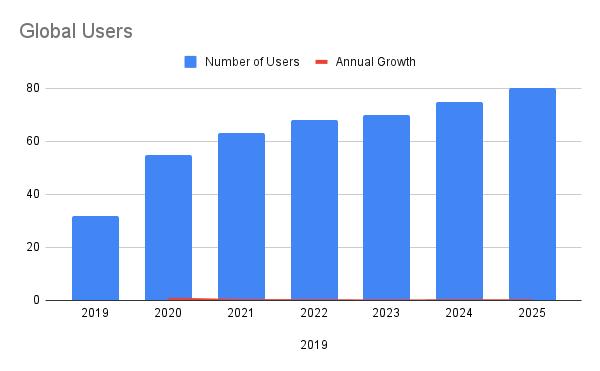
This rapid growth indicates that more users than ever are choosing Amazon Music as their primary streaming service—but increased adoption also brings new challenges.
1.2 Problems Real Amazon Users Are Facing
However, as the Amazon Music user base continues to expand, more listeners have begun reporting a range of issues across different devices, subscription tiers, and usage scenarios. These complaints frequently surface on app stores, forums, and community platforms, highlighting gaps between user expectations and real-world experience.
Based on aggregated user feedback, the most commonly reported problems fall into the following categories:
Distribution of Common Amazon Music User Complaints
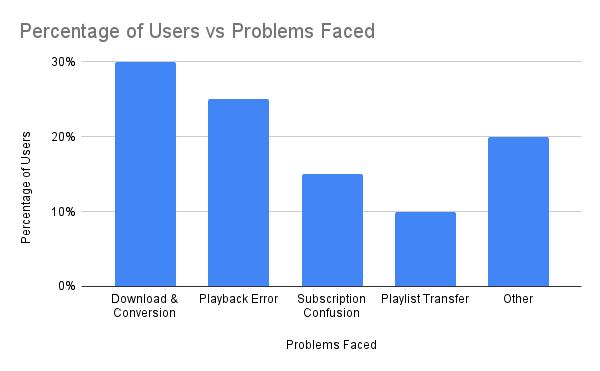
These numbers reveal a clear pattern: while Amazon Music performs well as a streaming platform, users increasingly struggle with offline access, playback stability, and subscription transparency—especially when compared with competitors like Spotify and Apple Music.
In the next section, we’ll break down these issues in detail and explain why they occur—and how to fix them effectively.
1.3 Major Issues Amazon Music Users Commonly Encounter
As Amazon Music continues to grow, users increasingly search for solutions to limitations that affect offline listening, device compatibility, and subscription control. Below are the six most common Amazon Music problems in 2026, summarized for quick understanding.
Amazon Music uses DRM protection, which means downloaded songs are encrypted and can only be played inside the Amazon Music app. Files cannot be saved as standard formats like MP3 or FLAC or transferred to other devices.
Offline downloads are device-specific, and syncing between phones, desktops, cars, and smart devices is less seamless than on Spotify or Apple Music.
Amazon Music plans are split between Free, Prime, Unlimited, and Student tiers, often bundled within a broader Amazon account, making upgrades and cancellations harder to locate.
Amazon Music does not support collaborative playlists and offers limited options for exporting or transferring playlists to other streaming platforms.
Users frequently report playback failures, offline tracks not loading, or app freezes—especially on mobile devices and the web player.
Compared with other streaming services, Amazon Music offers fewer audio customization options, including limited EQ controls and personalization features.
These limitations explain why many users search for workarounds—such as converting Amazon Music for offline use or transferring playlists—topics we’ll cover in the next sections.
Part 2. Download & Convert Amazon Music to MP3 or FLAC
As discussed earlier, many Amazon Music users look for ways to keep songs permanently, play them offline without restrictions, or use them across multiple devices. This is why converting Amazon Music to MP3 or FLAC has become a common solution in 2026.
Below, we’ll compare the best Amazon Music converters, walk through a step-by-step conversion guide, and explain different download options based on audio quality and usage scenarios.
2.1 Why Amazon Music Downloads Are Restricted
Amazon Music uses DRM (Digital Rights Management) to protect its content. This means:
- Downloads only work inside the Amazon Music app
- Files cannot be transferred or shared
- Offline playback requires an active subscription
To get true offline files, you’ll need an Amazon Music converter.
2.2 Best Amazon Music Converters (2026 Updated)
If you want to convert Amazon Music to MP3 or FLAC, these tools are the most reliable options in 2026:
Amazon Music Converter Comparison Table (2026)
Why Mediaio stands out: It combines lossless output, high-speed batch conversion, and a built-in Amazon Music web player, making it beginner-friendly and efficient for large playlists.
2.2 How to Convert Amazon Music to MP3 or FLAC
Many users choose to convert Amazon Music so they can:
- Play songs on any device
- Keep music permanently after subscription ends
- Avoid app, region, or WiFi restrictions
Below is a simple step-by-step example using Mediaio Audio Converter. Step-by-Step: Convert Amazon Music to MP3 or FLAC
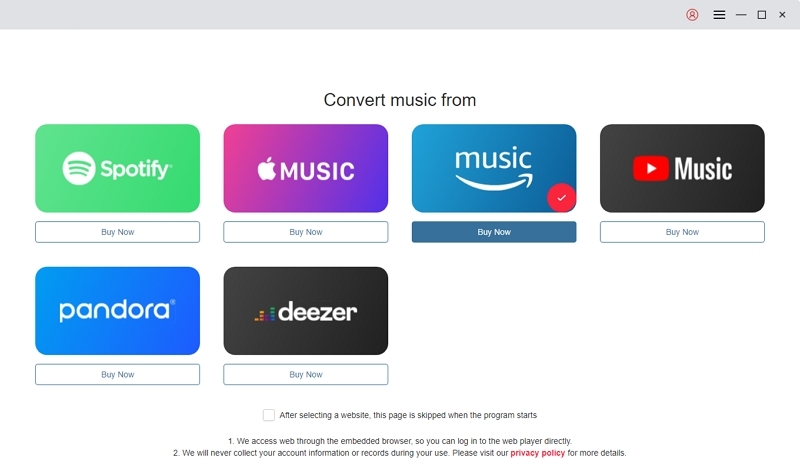
Step 1: Launch Mediaio Audio Converter
Open the software on your computer.
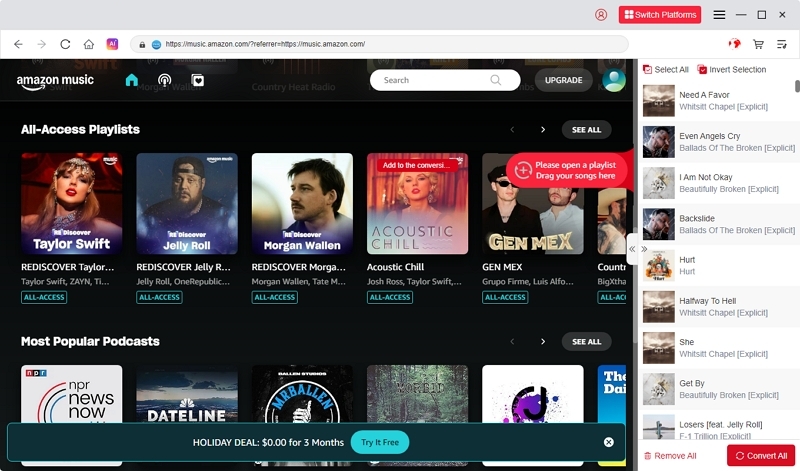
Step 2:Sign in to Your Amazon Music Account
Use the built-in Amazon Music web player to log in securely.
Step 3: Paste the Song or Playlist Link
Copy the Amazon Music track, album, or playlist URL and paste it into the converter.
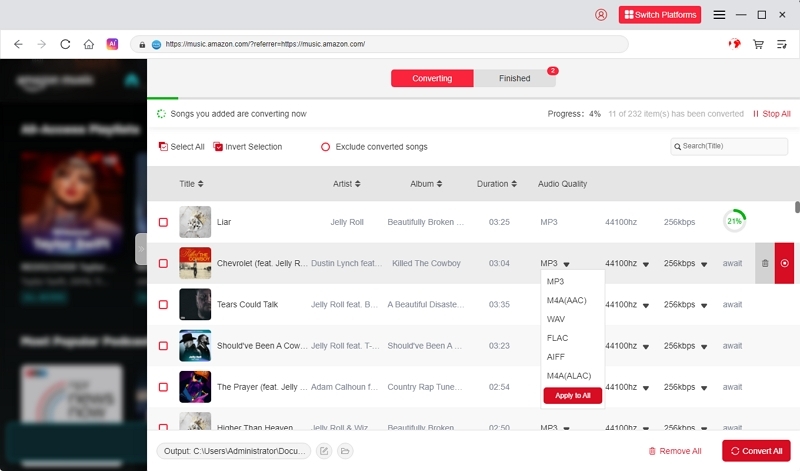
Step 4: Choose Output Format
Select MP3 for compatibility or FLAC for lossless audio quality.
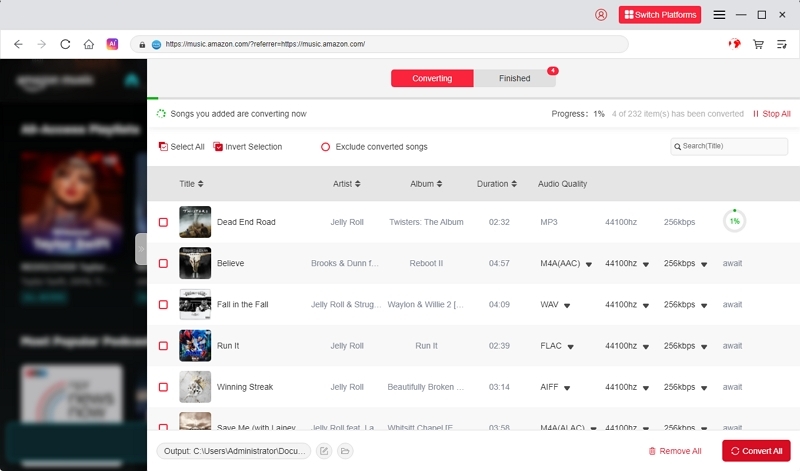
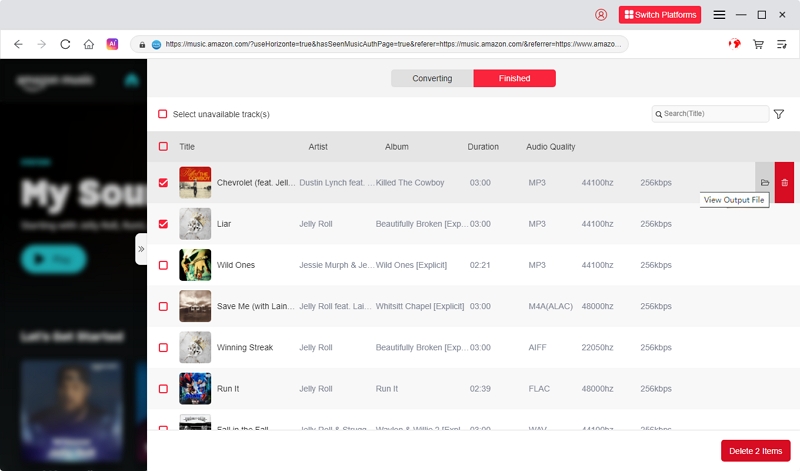
Step 5: Click “Convert”
The songs will be saved locally for offline playback.
An online converter is convenient for quick conversions, but desktop converters are usually more stable when handling playlists and lossless audio formats.
2.3 Download Options and Audio Quality Tips
Depending on how you listen to music, there are several ways to download Amazon Music—each with different limitations.
Method 1. Amazon Music Download 320kbps (HD & Ultra HD Quality)
Amazon Music offers multiple audio quality levels:
Who can access this: Amazon Music Unlimited users.
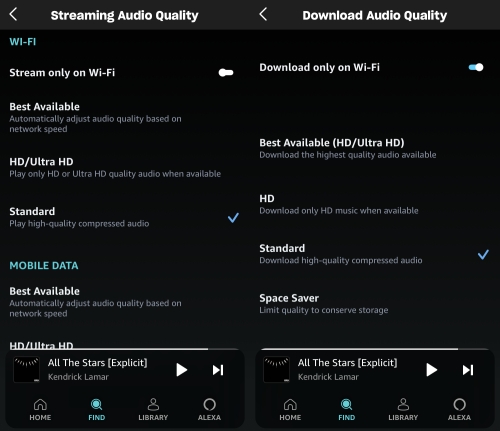
How to enable high-quality downloads (Amazon Music App):
1. Open the Amazon Music app and go to Settings.
2. Select Streaming Audio Quality or find Audio Quality in Advanced Settings
3. Now, select HD or Ultra HD as per your convenience. Note that you'll have to change this separately for mobile data and WiFi.
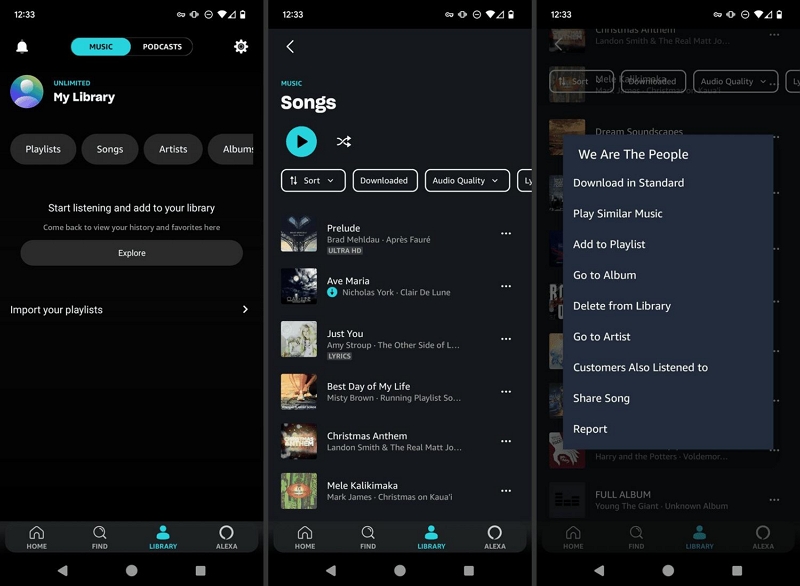
Method 2. Amazon Music Download for Offline Within App
This is the official offline method provided by Amazon Music.
Steps:
- Open Amazon Music app
- Find a song, album, or playlist
- Tap Download
Limitations:
- Files are encrypted
- Only playable inside the Amazon Music app
- Cannot be transferred or backed up
Best for: Prime or Unlimited users who only need temporary offline listening.
Method 3. Amazon Music Download Without WiFi / Without App
If you want to listen offline without using the Amazon Music app, a converter like Mediaio Audio Converter is a practical solution.
Why this works:
1. Converts Amazon Music links into MP3 or FLAC
2.Files can be played without WiFi
3. No app or subscription dependency after conversion
Method 4. How to Save Purchased Music from Amazon
This method applies to music you’ve purchased, not streaming content.
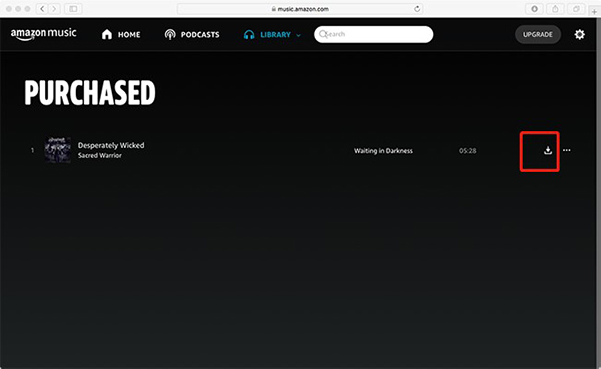
Option 1: Using a Web Browser
- Go to Amazon Music Library
- Open Purchased Music
- Click Download next to each song or album
Option 2: Using the Desktop App
- Install Amazon Music for Desktop
- Sign in and open Purchased section
- Download songs to your computer
Purchased tracks are usually provided as MP3 files and do not contain DRM.
Part 3. Download Amazon Music on Any Device
Amazon Music works across phones, computers, smart devices, and car systems—but download methods, storage locations, and limitations vary widely by device. This section breaks things down clearly so users can find the right solution fast.
3.1 Download Amazon Music On Mobile Devices
Download Amazon Music on iPhone
On iPhone, Amazon Music can be downloaded either for offline playback inside the app or transferred as MP3 files after conversion.
Quick overview:
- Install the Amazon Music app from the App Store
- Sign in with your Amazon account
- Tap Download on songs or playlists (offline use only)
For users who want to keep music permanently or transfer files:
- Convert Amazon Music to MP3 on a computer
- Transfer files to iPhone via iTunes or Finder
For a detailed plan, please refer to the article: Save Amazon Music on iPhone.
Download Amazon Music on Android
Android offers more flexibility, especially for local file storage.
Quick overview:
Download songs in the Amazon Music app for offline listening
Offline files are encrypted and app-only
For permanent storage:
- Convert Amazon Music to MP3/FLAC
- Transfer files to phone storage or save to SD card
Detailed guide: download Amazon Music to Android
Download Amazon Music on Samsung (Detailed Steps)
Samsung users often want to know where downloaded Amazon Music files are stored.
Step 1: Open Amazon Music and download songs
Step 2: Files are saved internally and cannot be accessed directly
Step 3: Default storage path (system level): /Android/data/com.amazon.mp3/files/music
Note: Due to Android system restrictions, these files are encrypted and not playable outside the app.
Tip: To freely manage music files on Samsung devices, convert Amazon Music to MP3 first, then copy files to internal storage or SD card.
Where to find your Amazon Music downloads
3.2 Download Amazon Music on Desktop and Storage Devices
Now, let's see how you can download the app on your desktop, Windows, and Mac.
Way 1. Download Amazon Music on Windows
Using the Amazon Music for Windows desktop app:
Step 1: Install Amazon Music for Windows
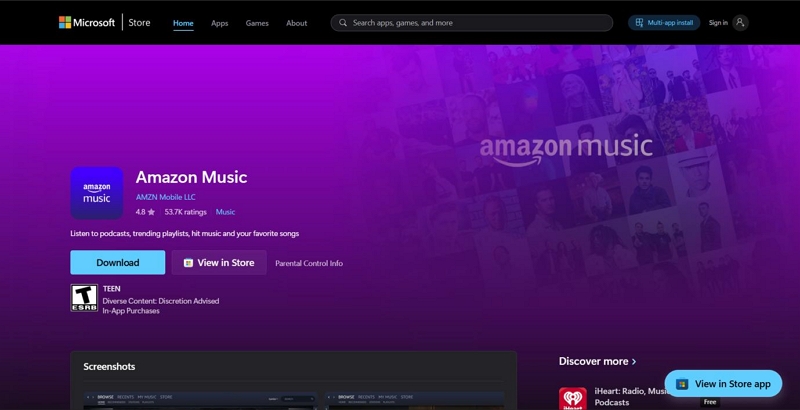
Step 2: Sign in to your account
Step 3: Choose songs or playlists. Click Download for offline playback
Limitations:
- Downloads are encrypted
- Files cannot be copied or exported
Way 2. Download Amazon Music on Mac
Mac users can download music via the desktop app or browser, but the same restrictions apply.
Quick overview:
- Install Amazon Music for macOS
- Download songs for offline listening
- Files remain app-locked
Storage & File Compatibility Comparison
3.3 Download & Use Amazon Music on Smart and Car Devices
In this section, let's take a look at how to use Amazon Music on smart devices such as an Apple Watch and car systems, including CarPlay/Android Auto.
Method 1. Play Amazon Music on Apple Watch
Functional scenarios:
- Control playback from iPhone
- Listen offline (Prime / Unlimited users)
- Stream directly on cellular models
Steps
Step 1: Open the Apple Watch app and go to My Watch. Go to available apps and find Amazon Music.
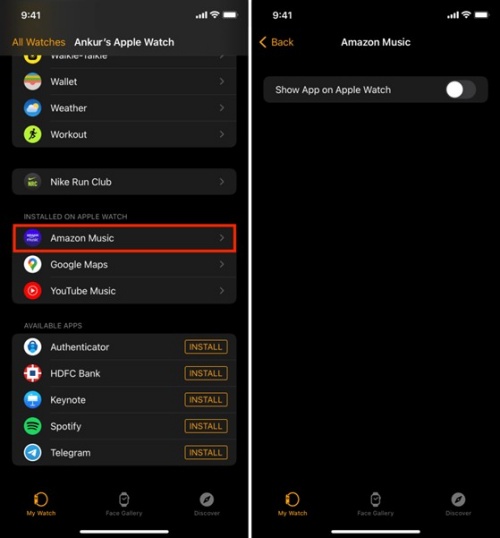
Step 2:Now, tap install, and the Amazon Prime will be available on Apple Watch once it has been downloaded.
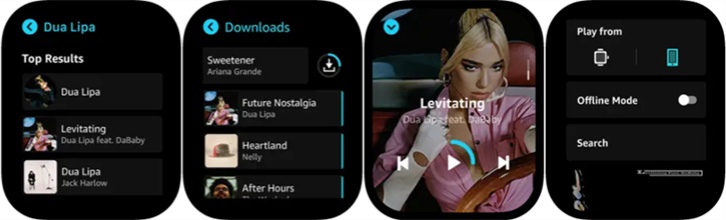
Step 3: Once installed, log in using your credentials, and you can access your library of music.
Limitations:
- Offline storage is limited
- Audio quality depends on device and network
Method 2. Amazon Music Car Mode Overview
Being focused on the road and not your phone is crucial when you’re driving. To keep users safe while on the road, Amazon Music has a Car Mode that offers larger text, hands-free control, and bigger buttons to help users play music safely.
To manually launch Car Mode (to be done before starting to drive):
Step 1: Open the Amazon Music app on your phone.
Step 2: Select the menu icon in the top right corner.
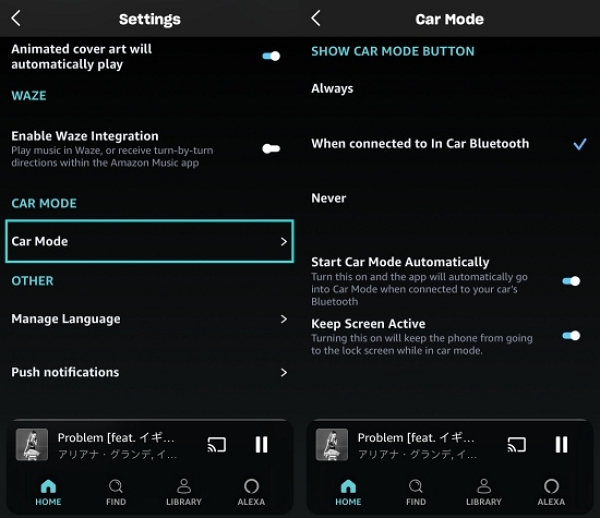
Step 3: Select "Car Mode"; tap the exit button on the top left corner to exit the mode.
If you prefer deeper integration with your vehicle, check out the Amazon Music CarPlay and Android Auto setup guide below.
Part 4. Manage Amazon Music Subscription & Payments
Amazon Music subscriptions are closely tied to your Amazon account, which often leads to confusion around plan differences, unexpected charges, and cancellation paths. This section explains each plan clearly and shows how to cancel or fix billing issues step by step.
4.1 Understanding Amazon Music Subscription Plans
Amazon Music currently offers four main plans. Each one differs in price, features, and audio quality.
Amazon Music Plans Comparison
Key notes users often miss:
1. Amazon Music HD is now included with Unlimited (no separate HD fee)
2. Prime Music does not offer full on-demand playback
3. Student plans require periodic eligibility verification
4.2 How to Cancel or Unsubscribe from Amazon Music
Many users think they’ve canceled Amazon Music—only to be charged again. That usually happens because the wrong platform or account page was used.
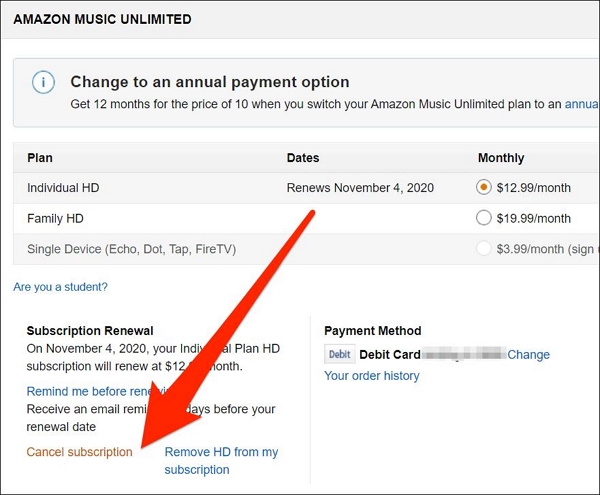
Method 1. Cancel Amazon Music Unlimited (Browser or App)
Steps:
- Go to Amazon Account → Memberships & Subscriptions
- Select Amazon Music Unlimited
- Click Cancel Subscription
- Confirm cancellation
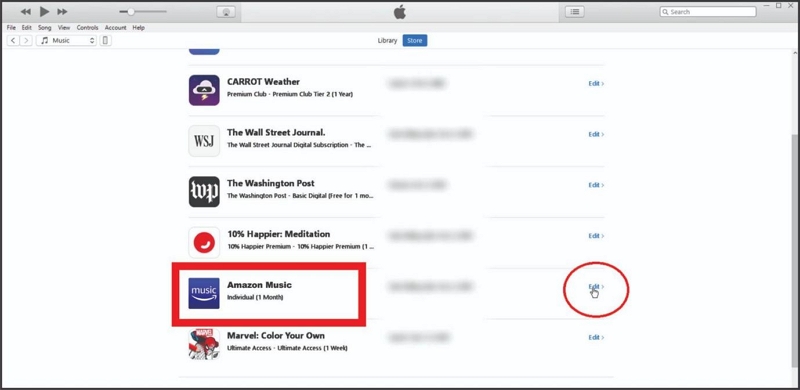
Method 2. How to Cancel Amazon Music on iPhone (via iTunes)
If you subscribed through the App Store, cancellation must be done via Apple.
Steps:
- Open Settings on iPhone
- Tap your Apple ID → Subscriptions. Select Amazon Music
- Tap Cancel Subscription
Troubleshooting: Why Am I Being Charged for Amazon Music?
Common reasons users are charged unexpectedly:
- Free trial expired
- Subscription tied to a different Amazon account
- Add-on subscription (Family / HD legacy) still active
Billing issue explanation: charged for amazon music.
Quick Summary: How to Unsubscribe Amazon Music Safely
Before closing your account:
✔ Confirm which plan you’re on
✔ Cancel from the correct platform (Amazon vs Apple)
✔ Check confirmation email
✔ Download or convert music you want to keep
Part 5. Playlists, Sharing & Amazon Music Management
As your Amazon Music library grows, playlists quickly become the core of your listening experience. Knowing how to create, organize, share, export, and transfer playlists helps you save time and enjoy music the way you want.
5.1 Create, Sort, and Manage Amazon Music Playlists
Why playlist management matters
Without proper organization, playlists can become messy—especially when shuffle is always on or tracks aren’t sorted logically. Smart playlist management improves discovery, workouts, driving, and mood-based listening.
How to manage playlists on Amazon Music
- Open Amazon Music
- Find a song → Tap More (⋮)
- Select Add to Playlist → Create a new one
2. Sort playlists alphabetically
Amazon Music doesn’t auto-sort playlists by default.
3. Collaborative playlists (what’s possible)
Amazon Music currently offers limited collaboration features compared with Spotify.
4. Turn off shuffle (a common frustration)
Shuffle is often enabled automatically, especially for Prime users.
Sample playlist ideas: Amazon Music Christmas Playlist; Amazon Gym Mix
; Chill Focus Playlist; Long Drive Favorites
5.2 Download and Export Amazon Music Playlists
1. Download playlists for offline listening
Official downloads are available for Prime and Unlimited users.
How it works:
- Open a playlist
- Tap Download
- Play offline inside the Amazon Music app
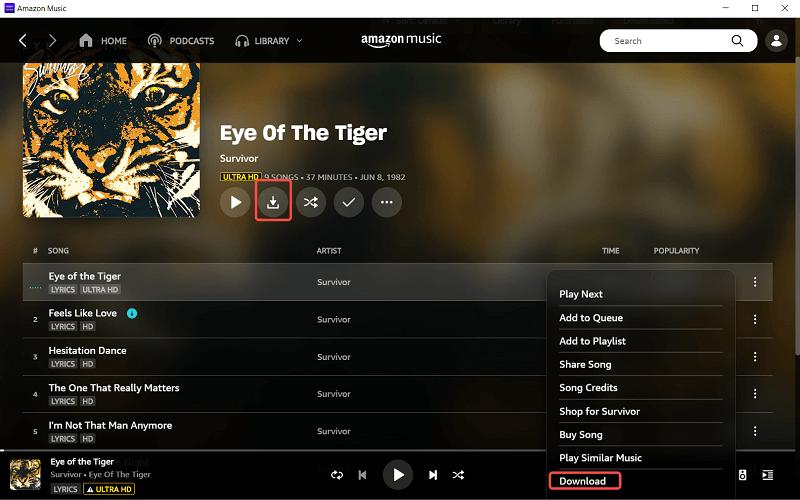
These files are encrypted and cannot be exported.
2. Share and export Amazon Music playlists
Share playlists
- Tap More (⋮) on a playlist
- Choose Share
- Send link via message or social apps
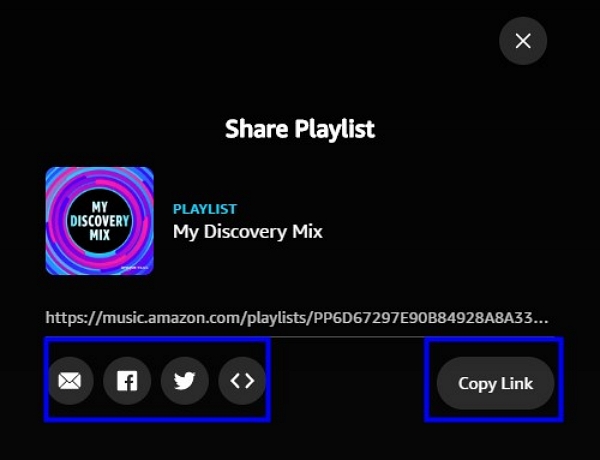
Unfortunately, Amazon Music share playlist options are quite restrictive, and you can’t export them any other way.
Export playlists (MP3 / cross-platform use)
To truly export a playlist, users typically:
- Convert Amazon Music playlists to MP3
- Or transfer playlists to other platforms
5.3 Transfer Amazon Music Playlists Between Platforms
Many users switch between streaming services but want to keep their playlists intact. Transferring playlists can save hours of rebuilding them from scratch.
Why transfer playlists?
- Switching from Spotify, Apple Music, or YouTube Music to Amazon Music
- Backing up playlists for multi-device use
- Sharing playlists across services
Playlist transfer tools comparison (example)
Playlist transfer tools have different limits, supported platforms, and free quotas. Choose a tool based on the music service you are transferring from and the destination platform.
Mini Tutorial: Transfer Amazon Music to Spotify (via Soundiiz)
To show you how easy it is to move a playlist from Amazon Music to Spotify, here is a mini tutorial on transferring songs using Soundiiz:
Step 1: Go to Soundiiz.com and log in to both Spotify and Amazon Music.
Step 2: Choose the playlist you want to transfer from one service to another and choose the source and destination carefully.
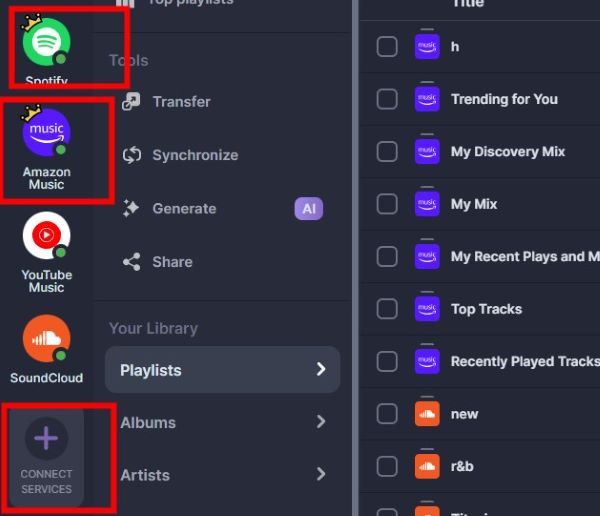
Step 3: Click Start Transfer
Part 6. Fix Amazon Music Errors & Not Working Issues
Even though Amazon Music is widely used, playback and download errors are among the most searched problems in 2026.
6.1 Amazon Music Playback & Download Problems
Common questions users ask
- Why is Amazon Music not playing songs?
- Why won’t my playlist load?
- Why can’t I download music anymore?
Common issues and solutions
6.2 Advanced Fixes (When Nothing Else Works)
If basic troubleshooting doesn’t solve the issue, try a clean reset.
Steps:
- Open Amazon Music
- Go to Settings → Storage
- Tap Delete All Downloads
- Restart the app
Additional options:
- Clear Amazon Music cache
- Sign out and back in
- Reinstall the app
These steps resolve most persistent playback and download issues.
Part 7. Advanced Features & Customization
Amazon Music offers several advanced features that can enhance your listening experience, from offline playback to personalized audio and uploading your own files.
7.1 Use Amazon Music Offline Mode
Offline Mode lets you listen without an internet connection, perfect for travel or low-network areas.
How to enable:
- Open Amazon Music → Settings
- Toggle Offline Mode on
Songs downloaded for offline use may require renewal every 30 days to remain playable.
7.2 Customize Audio & Remove Ads
Personalize your sound
- Go to Settings → Amazon Music Equalizer
- Adjust bass, treble, and overall EQ to your preference
Guide: Amazon Music Equalizer
Remove Ads
- Upgrade to Amazon Music Unlimited
- Or switch to Offline Mode
7.3 Upload & Manage Personal Files
Upload your local music to Amazon Music
- Open Amazon Music app (desktop)
- Go to Settings → Automatically Import Music From
- Select the folder containing your songs
- Refresh the app → songs appear in your library
Part 8. FAQ: Everything About Amazon Music Download & Playback
How do I download my entire Amazon Music library?
You cannot download the entire library at once. Options:
- Add all songs to a single playlist → download playlist
- Download albums manually
Where are my Amazon Music downloads saved?
Your Amazon Music downloads are saved locally on the device you’re using the app on. By default, this is set to a specific path in the root of storage that you can view in the table above.
Why can’t I play downloaded songs offline?
You might be unable to play downloaded songs offline if your subscription has expired, you haven't gone online in more than 30 days on Amazon Music, or if your app is glitching. To solve these issues, turn off offline mode, check your subscription status, and restart the app or clear the cache.
Conclusion
By now, you should have a complete understanding of Amazon Music:
- How to download, convert, and manage playlists
- How to transfer playlists between platforms
- How to fix errors and optimize playback
- How to customize sound, remove ads, and upload personal files
Songs downloaded through the official Amazon Music app can only be played within the app. To get files you can listen to offline on any device or share freely, you can use a third-party tool like Mediaio Audio Converter, which supports high-quality MP3 and FLAC output.
This guide ensures that whether you’re a casual listener or power user, you can maximize your Amazon Music experience on any device.