

Amazon Music supports offline listening, but downloads are limited to the official Amazon Music app. This can be inconvenient if you’re using a device that doesn’t support the app, have limited storage space, or want to manage your music files more freely.
In practice, whether you can download Amazon Music without the app depends on how the music is obtained. Some content can be downloaded officially, while other scenarios rely on third-party solutions that Amazon does not support.
This guide explains all realistic options available in 2025, clearly distinguishing between Amazon-supported methods and third-party workarounds. It also outlines the limitations, potential risks, and suitable use cases for each approach, so you can make an informed decision based on your needs.

Three Possible Scenarios
Scenario 1: Downloading Amazon Music (DRM-free)
Amazon Music officially supports downloads when you buy individual tracks or albums from the platform. These files are DRM-free and can be saved directly to your device as standard MP3s.
Scenario 2: Downloading Amazon Music Prime / Unlimited Tracks as MP3
Amazon Music Prime and Unlimited subscribers can download songs for offline playback, but only within the Amazon Music app. These tracks are protected by DRM and cannot be downloaded as standard MP3 files through official channels.
Some users choose to rely on third-party desktop tools to convert streamed content into common audio formats. It’s important to note that this approach is not supported by Amazon, and availability, quality, and compliance depend entirely on the tool and local regulations.
Scenario 3: Downloading Amazon Music via Online Tools
Online converters or recorders can capture Amazon Music streams and save them as MP3s. However, Amazon does not support this method. Therefore, the legality and the quality of the downloads depend entirely on the third-party solution.
In short,
- Purchased Music = Officially downloadable DRM-free MP3s
- Prime/Unlimited and online tool downloads = Require third-party converters
That brings us to the question of whether you can download Amazon Music without the app.
Can You Download Amazon Music Without the Amazon Music App?
Yes — but only in specific situations.
✔ Purchased Amazon Music tracks are provided as DRM-free MP3 files and can be downloaded directly through a web browser.
✖ Amazon Music Prime and Unlimited tracks cannot be officially downloaded without the app. Offline access is restricted to the Amazon Music application.
✔ Some third-party tools can record or convert Amazon Music streams into MP3 files. These methods are not supported by Amazon and should be used with an understanding of applicable laws and Amazon’s Terms of Service.
Method 1: Download Purchased Amazon Music Without the App (Via Browser)
Download newly purchased songs (DRM-free)
Prerequisites
- Confirm the purchase. The track/album should show as “Purchased” in your Amazon account.
- You can download via the Amazon Music web player (desktop) or the Amazon “Digital Orders” page.
- Keep a destination folder ready for saving your MP3s.
On Desktop:
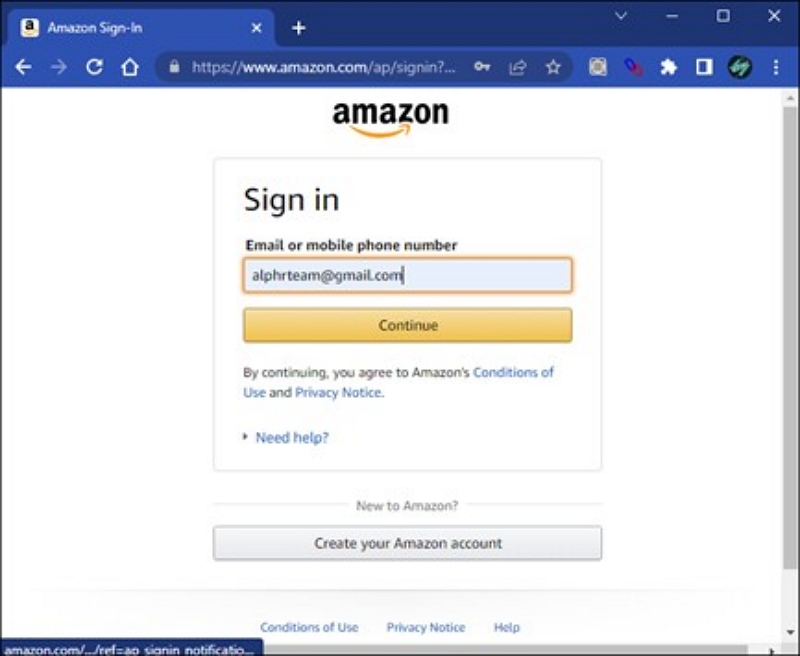
Step 1: Sign in to your Amazon account.
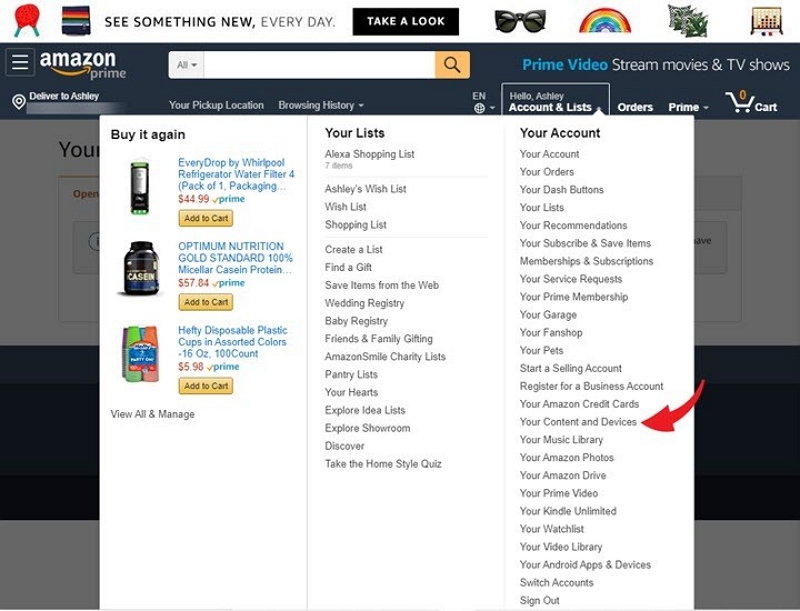
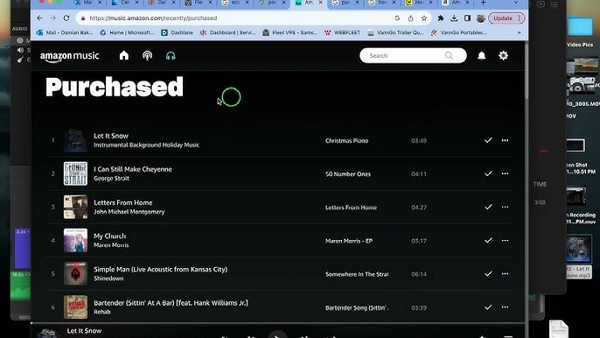
Step 2: Go to Library > Purchased to see your newly purchased songs.
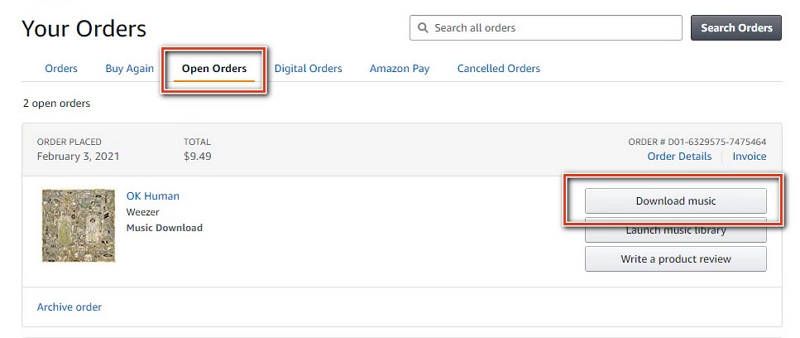
Step 3: Click on the album or track you want to download.
Step 4: Click “Download” to save the DRM-free MP3s to your PC.
Step 5: Select your preferred folder. Otherwise, the files are saved to the default Downloads folder.
Step 6: Open the MP3s in your media player.
Download previously purchased MP3 files.
Step 1: Sign in to your Amazon account.
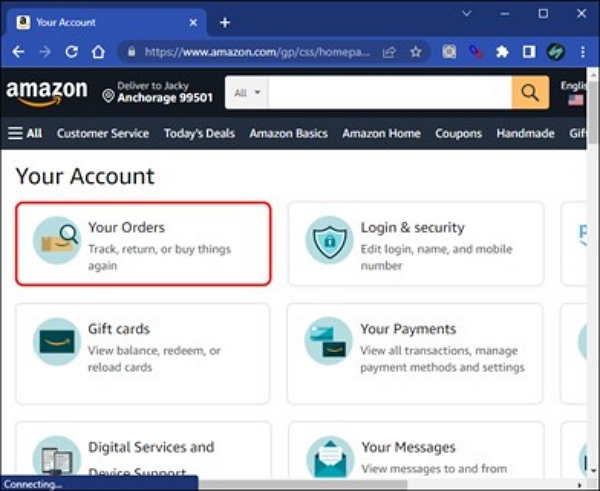
Step 2: Go to “Your orders” > Digital orders
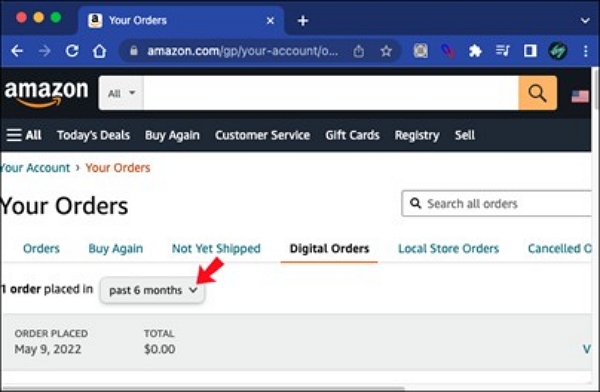
Step 3: Locate the music purchase and click “View order details.”
Step 4: Click the provided download link to save the MP3 files.
Note: Files download as MP3, DRM-free.
Accessing Amazon Music Prime/Unlimited Content Outside the App (Third-Party Tools)
If you subscribe to Amazon Music Prime or Unlimited, official downloads are restricted to the Amazon Music app. Users who need greater flexibility—such as playing music on unsupported devices or maintaining a local library—sometimes turn to third-party audio conversion software.
Below is an example workflow using a desktop audio converter to illustrate how these tools typically work. This is for informational purposes only and does not imply endorsement or official support from Amazon.
Example: Desktop Audio Conversion Software
Desktop audio converters are designed to capture or process streamed audio and save it in common formats like MP3 or FLAC. Feature sets vary by tool and may include format selection, bitrate control, and basic metadata handling.
When choosing any third-party software, users should review privacy policies, licensing terms, and regional legal requirements before proceeding.
Method 3: Download Amazon Music Without App Using Online Tool (Web Converter)
Online web converters rely on third-party recording/extraction. Let’s see how they work.
- The tool plays the selected track in the browser and captures the audio stream in real time.
- The captured waveform is encoded to a typical format using a server-side or in-browser encoder.
- The title, artist, and cover are added from the page data or user input.
- The final file is available for direct download.
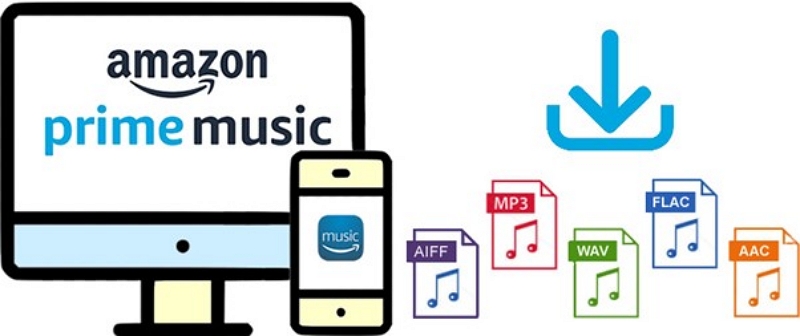
Preliminary Steps:
- Choose a reputable tool. Ideally, it should have clear privacy terms and no intrusive ads.
- Chrome or Edge is a stable desktop browser for audio capture.
- Unmute the system volume and browser tab volume to ensure the converter captures clean audio.
Step 1: Open Amazon Music on your web browser. Sign in and navigate to the track you want to convert.
Step 2: Start the converter in a separate tab. Select “Record tab/system audio” or “Convert from URL," depending on the feature set you need.
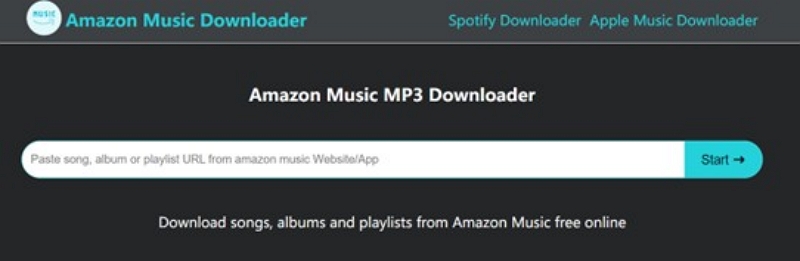
Step 3: Press Record/Capture in the converter. Play the song on Amazon Music immediately.
Step 4: Wait for the recording to be completed.
Step 5: Choose MP3 as the output format and a bitrate (128 to 320 kbps). Confirm the file name.
Step 6: Click “Download” and save the file to your music folder.
Comparison: Browser vs Converter vs Online Tool
Tips for Managing Downloaded Amazon Music
The following tips should help you manage your downloaded Amazon Music more effectively.
- Organize your music library
- Back up your files safely
- Enhancing playback experience across devices
FAQs
Conclusion
Amazon Music offers both officially downloadable MP3 purchases and subscription-based streaming with app-only offline access. If you need maximum flexibility, understanding the differences between these options is essential.
For users who want full ownership and long-term access, purchasing DRM-free MP3s remains the most straightforward and supported solution. Third-party tools may offer additional flexibility, but they also come with limitations, risks, and compliance considerations.
Choosing the right method depends on your device, usage scenario, and comfort level with third-party solutions.
Disclaimer: This article is for informational purposes only. Amazon Music trademarks and content belong to their respective owners. Users are responsible for complying with local laws and Amazon’s Terms of Service.