

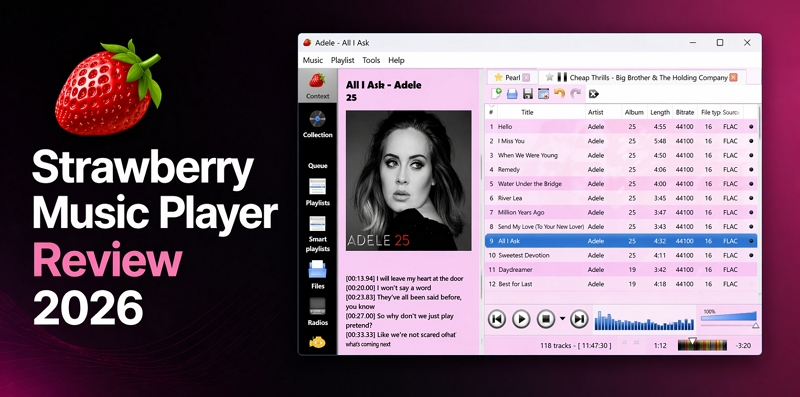
Strawberry started as a fork of Clementine over eight years ago. Even today, its GUI looks very similar. But underneath, Strawberry has become a much more capable music player and a proper music organizer.
So if you are looking for a local music player, Strawberry Music Player is worth considering, whether you are on Windows, macOS, or Linux. In this guide, we’ll discuss its features, how it manages your music, and whether it fits your setup. We will also explain why you will hit a paywall while installing it on some platforms and how you can still get it for free.

What Is Strawberry Music Player?
Strawberry is a heavy-duty desktop music player built for two things — high-quality audio playback and proper music organization.
On the playback side, the focus is on sound quality. Unlike general players like VLC, Strawberry tries to avoid extra processing when sending audio to your speakers, so what you hear will be closer to how the track was originally recorded.
Aside from playback, it is also a strong music organizer. You can throw in a large collection, even terabytes of music and it will scan, sort, and structure everything into a clean, searchable library.
Key Features and Highlights
Strawberry’s features do vary a bit depending on the platform and we’ll focus on that later. Here are the core highlights:
- Direct hardware audio output support (WASAPI, ALSA, PulseAudio), so you can listen to the songs exactly as they were recorded.
- Supports common formats like FLAC, WAV, MP3, OGG Vorbis, and AAC out of the box, so you don’t have to install extra codecs.
- Automatically adds missing metadata and artwork and shows you lyrics when available.
- Connects to services like Tidal, Qobuz, or Subsonic.
- Allows you to manage large libraries smoothly with features like smart playlists, filters, etc.
- Works like a proper desktop app with system tray support, shortcuts, and notifications.
- Includes core audio tools: 10-band equalizer, analyzer, and loudness normalization (EBU R128).
Is Strawberry Music Player Free?
Strawberry Music Player is released under the GPL, so it is free at its core. However, the latest builds of the software are placed behind a paywall on some platforms, through Patreon and GitHub Sponsors. On other platforms, it still remains completely free. Here’s what you need to understand.
Windows and macOS:
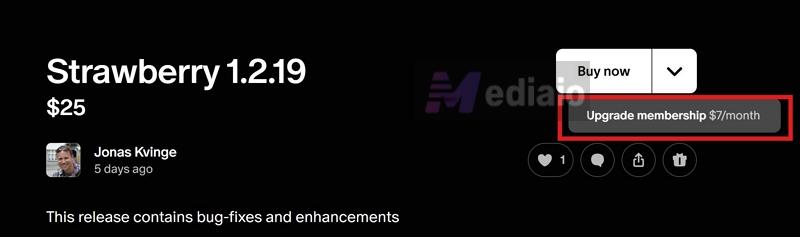
The newer builds on these platforms are available only through Patreon and GitHub Sponsors. The latest .exe and .dmg installers are placed there, and the base price to access them is US$7 per month.
That said, this US$7 is not truly recurring in the usual sense. You can pay US$7 once, download the software, and then cancel the subscription. The version you downloaded will keep working for as long as you want. You only need to pay US$7 again if you want access to a newer update in the future.
The newer builds are paid to cover ongoing costs. The developer (Jonas Kvinge ) notes that support hasn’t been consistent, while expenses like Apple signing, hosting, and maintaining installers continue to add up. You can also choose to support the developer with a higher amount.
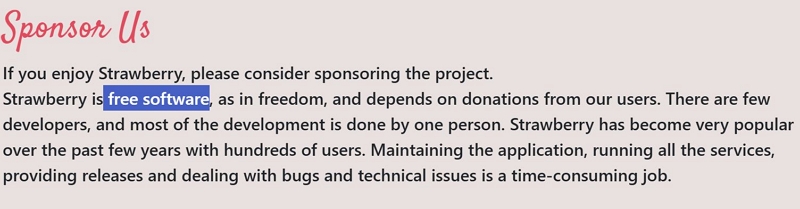
Just so you know if you’ve contributed to the project earlier, you can simply contact support at support@strawberrymusicplayer.org, and you will be grandfathered into the latest build without having to pay again.
Free Windows and macOS Versions of Strawberry Music Player:
You can still download older versions of SMP for free, but only through third-party sites. Here are a few options:
- NPACD (up to version 1.0.23) — Windows builds
- addons.videolan.org Strawberry Music Player page — Mac builds (also up to version 1.0.23)
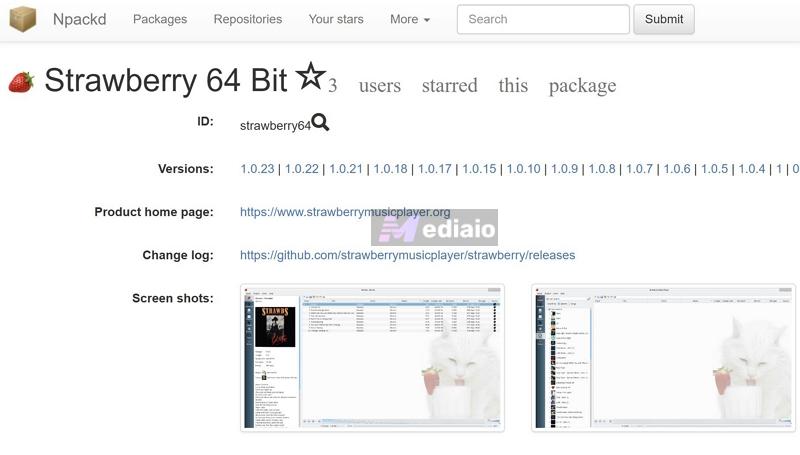
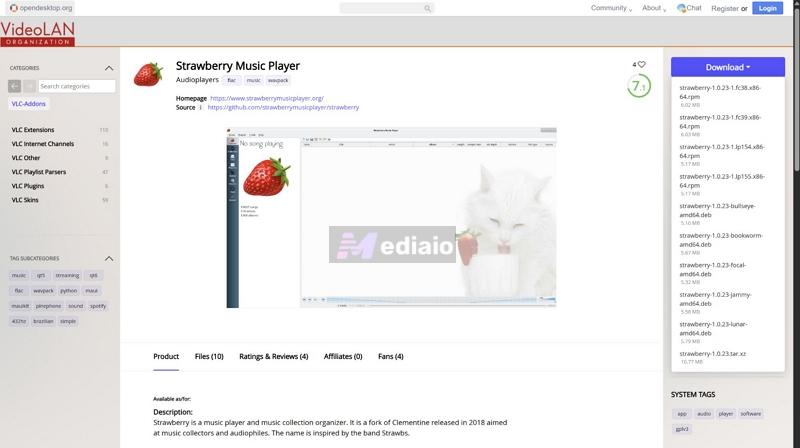
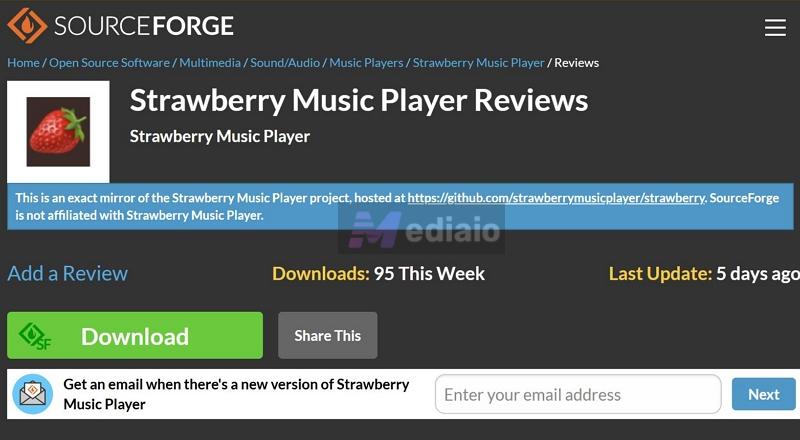
Other platforms like Uptodown may also host some builds, but those are often even older.
Just keep in mind that the developer advises against downloading from these unofficial sources, since they haven’t been updated in a long time and could be unsafe or modified.
Linux:
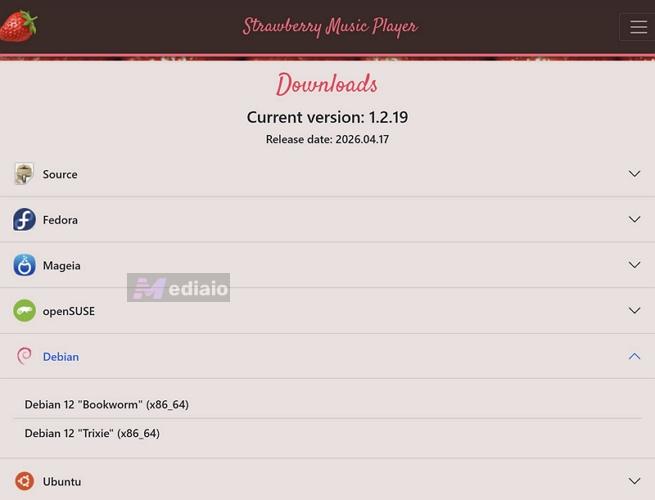
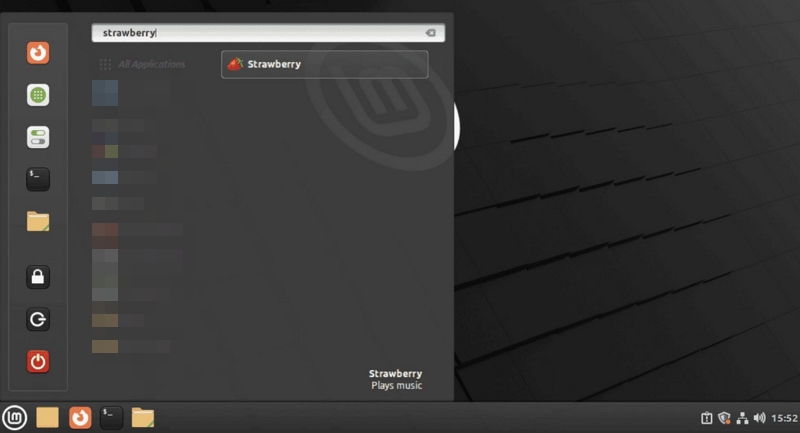
Strawberry remains completely free on all Linux distributions: Ubuntu, Fedora, Debian, openSUSE, and more. You can install the absolute latest version from your terminal or software center without paying anything.
How to Download and Install Strawberry Music Player
Strawberry Music Player isn’t available on the Microsoft Store or Mac App Store. So let’s see how to download and install it on Windows, Mac and Linux distributions.
Steps to Get Strawberry Music Player on Windows
The Windows build of Strawberry Music Player doesn’t feature Audio CD playback and external device support like syncing to mass storage, USB players, or iPods. So if you rely on ripping CDs or transferring music to older MP3 players, this music player cannot help. That said, here’s how to download it.
Step 1. Head to the official Strawberry Music Player website and open the Download section. Expand the Windows drop-down.
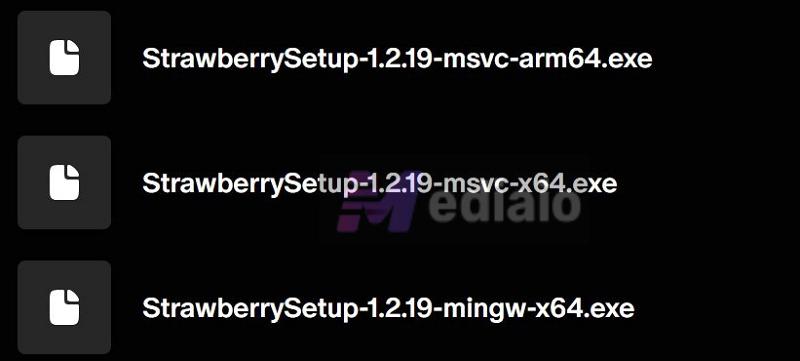
Step 2. You’ll see multiple versions listed. Choose based on your system:
- MSVC x64 — this is what most people need. Use this if you’re on a standard 64-bit Intel or AMD system.
- MSVC ARM64 — choose this only if you’re on an ARM-based Windows device (like Snapdragon-powered Surface devices).
- MinGW build — skip this unless you specifically know why you need it. It’s mostly for development or debugging use.
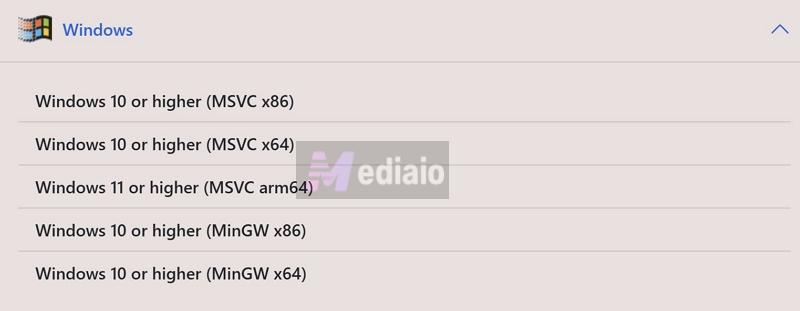
Step 3. Click on the version you need. You’ll be redirected to the developer’s Patreon page.
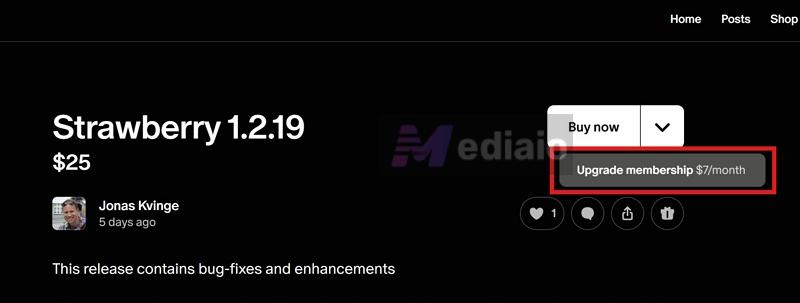
Step 4. On that page, you’ll see options like Buy now (US$25) or Upgrade membership (US$7/month). You can either support with a higher amount or choose the US$7 option to access the release.
Step 5. Complete the payment.
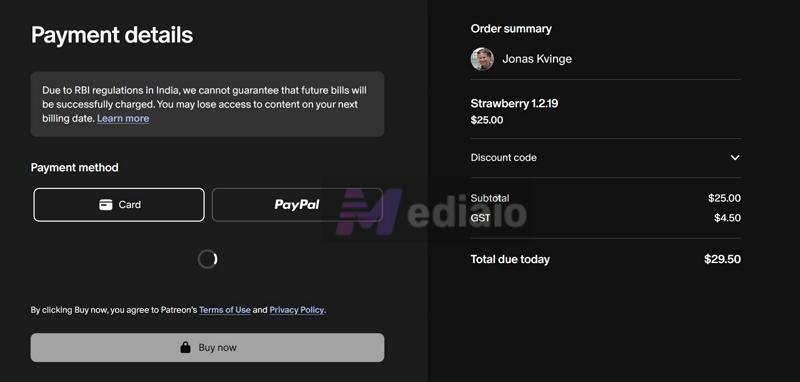
Step 6. You’ll get access to the installer files immediately. Download the .exe file based on the version you selected.
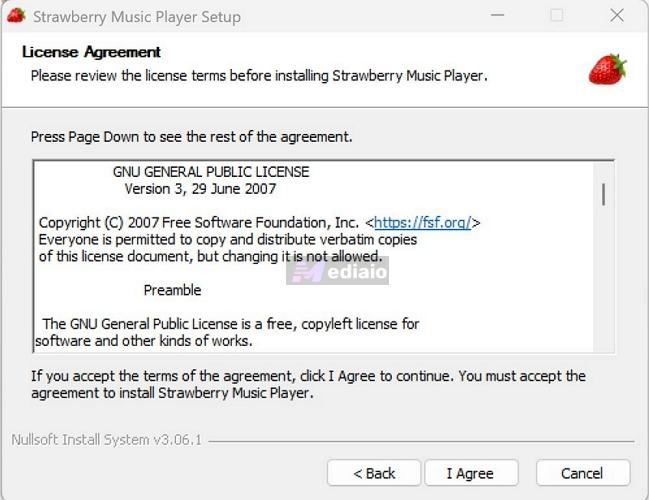
Step 7. Open the downloaded file. Follow the setup prompts to complete the installation. That’s it.
Guide to Set up Strawberry Music Player on Mac
Strawberry comes with a strict requirement — you must be running macOS 14 (Sonoma) or later to use it. On older macOS versions, the current builds can crash. Here’s how the installation works.
Step 1. Go to strawberrymusicplayer.org and open the macOS download section.
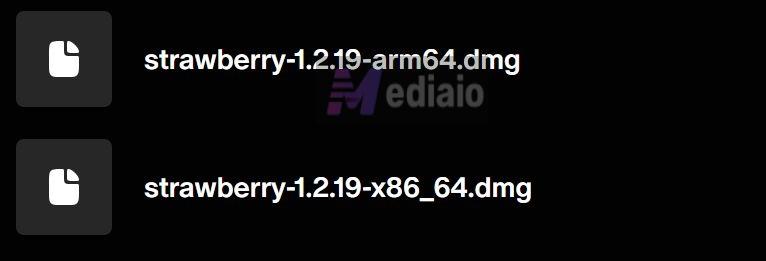
Step 2. Choose the correct build based on your processor:
- ARM64: modern Macs with Apple Silicon (M1, M2, M3, M4 chips).
- x86-64: older Intel-based Macs.

Step 3. Click on the selected version.
Step 4. Unlock the Patreon’s post using the US$7 membership or choose a higher support amount (like US$25) if you prefer.
Step 5. Download the .dmg file from the attachments.
Step 6. Open your Downloads folder. Double-click the .dmg file to mount it.
Step 7. A window will appear — drag the Strawberry icon into the Applications folder shortcut.
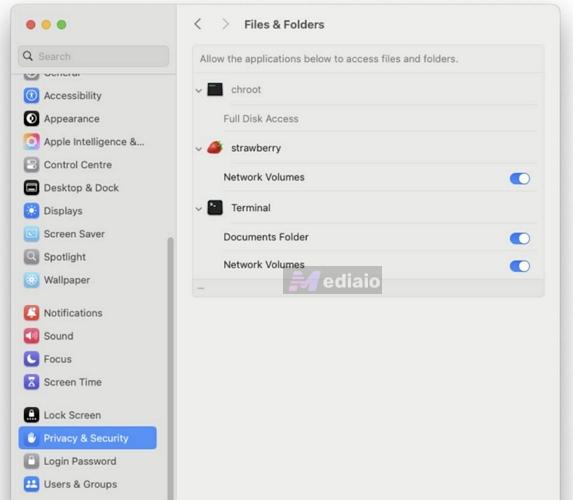
Note: macOS will show an “unidentified developer” warning since Strawberry comes from indie developers. Just open System Settings > Privacy & Security, then click Open Anyway next to the Strawberry warning.
While you’re inPrivacy & Security, also go into Files and Folders and turn on the toggle for Network Volumes under Strawberry. Without this, Strawberry will fail to read or scan certain folders, especially external or network locations.
That’s it. The app will install and run normally.
How to Download and Install Strawberry Music Player on Linux
Strawberry Music Player is at its best on Linux. It’s built around the native Linux audio stack (ALSA, GStreamer), so playback is very clean. Plus, it also keeps features that are missing elsewhere, like proper audio CD handling and broader device support, so if you care about full control, Linux is where it feels complete.
And the best part, you don’t deal with Patreon here. You can install it from the official site itself. Or if you prefer, go to GitHub, pkgs.org, AppImageHub, or your distro repositories. Or you can simply install from terminal, here’s how:
Step 1. Open your terminal.
Step 2. Add the official Strawberry repository: sudo add-apt-repository ppa:jonaski/strawberry
Step 3. Update your package list: sudo apt-get update
Step 4. Install Strawberry: sudo apt-get install strawberry
Optional: You can also install these components for better playback and compatibility: sudo apt-get install graphicsmagick-dbg xine-ui
Done, your system package manager will automatically download and install the latest version of Strawberry.
Strawberry Music Player: User Experience
On paper, Strawberry checks a lot of boxes. But that only tells part of the story. This section will break down the experience one part at a time — UI, audio quality, and everything else that actually affects day-to-day use.
UI
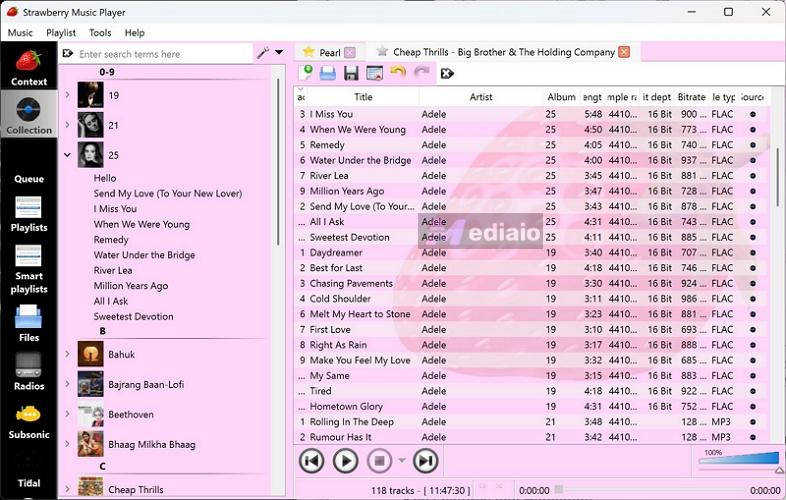
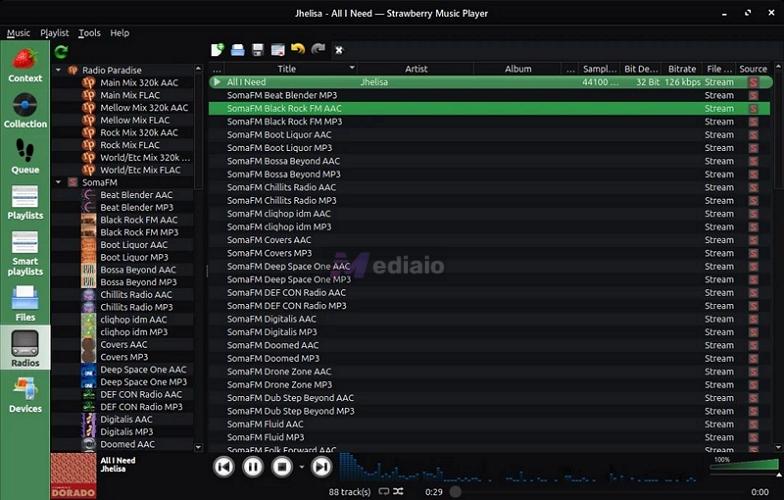
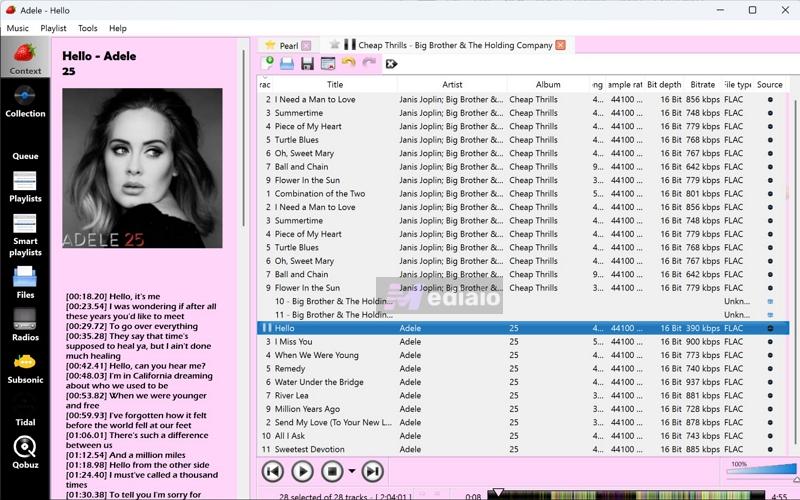
Strawberry is a direct fork of Clementine and it carries the same GUI forward. And just like Clementine, the focus here is performance, so working with large libraries stays smooth. You’ll notice this the moment you open Strawberry. It sticks to the classic music player UI with a two-panel layout. And you’ll either love it or have to get used to it, because that core structure will stay fixed. Yes, you can tweak smaller elements. But the overall layout isn’t customizable, not in the way foobar2000 or DeaDBeeF are.
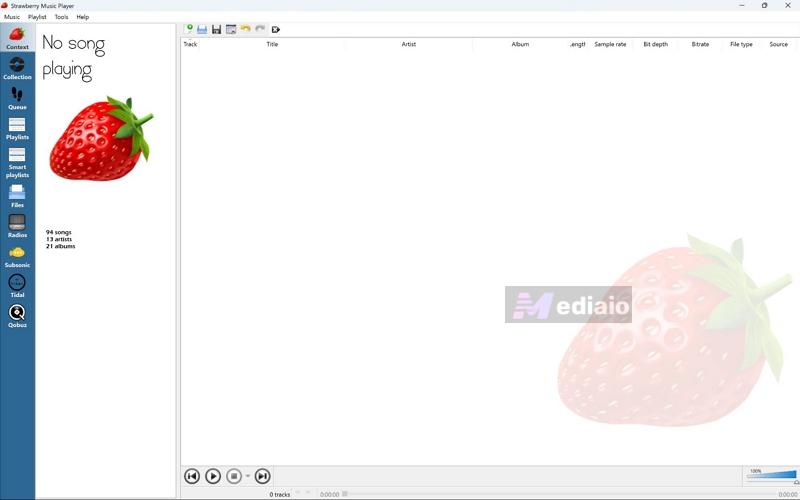
- On the left sidebar (the command center): You’ll see sections like Collections, Playlists, and Context (for artist info, lyrics, etc.) Connected services also appear here. So everything is always easy to navigate and switch between.
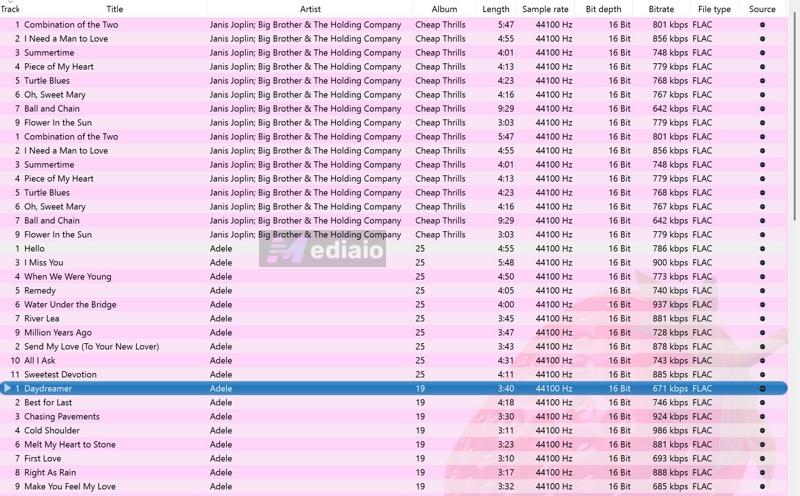
- On the right side (the data grid): Your selection appears as a table-based music library. It will show columns like title, artist, album, and bitrate. So you can sort and scan quickly.
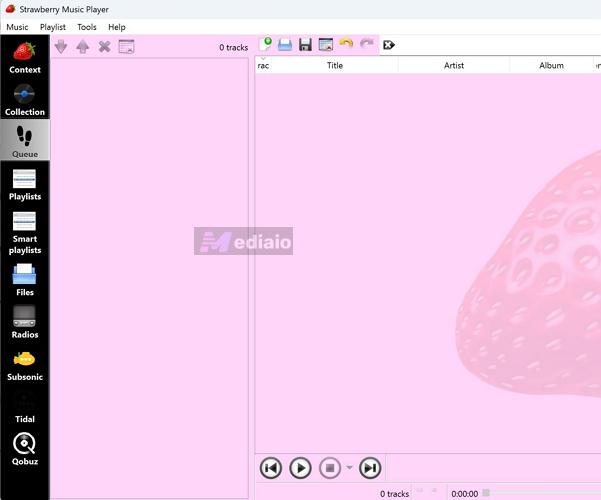
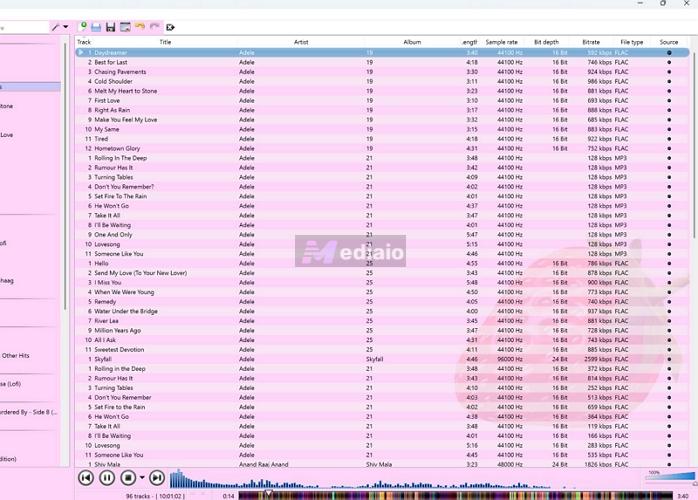
However, the UI isn’t completely rigid. You do get room to shape it. You can adjust colors and tweak icon sizes. You can also decide what appears in the background — album art, a default look, or even a custom image (yes, even something like a photo of your pet).
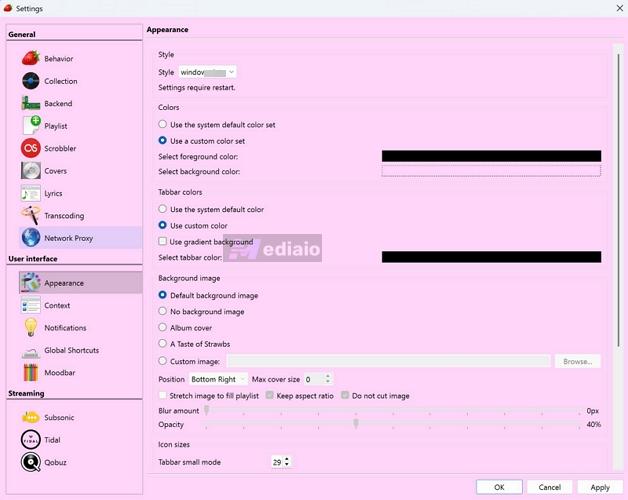
Its Linux builds let you even go further with themes and skins.
Add Music
Music organization is the second major strength here. Strawberry doesn’t really care how your folders are arranged on your computer, whether you’re on Windows or macOS.
Random downloads, badly named folders, scattered files across drives — all of that is ignored. Instead, it will only read the embedded metadata inside your files (ID3 tags, FLAC tags, etc.) and build a clean library around that. So even if your storage looks messy, your library inside Strawberry won’t.
Steps to Import Songs to Strawberry Music Player
Now, when it comes to adding music and actually listening, you get two ways to bring music into the player and they behave very differently. Here’s how it works.
Method 1. Add Files or Folders (Quick Playback)
To quickly listen to a folder on your computer, you can add it the same way you would in a regular player (like VLC). You’ll find a dedicated Files section in the sidebar. This lets you navigate to any folder on your system, for example, your Downloads. From there, just pick a folder or a few tracks and start playing immediately.
The other standard method is through the menu bar. For instance, if you’ve chosen to hide the Files from the sidebar, click Music > Open file or folder. Then select your tracks. It does the exact same job.
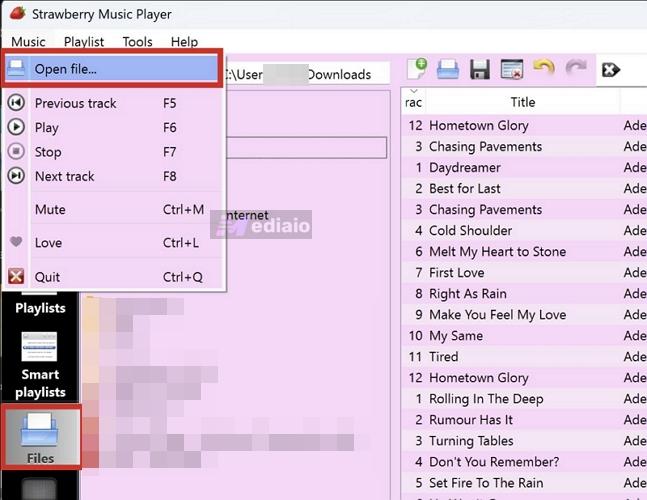
Now here’s the important part: in both cases, Strawberry is not indexing these files. It will not remember them but will simply load them for playback. You can listen to them once and they will be gone from the session once you exit.
And if you want to promote the folder into your library:
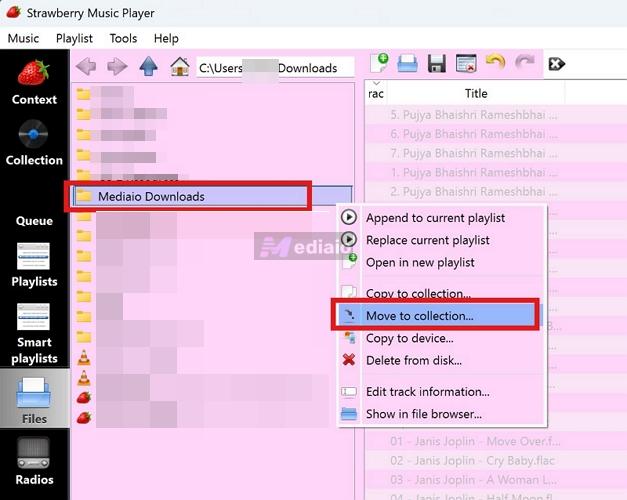
- Right-click on the file or folder.
- choose Move to collection or Copy to collection.
That’s when it will become part of your permanent collection.
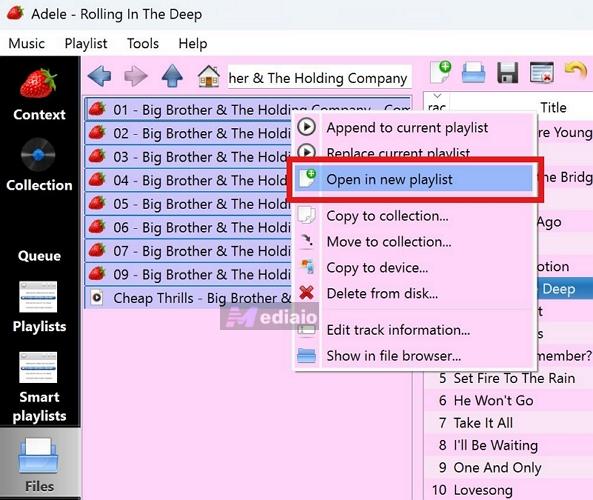
To Turn aFolder as a Playlist:
- Open the folder.
- Right-click the tracks or the folder.
- Choose Open in a new playlist.
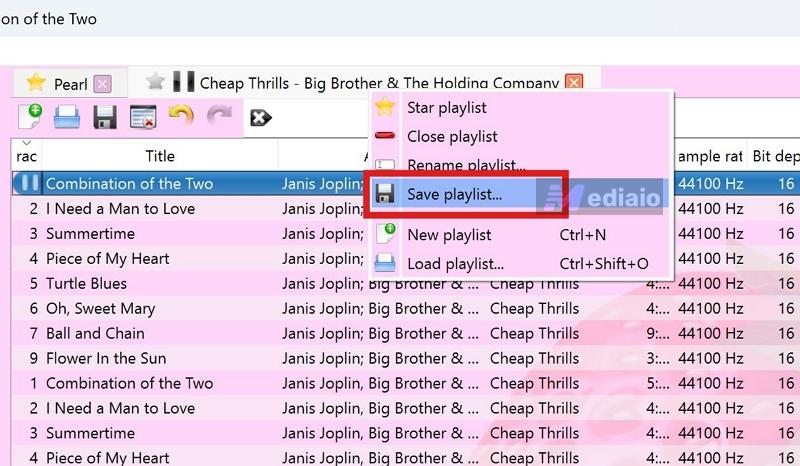
- Simply right click on the playlist tab, click Save playlists and choose the format. You can save that playlist as M3U, M3U8, PLS. etc., like for your MP3 player.
Method 2: Building Your Permanent “Collection”
If you want Strawberry to behave like a proper music library manager, this is how you do it. Once you add music this way, Strawberry will remember it going forward. It can also keep itself updated if anything changes in those folders. However, it won’t follow your folder structure, though. It will read everything on its own using metadata and organize it in its own way. Here’s how to go about it:
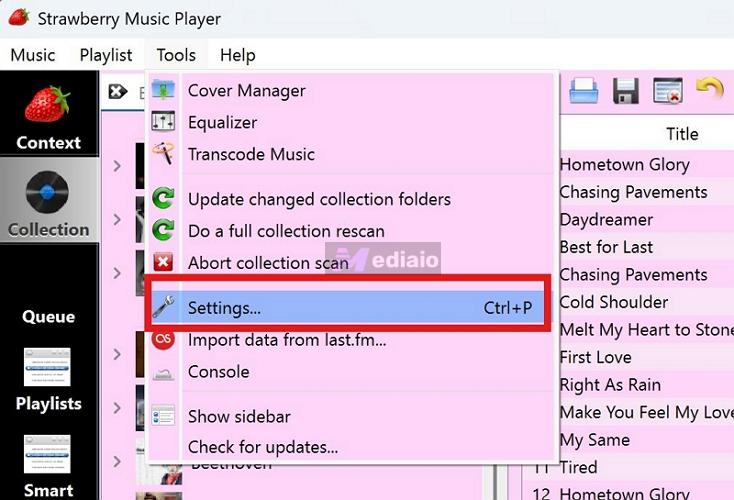
- Start from Tools. Open Settings.
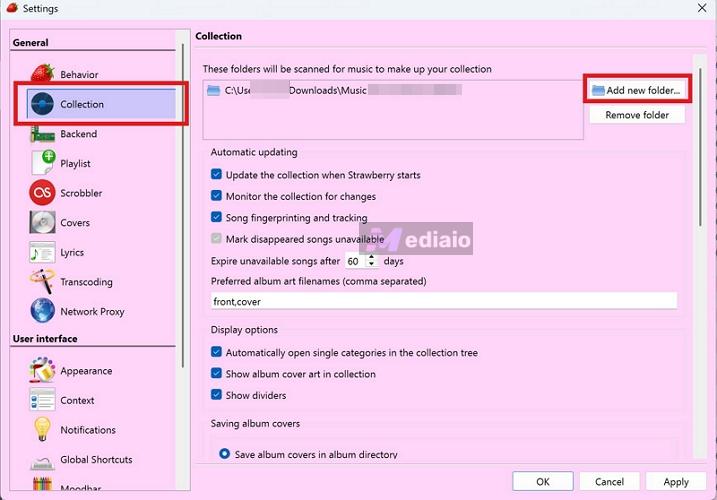
- Inside Settings, select Collection from the sidebar and click Add new folder in the right section.
- Now choose the main folder where most of your music lives — not individual tracks, but the parent folder that contains everything.
- Once selected, confirm with Select Folder.
That’s it.
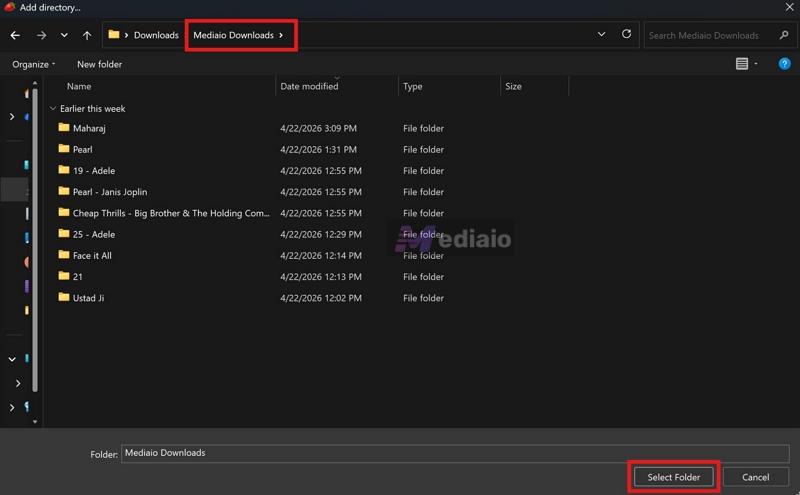
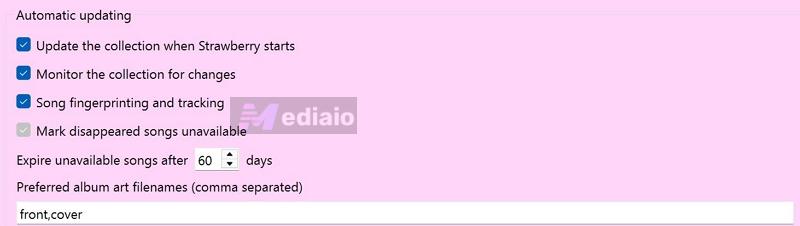
Strawberry will treat that folder as your library source. It will scan it, read all the metadata, and build a structured collection automatically. Below that, you’ll notice a few important options:
- You can allow automatic updates when the app starts.
- You can enable monitoring so that any new files added later are picked up instantly.
- You can also control how missing tracks are handled over time.
Set these based on how you manage your music. At last, click Apply > OK.
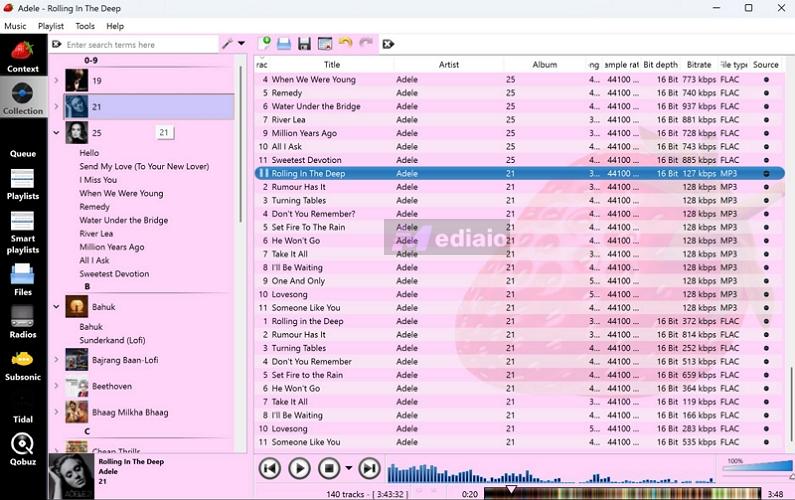
Now head back to the Collection tab from the sidebar. Your entire library will be populated — properly organized, searchable, and structured.
To Customize How Your Library Looks:
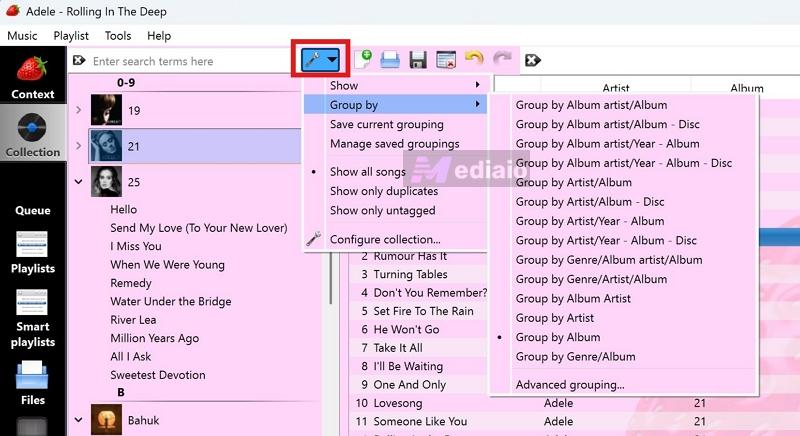
- Click the small wrench icon above the library view.
- Hover Group by.
- Choose how you want your collection to be arranged — by Artist, Album, Year, or even combinations of these.
Tip: Obtain More Songs for Strawberry Music Player
Strawberry is designed for large music collections. And it becomes far more useful and performs much better when you have a well-built local library. If your collection feels small, you can use Mediaio Audio Converter to expand it quickly.
Mediaio Audio Converter connects with platforms like Spotify, Apple Music, YouTube Music, Amazon Music, and Pandora. It allows you to take your favorite playlists and albums and convert them into formats like MP3, FLAC, WAV, or M4A(AAC) — all of which Strawberry supports natively.
Moreover, Mediaio doesn’t just convert the audio locally. It preserves the metadata as well — things like album names, artist information, and cover art. That matters because once you bring them to Strawberry, your offline library will look clean and well-organized.
Audio Quality
Audio quality and control are the real reasons audiophiles stick with Strawberry, even if the UI feels dated. You get a lot of room to shape how your music comes out.
“Bit-perfect” approach: Most regular players or even your browser, send audio through the system’s default mixer, so it can blend with notifications and other system sounds. That extra layer can subtly degrade the audio. Strawberry avoids that and gives you a more direct path to your hardware.
- On Windows: It uses WASAPI in exclusive mode. This blocks other system sounds and sends audio straight to your output device.
- On macOS: It works closely with CoreAudio to keep the signal clean.
- On Linux (the gold standard here): It can work directly with ALSA or through modern setups like PipeWire, giving you a very clean and controlled output path.
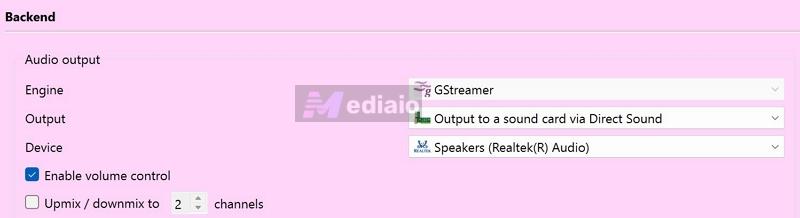
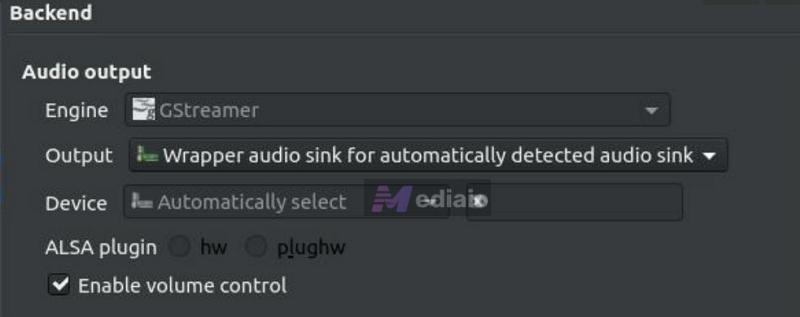
All of this creates a near direct 1:1 pipeline from your file to your DAC or speakers, with minimal interference. This way, you hear the audio closer to how it exists in the file.
Studio-quality controls: You also get practical controls to shape how your music plays.
- EBU R128 loudness normalization: Volume differences are common in large libraries. This option keeps playback consistent, ensuring that the music doesn't suddenly jump in loudness or drop too low.
- Gapless playback and transitions: You get options for gapless playback, along with crossfade and fade-out controls.
- ReplayGain is supported too, as long as the file includes that metadata.
- 10-band equalizer: It comes with presets. You can also fine-tune everything manually.

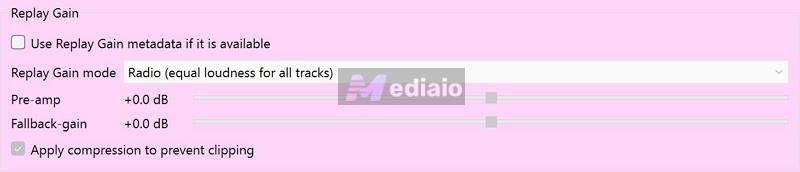
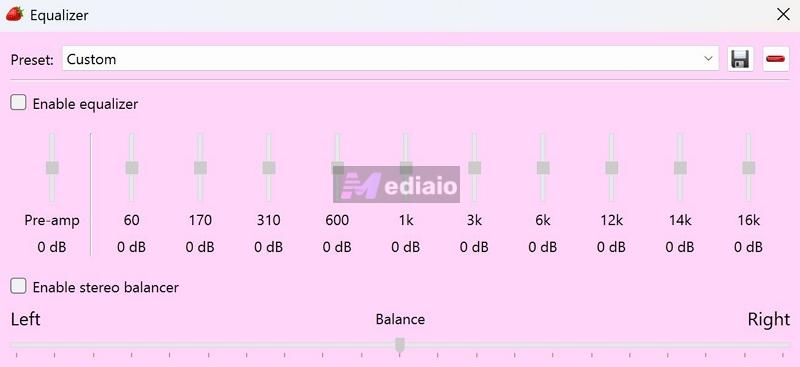
Putting all of this together, it will become clear where Strawberry stands. If you have a good DAC, a solid pair of headphones or speakers, and a library of high-quality files, Strawberry won’t hold you back.
Customization & Metadata
Customization and metadata control give you full control over how your music looks inside Strawberry, how your files are organized, and how clean your library feels.
Metadata Automation and Artwork:
Even if some songs in your collection are not tagged properly, like old CD rips or poorly handled files, Strawberry can fix them.
ID3 Tags: You can select a single track or even a large batch and ask it to complete themetadata automatically. It will search on MusicBrainz and Last.fm, pull the correct tags, and update everything so you don’t see things like “Unknown Artist” or “Unknown Album” in your library.
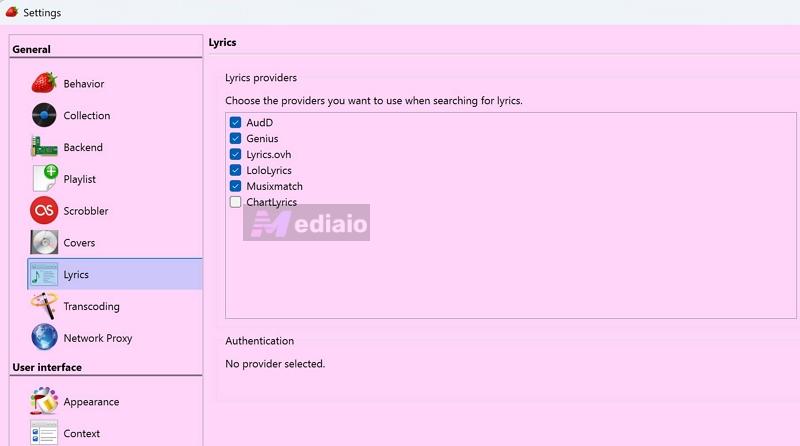
Lyrics: It will also fetch show lyrics directly in the Context panel when playing a track.
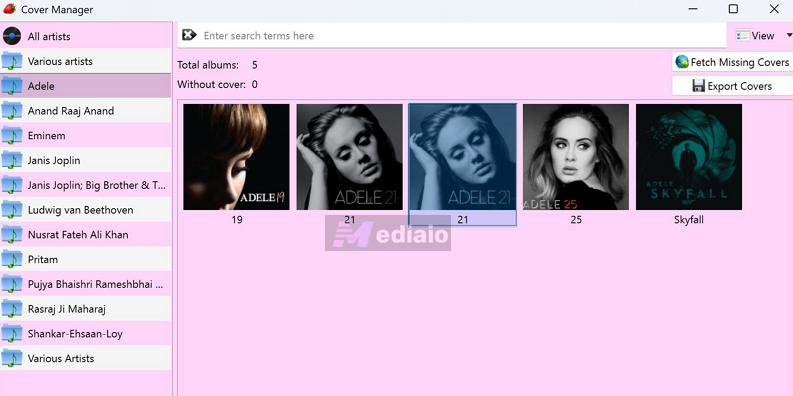
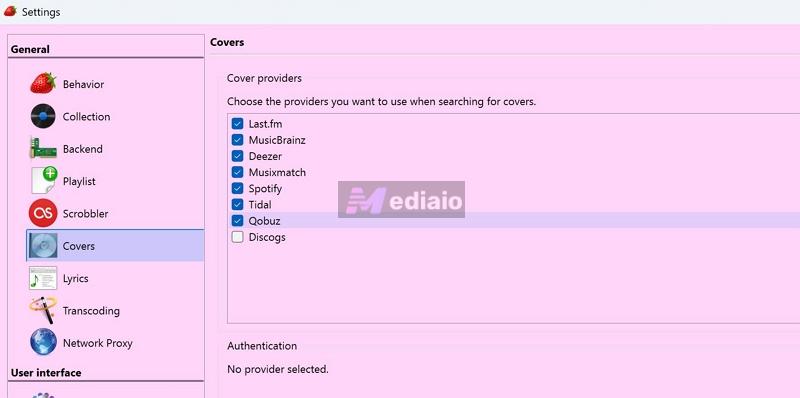
Cover Art: A lot of high-quality lossless files come without artwork. Strawberry can automatically search across multiple sources and automatically apply something very close to the actual album. Manual selection is there.
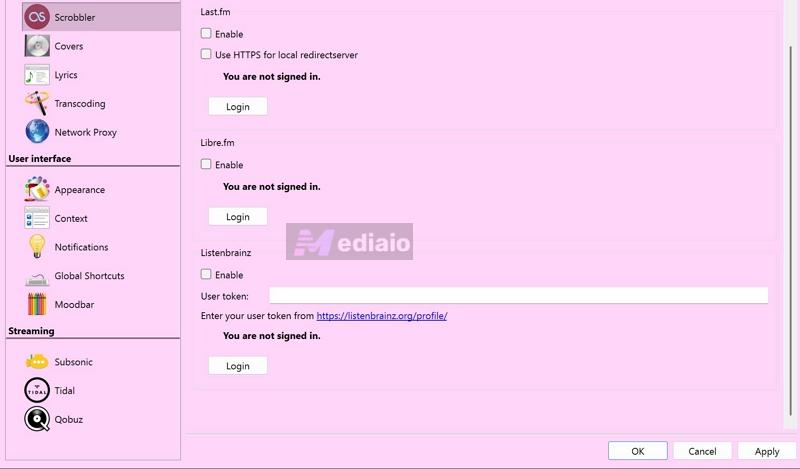
Scrobbler: When most players only scrobble (send your listening history), Strawberry can pull your past play counts and listening data (from last.fm, libre.fm, listenbrainz) and build that into your local library.
Visualization and Audio Analysis
Although most modern players have dropped visualizations, Strawberry still keeps them.

- Visualizers: There are options like spectrum, block analyzer, and boom analyzer.
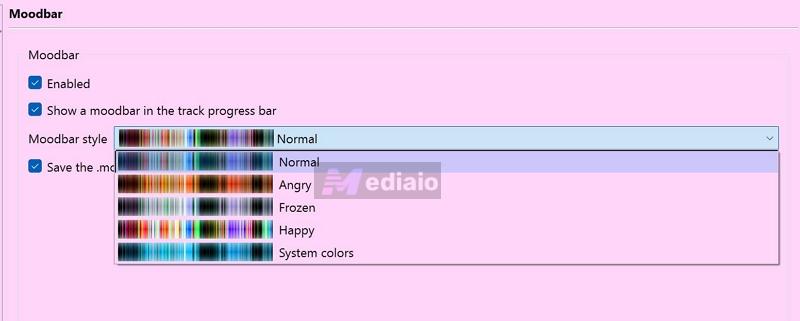
- MoodBar: Inherited from Clementine Music Player, MoodBar is one of those features that will either feel useful or unnecessary (and you can disable it). It will show you the color-based spectral profile of a track. So you can see where a song builds up and where it slows down. It’s not essential, but once you get used to it, it becomes surprisingly helpful.
High-Fidelity Streaming Support
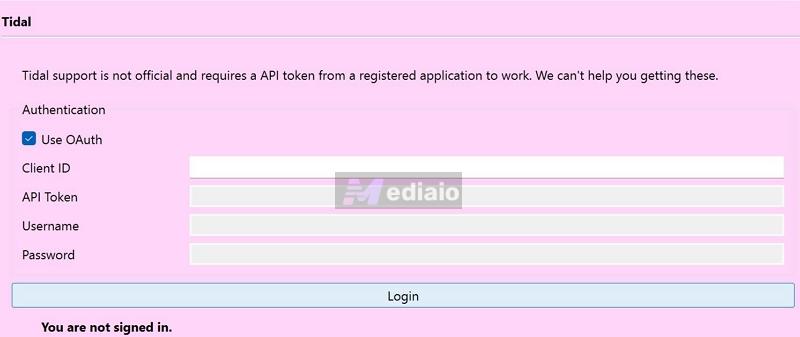
Strawberry lets you connect to Tidal or Qobuz using API access and stream directly inside it.
Subsonic support is also there if you want to connect to your personal music server and access your library remotely.
Global Shortcuts and Notifications
This is where Strawberry clearly leans toward power users.
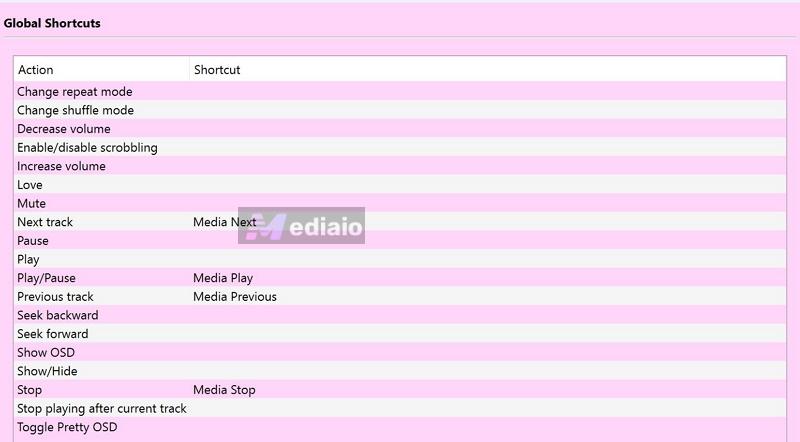
- You can set custom keyboard shortcuts to control playback while playing a game or working on another window.
- You also get desktop notifications, so you can choose when Strawberry shows track changes, pauses, or volume updates.
Conclusion
Strawberry doesn’t look modern, but when it comes to handling music, it is easily one of the more modern players out there. It really makes sense if you want a player that can also behave like a proper library manager.
Strawberry really shines on Linux. On Windows and macOS, the US$7 Patreon access does add a bit of friction. Still, it is not a forced recurring payment. You can treat it as a one-time contribution and get a player that is far easier to handle than something like Foobar2000.
And if your personal collection is small, you can use Mediaio Audio Converter. It lets you easily export songs from online platforms and play them via Strawberry easily.