

“A friend recommended VIZIO TVs and mentioned that Spotify could be used directly on them. So why am I unable to find the Spotify app on my newly-purchased 40-inch VIZIO Smart TV?”
If you have the same question as the Reddit user above, you’re in the right place. In this post, we’ll not only explain whether Spotify is compatible with VIZIO TVs, but also show you how to get and play Spotify on your VIZIO TV even without the app. Let’s dive in for more details.
Can I Add Spotify to My VIZIO Smart TV?
The answer is YES, but only on specific models. According to a PR post, VIZIO confirmed Spotify support in 2014. However, as of the time of writing, Spotify no longer appears in VIZIO’s supported app list, meaning the latest VIZIO models do not support Spotify natively.
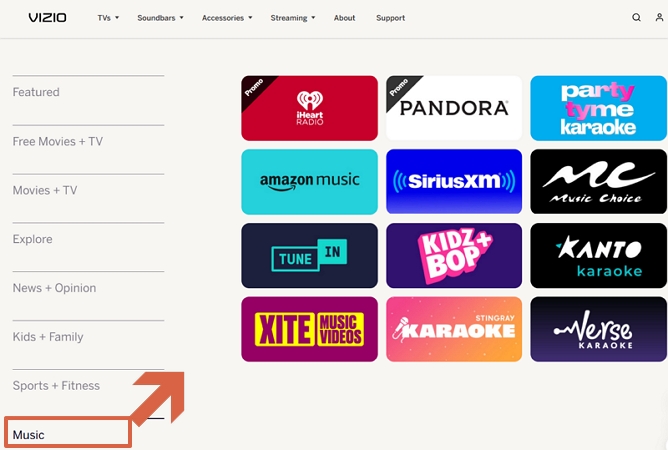
So, which VIZIO TVs support Spotify? They are commonly pre‑2017 models with VIA (2009–2013) or VIA+ (2013–2017), such as the E‑Series and M‑Series from the early 2010s. VIZIO doesn’t support app installation since it launched VIZIO SmartCast TVs in 2017, but they come with preinstalled apps(Spotify not included).
If you are unsure whether your VIZIO TV supports Spotify, you can check by searching for it in the App Store.
How to Get Spotify on VIZIO TV Without V Button [VIZIO SmartCast]
As mentioned earlier, VIZIO SmartCast TVs aren’t compatible with the Spotify app and thus disable you from installing Spotify from the built-in app store with the V button on the remote. However, that doesn’t mean you can’t enjoy Spotify on them. With wireless or wired casting technology, you can get and play your Spotify music on the VIZIO SmartCast TV without the Spotify TV app.
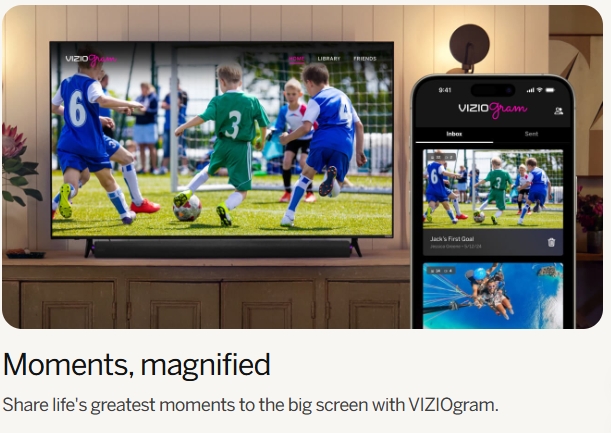
You might want to use the VIZIO SmartCast app (VIZIO Mobile app) to play Spotify music from your phone on your VIZIO SmartCast TV. Unfortunately, this app doesn’t support casting music directly. However, you can share personal photos or videos to the TV using the VIZIOgram feature in the app.
Way 1. Via Google Chromecast
Google Chromecast allows you to send content from applications to compatible screens wirelessly. In this case, you’ll cast Spotify music to your VIZIO TV. No cables or extra remotes are needed, just use your phone and Wi-Fi.
1. Any VIZIO TV supporting Chromecast.
2. Spotify web player on Chrome in iOS/Android.
3. Accessible Wi-Fi network.
Connect Spotify to VIZIO TV from Phone Using Chromecast
Step 1. Connect your VIZIO TV and Android/iPhone to the same Wi-Fi network.
Step 2. Open Spotify web player on your mobile Chrome and play any track.
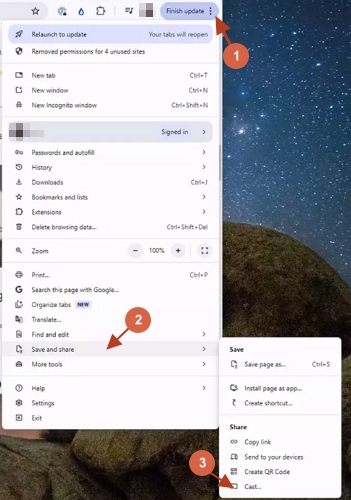
Step 3. Locate the upper-right corner of Chrome, tap the menu icon(3-dot) and choose Save and share. Then, select Cast.
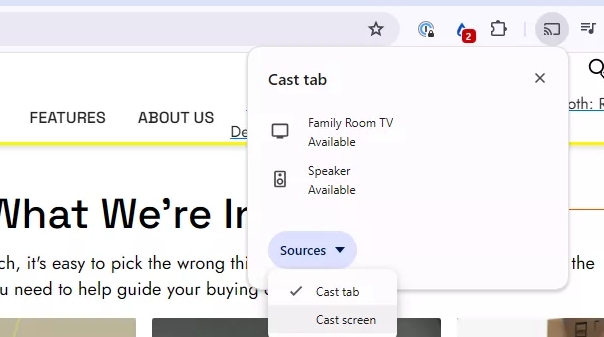
Step 4. Click Source > Cast screen.
Step 5. Select the VIZIO TV. Spotify music will now play through the TV instantly.
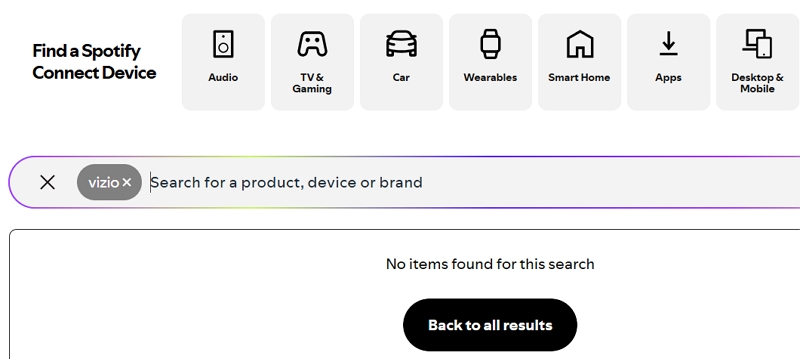
Note📌: You can't use the Spotify Connect feature to cast Spotify to VIZIO TV based on our searching on the official page.
Way 2. Through Apple AirPlay
Are you an iPhone user? Then, you can use AirPlay to stream Spotify music from Apple devices like an iPad, iPhone, and even a Mac to a VIZIO TV.
1. An AirPlay-compatible VIZIO TV, such as 2019 P-Series and M-Series.
2. An Apple device running iOS 11.4/macOS 10.8 or later.
3. Spotify mobile/desktop app.
Play Spotify Music from iPhone to VIZIO TV with AirPlay
Step 1. Use your remote to access the SmartCast Home screen on your VIZIO TV.
Step 2. Choose Extras at the top or bottom left of the screen.
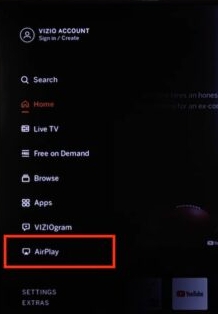
Step 3. Select AirPlay and toggle on its button.
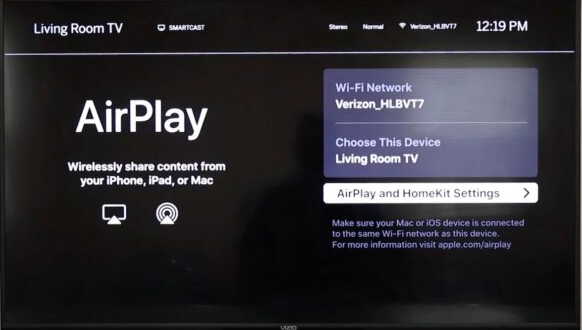
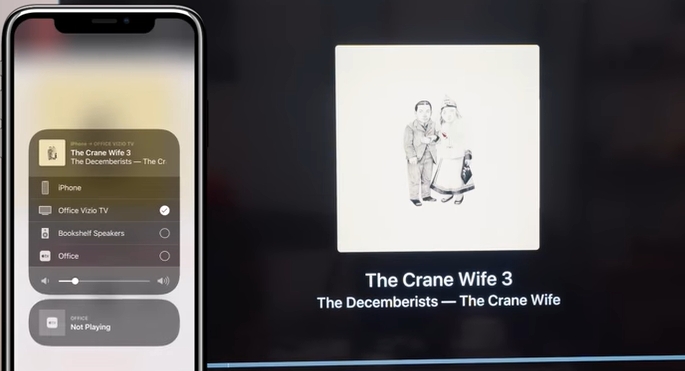
Step 4. Play your Spotify song. Then swipe up from the bottom (iPhone with Home button) or swipe down from the top-right (iPhone with Face ID) to open your iPhone’s Control Center.
Step 5. Next, locate the audio card. Tap the tiny AirPlay icon in its top-right corner to select your VIZIO TV under SPEAKERS & TVs. Now, enjoy your favorite music on your TV.
Way 3. Use USB Drive
If the ways above don’t work for you or you want an offline way to enjoy Spotify music on your VIZIO TV, then using a USB drive is no doubt a good option. All you have to do is use software, like Mediaio Audio Converter, to convert Spotify songs, copy them to USB sticks and then listen to Spotify via the USB on your VIZIO TV, no matter the model.
Mediaio can convert Spotify tracks to 320kbps MP3 while retaining complete ID3 tags for each converted song. Whether it’s an individual song, an entire playlist/album or a full podcast series from Spotify, Mediaio can save them at 30X speed. To simplify the music conversion, it even embeds a Spotify web player into its interface.
1. A USB formatted in exFAT or FAT32.
2. A Windows/Mac with network connection.
3. Mediaio Audio Converter, a professional music converter.
How to Download Spotify to USB
Insert your USB drive into your computer. Download and install Mediaio Audio Converter for either macOS or Windows and launch the app. Click Spotify to proceed.

Click Log in on the top right of the tool interface. Then, enter your Spotify login details.
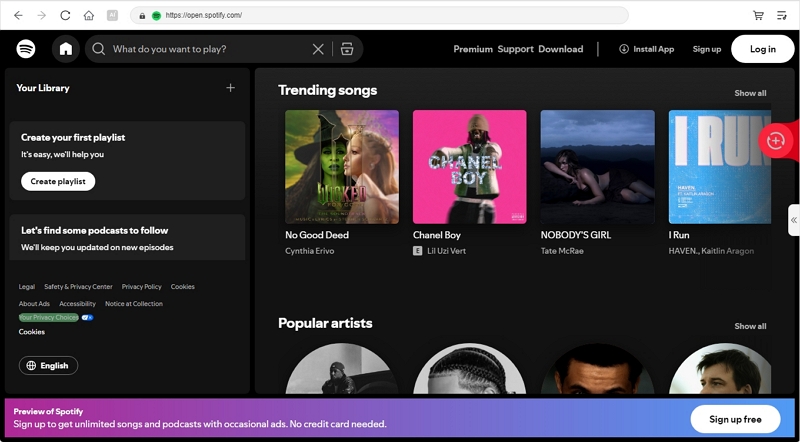
Drag and drop your Spotify songs, albums, or playlists onto the red plus icon “+” on the right panel of the software’s interface. Alternatively, click Add to the conversion list to add desired songs to download.

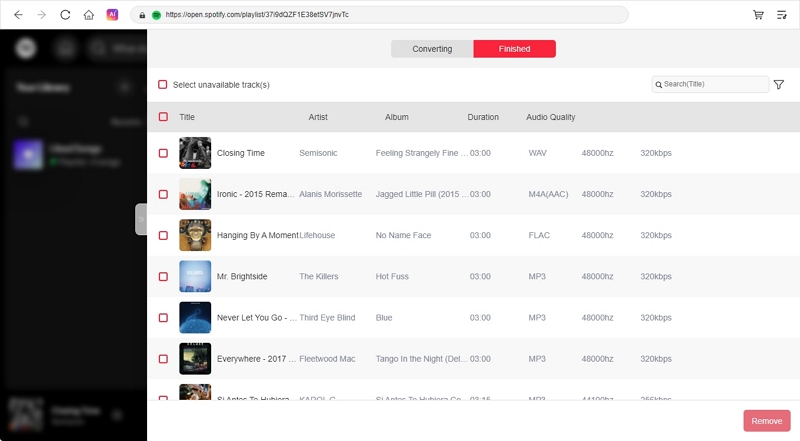
Expand the Conversion List window in the right pane. Click Browse at the lower left corner and set the USB folder as the storage location. You can also change the output format and quality. After making all the necessary edits, click Convert All and wait for the songs to be converted.

Once the conversion is done, click View Output File to open the storage folder and see your songs.
How to Play Spotify on VIZIO TV Through USB
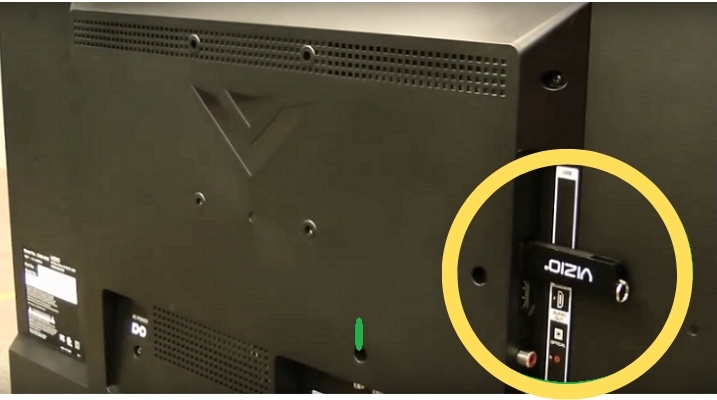
- Plug the USB drive into the VIZIO TV.
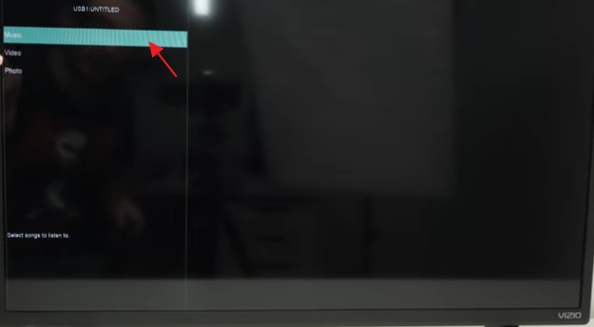
- Select Music to view the Spotify audio files.
- Navigate to the songs, select them, and then play!
Way 4. Use HDMI Cable
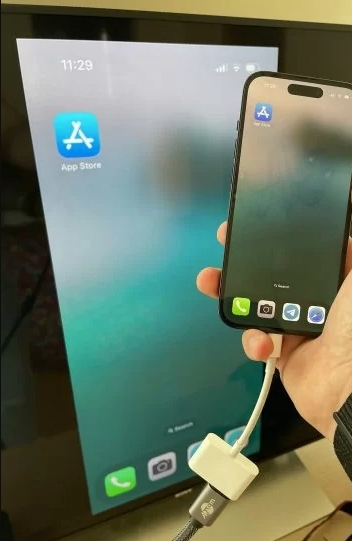
This is a traditional method to play Spotify music from your phone on a VIZIO TV, regardless of the model. With an HDMI cable or adapter, you can also mirror your phone screen to the TV. Once you play Spotify music on your phone, you will hear the sound on the TV instead.
A Lightning to HDMI adapter (for iPhone) or a USB-C to HDMI adapter (for Android).
How to Play Spotify on VIZIO TV via HDMI Cable
Step 1: Connect your phone to the TV using the HDMI cable/adapter.
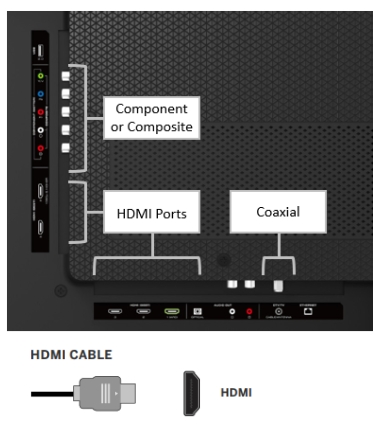
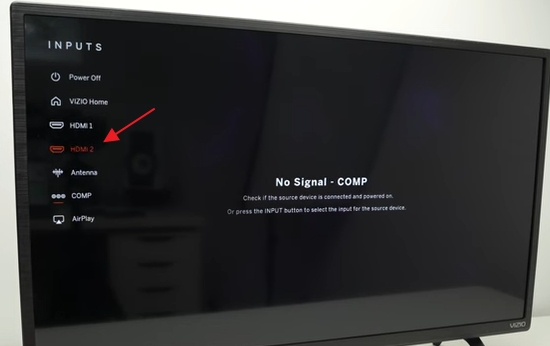
Step 2: Set the TV input source to the corresponding HDMI port.
Step 3: Your phone screen will appear on the TV. Launch the Spotify app on your iPhone and play the song you want. The audio will be played through the TV speakers.
Way 5. Apply Screen Mirroring [iPhone]
You can find a Screen Mirroring option on iPhone. This feature displays your phone’s content on the VIZIO TV, including Spotify music that’s currently playing.
1. iPhone running iOS 7 or later.
2. VIZIO TV with AirPlay 2 supported.
3. Spotify mobile app.
4. A workable Wi-Fi network.
Steps to Get and Play Spotify on VIZIO TV with Screen Mirroring
Step 1: Connect both your iPhone and VIZIO TV to the same Wi-Fi network.
Step 2: Turn on AirPlay on your VIZIO TV.
Step 3: Play a track in the Spotify app on your iPhone and open the Control Center.
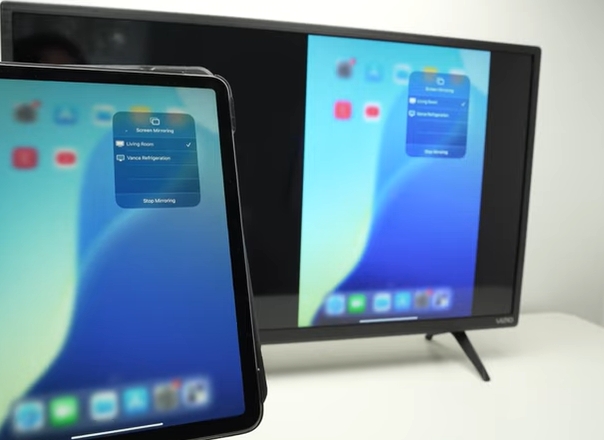
Step 4: Tap the Screen Mirroring icon and select your VIZIO TV from the list. Enter the AirPlay code shown on your TV to authorize the mirroring.
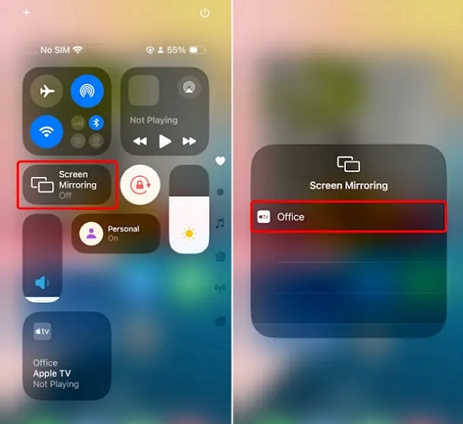
Step 5: Once connected, you’ll see the Spotify app screen on your TV and the sound will come from the TV speakers.
How to Get Spotify on VIZIO TV with V Button [VIA/VIA Plus]
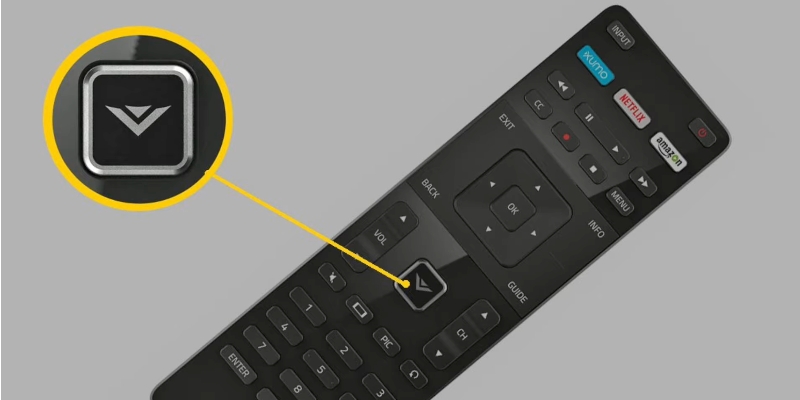
On older VIZIO TV models, including the VIZIO VIA and VIA Plus series, you can install Spotify directly on the TV and listen to music. Generally, you’ll find a V button on your remote, which opens the built-in app store. If you have a compatible VIZIO TV model, you can follow the steps below to play Spotify using the Spotify TV app.
How to Install and Play Spotify on VIZIO TV with V Button
For VIZIO VIA Plus
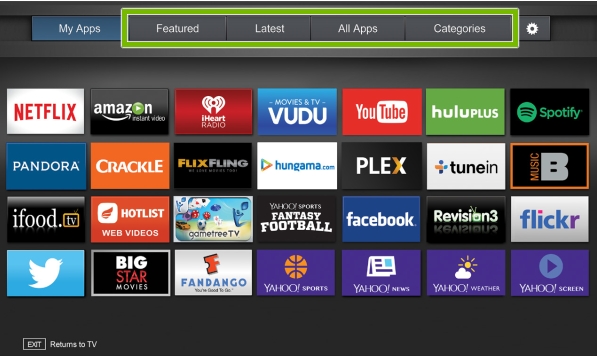
- Press the V button twice on the remote.
- Find Spotify in Featured, Latest, All Apps or Categories sections.
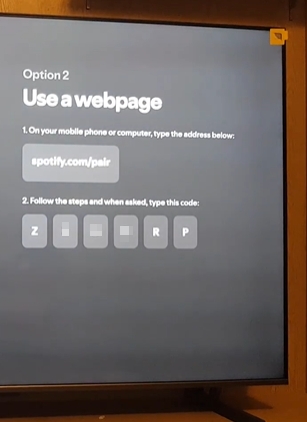
- Press OK button on the remote to add Spotify to your app list. Now, you can login Spotify on VIZIO TV with your account or the pair code.
For VIZIO VIA
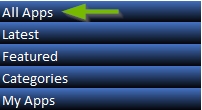
- Press the V button on the remote and choose CONNECTED TV STORE.
- Select All Apps in the menu.
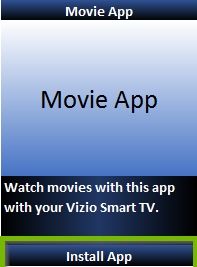
- Locate Spotify, press OK on the remote and choose Install App to get Spotify on your VIZIO TV. Finally, sign into Spotify and start streaming your music.

How to Login Spotify on TV
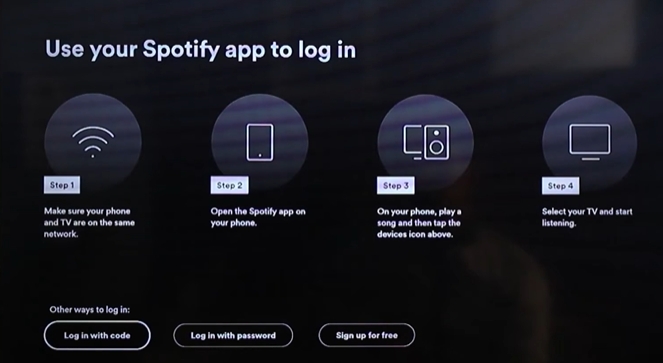
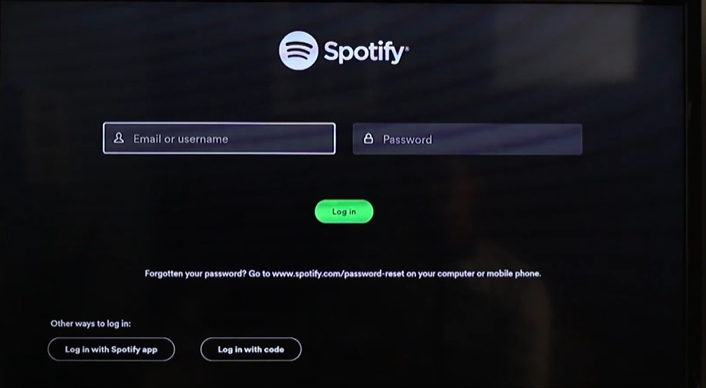
Option 1. Enter the Account Credentials
- Choose Login with password from the login page.
- Enter your account name and password. Then, hit Login.
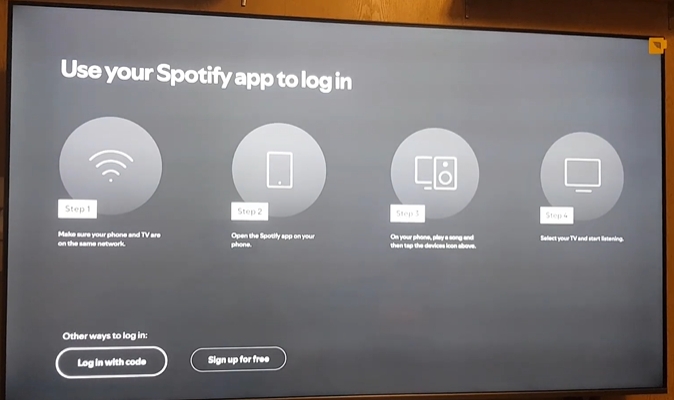
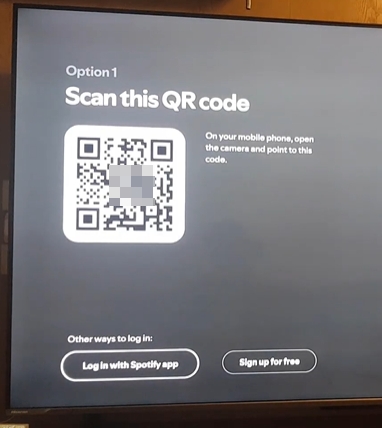
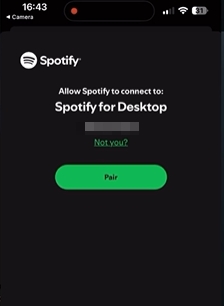
Option 2. Scan the QR Code
- Select Login with code using your remote.
- Use your phone's camera to scan the QR code.
- Confirm the login by tapping Pair on your phone.
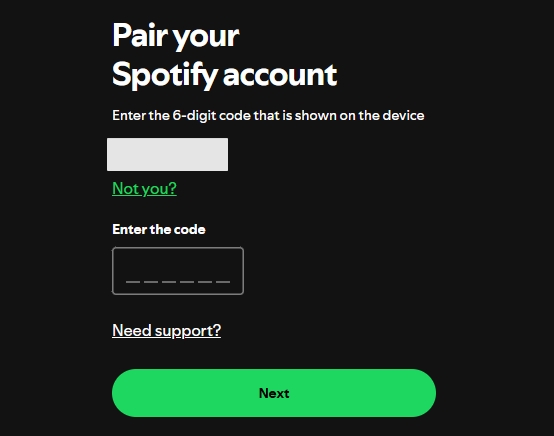
Option 3. Use the Pair Code
- Highlight Login with code.
- Go to www.spotify.com/pair on your phone or computer.
- Enter the 6-digit code shown on the TV into the site.
Conclusion
So, now do you know how to get Spotify on VIZIO TV? If you want a method that lets you easily stream music on your VIZIO TV, regardless of the model, the device with Spotify, and the operating system? Use Mediaio Audio Converter to convert Spotify music as MP3 and transfer it to your USB! This way, you can enjoy Spotify on VIZIO TV without the least limitations.