

When it comes to saving album art or playlist covers from Spotify, you might first think of taking a screen capture, which is a practical way. However, sometimes, you may not be satisfied with the format or resolution of the captured Spotify artwork. Don’t worry, in this post, you can learn 5 ways to download Spotify cover art and each method produces cover art with different formats and resolutions.
Overview of Ways to Download Spotify Cover Art
Before proceeding with the detailed steps to download cover art from Spotify, we recommend checking the table below, which can help you quickly find the most suitable solution.
640x640px JPG
2352x2352px JPG
How to Download Covert Art from Spotify
Whether you’re on mobile or desktop, there are always ways to download cover art from Spotify with or without taking a screenshot. Keep reading for more details.
Way 1. Get Through Spotify for Developers
This is an official way to save your desired Spotify artwork. It allows you to extract the playlist or album image link from a playlist ID, so you can download the cover art locally.
Step 1: Go to the official Spotify Get Playlist Cover Image site and sign into your Spotify account.
Step 2: Open the Spotify web player and locate the playlist whose cover art you want to download. Then click the 3-dot icon > Share > Copy link to playlist.
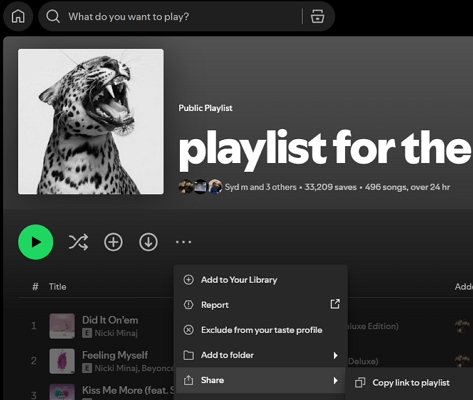
Step 3: Paste the playlist sharing link into the browser tab and only copy the playlist ID located between /playlist/ and the ? in the URL. For example, the playlist ID in this URL is the bolded part: https://open.spotify.com/playlist/0avYchjv4qqkt4bvj9PDyj?si=q-NUsLdjSp-KbzdGWsJtiQ.
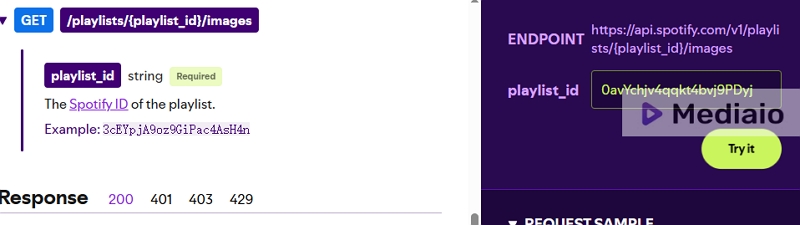
Step 4: Head back to the Get Playlist Cover Image page and paste the playlist ID into the right pane and hit Try it.
Step 5: Scroll down the left pane, locate Response sample and copy the image link next to URL.
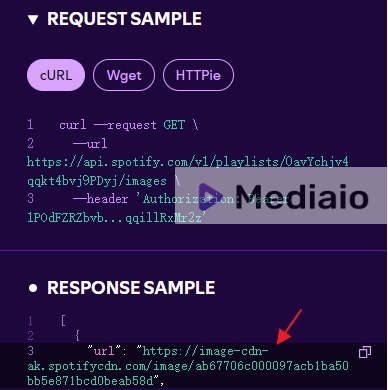
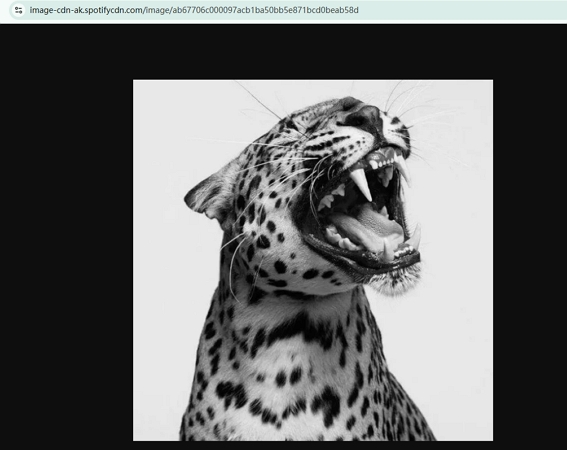
Step 6: Paste the image link into the search bar of your browser and hit Enter. Finally, right-click the Spotify playlist cover, choose Save image as and set a location to store it.
Way 2. Use Spotify Cover Downloader Online
Using an online Spotify cover downloader is one of the most convenient ways to download Spotify album/playlist cover art. The Spotify cover downloader from Spotisongdownloader allows you to save Spotify artwork images of any track, playlist, album, artists, and profile with medium quality within a few clicks. You just have to copy the URL of the wanted Spotify music and paste it into Spotisongdownloader site. The tool will generate its cover art within a few seconds.
Steps to Download Spotify Cover Art Using spotisonhdownloader.com:
Step 1: Open Spotisongdownloader Spotify Artwork Downloader in your browser.
Step 2: Go to Spotify and copy the URL of the album, playlist or song that you want to download its cover art.
Step 3: Paste the copied URL into the site box.
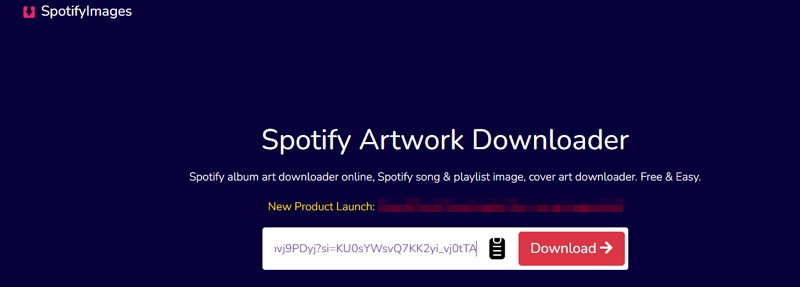
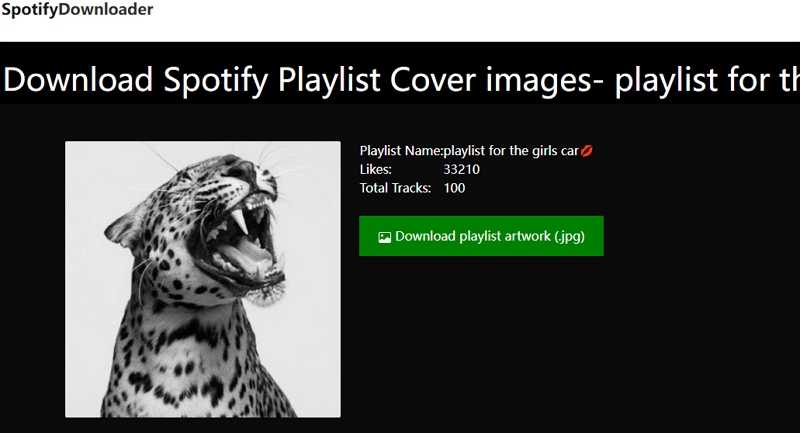
Step 4: The tool will automatically extract the corresponding cover art with its name. Click Download playlist artwork and the image will be downloaded instantly.
Way 3. Screen Capture Spotify Artwork
Taking a screenshot is the easiest way to download Spotify cover art. Yes, whether you’re using a PC or mobile device, you can just navigate to the Spotify artwork you want to download and take a screenshot of the full cover art of the song/album/playlist/singer by pressing the relevant button combinations.
To Screenshot Spotify Artwork on Any Device:
Step 1: Open Spotify and click the cover of the wanted playlist.
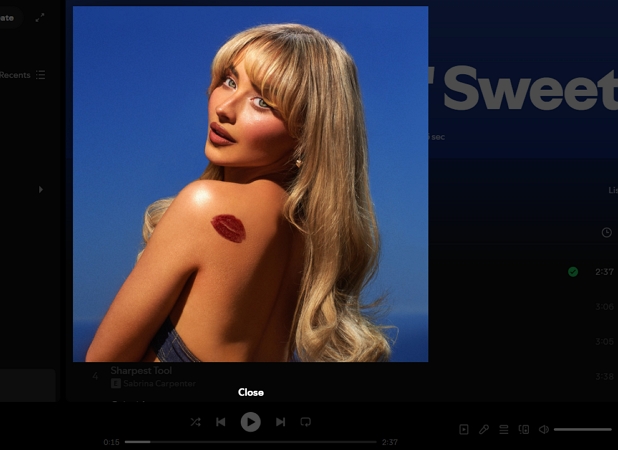
Step 2: Once the cover art is displayed on your screen, press the following buttons, depending on the device you're using to take a screenshot for the artwork:
- iPhone: Side button + Volume Up button
- Android: Power button + Volume button
- Windows: Windows icon+Shift+S
- Mac: Shift+Command+4
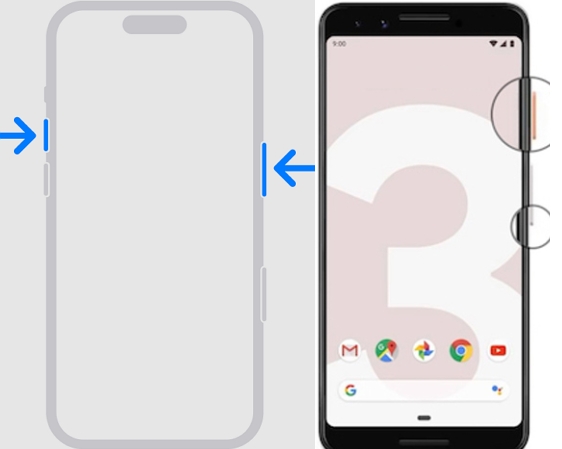
Step 3: Find the captured image in the Photos(iPhone), Gallery(Android), Paint(Windows) and desktop(macOS).
Way 4. Extract via Web Page Source Code
You can also download Spotify cover art by using your browser. This technique involves using the Spotify song web page source code to copy the artwork URL. It can be a little bit tricky for users with no technical skills. Besides, you need to convert the format of cover art from JFIF to common formats like JPG after download.
Step 1: Open an artwork on Spotify.
Step 2: Press the following command, depending on the computer you’re using:
- Windows: CTRL+SHIFT+I
- Mac: COMMAND+OPTION+I
Step 3: Click the Mouse Cursor icon at the top left and click on the Spotify cover art in the right section.
Step 4: Hover on the image link in the “highlighted code” and locate the image link. Click the current source's URL.
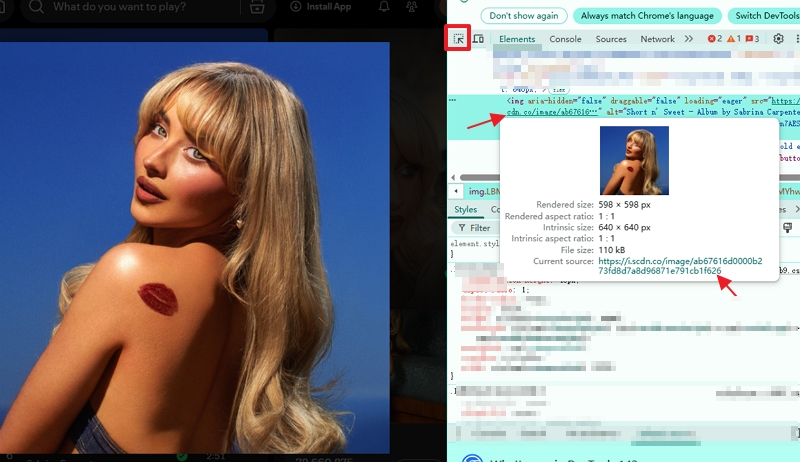
Step 5: The Spotify cover art will be displayed on the new page. Right-click it and save it to your computer’s local storage.
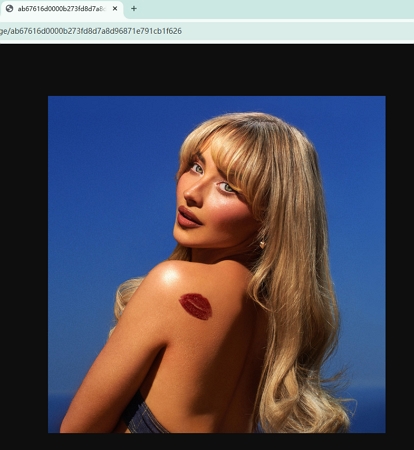
Way 5. Download from Amazon Store
This might sound surprising, but yes, it’s possible to get Spotify song artwork from the Amazon Store. This way also lets you get high-quality Spotify album art or playlist covers. All you need is to do the following:
Step 1: Go to the Amazon Store website and input the Spotify song's name into the search bar to find the corresponding track.
Step 2: Right-click the option that contains the desired artwork from the search result. Then, choose Open image in new tab.
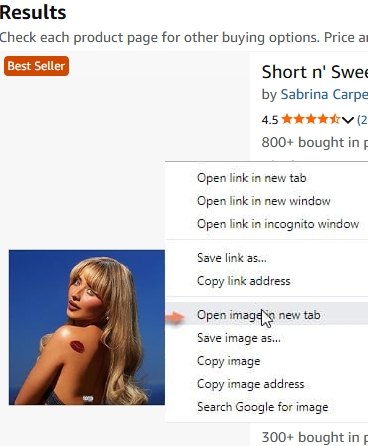
Step 3: In the open image tab, delete ._AC_UY218_ from the URL.
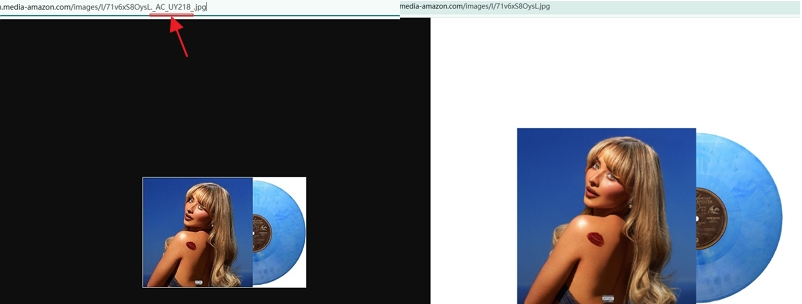
Step 4: Save the cover art to your computer by right-clicking it and choosing Save image as.
How to Download Spotify Songs with Cover Art and ID3 Tags
If you’re looking for a way to forever download Spotify songs without a premium account and with their cover art and ID3 tags preserved, we’ve got the best trick for you. What you need is Mediaio Audio Converter.
Mediaio Audio Converter is a comprehensive music downloader app that allows users to save their favorite Spotify songs, albums, playlists, piano piece, etc., with their original metadata, including title, cover art, artist, and more. You can use this tool to batch download Spotify songs 30x faster in various formats, such as MP3, M4A, FLAC, etc. Plus, it supports a built-in web player that allows you to browse and listen to songs with a Spotify-like experience. Moreover, the downloads will be permanently kept on your local computer until you manually delete them. You can also move the downloads to other locations, such as an SD card, a USB drive, or an MP3 player.
How to Download Spotify Cover Art with Songs Using Mediaio
After getting Mediaio on your computer. Open it and click Spotify icon on the home screen.

Click the Log in button at the top-right of the inbuilt Spotify web browser to sign into your Spotify account.
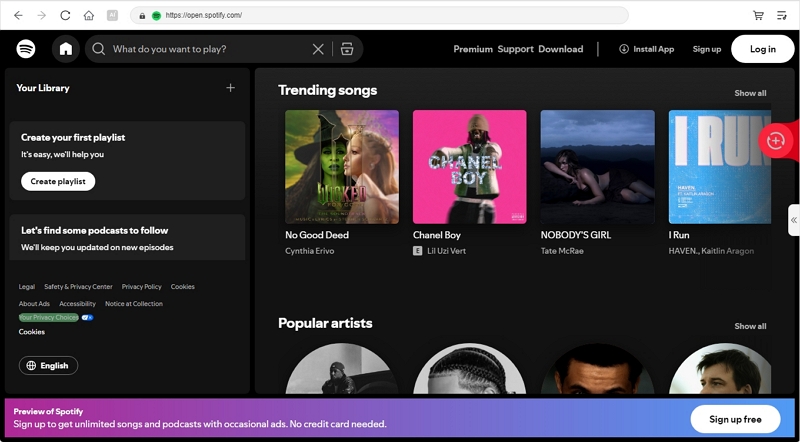
Navigate to your Spotify library and add the wanted song/album/playlist to download. You can do this by dragging and dropping them to the “red floating icon” or click Add to the conversion list.

Once Mediaio loads the selected songs on your screen, expand the conversion list. Select a desired output format, choose an output quality and click Convert All to start downloading the Spotify songs with their cover art and ID3 tags.

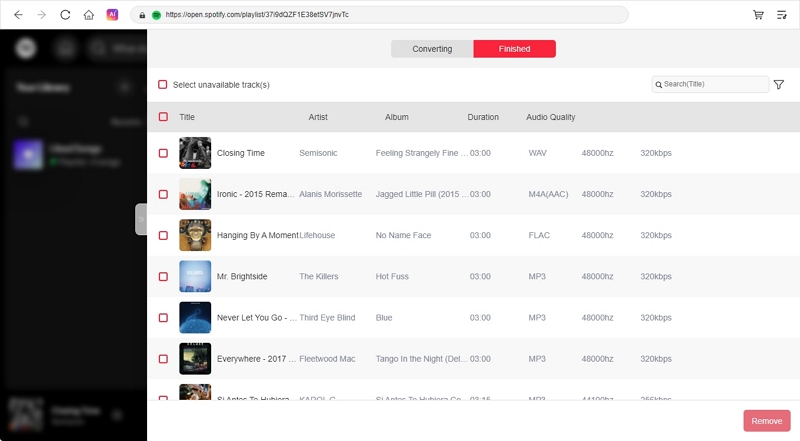
To view the downloaded songs and their cover art, click View Output File under Finished tab.
How to Download Your Spotify Profile Picture
It's possible that you need to download your Spotify profile picture to permanently save it, because you can't find the original version on your device anymore. To help you get it done easily, here we will introduce 2 ways to you.
Way 1. Through Spotify Web Browser
This way only applies to the Spotify web player on your computer and the downloaded Spotify profile picture could be unclear sometimes. If it doesn't matter to you, you can follow the steps below.
Step 1: Go to the Spotify web player, sign into your account and click your avatar.
Step 2: Right-click your profile picture and choose Open image in new tab.
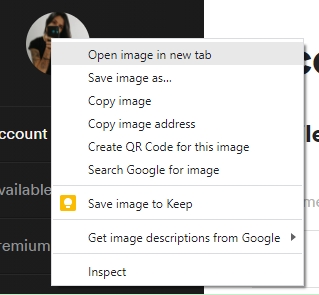
Step 3: Your profile picture will be displayed in a large mode and you can save it locally.
Way 2. Use Spotify Profile Picture Downloader
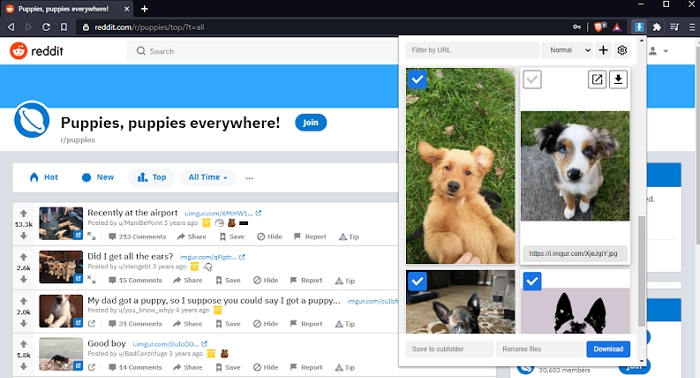
You can install a picture downloader extension on your Chrome browser to help download your Spotify profile picture. These types of tools allow you to download every image on a webpage. Here is a short guide on pulling your picture from your Spotify account.
Step 1: Install a reliable picture downloader extension on your Chrome.
Step 2: Login to Spotify web player and click the extension.
Step 3: Choose your profile image and download it.
FAQs
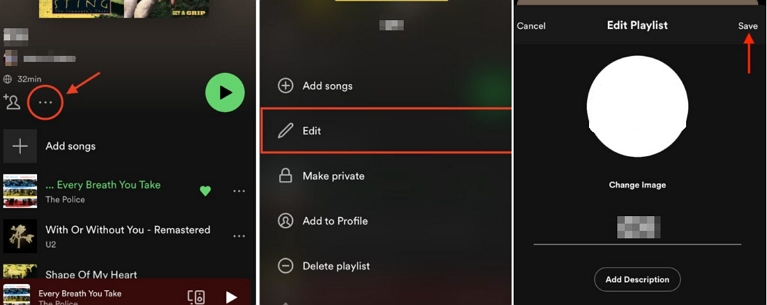
You can change your own playlist cover on both mobile and desktop, whether you are a Premium or free user. Here are the steps for the Spotify mobile app.
Step 1: Open the Spotify app on your phone and find the playlist whose cover you want to change.
Step 2: Tap the three-dot icon below the current playlist cover and select Edit.
Step 3: Choose Change Image, select a photo, and tap Save.
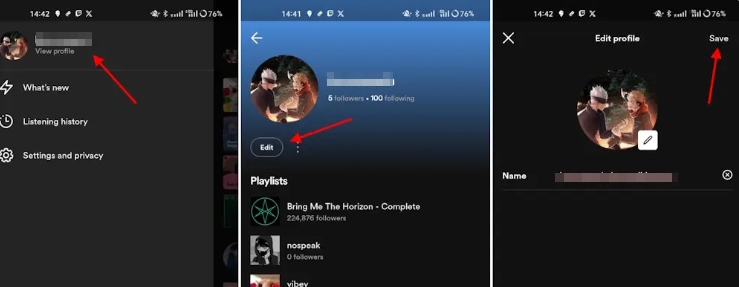
Step 1: Tap your profile picture and select View Profile.
Step 2: Tap Edit under your avatar.
Step 3: Tap the pencil icon at the lower-right corner of the profile image.
Step 4: Choose your favorite image as your new profile picture.
Conclusion
Downloading cover art from Spotify is a straightforward process. By following the methods discussed in this article, you can easily obtain high-quality artwork from Spotify to enhance your music experience. However, if you want to download a Spotify song as 320kbps MP3 with its cover art, Mediaio Audio Converter is the ultimate tool you need.