

Canva gives you hundreds of ways to uplift a project. Yet there’s nothing like adding your favourite Spotify music to it. However, it isn’t easy and straightforward to use Spotify on Canva.
Don’t worry. We will show you three ways on how to add music to Canva from Spotify. You can simply embed a Spotify link or you can use the Spotify tracks already available inside Canva library. Best of all, you can use Mediaio Audio Converter to turn Spotify songs into local audio and insert them as proper files, which allows you to use features like BeatSync, volume control, audio effects, and cleaner timing inside your design.
How to Add Music to Canva from Spotify Using Local Files
When you think about adding Spotify music to your Canva project, directly embedding a song might come to mind. However, it’s not actually the ideal solution. Canva works best when you add local audio in MP3, M4A, or WAV. So it helps to download your Spotify songs in these formats and drop them straight into your Canva design. By doing so, you gain real control over the Spotify embeds in your Canva presentation or video. For instance, you can select the portion of the song you want for your presentation, set a fade-in or fade-out or tune the volume so it blends with the rest of your project.
Here’s a table showing the difference between adding Spotify as local files versus using the Spotify embed.
Since local files make your presentation better, let’s jump to the steps of how to convert Spotify to MP3 or M4A and use them in Canva.
Step 1. Download Music from Spotify to Computer as Local Files
Spotify never lets you download or export its songs outside the app. Mediaio Audio Converter fills that gap. It enables you to save any track, playlist or album from Spotify in formats like MP3, WAV or M4A.
Mediaio preserves the metadata of the downloaded tracks. So the songs are easy to recognize when you upload them to Canva. Alternatively, you can transfer them to other devices like your phone and Apple Watch for offline listening. Mediaio also supports batch downloads, so you can save multiple songs or playlists for Canva presentations in a single go.
Steps to Download Spotify Songs as Local Files Using Mediaio
Launch Mediaio on your Mac or Windows. Choose the Spotify title on the home screen.

Sign in to your Spotify account. Free or Premium works the same here.
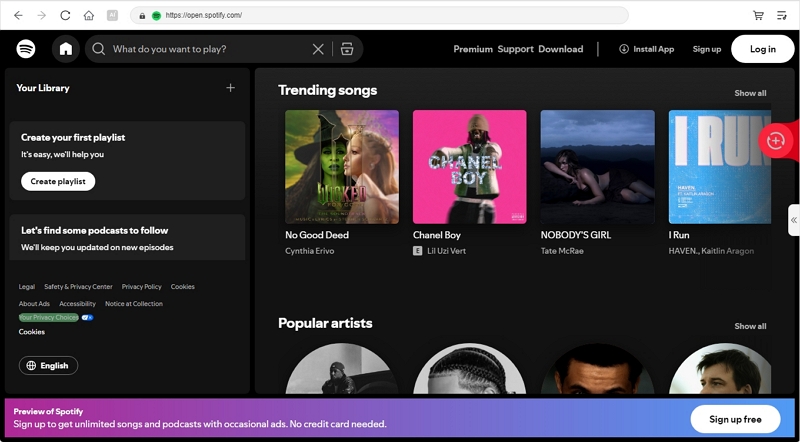
Drag the playlists, albums or individual songs you want for your Canva project to the + button at the top-right. Or, click Add to the conversion list to add the corresponding items.

Expand the conversion section in the right side. Select MP3, M4A or WAV as output format to ensure Canva compatibility. Note that Canva requires each single audio file to stay under 250 MB. So, MP3 and M4A work best and don’t compromise the quality. If you want to adjust the output quality, you can do this by changing the bitrate and sample rate.

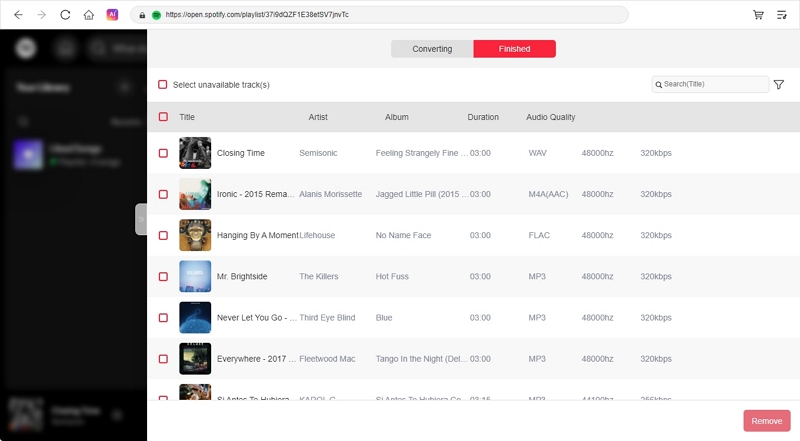
Click Convert All after selecting the desired format. Mediaio will download everything to your computer as local files and organize them neatly for you.
Step 2. Upload Downloaded Spotify Songs to Canva
Now, it’s time to upload the Spotify music you download through Mediaio to Canva without issues. Each track just needs to stay under 250 MB. How many songs you can upload to Canva depends on your tier.
- Free users: Canva gives 5 GB of total space.
- Pro users: Canva gives 100 GB for audio, video and other files.
Here’s how to bring your local Spotify audio into Canva:
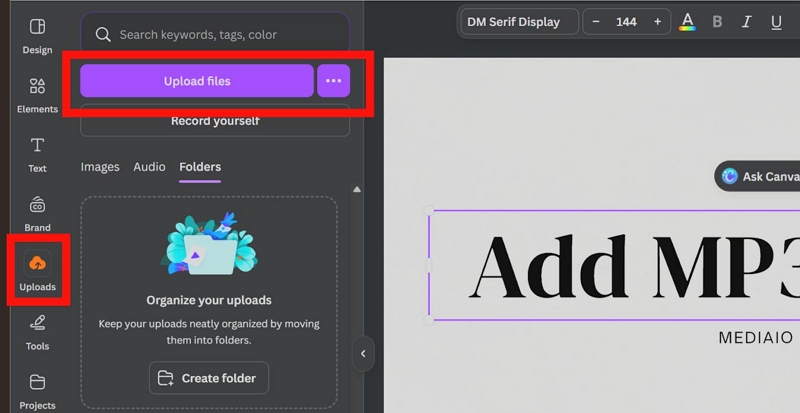
1. Open your Canva project. Select the Uploads tab from the left sidebar. Then choose the purple Upload files button.
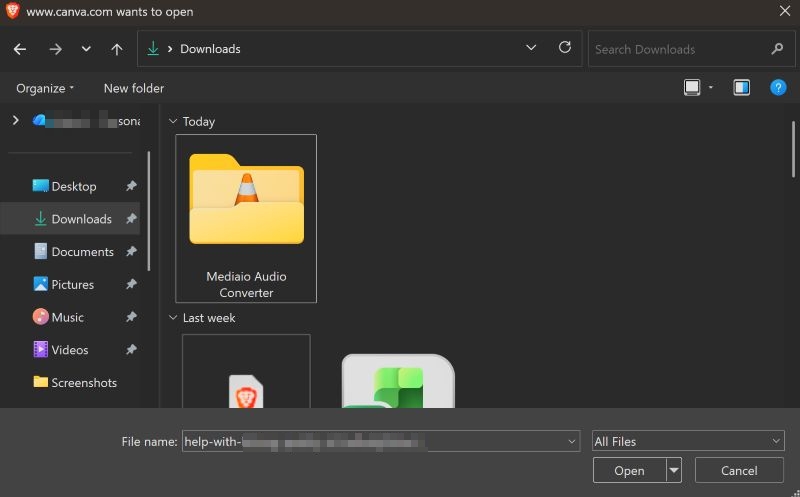
2. A File Explorer or Finder window will appear. Go to your Mediaio Audio Converter folder in Downloads. Pick the tracks you exported earlier.
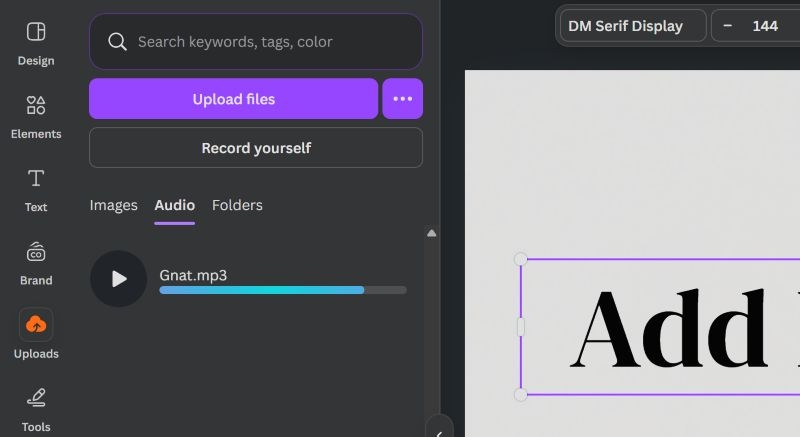
3. Canva will show each loading track under the Audio tab inside Uploads. You’ll see the progress bar and the file name.
4. Once the bar completes, the track becomes ready to use in any Canva video or presentation.
Step 3. Import Local Spotify Tracks to Canva Projects
Once you’ve uploaded the local Spotify tracks to Canva, it will be available to use in any project. So, here’s how to add them to your Canva videos and presentations.
For Canva Video
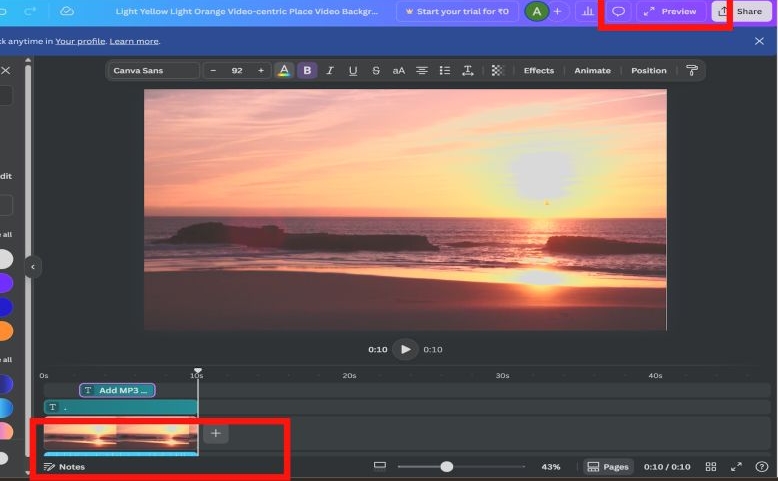
1. Go to the design where you want to add the audio.
2. Select Uploads on the left sidebar. Switch to the Audio tab at the top. This will show all the Spotify tracks you uploaded earlier.
3. Click the Spotify audio or drag it straight onto the timeline.
4. Drag the end of the audio bar to select its start and end points.
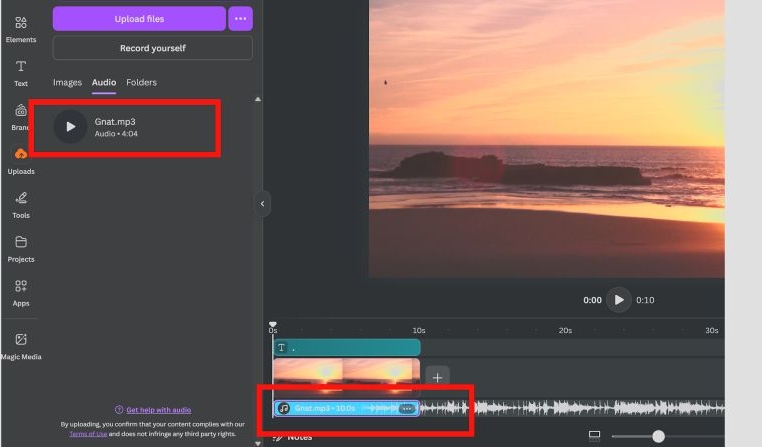
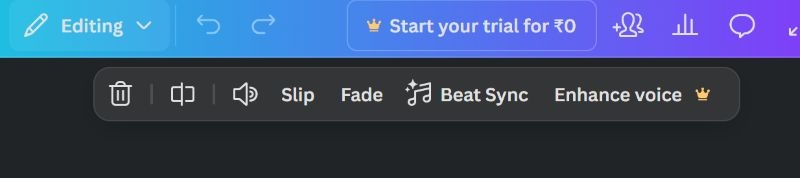
5. Select the track on the timeline and then control the volume and add audio effects, such as fade-in, fade-out and AI features like Beat Sync.
6. Use the Preview button to check the video effect. Your Spotify track will play smoothly in the final video.
For Canva Slideshow
Step 1: When you are working on your normal 16:9 presentations, click Uploads button in the left pane.
Step 2: Locate the Audio tab to find your Spotify tracks and add the target song by clicking or dragging and dropping.
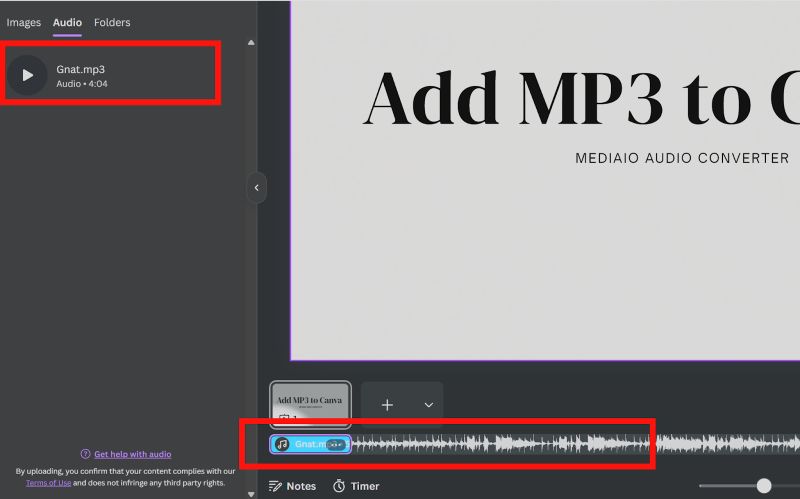
Step 3: You can reposition the audio, adjust the volume, and apply effects in the same way you do inside Canva Video.
Each slide can play 5 seconds of the Spotify track, so plan the slides accordingly.
Step 4: Preview the slide to check how the audio plays.
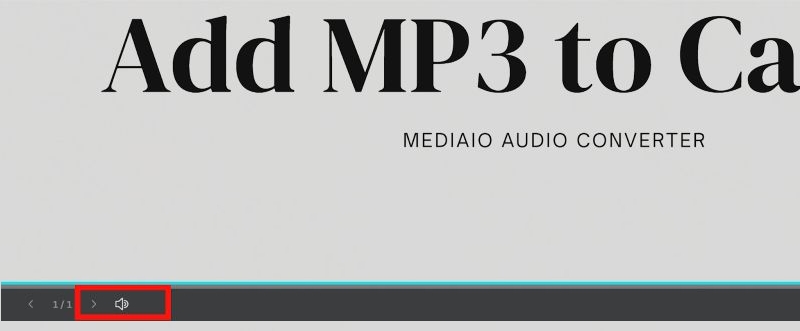
You must download the project as MP4 to preserve the added audio in your final presentation. If you export it as PDF or other static formats, the music will not be included.
How to Add Music to Canva from Spotify via Audio Library
Canva has its own built-in audio library that has thousands of songs and audio effects. However, these are not Spotify tracks. They come from Canva’s partnership with Epidemic Sound. Still, you’ll find many songs you’d find on Spotify.
The problem here is that almost all the tracks can only be used with a paid plan, but you can still try the basic ones for free.
Here’s how to use Spotify songs in your Canva project via audio library.
Step 1. Click the Apps button on the left menu. Once it opens, look for the Audio icon and click it to enter Canva’s full audio library.
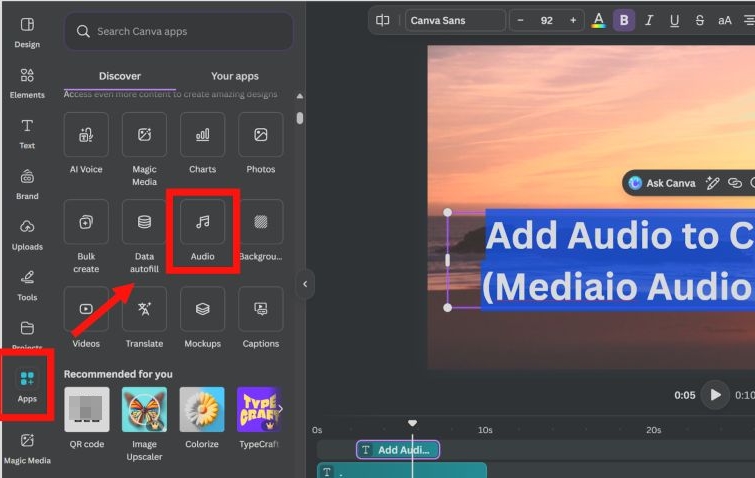
Step 2. You’ll now see categories like Wedding, YouTube, Vlog, Ambient, and many more. To quickly look for a song or pick something from the listed groups, use the search bar at the top.
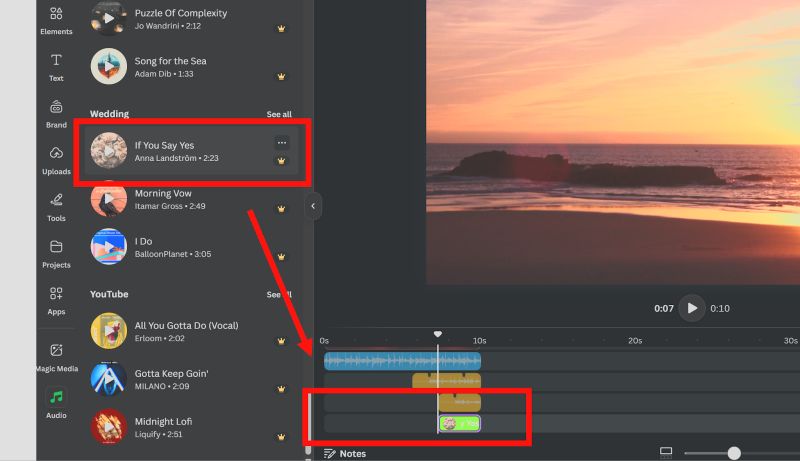
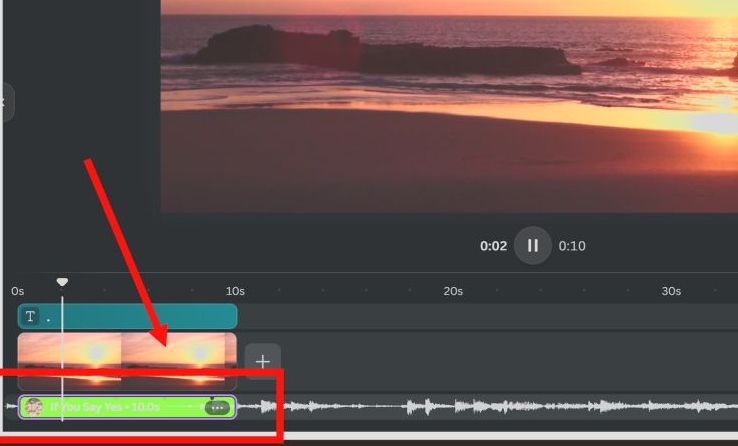
Step 3. Click the song you want. Canva will instantly place it into the timeline at the bottom.
How to Add Music to Canva from Spotify with Link
So finally coming to how to use Spotify music directly through its link in your Canva project. This method works as a quick convenience—just copy the link and you get the Spotify interface inside the Canva slideshow. For that convenience, you lose every audio control. You can’t trim it, fade it, and even adjust the volume. There is also no autoplay either. You will have to click the play button manually each time.
More importantly, this method is limited. The Spotify link will play only when you present the design online (with good internet connection). It works in Canva’s Present mode. You cannot export the corresponding Canva slideshow as MP4 or PDF while expecting the Spotify embed to work. The exported file will only show a still image of the embed.
You must be signed in to Spotify for the full track to play during the live presentation. Otherwise, Canva will only play a short preview, about 30 seconds, each time you press the play button, breaking the flow of your presentation.
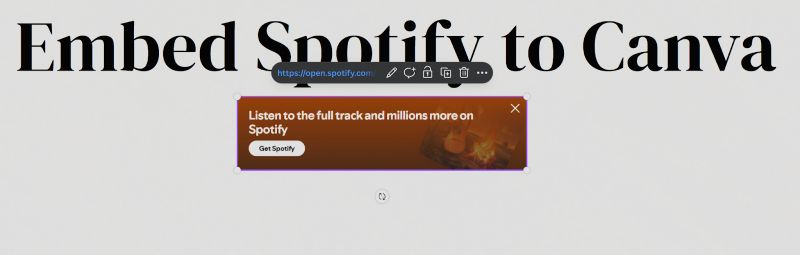
Now that you know about the limitations, let’s see how this works.
Steps to Embed Spotify Music to Canva Presentation with Song Link
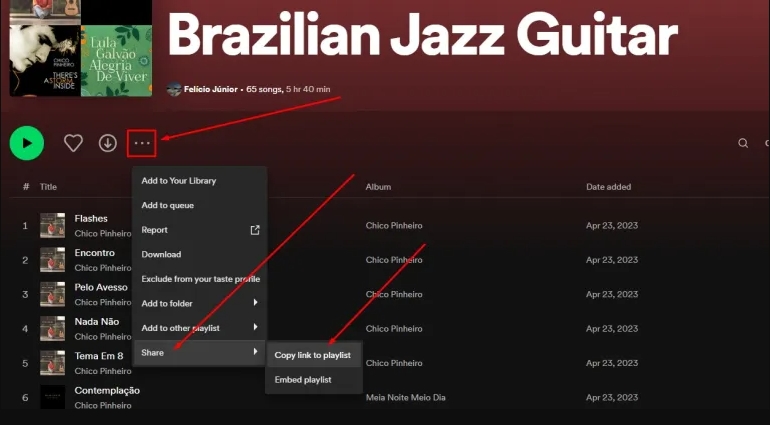
Step 1. You’ll need the Spotify song link. For this:
- Open the playlist or album page on Spotify.
- Click on the three dots.
- Hover over Share.
- Then click on Copy Link to Playlist/Album.
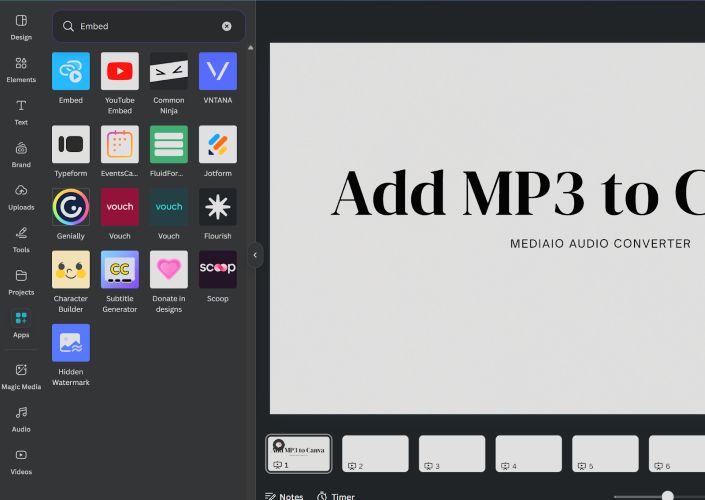
Step 2. Go to Canva and open the project. Click on Apps in the left sidebar and choose Embeds from the list.
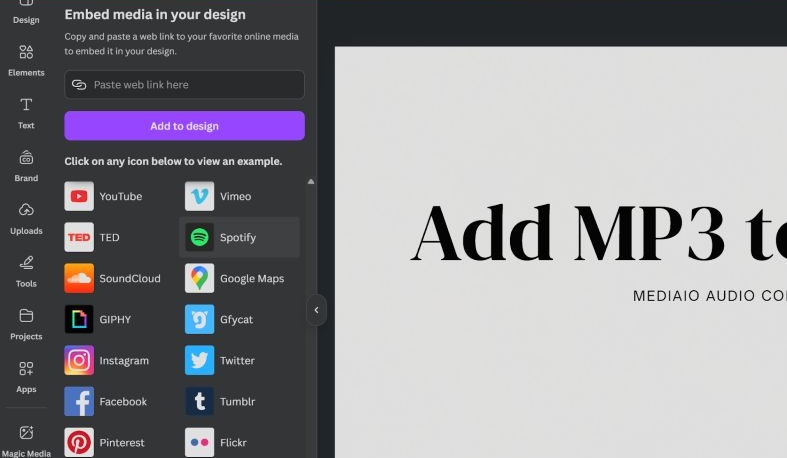
Step 3. From the embed options, click on the Spotify button.
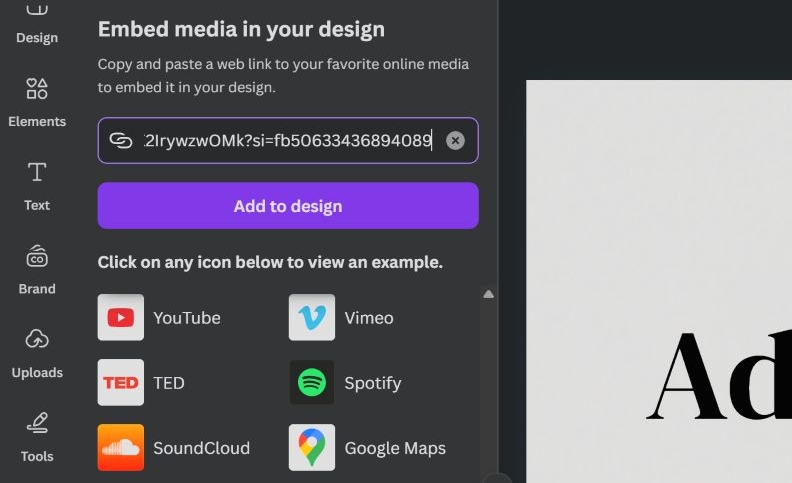
Step 4. Paste the copied Spotify song or album link into the box and click Add to design button.
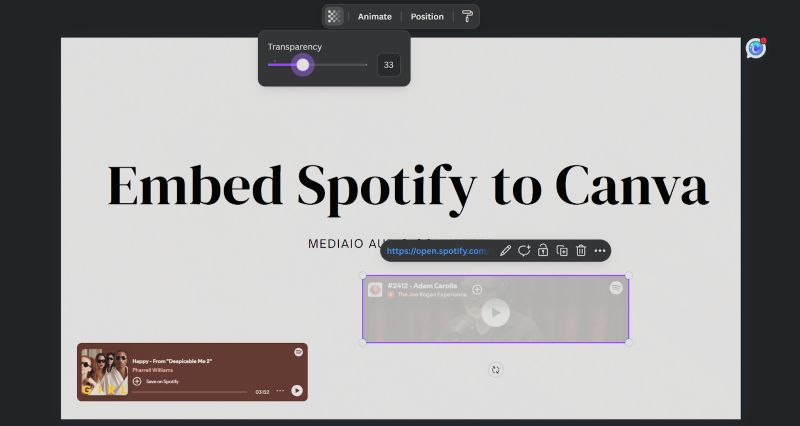
Step 5. The Spotify embed will be added to your page. The embed works as a fixed player and the only thing you can control is its transparency on the slide.
Final Words
That’s everything on how to add music to Canva from Spotify. It works best when you use the tracks as local files instead of relying on the Spotify link. That gives you full control, clean audio, proper trimming, and smooth playback in your exported video or project.
To convert your Spotify songs as local audio, you will need Mediaio Audio Converter that lets you save your Spotify tracks in high quality without needing a Premium account.