

Amazon Music not playing songs can be incredibly frustrating — especially when everything looks fine, but tracks refuse to start, skip randomly, or don’t play the song you actually chose.
The good news?
In most cases, this is not caused by account bans or serious system errors. Playback issues usually come down to app glitches, network problems, subscription limitations, or how Amazon Music is designed to work.
Part 1: Common Reasons Amazon Music Songs Are Not Playing
1. Temporary App Bugs or Cache Issues
One of the most common reasons Amazon Music won’t play songs is a simple app-side glitch.
Typical user scenario:
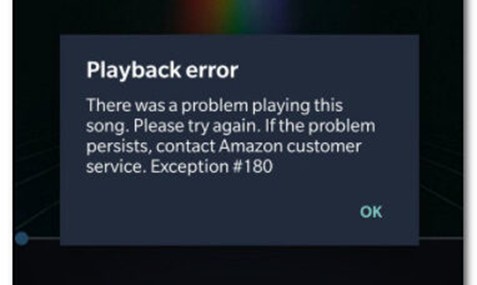
You tap Play, the song loads for a second, then nothing happens — or you see an error like Error Code 200. Sometimes playback just stops halfway through a track.
This often happens when:
- The app hasn’t been updated in a while
- Cached data becomes corrupted after long-term use
- Minor bugs accumulate after system updates
Why this happens: Amazon Music stores temporary playback and authorization data locally. When that data breaks, the app struggles to load or verify tracks.
Quick fix: Updating the app or clearing the cache usually restores normal playback within minutes.
2. Internet Connection or Offline Mode Problems
Amazon Music relies on a stable connection — even for downloaded songs.
What users often notice:
- Songs buffer endlessly
- Offline downloads suddenly won’t play
- Tracks refuse to start when switching networks
Common causes include:
- Weak or unstable Wi-Fi/mobile data
- VPNs or proxies interfering with Amazon’s license checks
- Offline mode enabled incorrectly
- Battery optimization blocking background activity
Why it matters:
Amazon Music periodically checks licenses, even for offline tracks. If verification fails, playback can stop without a clear error message.
3. Device or System Compatibility Issues
Sometimes the issue isn’t the app — it’s the device.
Typical signs:
- Songs won’t play on one device but work on another
- Playback fails after a system update
- Downloads won’t load despite sufficient storage
Possible reasons:
- Unsupported OS versions
- Insufficient storage space
- Missing permissions (storage, background activity)
- Device not properly verified with your Amazon account
Part 2: Amazon Music Downloaded Songs Not Playing
Downloaded songs don't always mean permanent access.
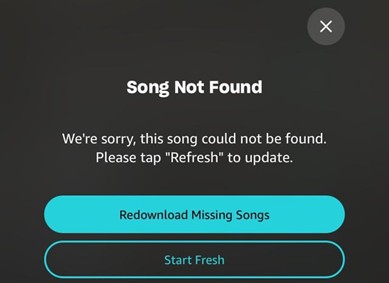
This commonly happens when:
- Your subscription changes
Downloads are tied to your plan. If you downgrade (Unlimited → Prime/Free) or your subscription expires, offline songs may stop working.
- Your account needs re-verification
Long offline periods, region changes, or frequent device switching can trigger reauthorization.
- Storage or permissions fail
Low storage, SD card issues (Android), or disabled permissions can prevent downloads from loading.
User tip: If downloaded songs suddenly stop playing, reconnect to the internet and sign back into your Amazon account before re-downloading everything.
Part 3: Amazon Music Not Playing Full Songs or Skipping Tracks
Amazon Music Prime vs Unlimited — The Key Difference
Many users assume playback issues are bugs — but they’re often subscription limitations.
With Amazon Music Prime:
- No true on-demand playback
- Songs may be shortened, skipped, or replaced
- Skip limits apply
- Playlists behave more like stations
With Amazon Music Unlimited:
- Full songs play from start to finish
- Unlimited skips
- Full control over playlists and track selection
Real-world example: You tap a specific song, but Amazon plays only part of it or swaps in a similar track. That’s normal behavior on Prime — not a glitch.
Shuffle and Radio Mode Confusion
Sometimes the app is simply not in the mode you think it is.
Common confusion:
- A playlist starts, but songs appear out of order
- Tracks not in your playlist suddenly play
Why:
1. Shuffle mode is enabled
2. Playlist opens as a “radio” or “based on your playlist” station
3. Always check the playback icons and labels before assuming something is broken.
Part 4: Why Amazon Music Doesn’t Play the Song You Choose
Playlist Restrictions on Certain Plans
On Prime Music, playlists are not fully on-demand.
What actually happens:
When you select a song, Amazon treats it as a request — not a command. The app may substitute tracks, shorten playback, or rearrange order based on licensing rules.
Unlimited plans remove these restrictions entirely.
Search and Voice Command Ambiguity
Sometimes Amazon does play a song — just not the version you wanted.
Why this happens:
- Multiple versions exist (live, remix, re-recorded)
- Alexa or voice search misinterprets titles
- Amazon defaults to the most licensed or popular version
If accuracy matters, manually select the exact album version instead of relying on voice commands.
Part 5: Why Amazon Music Plays Songs Not on My Playlist
Recommendation and Radio Logic
This isn’t always a bug. Amazon Music often extends playlists with recommended tracks to keep playback going.
You’ll see this when:
- Autoplay is enabled
- You’re listening to a station instead of a playlist
How to Check Your Playback Mode
- “Based on your playlist” → Radio mode
- Playlist label only → Your selected tracks
- Shuffle mixes order; Autoplay adds extra songs after your list ends
Adjusting these settings gives you full control over what plays next.
Part 6: How to Fix Amazon Music Playback Issues (Step-by-Step)
A. Quick Fixes to Try First
- Restart the Amazon Music app
- Switch between Wi-Fi and mobile data
- Sign out and sign back into your Amazon account
These steps refresh authorization and fix many temporary issues.
B. App & Device-Level Fixes
- Clear app cache (not data)
- Update the Amazon Music app
- Update your device system software
Outdated apps or systems are a common source of playback bugs.
C. Subscription & Settings Check
1. Confirm your current plan (Prime vs Unlimited)
2. Disable shuffle or radio mode if needed
3. Re-download songs that won’t play
Part 7: When to Contact Amazon Music Support
Contact Amazon Music Support if:
- Playback issues persist after troubleshooting
- Your subscription is active, but songs won’t play
- Authorization errors appear across multiple devices
Account-level issues usually require direct support intervention.
Part 8: What to Do If Amazon Music Still Won’t Play Songs Properly
If Amazon Music playback issues continue — especially for offline listening — some users choose a different approach — Mediaio Audio Converter.
Who this is for:
- Users who experience repeated download failures
- Listeners using unsupported devices (car systems, older players)
- People who want consistent offline playback without reauthorization issues
- Mediaio Audio Converter allows users to convert Amazon Music tracks into standard audio formats like MP3 or FLAC for personal offline listening.
Important limitations:
- This does not unlock Prime playback limits
- Requires installing third-party software
- Use must comply with local laws and Amazon’s terms
Step-by-step
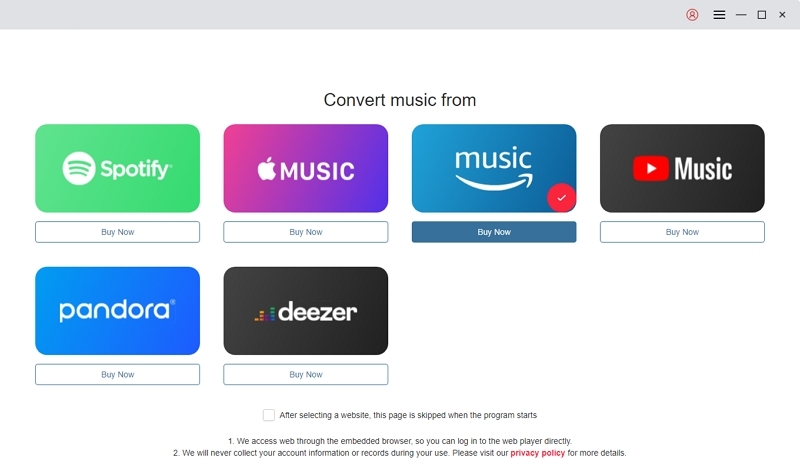
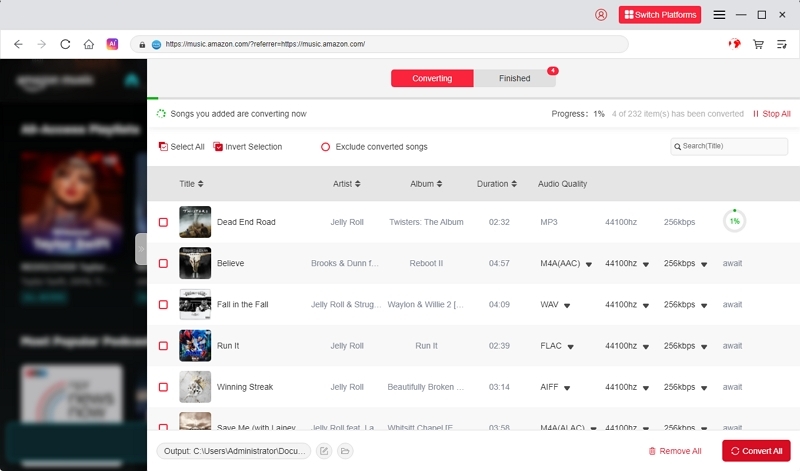
Launch the software and select Amazon Music from the main interface. Then, log in to your Amazon Music account.
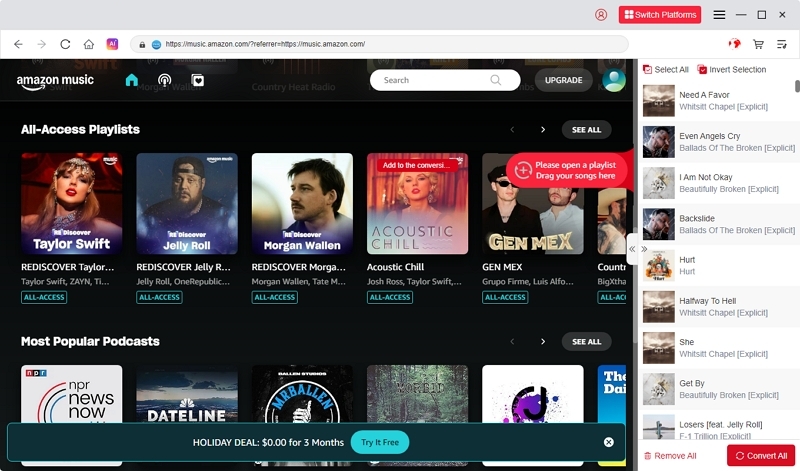
Browse Amazon Music to find your favorite songs, albums, or playlists, then drag them into the “+” box to add them.
Set MP3 as the output format. For the best audio quality, select 320 kbps in the audio settings.
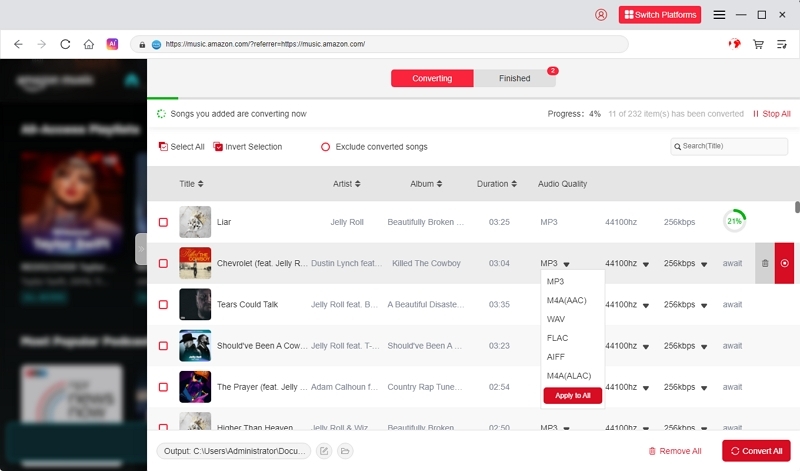
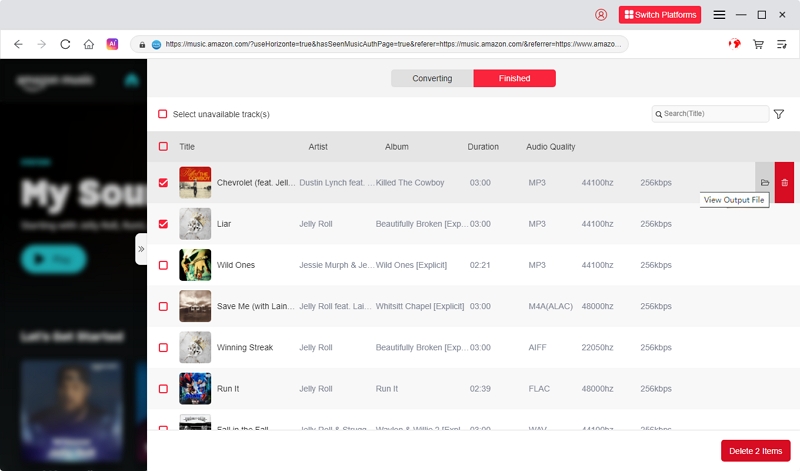
Click the “Convert” button to start downloading Amazon Music tracks to your local device.
Once downloaded, you can play the Amazon Music songs on any compatible media player without restrictions.
Part 9: FAQs
No. The Free plan does not allow full on-demand playback. Although you can listen to playlists, stations, and recommended tracks, you cannot pick and play any song exactly when you want. Amazon Music Unlimited is ideal for full song selection.
Songs may be skipped due to playback limits on certain plans. In many cases, shuffle mode or radio-style playback replaces your selected tracks with similar songs. This behavior is a built-in limitation of the plan rather than a technical bug.
This depends on your subscription type. Individual plans allow streaming on one device at a time, while Family plans support multiple simultaneous streams across different devices. Free and Prime plans are also limited to a single device at a time.
Conclusion
Amazon Music playback issues can be annoying, but most are easy to fix once you understand why they happen.
By checking your app, device, network, and subscription settings, you can restore smooth streaming quickly. If problems persist, Amazon Music Support is the best next step. For users who want more stable offline playback across devices, alternative solutions may also help — as long as they’re used responsibly.