

Managing your Amazon Music subscription should be simple — but with multiple plans, different billing methods, and separate settings hidden across Amazon, Apple, and mobile apps, it can quickly get confusing. Whether you want to switch plans, check your billing, stop auto-renewal, or cancel entirely, this 2025 guide walks you through everything step by step.
Below, you’ll find a clear breakdown of all Amazon Music plans, how to manage your subscription on any device, every cancellation method, and how to download Amazon Music for offline listening without paying monthly fees.
Quick Answer: How to Cancel Amazon Music Subscription
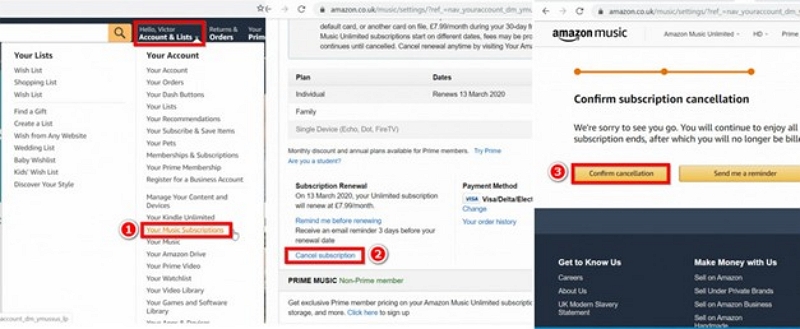
You can cancel Amazon Music in under a minute:
- Go to Amazon.com → Account & Lists.
- Select Memberships & Subscriptions.
- Find Amazon Music Unlimited.
- Click Manage → Cancel Subscription.
- Confirm cancellation.
Your subscription stays active until the end of your billing cycle — no extra charges will be made.
Part 1. Amazon Music Subscription Plans
Here are the subscription plans of Amazon Music –
Which plan is best?
If you want full control, offline downloads, and the highest quality, Amazon Music Unlimited Individual is the best value.
Part 2. How to Manage Amazon Music Subscription
Managing your Amazon Music plan — whether switching tiers, changing billing, or updating payment — is easiest on the Amazon website.
Method 1. On Web (Most Reliable)
Step 1:Visit Amazon.com and sign in. Go to Account & Lists → Memberships & Subscriptions.
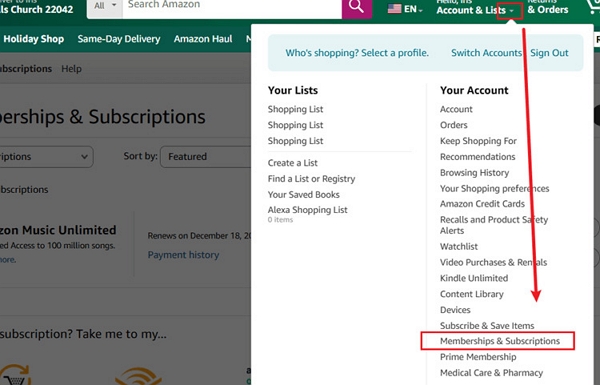
Step 2: Look for Amazon Music or Amazon Music Unlimited in the subscription list.
Step 3: Click Manage Subscription, where you can:
- Switch plans (Prime → Unlimited, Individual → Family, etc.)
- Change billing frequency (monthly ↔ yearly)
- Update your payment method
- View renewal dates and billing history
Part 3. How to Cancel Amazon Music Subscription (All Methods)
You can cancel Amazon Music through Amazon, the mobile app, or — if billed by Apple — through your Apple ID or iTunes. Use the method that matches how you originally subscribed.
Method 1. Cancel Amazon Music on the Website
The website method works for nearly all users.
Step 1: Go to Amazon.com and sign in to your account.
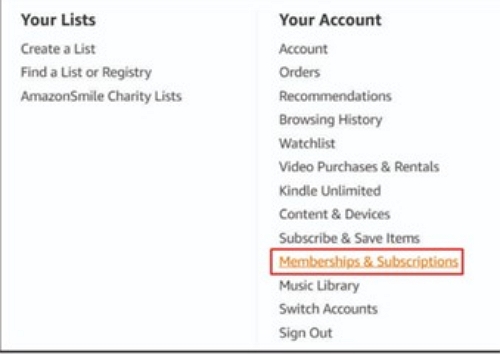
Step 2: On the upper-right corner of the homepage, click Account & Lists.

Step 3: From the drop-down menu, select Memberships & Subscriptions.
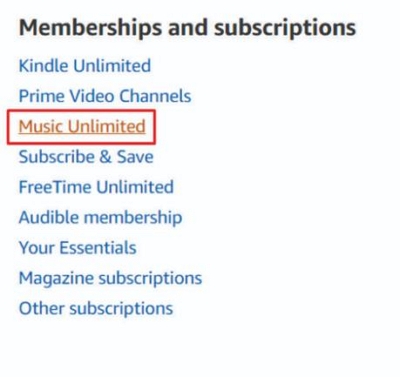
Step 4: Scroll down and click Music unlimited at the bottom of the page.
Step 5: On the next screen, find the Amazon Music Unlimited section.
Step 6: Under Subscription Renewal Details, click Cancel Subscription.
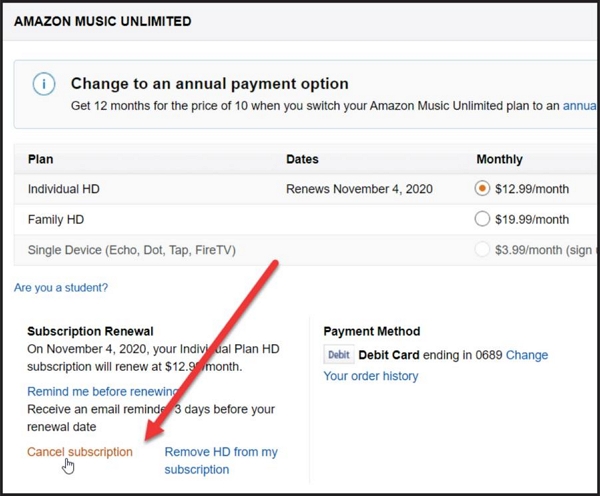
Step 7: Confirm your choice by selecting Confirm cancellation.
After cancellation, your access continues until the end of the billing period.
Method 2. Cancel Amazon Music via iPhone/Android App
On Android
Step 1: Open Amazon Music.
Step 2: Tap the Settings (gear) icon.
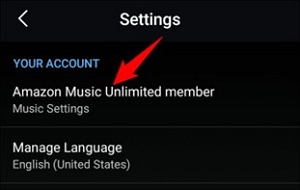
Step 3: Go to Amazon Music Unlimited → Subscription Renewal.
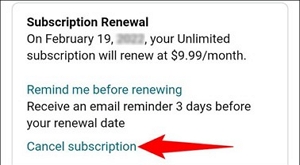
Step 4: Choose Cancel Subscription, then confirm.
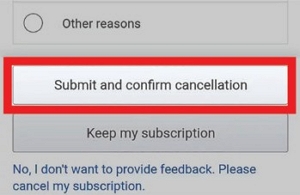
On iPhone
You have two possibilities depending on how you subscribed:
A. Subscribed directly through Amazon
Use the website method (Method 1).
B. Subscribed through Apple / App Store billing
Step 1. Open the Settings app.
Step 2. Tap your name → Subscriptions.
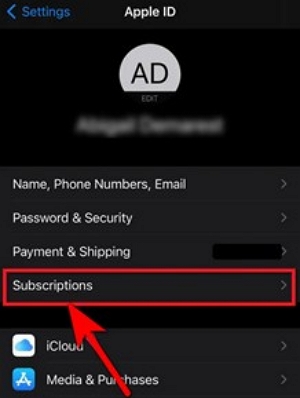
Step 3. Select Amazon Music.
Step 4. Tap Cancel Subscription.
Method 3. Cancel Amazon Music via iTunes (if billed by Apple)
Step 1: Open iTunes on Windows or Mac.
Step 2: Go to Account → View My Account and sign in.
Step 3: Scroll to Settings → Subscriptions → Manage.
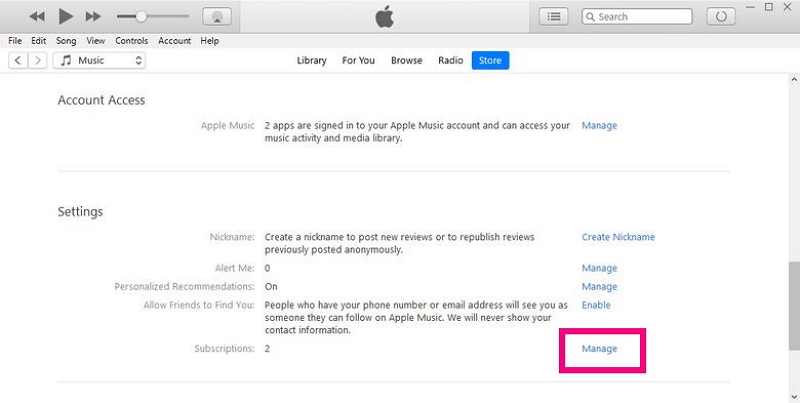
Step 4: Select Amazon Music.Click Cancel Subscription and confirm.
Once canceled, your Amazon Music Unlimited access will continue until the end of your current billing cycle (your previous monthly renewal date). This applies regardless of the cancellation method you use.
Part 4. How to Turn Off Auto-Renewal for Amazon Music
Turning off auto-renewal on Amazon Music simply stops your plan from renewing at the next billing date — it does not remove your access immediately. This process is the same as canceling your subscription, but many users specifically search for “stop auto-renewal,” so here’s how it works.
To disable auto-renewal:
- Go to your Memberships & Subscriptions page on Amazon.
- Open Amazon Music Unlimited (or your current music plan).
- In the Subscription Renewal section, select Cancel Subscription to prevent future charges.
These steps are identical to the cancellation process described earlier in Part 3, but turning off auto-renewal specifically means your plan will simply expire at the end of the billing cycle with no additional payments.
Part 5. Best Alternative: Download Amazon Music without Subscription
If you want offline music without paying for Amazon Music Unlimited, a dedicated music downloader is the easiest option. These tools let you save tracks as real audio files — playable on any device forever.
Mediaio Audio Converter (Recommended)
Mediaio Audio Converter is one of the most reliable Amazon Music downloaders. It works without the Amazon Music app and lets you download songs, playlists, and albums in high quality.
How to Download Amazon Music Without a Subscription
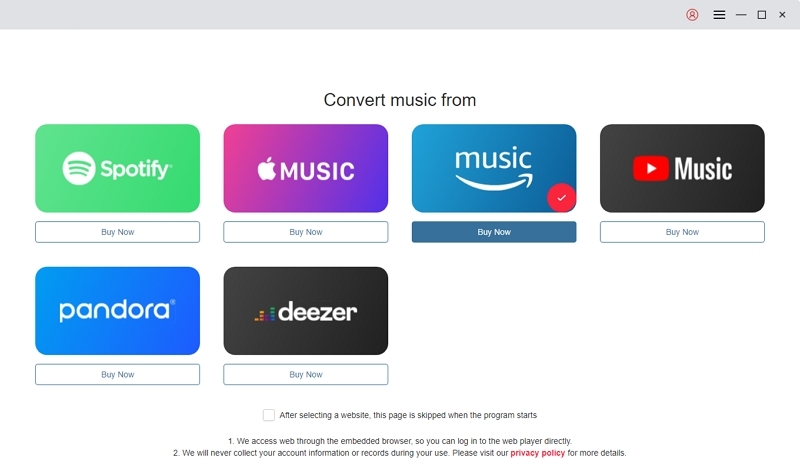
Download and open Mediaio Audio Converter on Windows or Mac. Then select Amazon Music as your streaming source.
Search for any Amazon Music song or playlist and add it to the converter using the “+” button.
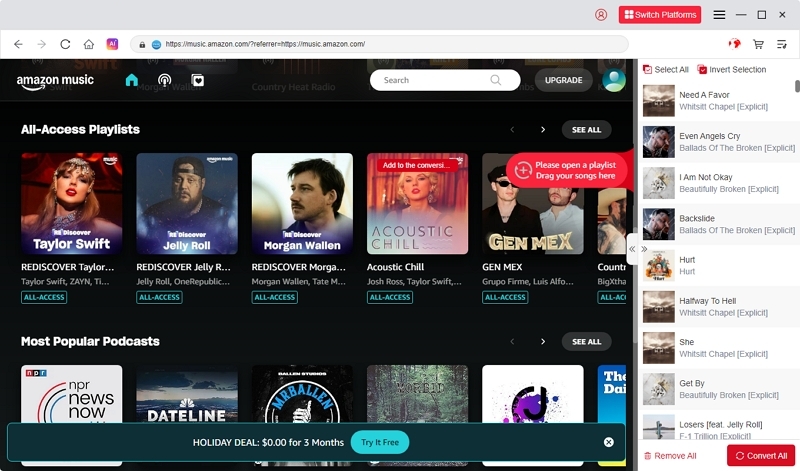
Select your preferred output format such as MP3, M4A, WAV, or FLAC. Then choose where you want to save your converted files.
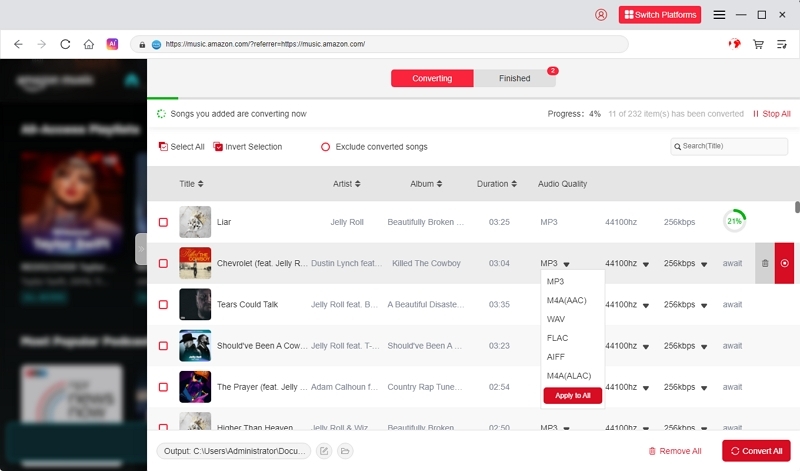
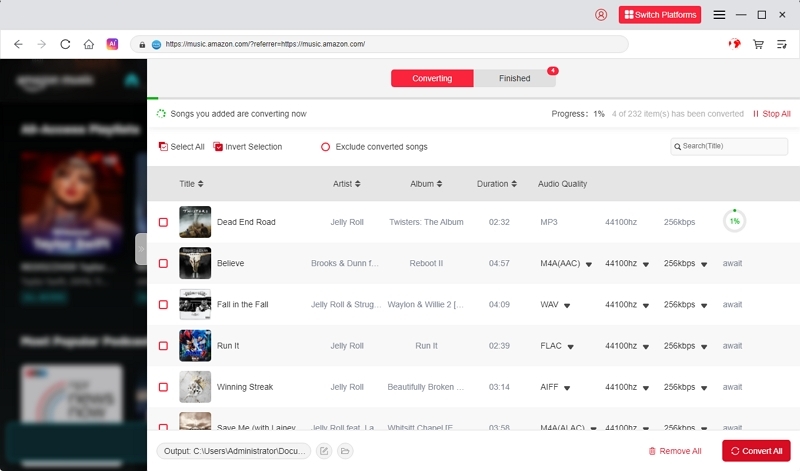
Click Convert All to begin downloading and converting your selected Amazon Music tracks.
Once the conversion is complete, go to the Finished tab to find all your downloaded Amazon Music tracks.
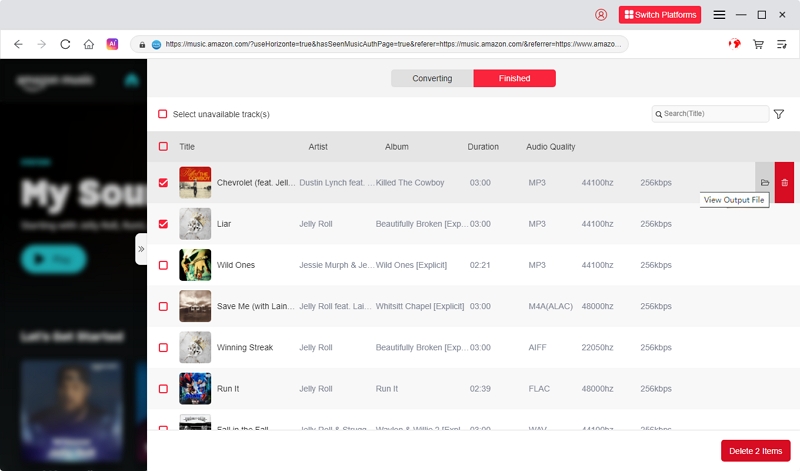
You can now listen offline on any device — permanently.
Part 6. FAQs
No — Amazon Music Free does not allow you to download songs for offline listening. To download songs, you need an active Amazon Music Unlimited subscription or a Prime membership with Prime Music access.
Even after cancellation, Amazon lets you continue using your subscription until the end of your current billing cycle. Your access ends only when the billing period expires.
Typically, refunds are not issued when you cancel your subscription. However, if you cancel right after your plan renews, you may be eligible for a refund.
No, your playlists will not be deleted—they remain stored in the cloud. However, any offline downloaded tracks will no longer be accessible.
Conclusion
Managing, modifying, or canceling your Amazon Music subscription in 2025 is straightforward once you know where to look. Whether you want to change plans, stop auto-renewal, or leave the service entirely, this guide walks you through every method.
And if you prefer to keep your music offline permanently without a subscription, Mediaio Audio Converter provides a flexible, high-quality solution that works on any computer.