

Buying music from Amazon is one of the easiest ways to build a personal, high-quality MP3 collection—but figuring out how to download your purchased songs isn’t always as straightforward as it should be. Depending on your device, Amazon gives you different download options, whether you’re using the Amazon Music app or the website.
This guide walks you through every method to download purchased Amazon music, explains the differences between purchased MP3s and subscription-based streaming, shows how to locate downloaded files, and includes solutions for tracks that don’t appear in your library.
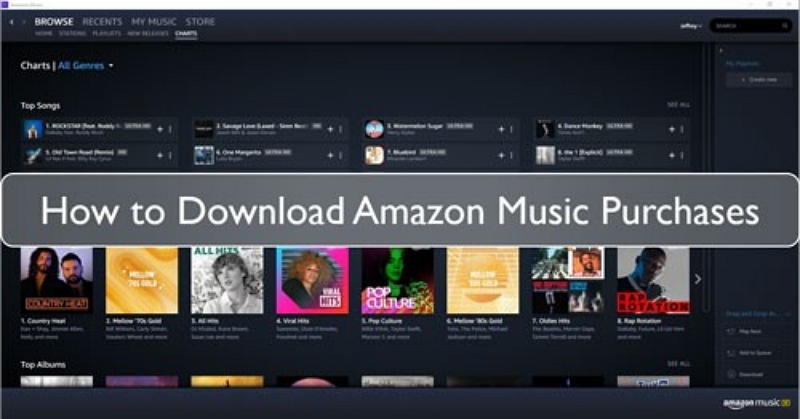
Can You Download Amazon Purchased Music? (Quick Answer)
Yes — if you purchased the song or album, you can download it as a DRM-free MP3 file and store it locally.
Purchased MP3s
- Downloadable as standalone MP3s
- DRM-free
- Transferable to USB, SD cards, phones, PCs, and media players
Amazon Prime / Unlimited Downloads
- Download allowed only inside the Amazon Music app
- Encrypted files
- Not transferrable
- Not downloadable as MP3s
Where Purchased Amazon Music Appears
Amazon Music app or website > Library > Purchased
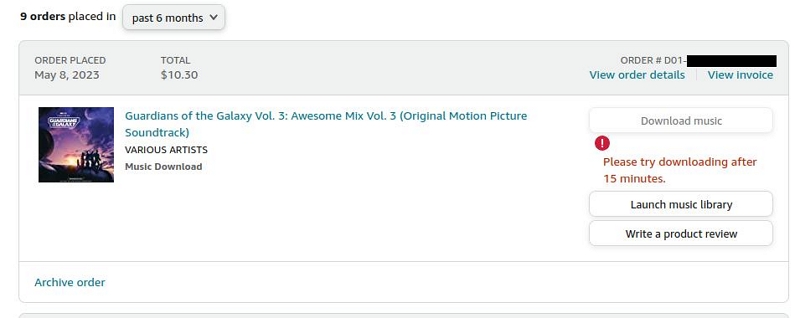
Method 1: Download Purchased Amazon Music Using a Web Browser (PC/Mac)
Best for: users who want MP3 files stored locally
Works on: Chrome, Edge, Firefox
Steps
Step 1: Go to music.amazon.com and sign in
Step 2: Open Library
Step 3: Scroll to the right → tap Purchased
Step 4: Open the song/album menu (…)
Step 5: Select Download purchases.
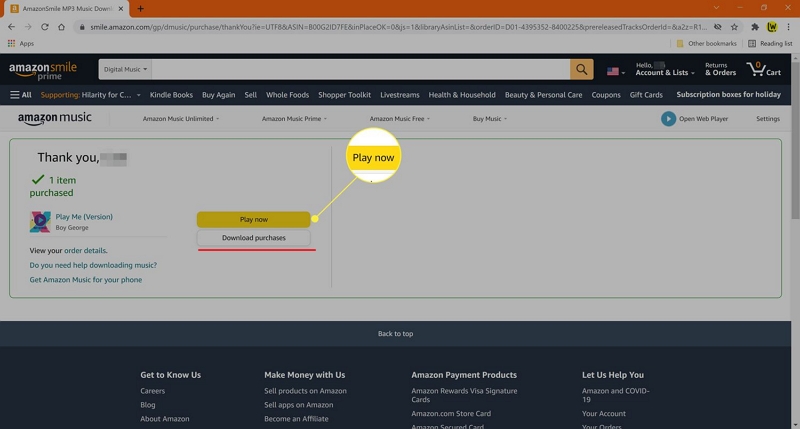
Step 6: Check your browser's Downloads folder for the MP3 file
No Prime or Unlimited titles are available for download here. Only purchased Amazon Music tracks can be saved as DRM-free MP3s.
Method 2: Download Purchased Amazon Music on Windows/Mac App
Steps:
Step 1: Open Amazon Music for PC/Mac
Step 2: Go to Library → Music
Step 3: Filter by Purchased
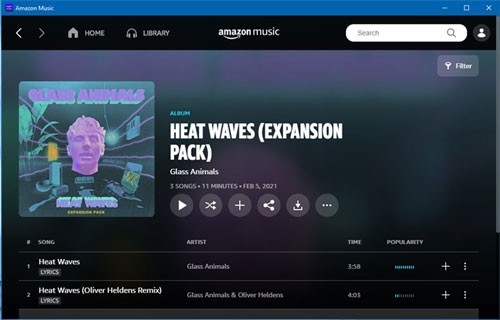
Step 4: Click Download next to the item
Method 3: Download Purchased Music on Android
Steps:
Step 1: Open the Amazon Music app
Step 2: Go to Library
Step 3: Scroll tabs → tap Purchased
Step 4: Tap (…) next to a song → Download
File location: Internal storage / Android / data / com.amazon.mp3 / files / Music
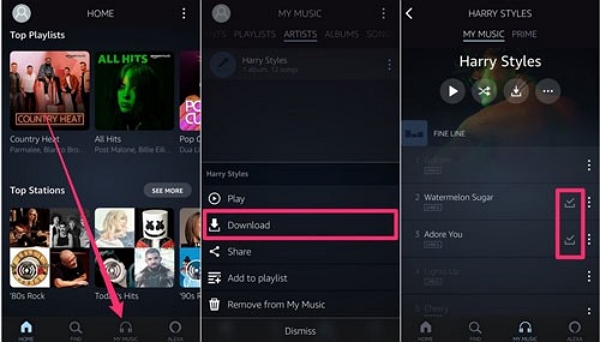
To export MP3 to a computer:
Step 1: Connect via USB
Step 2: Copy from the Amazon Music folder
Method 4: Download Purchased Music on iPhone/iPad
Steps:
Step 1: Open the Amazon Music app
Step 2: Go to Library → Purchased
Step 3: For songs → tap (…) → Download
Step 4: For albums → open album → Download icon
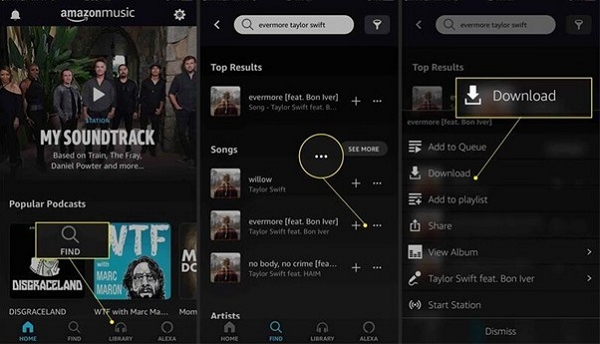
iOS does not allow direct file access. To export MP3 files, you must download them using a computer instead of an iOS device.
Where do Amazon purchased downloads go?
The question on everyone's mind is: Where are Amazon-purchased downloads saved? It depends on how to download them.
From Browser → By default, they go into the Downloads folder (MP3). However, you can specify your preferred location.
From the PC/Mac app, they are stored in the Amazon Music folder. You can change this location in the app’s Settings > Download.
Android → internal storage Amazon folder
iPhone → in-app only (no file export)
Bonus: Download Any Amazon Music (Prime, Unlimited, Purchased) as MP3
The easiest and official way to download MP3 files from Amazon is to purchase them. Subscription-based tracks (Prime/Unlimited) can be downloaded only for offline playback inside the app, and these files cannot be transferred to other devices.
If you need MP3 versions of your Amazon Music tracks for personal use across multiple devices, a third-party tool like Mediaio Audio Converter can help convert Amazon Music streams into open formats.
Why choose Mediaio
- Mediaio bypasses DRM restrictions, allowing you to convert Amazon Music tracks into multiple formats, including MP3, MP4, FLAC, and WAV.
- Mediaio offers AI-powered features, such as subtitles, text-to-music, vocal remover, and reverb remover.
- Though a free trial is available, registering for its services allows you to enjoy all features.
How Mediaio Works (No Amazon App Required)
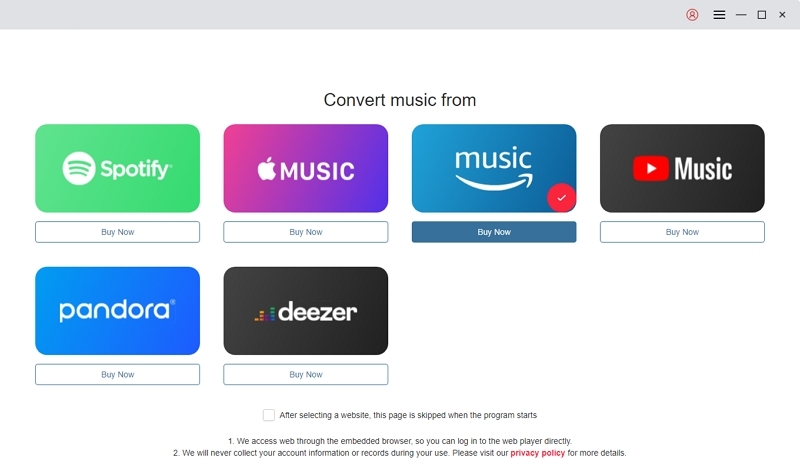
Download the Mediaio software from the official website. Select Amazon Music and sign in to your account.
Browse or search for the songs, playlists, or albums you want to download. Drag your desired items to the “+” icon to add them to the conversion list.
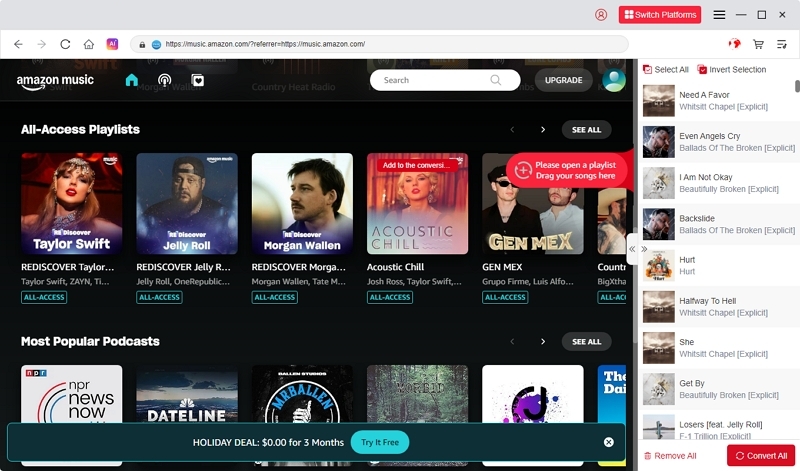
Select your preferred output format, such as MP3, FLAC, or WAV.
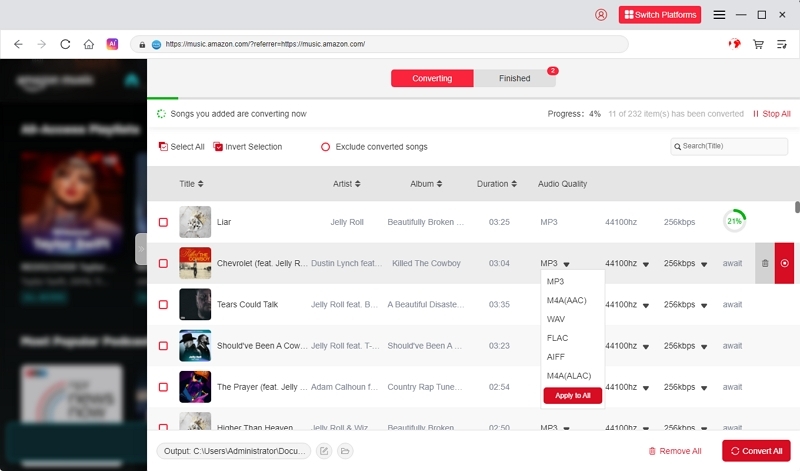
Select the folder where you want to save the downloaded files. Click Convert All to start the conversion process.
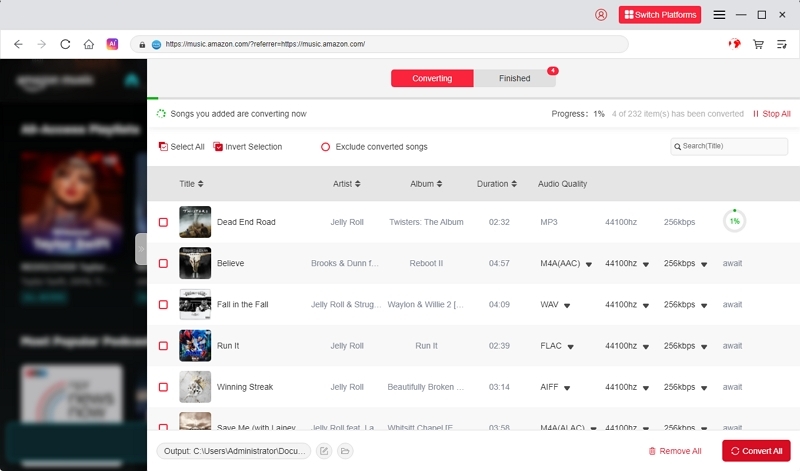
After conversion, your files can be freely stored, transferred, or backed up.
Bought Music Not Showing Up? Fix It
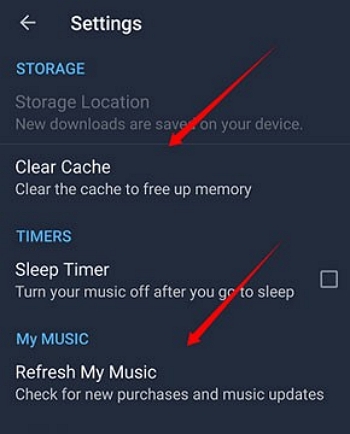
Sometimes, the purchased Amazon Music may not appear. You can access it by refreshing your library. If it doesn't work, restart your device.
1. Refresh Library
Step 1: Open the Amazon Music app.
Step 2: Tap Menu > Settings > Refresh My Music
Step 3: Sign out & sign in
2. Sign out and sign back in
Ensure you're using the same Amazon account used for purchasing.
3. Like/Favorite the track
This forces the track into the Songs/Albums view.
4. Restart your device
Clears temporary cache issues.
5. Update Amazon Music
Older versions often fail to sync purchased content.
FAQs
Purchased MP3s: You can copy them to USB drives, SD cards, or any other external storage device.
Subscription downloads: No, they're locked inside the Amazon Music app and cannot be transferred. However, you can use tools like Mediaio Audio Converter to export them outside the app.
Conclusion
Downloading Amazon Music files depends on whether you have purchased them or are accessing them through the app. Purchased music tracks are yours forever. You can redownload them as many times as you want. However, tracks streamed through the app via subscription remain locked inside the app. You can use third-party tools, such as Mediaio, to download Amazon Music tracks without the need for the app.