

If you’re using Amazon Music on Android Auto, you already know how convenient it is to enjoy your favorite playlists hands-free while driving. But recently, many users have noticed a frustrating bug: Amazon Music Android Auto does not show all playlists — only a few tracks appear, or sometimes the app freezes altogether.
This guide will walk you through everything: how to properly connect Amazon Music to Android Auto, why your playlists might not appear, and the best solutions (including offline playback options).
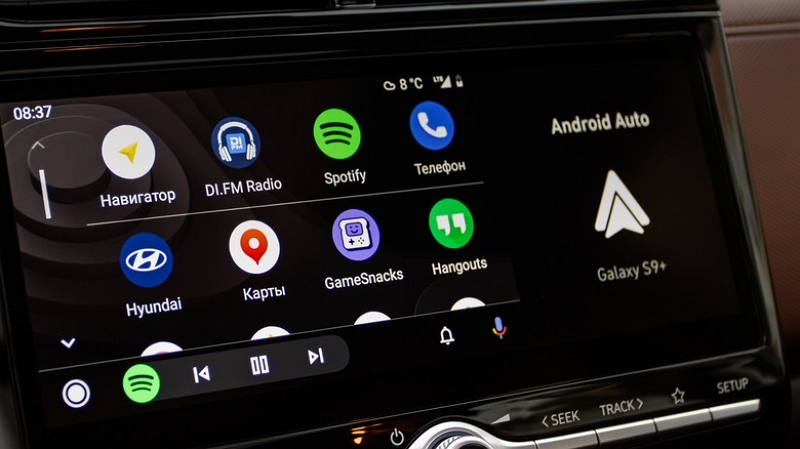
Part 1. What Is Android Auto and Why Use It with Amazon Music?
Android Auto is Google’s smart driving companion that mirrors your phone’s key apps—like navigation, calls, and music—directly on your car’s infotainment system. It allows safer driving by letting you control apps via voice commands, so your focus stays on the road.
Amazon Music, whether you use the free, Prime, or Unlimited plan, offers millions of songs, curated playlists, and personalized mixes—making it one of the best music apps for Android Auto.
You can even control playback using voice — say, “Hey Google, play my Road Trip playlist on Amazon Music.” With seamless integration and high-quality streaming, it’s a perfect match—until it isn’t.
Part 2. Requirements Before Playing Amazon Music on Android Auto
Before diving into your playlists, make sure you meet these requirements for Amazon Music for Android Auto:
✅ Compatible Car & Android Version (Android 6.0+)
✅ Latest Amazon Music and Android Auto apps installed
✅ Stable Internet Connection (or downloaded songs for offline use)
✅ Proper Permissions (Media, Bluetooth, Background activity)
✅ Working USB cable or wireless setup
Many Reddit users found that missing storage or media permissions can cause the issue where Amazon Music playlists do not appear on Android Auto.
Part 3. How to Connect Amazon Music to Android Auto
Once you’re set, follow one of these methods to use Amazon Music on Android Auto.
Method 1. Via USB Cable
Step 1. Connect your phone to the car using a certified USB cable.
Step 2. Tap “Android Auto” on your car’s screen.
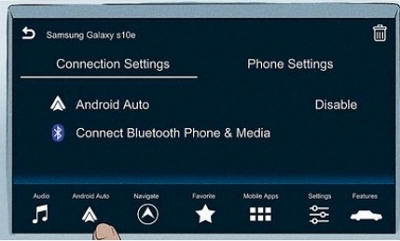
Step 3. Open the app launcher → locate Amazon Music.
Step 4. Start playing your playlists.
If you can’t see the Amazon Music icon, open Android Auto settings on your phone and recheck the launcher app list.
Method 2. Wirelessly via Bluetooth/Wi-Fi
Step 1. Ensure your phone and car both support wireless Android Auto.
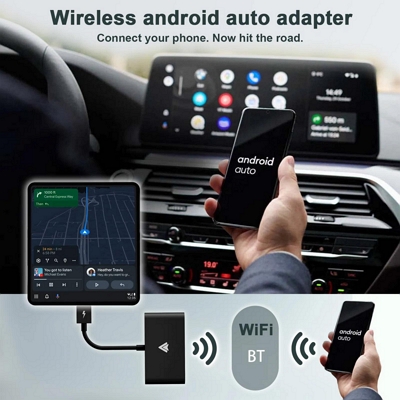
Step 2. Pair your phone via Bluetooth.
Step 3. Launch Android Auto on your dashboard display.
Step 4. Open Amazon Music and browse your playlists.
Some cars (especially older models like 2017–2018 Honda or Ford) may not support wireless Android Auto connections.
Method 3. Voice Command Shortcuts
If your hands are busy, say:
- “Hey Google, play Amazon Music.”
- “Hey Google, play my workout playlist on Amazon Music.”
- “Hey Google, next song.”
This is the safest and most convenient way to use Android Auto Amazon Music while driving.
Part 4. Common Problems: Amazon Music Android Auto Does Not Show All Playlists
Unfortunately, many drivers have recently reported issues where Amazon Music Android Auto does not show all play lists or fails to load entirely.
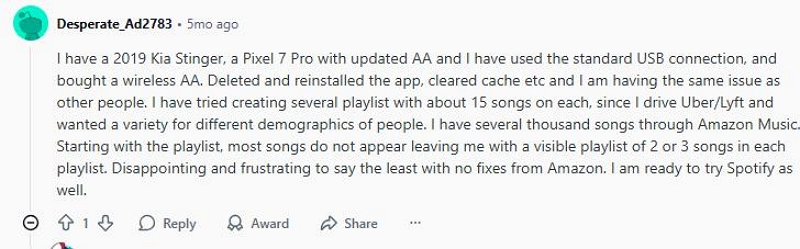
Reddit User Feedback Summary
“Many users report that Amazon Music doesn’t show all playlists — sometimes only 2–3 tracks appear.”
“Some say the app freezes or fails to respond when selecting playlists.”
“Others mentioned switching to Spotify due to consistent playback on Android Auto.”
“I have several thousand songs through Amazon Music, but only 2 or 3 songs show up per playlist when using Android Auto. Frustrating with no fix from Amazon.”
—— Desperate_Ad2783 (r/AmazonMusic), Reddit
Why Does This Happen?
Common causes include:
- Outdated Amazon Music or Android Auto versions
- Cache corruption or incomplete sync
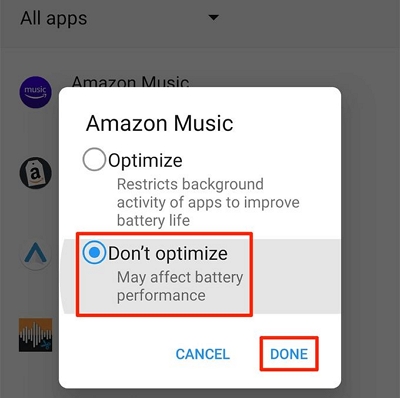
- Battery optimization interfering with background activity
- Poor internet or cloud sync failure from Amazon servers
- Android Auto display or compatibility limitations
Part 5. Fixes for Amazon Music Not Working or Missing Playlists on Android Auto
If Amazon Music not working on Android Auto, try these practical fixes:
1. Restart Everything — Both your phone and car infotainment system.
2. Update Both Apps — Check Google Play for the latest Amazon Music and Android Auto versions.
3. Check App Permissions — Ensure Media, Storage, and Bluetooth access are enabled.
4. Disable Battery Optimization — Go to Settings > Apps > Amazon Music > Battery > “Don’t optimize.”
5. Clear Cache and Re-sync Amazon Library — This refreshes your playlists.
6. Reconnect USB or Reset Bluetooth Pairing — A simple re-pair often fixes detection bugs.
7. Check Internet or Switch to Offline Mode.
8. Rebuild Your Playlists (Reddit Tip) —Some users report that shortening playlists (under 100 songs) helps them fully load on Android Auto.
If Amazon Music Android Auto does not show all playlists, create a smaller playlist, wait for the full sync in the Amazon Music app, then reconnect to Android Auto.
Part 6. Best Offline Way to Play Amazon Music on Android Auto
Sometimes, no matter what you try, the playlists still don’t appear or the app crashes. The easiest workaround? Use offline playback.
Use Mediaio Audio Converter
With an Amazon Music Android Auto converter like Mediaio Audio Converter, you can:
You’ll get:
- Full ID3 tags (artist, album, track)
- Lossless audio quality
- Offline playback with no Amazon app needed
Select Amazon Music after installing the software.
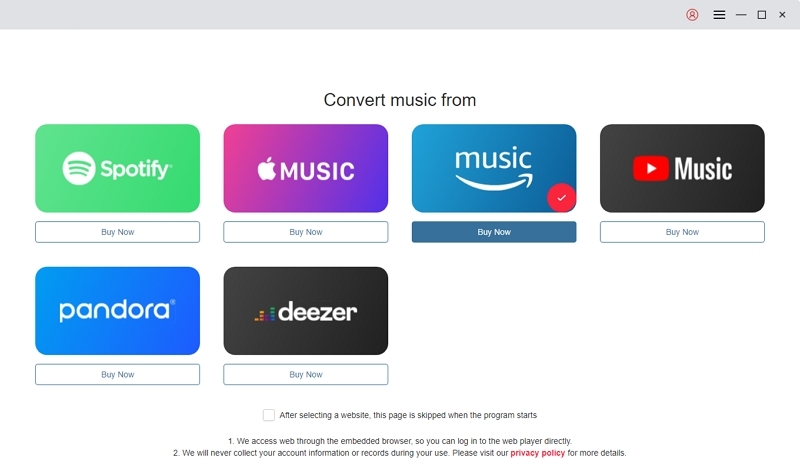
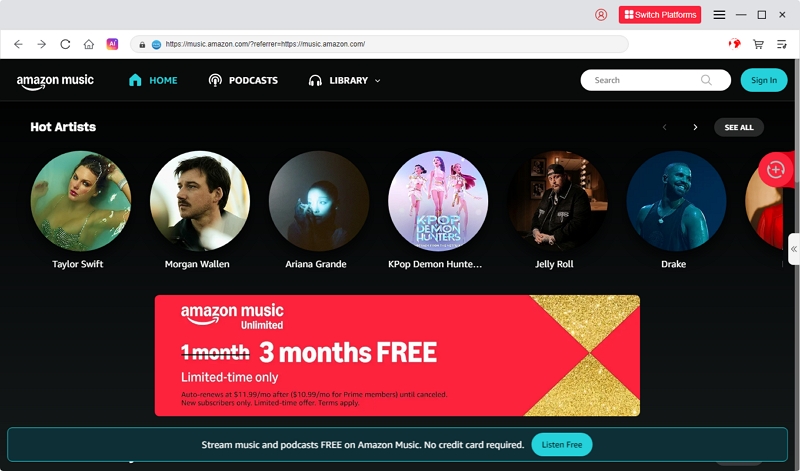
Enter your Amazon Music credentials within the tool to access your playlists.
Choose the playlists or songs you want to convert and download.
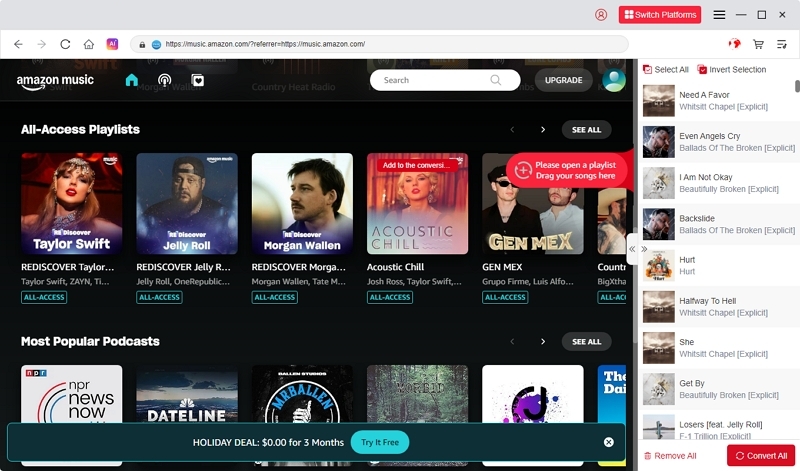
Select MP3 (or other preferred formats) for conversion to ensure compatibility with your devices.
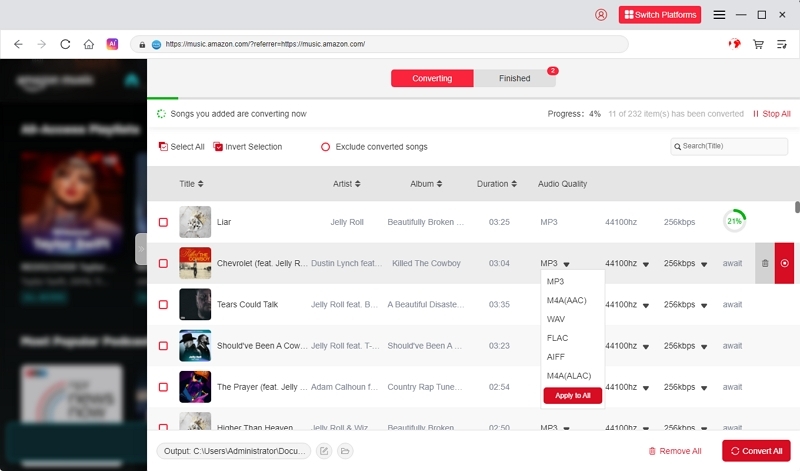
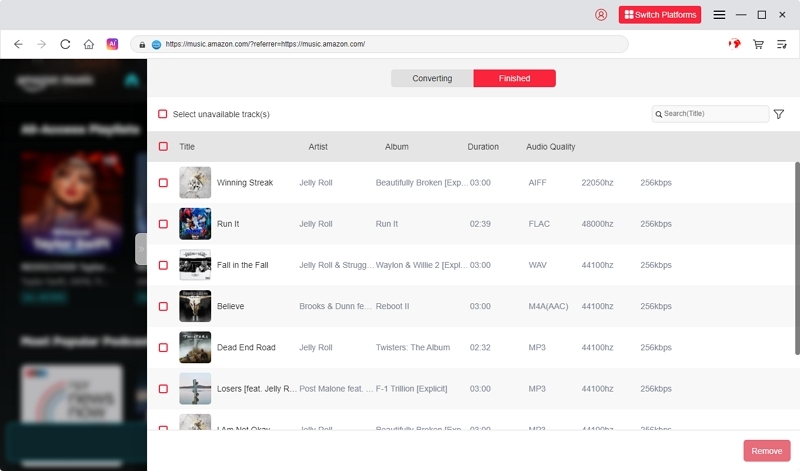
Start the conversion and save the files locally on your computer.
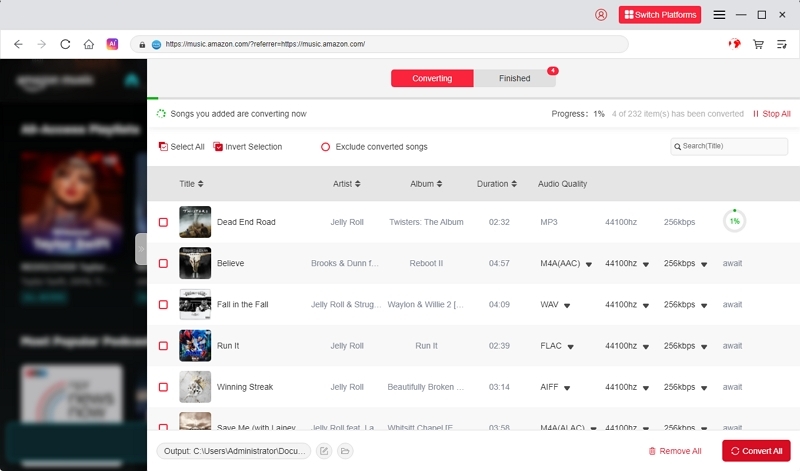
Move the converted files to your phone or USB drive, then play them in your car using Android Auto.
Use cases:
- No internet connection while driving
- Avoiding app sync bugs or missing playlists
- Using older cars without official Android Auto support
If you’re tired of seeing “Amazon Music not working on Android Auto,” this is the ultimate long-term fix.
Part 7. FAQs about Amazon Music and Android Auto
Conclusion
Amazon Music + Android Auto can create a perfect in-car listening experience—when everything works properly.
But if Amazon Music Android Auto does not show all playlists or keeps freezing, applying the fixes above will likely solve it.
And if you prefer a smoother, offline experience, try using Mediaio Audio Converter to convert your playlists for seamless playback anytime, anywhere—no internet, no bugs, no frustration.