

If you’ve ever tried to listen to your favorite playlist on Amazon Music and found songs playing in random order, you’re not alone. The shuffle mode on Amazon Music is designed to mix up your listening experience—but for many users, it’s more frustrating than fun.
Depending on your subscription plan (Prime vs. Unlimited), you may or may not have the option to disable shuffle. In this guide, we’ll explain why you can’t always turn it off, and show you how to turn off shuffle on Amazon Music across different devices — including Alexa.
Why You Can’t Turn Off Shuffle on Amazon Music (Yet)
Amazon Music uses shuffle mode to give variety, especially for Prime members, who don’t have full on-demand playback rights.
- Amazon Music Unlimited users can freely control shuffle and play songs in order.
- Amazon Prime Music users, however, often find shuffle locked on most playlists.
Don’t worry — this guide covers every method available to turn off shuffle on Amazon Music, no matter which plan you use.
Part 1. How to Turn Off Shuffle Mode on Amazon Music Unlimited
If you’re an Amazon Music Unlimited subscriber, you have full playback control. Here’s how to turn off shuffle on your app or desktop player.
1.1 On Mobile App (Android & iPhone)
Step 1. Open the Amazon Music app and start playing any playlist or album.
Step 2. Tap the Now Playing bar at the bottom.
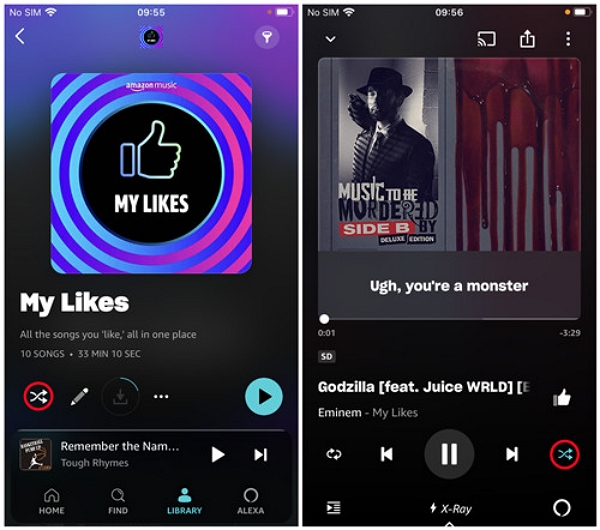
Step 3. Tap the Shuffle icon (two crossed arrows).
- Gray icon = Shuffle off.
- Blue icon = Shuffle on.
You can apply the same steps to turn off shuffle for a specific Amazon Music playlist.
1.2 On Desktop or Web Player
Step 1. Open the Amazon Music app or go to the web player.
Step 2. Start playing your playlist or album.
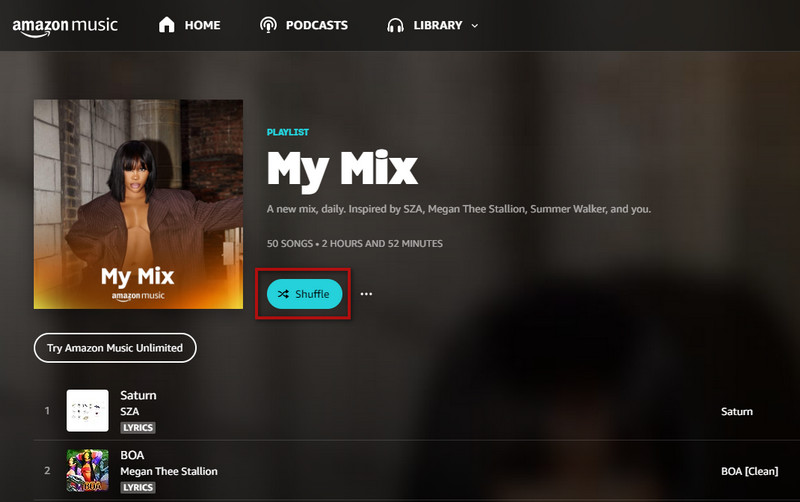
Step 3. Click the Shuffle icon in the lower playback bar to disable it.
Part 2. How to Turn Off Shuffle on Amazon Prime Music
Prime members have more limited playback rights. While you can’t directly turn off shuffle on all playlists, these three methods can help:
2.1 Play from “All-Access Playlists”
Some All-Access Playlists on Amazon Music Prime allow you to play songs in order.
Steps:
Step 1. Open the Amazon Music app.
Step 2. Tap Search → Listen Your Way.
Step 3. Select All-Access Playlists and start playback.
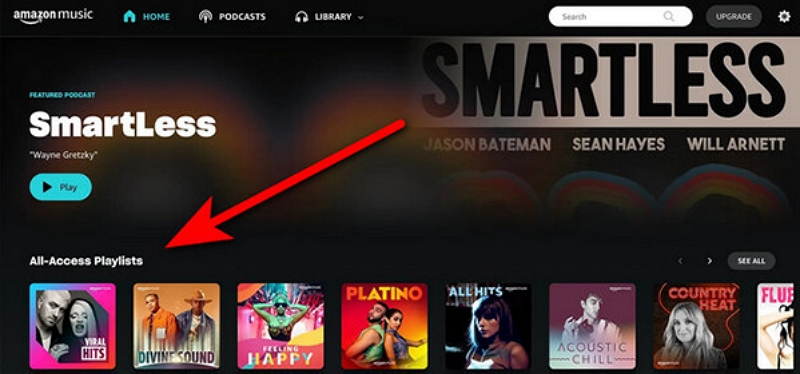
These curated lists let Prime users indirectly achieve amazon music how to turn off shuffle functionality.
2.2 Upgrade to Amazon Music Unlimited
Unlimited users can instantly disable shuffle mode.
- Prime Music: Shuffle locked for most playlists.
- Unlimited: Full playback control (on-demand songs, repeat, skip, etc.).

Amazon often offers a 3-month free trial for new Unlimited users.
2.3 Download Music for Offline Playback (No Shuffle Restriction)
If you want total freedom, use a third-party downloader like Mediaio Audio Converter.
It lets you convert Amazon Music tracks to MP3/FLAC, keeping metadata and song order.
Steps:
Launch Mediaio Audio Converter. Log in to your Amazon account.
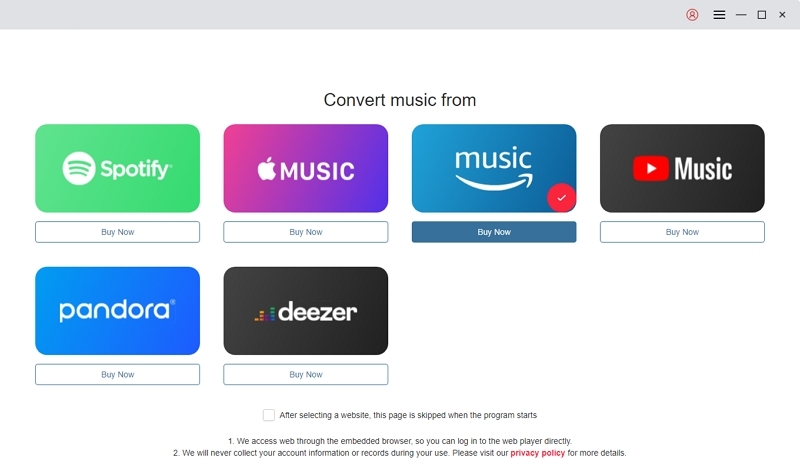
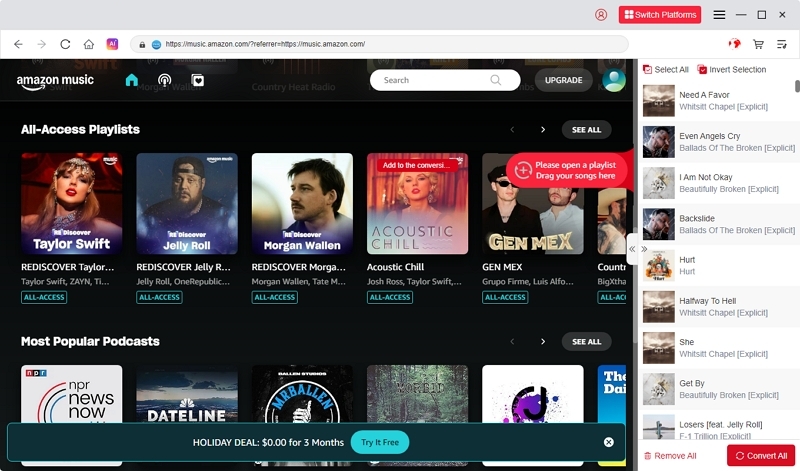
Choose the Amazon Music playlist or album you want to convert.
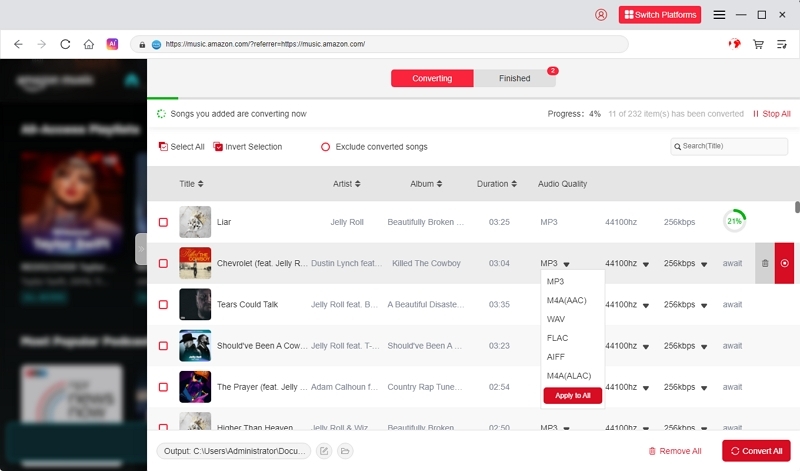
Select an output format such as MP3, WAV, or FLAC.
Click Convert to start the process.
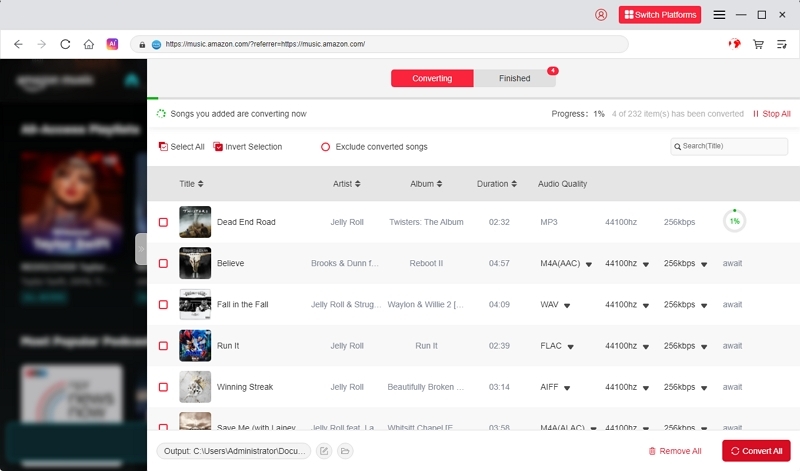
You’ll get DRM-free files that can play in order on any device.
Part 3. How to Turn Off Shuffle with Alexa Devices
If you use Amazon Alexa to play music, you might notice that songs sometimes start in shuffle mode automatically. Here’s how to manage shuffle and playback on your Alexa-enabled speakers.
3.1 How to Connect Amazon Music to Alexa
Step 1. Open the Alexa app on your phone.
Step 2. Go to More → Settings → Music & Podcasts.
Step 3. Select Link New Service → Amazon Music.
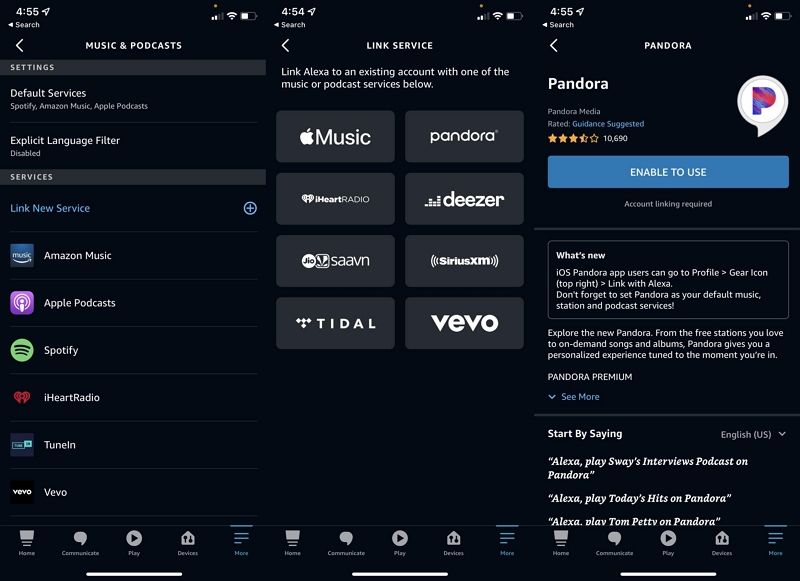
Step 4. Sign in with your Amazon account and confirm.
Once linked, say:“Alexa, play my playlist on Amazon Music.”
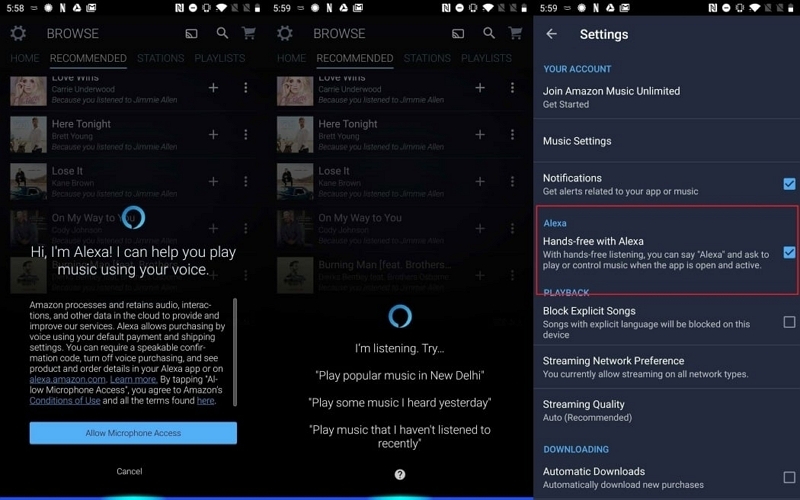
Your Alexa device will now stream directly from Amazon Music.
3.2 How to Turn Off Shuffle on Alexa
You can control shuffle mode with simple voice commands:
- “Alexa, turn off shuffle.”
- “Alexa, play my playlist in order.”
- “Alexa, stop shuffling songs.”
If shuffle remains on, try restarting playback from the Alexa app or Amazon Music mobile app — the command will sync automatically.
3.3 How to Cancel Amazon Music on Alexa
If you subscribed through Alexa voice, you can cancel it the same way:
1. Say “Alexa, cancel my Amazon Music subscription.”
2. Or visit https://www.amazon.com/yourmembershipsandsubscriptions.
3. You’ll receive confirmation via email.
Part 4. Alternative Ways to Disable Shuffle (If Nothing Works)
4.1 Downgrade to an Older Version of the Amazon Music App
Some older versions of the Amazon Music app allowed users to turn off shuffle completely.
May cause login or compatibility issues.
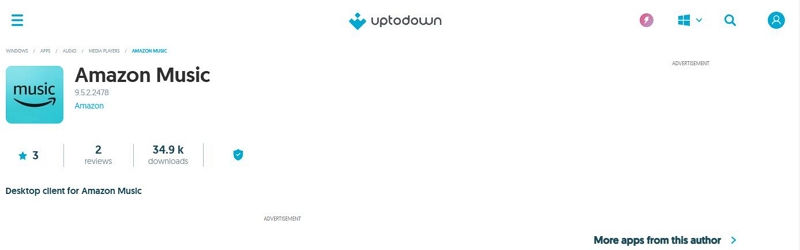
Install an older version on Windows, click on this link.
Install an older version on Mac, click on this link.
Install an older version on Android, click on this link.
However, once the app auto-updates, this function may disappear. If you want to keep using an older version, you’ll need to disable automatic updates for Amazon Music on your device.
How to Stop Amazon Music from Auto-Updating
On Android:
- Open the Google Play Store.
- Tap the profile or hamburger icon → Settings → Auto-update apps.
- Select Don’t auto-update apps to stop updates globally.
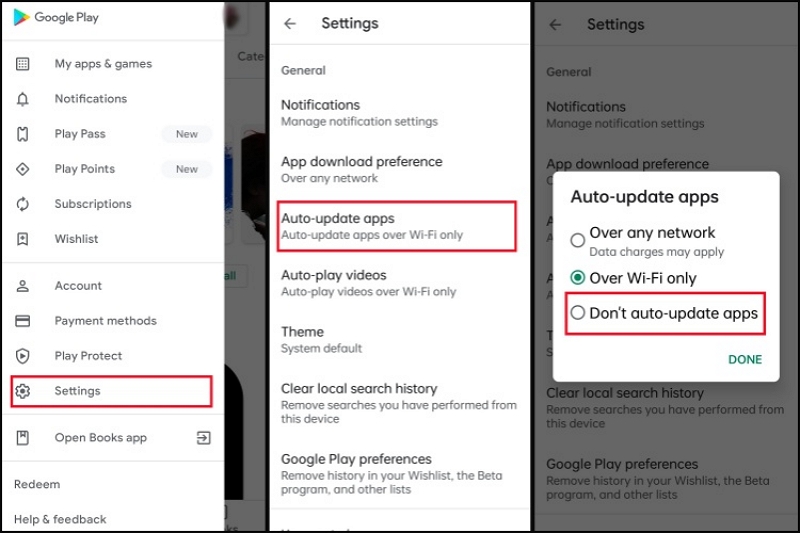
This ensures your older version won’t automatically update and lose manual shuffle control.
On iPhone (iOS):
- Go to Settings → App Store.
- Scroll down to the Automatic Downloads section.
- Toggle off App Updates.
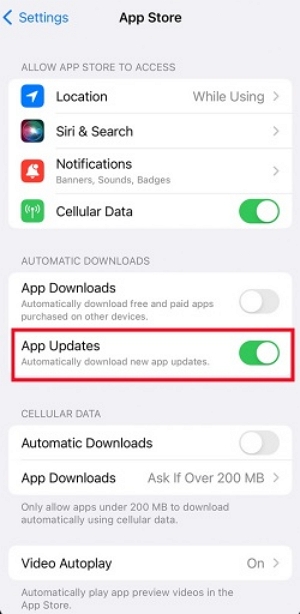
This prevents iOS from auto-updating Amazon Music, letting you preserve an older version that still supports manual shuffle control.
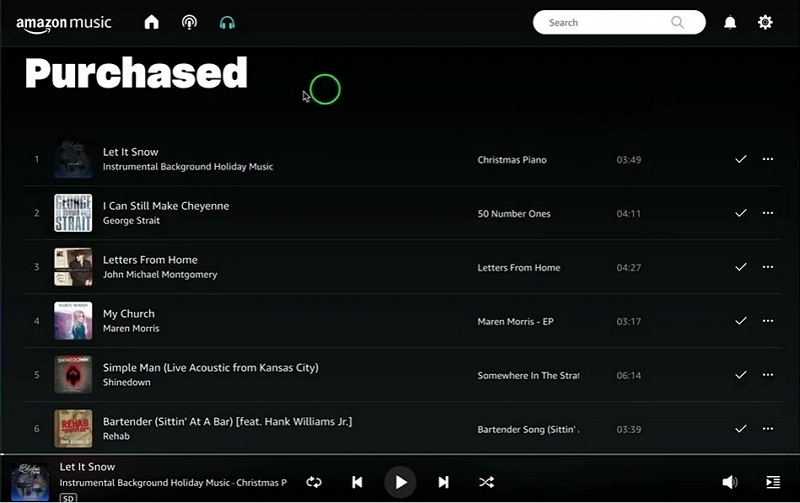
4.2 Try Playing Purchased Amazon Songs
Music you buy from Amazon (not streamed) can be played in order, even on Prime.
Go to: Library → Purchased → Play (no shuffle lock).
FAQ: Common Questions About Amazon Music Shuffle
Conclusion
Whether you’re using Amazon Music Unlimited, Prime Music, or streaming through Alexa, you now know every way to regain control over your playlists.
Unlimited users: Turn off shuffle directly.
Prime users: Use All-Access playlists, upgrade, or convert your tracks.
Alexa users: Voice-control shuffle or play your playlists in order.
With these steps, you can easily turn off shuffle on Amazon Music and enjoy your playlists exactly as you created them — in perfect order.