

Wondering how to create a playlist on Amazon Music or how to make a playlist in Amazon Music? You’re not alone. With a music library of over 100 million tracks and millions of active listeners worldwide, Amazon Music offers endless choices—but without playlists, your favorite songs can quickly become difficult to manage.
Creating playlists makes it easy to organize tracks by mood, genre, or occasion—whether it’s a “Morning Coffee” playlist or a high-energy “Workout Boost.” Your playlists also sync across devices, allowing seamless listening on your phone, computer, or Alexa-enabled speakers.
However, the number of playlists you can create depends on your Amazon Music subscription:
- Amazon Music Free: Up to 10 playlists
- Prime Music: Up to 35 playlists
- Unlimited & Standard: Up to 1,000 playlists
Each playlist can contain up to 2,500 songs. Note that edits made in Offline Mode won’t sync across devices until you reconnect to the internet.
Part 1. How to Create a Playlist on Amazon Music (Step-by-Step Overview)
Wondering how to create Amazon Music playlist? The process is similar across all devices. You can easily make playlists on mobile (iPhone or Android), desktop (PC/Mac), or even with Alexa voice commands.
Whether you use the app or voice commands, Amazon Music makes it simple to collect your favorite tunes in one place.
Part 2. How to Create a Playlist on Amazon Music App (iPhone & Android)
There are two simple ways to create playlist Amazon Music on your phone.
Method 1: From Any Song
Step 1. Open the Amazon Music app.
Step 2. Find the song you want to add.
Step 3. Tap the ⋮ (More Options) icon.
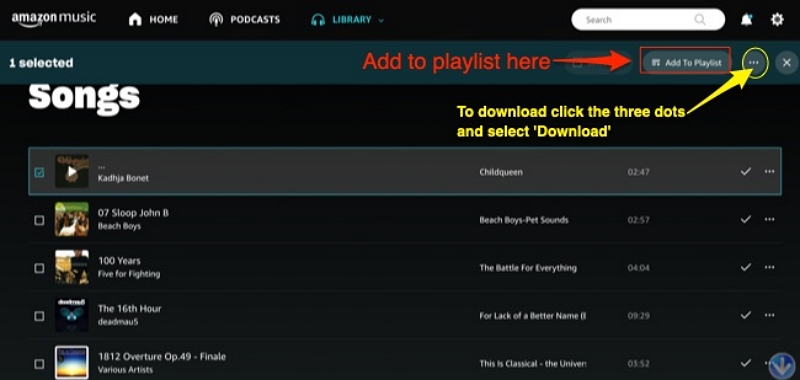
Step 4. Select Add to Playlist > Create New Playlist.
Step 5. Enter a name > Tap Save.
Step 6. Choose a custom cover image for your playlist by tapping the artwork area — great for organizing different moods like “Chill Night” or “Study Focus.”
Step 7. Adjust sorting rules under playlist options (by Added Order, Song Name, or Artist).
Long-press any track in your “Recently Played” list to quickly add it to an existing playlist.
Method 2: From Your Library
Step 1. Go to Library > Playlists.
Step 2. Tap + or +New Playlist.
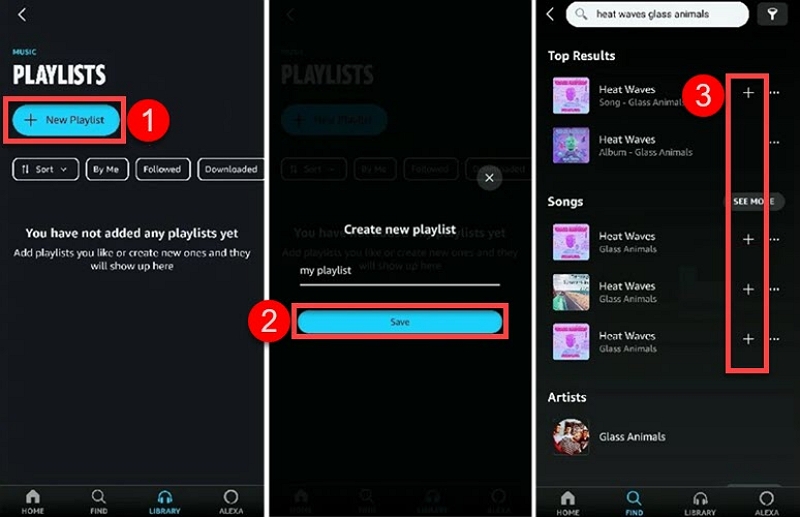
Step 3. Enter a name and tap Save.
Step 4. Add songs by tapping Add Music.
Step 5. Enable Auto-Add Similar Songs if available — Amazon’s AI can fill your playlist with tracks that match the mood.
Make sure Online Music Mode is enabled — playlists edited offline won’t sync. Prime users can only play user-created playlists in shuffle mode.
Example Uses:
- Create a Morning Commute playlist full of upbeat tracks.
- Make a Focus Mode list with instrumental or lo-fi songs for study sessions.
Part 3. How to Create a Playlist on Amazon Music for PC / Mac
If you prefer using your computer, here’s how to create playlist on Amazon Music for desktop.
Step 1. Open the Amazon Music desktop app or visit music.amazon.com.
Step 2. In the left sidebar, click Library > Playlists.
Step 3. Select + Create New Playlist.
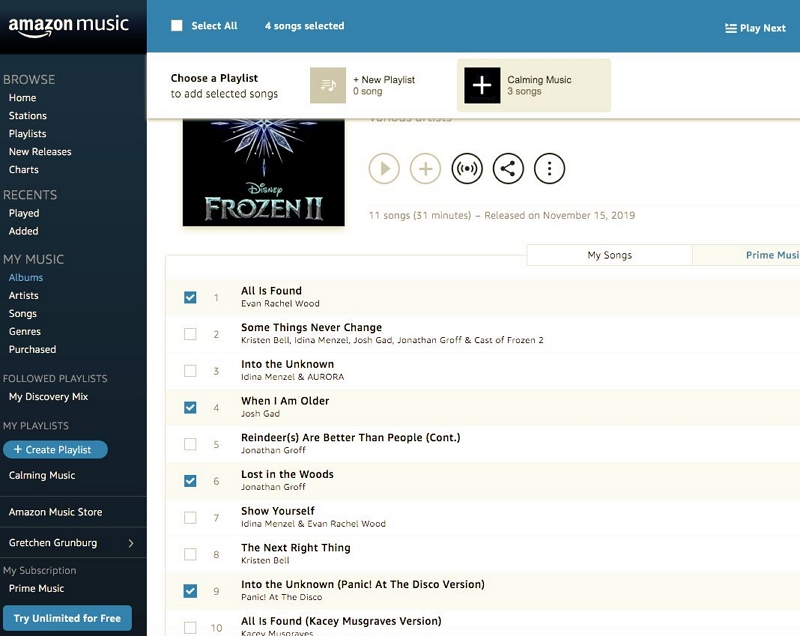
Step 4. Enter a playlist name and click Save.
Step 5. Add songs by:
- Right-clicking a track > Add to Playlist, or
- Dragging a song to the sidebar’s Create New Playlist section.
You can drag songs to reorder or right-click to rename or delete a playlist.
Power Tips for PC Users:
- Batch Add: Hold Ctrl (Windows) or Cmd (Mac) to multi-select songs and add them at once.
- Smart Search: Type “playlist:” + keyword in the search bar to quickly locate playlists.
- Export Tracklist Info: Right-click > Copy Song Info to share or archive your playlist list (text only).
- Enable Crossfade in Settings for smooth transitions between songs — perfect for office or café listening.
Part 4. How to Create Amazon Music Playlist with Alexa
Love hands-free control? You can create a playlist on Amazon Music using Alexa.
Method 1. Using the Alexa App
Step 1. Open the Alexa app.
Step 2. Go to More > Music Video & Books > Amazon Music.
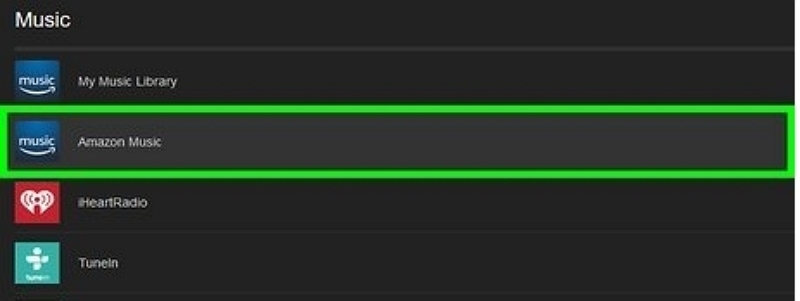
Step 3. Select Playlists > Create New Playlist.
Step 4. Enter a name and tap Save.
Method 2. Using Voice Commands
Simply say:
- “Alexa, create an Amazon Music Christmas Playlists.”
- “Alexa, create a playlist called Workout Boost.”
- “Alexa, add this song to Chill Vibes playlist.”
- “Alexa, remove this song from Road Trip playlist.”
You can later say, “Alexa, add this song to [Playlist Name].”
Part 5. How to Edit, Delete, or Make a Playlist Public
After you create an Amazon Music playlist, you can edit it anytime:
- Rename or reorder songs: Tap or click and drag to rearrange.
- Delete a playlist: Tap the ⋮ > Delete option.
- Make it public or private: Tap ⋮ > Make Playlist Public/Private.
This is helpful if you want to share playlists with friends or keep them personal.
Pro Editing Tips:
- Duplicate Playlist: On desktop, right-click → “Duplicate Playlist” to create a new version (great for seasonal updates like “Top 2024 Hits” → “Top 2025 Hits”).
- Curated Collections: Merge smaller themed lists (e.g., “90s Rock” + “Classic Rock” → “Rock Favorites”).
Although Amazon doesn’t have “Smart Playlists,” you can simulate them by filtering songs manually and adding them to themed collections.
Part 6. Limits and Tips of Create Amazon Music Playlists
Here’s what to know before building too many lists:
- Free plan: 10 playlists max
- Prime: 35 playlists
- Unlimited: 1,000 playlists
- Each playlist: Up to 2,500 songs
- Offline edits: Won’t sync until you reconnect online
Part 7. How to Download an Amazon Music Playlist for Offline Listening
Once you’ve made your playlists, you might want to enjoy them offline. Here’s how:
- Open your Amazon Music app.
- Go to Library > Playlists.
- Tap the Download icon next to the playlist.
Downloaded Amazon Music tracks are protected by DRM, meaning they can only be played inside the Amazon Music app. If you cancel your subscription, all offline songs will become unavailable.
If you want to enjoy your playlists in MP3 format on other players, you can use tools like Mediaio Audio Converter to convert Amazon Music to DRM-free audio (for personal use only).
What Is Mediaio Audio Converter?
Mediaio Audio Converter — is a professional Amazon Music downloader designed to convert songs, albums, or playlists to MP3, FLAC, AAC, or WAV formats while preserving lossless sound quality and full ID3 tags. Unlike traditional screen recorders, it works by decrypting Amazon’s protected streams directly, so the converted tracks remain clear and organized.
How to Convert Amazon Music Playlists with Mediaio:
Download and install the app from the official Mediaio website.
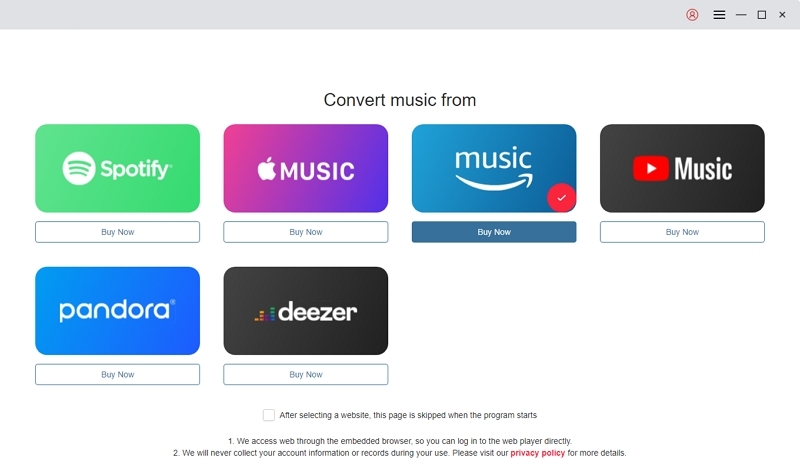
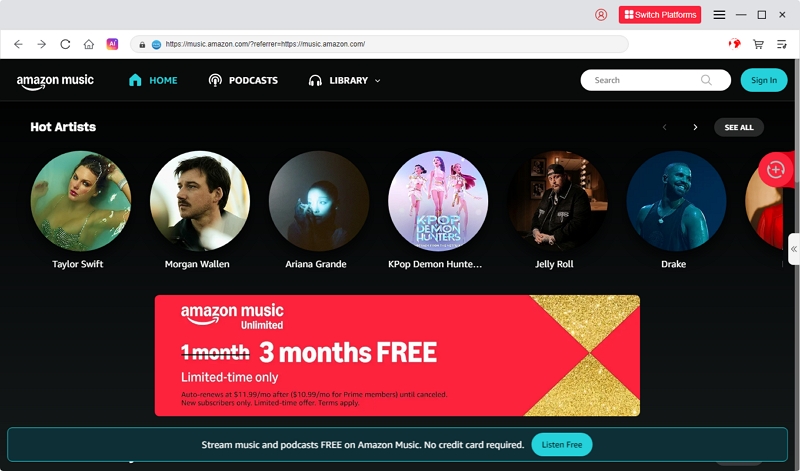
Use your Amazon Music account within the built-in web player of Mediaio.
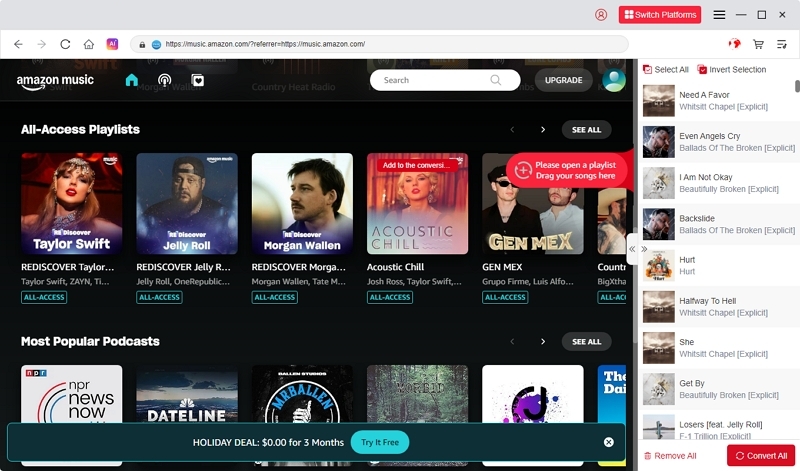
Browse and open your desired playlist, then click the “+” or Add button to import it into Mediaio.
Go to the Settings icon → select MP3, FLAC, WAV, or AAC and choose your output folder.
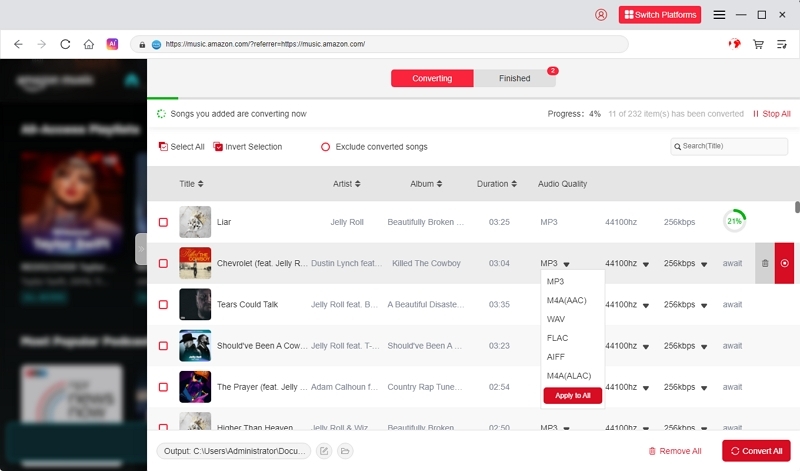
Click Convert and wait until all songs are saved locally.
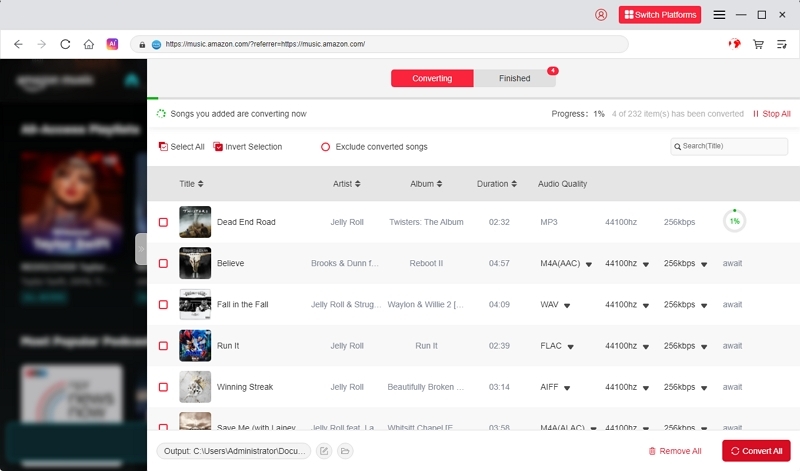
Once finished, open the output folder — you can now play the DRM-free songs on any player, or transfer them to SD cards, USB drives, or DAP devices.
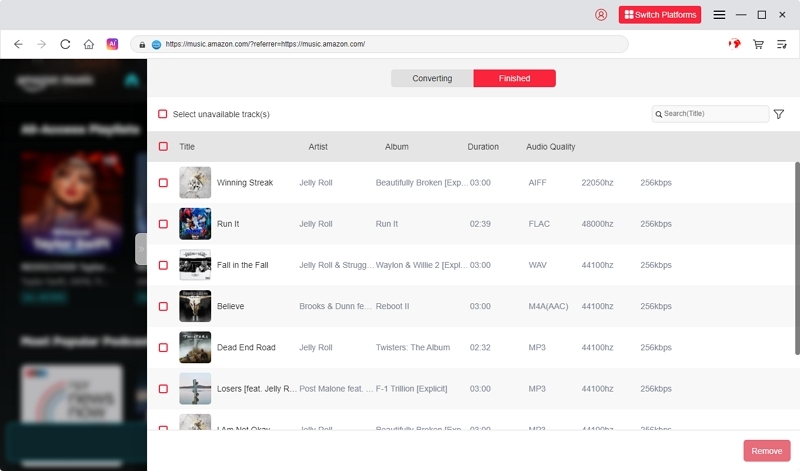
Keep playlists under 100 songs per batch for faster processing, and regularly update Mediaio to ensure compatibility with the latest Amazon Music app.
If you’re using Amazon Music Prime or Unlimited and only need offline playback inside the Amazon Music app, the built-in download option is the easiest solution. Just tap Download next to your playlist and listen offline anytime.
View Official Download Steps- Want to play playlists on USB drives, car stereos, MP3 players, or multiple devices
- Need to keep your music after canceling Amazon Music
- Prefer DRM-free MP3, FLAC, or WAV files you truly own
In this case, using a professional tool like Mediaio Audio Converter gives you full control over your Amazon Music playlists.
If you’ve bought MP3s directly from Amazon, you can already download and play them anywhere without DRM or subscription limits.
To easily find this guide again, please share it on your social media!
Part 8. Common Problems and Fixes
FAQs about Amazon Music Playlists
Conclusion
Creating your own playlists on Amazon Music is the best way to personalize your listening experience — whether you’re using a phone, computer, or Alexa. Now that you know how to create a playlist on Amazon Music, start building mood-based or genre-specific mixes that fit your day perfectly.