

Poweramp is not a simple app to use. It comes with a lot of options and controls that don’t immediately make sense to an average listener. Even then, you’ll always find Poweramp Music Player ranking at the very top of offline music player lists.
Why? It comes down to three things: the audio quality it can deliver, the power of its equalizer, and a UI that’s deeply customizable once you get into it. And that’s exactly what we’ll explore in this guide.
Along the way, you’ll also see how to build a proper offline music library using Mediaio Audio Converter, so you can use Poweramp the way it’s meant to be used.
Poweramp Music Player: Overview
Poweramp is an offline music player. You load your music files onto your Android storage and it will play them. That’s the basic idea. At first, that sounds like any other music app, but Poweramp isn’t built for convenience the way something like VLC for Mobile is. It gives you control over the sound itself. So instead of just playing music as is, it will let you shape how it comes through. You can deepen the bass, make vocals clearer, and fine-tune details that are often lost on standard settings.
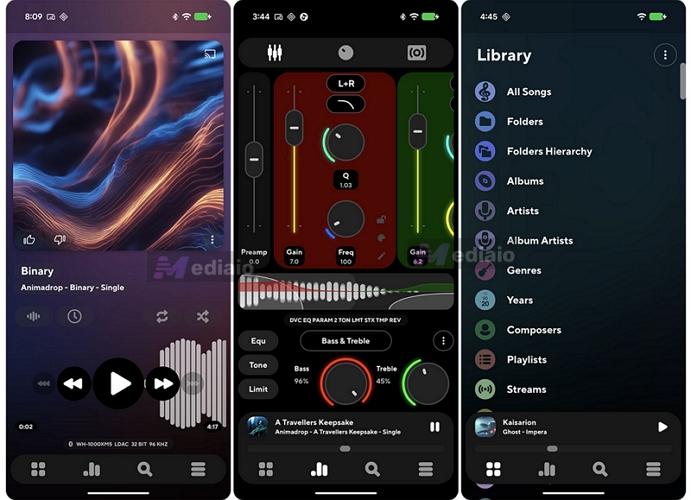
What Are the Key Features of Poweramp?
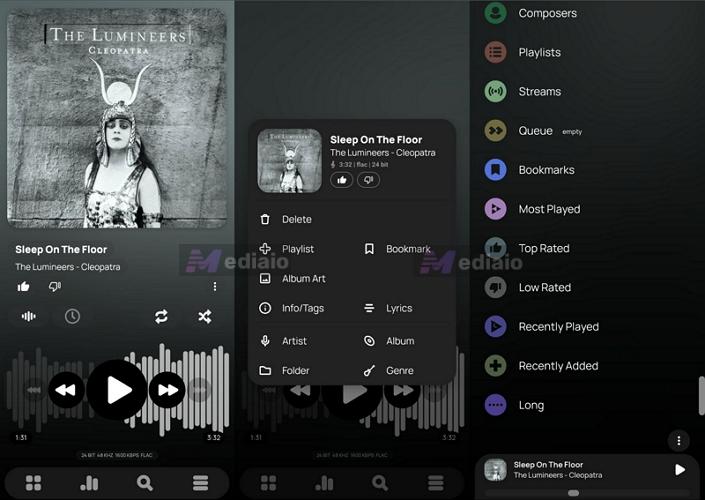
Poweramp excels at the basics. As soon as you scan your storage, it will immediately sort your messy folder of offline music in a surprisingly detailed way: Album, Artist, Genre, Composer, Year, etc. And it even keeps track of your listening habits. You will see categories like:
- What you listen to frequently
- Your recently played track
- Recently added music
- And even your top-rated track. For this, you can rate songs as you like or dislike. Something that most offline players don’t really think to include as a feature.
But that’s only the basic layer, which is not why people use Poweramp. Here is where it actually starts to matter:
- Advanced equalizer (graphic + parametric) — You get both traditional band-based EQ and a parametric mode.
- Direct Volume Control (DVC) — Android device manufacturers are notorious for capping volume to protect basic speakers. Poweramp’s DVC feature can handle the audio processing directly once you disable the phone's absolute volume settings.
- Wide format support — You’ll never have to convert a single file for it to play. It will chew through any format: from standard MP3s to higher-end ones like FLAC, ALAC, APE, DSD, etc.
- Flawless gapless playback & smooth transitions — Tracks will play seamlessly without gaps. So you don’t get awkward silence between songs.
- High performance, battery friendly — Despite all of this, it runs smoothly. The audio engine is heavy, but it’s optimized well enough that battery drain stays surprisingly reasonable.
- Custom high-resolution audio engine — Poweramp uses its own 64-bit processing engine to bypass Android system limitations. So you get a cleaner and more direct output.
Where Can You Use Poweramp Music Player?
Poweramp developers have been very clear about one thing: it will remain an Android-focused app for the foreseeable future.
That’s because its entire value lies in how it handles audio: it can bypass standard system audio restrictions and deliver sound the way it’s actually meant to be processed. And this level of control depends heavily on the Android audio framework. It simply isn’t possible on more restricted platforms, like iOS. But you’re not limited to just your phone. Poweramp can fit into your setup in more ways than you’d expect. Here’s where it works:
Even if these devices already have good audio hardware, Poweramp will give you much deeper control over tuning and playback behavior.
How Much Does Poweramp Cost?
Poweramp follows a simple, old-school model — “pay once, use it forever.” There’s no subscription.
You can start with a trial. It will give you full access to all features for about 15 days. After that, you’ll start to see a “trial ended” message. The app will continue to work for a few more days. After that extended period is over, it will stop working completely and you’ll need to unlock it.
You can purchase the full version in two ways:
- Poweramp Music Player: This is the main player. You can upgrade from within the app once your trial ends.
- Or install Poweramp Full Version Unlocker: This is a small companion app that unlocks the main Poweramp app permanently. It simply acts as a licensing key.
The one-time price usually costs between US$5 and US$10.
Note: There’s a separate app called Poweramp Equalizer (costs US$2). This is different from the main player and we’ll cover it later in this guide.
How to Download Poweramp?
You can install and unlock Poweramp in two ways. It depends on whether you’re using Google services or not.
Option 1. Google Play Store
If you can access the Play Store, just go with this method.
Keep one thing in mind here: your purchase will be tied to your Google account. So once you buy it, it’s linked to your Google ID and you can use it across your devices without buying it again.
Here’s how it works:
Step 1. Search for Poweramp Music Player on Google Play Store. Install it.
Step 2. Use it normally. You’ll get around 15 days of full use. After that, you’ll start seeing the “trial ended” message.
Step 3. Tap on that message. Or go into Settings and tap Get Full Version. It will show you the upgrade options. Complete the purchase.
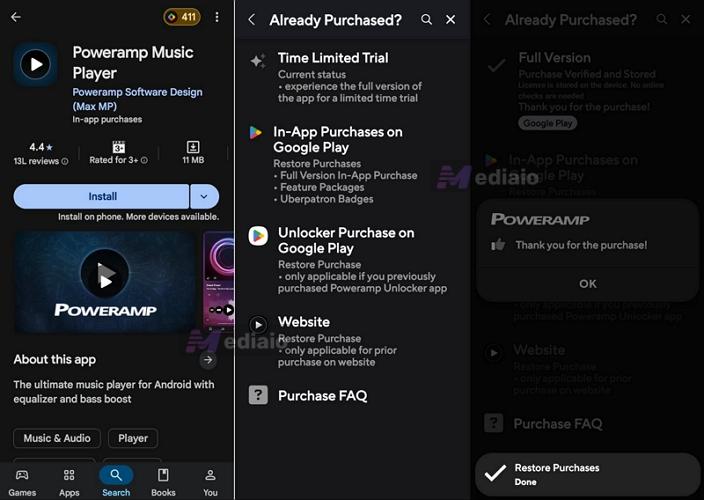
On any other device with the same Google account, install Poweramp again.
- Open the app.
- Tap the three-line menu at the bottom-right to enter Settings.
- Select Restore Purchase — it will automatically unlock.
Option 2. APK (Official Website)
This is useful if:
- Your Android device doesn’t support Play Store, like some FiiO and Huawei devices.
- Or you simply don’t want to rely on Google services.
Here’s how this works:
Step 1. Go to the official website - powerampapp.com via the mobile browser. Download the APK file.
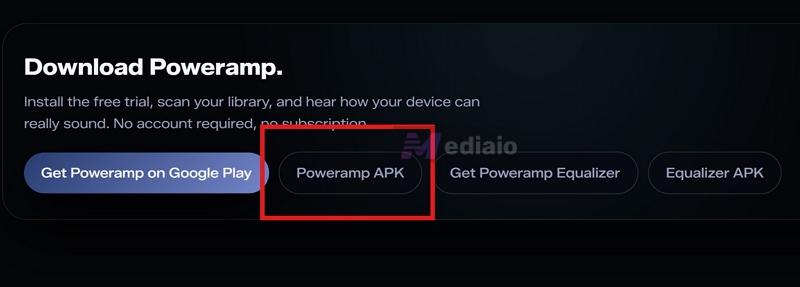
Step 2. Open the file. If prompted, enable Install from unknown sources.
Step 3. Complete the installation and launch the app. You can use it normally for the trial period.
Step 4. When you’re ready to unlock, purchase it through the website. You’ll receive an order ID via email (Gmail, Yahoo, and some other work).
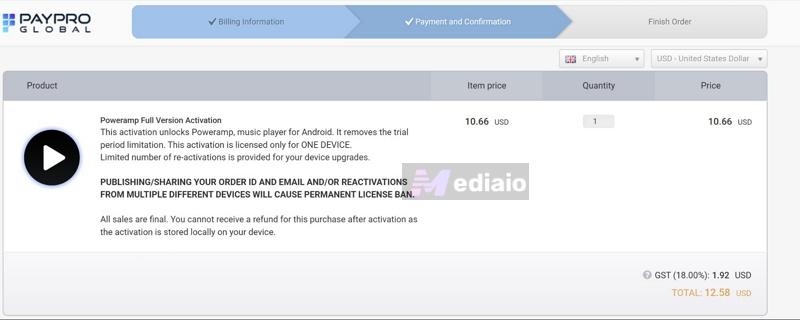
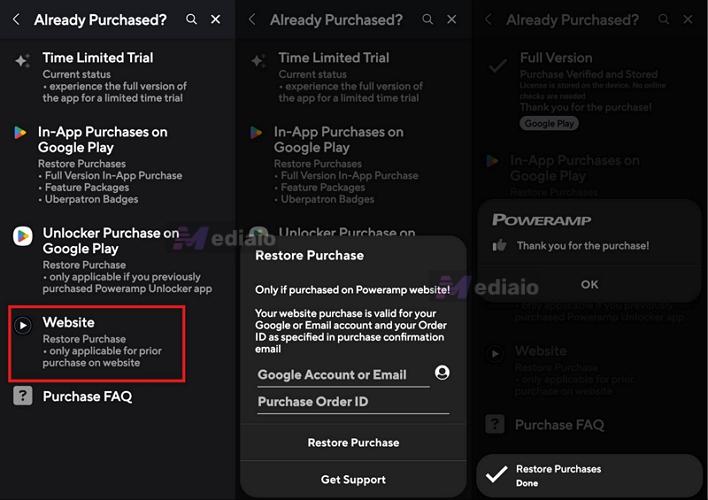
Enter that order ID inside the app and it will unlock.
On other devices, repeat the same process using the same email/order ID to activate it.
Poweramp Music Player: EQ Review
Poweramp’s EQ is easily the most important part of this app.
At a basic level, you get what most apps and devices already offer — presets, like what you see on Android or even iOS. But that’s just the surface.
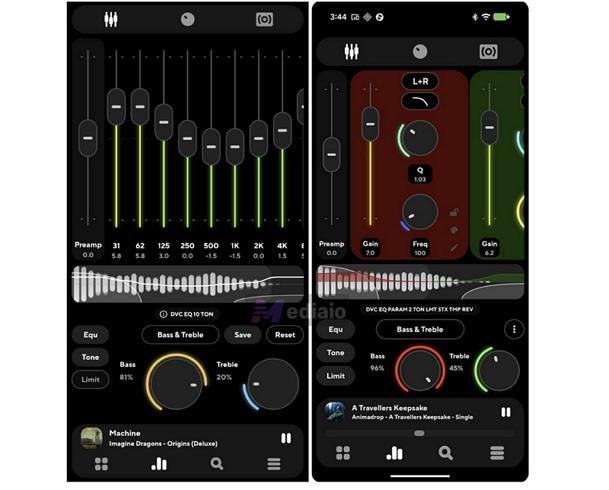
Poweramp comes with a 10-band equalizer (expandable up to 32 bands). And if that still feels limiting, you can switch to the parametric EQ — each step giving you more granular control over your entire sound profile.
And it doesn’t stop at EQ adjustments. You also get a full reverb engine, detailed tuning controls, and even a dial panel that lets you shape how your music feels when you’re using headphones or IEMs.
All of this is built directly into the Poweramp Music Player itself.
There is also a separate app called Poweramp Equalizer.
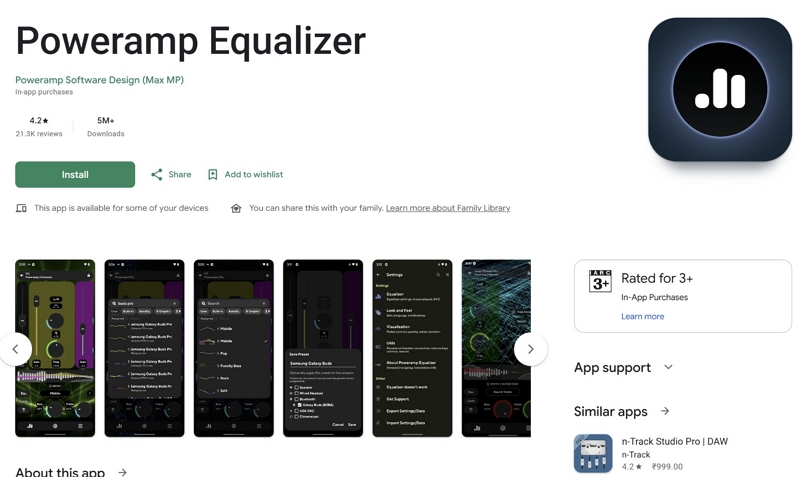
Poweramp Equalizer is basically the same EQ engine, just released as a standalone app. The difference is that it works system-wide. So you can apply the same tuning to audio from apps like Spotify or Apple Music, not just your local files.
How to Use the Equalizer in Poweramp Music Player
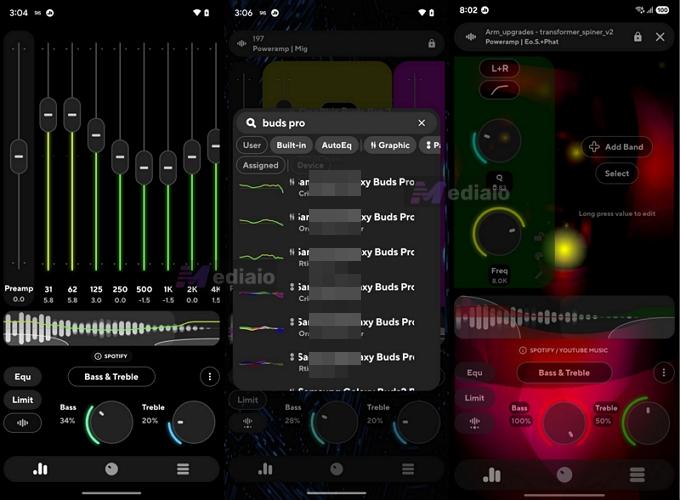
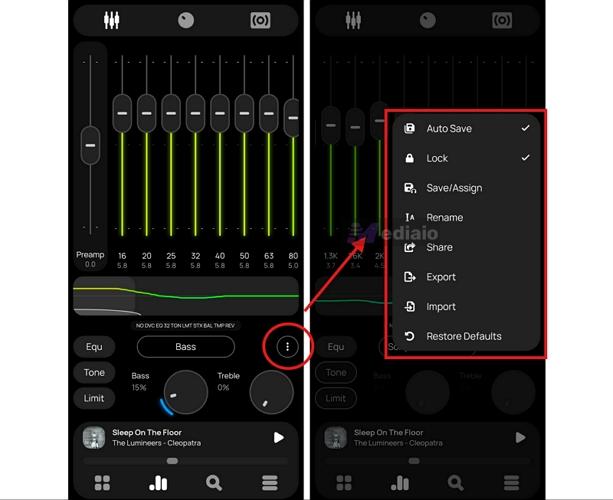
Poweramp gives you a dedicated EQ toggle right in the bottom navigation bar — the small bar chart icon. Tap that and you’ll jump straight into the main equalizer screen. From there, you get everything in one place — the slider panel, the dial panel, and the reverb engine. Now here’s how to actually use those equalizer controls.
1. Slider Panel
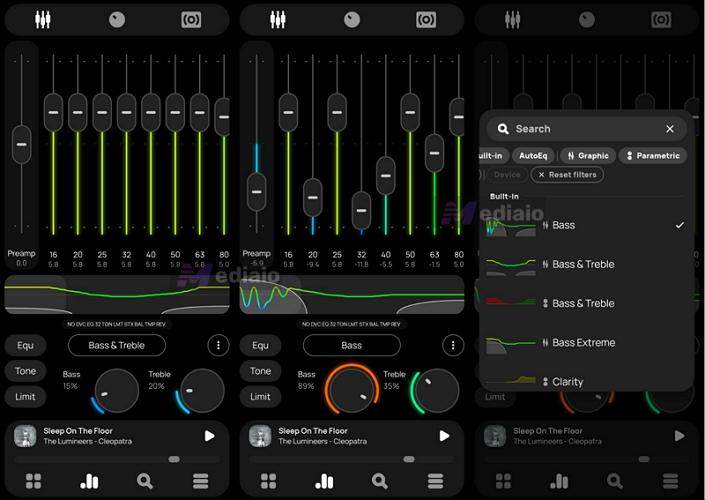
When you open the equalizer, the first thing you land on is the slider panel itself.
Frequency Sliders
By default, you’ll see a 10-band equalizer, covering frequencies from 31 Hz (deep bass) to 16 kHz (sharp highs). Each slider here lets you control a specific part of the sound. Here’s how that breaks down:
So you can simply drag sliders up or down and shape the sound the way you want.
Presets
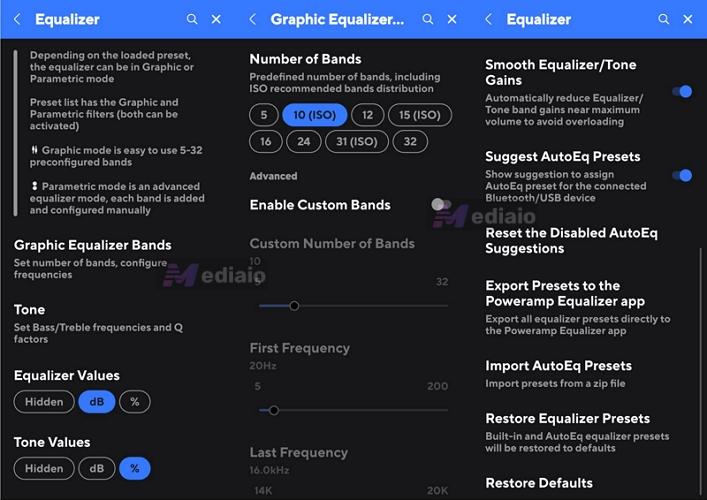
You’ll also see presets available out of the box — things like Flat, Bass Boost, Treble Boost, Rock, Classical, and more. And you’re not limited to these. You can create your own, name it, and save it. You can even import or export presets.
2. Dial Panel
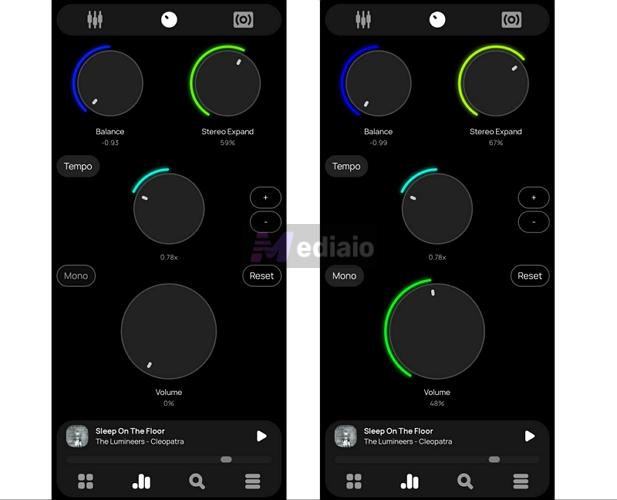
The middle dial icon inside the EQ lets you control the physical space of your music, whether it stays centered, spreads out, or shifts between your ears. Poweramp just gives you a set of knobs here, and each one devices how that physical space behaves.
Just keep in mind that these adjustments make the most sense when you are using headphones or IEMs. On standard speakers, the effect is much less obvious.
3. Reverb Engine
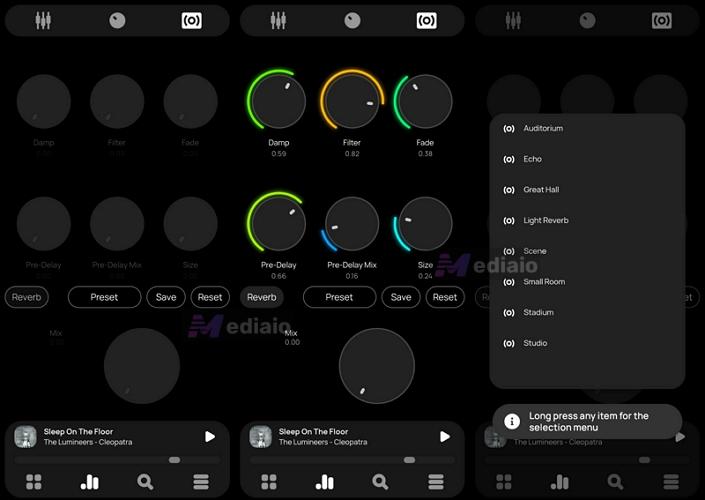
Tap the bottom icon on the left menu to open the Reverb engine. It adds a sense of physical space, distance, and environment to your music.
You can instantly change the vibe by picking a Preset: Auditorium, Great Hall, Stadium. Or, you can use the knobs to dial it in manually.
4. Parametric Equalizer
Then there’s the parametric equalizer. You can access this from the preset menu on the frequency slider, from there, switch between Graphic and Parametric mode. Parametric lets you build your own filters from scratch. For every band you add, you get control over three things:
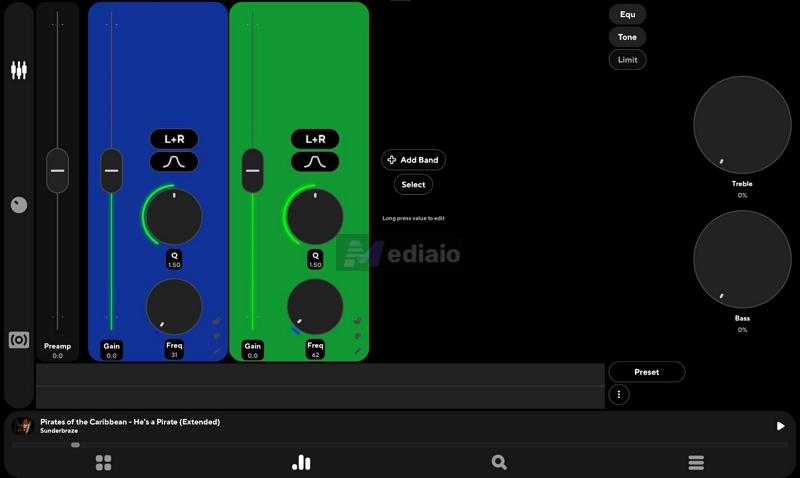
If things get messy, use Restore Defaults to reset everything.
Overall Experience
The equalizer experience here is honestly second to none on mobile.
Most equalizers give you five basic bands or some generic bass boost button and call it a day. Poweramp doesn’t do that. It straight-up turns your phone into a mini mixing desk.
And the best part — you don’t need to be some expert to use it. If you don’t want to tweak everything yourself, you can just use presets, or even import someone else’s setup that fits your music library.
And once you figure out what works for you, you can save your own presets and just stick with them. That flexibility works for both beginners and people who actually want control, which is what really makes Poweramp’s EQ stand out.
Tip: How to Play Spotify and Apple Music Tracks on Poweramp
Poweramp without a proper music library feels like owning a sports car with no fuel. Because at its core, Poweramp is a strictly offline, local file player. It can’t stream your Spotify or Apple Music playlists directly.
But you can still export your Spotify and Apple Music files as local files using Mediaio Audio Converter and play them through Poweramp easily. Here’s how it works.
Mediaio lets you pull your exact playlists and albums from platforms like Spotify, Apple Music, YouTube Music, Amazon Music, Pandora, or Deezer, and save them as local files (MP3, M4A, FLAC, WAV, etc.) on your computer or device without making the process messy.
What makes Mediaio especially useful for Poweramp is one thing: metadata. Poweramp relies heavily on ID3 tags and album art to organize your library and make its UI feel clean and structured. Mediaio preserves all of that while exporting — song titles, artist names, album info, artwork, so everything will look appealing inside Poweramp.
Poweramp Music Player: Sound Quality Review
Poweramp gives you two entirely different levels of control when it comes to audio settings.
The first is deep playback-level control — this dictates how your audio behaves fundamentally. For instance, you will get advanced crossfading features, gapless playback for live albums, and rules for how volume handles interruptions (like what happens to the music when you receive a WhatsApp alert).
Then comes the second layer — actual sound-level control. This is where Poweramp’s real strength shows up. It lets you tweak the fidelity of the audio itself. For instance, you can choose to turn off Android’s internal processing and force Poweramp to use its own 64-bit internal processing engine to decode your audio. You can control how resampling is handled, unlock granular volume steps (up to around 150 levels), and set up Direct Volume Control (DVC).
So it doesn’t really limit you, whether you want simple playback or full control over how your music sounds.
How to Adjust Audio Quality in Poweramp Music Player
The Audio panel in the Settings menu gives you all the master controls to manage how Poweramp will handle your audio. Here’s how to access it and what each option does:
Step 1. Open the app and tap the three-line menu. Go into Settings.
Step 2. Scroll and tap Audio.
Inside this menu, you will get granular control over everything: Crossfade, DVC, Resampler, etc. Here are the commonly-used options:
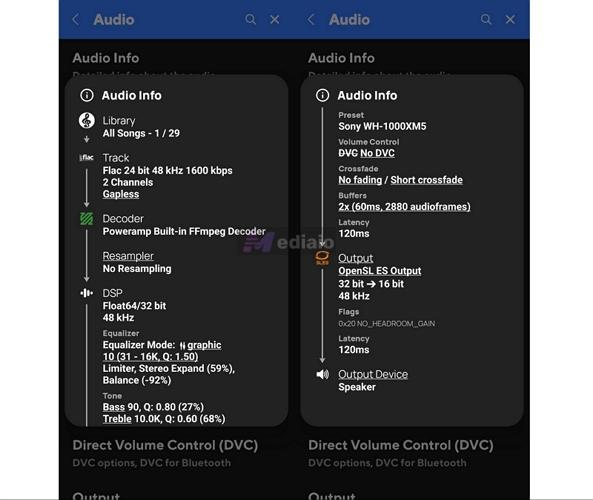
Audio Info
It basically shows real-time processing details of the track you are currently playing. For example, it will show:
- the original file quality (like 24-bit/96 kHz)
- how Poweramp is decoding it (for example, 32-bit processing)
- what exact sample rate is being sent to your DAC
This is more of a diagnostic screen. It just helps you verify whether your high-resolution audio is actually working as expected.
Crossfade, Fade, and Gapless
You can decide how one song ends and the next one begins. Keep in mind that you won’t find a simple slider like crossfade on Spotify or Apple Music. Poweramp gives you tons of controls.
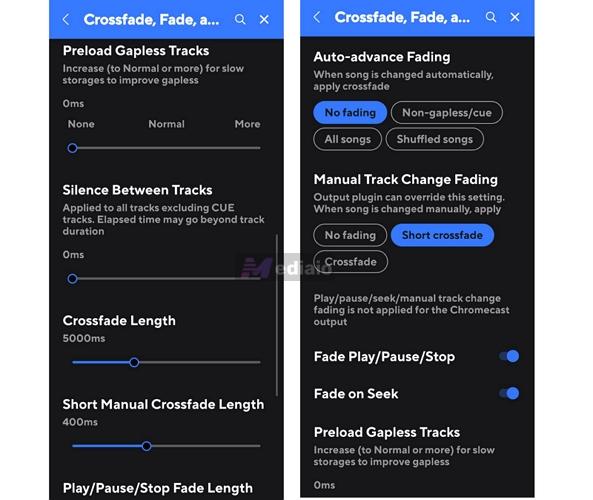
Here’s how these options work:
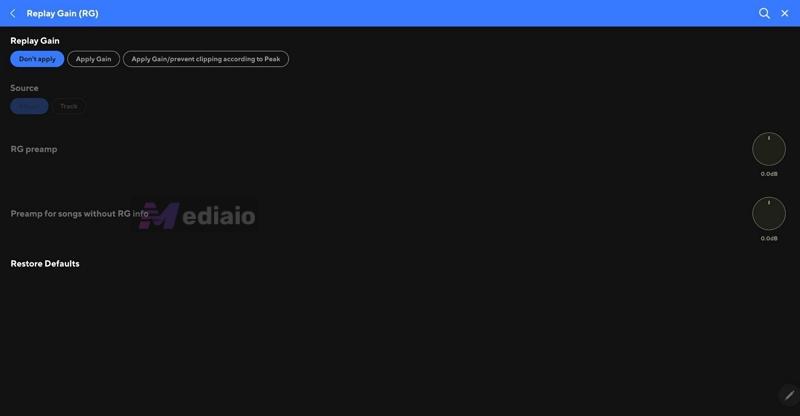
Replay Gain
Poweramp lets you handle volume differences between tracks. For example, one song could be blasting loud, and the next one can come in so low that you can barely hear it — you can use Replay Gain to fix that. It will just level out your music. So everything will play at a consistent volume.
Your music must be tagged with Replay Gain data (many high-res downloads already have this) for this to work. Inside this section, you’ll see these options:
Audio Focus
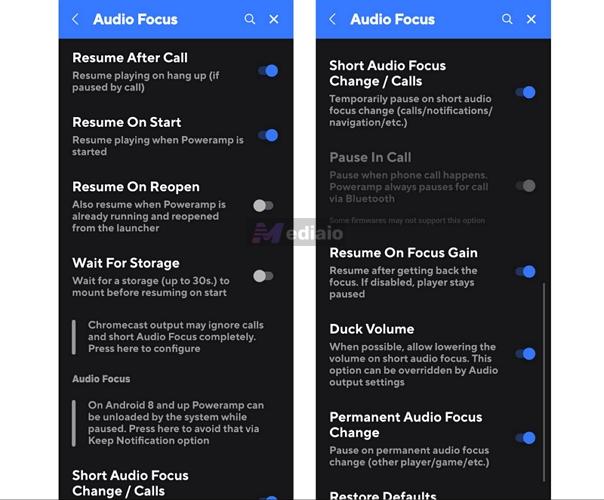
Poweramp also lets you decide what happens when something interrupts your music, like a call, GPS instruction, or any other sound your phone makes.
- Check Duck Volume — this will lower the music volume temporarily when something like a GPS voice or a WhatsApp notification comes in.
- Enable Resume after Call — without this, your music will just stop after a call.
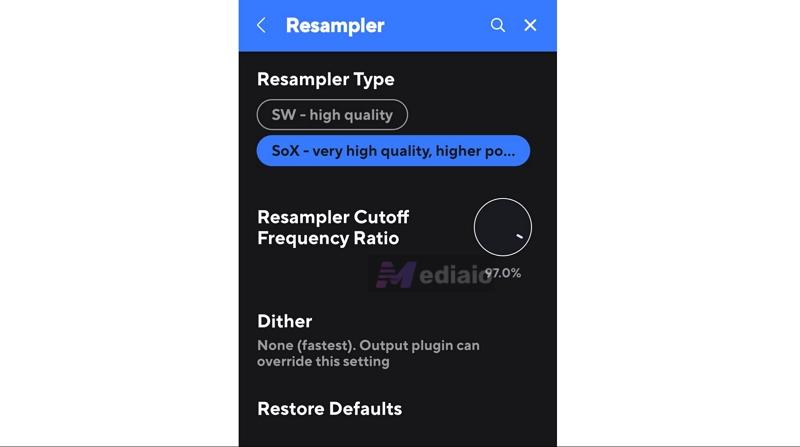
Resampler
This setting is useful when your audio sample rate doesn’t match your device’s output rate.
For example, your track could be at 44.1 kHz, while your device’s DAC is running at 48 kHz. Poweramp Resamples match the song’s rate to your DAC’s rate, so there is no hiss or digital artifacts while listening.
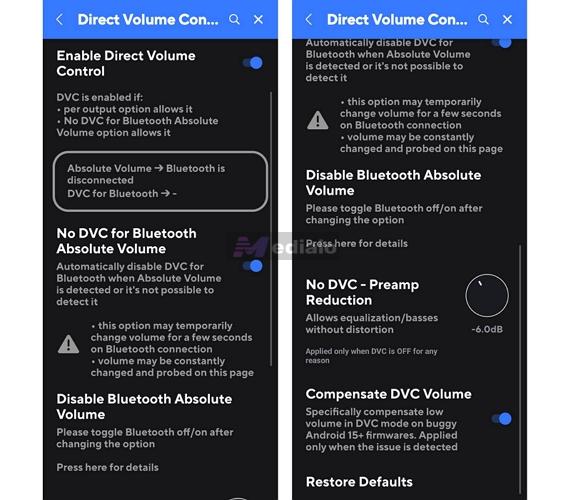
Direct Volume Control (DVC)
This setting is where you decide who controls the volume — Android or Poweramp itself. Normally, Android handles volume processing.
That means you don’t get full control. So you can let Poweramp take control of the volume by enabling DVC. It will simply prevent any interference posed from the Android’s side. As a result, the volume changes will feel more precise (how loud or soft your music can go)— perceptible on good headphones or IEMs.
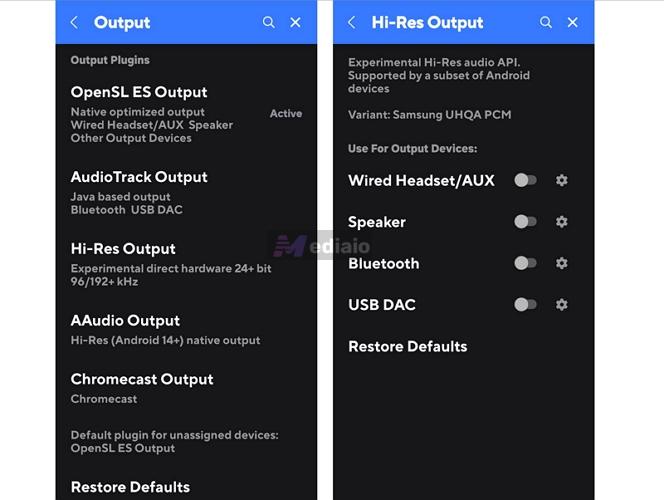
Output
Here, you can decide how your audio actually leaves your phone in Poweramp. In simple terms, this controls the output path which affects stability, latency, and how much Android interferes with your sound.
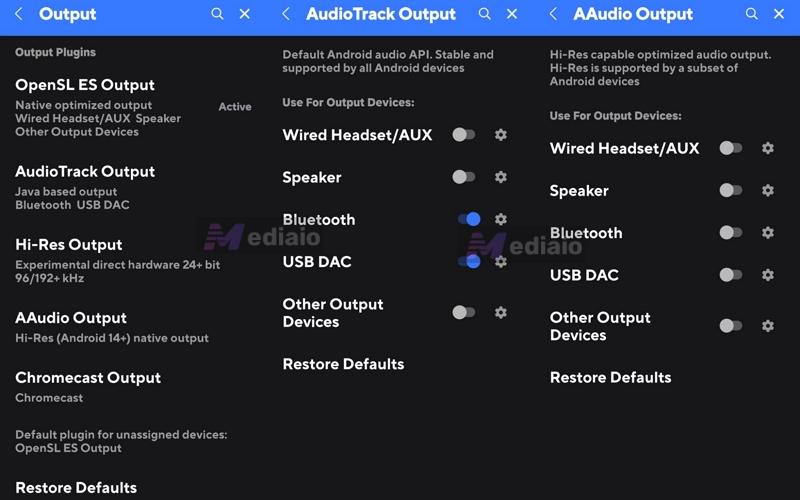
Again, Poweramp gives you multiple options here:
Yes, it doesn’t fully bypass Android, but it avoids most major restrictions. Best when using IEMs, USB DACs, or supported phones.
Can deliver up to 24-bit/192 kHz audio depending on hardware.
Advanced Tweaks
This section is for handling that last 1% of your audio.
For example, on most Android phones, you get limited (usually 15) volume steps. And one level to the next can feel like a big jump. Poweramp simply lets you increase the granularity. This is especially useful if you’re using sensitive IEMs.
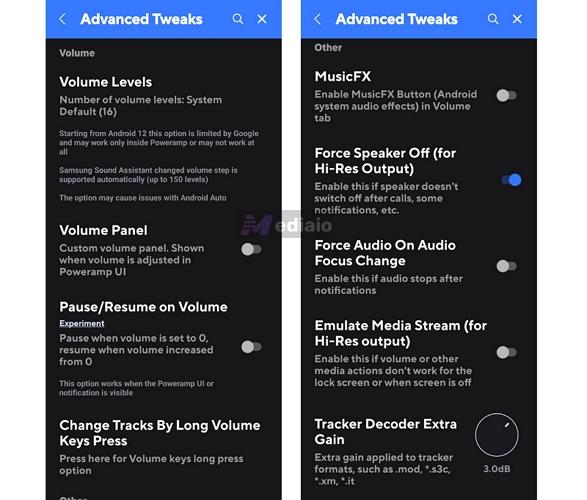
So you can experiment a bit with how your audio sounds and see what works for you. Because you can always return to defaults with a single tap.
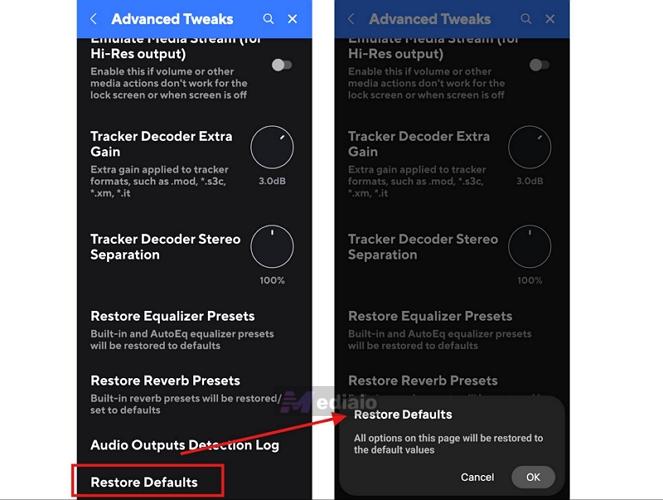
Overall Impression
If you go through any community, such as audiophile forums like r/audiophile or r/headphones, you’ll notice one clear consensus: Poweramp is the gold standard for mobile Android playback.
Even without adjusting anything, you will immediately notice that Poweramp sounds louder, fuller, and more dynamic than standard players (like VLC). That immediate punch largely comes from how well Direct Volume Control (DVC) handles the audio signal.
And when it comes to true high-res sound, the real result will depend on your hardware too. For example, if you’re listening through a generic Bluetooth earbud, the heavy 64-bit processing and hi-res output won’t make a night-and-day difference. However, if you plug in a good pair of wired IEMs (in-ear monitors), use a portable USB DAC, or run it through a high-end DAP, like FiiO M11, Poweramp will make more sense. It simply removes Android’s usual limitations and gives you cleaner control over how audio is processed and delivered.
Poweramp Music Player: UI Review
The Poweramp interface looks appealing, but it can feel a little intimidating too. There are gestures on the Now Playing screen and settings layered across different parts of the app.
But at the same time, it is deeply customizable. You can change almost everything: themes, fonts, UI, background blur, colors, intensity, layout behaviour, animation, etc. And that’s exactly there’s a learning curve: there is simply a lot packed into it.
How to Use Poweramp UI
You don’t have to tweak everything from day one. Leaving most things at default works fine. And you can slowly customize each aspect. Here’s how to actually figure things out.
Now Playing screen
Everything looks simple here at first. You get your play, next, previous buttons, and the album art sitting right in the center.
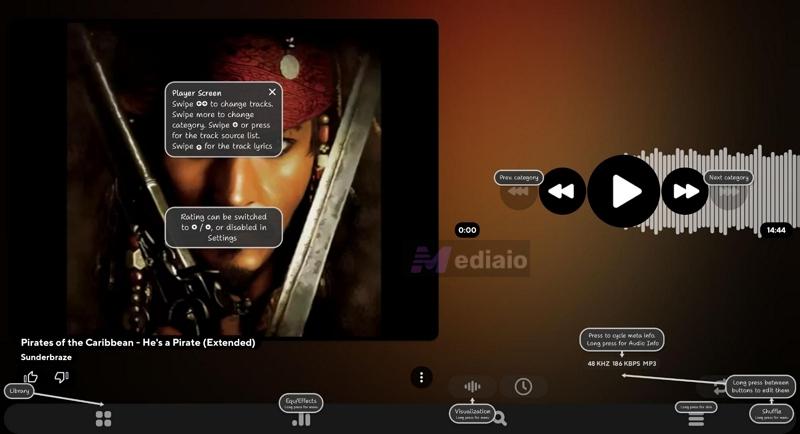
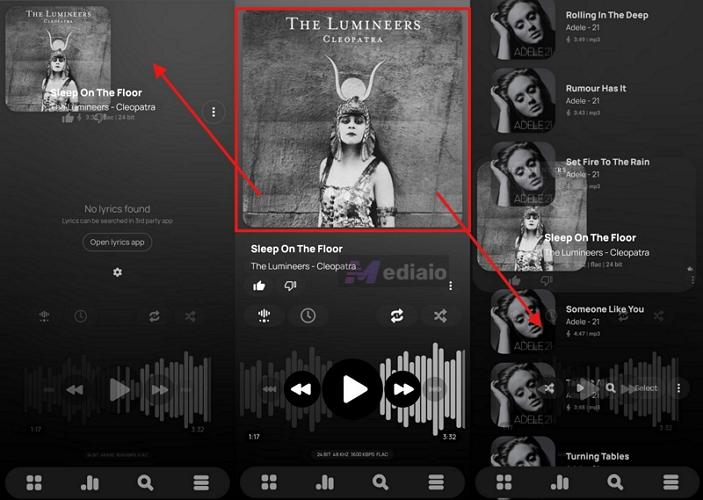
But the real controls are hidden inside gestures. For instance,
- You can drag the album art down from the top. This will take you back to the album or playlist you came from.
- You can drag the album art up from the bottom. It will open lyrics (or search them online if needed).
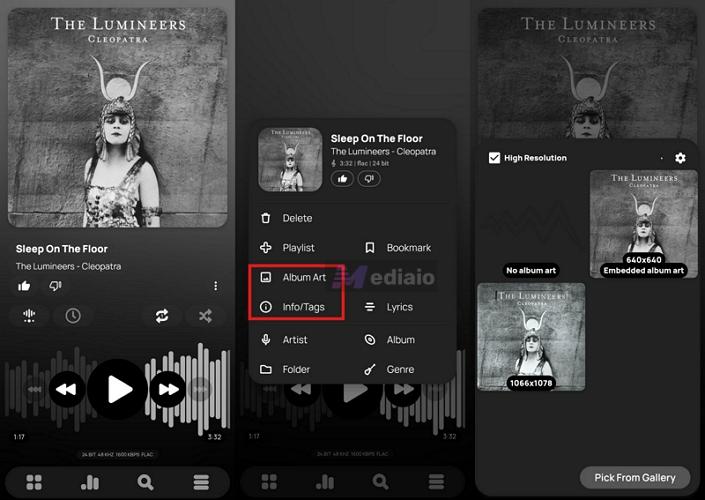
Then there’s the three-dot menu. It will allow you to add a track to a playlist instantly, fetch album art from the internet and replace it, edit tags, check full track info.
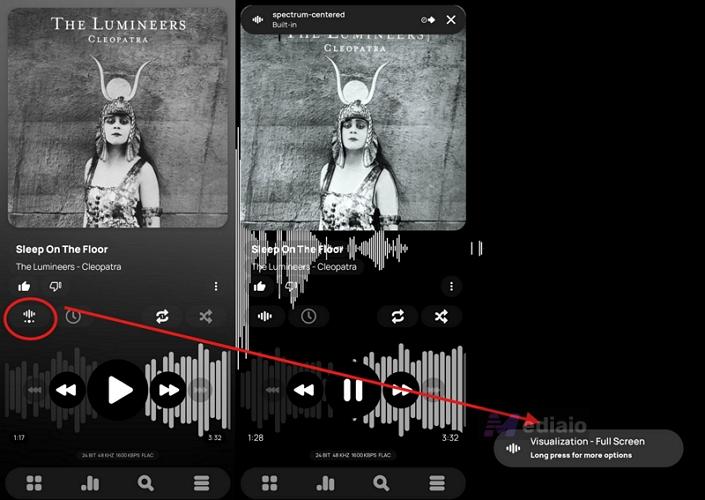
You can also access options like Sleep Timer, Shuffle, Repeat, and even Visualizations, which can turn your screen into a full visual playback mode.
And the best part is that almost all of this can be changed. If something doesn’t feel right, you can reshape it from the Settings menu.
Settings
Once you step inside Settings, Poweramp will open up completely.
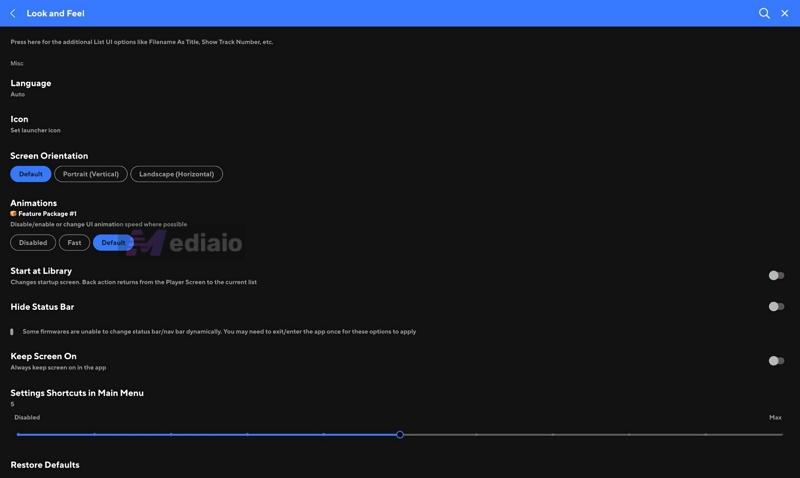
Look and Feel
This is where you shape the app into your own. You can switch skins, adjust fonts, tweak album art corners, change text weight, and even decide how transparent the interface should feel, along with a lot of other small controls that slowly add up.
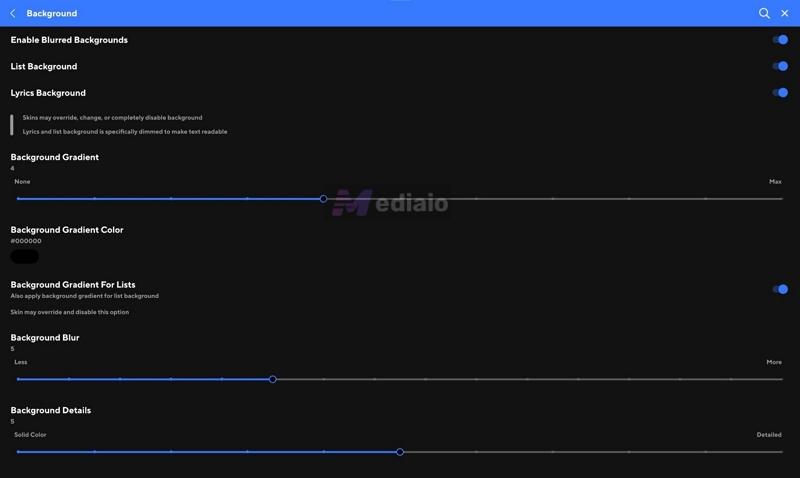
Background
You can stretch the album art across the screen, blur it, and adjust intensity. You can even keep it subtle so the lyrics text stays readable.
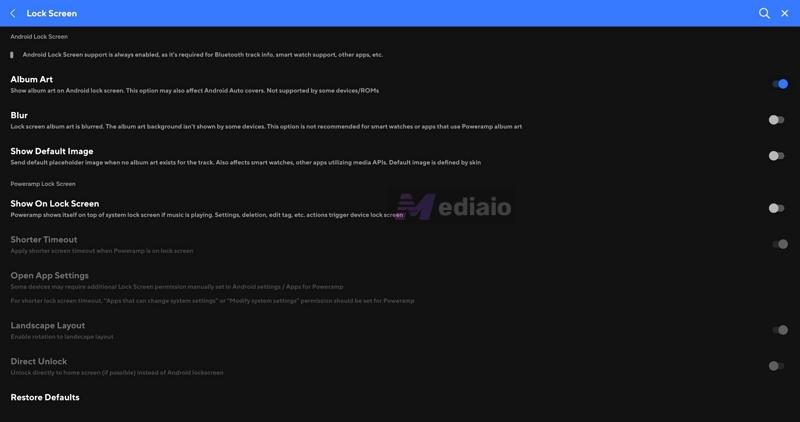
Lock Screen
Poweramp uses Android’s lock screen system. You get album art, basic playback controls, and optional blur effects for a cleaner look — nothing overcomplicated, but it works well.
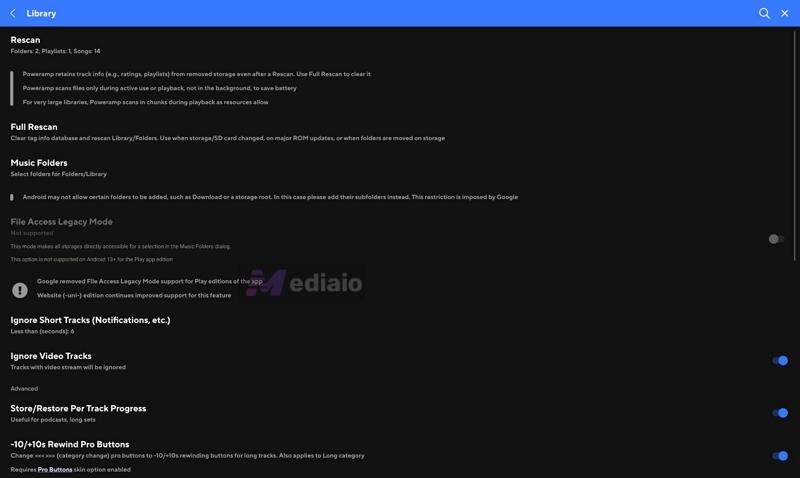
Library Controls:
Once again, there's a ton of customizations here too. For instance:
- You can ignore short files (for example, anything under 45 seconds — like voice notes), filter out video files, and keep your library focused only on actual music.
- And then there is one feature that genuinely helps over time — Resume Track on Startup. It will remember where you stopped. So you can enjoy other content, hit play on the same track, and Poweramp will continue from that exact point.
Verdict
Out of the box, the dark, industrial design does feel a bit cluttered. But at least it’s not confusing: the core actions are clear. You can pick, play, skip, set a sleep timer easily. You just need some time to get used to where everything sits.
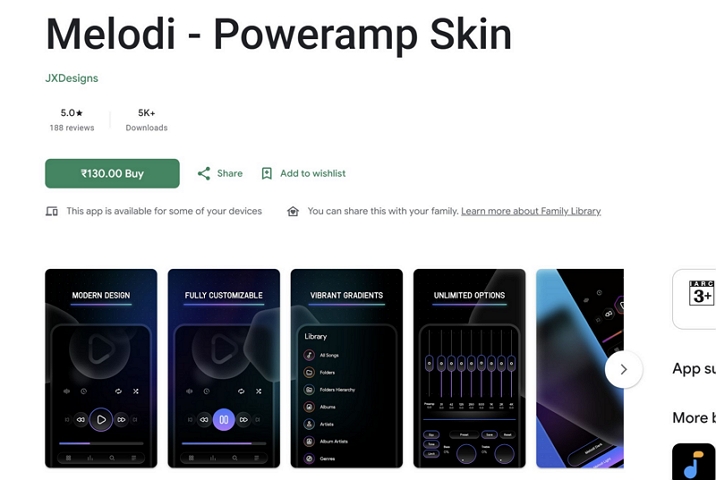
The gestures also take a day or two to settle in. After that, they will start feeling natural. In fact, swiping through tracks, jumping across albums, moving through menus — it all becomes faster than tapping through buttons. And if you don’t like how it looks, you can install custom skins like Proxima, Melodi, or Dias and completely change the way the Poweramp looks.
Once again, Poweramp is not designed for simplicity. It’s built for customization and its UI follows the same approach.
Conclusion
Poweramp has held its place as the undisputed king for over a decade and it’s easy to see why. If you’re an offline listener on Android, this is the way to go. The only real limitation isn’t the app itself. It’s not having a proper offline library to use with it.
Mediaio Audio Converter solves that. You can pull your favorite playlists from Spotify, Apple Music, or YouTube Music, save them as local files like MP3, M4A, FLAC, or WAV, and then play them through Poweramp.