

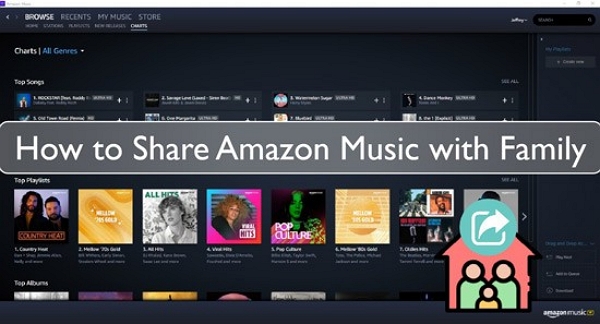
In 2025, Amazon Music will make it simple to share playlists with friends, family, and anyone using the app. You can create a playlist, generate a shareable link, and send it via email, messaging apps, or social media. However, Amazon Music does not support true collaborative editing. Unlike Spotify’s collaborative playlists, others cannot add or remove tracks directly. This guide covers everything about sharing playlists on Amazon Music: sharing, saving shared playlists, family sharing, fixing sharing issues, and exporting.
Part 1: Can You Share a Playlist on Amazon Music? (Quick Answer)
Yes, you can share playlists through a link.
- Works on Prime Music and Music Unlimited.
- Unsubscribed users may only hear previews.
- No collaborative/shared editing feature like Spotify.
- Now integrates with TikTok, allowing you to share playlists directly to your TikTok feed with a "Share to TikTok" button.
Requirements: playlist must be user-created, saved, and public.
You can share a playlist on Amazon Music, but only if you make it public. Then you can generate a shareable link and send it to friends and family, or even post it on platforms like TikTok. Private links cannot be shared.
The recipients must have an Amazon Music account to listen. Non-subscribers may be prompted to sign up or purchase tracks individually.
Part 2: How to Share an Amazon Music Playlist (Mobile & Desktop)
You can share an Amazon Music playlist on both mobile and desktop by first making it public, then generating a shareable link.
2.1 On iPhone & Android
Step 1: Open Amazon Music on your phone.
Step 2: Go to Library > Playlists > Select a playlist
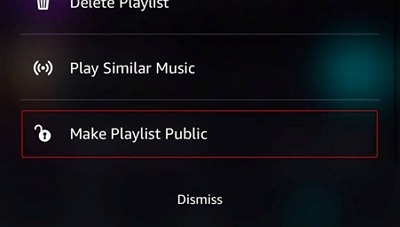
Step 3: Tap the three-dot menu next to the playlist name.
Step 4: Choose “Make Playlist Public” (required before sharing).
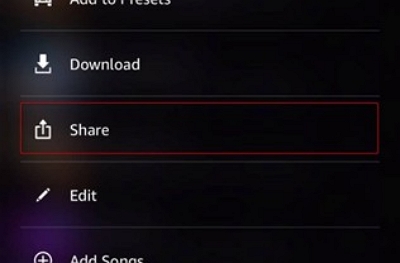
Step 5: Tap Share from the menu.
Step 6: Select how you want to share. Choose from:
- Copy the link.
- Send via WhatsApp, Messenger, SMS, or email.
- Post on social media
Once shared, recipients can open the link in their Amazon Music app and add it to their library.
2.2 On Desktop (Web Player / Windows / Mac App)
Step 1: Open Amazon Music in your browser or desktop app.
Step 2: Go to Library > Playlists. Select the playlist you want to share.
Step 3: Click the three-dot menu.
Step 4: Choose “Make Playlist Public.” Click “Share.”
Step 5: Copy or send the link.
Part 3: How to Share an Amazon Music Playlist With Family
You can share an Amazon Music playlist with your family by making it public and sending the link, or by using Amazon’s Family Plan/Household features. Family members can then access the playlist directly within their accounts, but only the playlist owner can edit it.
- Family Plan does not auto-share music libraries.
- Family members still need to open the playlist link.
- The sharing process is identical to regular sharing.
- Each family member keeps an independent library.
Part 4: How to Save a Shared Playlist on Amazon Music
Option 1: Share Via Link
Step 1: Open the Amazon Music app (on mobile or desktop). Go to Library > Playlists.
Step 2: Select the playlist you want to share. Tap the three-dot menu.
Step 3: Choose “Make Playlist Public.”
Step 4: Select Share and send the link via WhatsApp, email, or social media.
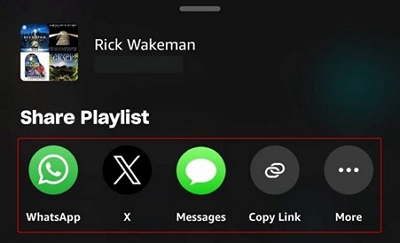
Family members can open the link in their Amazon Music app and add it to their library.
Option 2: Share via Family Subscription
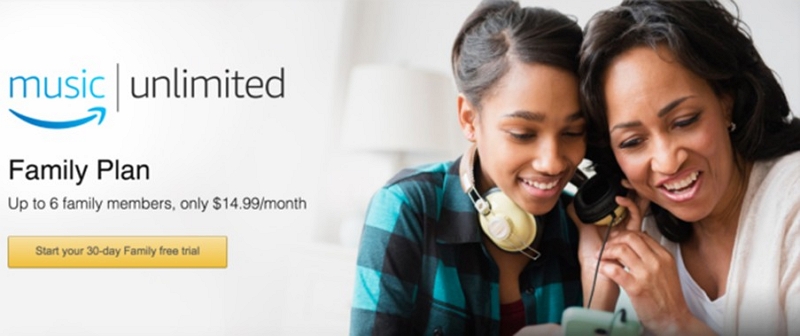
Amazon Music Unlimited Family Plan: Up to 6 family members can have individual accounts under a single subscription. Each member can access shared playlists once they're made public.
Amazon Prime Music: If included in your Prime membership, playlists can be shared across linked accounts.
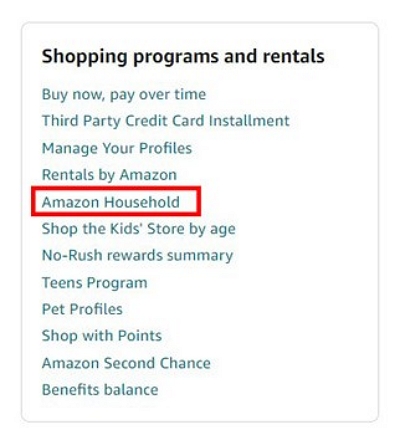
Option 3: Share via Amazon Household
Link family accounts under Amazon Household.
Once linked, public playlists can be accessed by all household members.
Part 5: Can You Make a Shared / Collaborative Playlist on Amazon Music?
5.1 Collaborative editing
Amazon Music does not support shared/collaborative playlists. Only the playlist owner can add or remove songs. Others can only listen but not edit.
Each family member must have an Amazon Music account.
Private playlists cannot be shared. You must make them public first.
5.2 Reasons you might not be able to share
Let’s look at some common reasons you might not be able to share an Amazon Music playlist and the practical tips to fix each issue.
Playlist is private.
By default, playlists you create are private. You cannot share private playlists.
Fix: Make the playlist public. Open the playlist > tap the 3-dot menu > select “Make Playlist Public.” Once public, you’ll see the “Share” option to generate a link.
Playlist contains auto-generated songs (e.g., stations)
Amazon Music stations and auto-generated songs are dynamic, not fixed playlists. They cannot be shared as a static playlist.
Fix: Create a new custom playlist. Add the songs you want from the station manually. Make the playlist public and share it.
The playlist has too few songs.
Too few songs (1 or 2) do not qualify as meaningful playlists. Amazon restricts sharing for such playlists.
Fix: Add at least 3 or 5 songs to your playlist. Refresh the app and try sharing again.
Account not updated
Outdated app versions or inactive subscriptions can block sharing features.
Fix: Update the Amazon Music app to the latest version and ensure your subscription is active. Log out and back in to refresh account permissions.
Region or feature limitations
Playlist sharing may not be available in all countries or regions due to licensing restrictions.
Fix: Check the regional availability page on Amazon Music. If unavailable, consider using a Family plan or Amazon Household for internal sharing. Alternatively, export your playlist manually and share it outside the app.
Bonus: Backup or Download Amazon Music Playlists
Users generally ask: "Can we share Amazon Music playlists outside the Amazon app?" Yes. You can. One way is to purchase your favorite songs and share them individually. Alternatively, use third-party tools to download Amazon Music Unlimited playlists permanently on your device and share them with your friends as MP3 files. Mediaio Audio Converter is a safe and reliable tool that allows you to do so.
Step-by-step
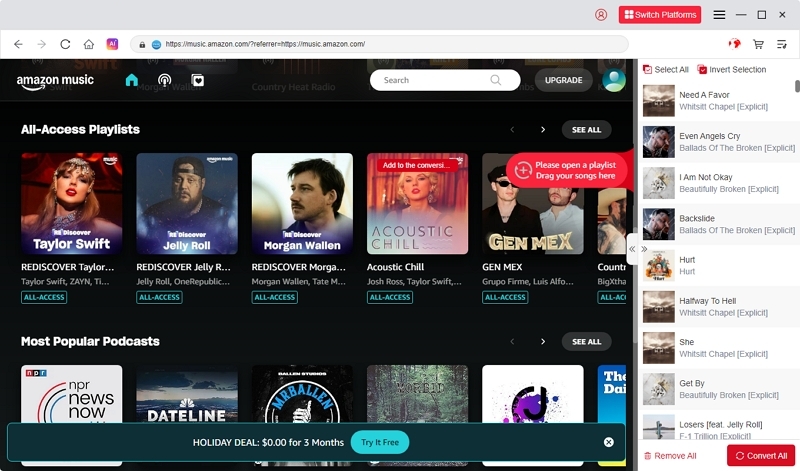
Select Amazon Music from the main interface, then use your Amazon credentials to sign in to your account.
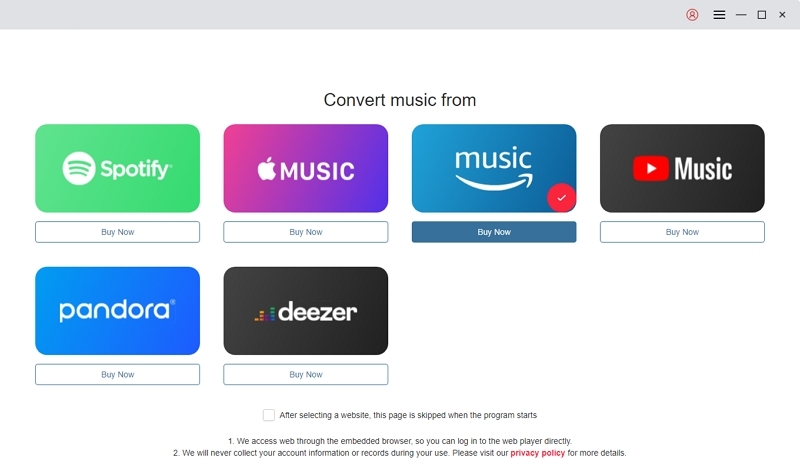
Search for your favorite songs, albums, or playlists and drag them into the “+” icon to import them into Mediaio.
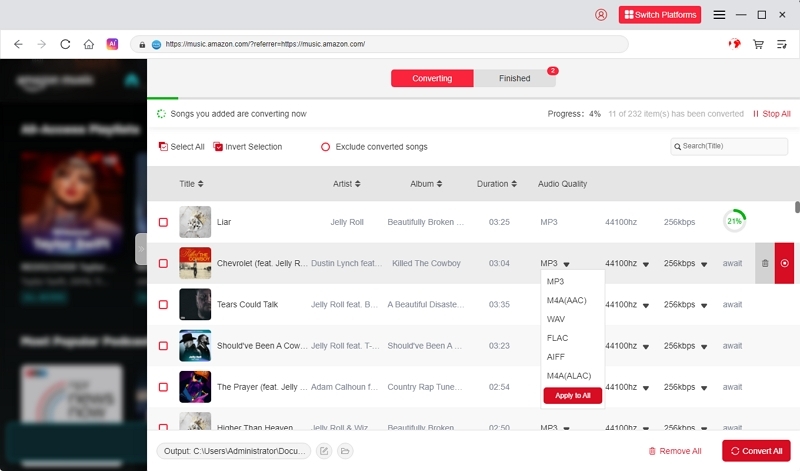
Choose your preferred output format. MP3 is recommended. Set audio quality to 320 kbps for the best results.
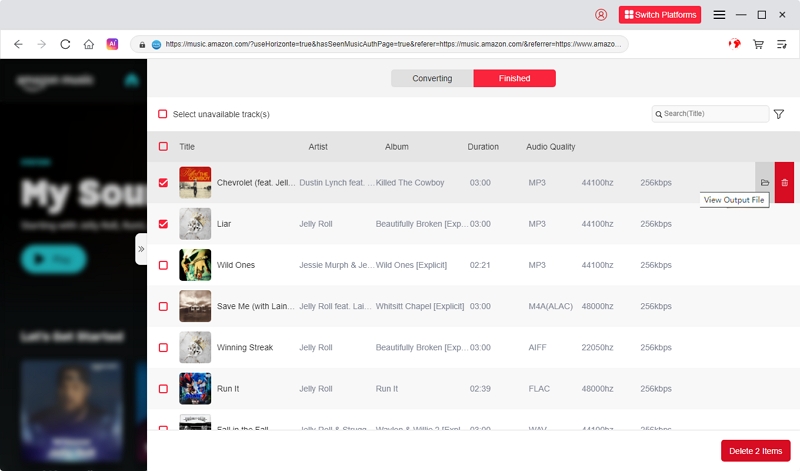
After selecting your tracks, click Convert All to begin downloading your songs.
Part 6: FAQs
Yes. Playlist sharing is available even with Amazon Prime or the free tier. You don’t need Unlimited to generate a shareable link. However, recipients must have an Amazon Music account to listen, and access may be limited based on each user's subscription plan.
No. Family members on an Amazon Music Unlimited Family plan or Amazon Household do not automatically see your playlists. You must make the playlist public and share the link. They can add it to their library, but they cannot edit it.
Amazon Music does not natively support importing Spotify playlists. To transfer:
Step 1: Use a third-party service like Soundiiz, TuneMyMusic, or FreeYourMusic.
Step 2: Connect both your Spotify and Amazon Music accounts.
Step 3: Select the playlist in Spotify and export it to Amazon Music.
After transferring, you can make the playlist public and share it within Amazon Music.
Conclusion
Amazon Music allows you to share playlists with anyone, but only if you make them public. By default, all playlists are private. We have discussed how to make the playlist public and generate a link to share it with anyone. But the recipient will need an Amazon Music account to listen to your shared playlists. We have also discussed Mediaio, a third-party software solution, that allows you to download Amazon Music playlists and share them with anyone outside the app.
Key takeaways:
If you want to share Amazon Music playlists with family, subscribe to the Family plan and make your playlists public.
If you want to share Amazon Music playlists with others, make the playlist public, generate the link, and share it with anyone.
If you want to share Amazon Music playlists outside the app, use Mediaio.