

Music makes everything better — until it suddenly stops working. If your Amazon Music is not working, freezing, or refusing to play, you’re not alone. Many users across Android, Tesla, Alexa, and Android Auto devices report playback issues.
This comprehensive guide will walk you through every possible cause and solution to get your tunes playing smoothly again.
Part 1. Why Is Amazon Music Not Working?
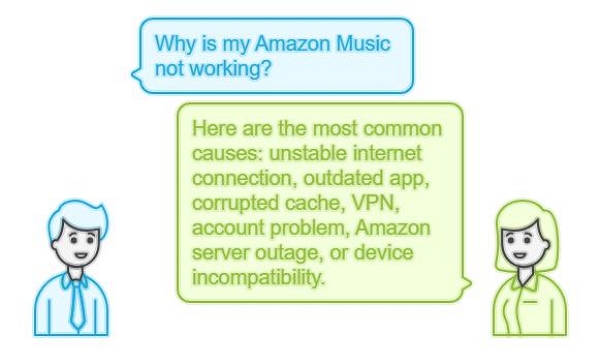
Before fixing the problem, it’s important to understand why your Amazon Music is not working. Here are the most common causes:
1. Unstable Internet Connection
Amazon Music requires a stable Wi-Fi or mobile data connection. If your network is weak or intermittent, playback may pause or stop completely.
2. Outdated Amazon Music App
Older app versions often contain bugs or compatibility issues. Always make sure you’re running the latest version of the Amazon Music app.
3. Corrupted Cache or Data
Over time, temporary files can become corrupted, causing glitches. Clearing the cache or data often resolves “why is my Amazon Music not working” issues.
4. VPN, Proxy, or Ad Blockers
These can interfere with streaming and cause playback errors. Try disabling them temporarily.
5. Account or Subscription Problem
Check that your Prime or Unlimited subscription is active and that you’re signed into the correct account.
6. Amazon Server Outage or Maintenance
Occasionally, Amazon Music not working is caused by a temporary service outage. You can check the Amazon Music status page or @AmazonHelp on X (Twitter) for updates.
7. Device or OS Incompatibility
Older Android or iOS versions may not run the app smoothly. Keeping your device up to date ensures better performance.
Part 2. Quick Fixes for Amazon Music Not Working (All Devices)
If your Amazon Music won’t play on any device, start with these universal solutions:
1. Restart Your Device
A simple restart often clears minor system glitches and restores app performance.
2. Update the App
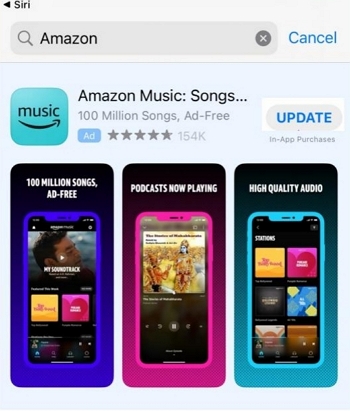
Visit Google Play Store or Apple App Store → search “Amazon Music” → tap Update.
3. Clear App Cache and Data
For Android:
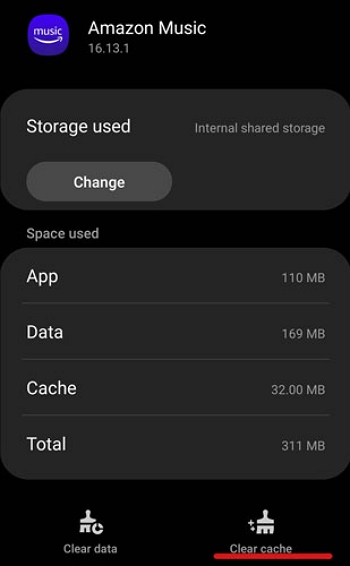
Go to Settings > Apps > Amazon Music > Storage > Clear Cache.
For iOS:
Uninstall and reinstall the app to remove corrupted files.
4. Disable VPN or Proxy
VPNs may route traffic through restricted regions, blocking playback.
Turn them off temporarily and retry.
5. Reinstall the Amazon Music App
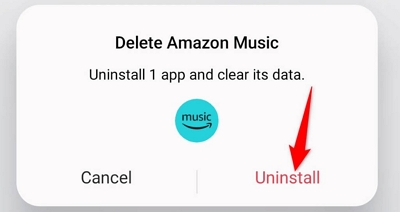
Uninstall → Restart your phone → Reinstall the latest version. This eliminates deep-level app corruption.
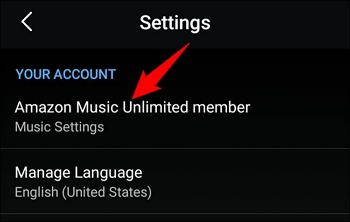
6. Check Your Subscription
Open Amazon Music > Settings > Subscription and confirm your plan is active.
7. Reset Your Network
Switch between Wi-Fi and mobile data or restart your router if streaming lags or drops.
Part 3. Permanent Fix — Play Amazon Music Offline Without Errors
Even after troubleshooting, recurring errors can be annoying.
A long-term solution is to download Amazon Music as local MP3 files — playable on Android, Alexa, or Tesla — without worrying about streaming issues.
Best Tool: Mediaio Audio Converter (Amazon Music Converter)
Mediaio Audio Converter allows you to:
How to Use Mediaio Audio Converter:
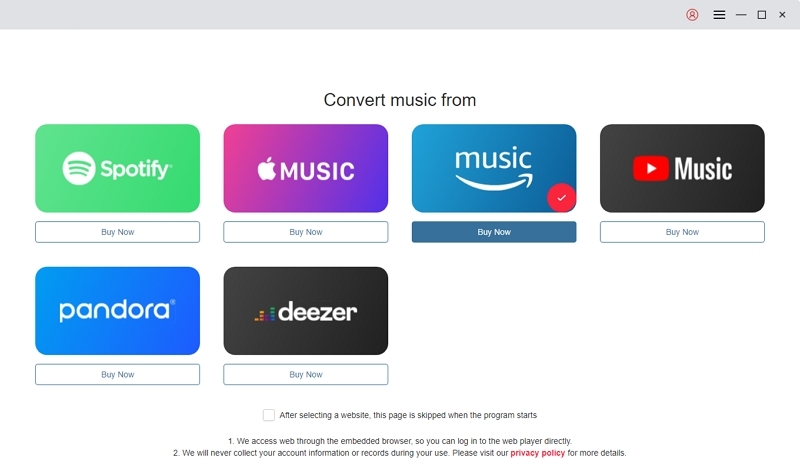
Launch the Mediaio Audio Converter and choose Amazon Music from the list of available platforms on the main screen.
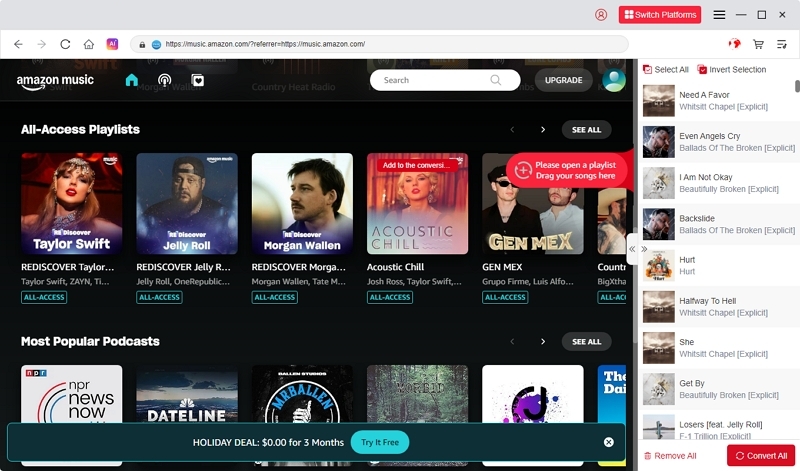
Explore Amazon Music and locate the songs or playlists you'd like to keep. Drop them onto the “+” button to include them in your conversion list.
Select your preferred output format (such as MP3 or FLAC) and pick a directory on your computer for saving the converted files.
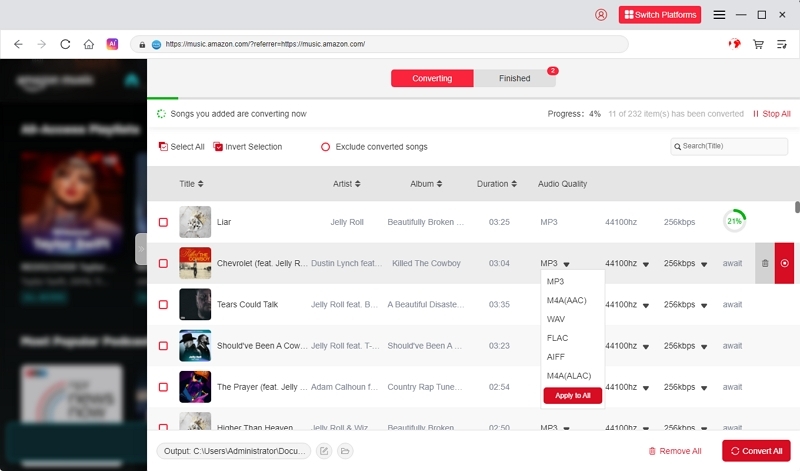
Press Convert All to initiate the process. Mediaio will transform your chosen tracks and store them as local files in the desired format.
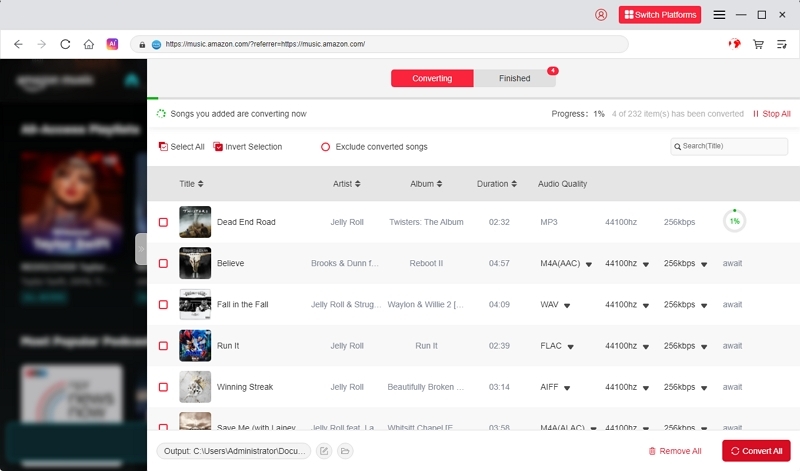
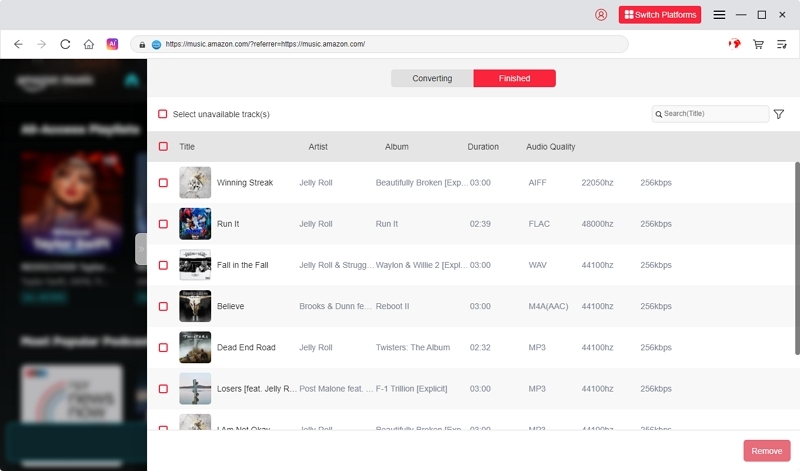
After the conversion is complete, navigate to the Finished section to find and listen to your newly saved music files.
Part 4. Amazon Music Not Working on Android
If Amazon Music not working on Android is your specific issue, follow these Android-only fixes:
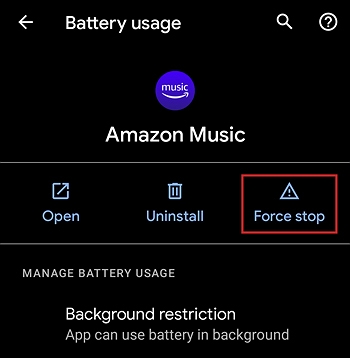
1. Force Stop the App
Go to Settings > Apps > Amazon Music > Force Stop.
2. Clear Cache & Storage
Same path → tap Storage > Clear Cache and Clear Data.
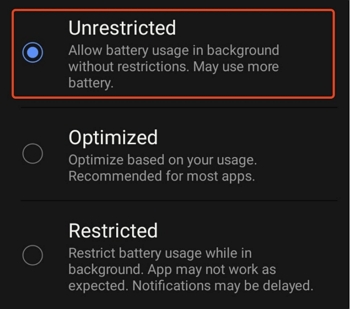
3. Disable Battery Optimization
Battery saver modes can restrict background music playback. Whitelist Amazon Music under Battery > Unrestricted Apps.
4. Check Permissions
Ensure Storage and Media permissions are granted.
5. Reinstall Amazon Music
Delete the app, restart your phone, and reinstall from Google Play.
If downloaded songs won’t play offline, re-enable Storage permission in App Info.
Part 5. Amazon Music Not Working on Android Auto
Another common complaint is Amazon Music not working on Android Auto. Try the following:
- Update Android Auto and Amazon Music apps
Outdated versions often cause connection failures.
- Reconnect your phone via USB or Bluetooth.
- Enable Media Permissions for both apps.
- Clear Cache of both Android Auto and Amazon Music.
- Reboot your car’s infotainment system if playback still fails.
- Voice Command Tip: Say “Hey Google, play my Amazon Music playlist” to test connectivity.
- Some vehicles (like Tesla or Toyota) may need firmware updates for full compatibility.
Part 6. Tesla Amazon Music Not Working
If Tesla Amazon Music not working keeps happening, it’s often due to connectivity or account sync errors.
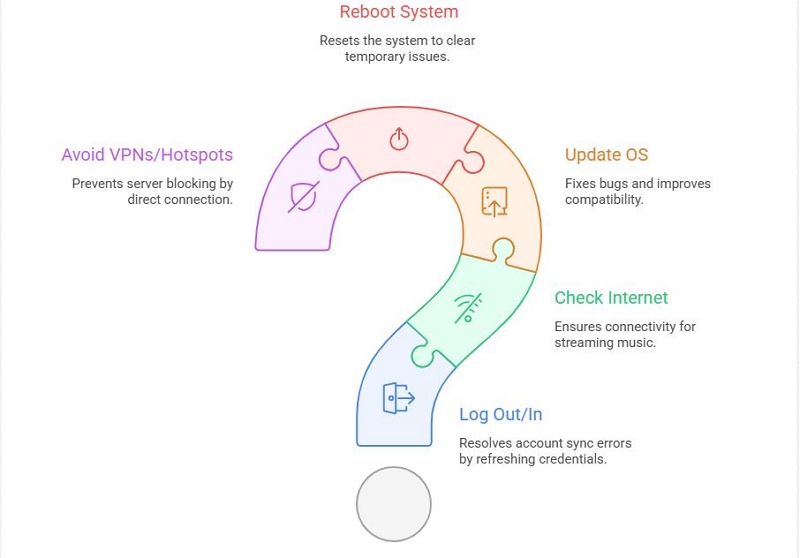
- Log Out and Log Back In to your Amazon account from the Tesla screen.
- Check Internet Connection — ensure LTE or Wi-Fi is active.
- Update Tesla OS — new versions fix Amazon Music bugs.
- Reboot Tesla System — press and hold both scroll wheels until the screen resets.
- Avoid VPNs or Hotspots that might block Amazon servers.
After Tesla software updates, Amazon Music sometimes requires reauthorization.
Part 7. Alexa Amazon Music Not Working
If Alexa Amazon Music not working or Amazon Alexa music not working problems occur:
1. Check Account Linking
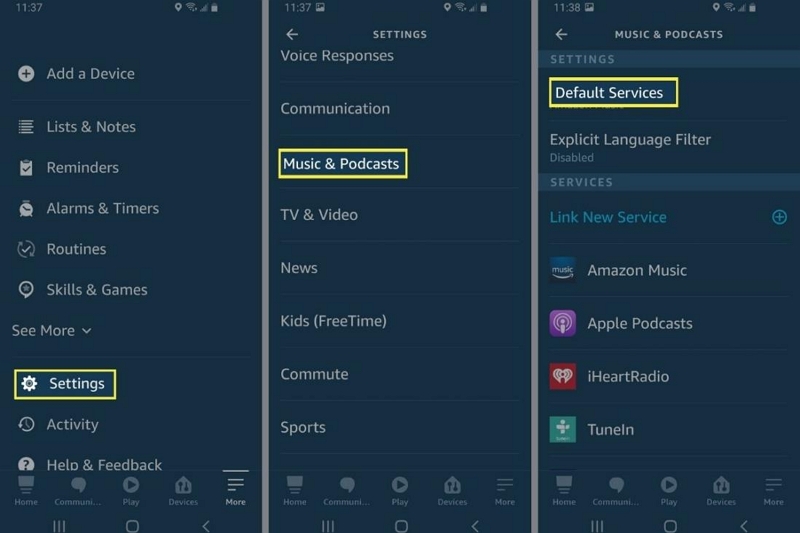
Open Alexa app → Settings → Music & Podcasts → Link New Service → Select Amazon Music.
2. Confirm Default Service
Say “Alexa, switch my default music service to Amazon Music.”
Re-link Amazon Account if songs won’t play or Alexa says “Amazon Music is not available.”
3. Restart Your Echo Device
Unplug and plug it back in after 10 seconds.
4. Region & Availability
Some regions don’t support Amazon Music — verify availability.
How to Verify Availability or Change Region
To use Amazon Music, you must be in a supported region with a valid local billing address and payment method.
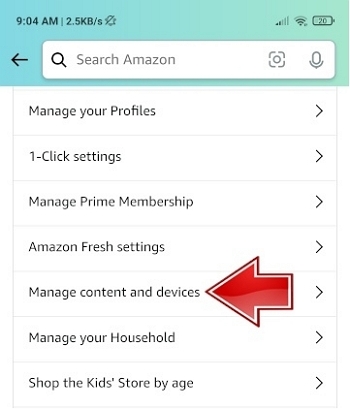
Check your settings: Go to the "Manage Your Content and Devices" section in your Amazon account settings and verify your Country/Region setting.
Transfer your account: If you have moved to a new, supported country, you can transfer your Amazon account to that region, provided you have a valid local billing address. This will update the available music services.
Contact Customer Service: If you are unsure about availability in a specific location, or if you encounter issues, contacting Amazon customer service is the recommended way to confirm service status for your region.
Part 8. Amazon Music Podcasts Not Working
If your Amazon Music podcasts not working, follow these quick steps:
1. Check Podcast Availability in your region.
2. Update the Amazon Music App.
3. Turn Off Explicit Filter — Settings > Playback > Allow Explicit Content.
4. Clear Cache or Redownload Podcasts.
5. Try the Amazon Music Web Player to confirm whether the issue is app-specific.
Part 9. FAQs
Conclusion
When Amazon Music is not working, it’s usually a simple issue with connection, cache, or app updates.
Follow the step-by-step fixes above for Android, Tesla, Alexa, and Android Auto to restore playback quickly.
If you want a permanent, hassle-free solution, Mediaio Audio Converter lets you download and keep your Amazon tracks offline — so you’ll never be stuck in silence again.