

You may plan to cancel your Spotify subscription for some reasons, such as switching to another service or joining a Spotify Family plan. So, what happens when you cancel Spotify Premium? One of the consequences is losing access to your Spotify downloads. However, there are ways to keep your Spotify downloads even after cancelling your subscription. Next, we will show you how to get it done with a specialized music converter, Mediaio Audio Converter.
What Happens When You Cancel Spotify Premium
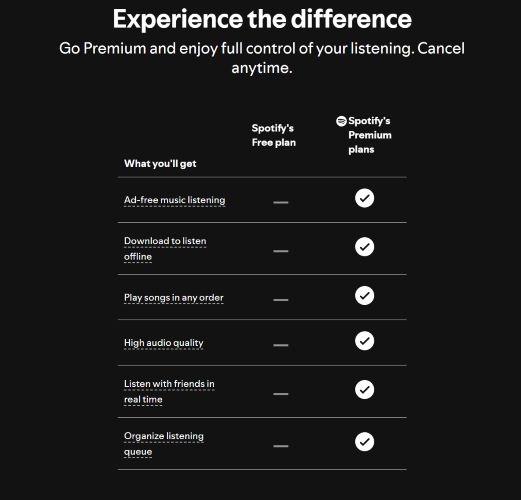
Canceling your Spotify Premium subscription means losing almost all the good things about Spotify, though your Spotify library keeps intact. Here are the effects of Premium cancellation.
- Any downloaded music will remain accessible until your billing cycle officially ends. They will be greyed out once the billing date is reached.
- 15 hours of Audiobook access will no longer be available.
- Ads (voice, banner, and video) will return.
- High Quality audio (320 kbps) will be inaccessible.
- Shuffle mode becomes mandatory.
- Can’t download music for offline playback.
Keep Spotify Downloads Forever After Canceling Premium: Export Spotify Downloads
Offline Spotify playback is a Premium option. When your Spotify subscription ends, you can't access your Spotify downloads. To keep your Spotify playable without premium, you can export the downloaded songs as local files before you cancel the subscription and Mediaio Audio Converter makes it easy for you to do this.
Mediaio Audio Converter exports music as WAV, FLAC, MP3, AAC, and other open formats, saving Spotify music directly to your computer. This means the saved music is not within Spotify or even Mediaio can’t reach to remove them. Whether you choose to keep them forever or remove them later, that’s up to you.
Preserving high-quality audio is a priority while downloading. Just like the 320 kbps bitrate offered in Spotify Premium, your downloads will retain the same standard. Additionally, every download carries full track details, including song title, album name, artist info, and even the original cover art.
Steps to Permanently Download Spotify Music with Mediaio
Download Mediaio on your Windows PC or Mac. Launch the app once installed and choose Spotify from the main screen.

Use either a free or premium account to proceed. Click on Log In inside the built-in Spotify browser and enter your credentials.
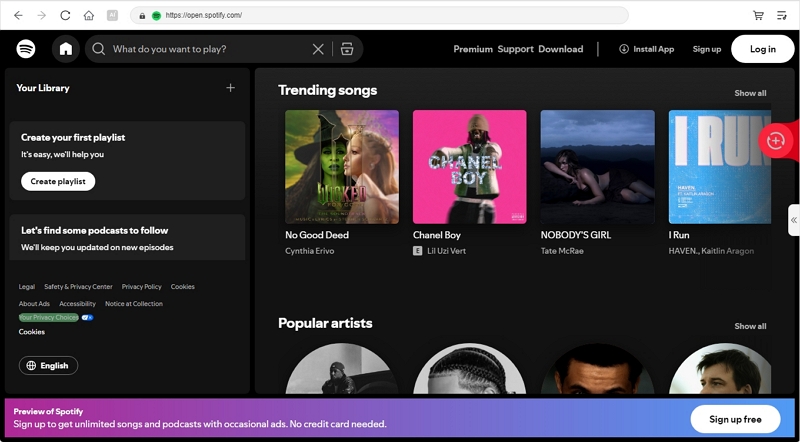
Once inside your Spotify library, click Downloaded tab and drag and drop downloaded playlists and albums onto the plus button on the right. Keep in mind that you can also select any other content on Spotify to download on your device.

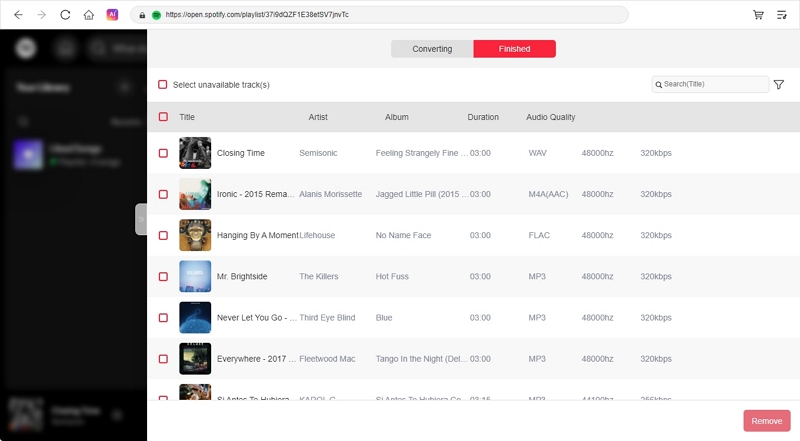
On the Converting tab, use the toggles next to each track to set an individual format and an output quality. Then, click Convert All to start exporting and saving.

Head to the Finished tab and click View Output File. Mediaio will take you directly to the folder where your fully downloaded yet DRM-free Spotify tracks are stored on your device.
How to Save Spotify Downloads Permanently After Export
You have full control over your Mediaio-exported Spotify tracks for personal usage. You can choose a location to save your local Spotify songs safely, like an external hard drive or a MP3 player. You can also transfer them to your phone, whether it's a flip device, touchscreen smartphone, etc. Let’s explore how you can do that smoothly.
Option 1: Save Spotify Downloads to External Drive
External drive is good if you prefer to save a large number of music files offline or create a backup of your favorite songs. Here’s how you can do that:
On Windows
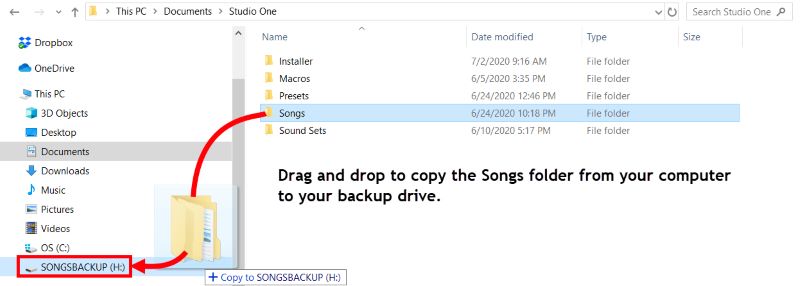
1. Plug in your external storage drive. It will appear under This PC in File Explorer.
2. Locate the Medioia downloads using the file tree. Then, drag the desired downloaded songs to the external drive’s directory.
On Mac
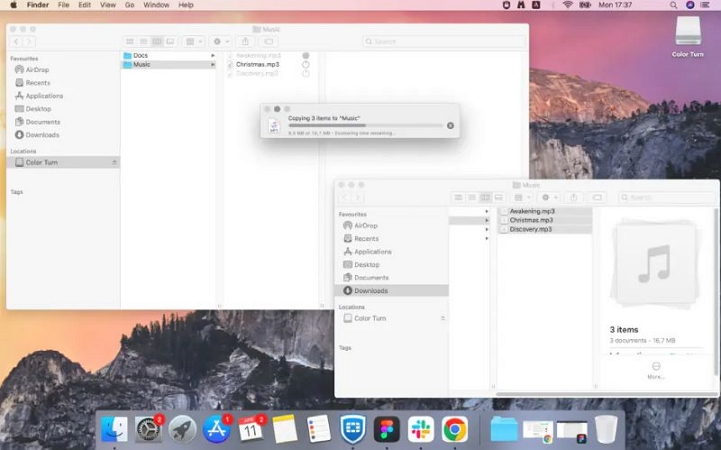
- Connect the external drive to your Mac device.
- Open Finder and you will find the connected drive under Locations in the left-sidebar.
- Open a New Finder Window, navigate to Medioia downloads folder and drag it to one of the folders in external drive’s directory.
Option 2: Copy Spotify Downloads to MP3 Player
An MP3 player is a secure place to store your local Spotify songs, especially a basic one. By copying your downloaded Spotify music to the MP3 player, you can easily listen to your music anywhere too.
Steps to Transfer Spotify Songs from Computer to MP3 Player
Step 1: Connect your MP3 player to the computer and locate it in File Explorer or Finder.
Step 2: Copy all the local songs downloaded by Mediaio and paste them to the MP3 player folder.

Option 3: Transfer Spotify Downloads to Phone
This is a good option if you want to enjoy your Spotify music offline whenever you want. Let’s break them down in detail.
For iPhone
Bringing the downloaded music to the Files app is suitable if you want to listen to them via external media players on your iPhone, like VLC Media Player. The Files app itself supports MP3, WAV, and AAC formats, so you won’t even need extra media players unless you prefer one.
Here are the steps to move the Mediaio downloads to your iPhone’s Files app:
1. Plug your iPhone into a Mac using a USB cable. If a message pops up, just tap Trust This Computer and enter your passcode.
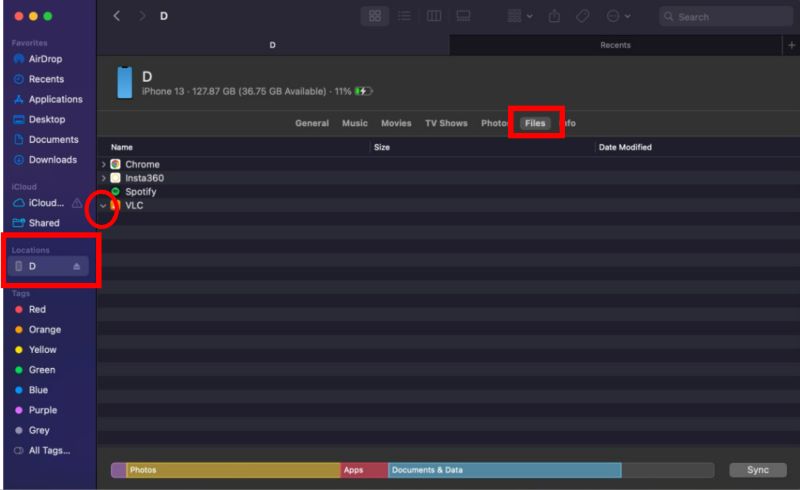
2. Open Finder and find your iPhone under Locations on the left. Click it, then switch to the Files tab (top bar). Here, you’ll see a list of apps that support file transfers.
3. Click the small arrow next to an app that can store and play music: something like VLC, Chrome, or any MP3 player. If you don’t have one, then just grab one from the App Store before moving on.
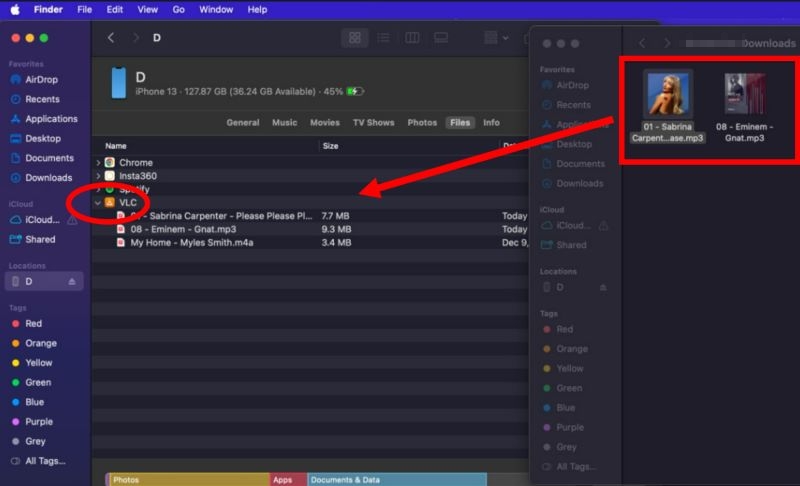
4. Open another Finder window, go to the Mediaio downloads folder, and drag and drop your music files into the chosen app’s section. Simple as that.
5. Once done, grab your iPhone and open the Files app.
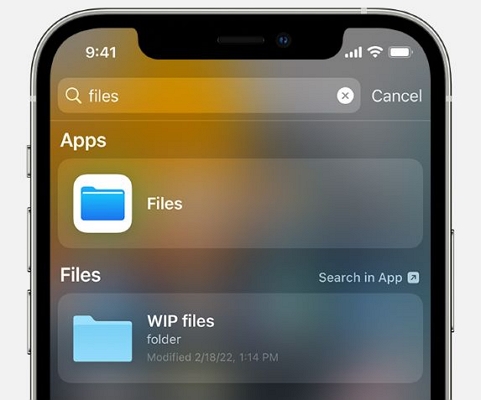
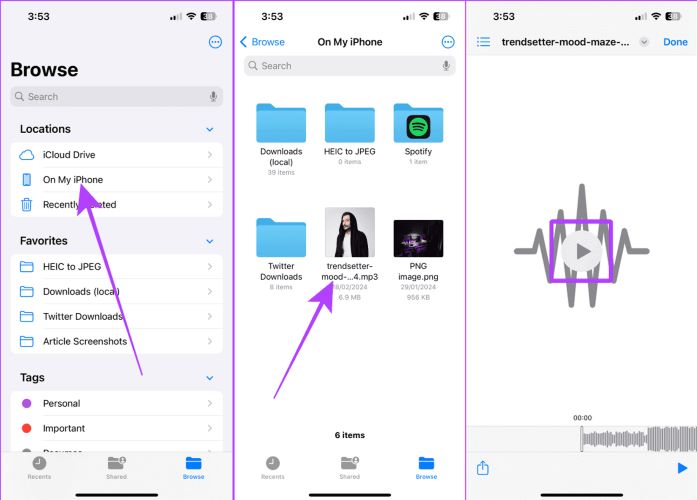
6. Tap On My iPhone, find the app’s folder where you copied the music, and your tracks will be there. Just tap and play.
For Android
When it comes to saving downloaded Spotify music on your Android phone, File Manager app is a good choice. The File Manager app allows you to browse and manage all the files stored on your Android device. Regardless of how you copy, the music files will appear here. Here’s the complete process.
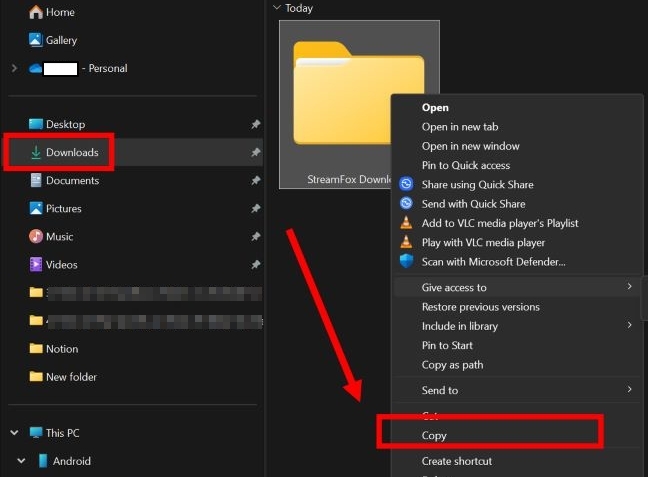
1. Open File Explorer and find your Mediaio download folder containing your converted Spotify tracks. Right-click on the folder and select Copy from the context menu.
2. Connect your Android phone to Windows PC via USB cable and select File Transfer Mode when prompted on phone. Your Phone will appear under This PC in the File Explorer window. Click it, go to Internal Storage, and create a new Music folder.
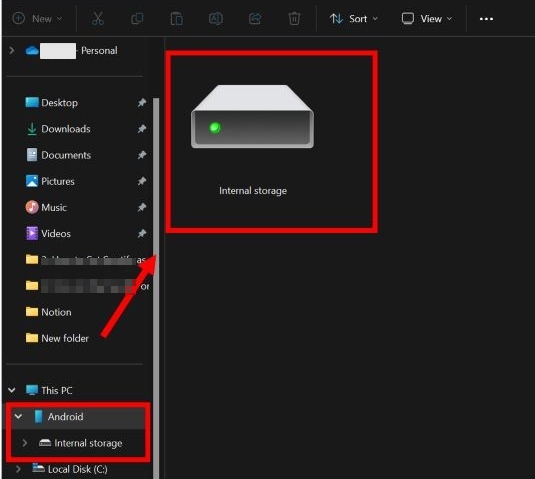
3. Right-click in an empty area of the created folder and choose Paste to transfer the files.
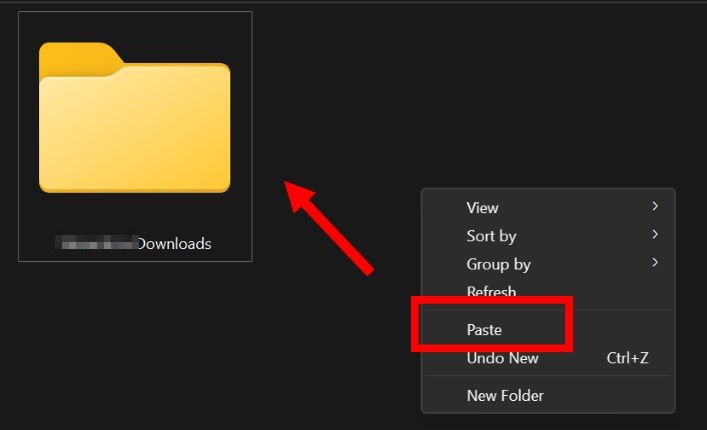
4. Once transferred, disconnect your phone. Then, open the File Manager app on your Android device, find the Music folder and tap on the song to play it via your default media player.

How to Cancel Spotify Premium
There are various ways for you to end your Spotify subscription and we will introduce 2 common ones here.
Before continuing with the cancellation steps, here are 3 questions you might find interesting.
Will I Get My Money Back If I Cancel Spotify Premium?
No, you won’t get a refund, but you can continue using Spotify Premium features until your next billing date.
If I Cancel Spotify Premium Trial When Will It Stop?
It will end on the day your trial period expires.
Does Downloaded Spotify Music Stay After Free Trial?
No. Once the free trial ends, your Spotify downloads will remain on the app but cannot be played.
Way 1. Cancel with Spotify Support Bot
This is the most straightforward way to cancel a Spotify subscription. It works regardless of how you initially subscribed to Spotify, whether through Spotify or another method. Here are the steps:
Step 1. Log in to your Spotify account via browser on any device.
Step 2. Go to Spotify’s Message Support page and select Start Messaging.
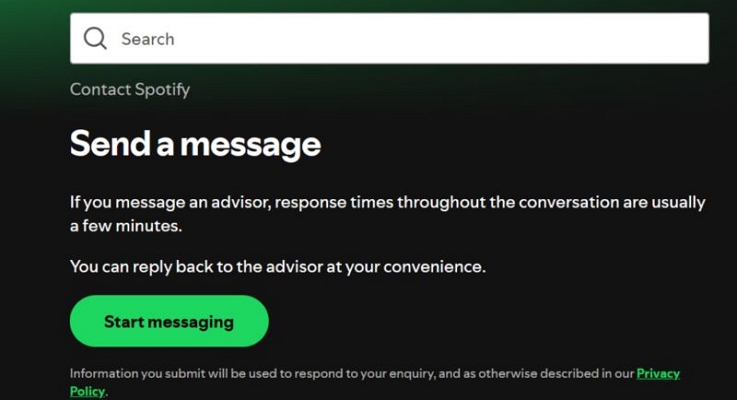
Step 3. Type Cancel Subscription and wait for the bot to verify your account details. Confirm by selecting the Yes button.
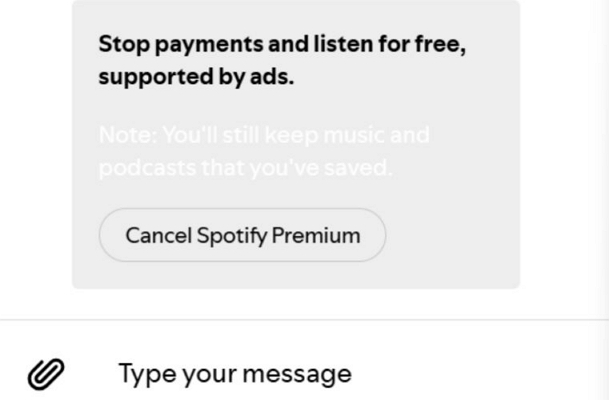
Step 4. Once you confirm, the bot will respond with a Cancel Spotify Premium button. Simply, select it, and your subscription will be cancelled.
Way 2. End with Spotify Account Site
Alternatively, you can choose to cancel your Spotify Premium via the Spotify account page. However, this way only works if you subscribe to Spotify through the official site but not through third-party services, like App Store.
Step 1. Access spotify.com/account and log in to your account whose subscription you want to cancel.
Step 2. Select Manage your plan under Subscription.
Step 3. Hit Change Plan in the current plan.
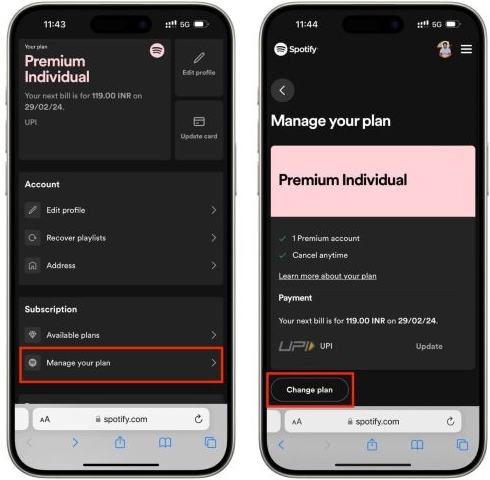
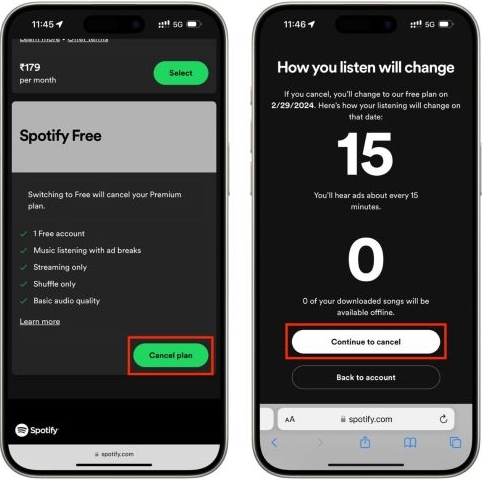
Step 4. Tap Cancel Plan > Continue to Cancel.
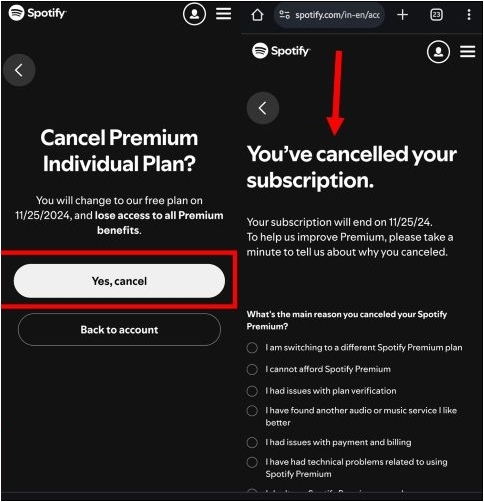
Step 5. Choose Yes, Cancel to confirm your cancellation.
Wrap Up
Spotify downloads are temporary. However, when you download the same songs using Mediaio Audio Converter, they will remain with you forever.
Mediaio Audio Converter allows you to backup your entire Spotify library and makes sure that every song you love stays yours. Whether you’re downloading a handful of tracks or backing up playlists, Mediaio makes sure you get 320 kbps quality, full metadata, and download as many songs as you want.