

Spotify Lite is dead, so many flip phones suddenly lost their ability to run Spotify. Now using Spotify on a flip phone all depends on whether the device can handle the main Spotify app or not. Today, only a handful of flip phones with Spotify support are still around, we tested most of them and picked the ones still work in 2026 — each suited for a different need. Whether you want something rugged for daily use, something stylish to carry, or even a keitai that can handle offline listening.
And beyond that, we’ll also show how you can listen to Spotify on almost any flip phone using Mediaio Audio Converter. So even if your phone doesn’t support the app, you’re not stuck.
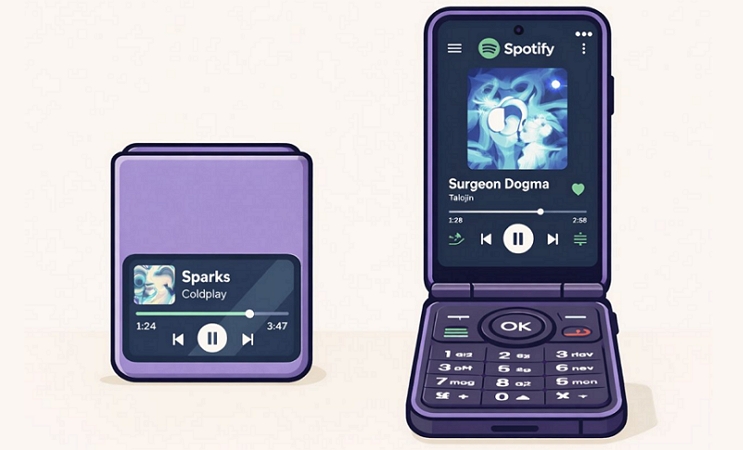
Use Flip Phone with Spotify: Pros and Cons
If you’re still unsure about making the switch or just trying to imagine what daily life with a flip phone will feel like, go through this table.
We’ve combined our own testing experience with real feedback from users who’ve been using these phones for weeks and months. So you can get a clear idea of what to expect before choosing a flip phone with Spotify support:
Flip Phones with Spotify Overview — Top 5 Picks
Instead of listing dozens of nearly identical options, we’ve picked five that actually stand out. Each one still manage to run Spotify app in 2026, even after Spotify Lite is gone and is suitable for different types of use.

CAT S22 Flip Rugged users who want Spotify + WhatsApp + Maps with strong community fixes. Native app (after debloat) + offline Medium (needs tweaking) Bluetooth + USB-C audio Slow performance out of the box

Freetel Mode 1 Retro II Best overall flip phone with Spotify, Bluetooth, Maps and WhatsApp Full native support + offline Easy (like a small Android phone) 3.5mm jack + Bluetooth Expensive and bulky when opened

Kyocera A202KC Keitai lovers who want Spotify + Bluetooth in a minimal setup APK sideload + offline Hard (no touchscreen) Bluetooth (no jack) No Play Store, manual setup needed

TIQ Mini Q5 Flip Balanced pick with Spotify + WhatsApp + Maps in a compact body Full native support + offline Easy 3.5mm jack + Bluetooth Battery + charging issues

TCL Flip 4 5G+ Simple phone with Maps + YouTube + Bluetooth (occasional Spotify via browser) Browser only (no app) Easy but limited Loud speakers + Bluetooth No offline Spotify support
Best 5 Flip Phones with Spotify: Detailed Introduction
These flip phones not only support the Spotify app, but also have a solid build and feel great in hand. They are durable and some are even water-resistant.
1. CAT S22 Flip
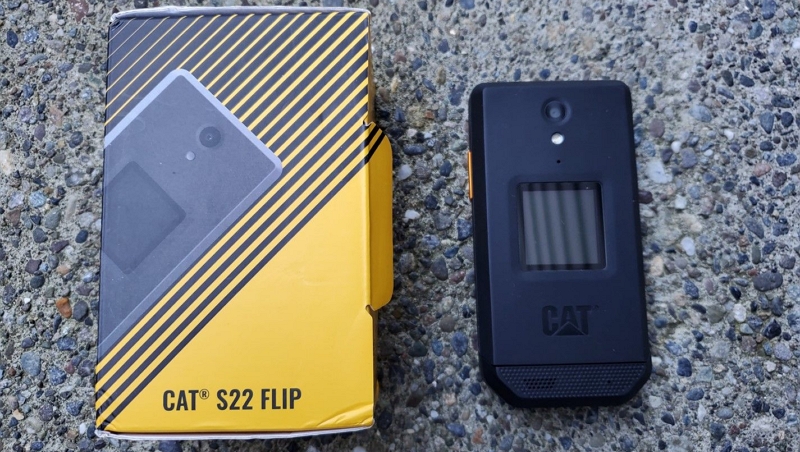
CAT S22 Flip is not a new phone to be recommended in a 2026 guide. But it comes with strong community support (tons of guides, fixes, and discussions) and easy availability and that’s the main reason it appears first on this list.
Keep in mind that there also haven’t been any hardware upgrades since its release in 2021. So if you run Spotify out of the box (the new app), it will feel slow. You will have to debloat it to make it run smoothly.
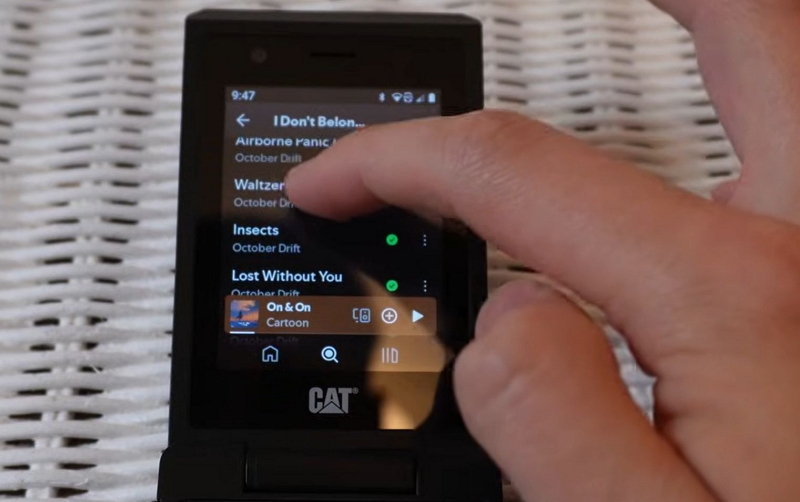
Coming to actual usage, you’ll be using the official app since it comes with the Play Store. The 2.8-inch internal touchscreen means that you can quickly move through your library and tap a song to play it. Also, the 4G LTE connection makes sure you can stream Spotify in “Very High” quality and you can switch to Wi-Fi at home.
The problem is the speakers (mono). It’s not something you can rely on while working a construction job or in noisy surroundings. That’s important to remember because this phone is built for that IP68, 224gms, rugged body but not your “fancy” flip phone. Still, you can use Type-C headphones (no 3.5mm jack) or connect Bluetooth earbuds.
Officially available only in the US.
IP68 (Water/Dust)
MIL-STD-810H (Rugged)
Common issues reported: Keypad double-typing (ghosting), screen ribbon cable fatigue.
How to Use Spotify on Caterpillar CAT S22
Step 1. Make sure your Google account is active. It’s also worth debloating the phone first by removing T-Mobile apps, etc. So Spotify runs without lag.
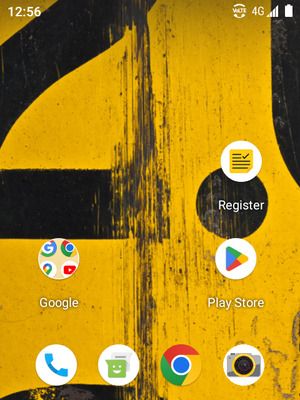
Step 2. Head into the Play Store from the main screen.
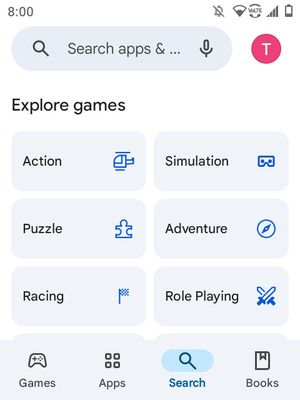
Step 3. Use the search bar to find Spotify. Install it.
Step 4. Sign in Spotify with your account. That’s it! You’re in and you can start playing songs.
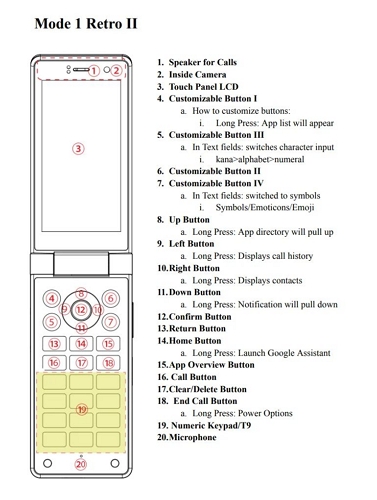
2. Freetel Mode 1 Retro II
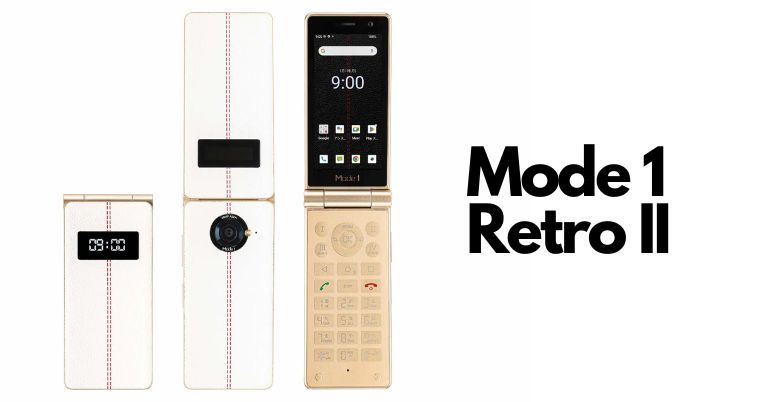
This one is the exact opposite of CAT S22 Flip. It leans more towards the “fancy” flip phone category. It’s popular because of its retro design with a leather-like finish. Open it and it will become a surprisingly tall device for a flip phone.
Under the hood, it runs on Android 13, paired with a MediaTek Helio G85 processor and 4GB RAM. And that setup is more than capable of running Spotify smoothly, along with most everyday apps. The inner display is a 3.5-inch touchscreen that is small but still enough for navigating through Spotify without trouble.
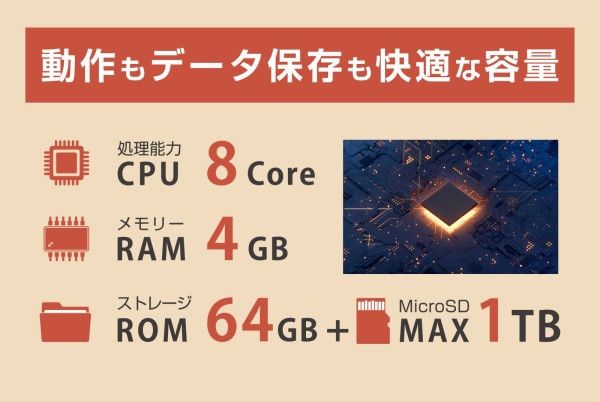
And what really makes it stand out in this list is storage. You get 64GB built-in with the option to expand it (up to 1TB via microSD). So you can download a large number of Spotify songs.
The speakers are good enough for casual use, like listening to podcasts under fan noise, but not something you’d call clear or rich. Still, you have the option to listen via a wired headphone (3.5 jack) or Bluetooth.
Works with most GSM networks (common mobile networks like AT&T, T-Mobile and works for most regular users,depending on bands).
Premium Build
Common Issues: Noticeable battery drain while idle, fragile leather-like finish.
How to Use Spotify on Mode 1 Retro II
Step 1. Install Spotify from Play Store.
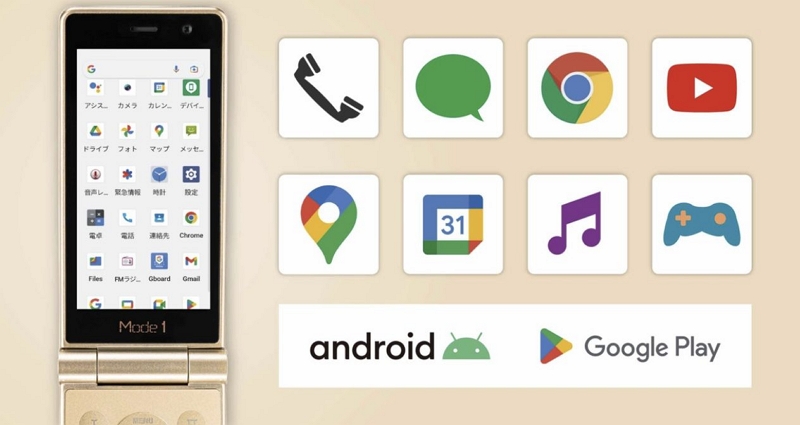
Step 2. Sign in via the touch display or keypad. You can use it like on a normal Android phone.
3. Kyocera A202KC (and Kyocera Dura XA Equip)
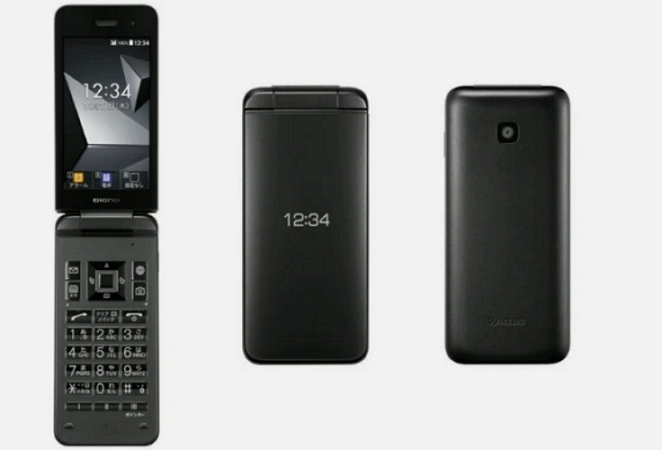
Now this is where you step into the true keitai experience — the Kyocera A20XX series follows the same path set by its predecessor 902XX series. And it keeps the same identity: clean design, compact body, and a focus on doing the basics without turning into a full smartphone.
That said, this is not a powerful device. Although it runs on Android 10, there’s no proper Play Store support. So getting Spotify here is itself a challenge. You’ll have to sideload Spotify via ADB and manual APK installation. There’s no touchscreen either. Everything runs through the physical keypad and the D-pad. Moving through menus, selecting songs, and controlling playback all happen that way. It is manageable, but not smooth.
Where it does surprisingly well is the speakers — clear and well-tuned, built for taking calls in noisy Tokyo streets. Plus, you can always switch to Bluetooth if needed.
Overall, the experience of using Spotify on it is not great. But if your goal is to own a keitai with Spotify working, A202KC makes it possible.
Tip: Confirm bands in your local area before buying.
IPX5/IPX8 (Water)
Shock Resistant
Common Issues: Limited US band support and non-touch navigation friction.
No proper Google Maps support (GPS limitations)
T9 typing works well
YouTube works via browser
GetSpotify on Kyocera A202KC
Step 1. Turn on Developer Mode on Kyocera A202KC by pressing Build Number 7 times. Then:
- Enable USB debugging.
- Install Minimal ADB and Fastboot Tool for Windows.
- Connect the phone to the PC.
Step 2. Grab the Spotify APK (APKMirror or similar).
- Drop the APK into the ADB folder.
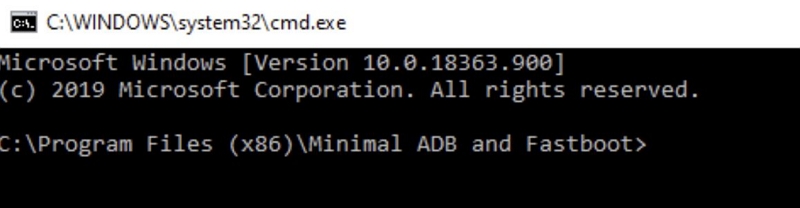
- Open CMD.
- Run adb devices.
- Then adb install spotify.apk (use the exact file name).
Once it’s done, open Spotify and use it normally.
4. TIQ Mini Q5 Flip
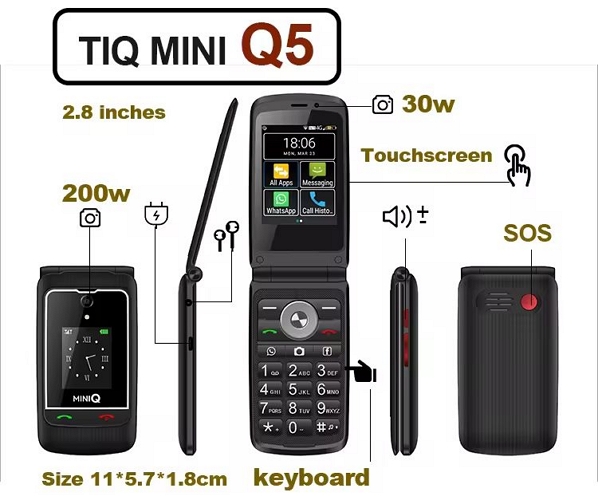
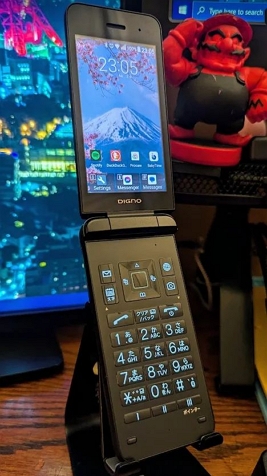
There’s still confusion around whether this phone belongs to Qin or Xiaomi. But one thing is clear — you can think of it as the slim version of the Caterpillar Cat S22, just more capable.
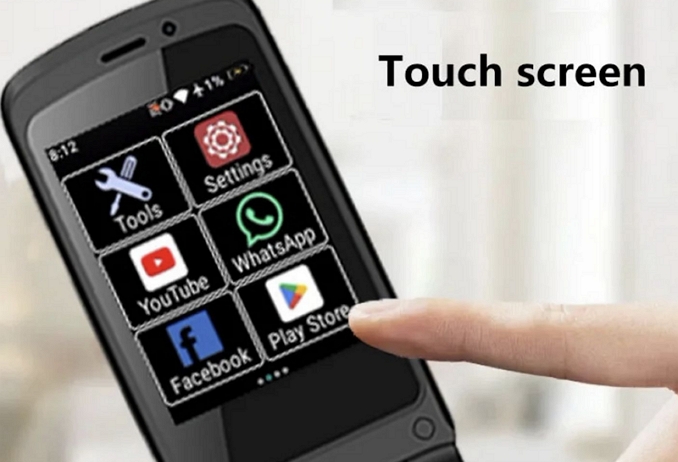
For starters, it runs on full Android 11 (not Android Go). That alone changes everything. You get the Google Play Store, so installing Spotify is straightforward. You can also use apps, like Slack, Maps and Discord easily. Navigating Spotify on this device is straightforward. You can either use the 2.8-inch touchscreen or the keypad.
So why is it still lower in the list? Well, there’s a well-known flaw with this phone. Many users have reported that it turns on and off while charging. And the 1450mAh battery doesn’t help either. It’s not built for long sessions.
Standard Build
Common Issues: Random shut-offs while charging or poor heat dissipation
Use Spotify on TIQ Mini Q5
Step 1. Open the Play Store.
Step 2. Install Spotify and sign in. You can use it like a regular Android phone with offline downloads.
5. TCL Flip (Flip 2/Flip 4)
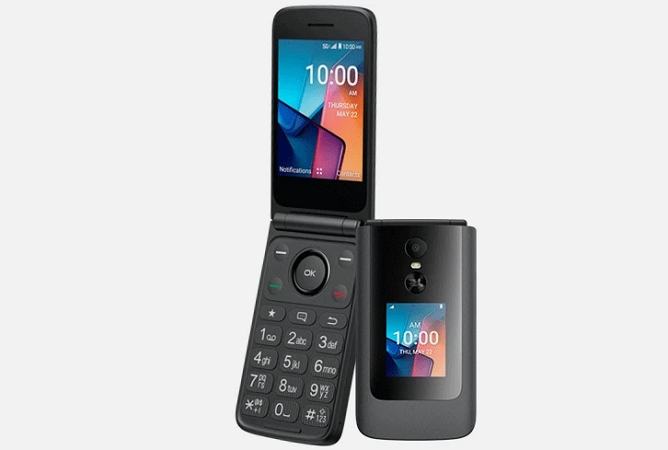
Spotify support on TCL flip phones was almost legendary around the Flip 2 era, mainly because the support it got is from NeutronScott posts (GitHub supporter). If you can still get your hands on that model, you can follow those guides and install Spotify via Aurora Store, F-Droid, or other methods shared by the community.
However, if you want to move with time and pick up the newer TCL Flip 4, things are different. You can’t install the Spotify app here. Yes, the newer Flip 4 does bring good upgrades — 5G support, 2GB RAM, clean design, a solid hinge, and very loud speakers. The problem is that it runs on KaiOS (similar to Flip 3) and KaiStore still doesn’t have Spotify, though there is an active request in the community.
So for now, Spotify works on TCL Flip 4 only through the browser. And surprisingly, it works better than you’d expect. The only catch is that the screen has to stay on the whole time. Navigation will also take time. There’s no touchscreen, so you have to do everything through buttons.
You will also get useful apps like Maps, Google and YouTube, so as a simple device, it holds up well.
Consumer Grade build
Common Issues: Hinge plastic cracking (Ice Blue model is more durable).
Run Spotify on TCL Flip
Step 1. Open the Internet icon from the main screen.
Step 2. Navigate to open.spotify.com. Sign in to your account.
Start playing the songs. It works as long as you keep it open.
How to Listen to Spotify Offline on Flip Phone
There are basically two ways to listen to Spotify on a flip phone and it depends on what kind of phone you’re using.
- Some of the phones we discussed earlier, like the Mode 1 Retro II, CAT S22, and TIQ Mini Q5 Flip, can properly run Spotify offline with Premium.
- Or you can take the most convenient approach: convert Spotify playlists to MP3 and play them offline on any flip phone you like.
Here’s how both methods work.
Way 1. Download Spotify Songs Offline with Premium on Supported Flip Phones
On some flip models like the Mode 1 Retro II, this is actually convenient. It has enough storage, RAM, and processing power to make the experience manageable. On others, like the Caterpillar or Kyocera, even though Spotify can be installed, it’s not really recommended. The app feels limited and many users have reported slow performance and random app closures.
So on phones like the Mode 1 Retro II, just install Spotify and log in with your Premium account. From there, the process is exactly the same as on a regular smartphone.
Step 1. Open your playlist or album.
Step 2. Tap the download toggle.
Step 3. Let the songs download to your device. Once done, you can play them anytime without internet.
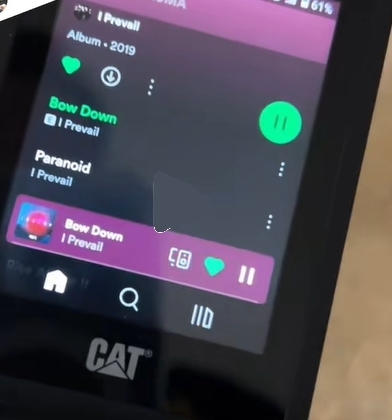
Way 2. Export Spotify Songs into Any Flip Phone
Now this is the more universal method. Even if your phone doesn’t support the Spotify app or you simply don’t want to deal with things like ADB setup, installing apps, or fixing issues every other day, you can choose this approach. It lets you listen to Spotify music on any flip phone, like Nokia 2760, AGM M7, or even minimalist devices like Light Phone 3. To use this way, you need to use Mediaio Audio Converter.
Mediaio lets you convert your Spotify songs into formats that nearly all flip phones support natively, such as MP3. Once converted, you can transfer the files to your flip phone and enjoy your Spotify playlists, albums, or even audiobooks using the default music player, all without relying on app support. The music will play exactly how you’d expect on a simple device, without internet, buffering, or ads. Plus, it’s also easy on the phone’s battery.
How to TransferSpotify Songs to Your Flip Phone
Mediaio lets you choose where the files are saved. So you can set the output location directly to your SD card. This way, you can avoid manual copying from the computer.

However, if you’ve already exported the songs to your computer and now want to move them to the SD card of your flip phone, follow these steps:
Step 1. Insert your SD card using an adapter into your computer’s USB port.
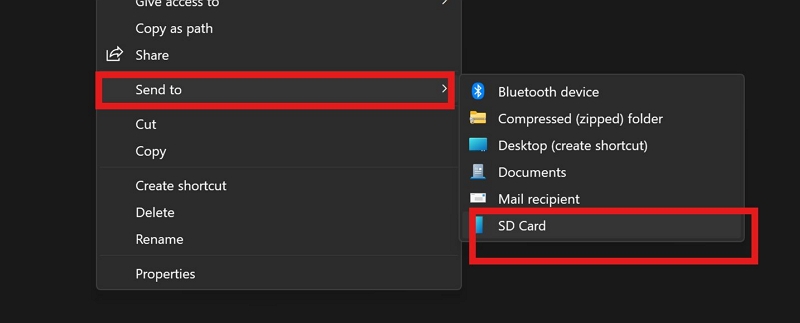
Step 2. Open the Mediaio downloads folder on Windows. Pick the songs or folders you want. Right-click and choose Send to. Then, select your SD card.
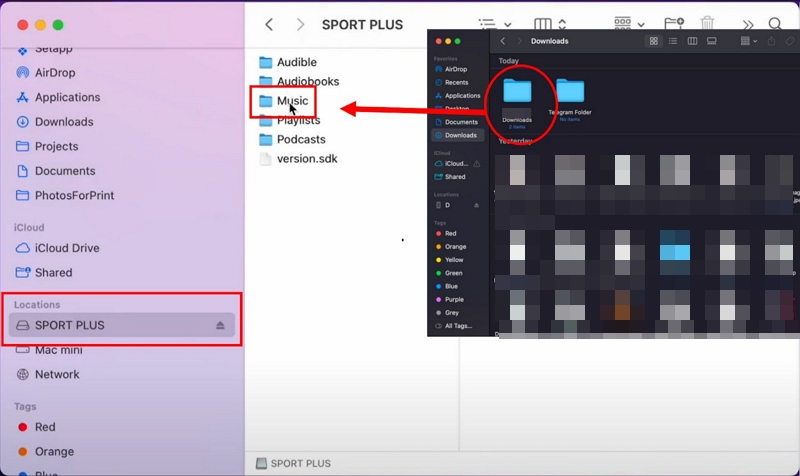
On Mac, just open two Finder windows side by side. Keep Mediaio downloads folder open in one window. Select the SD card under Location in another window and then drop the songs or folders to it.
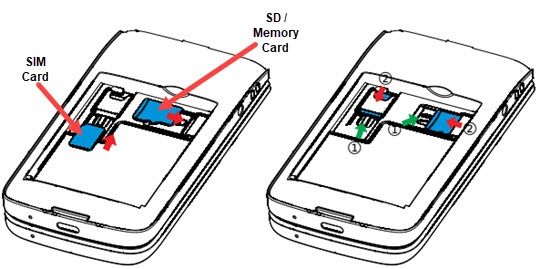
Step 3. Safely eject the SD card after the transfer. Put it back into your flip phone.
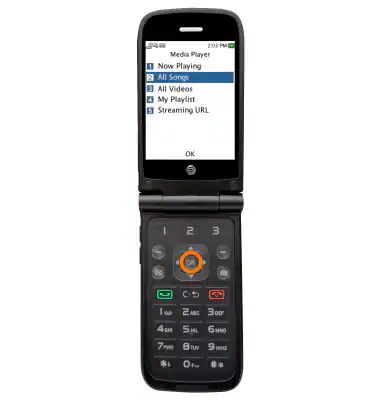
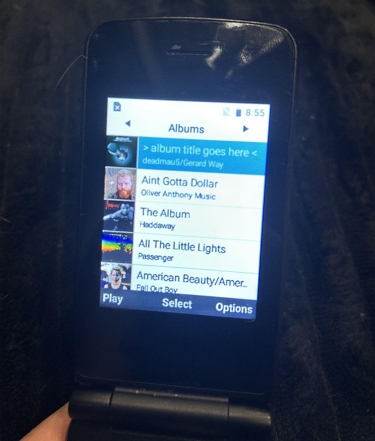
Step 4. Open the Music app. You can either browse through folders or go straight to All Songs. Next, pick a track and hit play.
Since these are proper MP3 files, everything shows up clean, such as album art and song names. You can now enjoy them offline.
To Sum Up
That brings us to the end. There aren’t many flip phones with Spotify support right now. Still, the ones covered here work for any use case.
- If you want something rugged for everyday use, go with the CAT S22 or Kyocera Dura XA Equip.
- If you prefer a “fancy” flip-phone, Kyocera A20xx series or Mode 1 Retro II make more sense.
And if you already have a flip phone in mind but it doesn’t support Spotify app. That’s still not a problem. You can use Mediaio Audio Converter to export Spotify music to your flip phone. So you can enjoy them like regular music with no ads, no buffering and no need for the Spotify app.