

There are times when you just need your favorite YouTube Music songs as MP3 files. For example, you want to build an offline library on your desktop, save a quick track to your phone, or use a song in a personal project without relying on the internet or subscriptions.
That is exactly what this guide covers. We will walk through the most practical ways to convert YouTube Music to MP3, from quick browser-based tools to full professional converters. This way, you can pick the method that actually fits your needs.
How to Convert YouTube Music to MP3 with Professional Music Converter
A professional music converter like MedVioo Audio Converter is the best option when you are trying to build a massive offline library of your favorite YouTube Music songs. You’ll also find useful features like batch downloads, original audio quality, cleaner metadata, and proper organization in MedVioo — something that most YouTube Music rippers don’t offer.
MedVioo also come with built-in integration for YouTube Music itself. So accessing and exporting a large music collection is much easier. Here’s how MedVioo handles the entire process.
How MedVioo Converts YouTube Music to MP3
MedVioo is designed to pull the original YouTube Music tracks and save them onto your computer in formats like MP3 or even M4A/FLAC format. The output audio quality can reach YouTube Music’s maximum of 256kbps. If you prefer, you can even set the output quality to 320kbps — StreamFox will optimize the audio for you.
And there’s no need to copy and paste links here. Instead, you can simply log in to your own account through MedVioo’s built-in YouTube Music web player and export playlists, albums, and individual tracks directly in batches.
MedVioo also preserves the original metadata automatically. So all the converted songs will also carry their original artist names, album artwork, track titles, playlist information exactly like you see inside YouTube Music itself.
So when you open the songs through offline players like Strawberry Music Player, Foobar2000, or MusicBee, playlists and albums will automatically be organized. Finally, you can listen to these MP3s without ads, internet, or need of any YouTube Music subscriptions.
Steps to Convert YouTube Music to MP3 with MedVioo
Step 1. Install MedVioo Audio Converter on your Windows or Mac computer. From the supported music services, choose YouTube Music.

Step 2. The built-in YouTube Music player will open. Just sign in using your Google account.
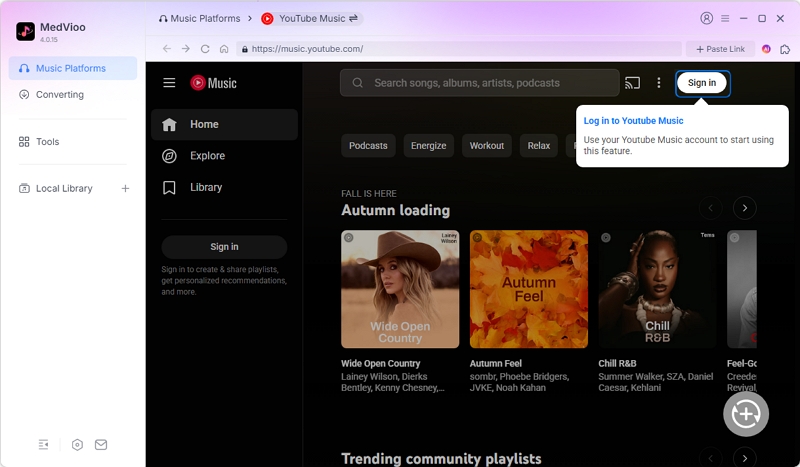
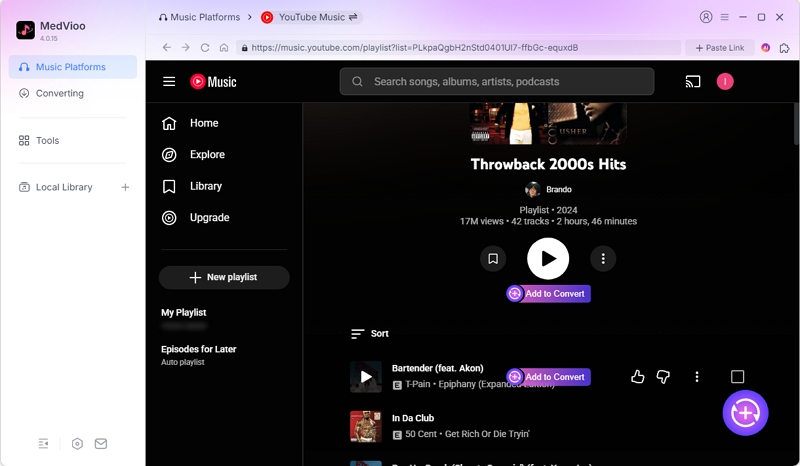
Step 3. Browse your library and open the song, album, or playlist page you want to convert. Then click + (Add) button to push the tracks into the conversion queue.
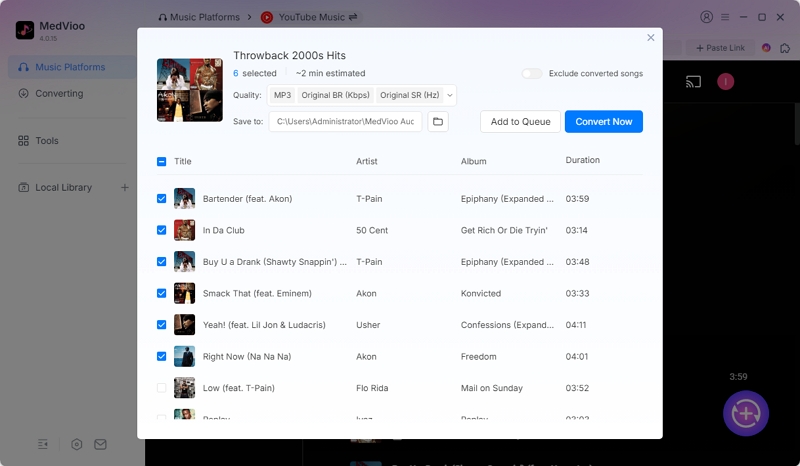
Step 4. Expand the Converting tab. Here, you can adjust the output format (MP3 is selected by default). You can even select the desired bitrate(e.g. 320kbps) and sample rate for each track or for all them in a single go.
Step 5. Hit Convert All to export the songs in MP3. MedVioo will save the tracks to the Downloads directory while automatically preserving metadata. You can play them through any media player of your choice or even transfer them to other devices.
• Uses advanced encoders, so converted MP3 tracks remain rich and clear
• Cover art is included too
• Playlists and albums remain organized in dedicated folders with original structure intact
• Up to 30x faster conversion speed
• Dedicated desktop software
How to Convert YouTube Music to MP3 via Online Converter
Tools like CnvMP3 become useful when you just need to convert a song quickly on your device. They do not require any software installation or account sign-ins. Everything works directly through your browser itself, whether you are on mobile or desktop.
But unlike MedVioo Audio Converter, here you still have to manually copy and paste links for every single track. So if you are trying to convert a full album or a massive playlist, the process is difficult to manage. However, if you just need one or two quick songs, these online tools work perfectly fine.
How CnvMP3 Works on Music Conversion

CnvMP3 works like any other YouTube audio ripper on the internet. You feed it the YouTube Music link first. It will then grab the audio stream from YouTube videos, process on its own servers and convert it into MP3 format. That is why the conversion usually takes a few seconds before the downloadable MP3 file is ready.
Steps to Save YouTube Music as MP3 via CnvMP3
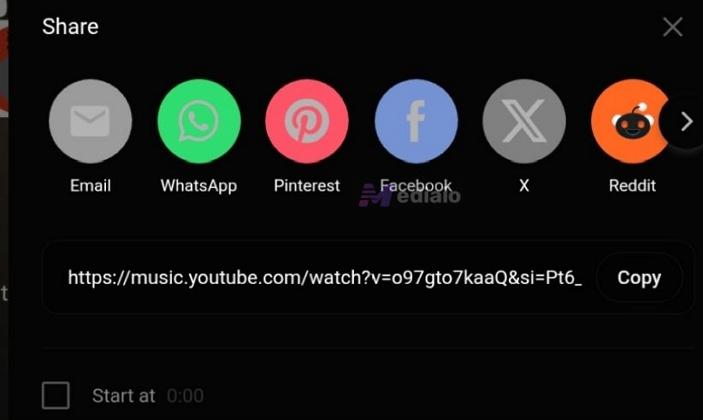
Step 1. Open the YouTube Music app or web player. Find the song you want to convert, tap the three-dot menu beside it, hit Share, and then choose Copy.
Step 2. Head over to the CnvMP3 website and paste the copied link into the URL box.
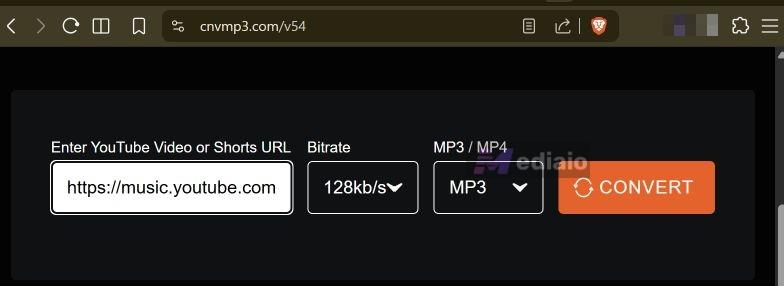
Step 3. Use the bitrate selector to pick your quality, from 96kbps to 320kbps MP3.
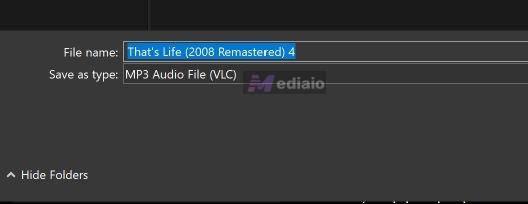
Step 4. Press the Convert button. The download prompt will appear automatically once it has processed the track. Simply choose the save location and press Save again.
• CnvMP3 re-encodes an already compressed YouTube stream. So some original audio detail is lost during conversion. Still, the sound is perfectly fine for casual listening.
• Often misses genre tags and contributing artists.
• Every track must be pasted, converted, and downloaded individually
• No aggressive ads or annoying redirect spam
Alternatives to CnvMP3
• M4A output also available • Track names and cover art usually preserved
• But metadata handling is inconsistent • Supports playlist conversion in theory
• But often shows irregular behavior and 404 errors during larger playlist processing
• Processing speed is very slow for bigger downloads • Ads are present
• No granular bitrate controls available • Mostly preserves only the track title
• Cover art and detailed metadata are usually missing • No batch conversion support
• Converts one song at a time • Minimal ads
(EzMP3) • Supports multiple bitrate options from 64kbps up to 320kbps
• Includes trimming tools before export • Preserves most basic metadata correctly
• Metadata handling is cleaner than many generic rippers • Single-track conversion only. No batch conversion support
• Processing remains reasonably fast • No aggressive ads or redirects
• Preserves cover art, artist names, album names, and track titles properly • No proper batch conversion support
• File preparation will take unusually long. • Ads depend on the mirror/domain being used
How to Convert YouTube Music to MP3 Using Audio Recorder
Audio recorders are also a way to save YouTube Music tracks locally on your computer. It is easily the slowest method in this guide because everything is recorded in real time. But there are situations where it makes more sense. For instance, when you only want small parts of songs, like a 15-second guitar riff for your ringtone or a short vocal section for a project.
For such needs, you can use a dedicated audio recorder like Audacity. It is free to use on both Windows and macOS. Plus, it comes with a visual timeline, so you can trim, merge, and apply effects to the recorded YouTube Music track easily.
Note: You can also find simpler internal audio recorders on Android, like Internal Sound Recorder or a Chrome Extension to capture the YouTube Music stream on the browser itself.
How to Convert YouTube Music with Audacity

Audacity works on a real-time recording principle using your computer’s internal audio system. That is, it uses a loopback recording setup to capture whatever sound is currently playing through your computer’s sound card. So whether it is YouTube Music, Spotify, a browser tab, or even a game sound, Audacity can record it.
Because everything happens live, the recording speed also matches real time. So recording a three-minute song will take exactly three minutes to capture, plus extra time afterwards for manually adding metadata.
Steps to Record YouTube Music as MP3 with Audacity
Step 1. Open Audacity. From the main toolbar, click Audio Setup. Under Host, choose Windows WASAPI.
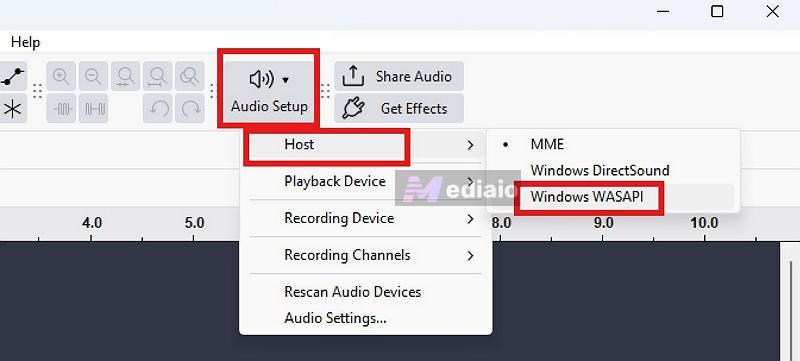
Step 2. Open Audio Setup once again. This time, move to the recording device section and choose your primary speakers with Loopback written in the name.
(On macOS, you first need tools like BlackHole or another virtual sound card to internally reroute the audio.)
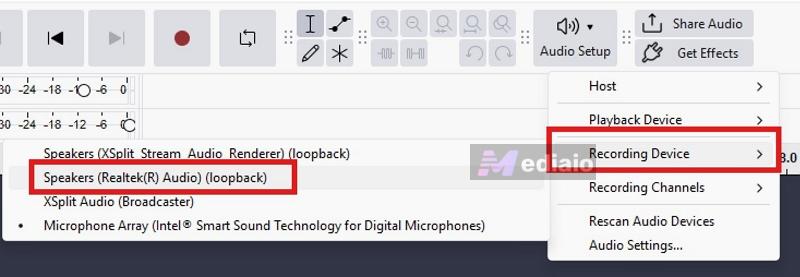
Step 3. Open YouTube Music and get the song ready. Once everything is set, return to Audacity and press the red Record button.
Step 4. Play the song normally. Audacity will now capture the exact audio playing through your computer.
Step 5. Once the song or selected portion finishes, press the Stop button.
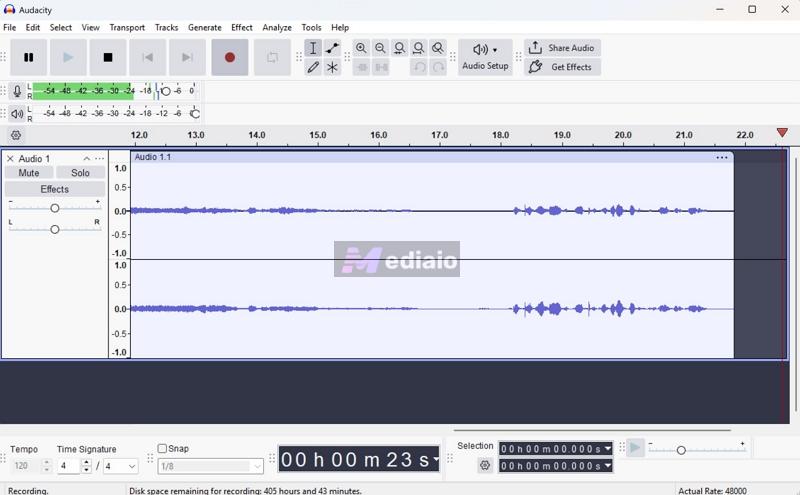
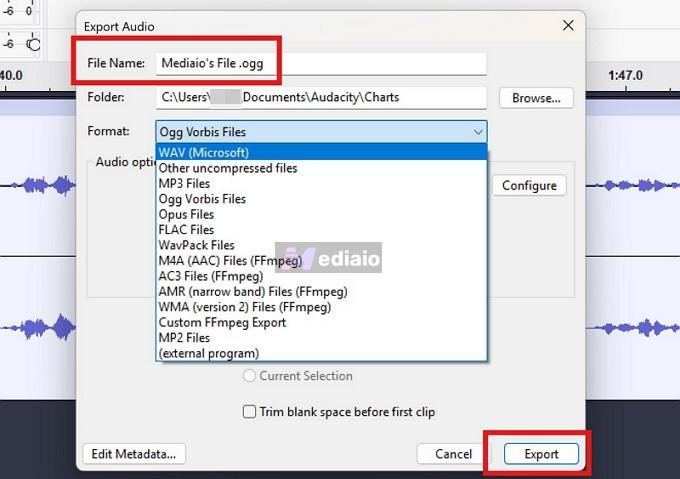
Step 6. Click File > Export Audio. Choose MP3 as the format, give the file a name, and save it to your computer.
• If YouTube Music streams at lower quality, the recording will also remain lower quality
• No additional recompression beyond export settings
• Default exports usually save with generic recording-style names
• A 3-minute song will take 3 minutes to capture
• No batch recording support
• Fully open-source freeware
How to Convert YouTube Music to MP3 with Chrome Extension
Chrome extensions like Video to MP3 are useful when you regularly download songs and want to avoid constantly copying and pasting URLs between tabs. They simply sit inside your browser’s toolbar itself. So while exploring songs on YouTube Music, you can convert tracks with two clicks.
But this convenience also comes with a few compromises. Here’s what you should know.
How Video to MP3 Handles Music Conversion

Behind the scenes, Video to MP3 works almost exactly like how CnvMP3 works. But instead of manually pasting links, the extension can automatically detect whatever is currently playing inside your YouTube Music tab and attach a Download MP3 button inside the extension window itself. Once you click that button, it will still redirect the processing to another page just like an online converter.
The extension itself supports both YouTube and YouTube Music without problems. It is also multilingual, so it can adapt to different interface languages quite well. However, you do not get any granular bitrate controls. It mostly sticks around 192kbps MP3 quality. Metadata handling is also poor. It will just add random strings of letters before the song title itself, which will make your offline library will look messy without manual edits.
Steps to Extract Audio from YouTube Using Video to MP3
Step 1. Install the Video to MP3 extension from the Chrome Web Store.

Step 2. Head over to music.youtube.com. Play the song you want to export in MP3.
Step 3. Click the extension icon from the top-right browser toolbar. (Pin it first if you have not already.)
Step 4. Click the Download MP3 button. A new browser tab will open automatically where the file gets processed.
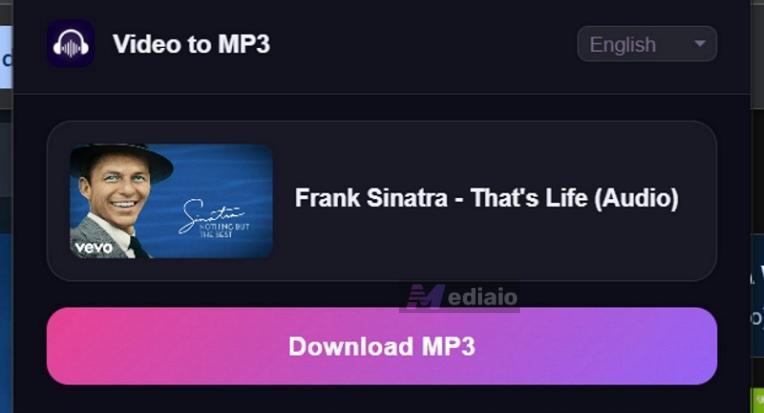
Step 5. After the processing completes, you can use the Show in Folder button to directly open the saved location.
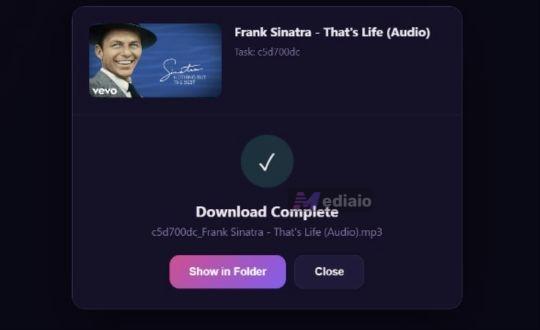
• No manual bitrate controls available
• Audio quality remains decent for casual listening
• Cover art is missing
• File names and titles often get tagged incorrectly despite smart naming claims
• Processing speed is somewhat slow because conversion still happens externally
• Redirects to a new page are part of the process.
Conclusion
These are some of the most practical ways to convert YouTube Music to MP3 today.
Online converters and Chrome extensions work well for quick one-off needs. Audacity, on the other hand, is more suitable when you only want something very specific, like a tiny part of a track for a personal project.
Professional tools like MedVioo Audio Converter make sense if your goal is to build a proper offline music library. It can connect directly with YouTube Music and deliver better audio quality. And on top of that, it also supports several other major music streaming platforms beyond YouTube Music itself.