

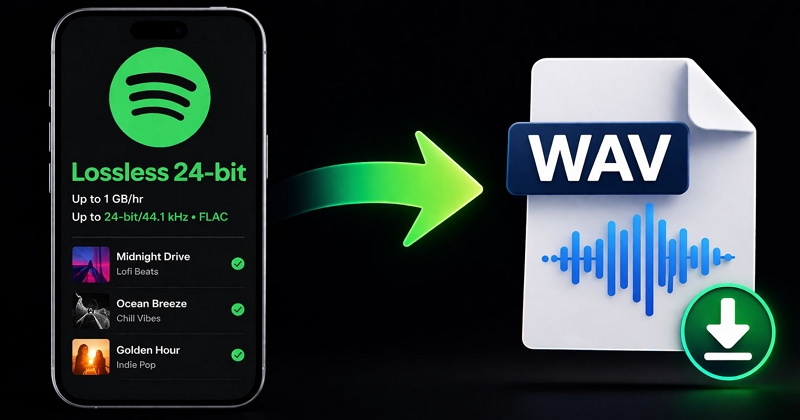
Last year, Spotify announced lossless audio. So for the first time, converting Spotify to WAV actually makes sense. If you use the right method, you can convert that lossless stream into WAV and get true CD-quality audio.
That’s exactly what this guide focuses on. We’ll show you the method that can give you a clean, high-quality WAV file. We’ll also cover what works on desktop, phone, and online, so you can choose the right method based on your setup and the audio quality you want.
Basic Introduction to WAV
WAV is an uncompressed, lossless audio format. It stores sound exactly as it is. That means every beat, bass, and even subtle background elements are preserved from the source, so you hear the track with full clarity, just the way it was originally recorded.
It is mainly used in original recordings, studio work, editing, and broadcasting where every detail matters. You can choose the WAV format if you have a high-end audio setup and want to experience music exactly as it was recorded.
But this also comes with a trade-off. WAV files are large.
- A 3 to 4-minute song in 24-bit/44.1kHz WAV can take 30 to 50 MB.
- The same song in MP3 will take only 3 to 8 MB (at 320kbps).
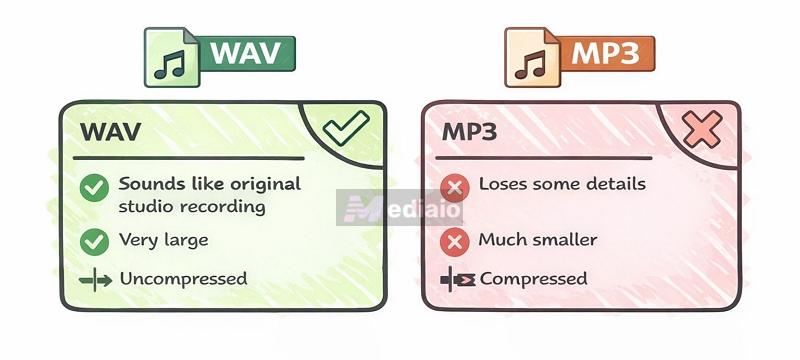
Because of the large size of WAV files, saving multiple Spotify playlists in WAV can take up several gigabytes of storage. If storage is not a concern for you, then go ahead.
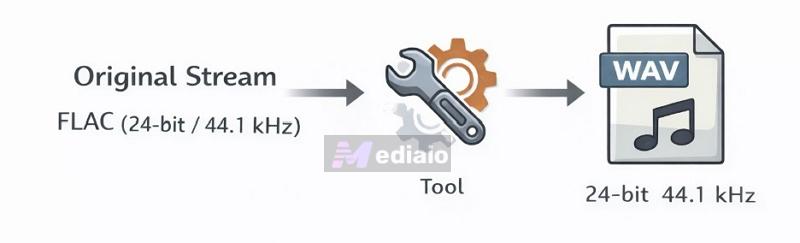
Because now, for the first time, Spotify to WAVactually makes sense. Earlier things were different. Spotify streamed music in lossy format (OGG format). So when you convert Spotify FLAC songs into WAV, the file size increased, the audio quality did not improve. The lost details were already gone from the source. Now, that situation has changed. With the rollout of lossless audio (24-bit/44.1 kHz FLAC) in 2025, Spotify streams carry full detail. So if you can get your hands on a tool that can access the lossless Spotify stream, converting it to WAV is meaningful.
How to Pick the Spotify to WAV Way That’s Right for You
There are hundreds of tools that claim to be the best Spotify to WAV converter. To actually see what works, we tested multiple tools across each category — desktop tools, online converters, and mobile apps and picked only the best-performing methods for each platform.
Here’s how we tested them:
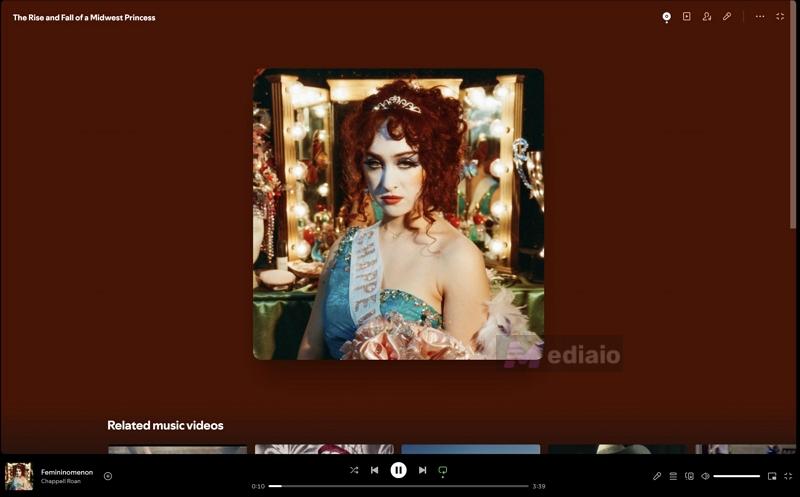
- First, we converted a single track — “Femininomenon” by Chappell Roan.
- Then, we used a custom 9-song playlist (MedVioo Test) to check how each tool performs with batch conversions.
- During testing, we noted down which tool preserved the most data, which one was convenient on that specific device and which one delivered the best final audio quality.
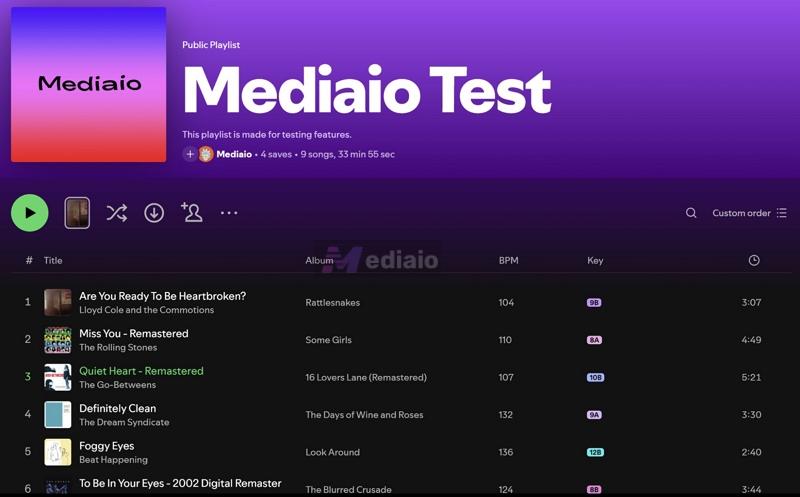
Based on this, we shortlisted the most reliable option on every device and setup. As you go through each method below, you’ll see the results, user experience, ID3 tag handling, and actual audio quality, so you can decide what works best for you.
How to Convert Spotify to WAV with MedVioo Audio Converter (Desktop)
MedVioo Audio Converter comes first in the list because it is the only tool in the list designed to extract audio directly from Spotify and deliver it in WAV format. Yes, it automatically converts the 24-bit, 44.1 kHz lossless FLAC Spotify streams to uncompressed WAV without losing a single detail. So what you hear in the final file matches what you experience on Spotify with Lossless quality enabled.
MedVioo shines in the simplicity it offers through the built-in Spotify web player, meaning that there is no need to copy and paste URLs. You can simply sign in to your own Spotify account and convert everything, from individual songs to entire albums and playlists, with single clicks.
MedVioo also organizes the exported WAV tracks. Each Spotify playlist and album will be placed in its own folder. The original metadata is preserved and the track order remains unchanged. Your offline library will also stay structured and easy to navigate without needing extra work.
Steps to Use MedVioo Audio Converter
Step 1. Download and install MedVioo on your Windows or Mac. Pick Spotify from MedVioo’s interface.

Step 2. Log in using your Spotify account credentials. Premium or free, it doesn’t matter.
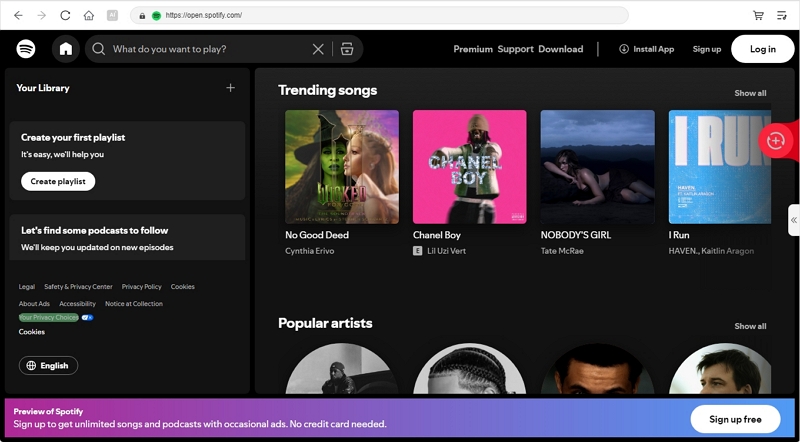
Step 3. You’ll see your library. Pick the song or playlist you want to convert to WAV. Then drag it to the + button at the right or click the Add to the conversion list button to prepare them for conversion.

Step 4. Set the format to WAV. You can also adjust advanced options like sample rate and bitrate.
Step 5. Click Convert All to start the process.

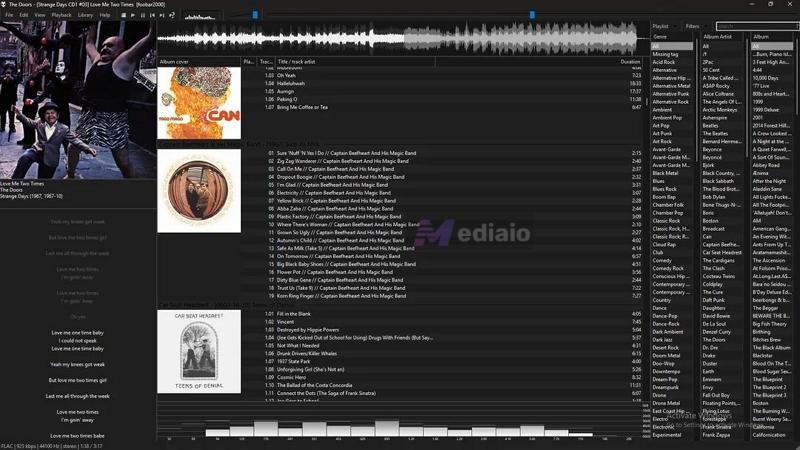
You can play the exported files using any WAV-supported player like Foobar2000 or VLC. It will appear organized with all metadata preserved.
You also get 3 free songs for other supported services: includes Amazon Music, Apple Music, Deezer, Pandora and YouTube Music.
Around 3 minutes for a 9-song playlist during testing.
Files are automatically organized, so you don’t have to spend time managing folders or sorting tracks manually.
There are no intrusive ads.
You don’t need Spotify Premium to export in uncompressed WAV.
How to Convert Spotify to WAV Online
At first glance, online tools look like the most convenient option, as you don’t have to install anything. But in reality, finding a reliable, single-step online converter that can directly pull high-quality WAV files from Spotify is nearly impossible.
Yes, tools like ConvertFactory or Spotilab claim to do this, but in actual testing, they proved to be highly unstable.
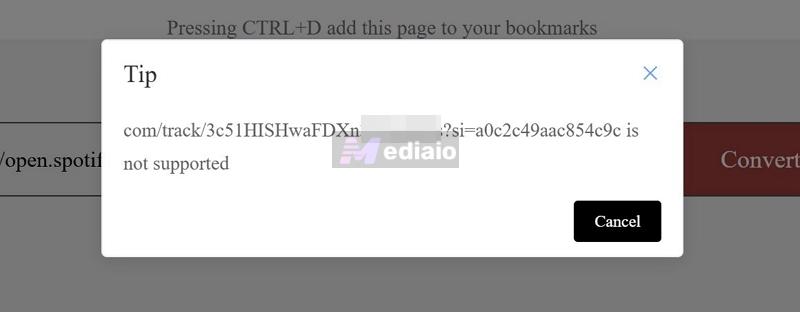
So realistically, online converters are not something we can recommend for proper WAV conversion. However, there are situations where you just need one track quickly. Maybe for a format requirement in a specific software or just to test how a WAV file behaves in your setup. In those cases, there is a workaround:
- First, use any online Spotify to MP3 converter. This will give you the track in MP3 format.
- Then, use a cloud-based format converter to convert that Spotify MP3 tracks into WAV.
Of course, this comes with its own limitations. The process is longer, and more importantly, the final WAV file will only reflect the quality of the MP3 you started with — it won’t magically improve the audio.
Also, keep this in mind: these Spotify to MP3 converters don’t actually pull audio from Spotify. They simply match the metadata and source the audio from YouTube or JioSaavn. As a result, sometimes you will not get the exact version you hear on Spotify.
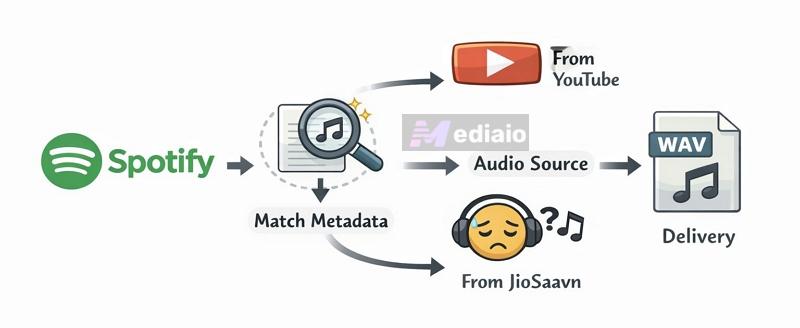
Here’s how this workaround works in practice:
Step 1. Go to Spotify. Open the song you want, click on the three dots, choose Share and copy the song link.
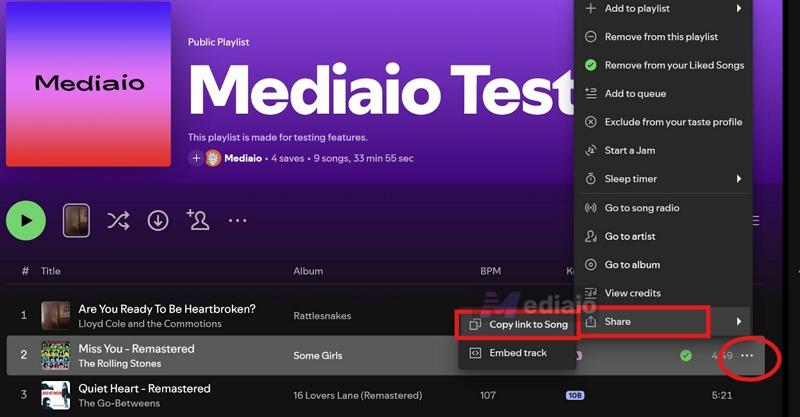
Then, pick any Spotify to MP3 converter, for example, SpotDown.
Step 2. Paste the copied link into the site’s input box. Hit Download and give it a moment to process.
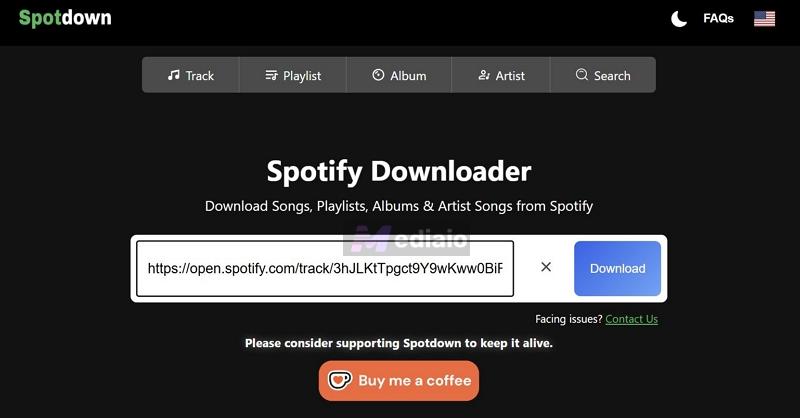
Step 3. A Get Link button will appear. Click it and wait briefly.

Once it finishes, go ahead and select Download Now to save the MP3.

Step 4. Take that MP3 and move to a converter like CloudConvert. Use Select File and upload what you just downloaded.
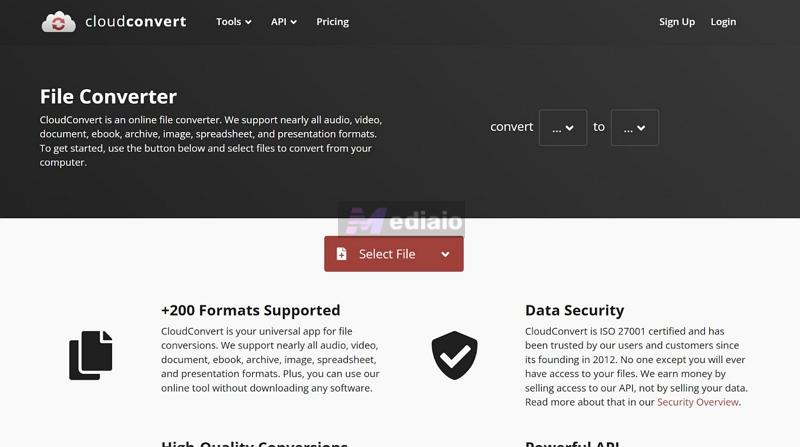
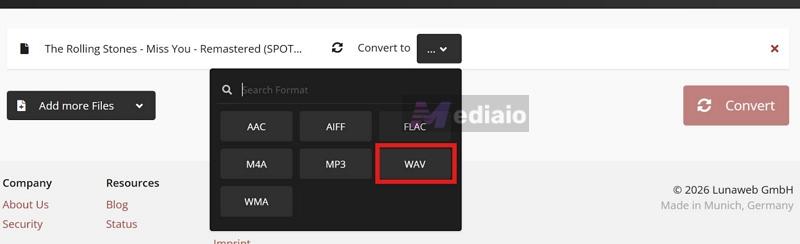
Step 5. Set the output format to WAV. Then start the conversion by clicking Convert.
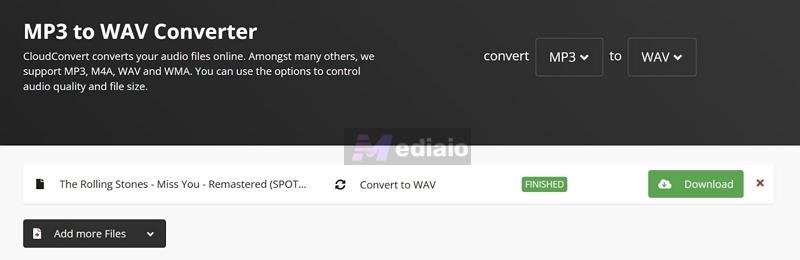
Step 6. After it finishes, simply hit Download to get the WAV file on your device.
How to Convert Spotify to WAV Using GithubTool
GitHub tools are essentially script-based tools. They follow a similar logic to the online converters we discussed earlier, but automate the entire process.
Here’s what happens in the background: they match the metadata of Spotify and get it from YouTube. Once found, they will upscale the file and deliver it in WAV. The only difference is it handles the process. With online tools, you have to do everything manually — one song at a time, dealing with ads, switching between sites, and repeating the same steps again and again. GitHub tools remove that friction. They automate the entire workflow and can even handle large playlists in one go. But there is a trade-off. Online tools require no setup — you just open a website and use them. GitHub tools, on the other hand, need proper setup. But the good thing is that they can handle even large playlists easily. For example, downloading a 100-song playlist into WAV is possible without repeating the process again and again.
There are several such tools available and one working option we tested is “Spotify and SoundCloud Playlist to WAV Folder”, created by David Alexander Moe.
Steps to Use GitHub Toolto Convert Spotify to WAV
GitHub tools are developer tools, so you won’t have a visual interface. You’ll have to work via the computer's terminal. If you are ready, follow each step carefully.
Step 1. Make sure you have the following installed on your Windows or Mac:
- Python — while installing, make sure you tick the “Add Python to PATH” option
- FFmpeg — this is required so the tool can convert downloaded files into WAV
Step 2. Get your Spotify API credentials
- Go to developer.spotify.com
- Log in using your normal Spotify account
- Click on the Create app button and give it any name
- Agree to the terms.
- You’ll get your Client ID and Client Secret
Copy both of them and save them to the notepad. You’ll need them in the next steps.
Step 3. Download the GitHub tool
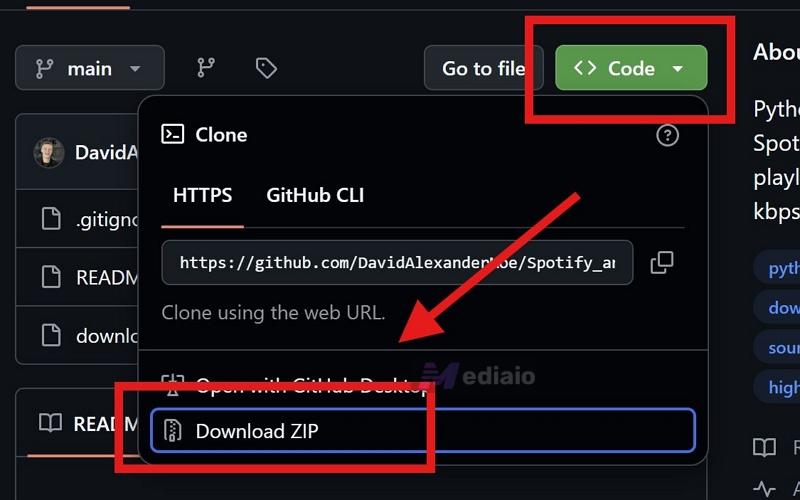
Go to the GitHub repository
- Click on the green Code button.
- Then select Download ZIP.
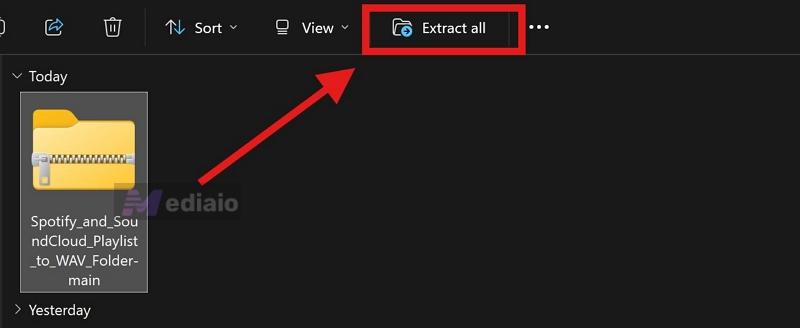
- Extract the folder.
- Then, copy its path (right click > Properties > copy what’s in the Location field).
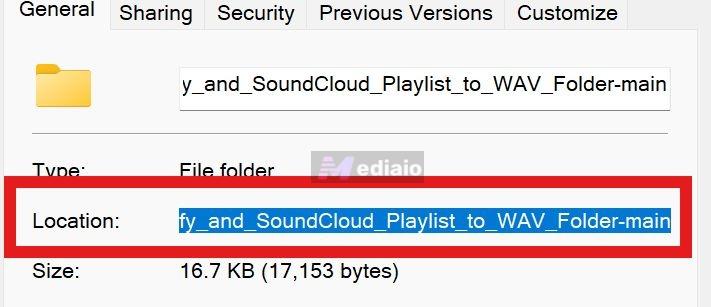
Step 4. Run the script from terminal
- Open Terminal (Mac) or CMD (Windows).
- Navigate to the extracted folder by typing: cd (the path you copied earlier).
- Then, install the required libraries: pip install -r requirements.txt
- Now run the script by typing: python downloader.py
- Press Enter.
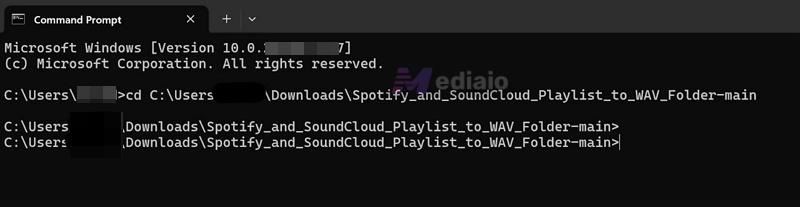
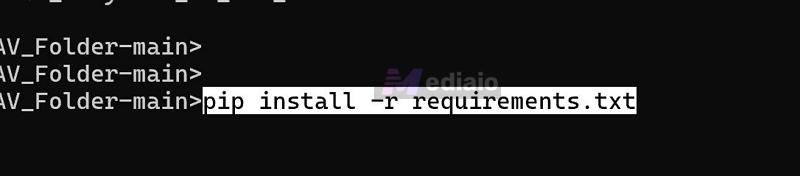
Step 5. Enter your details and start the process
- The Client ID and Client Secret you copied.
- The Spotify playlist link (set to Public) you want to get in WAV.
- Then, press Enter.
If something breaks, there’s no real support. You’ll have to troubleshoot or switch tools, but true Spotify-to-WAV tools even on GitHub are rare.
How to Convert Spotify to WAV Through Inbuilt Recorder (Mobile)
On mobile, you can use internal audio recorders. They allow you to capture the internal audio playing on your phone. So you can simply play a song on Spotify and let the recorder capture the stream.
There’s a clear limitation here: you are not downloading the song but you are recording it. And that happens in real time. So a 4-minute track will take 4 minutes to record. However, the process is different on Android and iOS and each comes with its own set of limitations. Let’s break it down based on your device.
On Android
You’ll find several apps that can capture internal audio directly and even save it in WAV format while ignoring external sounds. One working option is Internal Audio Recorder (by PTD Studio).
Steps to Record Spotify as WAV on Android
Step 1. Install the app and grant all required permissions, especially media and audio capture permissions.
Step 2. Set the recording format to WAV. Choose your sample rate and keep the channel as stereo. Hit Apply to save changes.
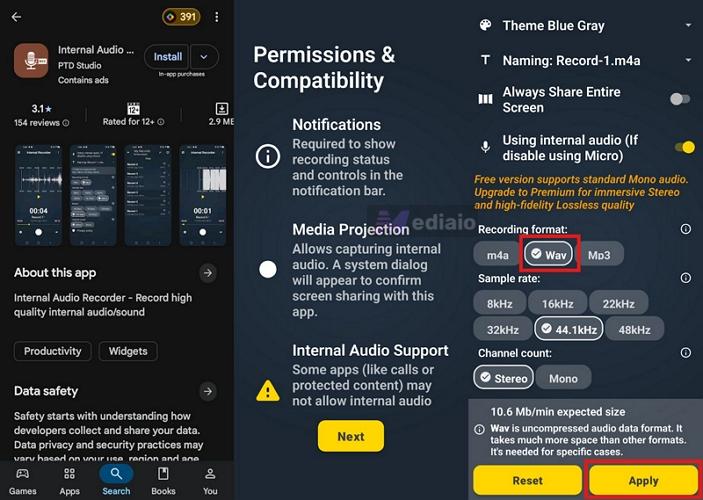
Step 3. Tap on Record. The app will show a list of apps on your phone, select Spotify from there.
Step 4. Now play the song inside Spotify. The recorder will start capturing the internal audio automatically. Wait for the song to finish.
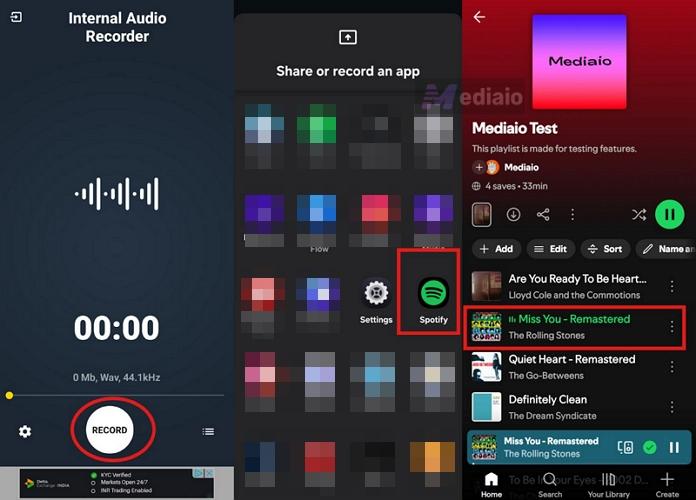
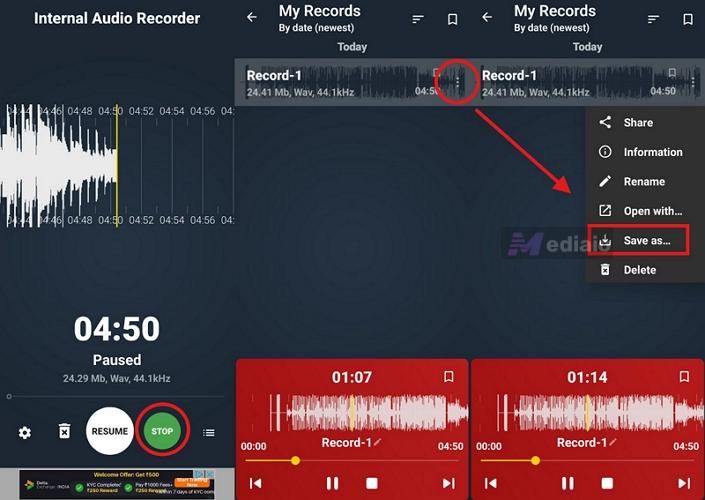
Step 5. Return to the recorder app. Tap Stop.
Step 6. Go to Recording. Use the three-dot menu next to the recorded file, rename it and tap Save As to store it on your device. The recorded Spotify track will be saved as a WAV file on your phone.
On iPhone
On iPhone, you won’t find apps that can directly record internal audio from Spotify. Apple simply doesn’t allow that.
But you can still use Apple’s built-in screen recorder. It’s not ideal, because it records the audio as a video first. However, it’s the only reliable way if you want to do everything on your iPhone itself. After recording, you can convert the video into WAV using an iOS Shortcut or an app.
Steps to Record Spotify Audio on iPhone
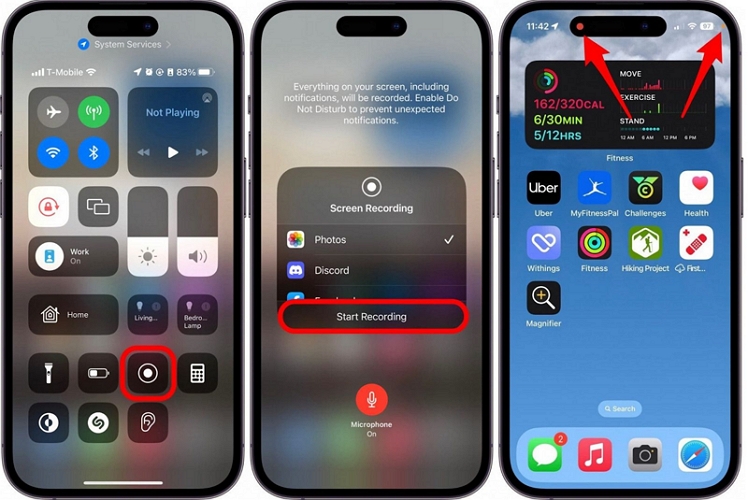
Step 1. Before recording, turn on Do Not Disturb. Then, press the Control Center and choose Screen Recording.
Step 2. Open Spotify. Play the song you want in WAV. Let it play fully, so the entire track gets captured.
Step 3. Tap the red pill at the top of your screen and select Stop. The video will be saved to your Photos app.
Step 4. Now install an app like MP3 Converter — Audio Extractor from the App Store. Open it, tap the + button, and import the recorded video.
Step 5. Once the file loads, select WAV as the output format and tap Convert. The audio will be processed and saved to your Files app this time.
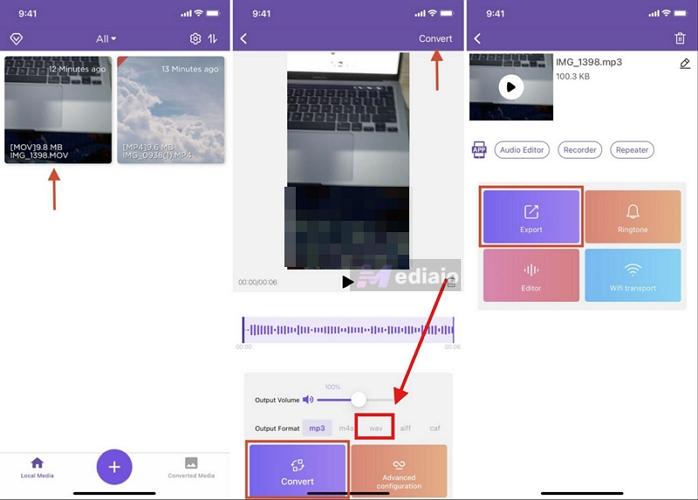
iPhone: converts an MP4 container to WAV (you will not get the original stream).
A much easier option is to download on a computer using MedVioo Audio Converter and transfer to your phone instead.
Final Words
So yes, converting Spotify to WAV used to be a massive waste of storage. But now, with CD-quality audio available, getting that into WAV actually makes sense. As you’ve seen, many methods still repackage audio, source MP3 from YouTube and deliver it in WAV.
For now, the only reliable way to get true lossless WAV — directly from Spotify’s stream is to use MedVioo Audio Converter. It works on Windows and Mac and once the songs are downloaded, you can transfer them to your phone or any other device and listen without restrictions.