

VLC Media Player is more than just a media player. It can also work as a capable media converter. You can use it to turn local audio and video files into MP3s or process online streams from platforms like SoundCloud and Vimeo and save them as MP3 or MP4.
Next, we will show you how to use VLC Media Player’s Convert to MP3 feature properly. More importantly, this guide is up to date, so you will not run into the failed conversions and playback errors that are common when following older guides. At the same time, we will also cover better alternatives, since VLC can feel limited when it comes to online conversions and proper batch exports.
VLC Conversion Feature: What It Can and Cannot Really Do
Before moving into the actual conversion steps, here’s a quick overview of what VLC can and cannot really do for media conversion. Since we have also included better alternative methods throughout this guide, this table will help you determine which method makes the most sense for each type of conversion.
Android and iPhone apps exist too, but conversion support is limited there. You can use any free converter, such as Strawberry Music Player, Foobar2000, or Poweramp.
These tools are available across Windows, Mac, Android, and iOS.
DVDs, CDs, and recorded media. Tools like Strawberry let you convert major audio formats to MP3.
You can use Eassiy Video Converter Ultimate to convert local videos to MP3s or other formats.
Mediaio Video Converter supports thousands of sites, including Netflix and YouTube.
Audio filters and bitrate controls are available too. MP3, MP4, MOV, lossless exports.
Subtitle exports, playlist preservation, and more.
You can even export full TV series.
Muddy MP3 output.
Broken streaming support and constant Lua script maintenance. Requires downloading third-party software separately.
VLC Media Player Convert to MP3: Streaming Music to MP3
Converting Streaming Music to MP3 in VLC is not a simple click-and-convert process. To start with, VLC only lets you convert from a few platforms. Out of the box, VLC does support:
- YouTube
- SoundCloud
- Vimeo
- Twitch
- Dailymotion
- Jamendo
- Apple Trailers
- and BBC streams
So, VLC cannot play or convert songs from music platforms that encrypt their media streams. That means you cannot use links from popular services like Spotify, Apple Music, or even YouTube Music. Even on supported platforms like SoundCloud, VLC can only access publicly available streams. For instance, SoundCloud songs subject to licensing restrictions will not play in VLC.
To play the files from supported platforms, VLC depends on small backend extractor scripts called Lua files. These scripts help VLC pull media streams from supported websites and network links. This is also the reason VLC’s online extraction system often breaks. For instance, if sites like YouTube or SoundCloud change how their streaming links work internally, VLC’s older Lua scripts will stop recognizing the streams after some time. To fix that, you have to manually replace VLC’s Lua files with newer versions downloaded from GitHub or the VLC repositories. Standard VLC updates do not handle this automatically.
So while VLC technically can extract audio from certain public online streams, the entire workflow is tedious and fairly high on the difficulty scale for regular users.
How to Convert Streaming Audio to MP3 Using VLC
Before you paste any streaming links into VLC, you should update the Lua file for the platform you want to extract from. Even if you installed VLC yesterday, its streaming extraction scripts are often outdated. Here’s how to do it. For example, if you want to pull audio from SoundCloud:
Step 1. Update SoundCloud Lua file
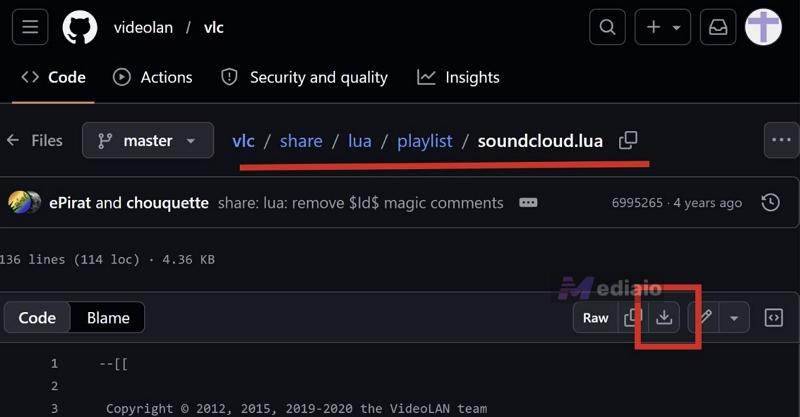
- Open the official VideoLAN GitHub repository.
- Search for the latest soundcloud.lua file.
- Then press the Download Raw File button to save that updated Lua file locally to your computer.
After downloading it, you now have to replace VLC’s old script manually.
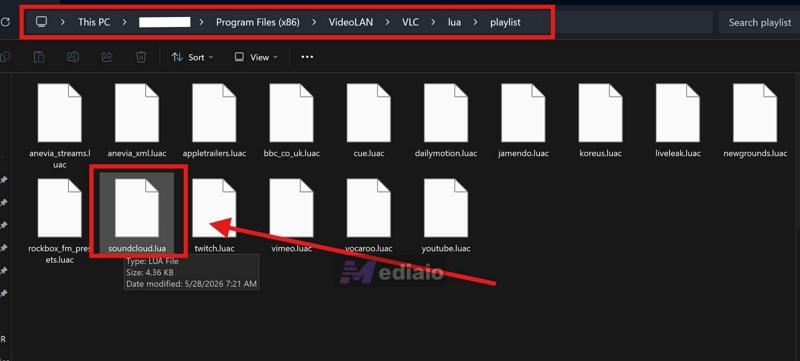
On Windows:
- Open File Explorer.
- Navigate to: C:\Program Files (x86)\VideoLAN\VLC\lua\playlist\.
- Find the older soundcloud.lua file and delete it (administrator permission may appear).
- Copy the newly downloaded Lua file into this folder.
On Mac:
- Open Finder.
- Go to the Applications folder.
- Right-click the VLC app and select Show Package Contents.
- Navigate to: Contents/MacOS/share/lua/playlist/
- Replace the older Lua file with the new one.
Once this replacement is complete, VLC can recognize SoundCloud streams.
Step 2: Convert SoundCloud Music to MP3 in VLC
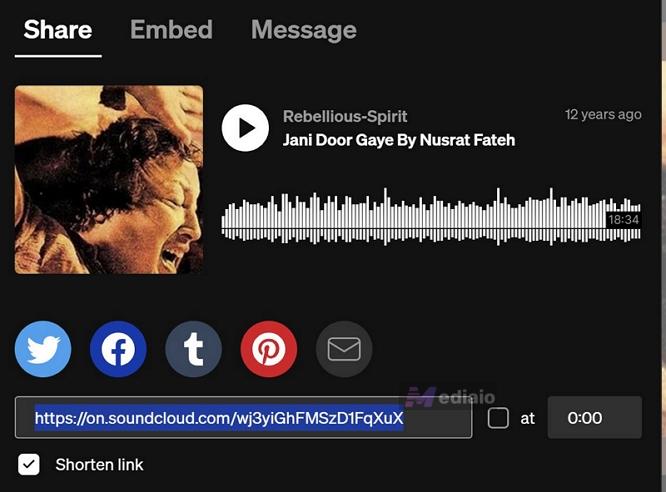
1. Copy the public SoundCloud song link that you want to extract. Make sure you are copying the URL of an individual track. VLC will fail with playlists and private tracks.
2. Open VLC.
- On Windows: Click Media > Open Network Stream. Or, you can press Ctrl + N.
- On Mac: Open the File menu. Choose Open Network. Or use Cmd + N.
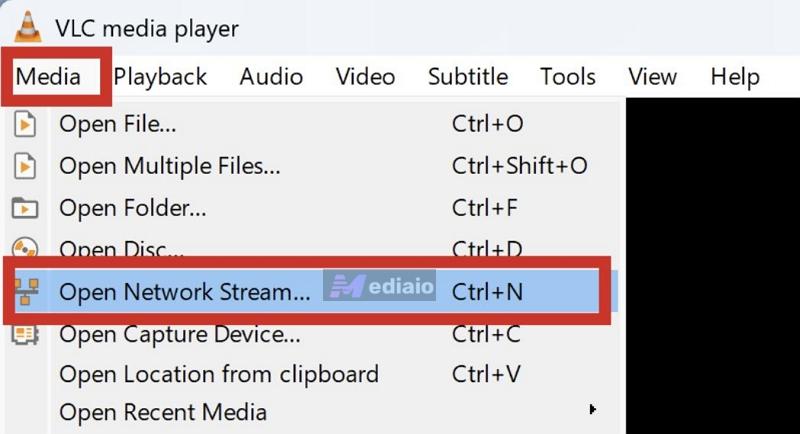
3. The Open Media window will appear. Paste the copied SoundCloud URL into the network URL field. Then click the small drop-down beside Play and start the stream.
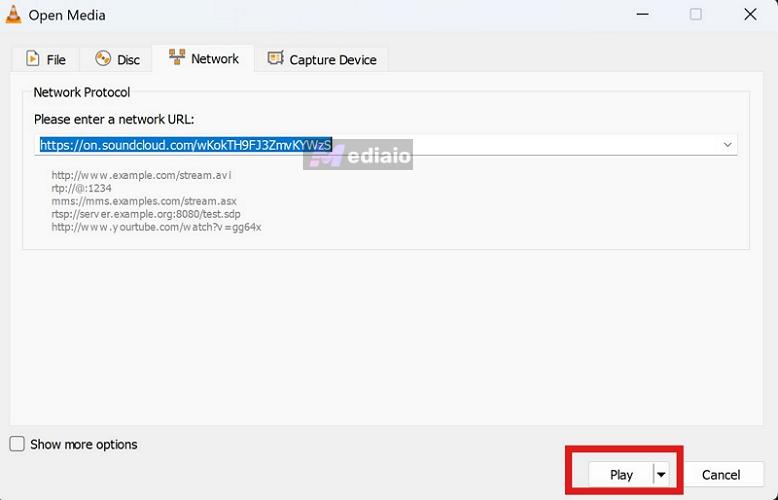
If VLC can recognize the stream, the song will start playing with its title or artwork shown. This is important. Without the proper metadata display, you cannot continue further. If that doesn’t happen, it means VLC has failed to extract the actual media stream. In such situations, try using a different public track link.
4. Once the music starts playing:
- On Windows: Open Tools > Codec Information.
- On Mac, go to Window > Media Information or through Command + I.
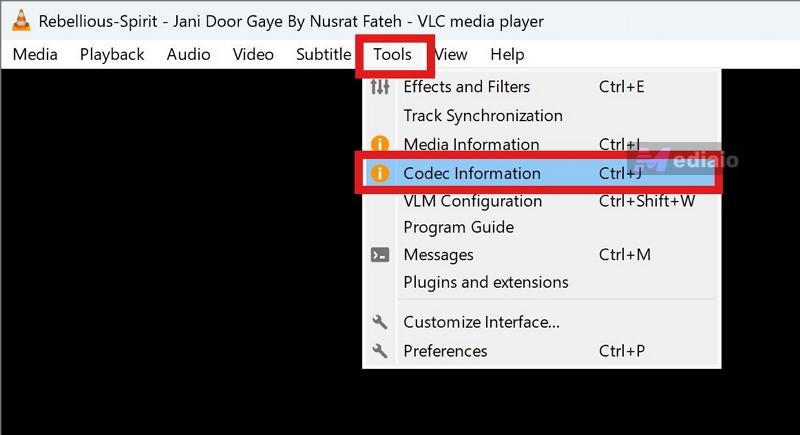
5. A Current Media Information window will open. Switch to the Codec tab. At the bottom, you will see a long, direct media URL next to the Location field. Copy that entire raw streaming URL that is the actual audio stream VLC extracted using the Lua script.
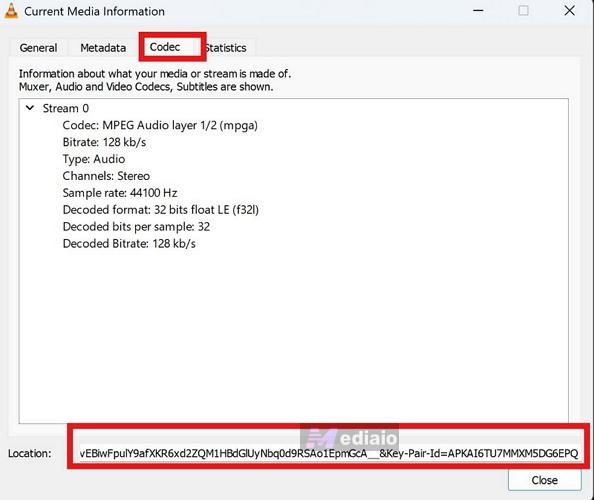
6. Open any normal web browser, like Chrome or Safari. Paste that raw media URL into the address bar. The browser will open the MP3 stream via its default audio player.
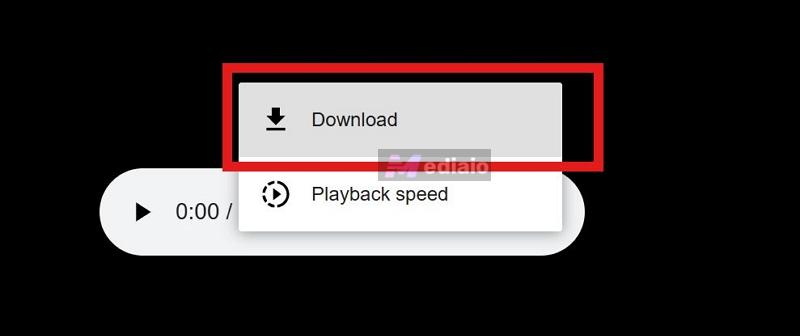
7. Simply click the three-dot menu beside the player controls.
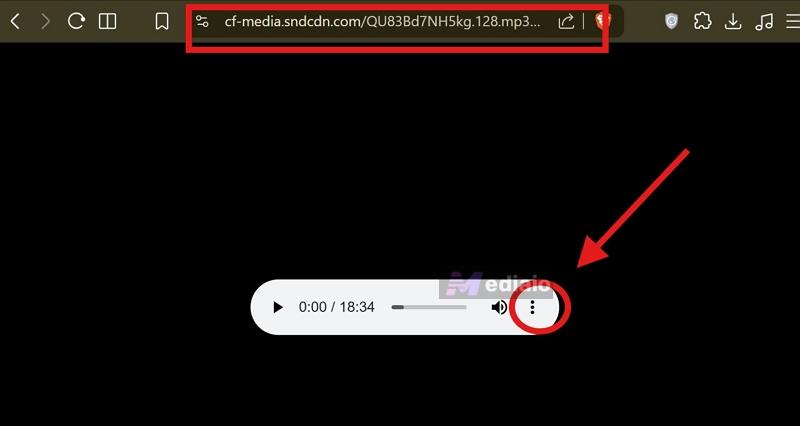
Then, choose Download. The browser will save the streaming audio locally as an MP3 file.
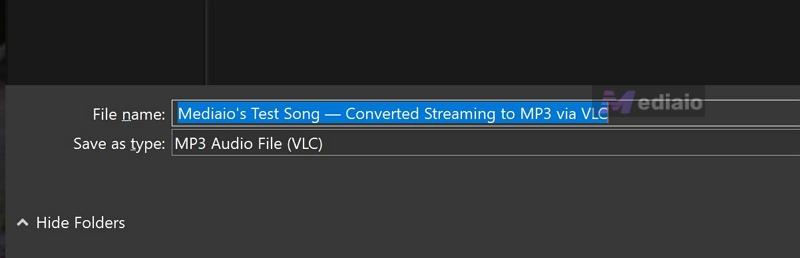
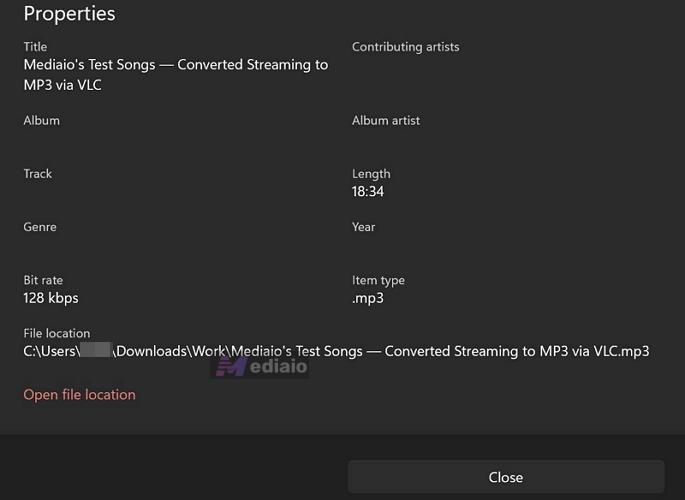
Note that VLC does not preserve metadata properly during this process. The file is often renamed randomly. So you even have to rename it yourself.
Another limitation is audio quality. You will end up with standard 128 kbps MP3 streams and you do not get any bitrate controls or output format selection options here.
Easier Way to Convert Streaming Music to MP3
The limitations of VLC when converting MP3s from music services are obvious. It doesn’t support popular services bu can only save tracks with a public access status. Meanwhile, VLC only saves one file at a time. Even then, the process is not smooth.
So using a dedicated music converter like Mediaio Audio Converter makes far more sense.
Mediaio Audio Converter lets you pull music directly from supported streaming platforms in high-quality MP3 format. It comes with built-in support for 9 major services: Spotify, Apple Music, YouTube Music, Amazon Music, SoundCloud, etc. You can convert songs with a few simple clicks from these services.
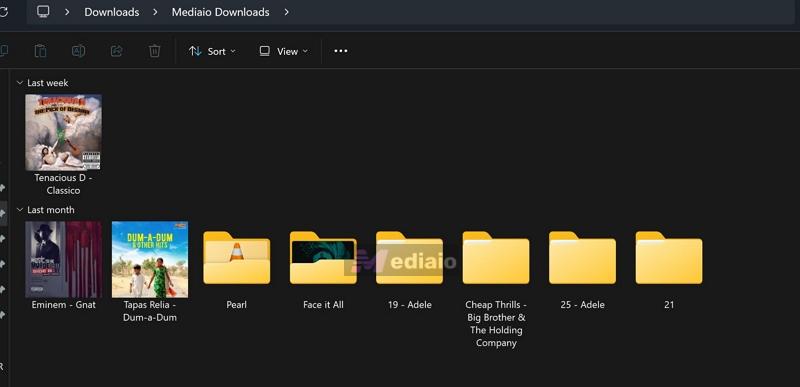
The biggest advantages of Mediaio are its output quality and organization. You can export songs in real 320 kbps MP3. At the same time, Mediaio preserves all original metadata properly. It even organizes playlists and albums into dedicated folders. So you do not have to manually rename or sort files afterward.
Another highlight is batch support. Mediaio can process playlists, albums or podcasts in a single go. With up to 30X conversion speed, the entire process feels dramatically smoother than VLC’s manual extraction workflow.
Steps to Convert Streaming Music to High-Quality MP3 Using Mediaio
Step 1. Fire up Mediaio on your Windows PC or Mac. Choose the streaming platform you want to pull music from.

Step 2. Sign in to your own account for that service.
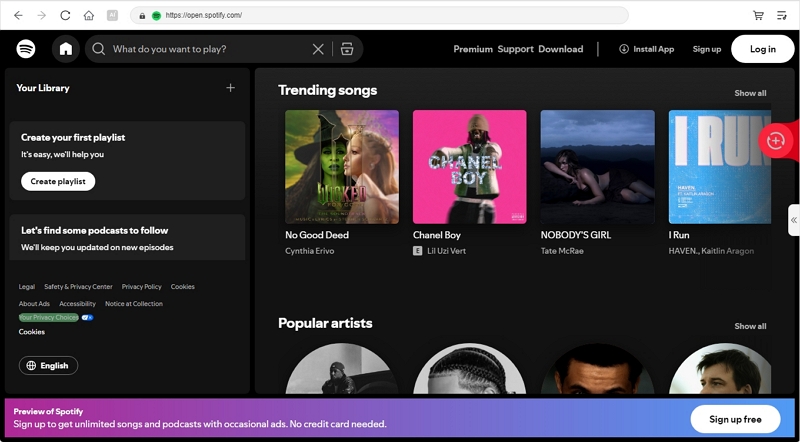
Step 3. Select the songs or playlists you want to save. Then drag them onto the floating + button. Mediaio will instantly load everything into the conversion queue.

Step 4. Extend the conversion window with the left arrow. Select the Output Format as MP3, Bitrate, Sample rate, etc. Then, hit Convert All.

That’s it. Once the conversion finishes, head to the download folder. All the chosen songs and playlists will be there — complete with proper metadata, cover art, and the original order preserved.
VLC Media Player Convert to MP3: Local Audio to MP3
VLC can convert nearly any local audio file, like FLAC, WAV, OGG, AAC, directly into MP3s. It can handle the entire re-encoding out of the box, so you do not have to install third-party codec packs.
You will also get granular control over the final MP3. You can adjust the bitrate and sample rate. VLC even includes a few built-in audio filters, such as a volume normalizer.
It also supports batch processing. Technically, you can queue several files. Still, VLC performs much better with smaller batches of 10-15 tracks. Overloading can cause VLC to spit out broken 0 KB MP3 files.
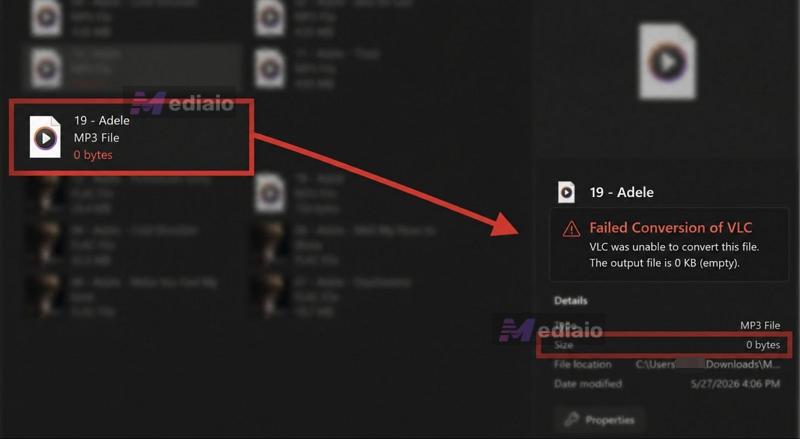
That said, VLC is a media player first and foremost. It doesn’t focus on its audio-processing capabilities that matter for audiophiles. So, there are some significant downsides when using it.
For instance, VLC’s default MP3 profile is set to export at 128kbps. Yes, you can crank the bitrate to 320kbps. Still, the final audio will sound muddy, even when you’re converting a lossless FLAC file to 320kbps MP3.
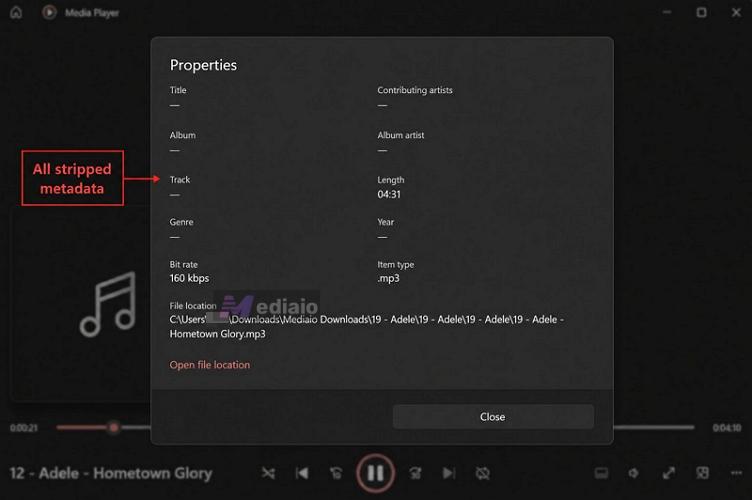
Another limitation to note is its metadata handling. VLC will strip away all ID3 tags during conversion. Only the song name will carry over as a file name into the final MP3.
How to Convert Audio to MP3 Using VLC
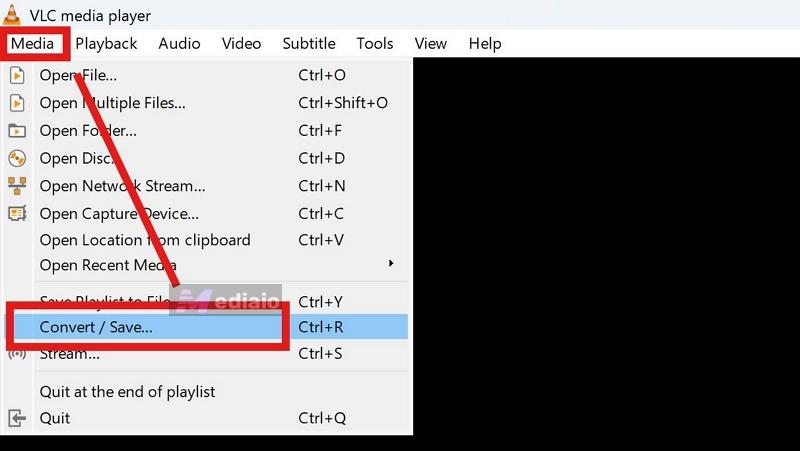
Step 1. From VLC’s top menu bar, open Media > Convert / Save. Or you can use shortcuts: Ctrl+R on Windows or Cmd+Shift+S on Mac.
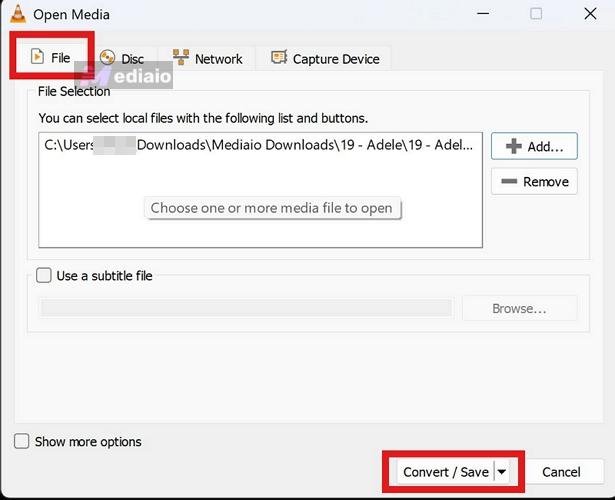
The Open Media window will appear afterward. Stay inside the File tab and click the Add button on the right side. Now select the local audio files you want to convert.
Tip: VLC also allows multiple files together. Still, avoid loading massive FLAC batches at once, as VLC will fail during heavy conversions.
Once the files appear inside the list, click Convert / Save at the bottom.
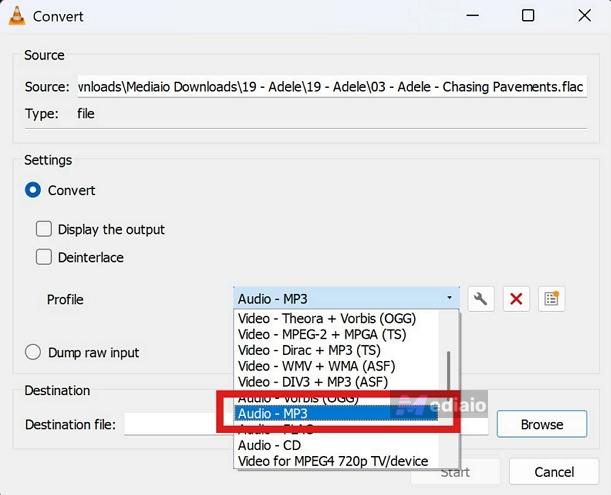
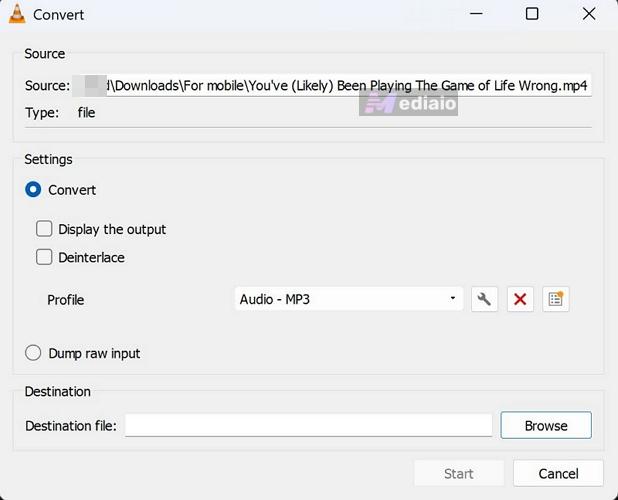
Step 2. VLC will now open the Convert window.
Here, open the Profile drop-down and scroll until you find Audio - MP3. Select it.
Right beside the drop-down, click the small wrench icon. This opens VLC’s profile editor.
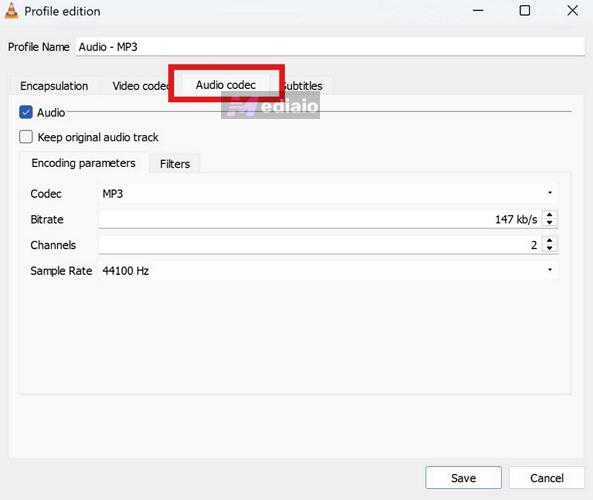
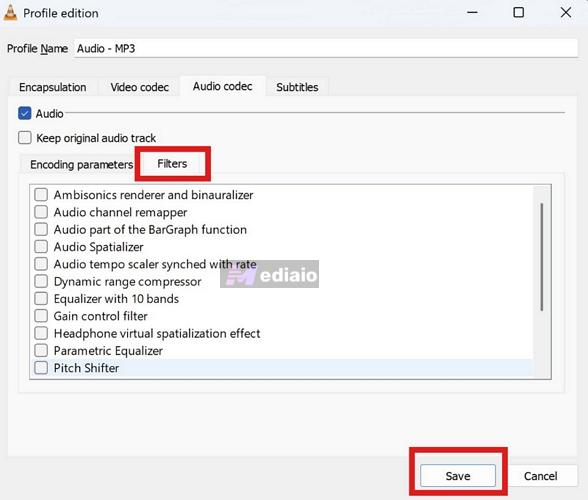
Step 3. Switch into the Audio codec tab. Here, VLC will let you control how the MP3 itself will be encoded. You can leave the codec as MP3 itself.
Adjust the Bitrate setting. Aside from that, you can also tweak: Channels and Sample Rate.
Step 4. Move into the Filters tab if you want VLC to apply additional audio processing. Here, you will find optional controls like:
- volume normalization
- headphone processing
- spatial rendering
- ambisonic rendering
These effects will be included in the final MP3 after conversion.
Step 5. Press Save once your settings look correct.
Pro Tip: You can even rename the conversion profile before saving it. VLC will remember that preset later inside the Profile drop-down, so you can quickly reuse the same settings next time.
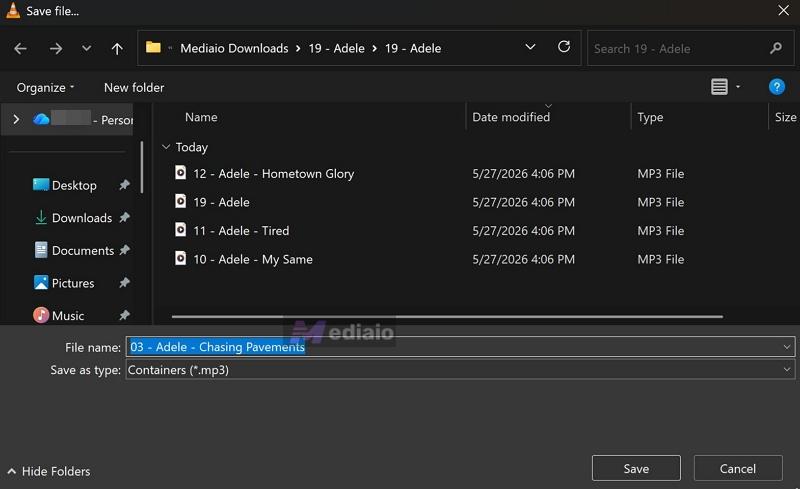
Step 6. Back inside the Convert window, move down to the Destination file section, then press Browse. Now choose where the converted MP3 should be saved. You can also ask VLC to rename the file here by adding suffix rules like: "-mp3" or "-converted." This will make it easy for you to identify the exported tracks later.
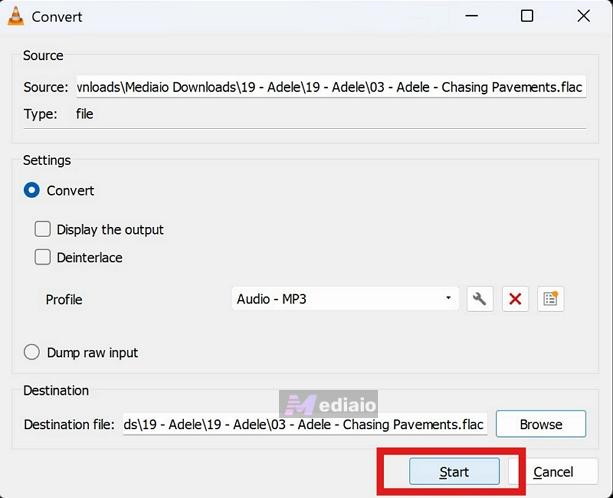
Step 7. Press the Start button. VLC will immediately begin converting the audio.
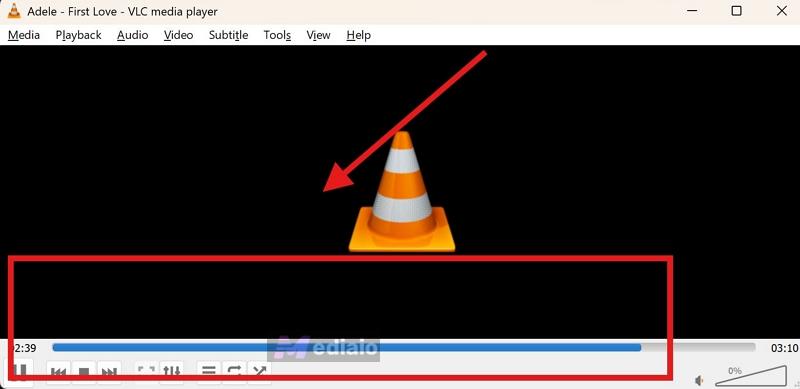
Instead of showing a separate export pop-up, VLC will show the progress on the playback timeline. As long as the timeline keeps moving, keep VLC open.
Step 8. Open the destination folder afterward and your MP3 files should now be sitting there.
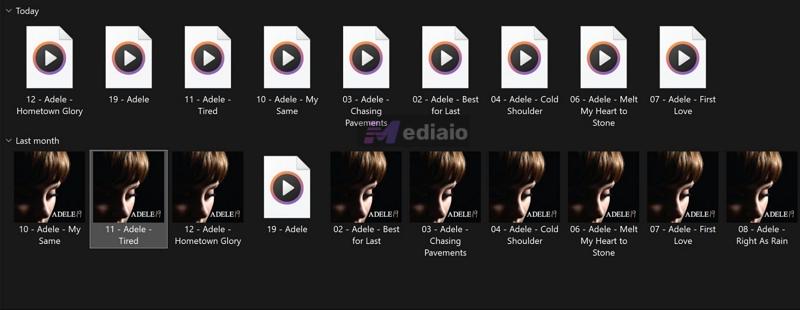
The problem is that VLC will strip all metadata during conversion. So it does not matter how perfectly your music library was organized beforehand. Cover art, album information, artist names, genre tags, and embedded metadata will be completely removed. Only the filename will survive.
Better Way to Convert Local Music to MP3
If you want cleaner MP3 exports with proper metadata preservation, it is better to use a dedicated music converter instead of VLC. The good thing is that you do not have to pay for that either. Free tools like Strawberry Music Player already do a much better job with local music conversion.
Here’s how the process works inside Strawberry Music Player.
Step 1. Open Strawberry Music Player. From the top menu bar, click Tools > Transcode Music.
Step 2. Press the Add button to add songs.
Step 3. Use the drop-down next to Audio format and select MP3 (.mp3). Right beside it, click the Options button. Here, Strawberry will let you fine-tune things like:
- bitrate mode
- encoding quality
- variable or constant bitrate
- and the encoding engine itself
Step 4. In the Destination section, choose where the converted MP3s should go. You can keep them alongside the original files or in a different export folder.
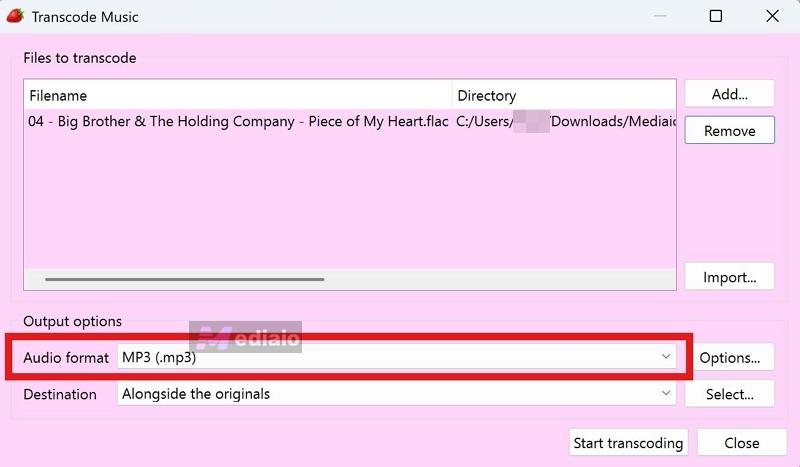
Step 5. Press Start transcoding. Strawberry will begin processing the files immediately. Wait for the status to be marked as Finished.
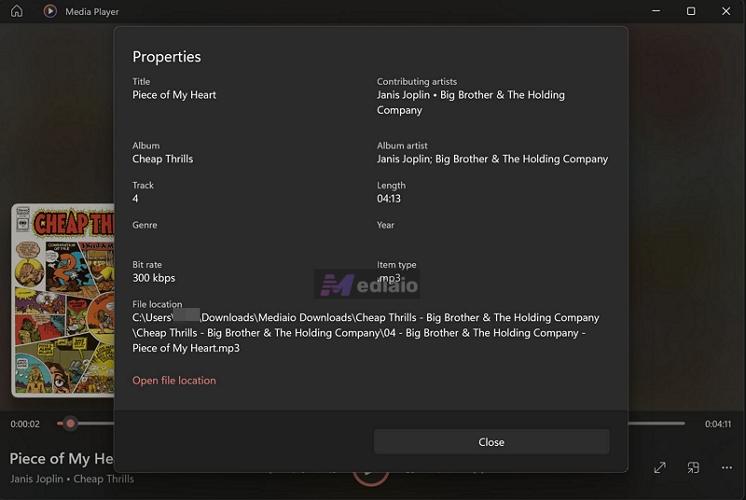
Finally, open the destination folder to find the converted MP3s. You will find that Starwberry’s MP3 output is clean and even includes all metadata (including the original cover art).
VLC Media Player Convert to MP3/MP4: Online Videos to MP3/MP4
VLC also includes backend support for some video platforms, including YouTube, Vimeo, Dailymotion, BBC, Twitch, and even older services like LiveLeak that no longer exist today. So technically, you can still paste links from some of these platforms and convert them to MP3 or MP4 using VLC.
But today, VLC’s online video conversion has become highly unreliable. And honestly, the fact that its installation files still carry support for dead platforms already shows how outdated this entire system has become.
The same limitations you already saw with streaming music above apply here too.
- VLC only works with a small list of supported websites.
- You constantly have to replace outdated Lua scripts manually.
- And even after updating them, certain videos will still refuse to load properly.
Yes, you will find guides online suggesting fixes like:
- Update the VLC program.
- Replace the Lua file.
- Restart VLC.
- And disable certain network or cookie forwarding settings.
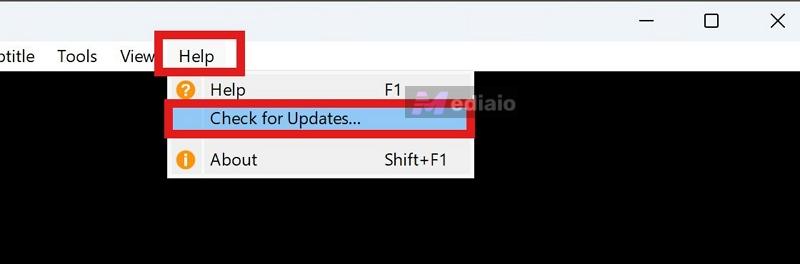
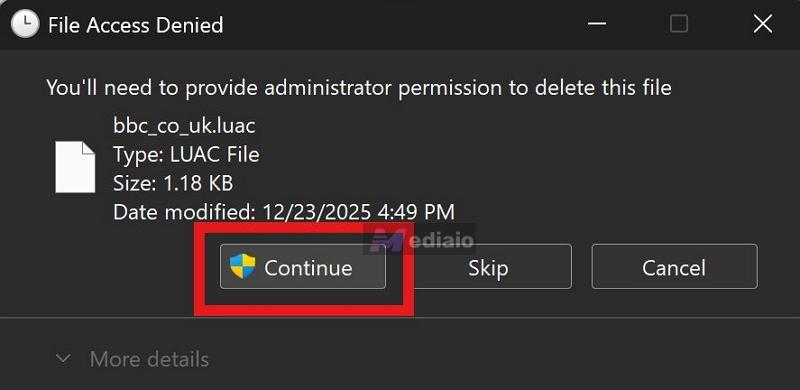
But realistically, these fixes don’t restore online extraction reliably.
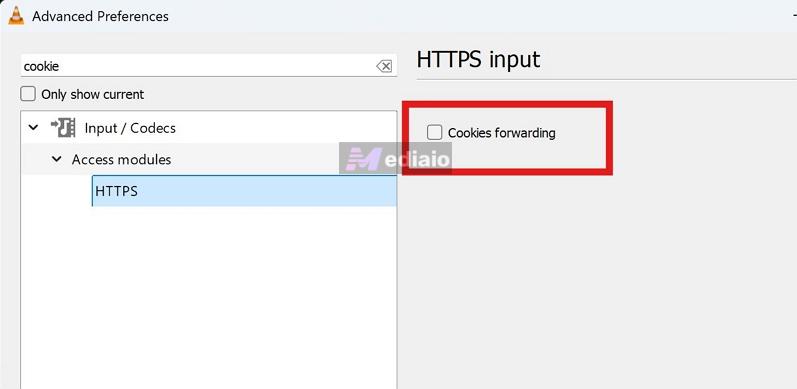
At best, VLC is known to still work with certain Vimeo or Dailymotion videos after properly updating the Lua scripts. After that, you can convert the online video to MP3 or MP4 using the above method.
Keep in mind that many people look for this method to convert YouTube videos to MP4. However, VLC no longer even accepts YouTube links for streaming, forget about exporting in MP3 or MP4. VLC will just throw playback errors when you try to use YouTube links.
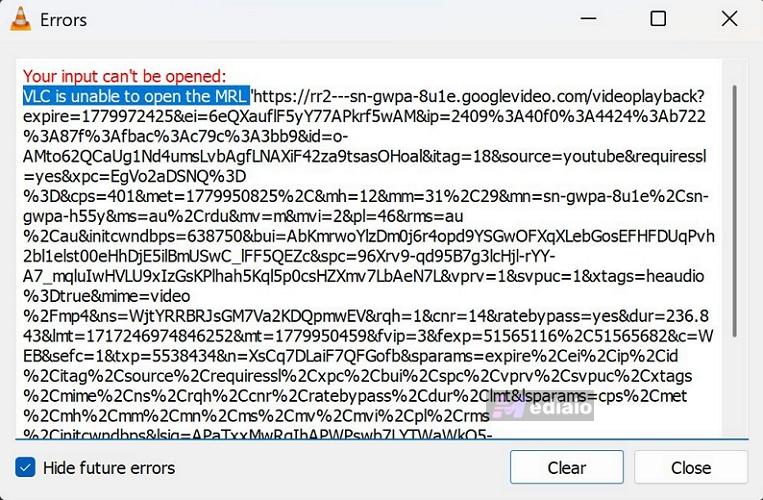
How to Convert Online Videos to MP4 with VLC
The most reliable way to convert MP3s from online video platforms is still the browser download method explained above.
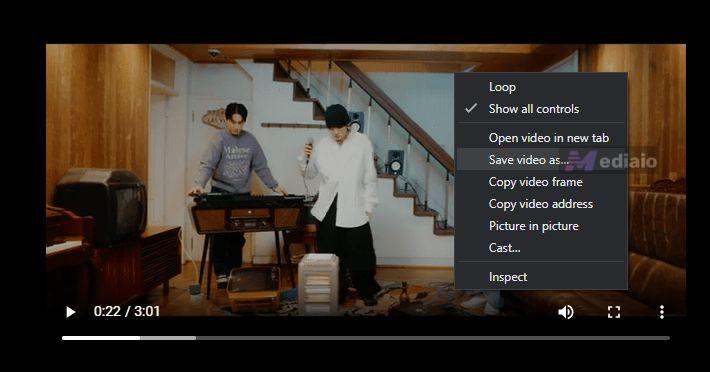
But VLC also includes a direct Convert/Stream workflow. So let’s see how that works.
Step 1. Replace the outdated Lua file for the platform first. Then copy the direct public video link from a supported site like Vimeo or Dailymotion.
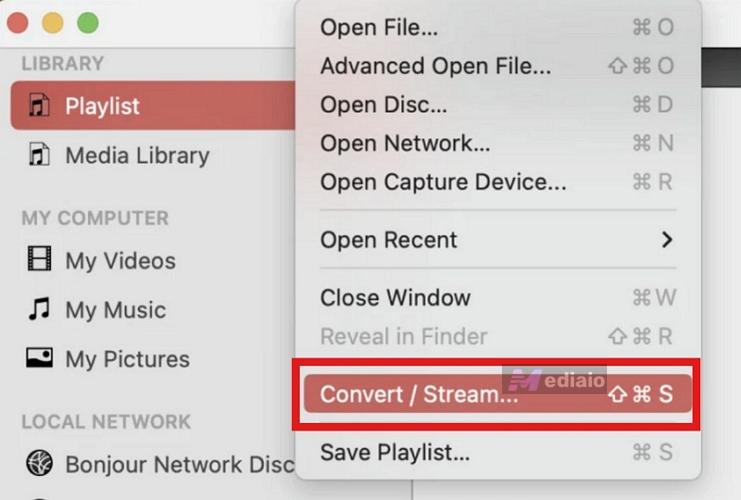
Step 2. Open VLC. Head to File > Convert / Stream on Mac. On Windows, open Media > Convert / Save instead.
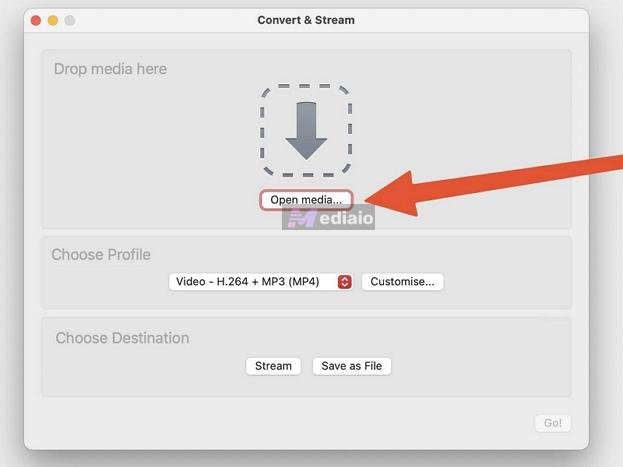
Step 3. Inside the Convert & Stream window, press Open media and paste the URL of the supported network video.
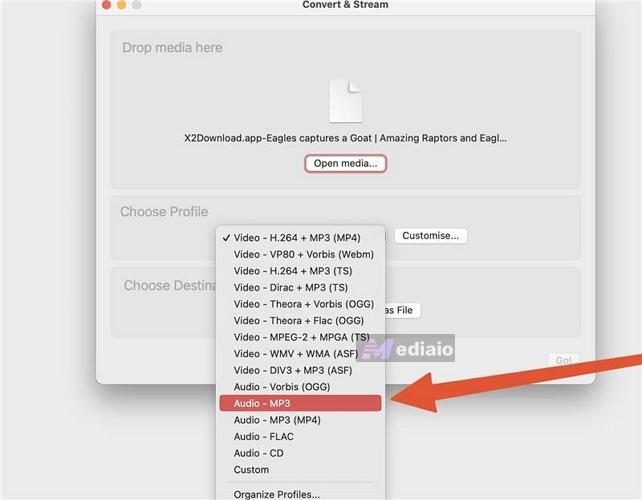
Step 4. Move down to the Choose Profile section. Select the conversion format you want, like MP3 or Video - H.264 + MP3 (MP4).
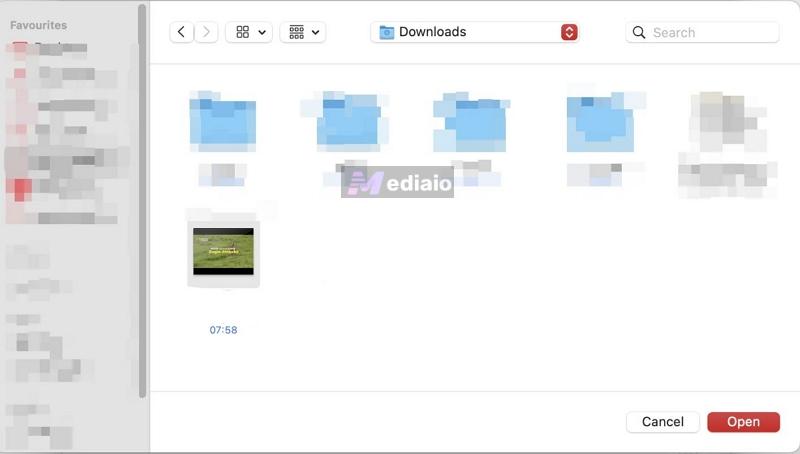
Step 5. Press Save as File. Choose where the converted video should go. Then hit Start or Go! to begin the conversion.
Step 6. VLC will start processing the file if it can identify the stream. Open the export folder. Then, rename the video.
More Powerful Way to Convert Online Videos to MP3/MP4
VLC was never really built as a modern online video downloader. Its support for streaming platforms depends heavily on backend parsers and Lua scripts. Many of them simply do not work reliably anymore. And YouTube is the biggest example. So, once again, it is better to use an alternative. And the best option for the job is Mediaio Video Converter.
It lets you convert videos from online platforms, such as Netflix, Amazon Prime, Disney+, and YouTube to MP3 or MP4 format. Beyond these built-in integrations, Mediaio can process direct video links from more than 1,000 websites. So you can save videos from these platforms for offline viewing or convert them to MP3 when you only need the audio, such as for documentaries or interviews.
Steps to Convert Streaming Videos to MP3/MP4 Using Mediaio
Step 1. Launch Mediaio Video Converter on your Windows PC or Mac.
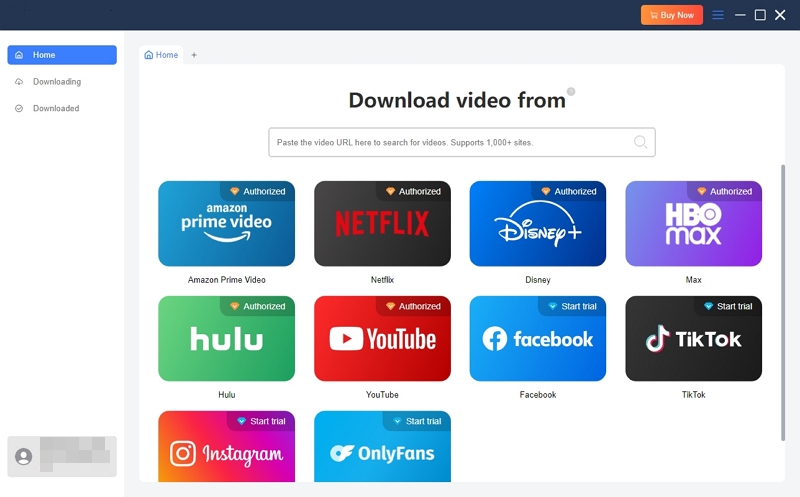
Step 2. Pick the streaming service you want. Sign in to your own account.
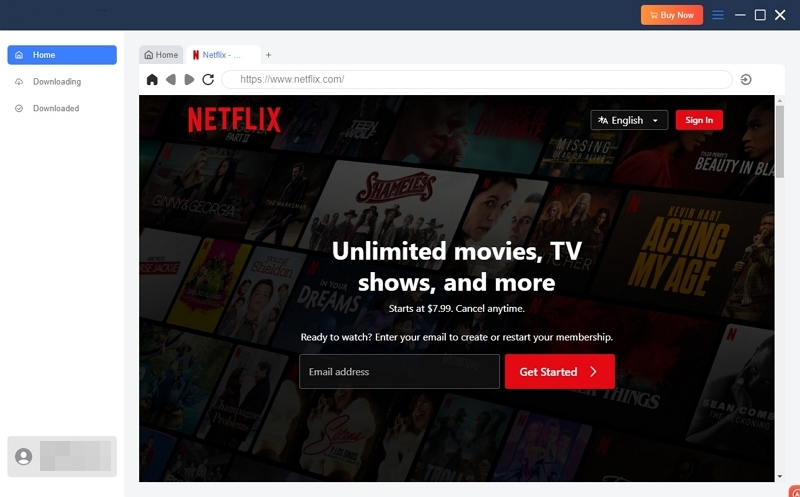
Step 3. Find the movie or episode you want. Set the export format as MP3/MP4.
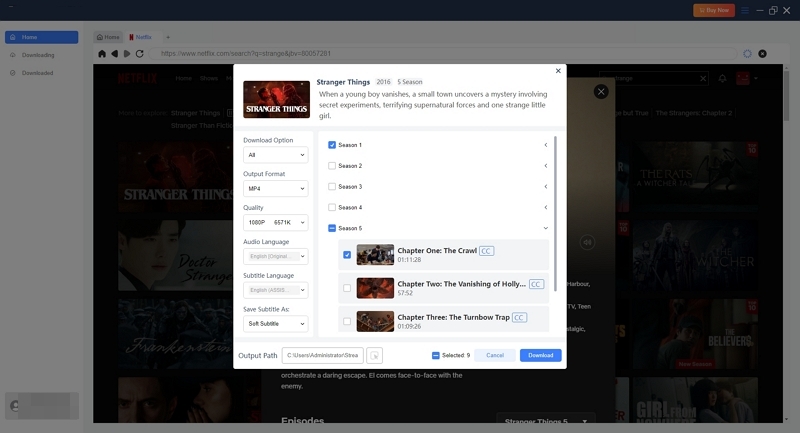
Step 4. Hit Convert. Mediaio will process the file and save it locally.
The downloaded video will be saved.
VLC Media Player Convert to MP3: Local Videos to MP3
Converting local video files to MP3 in VLC works the same way as converting local audio to MP3. VLC does not really differentiate much between audio and video containers here. As long as the local video format is supported, such as MP4, MKV, AVI, MOV, WEBM, you can load and extract the audio as MP3.
All the conversion controls will also remain the same. You will have to choose the same MP3 profile. You can adjust the bitrate, apply effects, and export the MP3. But once again, the audio quality will not be that high. VLC will only preserve the file name. But for local video-to-audio extraction, that usually is not a major issue. The overall process is nearly identical to the earlier local audio conversion workflow.
Step 1. Open Media > Convert/Save in VLC. Press Add under the File tab. Select the local video file you want to convert. VLC will also support loading multiple videos.
Step 2. Press Convert / Save at the bottom-right corner.
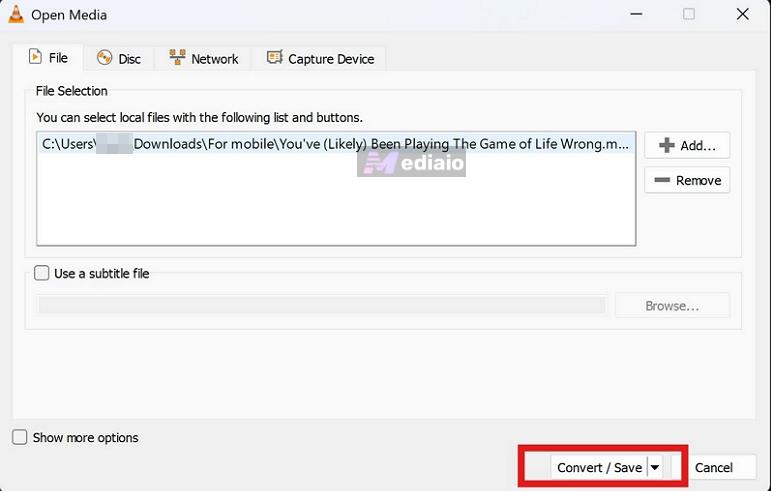
Step 3. Under the Profile dropdown, select Audio - MP3. If needed, open the wrench icon to customize audio parameters.
Step 4. Move down to the Destination section. Choose where the converted MP3 should be saved.
Step 5. Press Start. VLC will begin extracting the audio from the video and save it locally as an MP3 file.
Final Words
That is the complete process for using VLC as a media converter. You can use VLC to convert files to MP3s, whether they're local audio or video files or even certain streaming links. However, VLC’s conversion system is outdated. It doesn’t have high-quality outputs. Online platform support is also limited.
That’s why we included alternative and better ways to convert from online platforms:
- Mediaio Audio Converter suits music conversion. It supports major streaming platforms and delivers high-quality audio while preserving metadata.
- Mediaio Video Converter works well for online videos. It saves high-quality MP4s from many websites, such as Netflix.