

Most lists online just throw out “best Spotify track downloaders” or “best Spotify to MP3 converters.” They do not explain an important point: there are different types of Spotify downloaders, such as desktop downloaders, online converters, and Telegram bots. And each type operates in its own way.
This guide first breaks down the five most common types of Spotify track downloaders and then list the best tool from each category. This way, you can actually understand which Spotify downloader fits your workflow, devices, and audio quality preferences.
Spotify Track Downloaders: 5 Common Types
Here is a quick overview of all five Spotify track downloader types you’ll find in this guide. This will help you understand how they operate under the hood and the realities of using them:
• Comes with a built-in Spotify player
• Lets you sign into your own Spotify library and pull songs directly for conversion • When you want to build a massive offline music library
• When you need the highest possible audio quality (320kbps)
• When you want properly organized ID3 metadata and album art for each download • Requires installing desktop software
• Not available directly on mobile devices (though you can transfer files)
• They match Spotify metadata against public sources like YouTube • When you only need a few songs quickly
• When you do not want to install third-party software (like on Chromebooks or public PCs) • Extremely unstable long-term
• Download speed depends heavily on server traffic
• Songs are matched rather than directly downloaded
• Wrong song versions can happen
• Ads are very common
• Batch playlist support is often limited
• Everything is packed inside Telegram or mobile apps for convenience • When you want MP3s directly on Android or iPhone • Audio quality is usually lower
• Tedious for large playlists
• Bots disappear frequently, so you constantly need replacements
• Record whatever audio your browser tab is currently playing • Last-resort option for grabbing one or two songs
• When online converters are not working • Extremely slow
• Audio quality stays compressed
• No reliable metadata handling
• Album art and tags usually need manual editing
• Automate metadata scraping and source matching in bulk • When you are technically comfortable
• When you already use tools like Python, FFmpeg, pip, or terminal environments • Massive learning curve
• Requires terminal knowledge
• Manual dependency installation and package management
• Setup alone can take longer than the actual downloading
Top Spotify Track Downloader Desktop - MedVioo Audio Converter
Desktop Spotify track downloaders like MedVioo Audio Converter are most useful when you want to save large playlists or download songs regularly. The biggest advantage is convenience. You simply install MedVioo and it will handle everything. MedVioo runs on both Windows and Mac. You can sign in to your Spotify account through the built-in player and access your library. Then, you can easily export multiple songs, playlists, and albums into local formats like MP3, FLAC and M4A. You can also convert audiobooks and podcasts with the same tool.
MedVioo delivers the same audio quality you hear on Spotify. Meanwhile, it preserves all metadata during export, so your files stay organized. You can play them with any player, listen offline without a subscription, and move them freely between devices.
Using MedVioo to Save Spotify Tracks
Step 1. Launch MedVioo Audio Converter on your desktop. From the grid of supported services, choose Spotify.

Step 2. MedVioo will open the embedded Spotify web player. Sign in to your account. (Free or Premium — it does not matter.)
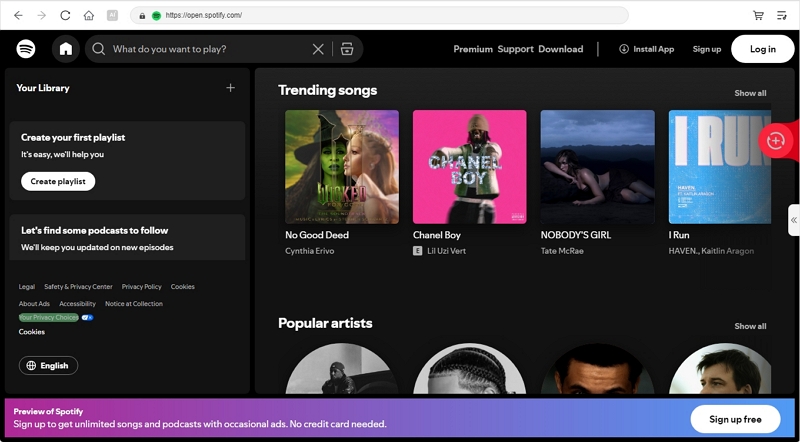
Step 3. Find your song, album, or playlist and click Add to Conversion List (+).

Step 4. Expand the conversion window to review your selected tracks.
- Choose the export format for individual songs or apply one setting to all — MP3, WAV, FLAC, M4A, and more.
- Adjust quality settings as desired, such as 320 kbps for MP3 or FLAC for lossless.
- Select the download location using the Output option in the lower-left corner.
Step 5. Click Convert All from the bottom-right corner.

MedVioo will process the tracks and save them directly onto your computer.
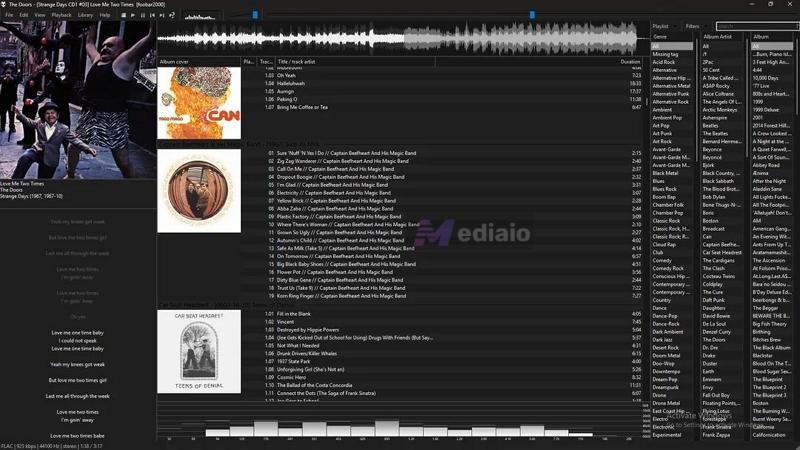
MedVioo Performance with a 100-Song Playlist
We requested 50 songs in FLAC and 50 in MP3.
The MP3 files closely matched Spotify’s Very High streaming quality.
FLAC exports retained the original 24-bit/44.1-kHz CD-quality output.
No manual renaming was needed afterward.
The software also automatically preserved the correct high-resolution album covers, artist names, track titles, and album titles.
Top Spotify Track Downloader Online - SpotiSaver
Online Spotify converters provide a convenient solution for occasional downloads. There are many reliable options out there. For quick one-song downloads, tools like EZMP3 and CNVMP3 work quite well. And when you need batch playlist support, you can move to tools like Spotisaver.
The core workflow behind almost all online converters is quite similar. You paste a Spotify song or playlist link, and the tool will then try to locate matching versions from public sources and open libraries like YouTube. So yes, unlike MedVioo, which processes the Spotify stream itself, online converters depend on external matching. So you could end up downloading a live performance or cover instead of the exact version from Spotify.
Another issue is reliability. Online converters get blocked quite often, so it is always better to keep a few alternatives bookmarked. And even when the sites are available, the actual conversion speed depends heavily on live server load. So conversion speed also fluctuates constantly.
As for Spotisaver itself, the tool currently comes inFreeand Premium versions. Free users will experience extremely slow conversions. Still, Spotisaver does get a few things right. The interface feels modern and clean. There are no aggressive pop-ups or spammy pages like on older converter sites.
The Premium version primarily improves processing speed and enables much larger playlist conversions.
How Spotisaver Handles Spotify Downloads
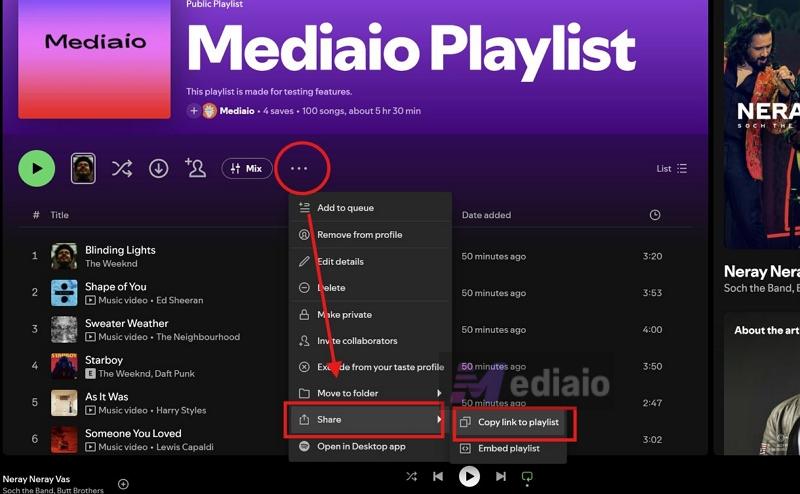
Step 1. Open your Spotify (desktop is preferred). Navigate to the song, album, or playlist you want. Click the three-dot menu next to the title. Then hover over Share and choose Copy link to playlist.
Step 2. Head over to Spotisaver and paste the copied URL into the main search bar. Then press the Load button.
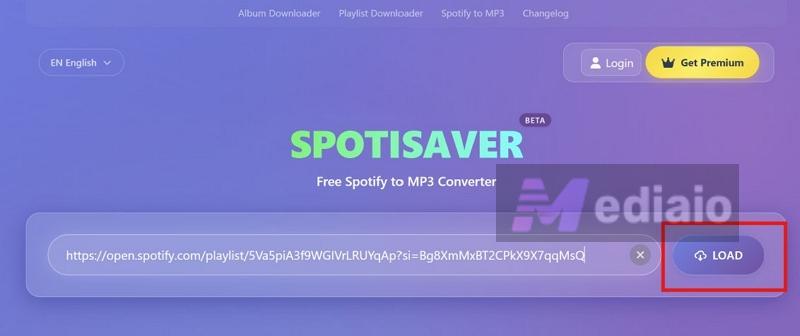
Spotisaver will now take a few moments to scrape the metadata and generate a visual list of all the tracks inside the playlist.
Step 3. Scroll all the way to the bottom to access the master controls. Here you will see multiple options depending on your tier.
- Free users: click the Download Entire Playlist option.
- Premium users: you can use the Download & Send to Email button. So the completed downloads can arrive later without you having to keep the tab open.
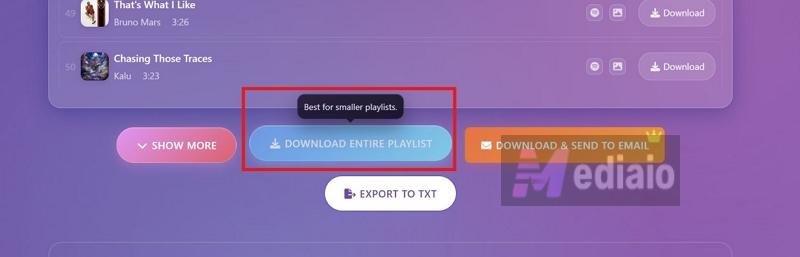
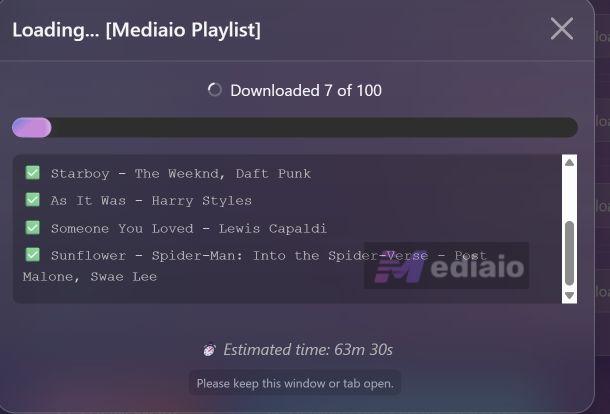
Step 4. Keep the browser tab open if you are using the free version. The tool will process the songs one by one. This server-side processing will take quite a while, depending on server load, playlist size, and even your account type (Premium users get 2x speeds).
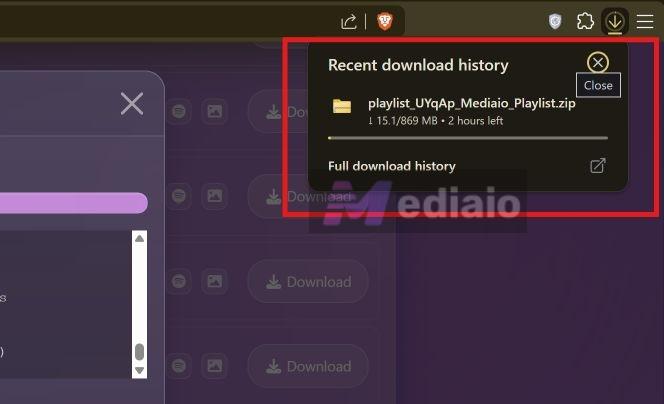
Step 5. Spotisaver will generate a ZIP package containing all the downloaded tracks. Click Download ZIP and save the tracks to your local storage.
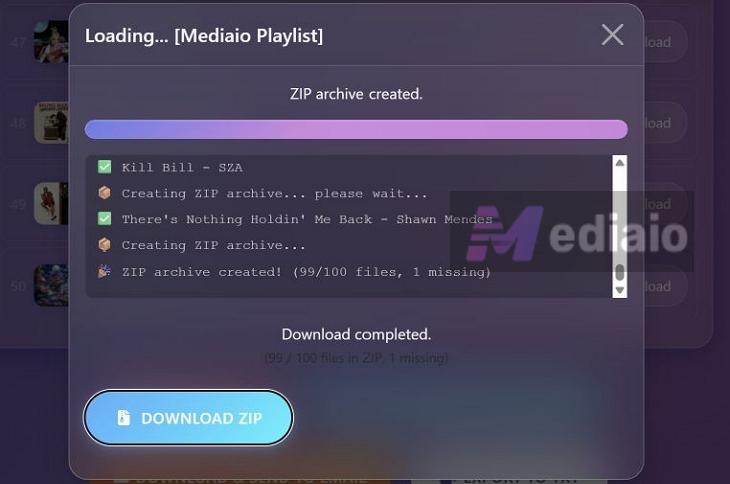
It will take additional time, which will depend on your local internet speed.
Spotisaver Performance with a 100-Song Playlist
Most tracks were delivered at typical compressed web quality (roughly comparable to 256 kbps AAC/Opus sources) rather than true Spotify Very High quality.
On the free version, downloaded files are named with a “Spotisaver” watermark.
Initially, the 100-song playlist showed an estimated time of 53 minutes. After processing 7 files, the estimate increased to 89 minutes. And we had to keep the browser tab open throughout.
After processing finished, the final ZIP download took another 20 minutes (depending on the internet speed).
Top Spotify Track Downloader Android/iPhone - Telegram DeezLoad Bot
Telegram bots work like mobile versions of online Spotify converters. Under the hood, they use a similar mechanism. You paste a Spotify song or playlist link. The bot then searches public sources for matches and sends files back through Telegram.
The biggest advantage is convenience. Everything happens within the Telegram app. This is much easier than using online converters in your mobile browser. However, Telegram bots have the same limitations as online converters. The output quality is compressed. You could also get the wrong song versions.
And, much like online converters, these bots often disappear. One bot that has lasted is DeezLoad. It can also process Spotify playlists. Plus, DeezLoad usually does not aggressively watermark or rename files, unlike some online converters.
Download Spotify Tracks with DeezLoad
Step 1. Open Spotify on your mobile and copy the playlist or song link you want.
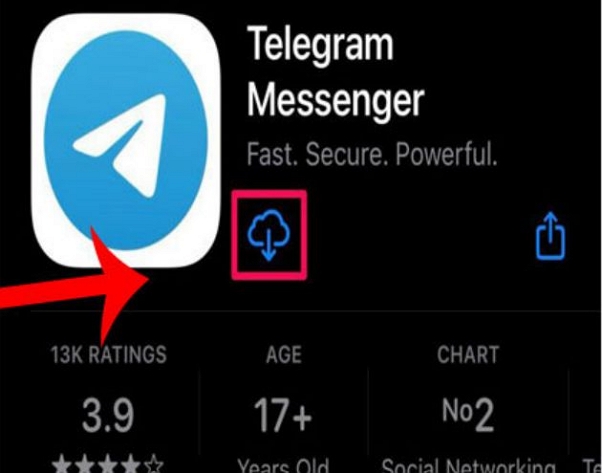
Step 2. Install Telegram if you do not already have it.
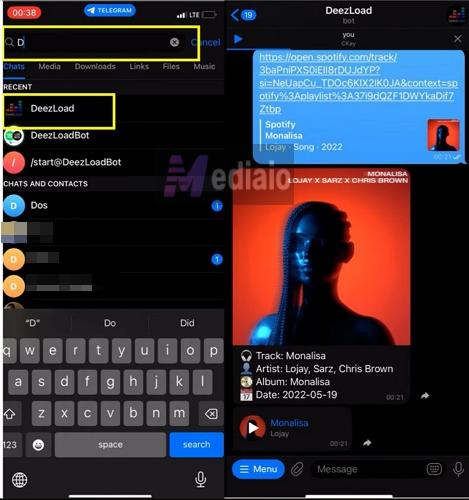
Step 3. In Telegram, use the universal search bar to find DeezLoad. Open it and press Start to activate it.
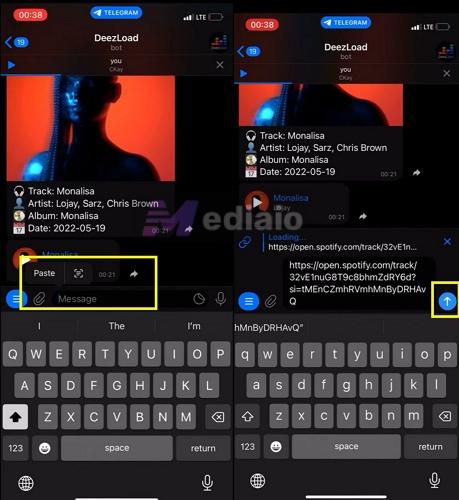
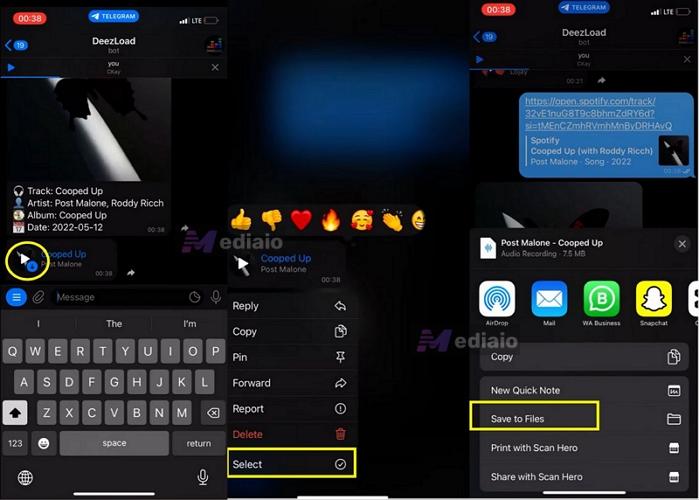
Step 4. Paste the Spotify link into the chat and send it to the bot. DeezLoad will process the URL. It then sends tracks one by one as separate Telegram audio messages.
Step 5. Long-press any downloaded song in the chat to open the menu. Choose Select. Mark all the downloaded tracks you want. And use the Save to Files option.
You can then navigate to the Telegram folder in the Files app or your internal storage to find the MP3s.
Test DeezLoad with a 100-Song Playlist
Most downloads feel similar to standard compressed YouTube-quality audio.
But metadata can often feel inconsistent or incomplete across larger playlists.
Not ideal for very large playlists.
Top Spotify Track Downloader Extension - Audio Downloader Prime
Browser extensions are another route to download Spotify tracks. But honestly, their golden era has mostly passed now. Chrome extensions for downloading Spotify songs work very differently from every other downloader on this list.
They do not actually fetch songs directly from Spotify or from matching public libraries. Instead, most Chrome extensions work like audio sniffers and lightweight recorders. They capture the sound currently playing inside your browser tab and then save that playback as a local audio file.
Record Spotify Tracks with Audio Downloader Prime
Step 1. Head over to the Chrome Web Store and search for Audio Downloader Prime. Add the extension to Chrome.

Step 2. Open Spotify Web Player on your browser and start playing any track you want to save.
Step 3. Press the Audio Downloader Prime extension icon from the Chrome toolbar.
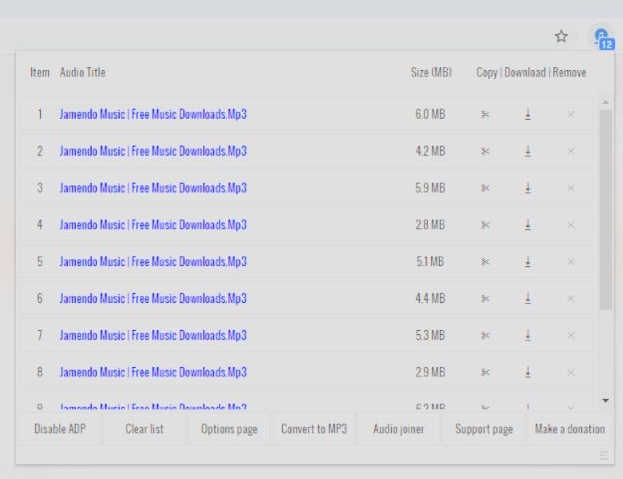
The extension panel will now open and display detected audio streams from the current browser tab. Most entries will appear with generic names, along with their current file sizes and timing indicators.
Step 4. Locate the currently playing Spotify track from the detected entries.
Checking the live duration and file size usually helps identify the correct recording stream more easily.
Step 5. Press the Download button beside the detected stream. The extension will now save the captured playback onto your computer.
Audio Downloader Prime Performance with a Single Spotify track
Expect compressed streaming quality range (roughly near 256 kbps AAC/browser-stream quality).
You’ll have to add artist names, album covers, and track titles manually afterward.
Top Spotify Track Downloader GitHub - spotDL
GitHub Spotify downloaders are not simple “download-and-use” applications like MedVioo or even online converters. They are meant for technical users. Most of GitHub's tools require Python, FFmpeg, command-line usage, and sometimes even additional dependency managers like pip or Homebrew just to function. The biggest example here is spotDL.
At first glance, spotDL looks extremely powerful. It supports playlists, albums, metadata syncing, automatic tagging, playlist updates, and even advanced features such as sync mode and metadata repair.
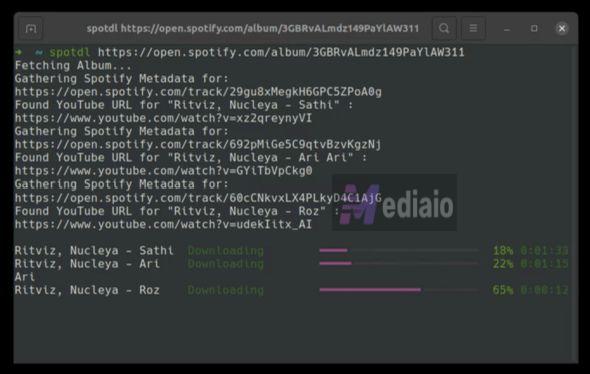
But the reality is that spotDL still works very similarly to online Spotify converters underneath. It does not pull the original Spotify audio stream. Instead, it will read Spotify metadata and search for the closest match on YouTube. Then, it will download the song from YouTube while embedding Spotify metadata onto the final file.
So even if you export in FLAC or WAV, the source quality will still remain limited by YouTube itself. If your goal is simply downloading a few playlists or albums casually, the setup effort here is usually not worth it. Online converters are much easier for that.
How spotDL Works on Downloading Spotify Music
Step 1. Before spotDL even works properly, you will usually need the following on your computer:
- On macOS: you can install dependencies through Homebrew.
- Windows users usually have to manually add FFmpeg to system PATH variables.
So the setup process is definitely much heavier compared to every other downloader in this list.
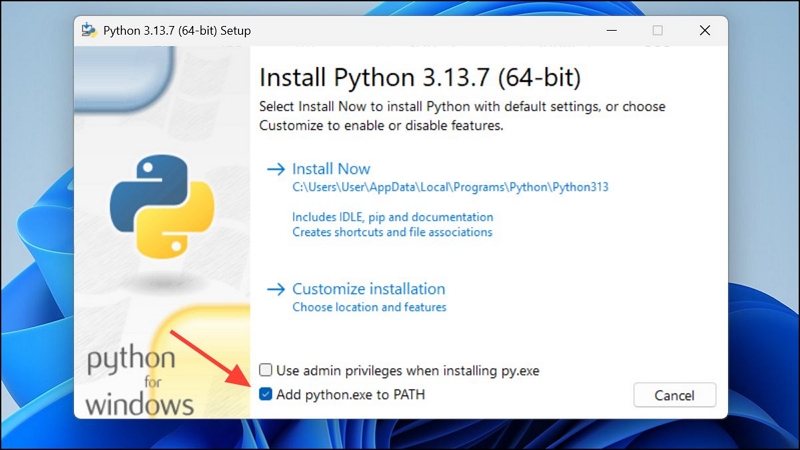
Step 2. Install Python on your computer. During installation, make sure Add Python to PATH is enabled. This is extremely important because spotDL relies heavily on FFmpeg to process audio properly.
Step 3. Open Terminal or Command Prompt.
Step 4. Install spotDL using pip:
pip install spotdl
If that does not work, you can also run it as:
python -m pip install spotdl
Step 5. Once installed, here’s how you can use SpotDL. First copy the Spotify URL. Then, the simplest download command looks like this: spotdl [Spotify URL] Or: python -m spotdl [Spotify URL] spotDL will then save it to your computer’s Music folder. Choosing the right Spotify track downloader comes down to what you value most: your time, convenience, or the final quality of your audio files. Online converters and Telegram bots deliver compressed audio and inconsistent metadata. So they are only suitable when you need a few MP3s quickly. And if audio quality matters to you, a dedicated music downloader like MedVioo Audio Converter is the only option available online. It supports multiple local formats, handles massive playlists consistently, and preserves metadata cleanly.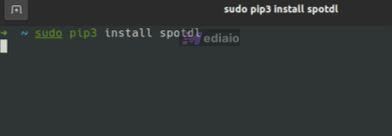
spotDL Performance with a 100-Song Spotify Playlist
You can even get in FLAC and WAV, but the source quality is YouTube, so it is not truly lossless.
spotDL preserves Spotify metadata extremely well, including album art, artist names, track titles, and playlist organization.
The problems are the difficult setup and command-line dependency.
To Sum Up