

When it comes to downloading music offline, WiFi is the recommended network due to its cost-effectiveness and stability. Sometimes, WiFi may not be an option for you, such as when you are outside or when WiFi is down. What if you want to download some Spotify songs to listen to offline at that moment? You can indeed download Spotify music without WiFi and we will guide you through the process here. If you encounter the issue "Downloaded songs can't be played without WiFi", you will also learn how to fix it.
How to Download Spotify Music Without WiFi on Phone
Spotify allows you to download music using mobile data on your phone. You just need to enable the corresponding feature and then you can start saving songs on Spotify with Premium without WiFi. The music download will work just like it would on WiFi. Nothing changes in the process itself. You can download the same songs or same playlists, and even adjust the audio quality. You can drop the audio quality to "Low" if you’re watching your mobile data usage. The steps to download music on Spotify app without WiFi are similar for iPhone and Android users. Here’s what to do.
Step 1. Allow Spotify to Download on Cellular
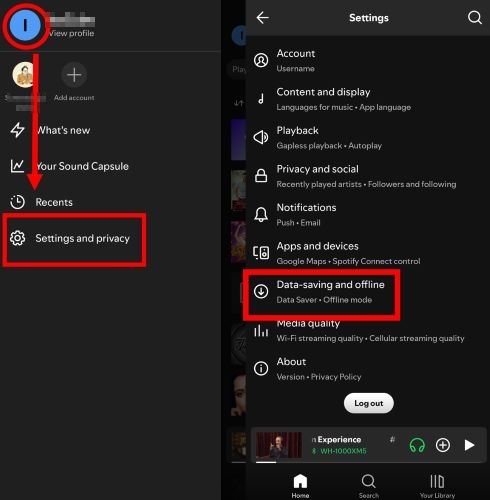
- Open the Spotify app. Tap on your profile icon (top-right corner) to access the settings menu.
- Choose Data saving and offline if you’re on Android. On iPhone, look for the Data Saver option and select it.
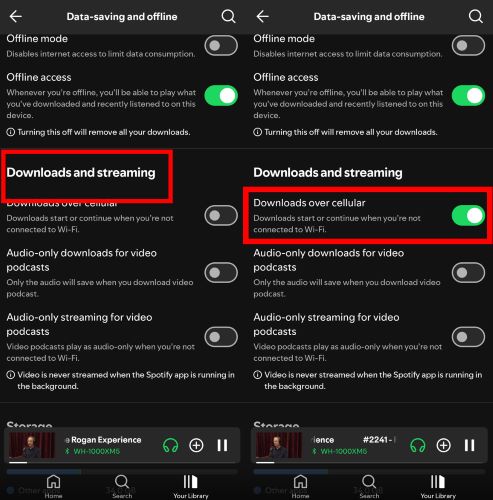
- Find the Download Over Cellular toggle within the Downloads section and switch it on.
Step 2. Download Music on Spotify Using Mobile Data
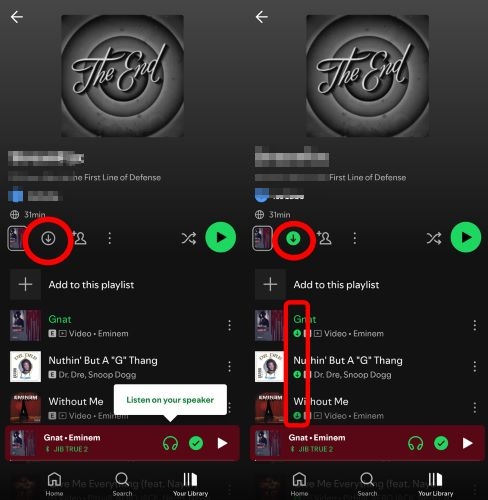
- Navigate to your favorite playlist or album within Spotify.
- Tap the Download icon. You will see each song marked with a green arrow once it is saved offline.
How to Play Spotify Downloads Without WiFi or Data
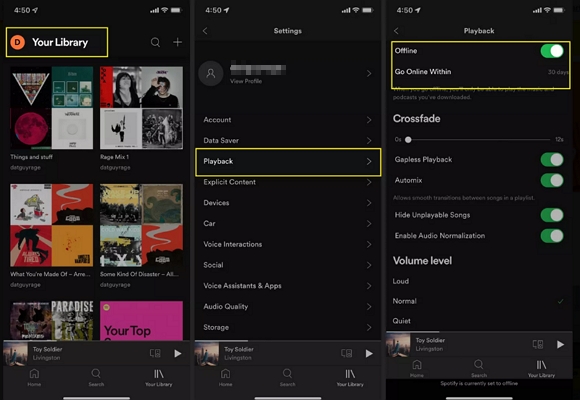
To ensure you listen to your music downloads in Spotify mobile without network connection, you can turn on Offline Mode in the Spotify app and here are the steps.
Step 1: Open Spotify app on your phone and tap your avatar at the top left corner.
Step 2: Choose Playback under Settings.
Step 3: Toggle on Offline.
If you don't need to access the network or make phone calls, you can enable Airplane Mode to ensure that you completely enjoy Spotify music offline. Alternatively, you can disable WiFi and mobile data for Spotify after the music downloads to achieve the same result.
Fixed: Downloaded Spotify Songs Can't Be Played Without WiFi
Generally, you can listen to downloaded Spotify songs without network connection in offline mode, but some users have reported that their Spotify downloads can't be played in airplane mode or with cellular data, only with Wi-Fi. If you are also stuck with the same issue, this part could help you out.
Occasionally, cached data or corrupted files within Spotify can interfere with offline playback, even when your downloads appear complete. Reinstalling the app will clear Spotify’s memory and remove any roadblocks. After Spotify reinstallation, you can download the songs again and you can listen to downloads on Spotify without WiFi now. That said, here are the steps for Android and iPhone one by one:
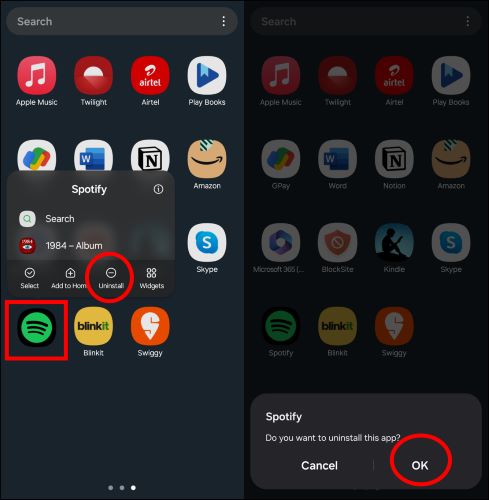
Steps for Android:
- On your home screen or app drawer, hold down the Spotify icon until options appear. Choose Uninstall and confirm by tapping OK.
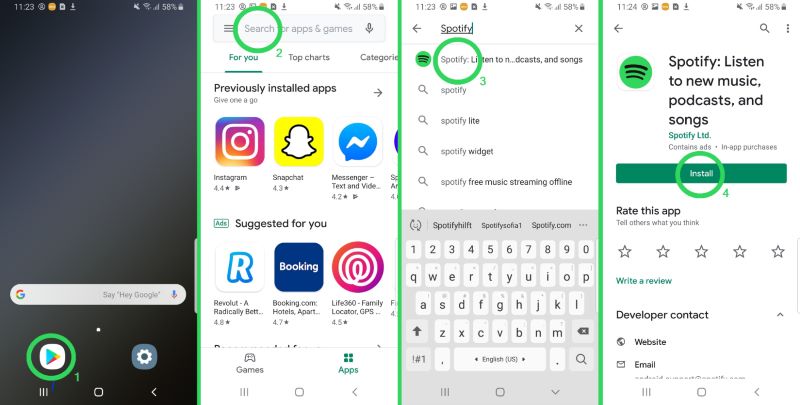
- You can install the Spotify app anew from the Google Play Store.
- Log back in Spotify and return to your playlists. Tap the Download icon.
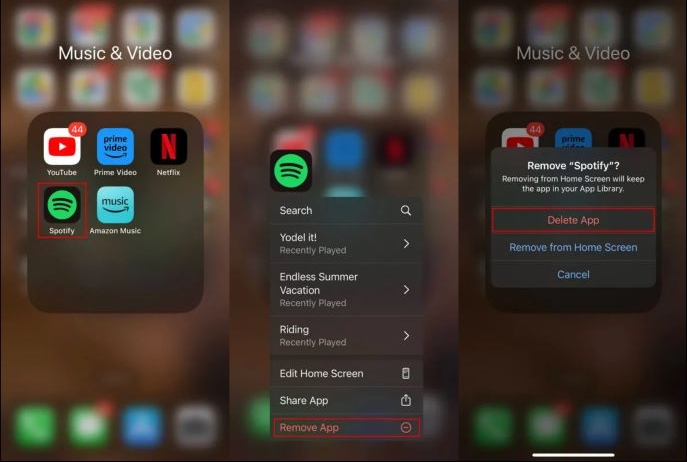
Steps for iOS:
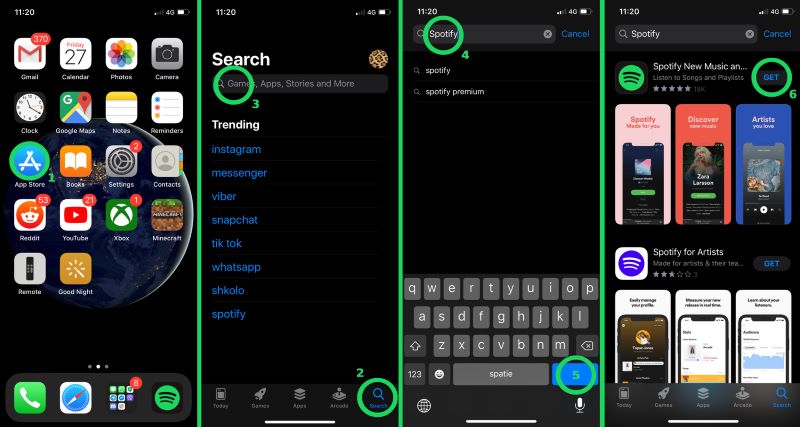
- Press and hold the Spotify app icon until the options appear, then tap Remove App. Confirm by choosing the Delete App option.
- Open the App Store. Search for Spotify and tap the install icon. Sign into Spotify, go back to your playlists or albums and hit the Download button.
How to Download Spotify Music Without WiFi and Premium on Computer
You can download Spotify songs on your computer without WiFi too. What you need is a stable wired network and Mediaio Audio Converter. Yes, you don't need a Spotify app and premium, as Mediaio handles the entire download process for you.
Mediaio works on downloading songs as local files from Spotify and other music services like Amazon Music and Apple Music. It doesn't require a paid subscription to save music offline. Just login the embedded Spotify browser with your free account, add songs to download and start. Your favorite tracks will be saved quickly in MP3, M4A, FLAC, and more. When it comes to audio quality, Spotify free users still get offline songs in up to 320kbps.
How to Download Spotify Music on Desktop Without Premium and WiFi
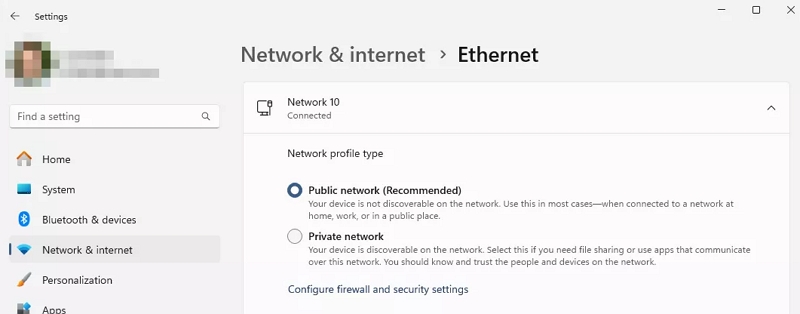
Connect your PC/Mac to wired network - Ethernet.
Download and install Mediaio Audio Converter on the same computer. Open the application and choose the Spotify icon.

Log in to your free Spotify account directly within the built-in browser.
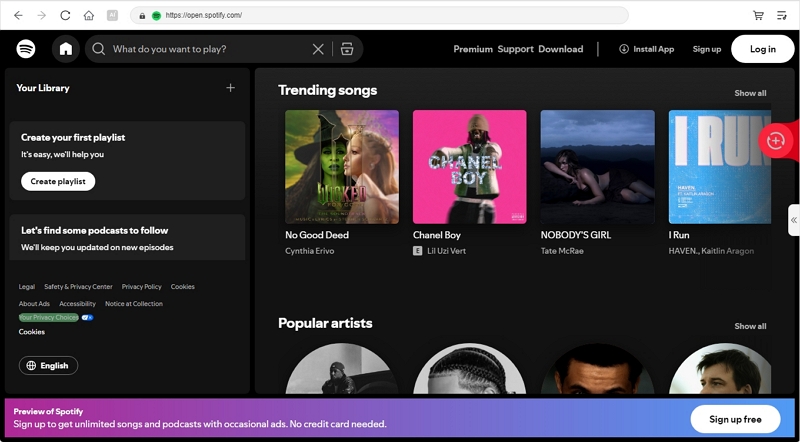
Drag the songs, albums, playlists, audiobooks, or podcasts you want for offline listening to the + button. Every selection will be prepared for download.

Once you have added the wanted tracks, they will appear in the Converting tab. Choose an output format and output quality for the selected songs, click on the Convert All button to start downloading them to your chosen format. You can click the Browse icon in the lower left corner to change the download destination.

Switch to the Finished tab after the process is completed. Click View Output File to access the folder where you set to store the downloads. You will find the music files that are ready for offline playback.
How to Listen to Downloaded Spotify Music Without Network
After saving Spotify songs as local MP3 or other formats, it's time for you to enjoy these tracks offline. Simply add them to the built-in media player on your computer. Next, we will show you how to upload local Spotify songs to Windows Media Player(WMP).
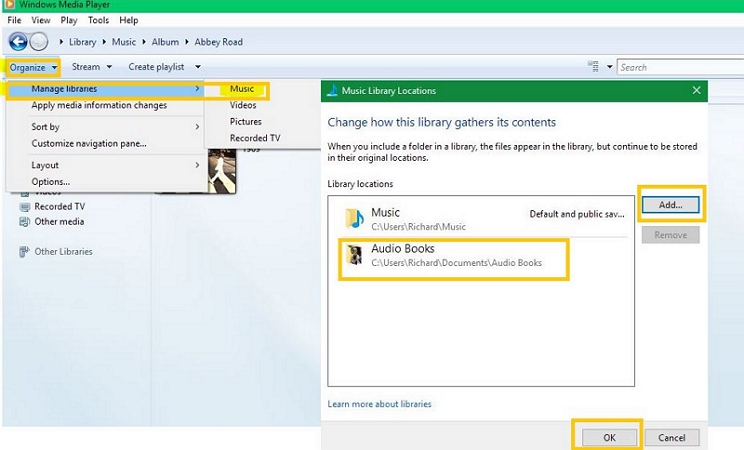
Step 1: Open WMP and click Organize in the upper-right corner.
Step 2: Choose Manage Libraries > Music.
Step 3: In the pop-up window, locate the folder that saves the songs downloaded by Mediaio. Click Add > OK to import it to the WMP library. Now, play the desired songs!
Conclusion
You’ve seen the steps. Music downloads without Wi-Fi on Spotify are simple. If you’re a premium user, the app will take care of it. And without Premium, Mediaio Audio Converter steps in. It doesn’t just help with downloading, it transforms the entire process. Your playlists become folders, your albums stay intact, and every song keeps its quality. The music is not tied to the app, nor to the internet.