

Downloading Amazon Music on Android is possible, but the results depend entirely on your Amazon Music plan.
Some downloads are real MP3 files you can keep permanently, while others are encrypted for in-app offline listening only.
This guide explains what you can download, how it works, where files are stored, and why certain limits exist, based on Amazon’s current rules in 2025.
Quick Answer: How to Download Amazon Music on Android
This is the fastest possible summary Google prefers for Featured Snippets:
Purchased MP3 → Amazon.com > Library > Download > Transfer to Android
Prime Music → Only All-Access Playlists can be downloaded (in-app only)
Amazon Music Unlimited → Open app > Song menu > Download
Storage Location → Android/data/com.amazon.mp3/files/music/
Only purchased songs are provided as standard MP3 files
What You Can & Cannot Download on Android (Prime vs Unlimited vs Purchased)
Amazon Music offers three different content types, and each behaves differently when downloaded.
- Only Purchased = Real MP3
- Prime & Unlimited = Encrypted, non-extractable
How Amazon Music Downloads Work on Android
Amazon Music uses two different download systems:
1. File delivery (Purchased MP3)
- You receive standard MP3 files
- Files can be moved, backed up, or played with any music app
2. Offline caching (Prime & Unlimited)
- Files remain encrypted
- Playback requires the Amazon Music app
- Downloads expire if account validation fails
This distinction explains why some downloads behave like regular files while others do not.
How to Download Amazon Music on Android (Per Type)
Yes. You can download Amazon Music tracks on Android as MP3 files if you purchase them through the Amazon Music app. On the other hand, if you subscribe to Amazon Music Unlimited, you can download them as encrypted files (within the app) for offline listening.
Method 1: Download Purchased Amazon MP3 to Android
Purchased songs are the only Amazon Music content that can be downloaded as true MP3 files.
Step 1:Go to Amazon.com > Music Library > Purchased
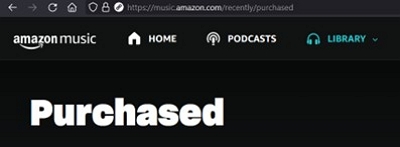
Step 2:Download MP3 files to your computer
Step 3:Transfer MP3 to Android (USB / Google Drive / OneDrive)
Step 4:Play with any player (VLC, Samsung Music, Poweramp)
These files remain usable even if you cancel your Amazon subscription.
Method 2: Download Amazon Music Unlimited Songs on Android
Amazon Music Unlimited allows offline playback inside the app only.
Step 1: Open the Amazon Music app
Step 2: Select a song/album > tap More (…)
Step 3: Tap Download
Step 4: Access via Library > Downloaded
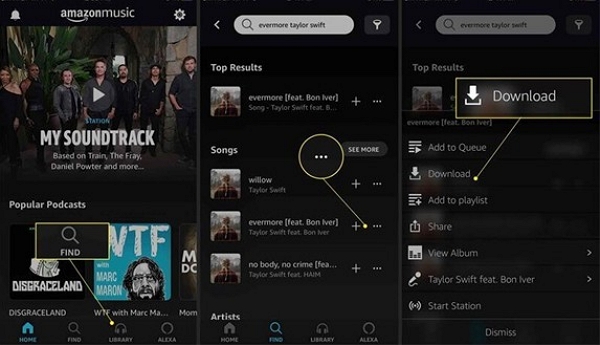
These files cannot be exported or played by other apps.
Why You Might Not Be Able to Download Amazon Music on Android
Although downloading Amazon Music tracks is a straightforward process, you may encounter issues. Let's discuss the common fixes.
1. “Download” button is greyed out
Possible reasons:
- The song is not included in your Unlimited catalog in your region.
- VPN or IP mismatch—Amazon thinks you are in another country.
- Temporary licensing restrictions from the label.
Fix: Log out → Reboot the app → Disable VPN → Log in again.
2. Song not available for offline playback
Some tracks only allow streaming, not offline download, due to:
- Artist/label restrictions
- Regional licensing limits
- Your account is recognized as Prime, not Unlimited.
Fix: Go Settings > Your Account > Subscription
3. “Download Failed” error on Android
Common causes:
- No storage permission
- Insufficient device storage
- App cache corruption
- SD card read/write issues
Fixes:
- Enable Permissions: Settings > Apps > Amazon Music > Permissions
- Clear Cache: Settings > Apps > Amazon Music > Storage > Clear Cache
- Switch from SD card → internal storage
- Restart device
4. Region restriction
If you see “Song not available in your location,” Amazon detected a mismatch.
Fixes:
- Disable VPN
- Match account region + payment + IP
- Update your 1-Click region settings if you moved countries
How to Install Amazon Music App on Android (Play Store / Appstore / APK)
Option 1: Google Play Store (Recommended)
Step 1: Search “Amazon Music: Music & Podcasts”
Step 2: Verify publisher: Amazon Mobile LLC
Step 3: Tap Install
Step 4: Sign in
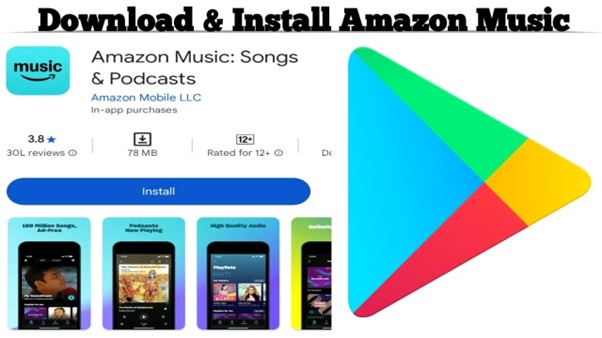
Requirements: Android 5.0+, 150MB free storage
Option 2: Amazon Appstore
Useful for Huawei, custom ROMs, Kindle Fire, etc.
Steps:
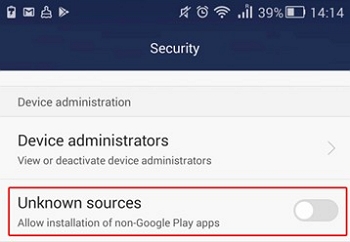
- Enable “Unknown Sources”
- Install Amazon Appstore APK
- Open Appstore → Search “Amazon Music” → Install
Option 3: APK Installation
Only when Play Store & Appstore are unavailable.
Safety tips:
Step 1: Download only from Amazon’s official site
Step 2: Ensure the publisher is Amazon Mobile LLC
Step 3: Avoid APKs requesting camera/contacts access
4. Fire Tablets (Best Experience)
- Install from Amazon Appstore.
- Fire OS 7 & 8 support the latest Amazon Music builds.
Where Amazon Music Downloads Are Stored on Android
1. Default Download Location Path
Downloaded songs for offline playback in the Amazon Music app are stored in the internal storage of your Android device. Here’s the path. /Android/data/com.amazon.mp3/files/Music
These files are not standard MP3 files. They are stored in a proprietary, encrypted format for use within the Amazon Music app.
2. Why you can’t extract the files
- They are encrypted
- Decryption keys are tied to your Amazon account + app instance
- Only the Amazon Music app can play them
3. What is extractable?
Only Purchased MP3 files.
Using an SD Card for Amazon Music Downloads
Does Amazon Music support SD card storage in 2025?
Yes — but only for encrypted offline downloads.
Enable SD card storage
Amazon Music app → Settings > Storage > SD Card
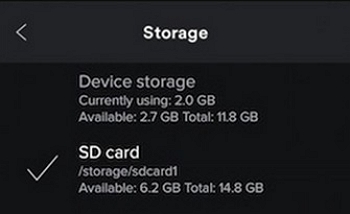
If SD card option doesn’t appear
Try:
- Clear cache → restart app
- Format SD card as Portable Storage
- Ensure your device allows 3rd-party write access
Purchased MP3 files
You can manually move them to SD card anytime.
About Converting Amazon Music to MP3
Amazon Music Prime and Unlimited downloads are designed for in-app playback only.
Some users explore third-party desktop solutions that convert streaming audio into common formats for personal offline playback on unsupported devices. These tools are not provided or endorsed by Amazon, and results vary depending on source quality and format settings.
Common characteristics of third-party conversion tools
- They operate outside the Amazon Music app environment
- Converted files are saved as standard audio formats
- Output quality depends on the source stream and selected format
- They are typically used for personal offline playback only
Things to consider before using third-party tools
- Amazon Music subscriptions are licensed for in-app playback
- Converted files may not retain original streaming quality
- Usage should comply with local copyright regulations
Some desktop audio converters support Amazon Music as an input source and provide format options such as MP3, M4A, or FLAC. Users should evaluate these tools carefully and understand their limitations before deciding whether they meet their specific needs.
For example, some desktop audio converters support Amazon Music as an input source. Mediaio Audio Converter is one such tool that offers multiple output formats and local file storage options. Users should review its features and terms before use.
Step-by-step process
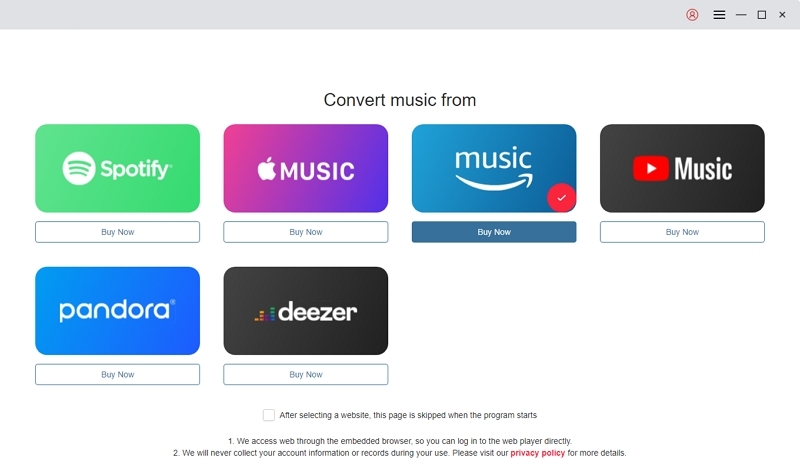
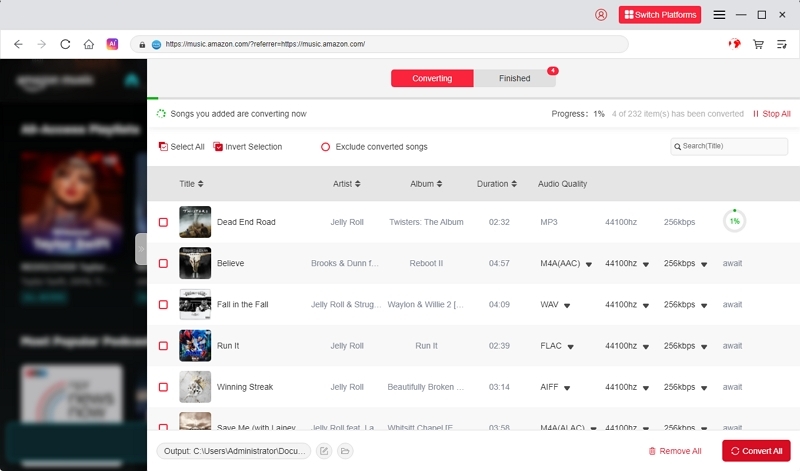
Open the Mediaio software and choose Amazon Music from the platform list. Then sign in to your Amazon account to continue.
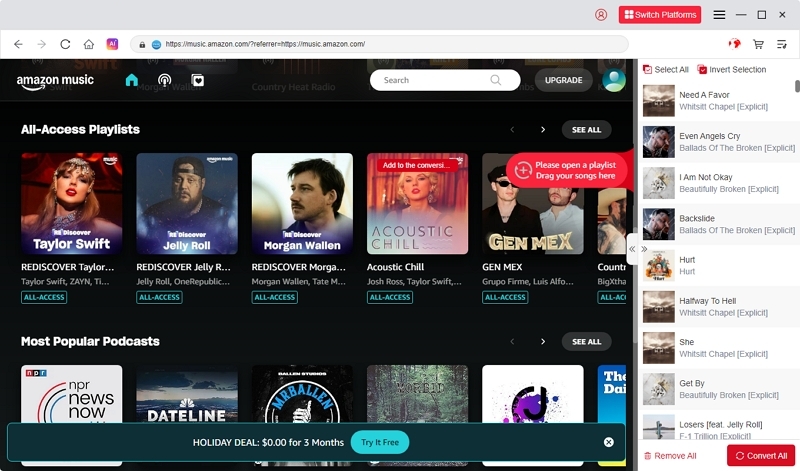
Browse your playlists, albums, or songs. Drag your desired tracks to the “+” icon to import them into Mediaio.
Select your preferred output format such as MP3 or M4A. Then click “Browse” to choose your file-saving location.
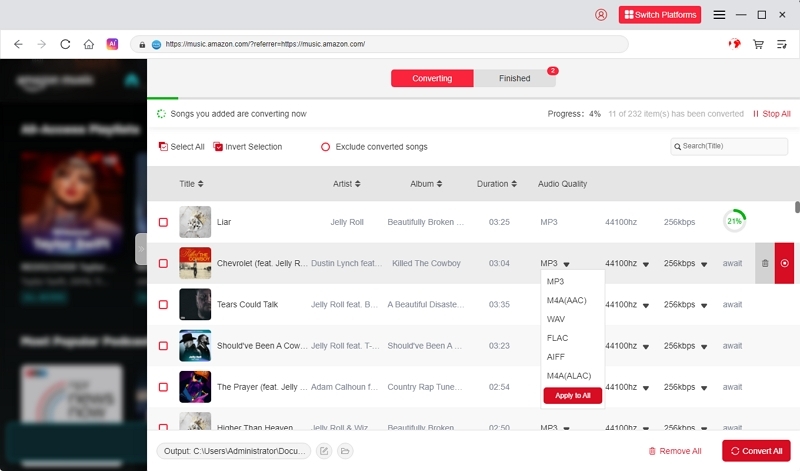
Click the “Convert All” button to start downloading your selected songs. Mediaio will save them to your chosen location.
FAQs
Conclusion
You can download Amazon Music on Android — but what you get depends on your plan:
- Purchased = true MP3 you can keep forever
- Prime/Unlimited = encrypted offline files inside app only
- Downloads stored at Android/data/com.amazon.mp3/files/music/
- SD card supported on most devices
- Third-party solutions exist for users who require broader playback compatibility, but they are not part of Amazon’s official download options.
Whether you want MP3 files, in-app offline listening, or cross-device playback, this guide covers every method available in 2025.