

When you want to save songs from Spotify for offline listening, Chrome extensions are usually the last option people think of. There are easier and more reliable ways today, like online converters and desktop tools, which we’ll also cover in this guide. They work better in most cases and need far less effort.
Still, if you want to use Spotify downloader Chrome extensions, you’re in the right place. In this guide, we’ll look at five such extensions that are still working today—sometimes with limitations, sometimes with workarounds, but they can still help you get Spotify songs or playlists onto your computer for personal use.
Looking for a stable way to convert Spotify tracks into 320kbps MP3? Use Mediaio Audio Converter, which supports an inbuilt YouTube Music browser and preserves full ID3 tags for better music organization.
5 Best Spotify Downloader Chrome Extensions [Free and Working]
These Chrome extensions can help you get Spotify songs onto your computer. Read through them and choose what fits your use case.
1. Spotiload (Spotify VK Downloader)
Spotiload, originally released as Spotify VK Downloader, is no longer available on the Chrome Web Store. Still, it remains one of the most talked-about Chrome extensions for downloading Spotify music as MP3 and for a few clear reasons.
First, it allowed playlist-level downloads. Second, it preserved basic metadata, such as track name and artist, even though album art was usually missing. And third, it was simple to use: play a song or playlist on Spotify, click the extension, and download the matched track.
That said, Spotiload has an important limitation. It does not pull audio from Spotify itself. Instead, it searches for matching MP3 files on VK.com, a Russian social network where users commonly upload music. As a result, only tracks that exist on VK are downloadable and many songs simply won’t match.
Today, Spotiload can only be installed through Developer Mode as an unpacked extension on old Chrome versions. This makes the setup more technical and introduces some risk, which is why it’s no longer suitable for everyone.
Spotiload — Overview Table
Steps to Download Spotify Music with Spotiload
Before anything else, keep this in mind:
Spotiload was built using Manifest V2. So it only works on older Chrome builds (Chrome 108 and below).

Step 1. Install an older Chrome/Chromium build that is version 108 or lower. Do not update it after installation.
Step 2. Run the older Chrome version, go to the Spotiload archive page (usually listed on ChromeStats or similar archive sites). Click Download ZIP option and extract the ZIP file into a folder.
Step 3. Install Spotiload on Chrome.
- Type chrome://extensions in the address bar.
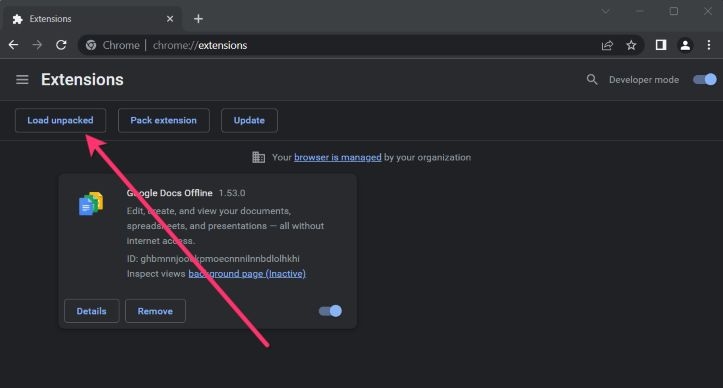
- Turn on Developer mode (top-right corner).
- Click Load unpacked.
- When prompted, select the entire extracted Spotiload folder.
Spotiload will now appear in your Chrome extension list.
Step 4. Open Spotify Web Player in the same Chrome browser.
Play any song, album, or playlist. Once tracks are detected, Spotiload’s interface becomes active. You’ll see an option that looks like:“Find & Download selected tracks on vk.com”. This confirms that Spotiload has read the track list.
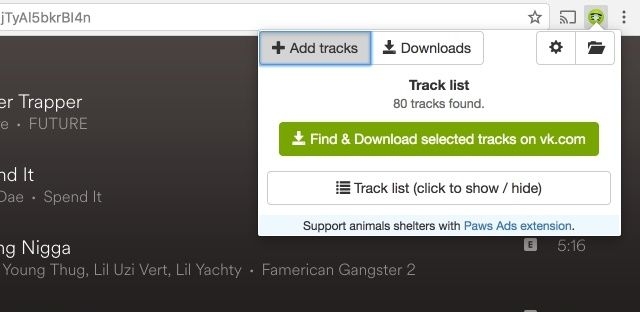
Step 5. Click Find & Download selected tracks on vk.com.
Spotiload now:
- searches VK.com for matching audio
- tries to find the closest available version
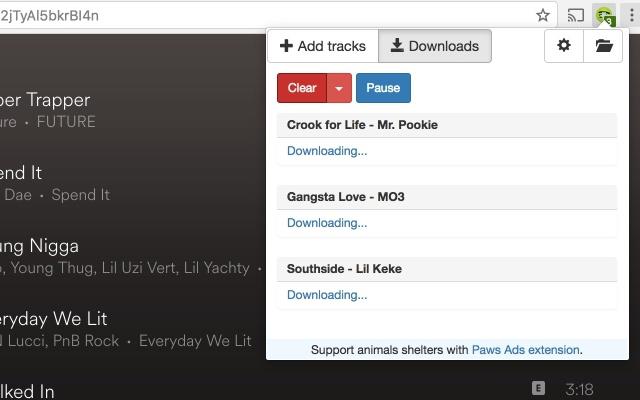
- downloads the files automatically
The downloaded MP3 files are saved to your selected download folder on the computer.
2. Audio Downloader Prime
Audio Downloader Prime works very differently from tools like Spotiload and that distinction matters.
It is not a Spotify-specific downloader. Plus, it does not fetch music from open databases. Instead, it functions as a browser-level audio sniffer and recorder. It is designed to capture any audio stream that plays inside a Chrome tab. That means it can record Spotify playback. So what you get is a captured stream but not an original source file.
The upside is availability and stability. Audio Downloader Prime is officially listed on the Chrome Web Store, which makes it easier to install and generally safer than unpacked extensions. The downside is that recordings lack proper metadata and are not suitable for building a clean music library.
Audio Downloader Prime — Overview Table
How to Use Audio Downloader Prime
Step 1. Add Audio Downloader Prime to Chrome.

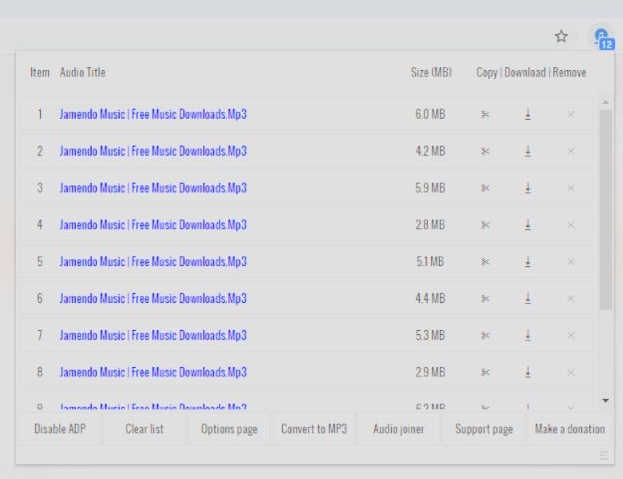
Step 2. Play any track on Spotify. Audio Downloader Prime extension icon will show a number badge.
Step 3. Click the Audio Downloader Prime icon to open its download panel. You’ll see a list of detected audio files, usually displayed with generic titles and file sizes.
Step 4. Locate the audio entry that corresponds to the song currently playing. This may require checking the file size or timing, since track names are not clearly identified.
Step 5. Click the Download icon next to the selected audio file. The file is saved directly to your computer.
3. Chrome Audio Capture
Chrome Audio Capture sits far away from the idea of being a Spotify downloader.
It does not fetch tracks from Spotify or match songs from open databases in any way. Instead, it does one thing: record whatever audio is playing inside a Chrome tab, in real time. That simplicity is also the reason it still works when many Spotify-specific extensions stop functioning.
As it records live playback, timing matters. You must manually start recording at the beginning of a song and stop it at the end. That makes it less convenient than true downloaders.
Chrome Audio Capture — Overview Table
Steps to Use Chrome Audio Capture
Step 1. Head to the Chrome Web Store and add Chrome Audio Capture. Make sure to pin the extension icon.
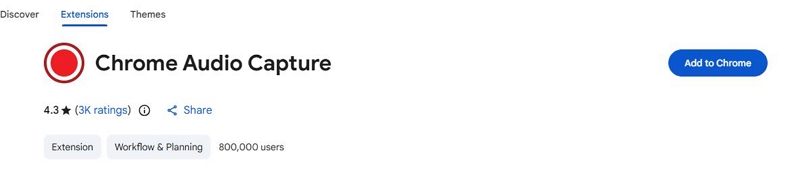
Step 2. Click the red dot icon and choose Start Capture. Or you can use the shortcut Ctrl + Shift + S. Recording begins immediately.
Step 3. Open Spotify Web Player in Chrome. Play a song.
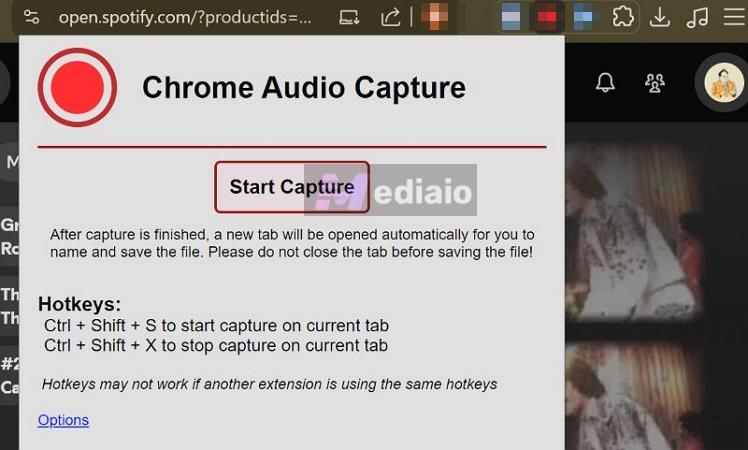
Step 4. Allow the track to play all the way through. Stopping early cuts the file.
Step 5. Click Save Capture.
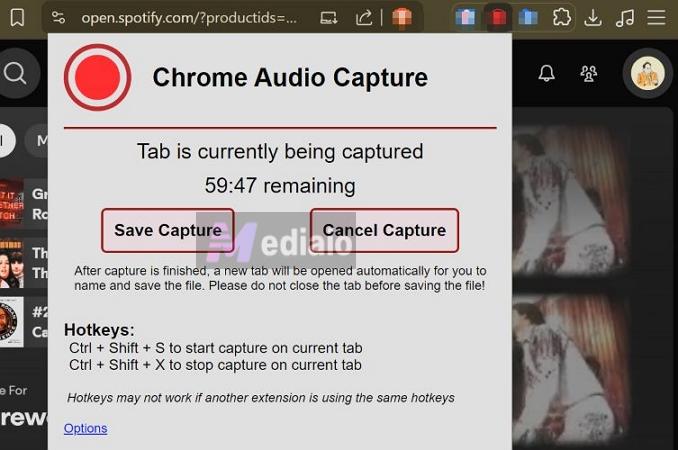
Step 6. Then choose Download File as Custom Name or Download File as Date.
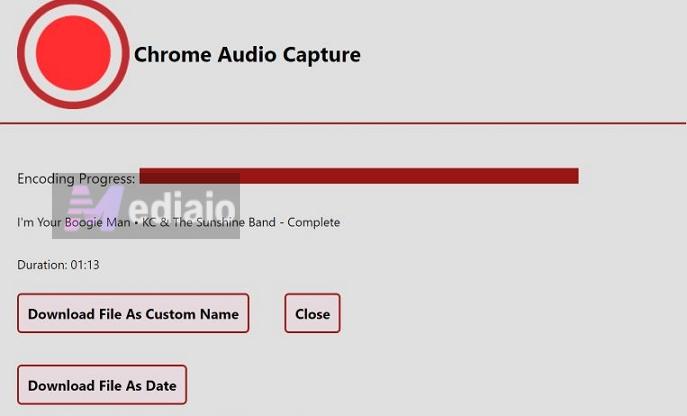
Step 7. When the file picker appears, confirm the save location. The filename will often be messy, but that’s the trade-off for a tool that still works reliably inside Chrome.

4. Audio & Voice Recorder
Audio & Voice Recorder is, once again, a simple real-time audio capture extension, very similar in concept to Chrome audio capture. It does not download Spotify music. It only records whatever audio is playing inside a Chrome tab, moment by moment. Because of Chrome’s internal restrictions, recordings are still limited to around one hour, just like Chrome Audio Capture.
The main difference is that the output quality is slightly better than basic Chrome Audio Capture. You also get extra options, like recording system audio only, microphone only, or both together.
The free version is also very limited. You only get five recordings before hitting the paywall. After that, a £29.90 license is required.
Audio & Voice Recorder—Overview
Steps to Record Spotify Music with Audio & Voice Recorder
Step 1. Add Audio & Voice Recorder from the Chrome Web Store.
Step 2. Playing the Spotify song you want to capture.
Step 3. Click the extension icon and press Start Recording as soon as the song begins.
Step 4. When the song ends, click the extension again and press Stop to finish the recording.
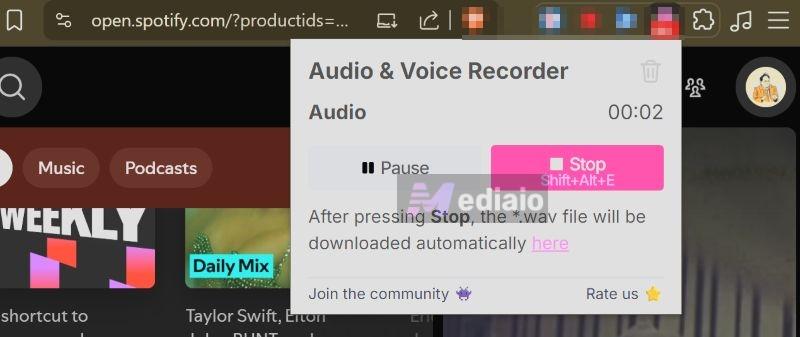
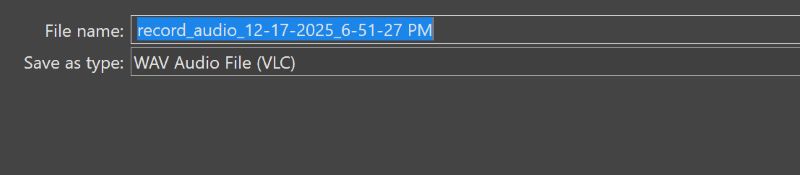
Step 5. The file saves automatically to your computer with a generic name, which you’ll need to rename manually.
5. Spotify & Deezer Music Downloader
Spotify & Deezer Music Downloader is another extension that no longer exists on the Chrome Web Store. It was officially removed in early 2021, even though, at its peak, it reportedly crossed 200,000+ active users.
Functionally, it worked in a way similar to Spotiload, but with fewer reliable results. While Spotiload relied mainly on VK audio, this extension kept changing its audio sources, pulling matches from different platforms depending on availability.
Spotify & Deezer Music Downloader — Overview Table
Steps to Use Spotify & Deezer Music Downloader
Step 1. Download the extension files from its archived listing on ChromeStats.
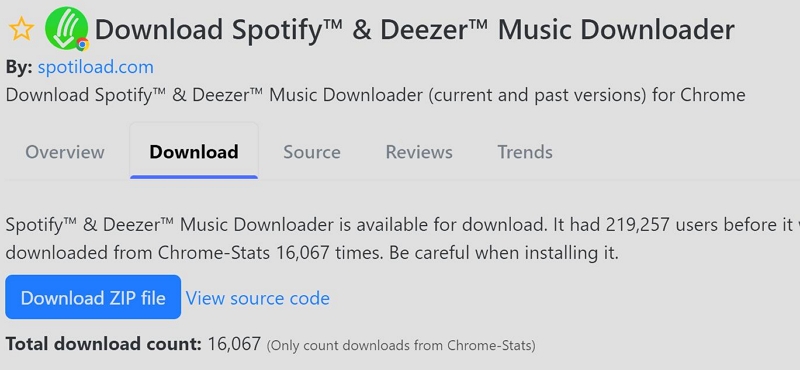
Step 2. Click Load unpacked and add the extension manually to Chrome.
Step 3. Open Spotify.
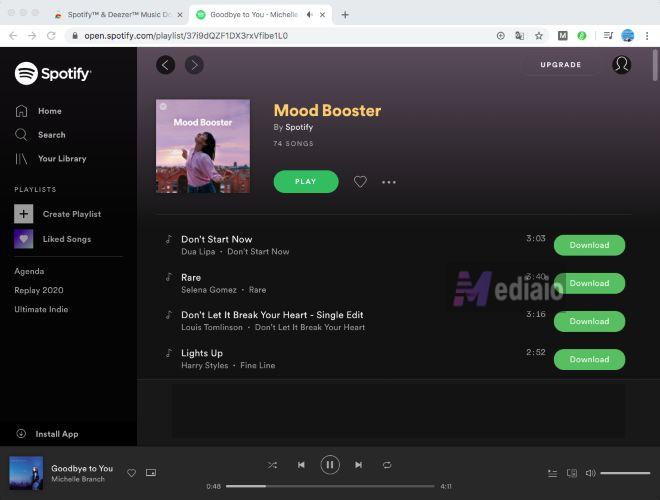
Step 4. Click the Download button next to individual songs. Choose where the MP3 file should be saved.
4 Alternatives to Spotify Downloader Extensions for Chrome
Most Spotify downloader extensions for Chrome have reached a practical dead end.
Because of these limitations, online Spotify converters have become a more common alternative. These tools work by processing Spotify links directly. You paste a track, album, or playlist URL, and the site attempts to fetch matching audio automatically.
A few even offer ZIP downloads to save playlists or albums in one go, although that convenience is usually restricted to paid plans.
Top 4 Online Spotify Music Downloader Sites for Chrome
Now that you know what online Spotify downloaders are, here are four popular options and what they actually offer in practice. The table below shows what each site supports, what kind of audio you really get, what happens to tags and cover art.
How They Work
They still do not download from Spotify itself. They read the Spotify link, then match the same songs from open libraries like YouTube or other publicly available sources, which is why the output often sounds close but not always identical.
To show you how this works in a real workflow, here is an example using SpotDown.
Step 1. Open Spotify and copy the link of the track, album, or playlist you want.
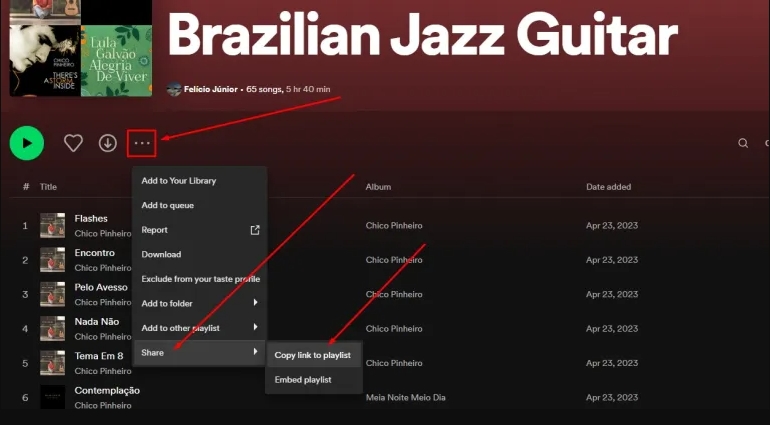
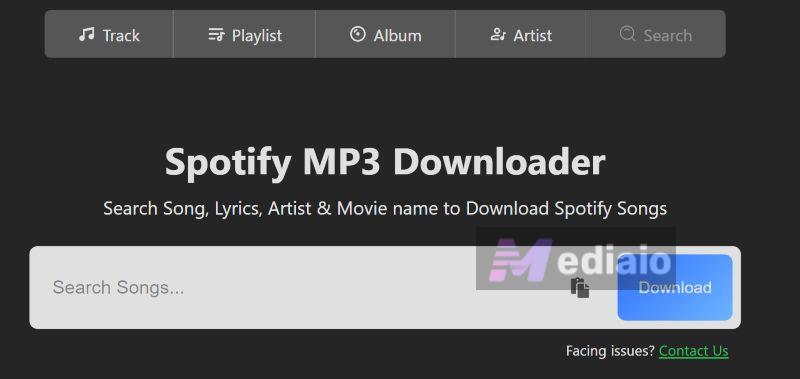
Step 2. Head to the Spotdown website and drop the copied link into the input box. Match the link with the correct tab—Playlist, Tracks, Albums, or Artists, before proceeding.
Step 3. Press Download and let Spotdown scan the link in the background. Within seconds, the complete track list loads on the screen.
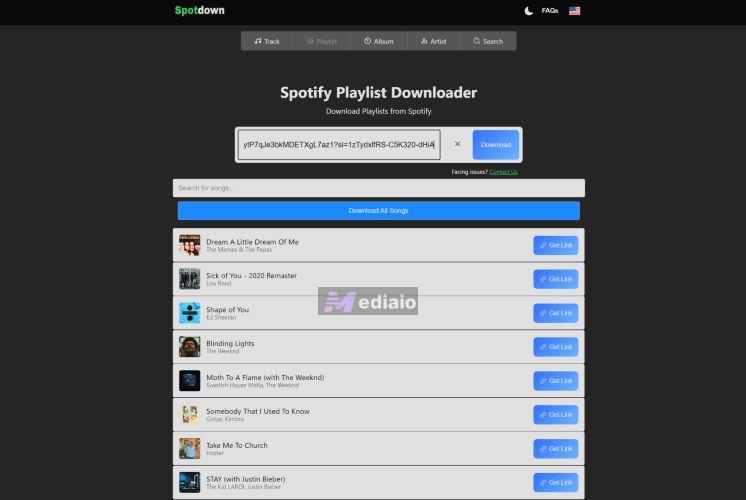
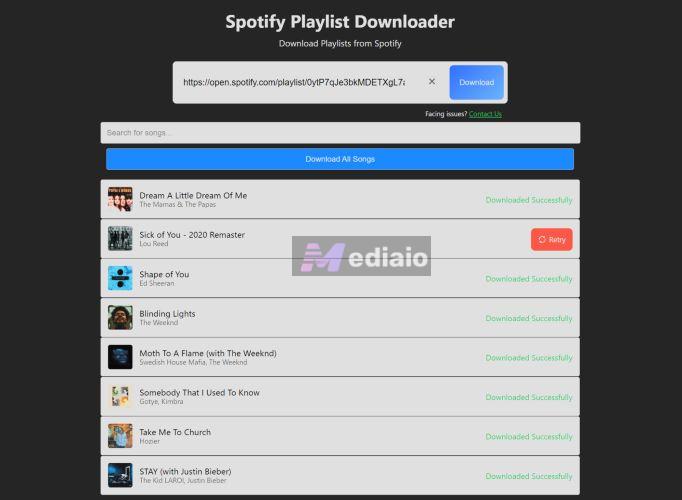
Step 4. Choose Download All Songs to grab everything together. Or use Get Link next to each title. Both paths lead to the same result.
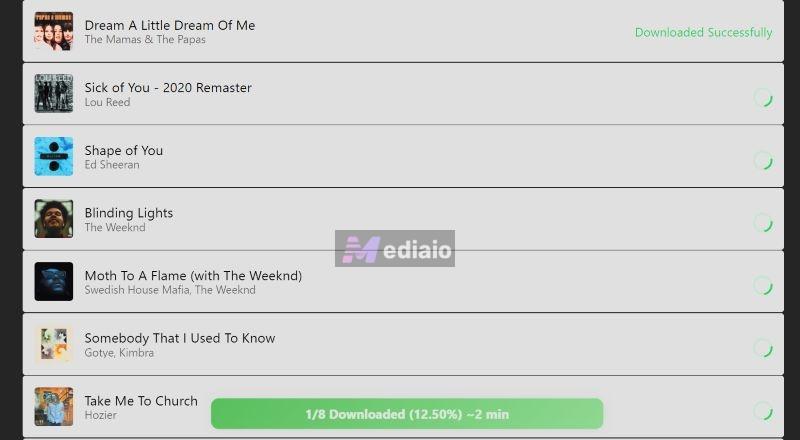
Step 5. Downloads roll in one by one and save straight to your device. A few tracks may fail occasionally, which is typical behavior for this tool.
Online Spotify downloaders already work by matching tracks from YouTube. So you can also use a dedicated YouTube-to-MP3 converter directly. These tools usually deliver high-output quality and don’t add watermarks.
Top Desktop Alternatives to Spotify Downloader Chrome Extensions
If downloading Spotify songs in real high-quality audio matters to you, desktop converters are where the conversation shifts. They remove the instability of Chrome extensions and the guesswork of online tools.
More importantly, they offer a controlled environment where quality, speed, and file structure stay consistent. Tools like Mediaio Audio Converter exist precisely for this reason.
Here’s what you need to know.
Why Is a Spotify Desktop Downloader Recommended?
- Desktop converters are safer by design because they don’t ask for permission to read every browser tab or rely on sideloaded extensions.
- Output quality remains consistent. You can save music as MP3, FLAC, WAV, or M4A. Plus, you can decide whether you want 128kbps, 256kbps, or full 320kbps.
- Files stay clean and organized. Track titles, artist names, album names, and cover art are saved correctly, without watermarks injected into ID3 tags.
- Desktop converters support batch downloads, process entire playlists or albums in one run and preserve the original order so nothing needs to be fixed afterward.
- These tools remain stable over time. They are unaffected by Chrome permission changes, site redesigns, or removed browser APIs, so you don’t have to chase older versions or temporary workarounds.
- The best desktop converters, including Mediaio Audio Converter, integrate a Spotify-style web player directly into the software. You browse, select, and download in one place, without copying links or enabling special modes.
Top Spotify Desktop Downloader - Mediaio Audio Converter
You don’t really need to juggle multiple desktop downloaders. You can pick a consistent one like Mediaio Audio Converter.
The biggest thing to note about Mediaio is its built-in Spotify web player. Instead of pasting links or relying on external matching, you sign in to your own Spotify account directly inside the software. From there, you browse your library normally and convert songs in high quality without interruptions or guesswork.
Mediaio also gives you full control over output. You can choose formats, along with selectable bitrates depending on what you need. More importantly, every file saved to your computer keeps the original details intact, which helps you identify songs easily when you transfer them to your personal devices like a flip phone.
Speed is another area where Mediaio clearly separates itself. With support for up to 30X conversion speed, even large playlists finish quickly.

FAQ: Can You Use Spotify Downloader Chrome Extensions on Android?
No, you can’t. Chrome on Android does not support desktop extensions.
What Android does offer instead is a different route. There are dedicated APK-based apps that try to replicate the same idea behind Chrome extensions and online converters.
Below are a few commonly discussed Android options and what they actually do. You cannot download them via Play Store directly, but you can get the APK versions and install them like a third-party app, so safety is not guaranteed.
SpotiFlyer
SpotiFlyer is easily the most talked-about Android tool in this space. It works almost exactly like an online converter, just wrapped inside an app. You paste links from Spotify and several other platforms and the app attempts to fetch matching audio.
Although it supports songs, albums, and playlists, the behavior is inconsistent. Spotiflyer does not download directly from Spotify. Instead it searches open libraries. That’s why some tracks download correctly while others fail or get skipped entirely.
One upside is that files usually do not carry watermarks. Cover art, however, is hit-or-miss. Some songs include artwork, others don’t, depending on the source that was matched.
Spowlo
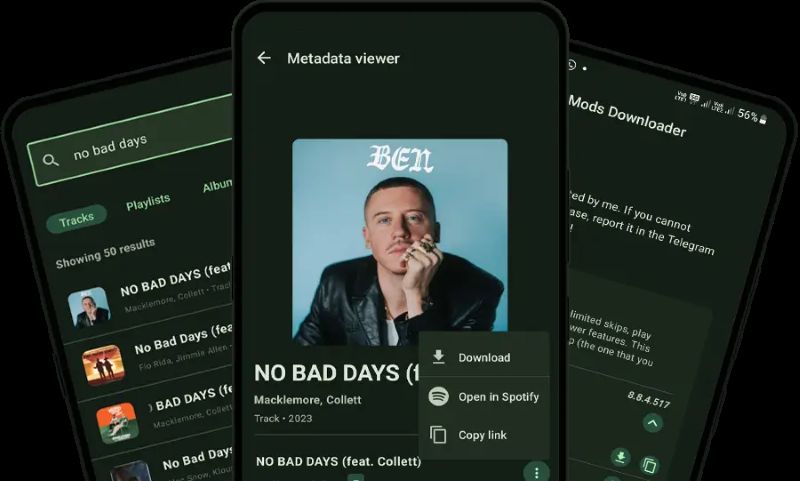
Spowlo follows a similar approach but gives you more control over formats. Once again, it matches tracks externally and save them into OPUS, MP3, FLAC, OGG, or M4A.
Where Spowlo performs better is file structure. Song details and cover art are usually preserved, and metadata remains readable, which makes the downloaded library feel more complete compared to many mobile tools.
Fildo
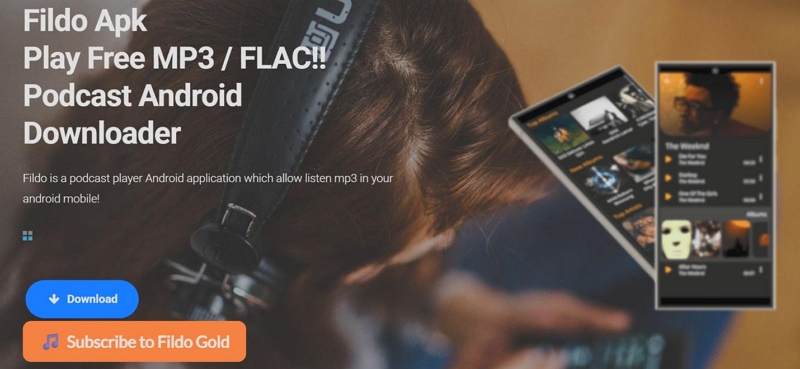
Fildo works slightly differently. You can log in to your Spotify account and then choose what to download, though the audio itself still comes from external sources but not Spotify.
You can download music in MP3 or FLAC format. The free version works with ads and supports playlist downloads. There is also a paid version, around ten dollars, which removes limitations.
Metadata generally stays intact, but album artwork is often missing. Songs are downloaded cleanly, but the files may feel unfinished if cover art matters to you.
How to Use Spotify Downloader APK
Most Android Spotify downloader apps follow the same base idea. SpotiFlyer and Spowlo rely on pasted links and behave very much like online converters. Fildo works a little differently, which makes it worth showing in detail.
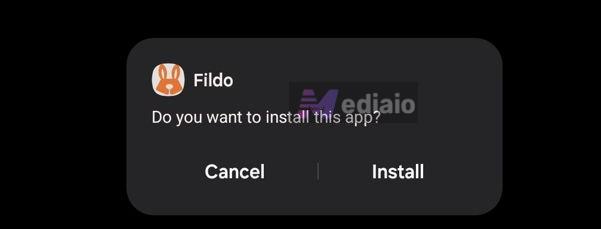
Step 1. Install Fildo from its official site and approve the one-time Android prompt that allows Chrome (or your browser) to install the app.
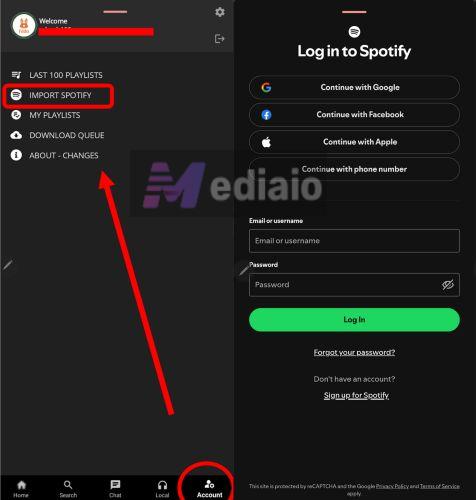
Step 2. Launch Fildo and move straight to the Account tab in the bottom bar. From the left panel, tap Import Spotify.
Step 3. Spotify’s login screen opens inside Fildo. Sign in using your usual method and return to the app once the import completes.
Step 4. Select any playlist. Then use the three-dot menu in the top-right corner and select Download all.
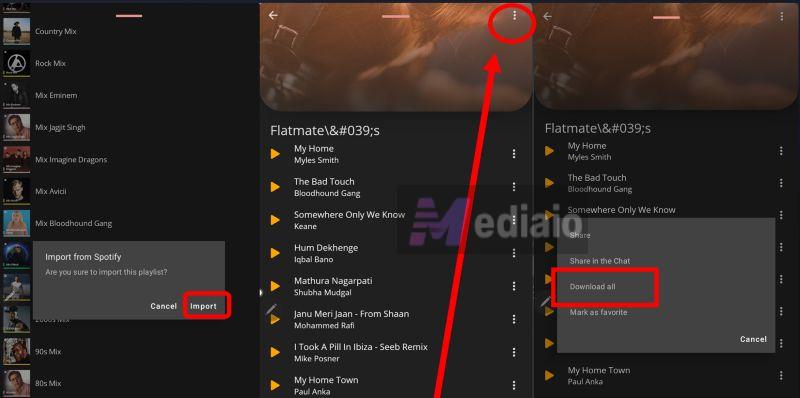
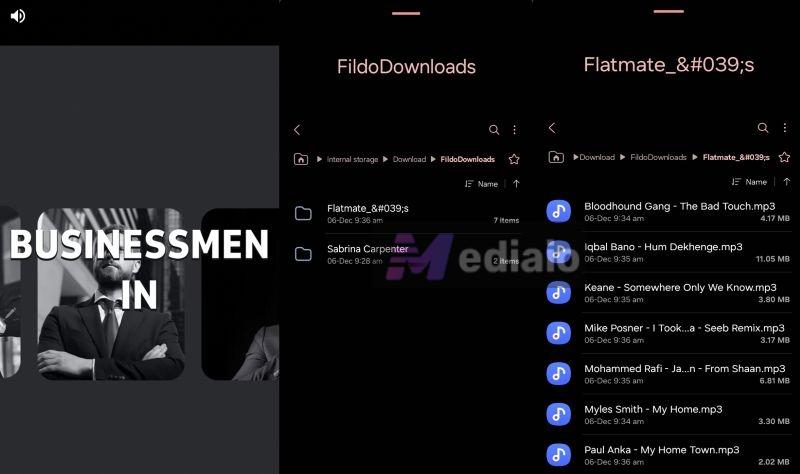
Step 5. Fildo queues each track and starts fetching audio. Short ads will interrupt the process on the free version. Finished files are saved locally inside the FildoDownloads folder.
Conclusion
That’s the reality of Spotify downloader Chrome extensions today. Either you install run outdated extensions, or you rely on audio capture tools that force you to manually start and stop recordings. In most cases, online Spotify converters make more sense than Chrome extensions.
And desktop converters are where things actually work the way they should. Tools like Mediaio Audio Converter are built for batch downloads. You can easily sign in to your favorite music app without premium and save it in MP3, M4A, FLAC, or WAV with full metadata intact.