

If you want to delete your own Spotify playlists or remove playlists created by others from your Spotify library, don’t miss this post.
Your Spotify library may include many playlists accumulated over time, whether they are your own or public ones. When browsing through these playlists, you might notice that some haven’t been listened to for a while because the songs are outdated or for other reasons. If you want to delete Spotify playlists to tidy up your library, you can follow this guide to get the job done easily.
How to Delete Your Own Playlists on Spotify
To delete the Spotify playlist created by yourself, simply follow the steps below based on your device type, mobile or desktop.
Steps on iPhone/iPad/Android
The method to delete a Spotify playlist is the same whether you're using an iPhone, iPad, or Android device.
Step 1. Open the Spotify app. Tap Your Library at the bottom right of the screen to see all your playlists.
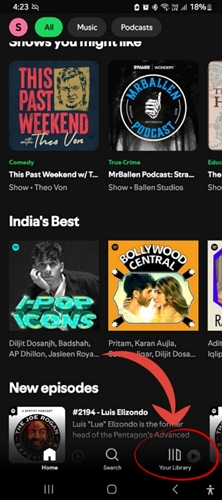
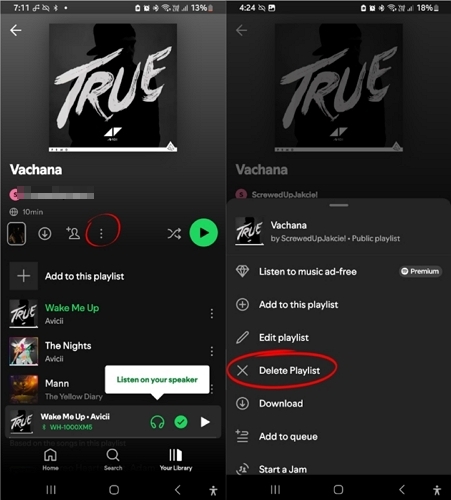
Step 2. Find the playlist that you want to delete. Open it, tap the three dots below the title.
Step 3. This will bring up a menu of options, select Delete Playlist.
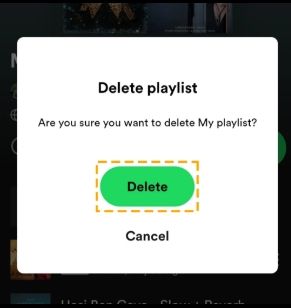
Step 4. Confirm the deletion via the pop-out.
Steps on Windows/Mac
The steps to delete a Spotify playlist on a computer are the same as on a smartphone. Plus, these steps apply both for the Spotify desktop and web players, Windows or Mac:
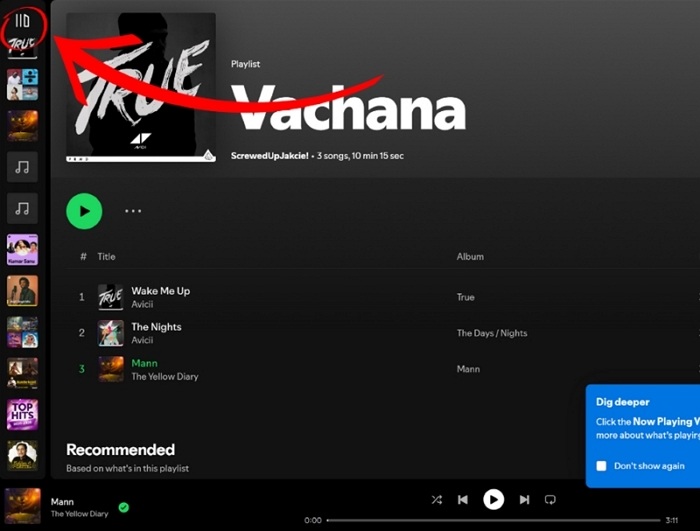
Step 1. Run Spotify on your computer and choose Your Library on the left sidebar.
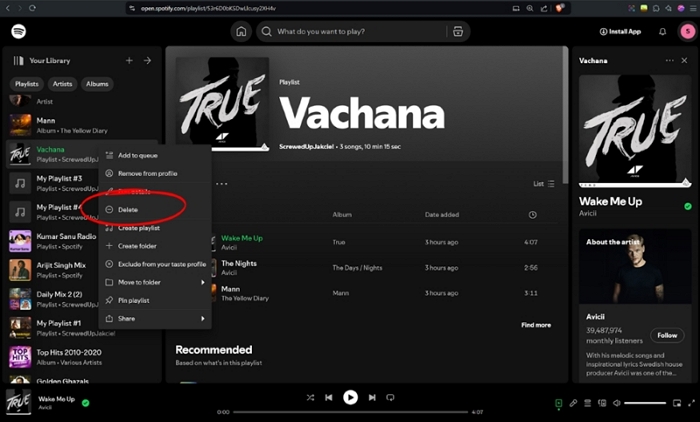
Step 2. Right click on the playlist that you want to delete. From the list of menu options, select Delete.
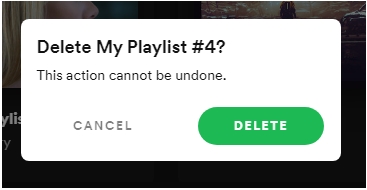
Step 3. Click Delete again to confirm your operation.
How to Delete Public Playlists in Spotify Library
If you don't like a public playlist created by someone else any more, you can delete it from your library. Here’s how to remove playlists from Spotify library on both phone and computer.
We can't remove our own playlist from the Spotify library but can delete them instead.
For Spotify Mobile
- Tap Your Library on the homepage of Spotify mobile app.
- Open the playlist that you want to delete.
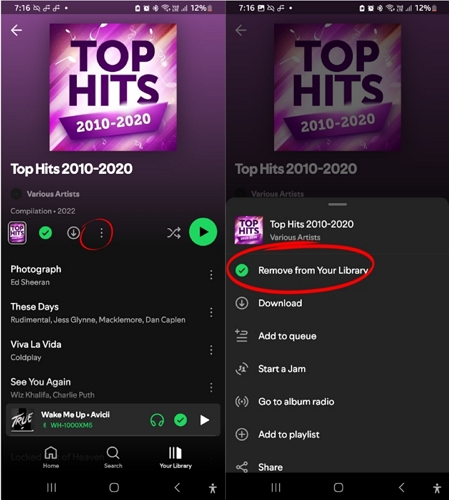
- Tap the three dots icon and select Remove from Your Library.
For Spotify Desktop
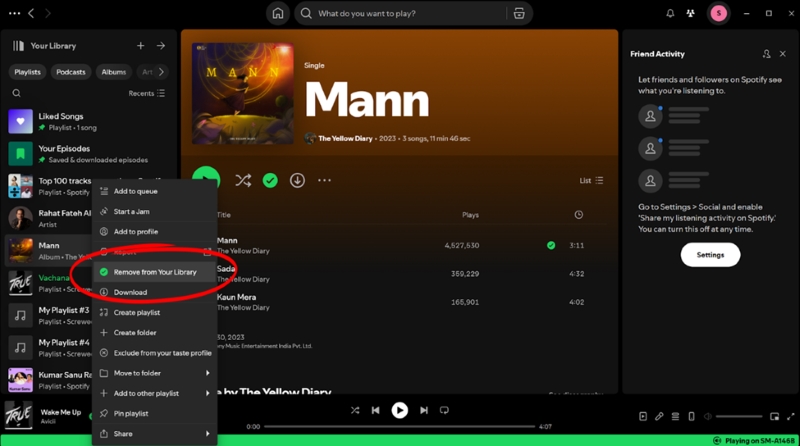
- Access Your Library on the left side of the Spotify desktop app or web player.
- Right-click on the unwanted playlist and click Remove from Your Library.
Fixed: Can't Delete Spotify Playlists on iPhone/Android
If repeated attempts to delete a playlist on Spotify by right-clicking on it and selecting the "Delete" option do not result in any action, here are two fixes you can try:
Fix 1. Delete Playlists from Web Player
Sync issues, app bugs, and temporary glitches can sometimes prevent Spotify applications from working. So, you can try deleting the playlist from the Spotify web player.
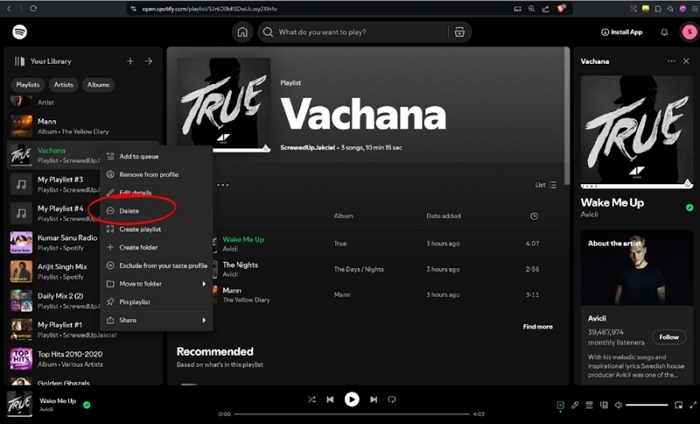
- Open Spotify in your web browser and log in to your account.
- From the left pane, right-click on the desired playlist.
- Select Delete to delete the unwanted playlist.
Fix 2. Use Delete Button on the Keyboard
In case the on-screen Delete button doesn’t work on Spotify web player, you can try the physical delete key on the keyboard:
- Run Spotify via desktop or web player.
- Choose the unwanted playlist.
- Press the Delete key on your keyboard.
How to Back up Your Spotify Playlists Before Deletion
Backing up your Spotify playlists gives you the opportunity to recover them if you accidentally delete a playlist or later regret removing it. To create a music backup, MedVioo Audio Converter is a recommended tool. It can convert and export Spotify music as local files, which are permanently accessible and can be saved to a secure location. This backup is also useful if you lose your downloads due to app uninstallation or an expired subscription. With MedVioo, you can not only get your Spotify playlists in an open format but also keep their ID3 tags intact for easy identification. Additionally, the song order in the playlists remains unchanged.
How to Use MedVioo to Back up Your Spotify Playlists Locally
Download and install MedVioo on your Windows PC or Mac. Run the software and click Spotify from the main screen.

Click Log in in the upper right corner and enter your Spotify account credentials.
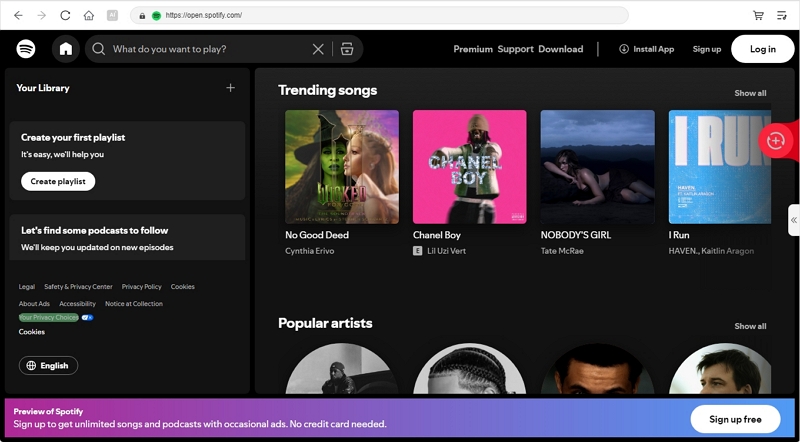
Locate the desired playlists. Click on the playlist’s banner and then drag and drop the playlist to the “+” red button at the right side of the interface. Or add the playlists to convert by clicking the Add to the conversion list button.

In the right side, open the conversion window that lists all the songs in the selected playlist. Choose MP3 as the output format and click Convert All to start converting your Spotify playlist to MP3. You can also set a desired audio quality and output destination for the exported songs.

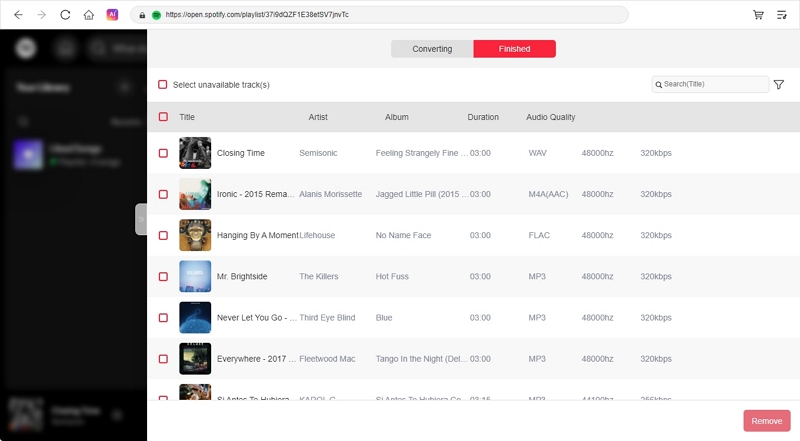
Once converted to MP3, you can find your songs under the Finished tab. Simply, click View Output File to locate them or listen to downloaded playlists via a third-party or even share them to other devices.
Bonus: How to Permanently Delete Your Spotify Playlists
When you delete a playlist on Spotify, it’s not truly deleted — it remains accessible for the next 90 days. It’s only removed from your Spotify library. Other Spotify users who follow the playlist can still access and listen to it, even after you’ve deleted the playlist from your own library. You may also receive notifications if a new user follows the playlist during the 90-day period. To completely remove access for all users immediately, you’ll need to permanently delete the playlist from Spotify. Here’s how:
Ensure to follow these steps using the Spotify desktop app, as some options are not available in the web player or mobile app.
Step 1. Delete All Songs from the Spotify Playlist
- Open the playlist in the Spotify desktop app or web player.
- Click the first song, then hold Shift and click the last song to select all tracks.
- Right-click the selection and choose Remove from this playlist.
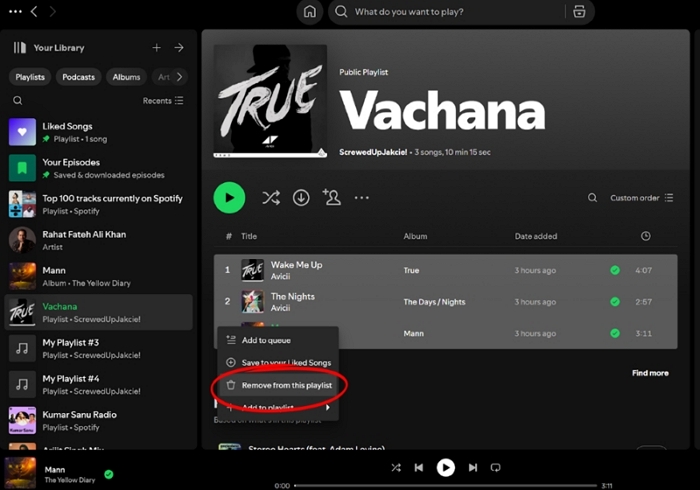
Deleting all songs will empty the playlist but the option doesn’t directly delete the playlist itself. So, after making a playlist empty, follow these additional steps to permanently delete it from your library and revoke everyone’s access:
Step 2. Make Your Playlist Private
- In the empty playlist, click on the three dots (...).
- Choose Make private from the shown menu.
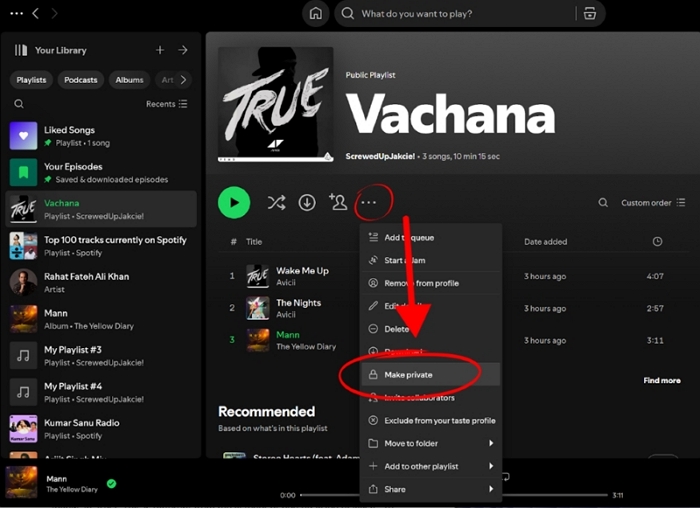
Step 3. Delete the Spotify Playlist for Good
After emptying and making the playlist private, simply follow the steps mentioned in Part 1 to delete the playlist forever.
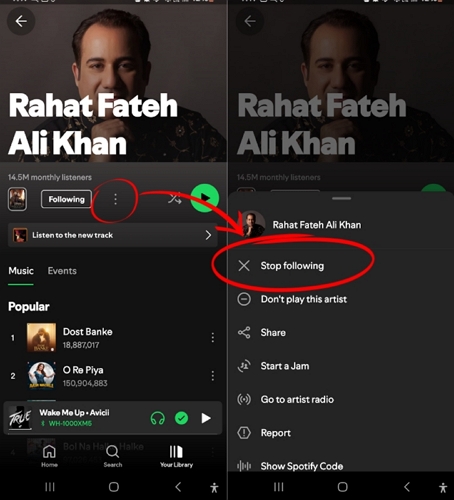
- Launch the mobile app and head to Your Library.
- Access the desired artist playlist, tap on the three dots, and choose Stop following.
FAQs
No, we can’t remove the Spotify listening history—Recently Played currently. The Recently Played playlist includes songs you’ve listened to within the past 90 days. We need to wait until unwanted songs are automatically removed from Recently Played.
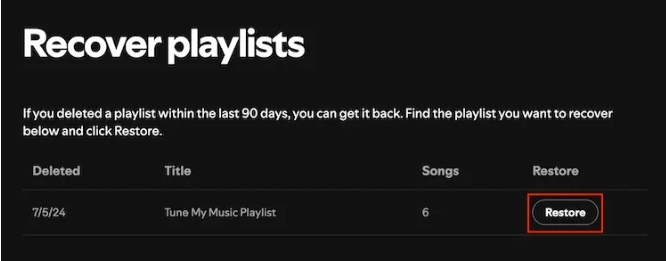
Fortunately, we can restore our deleted Spotify playlists within 90 days. This restoration feature is currently only available on the Spotify account web page. Here is how to use it.
Step 1: Access and login Spotify with your browser.
Step 2: Click your profile avatar in the upper-right corner and choose Account.
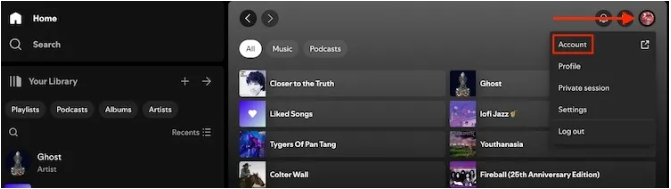
Step 3: Click Recover Playlists under Account section.
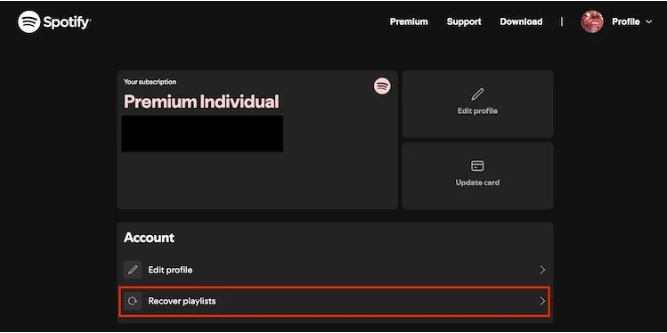
Step 4: Find the playlist you want to restore and hit Restore next to it. You will find the playlist back to your playlist list on your Spotify library.
No, Spotify currently doesn’t support removing playlists from the Home screen. However, you can influence what’s displayed through your settings. For example, you can use the “Don’t play this artist” option to hide artists you’re not interested in or hide songs you dislike to help Spotify understand your taste.
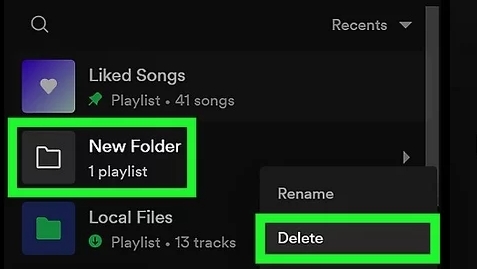
Access your Spotify library and locate the playlist folder you want to delete.
Right-click the playlist folder and choose Delete.
Conclusion
This article discusses everything related to deleting a playlist on Spotify, whether you want to delete a playlist created by you or even permanently delete a playlist.
If you want to bring the playlist offline before deleting it or simply want to download some of your favorite songs, albums, or playlists as local files, MedVioo lets you do that easily. With MedVioo, you can download Spotify songs in MP3 or another popular format for offline listening.