

Wondering if you can add your own MP3 to Spotify on your PC? The answer is YES. Spotify provides a built-in feature for uploading local files. Here, we will explain the steps to do this on both the Spotify desktop and mobile apps. After uploading, you can listen to your favorite tracks in one app or enjoy your music offline without premium. Before diving into the detailed steps, let’s first understand when you might need to upload MP3 files to Spotify.
When to Add Local MP3 Files to Spotify
There are some cases where you might want to add your own audio to Spotify.
- You are transferring songs from other music services to Spotify.
- You have purchased albums from online stores like Amazon and want to enjoy them on Spotify.
- You create your own tracks and want to access them easily.
How to Add MP3 to Spotify PC/Mac
To add local files to Spotify on your computer, a Premium subscription is not required. Simply sign in to the Spotify desktop app and follow the steps below.
You can also add your local M4A and WAV with the steps below.
Step 1. Navigate to your profile in the top-right corner of Spotify desktop and choose Settings to access the configuration options.
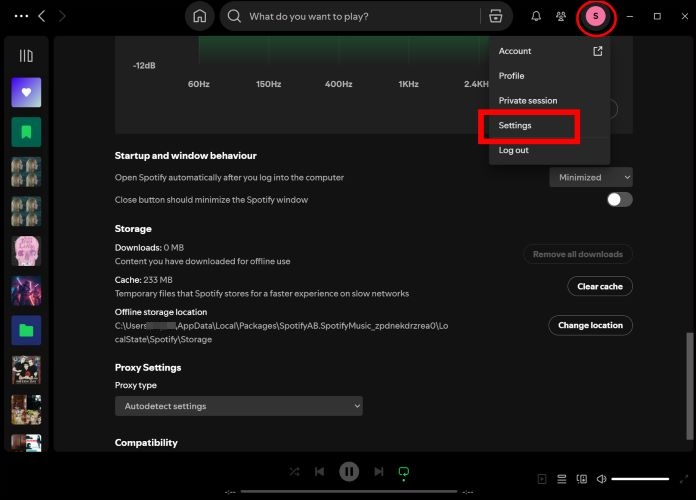
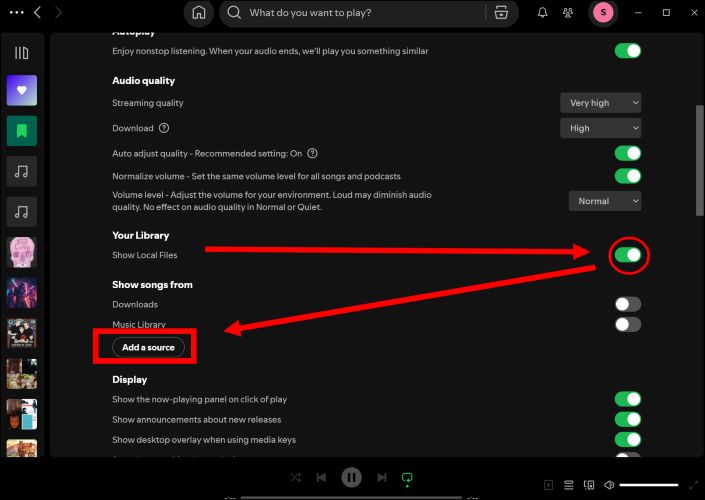
Step 2. Scroll down within the Settings menu until you reach the Your Library section.
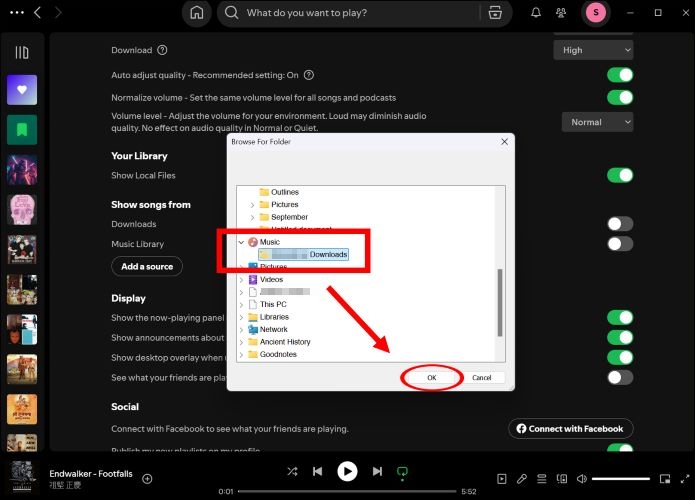
Step 3. Toggle the switch next to Show Local Files to enable it. Once this is done, you’ll see an option labeled Add a Source. Click on it to begin selecting the files.
Step 4. Use the Browse for Folder window and navigate through your folders. Click on the small arrow next to the desired folder’s name to expand and view its content.
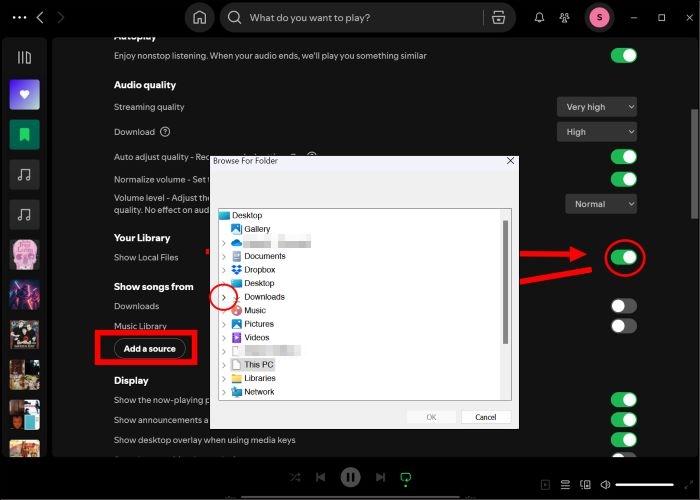
Step 5. Click on the desired folder where saves the your MP3 files to highlight it and then press OK.
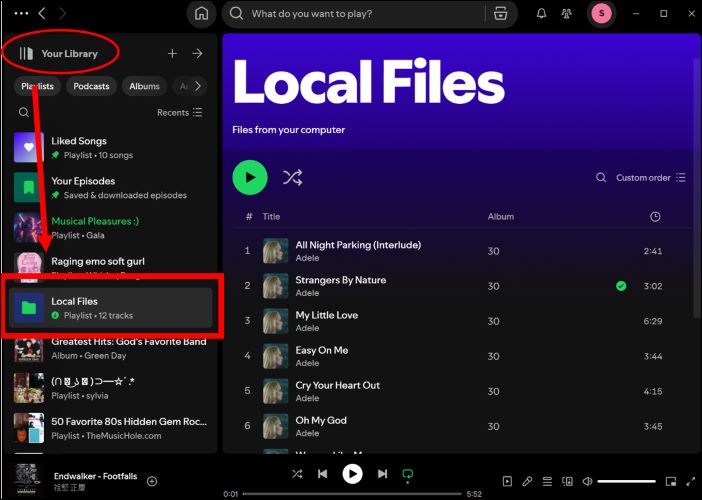
You’ll find all the imported MP3 tracks displayed in the Local Files folder under Your Library in Spotify.
Fixed: Spotify Won't Play Local MP3
If the local MP3 isn't available on Spotify, you will find the added file is greyed out or see a "Can't Play This Right Now" prompt. To play the added MP3 normally, you can try the fixes below.
Fix 1. Check the MP3 Format
Make sure the file extension is .mp3 rather than .MP3, as an incorrect format may prevent Spotify from recognizing the audio file.
Fix 2. Remove Song Cover
If the song’s cover art is too large, Spotify may have difficulty reading and playing the track. You can try removing the cover art to see if it plays normally. If the issue persists, you can remove all ID3 tags from the track to fix the problem, though this will make it harder to identify your songs. You can use online MP3 tag editors like www.mp3tag.de/en/ to help do the job.
Fix 3. Re-add Local MP3
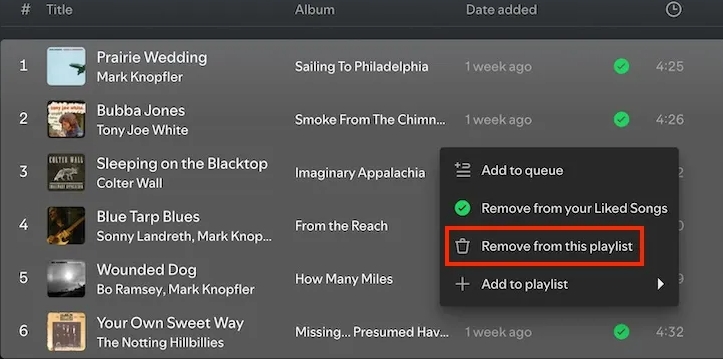
Step 1: Remove the unplayable songs from the Local Files by clicking the 3-dot menu next to each song and choosing Remove from this Playlist.
Step 2: Move the unplayable songs to a new folder and then import them as source with the steps above again.
How to Add MP3 to Spotify Android/iPhone
Similar to Spotify desktop, you can upload MP3 files on Spotify mobile without a subscription. However, Premium members have an additional way to do this.
For Free Users
To use the Local File feature on the Spotify app of your phone, here is how.
Steps on Android
Step 1. Tap your profile icon in the top-left corner of the Spotify app. Then, select Settings and privacy. Once you are in the Settings menu, choose Apps and Devices to continue.
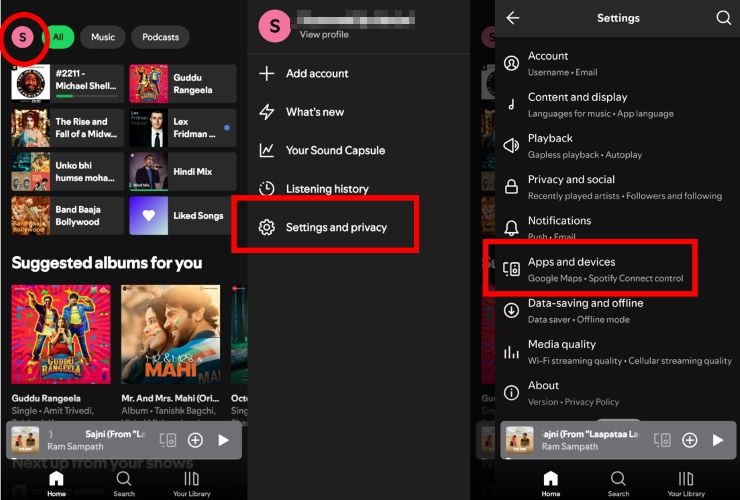
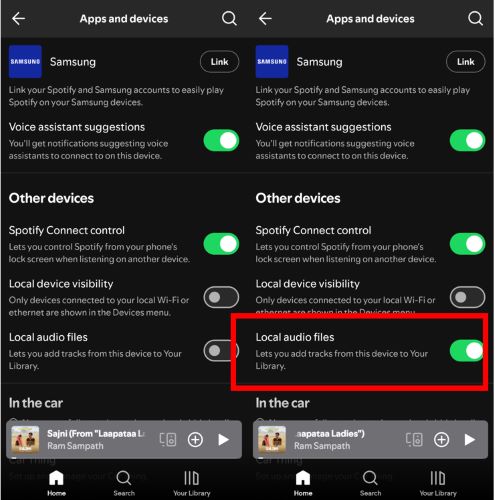
Step 2. In the Apps and devices menu, scroll down and enable the switch next to Local audio files option.
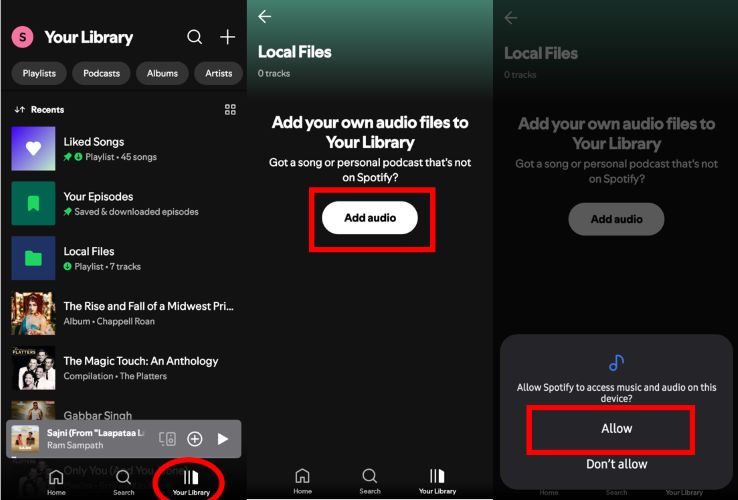
Step 3. In the Your Library tab, select Local Files and tap Add audio to begin adding the MP3 tracks. When prompted, confirm by tapping Allow to let Spotify access your device’s music and audio files.
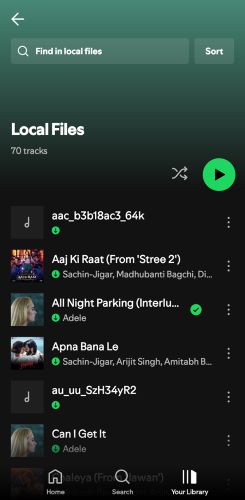
Once Spotify gets access to your Android’s audio, the Local Files folder shows everything: music and other audio files.
Steps on iPhone
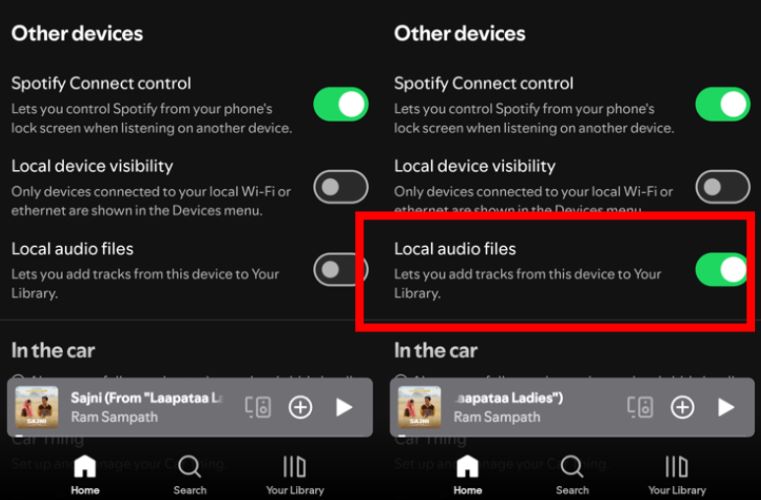
Step 1. Like on Android, simply enable the Local audio files option by heading to the Apps and devices menu within the Settings tab.
Step 2. Spotify will request access to your media library and local network: simply tap OK and Allow to authorize.
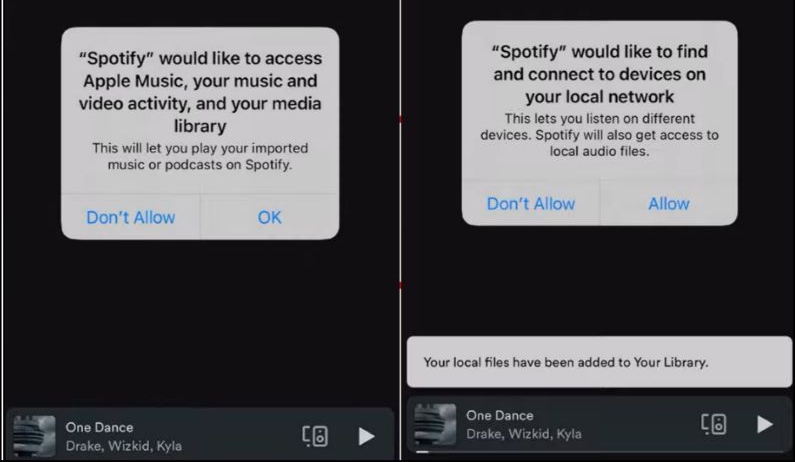
Step 3. After enabling the necessary settings, head back to your home screen and launch the Files app.
Step 4. Choose On My iPhone and you’ll find the Spotify folder, which is automatically created once you opt for local files. Make sure not to delete the default contents of the folder.
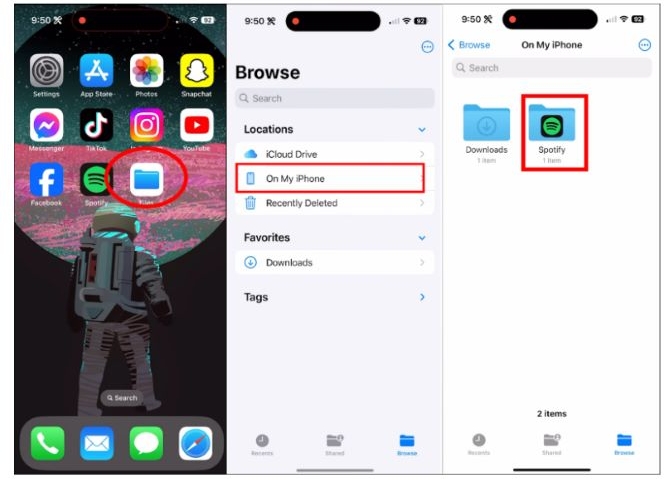
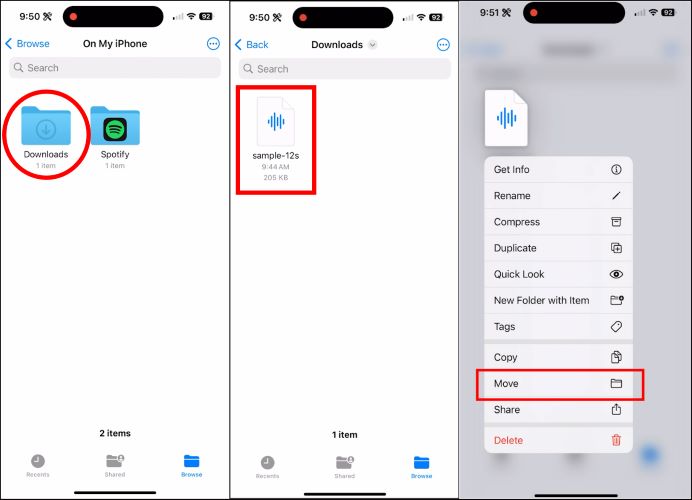
Step 5. To display MP3 audio from your iPhone in the Spotify app, find the tracks on your iPhone and long-press the file and tap Move.
Step 6. Navigate to the Spotify folder and tap Move to confirm the transfer.
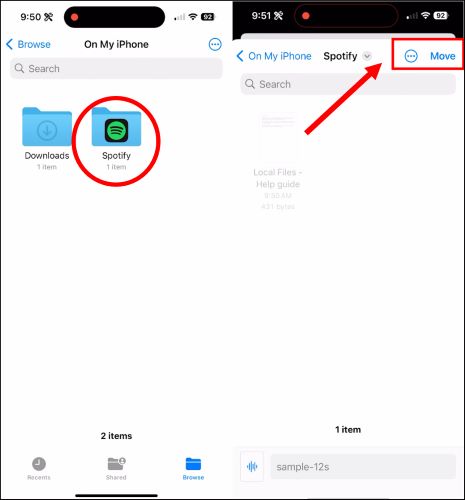
Step 7. You can find the added MP3 tracks in the Local Files section in Your Library tab.
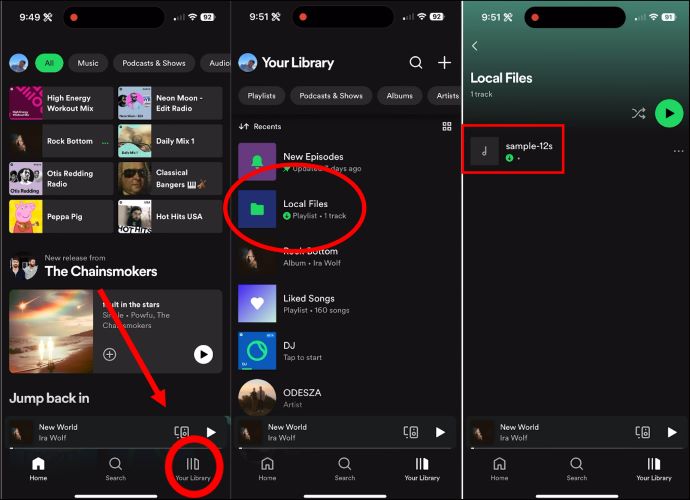
To manage what appears in this folder by adjusting the contents of the Spotify directory in your Files app.
For Premium Users
This way is somewhat lengthy and is recommended if you want to sync local files from Spotify desktop to your mobile device.
Preps
- Connect your iPhone or Android to the same Wi-Fi network used by the computer with Spotify installed.
- Sign in to both the Spotify mobile and desktop apps using the same Premium account.
Steps to Follow
Step 1: On Spotify desktop, first upload your local MP3 files. Then add the local MP3 into a new playlist.
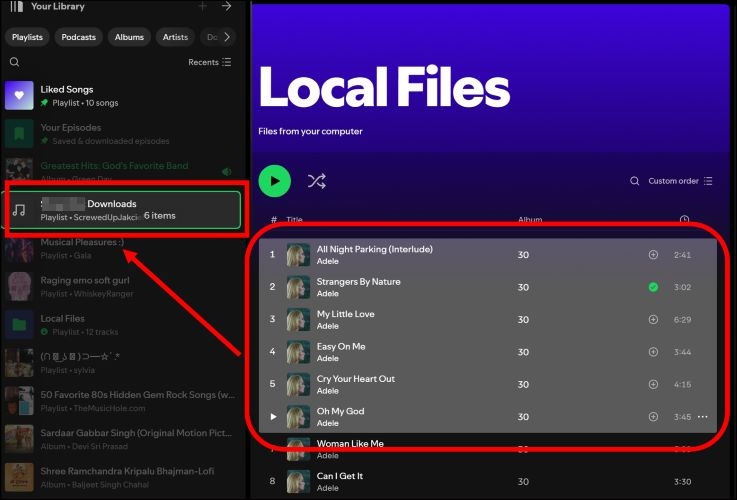
Step 2: Open Spotify on your phone and turn on Local Audio Files in your profile settings.
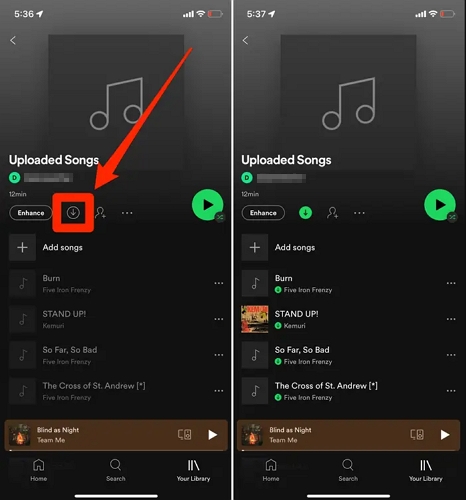
Step 3: Go to your library in the Spotify mobile app and find the playlist containing the local MP3s. Open the playlist and tap the Download icon to save the files. You can now enjoy your synced music.
How to Download Spotify Songs to MP3
Switching to another music platform and want to upload your Spotify collections to that service? Mediaio Audio Converter comes to help. It can download Spotify songs from Liked section, playlists or albums as local MP3, M4A, FLAC, WAV or other common audio formats. So, the music download is compatible with most of music services or devices. The output quality is excellent too, ranging from 128kbps to 320kbps, which you can set yourself.
To download Spotify songs locally with Mediaio, simply sign into the embedded Spotify web player, add your target songs and start the download.
Download Spotify Music to MP3:
Begin by downloading and installing Mediaio Audio Converter on your Windows PC or Mac. Once you are on the main dashboard, select Spotify.

In the top-right corner, click Log in and enter your Spotify credentials as you normally would.
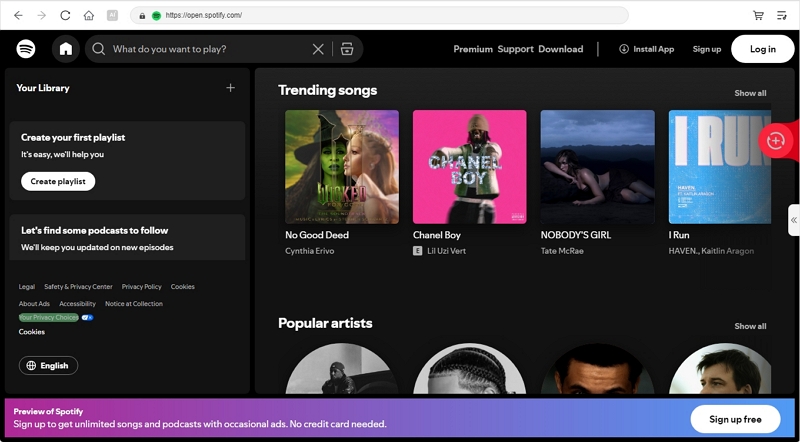
Find the tracks you’d like to download. Simply, drag and drop them onto the red + icon located at the top-right of the interface or click the Add to the conversion list button.

Once added, all tracks will appear in the Converting window. Click Convert All at the bottom-right of the screen. Your audio files will be saved in the Downloads folder almost instantly. If you want, you can change the output settings like format, audio quality and storage folder before conversion.

Copy Downloaded Songs to Android or iPhone
For Windows to Android Transfer
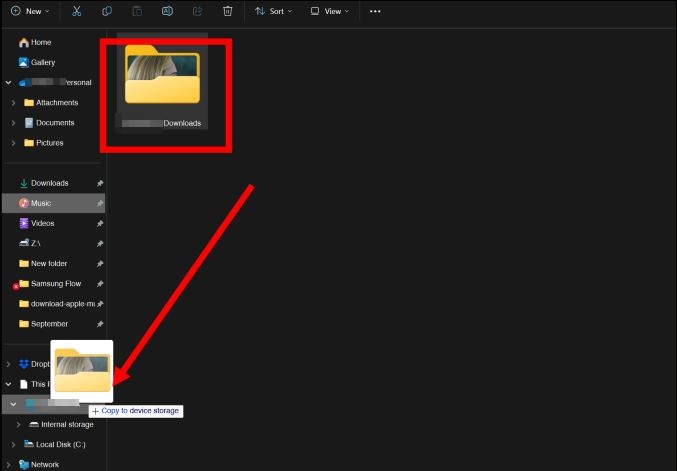
Once your Android phone is connected to the computer using a USB cable, all that’s left is to find the Mediaio downloads, which by default is stored in the Downloads section. From here, simply drag the entire folder, or you can handpick specific tracks, and drop them into your Android’s internal storage.
For Mac to iPhone Transfer
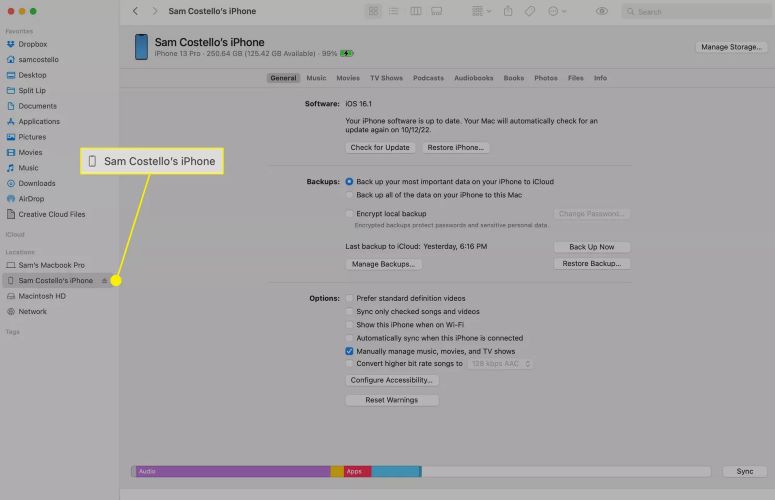
- Begin by connecting your iPhone to the Mac via a lightning cable and launch Finder.
- Under Locations in Finder, find and select your iPhone.
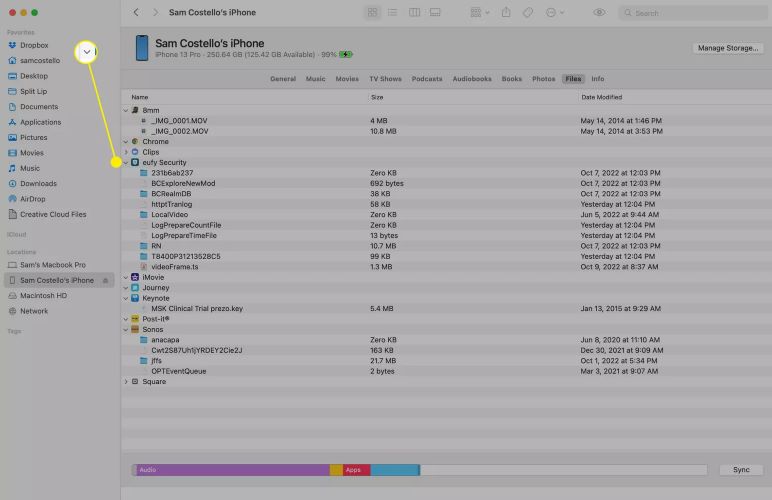
- Then, move over to the Files tab at the top of the window.
- Click the small arrow next to the Files app to reveal its content on your iPhone. This will display the folders you have on your iPhone, including the Spotify folder.
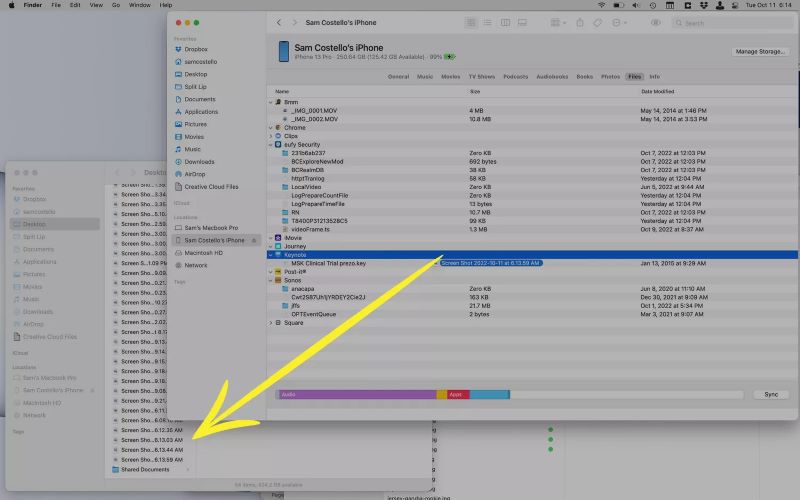
- After that, open a separate Finder window and locate the Mediaio Downloads folder. Next, drag and drop the files you want into the wanted folder on your iPhone.
Tip: How to Add Local MP3 to Spotify Playlists
Whether on Android or iPhone, simply choose the Local Files you want to feature in other playlists. Bear in mind, the MP3 files cannot be added to public playlists unless you’ve got the permission to edit them. In short, this will work perfectly for playlists you’ve created yourself or those that are collaborative.
Add Local MP3 to Playlists on Spotify Mobile:
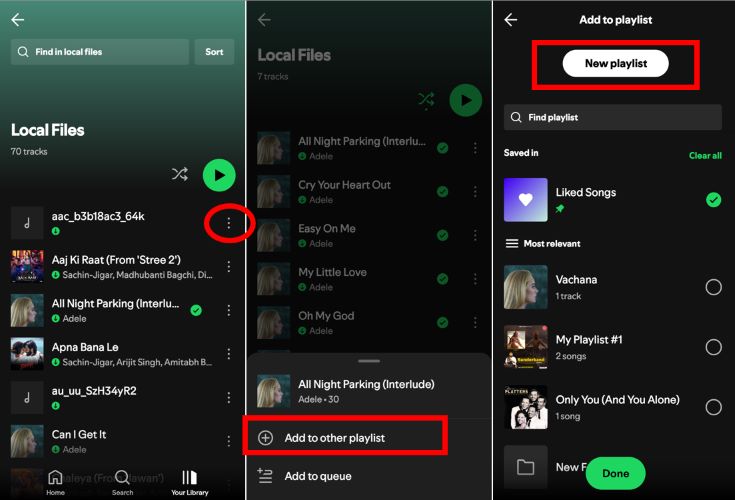
- Tap the three vertical dots next to the Local Files track you want to add. From the options that appear at the bottom, choose Add to other playlists.
- Then choose the playlist where you want to include the track, or create a new one. And then tap Done.
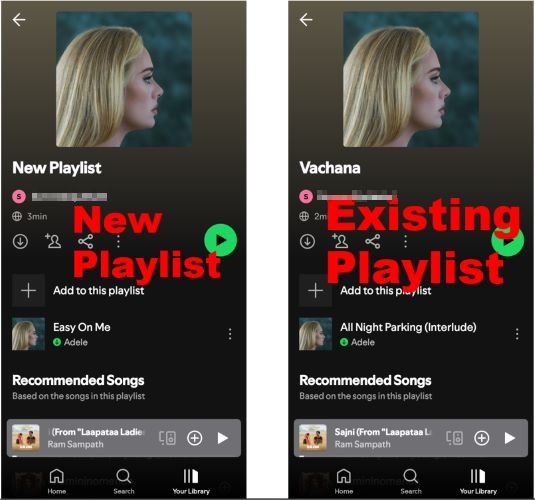
You can find the moved tracks in either a new playlist you created or an existing playlist where you’ve chosen to add the songs.
Add Local MP3 to Playlists on Spotify Desktop
- On your Mac or Windows PC, launch Spotify desktop and open the Local Files folder.
- Select the files you want (use CTRL+A on Windows or CMD+A on Mac to select everything).
- Then, simply drag them into your desired playlist in the left pane.
Conclusion
Spotify’s Local Files feature is an excellent way to enjoy your personal music, even when you don’t have a Premium account. The process is simple and you can add MP3 to Spotify easily. You can take it a step further by mixing the MP3 songs with your playlists.
On the flip side, if you’re looking to take your music offline and enjoy all your Spotify playlists, Mediaio Audio Converter offers a simple solution with its high quality Spotify downloads.