

Apple CarPlay pulls your iPhone’s screen onto the car’s dashboard. That way, you can follow directions, reply to calls, and hear your Spotify music without looking down at the phone, which breaks focus from the road.
Setting up CarPlay isn’t difficult. However, using Spotify on CarPlay can feel confusing at times. This guide will walk you through everything step by step. And since Spotify doesn’t always behave intuitively on CarPlay, we’ll also show you how to fix the common issues that show up on CarPlay while trying to play Spotify music.
Whether you want to listen to Pandora in your car with or without your phone, you can find the ways here, including using the Pandora Car App, a USB drive, and more.
View PostCan I Use Spotify with Apple CarPlay
Yes, you can if your car works with CarPlay. CarPlay allows you to use any compatible iPhone apps on your car’s infotainment system and Spotify is one of them.
As for car compatibility, here’s a quick table that shows where CarPlay is available:
Step 1 of Using Spotify on Apple CarPlay:Connect iPhone to CarPlay
Some of you might have already linked your iPhone to the vehicle. In that case, you can skip this part. If you haven’t, follow this so that Spotify can show and run properly through CarPlay. Apple allows two modes of connection between phone and CarPlay. Here’s how those links work.
Way 1. Connect with USB
A wired connection feels old, yet it guarantees a zero-lag experience. It also charges your iPhone while CarPlay runs. However, you will need a certified cable for the connection to work.
Step 1. Plug your iPhone into the correct USB port on the car’s infotainment system.
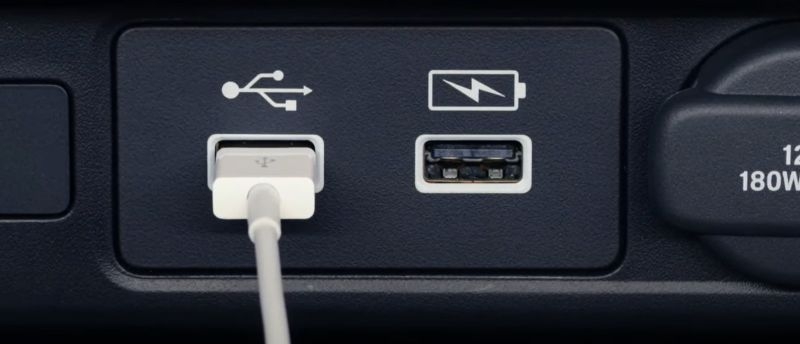
Step 2. Unlock your iPhone (only for the first time). A CarPlay prompt will appear on the screen. Approve the permission and allow the syncing.
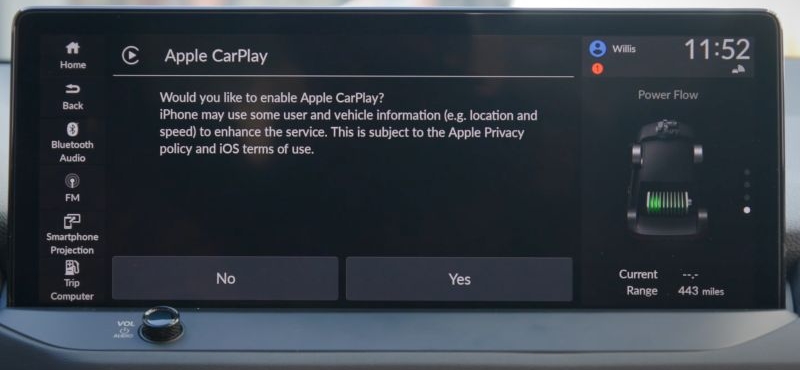
That’s it. Your car screen will now switch to the CarPlay interface. And from the next drive onward, simply connecting the iPhone will trigger CarPlay automatically, even without unlocking the device.
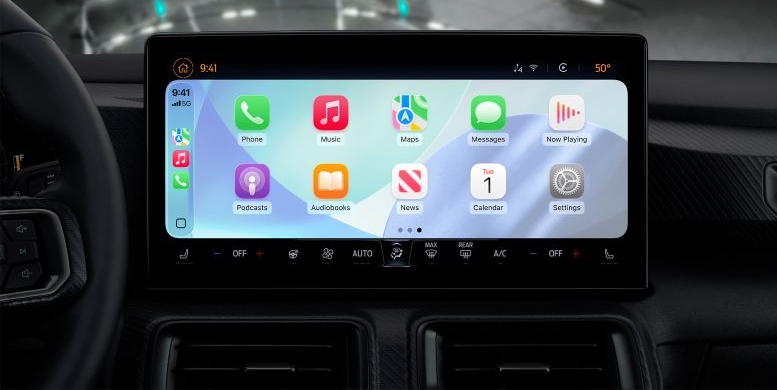
Way 2. Connect with Bluetooth & WiFi
If your car does support wireless CarPlay, the feature feels wonderfully free once it’s set up, though it comes with a small trade-off. Wireless CarPlay leans heavily on both Wi-Fi and Bluetooth, which will drain your iPhone’s battery faster. Some older car models do not support wireless CarPlay, so the first step is to check your car’s manual to confirm it. If not, the wired route will become your only dependable choice.
Here’s how to link iPhone to vehicle via Bluetooth connection:
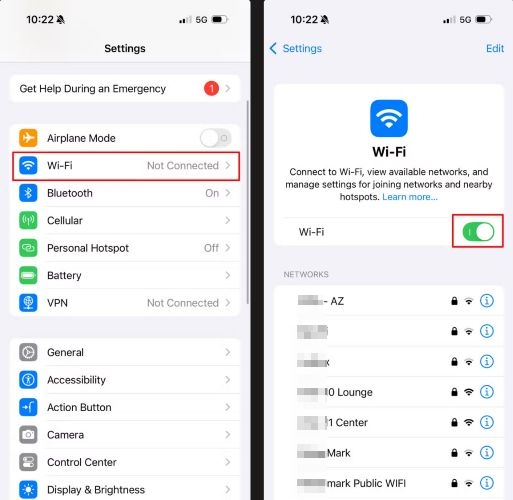
Step 1. Turn on Wi-Fi:
- Go to Settings.
- Select the Wi-Fi option. Make sure it is ON.
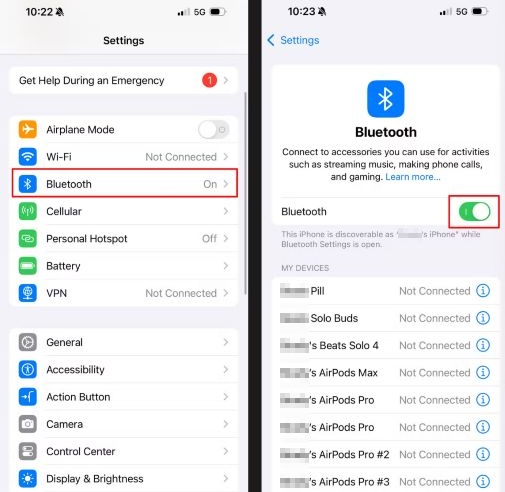
Step 2. Enable Bluetooth as well:
- Go to Settings.
- Tap the Bluetooth tile. Ensure it is ON.
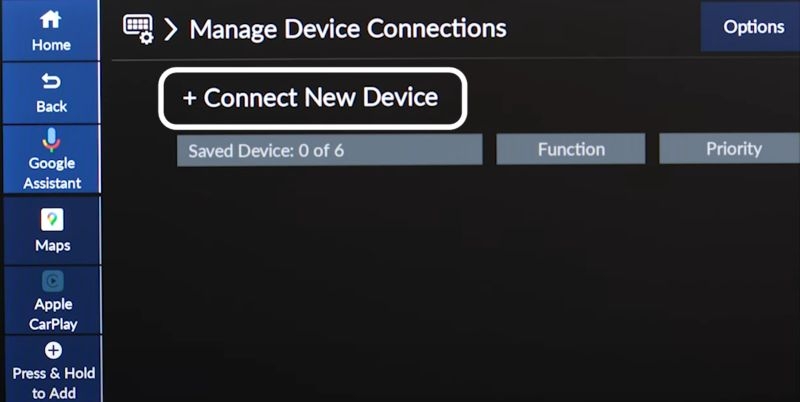
Step 3. On the car’s infotainment screen:
- Open Settings.
- Look for Add New Device or a similar option. Turn on its Bluetooth if needed.
Step 4. Your car will appear in the iPhone’s Bluetooth list. Select it.
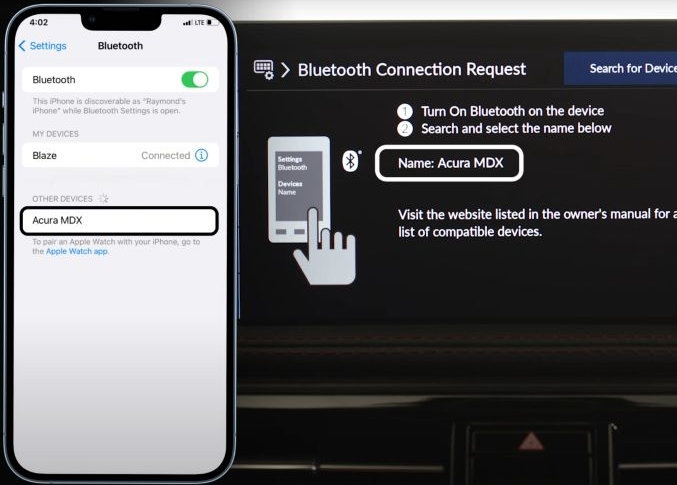
Step 5. A verification prompt will show up on the infotainment display. Approve it to complete the connection.
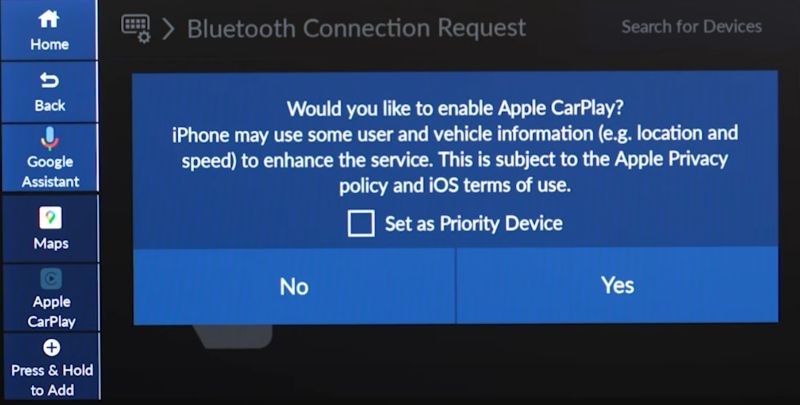
Step 2 of Using Spotify on Apple CarPlay: Control Spotify Playback
CarPlay gives you several reliable ways to steer your Spotify music with or without touching the phone. Here’s how each one works.
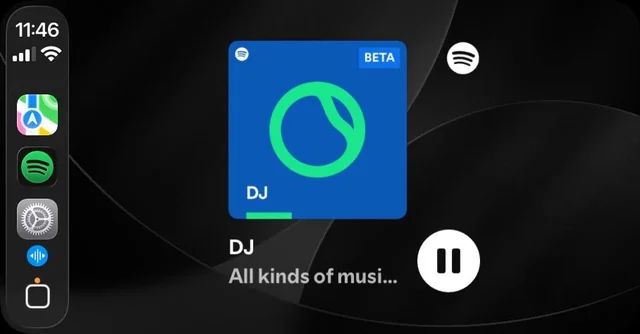
Way 1: Use Siri
Siri becomes the quickest route. It can start a Spotify song, skip tracks, replay what’s playing, and pause the music with your voice commands.
First, turn on Siri itself on iPhone:
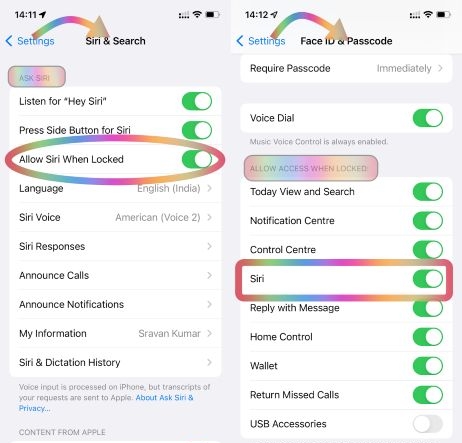
- Open Settings and tap Siri & Search.
- Turn on Listen for “Hey Siri”.
- Toggle on Press Side Button for Siri.
- Keep Allow Siri When Locked enabled.
Then, start controlling Spotify via Siri on CarPlay:
Once CarPlay is set up, “Hey Siri” command will work on CarPlay exactly like on your iPhone. You can simply say:
- “Hey Siri, play Blinding Lights on Spotify.”
- “Skip this.”
- “Play the next track.”
- “Turn on shuffle.”
- “Repeat this song.”
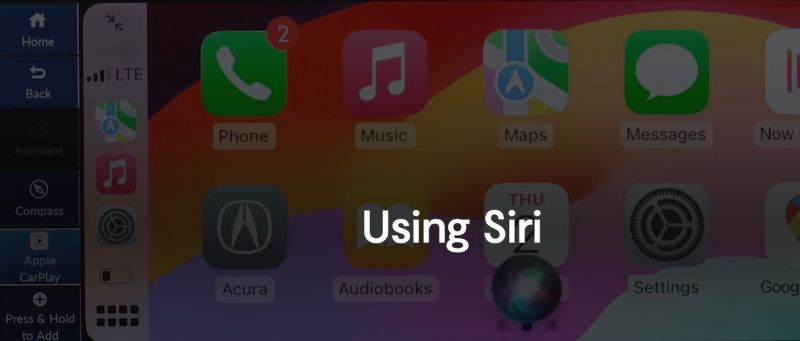
Spotify on CarPlay will follow along.
Way 2. Through CarPlay Dashboard
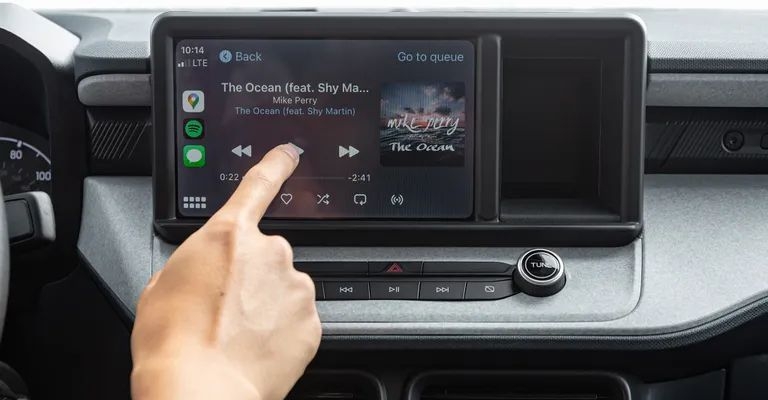
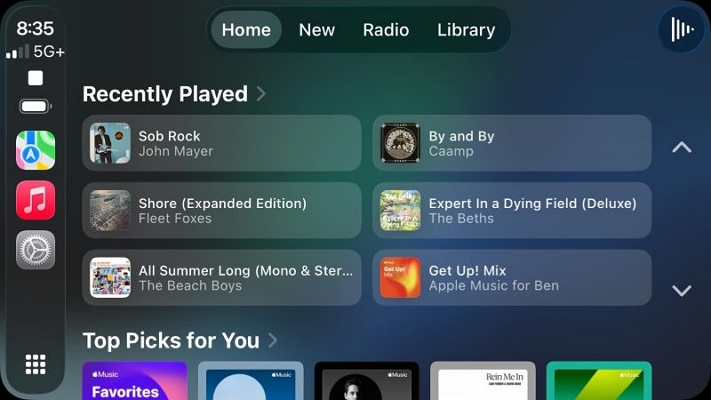
A touch-enabled CarPlay screen gives you the simplest on-screen control.
You can tap through Spotify almost the same way you would on your iPhone. It’s not meant for active driving, but it works well during a red light stop where you can safely reach for the display. On some older cars, you can move through CarPlay using knobs or dials, but they feel slower and less natural than tapping a touchscreen.
The process itself is straightforward:
- Tap the Spotify icon on the CarPlay home screen.
- The app will open instantly.
- Select the track or playlist. Spotify will start playing through the car’s audio system.
Way 3. Via iPhone
Your iPhone isn’t the ideal way to control music while driving, yet it is a workable option. It’s best for passengers who want to play a song on Spotify via their connected phones. Here’s how:
- Unlock your iPhone and open the Spotify app.
- Scroll to a playlist or album and start a track.
- The moment the song begins, CarPlay will shift to the Now Playing page and route the audio through your car’s speakers.
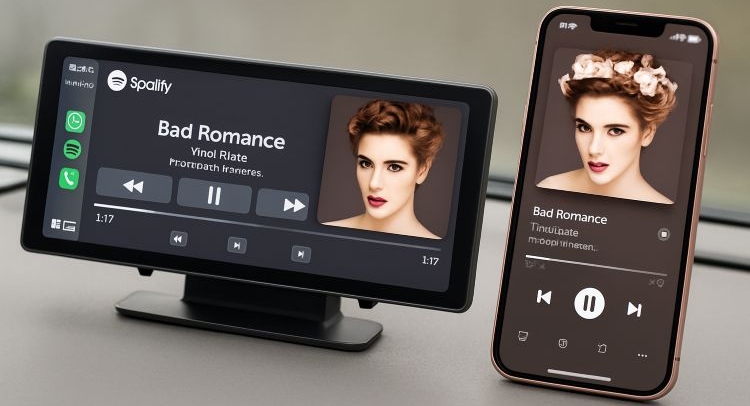
Note: The dashboard only mirrors CarPlay-enabled apps. If you open an unsupported app on your iPhone, like Safari, CarPlay will pull back to the Home screen instead of showing that app.
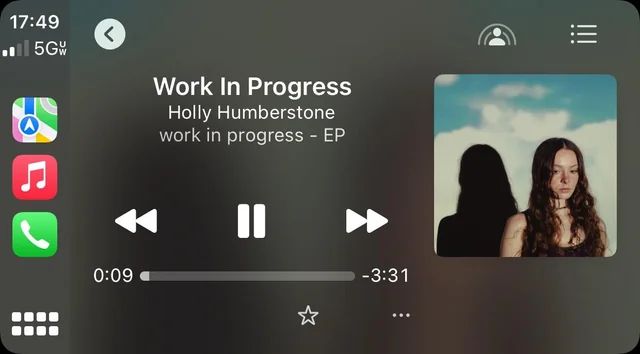
Way 4. Use Car's Voice Control
Many cars ship with their own native voice control systems. These systems often work alongside Siri and sometimes, they take over when Siri doesn’t respond the way you expect.
You’ll find these voice assistants using commands across several brands.
- Mercedes uses “Hey Mercedes.”
- BMW responds to “Hey BMW.”
- MG Hector listens to “Hello MG.”
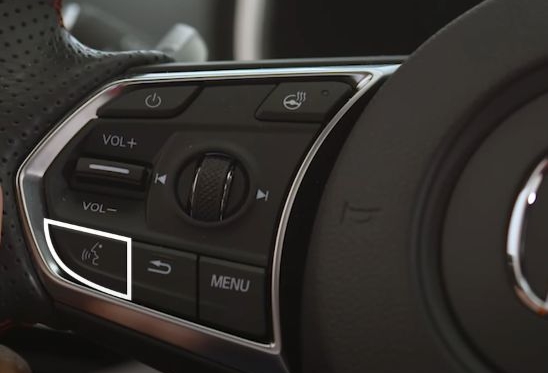
You can also enable voice assistants using a physical button on the steering wheel.
- Pressing the button once usually activates the car’s native assistant.
- Pressing and holding it often triggers Siri instead.
The exact pattern depends on the car’s infotainment software.
Also, many car’s infotainment software can handle simple actions natively. For instance, they work when you ask them to skip a song while already listening to Spotify. Yet, they don’t respond to prompts like “play this song on Spotify” for starting music playback from scratch.
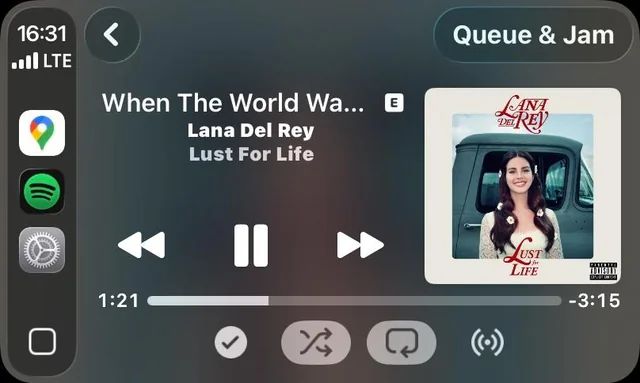
Fixed: Bad Sound Quality on Spotify CarPlay
Some users report that Spotify audio quality sounds poor on CarPlay, even though it plays clearly when connected via Bluetooth. Others find that only Spotify performs badly on CarPlay, while other music apps stream without issues. If you’re experiencing the same problem, the tips below may help.
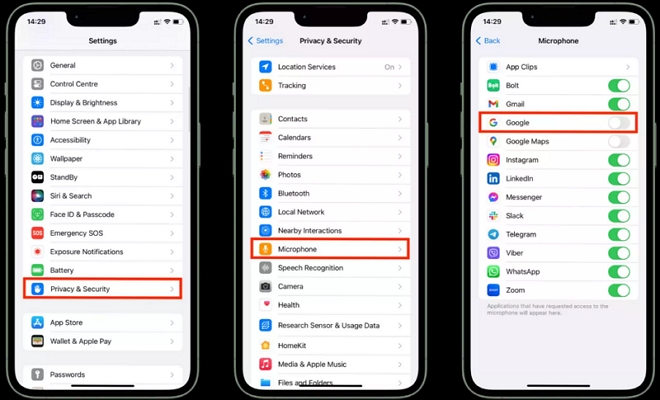
Trick 1. Disallow Mic from Accessing Spotify
If CarPlay is treating Spotify audio as a phone call, try disabling microphone access for Spotify in iPhone Settings.
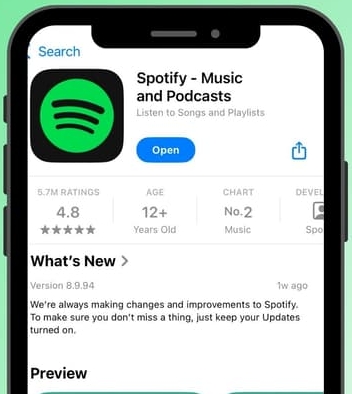
Trick 2. Update or Reinstall Spotify
This effectively helps remove the app bugs causing the low audio quality.
Trick 3. Adjust Equalizer Settings
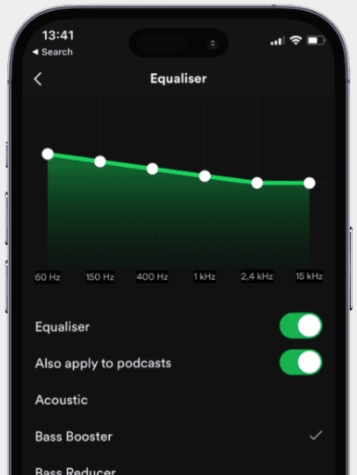
If the Equalizer is set improperly, you can reset it to restore the normal audio quality.
Trick 4. Adjust Playback Settings
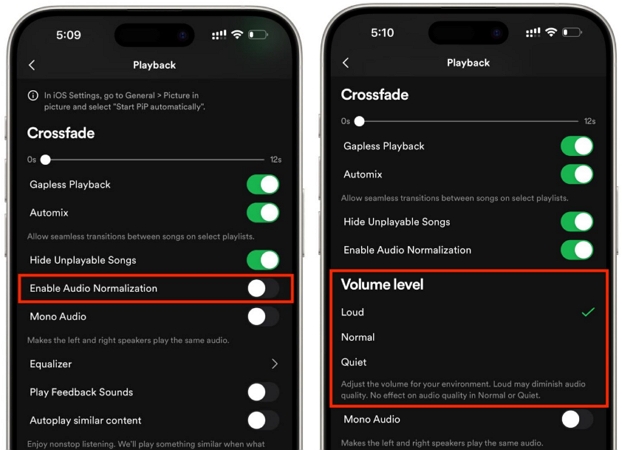
Audio Normalization and Volume Level can help make different songs sound at the same volume. If they aren't set correctly, you may feel the sound is unclear.
Trick 5. Switch to Other Media Apps and Then Back
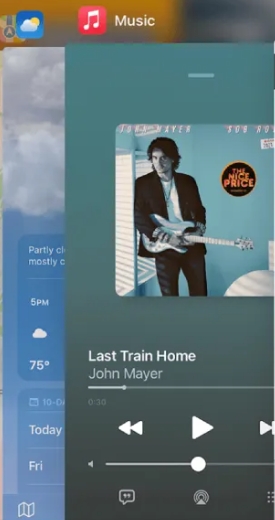
Switching to another app like YouTube and back forces CarPlay to reinitialize Spotify’s audio channel as media audio.
How to Make Apple CarPlay Default to Spotify
Apple CarPlay has one stubborn habit. It often prioritizes Apple Music whenever you attempt to play a song. If you don’t have an Apple Music subscription, it feels pointless and irritating.
There is no an embedded toggle on CarPlay to set Spotify as the default music app, but you can influence CarPlay’s behavior to do this. Below are two methods that work.
Way 1. Uninstall Other Music Apps on Your iPhone
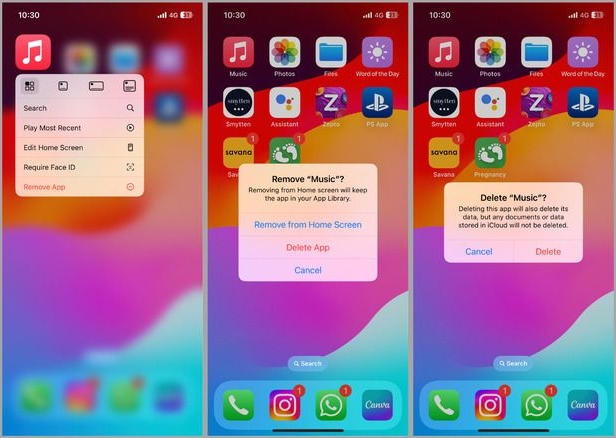
Removing alternate music apps reduces the chances of Siri or CarPlay opening them when you ask it to play a song. This includes Apple Music itself. If you never use it, removing it entirely from your iPhone forces CarPlay to fall back to Spotify. The removal steps are standard:
- Touch and hold the Apple Music icon.
- Select Remove App.
- Choose Delete App and confirm.
- Restart your iPhone once.
The next time when you say something like, “Hey Siri, play music,” the CarPlay system will route the request to Spotify.
Way 2. Change the Default Music App via Siri
First things first, start by enabling Siri access for Spotify on iPhone:
- Open Settings and scroll to Spotify.
- Tap Siri & Search. Then, turn on Use with Ask Siri toggle.
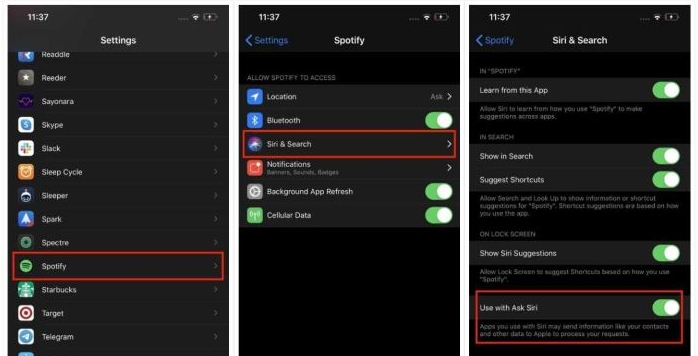
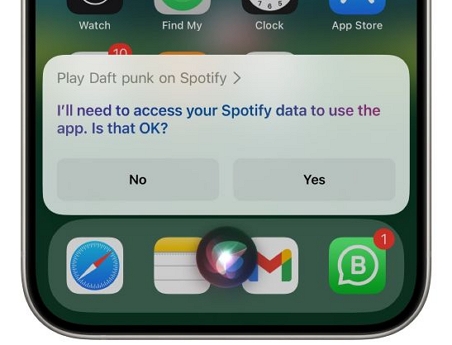
However, this permission alone won’t make Spotify the automatic music app on CarPlay. You’ll have to make Siri understand your preference. On the newer iOS versions, Siri does that through repetition. You’ll have to ask it a few times to “play music on Spotify.”
When Siri asks which app you want to use next time, say Spotify clearly. Repeat this interaction until the pattern settles. Once Siri learns your preference, CarPlay mirrors that behavior and routes all future music commands to Spotify.
Fixed: Spotify on Apple CarPlay Not Working
Whether Spotify is not opening on CarPlay at all, your car’s infotainment system doesn’t support CarPlay or you’re using an aftermarket unit that refuses to play Spotify properly (a very common issue), the experience can get frustrating. Don’t worry, here are fixes to get Spotify working smoothly on CarPlay again.
Fix 1. Listen to Spotify with USB on Car
You don’t want to fix Spotify on CarPlay because you’ve already tried fixing it many times. Alternatively, if you want to enjoy Spotify offline without premium on CarPlay, this way is recommended.
A very simple way to get around Spotify issues on CarPlay is to play your songs offline through a USB drive instead. Spotify won’t let you send its tracks to USB on its own, but Mediaio Audio Converter can do that part for you without drama.
Mediaio lets you convert whatever music you like on Spotify and save it in plain formats like MP3 or M4A on a USB drive. The saved songs don’t lose their look. Each track keeps its original cover art, the name, and the artist details, so the interface on your car looks clean and familiar. Mediaio also preserves your playlist order, making the playback sequence stay the same when you play Spotify through USB on car.
Mediaio is also easy to use. You open its built-in Spotify Web Player, drag the songs or playlists you want, make the output settings like configuring 320kbps as audio quality and let it process the remaining work.
Step 1: Save Spotify Songs to USB
Plug your USB drive into the computer and let it mount.
Start Mediaio Audio Converter on your Windows PC or Mac. Choose the Spotify tile to open the tool’s integrated Spotify view.

Sign in to your Spotify account.
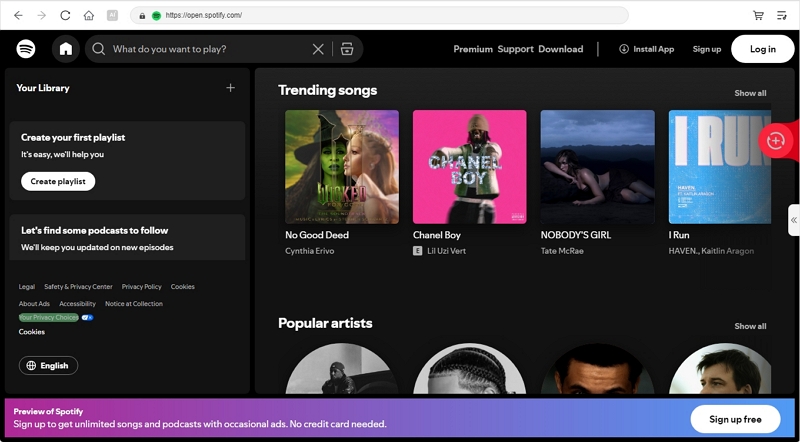
Drag all the Spotify songs, playlists and albums you want for the car onto the + button or click Add to the conversion list to add the wanted tracks.

Expand the conversion section located in the right pane. Select the Browse icon on the Converting tab. Then, select your USB drive as the destination and press Save to confirm. Choose the format and output quality for the converted songs too. Hit Convert All to start the download. The songs save directly on your USB drive with their original titles, artists and cover art intact.

Step 2: Play Spotify Music on Car Stereo via USB
Slide the USB drive into your car’s media port. Most cars jump to USB mode on their own. If yours doesn’t, just switch to Media or USB from the screen.
Use the car’s touchscreen or use the dialers to select a song. You can manage the playback in the same manner.
The USB drive also allows you to play Spotify music on other devices, such as VIZIO TV and car.

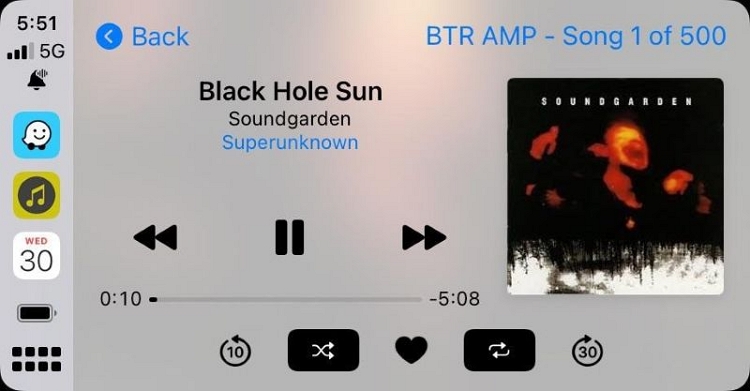
Note: If you want to use CarPlay with these Spotify downloaded songs, drop them into a compatible app like VLC on your iPhone. Then, add the app to the CarPlay app list. From there, you can play your local files through CarPlay like any normal audio.
Fix 2. Use Inbuilt Voice Control Button
Users who want an easier way to search for songs on Spotify CarPlay after the app update.
Spotify’s recent update removed the search button in the CarPlay version of the app. There is still no official response from Spotify and no replacement inside the UI. So you cannot open the search panel directly on the Spotify CarPlay screen anymore.
Steps to Follow
Step 1. Use Siri. It will trigger the playback even if the CarPlay UI cannot search. Or press the voice button on the steering wheel to use inbuilt assistant and speak your request.
Step 2. If Siri or the car’s assistant struggles, unlock your iPhone and open the full Spotify app. Choose your playlist or track. Once you press play, the music will shift to the car speakers automatically.
Fix 3. Allow CarPlay on Screen Time
CarPlay is not launching or sudden disconnects.
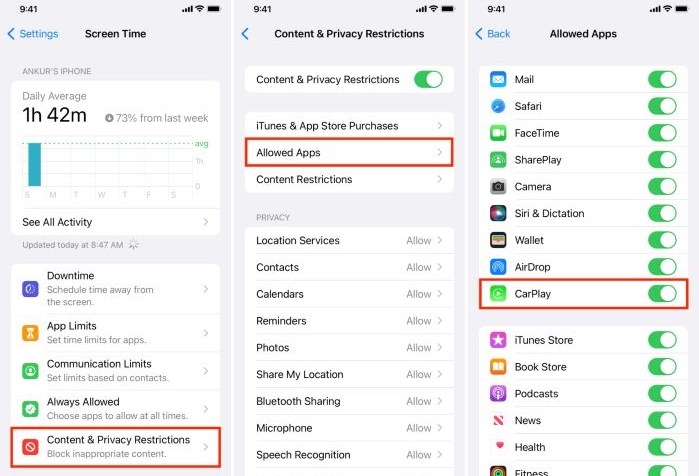
If CarPlay is refusing to start even after using a proper cable or disconnects the moment the iPhone screen loads, the silent blocker is often Screen Time. Its content restrictions can stop CarPlay from opening.
Steps to Follow
Step 1. Open the Settings app on your iPhone. Scroll down and select Screen Time.
Step 2. Tap Content & Privacy Restrictions.
Step 3. Choose Allowed Apps.
Step 4. Look for CarPlay in the list and make sure the toggle is turned ON.
Once the permission is enabled, reconnect the iPhone to your car. CarPlay should now appear instantly without dropping the connection.
Fix 4. Allow CarPlay While Locked
You want uninterrupted Spotify playback even after the phone locks.
If Spotify music shuts off on CarPlay the moment your iPhone locks, the problem is a missing permission.
Steps to Follow
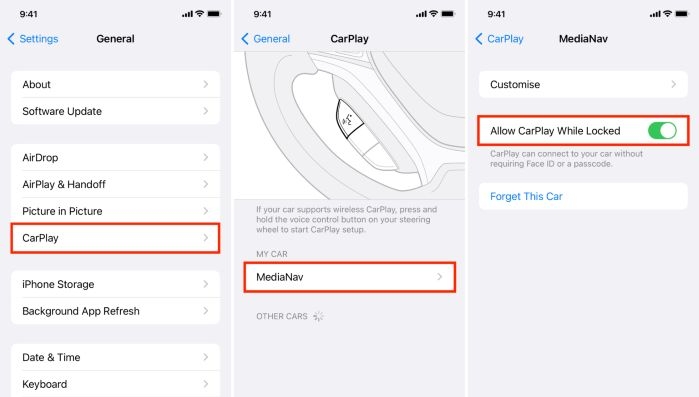
Step 1. Open Settings on your iPhone and tap General.
Step 2. Select CarPlay.
Step 3. Under My Cars, tap your vehicle’s name. Then, turn on Allow CarPlay While Locked.
Once this toggle is enabled, the music continues through the car speakers without interruption when the phone locks.
Final Words
So, we’ve shown you the right setup to use Spotify on Apple CarPlay. Now you can do more than just play music using just your voice and keep your eyes on the road.
However, Spotify doesn’t always behave well on CarPlay. That’s why we also showed you how Mediaio Audio Converter helps. It lets you export Spotify tracks as MP3 or M4A, save them on a USB drive or even on your phone, and play them through the car’s media system without any internet or interruptions.