

Want Pandora in your car stereo? You need to connect Pandora to your car first and there’s more than one way to do it. Then enjoy your favorite Pandora music in the car online or offline.
It doesn’t matter if you’re driving an older car with a USB port or a newer model with a full touchscreen infotainment system, you will find your ways here. We’ll cover every method to play Pandora in car, which works across different connections between Pandora and car, from Bluetooth to Pandora car app and a USB drive.
Popular Articles
How to Connect Pandora to Car and Play Without Phone
There are two clean ways to play Pandora in car without relying on your phone. It does not really matter whether your vehicle is new, old, somewhere in the middle.
- One approach depends entirely on the built-in infotainment system inside your car.
- The other method works on practically any vehicle, as long as it has a USB port and can read local audio files.
Let’s walk through both.
Way 1. Use the Pandora Car App
Many car brands, especially models released between 2014 and 2020, came with Pandora already baked into the car’s software. Back then, CarPlay and Android Auto weren’t dominating dashboards yet and Pandora fits perfectly as a built-in listening option with its classic radio-style feel.
So put simply, you could just sit in the car, start the ignition, and listen to Pandora without relying on external devices like your phone. It just worked right from the car screen in front of you.
Before using the Pandora car app, make sure these are ready:
- A compatible infotainment system. You can check your car manual to confirm compatibility or simply scroll through the Apps or Media Services section on your dashboard screen.
- An active internet connection inside the car (Built-in Wi-Fi, OnStar data plan, Verizon LTE, ConnectedDrive, or even a mobile hotspot, anything works as long as the car can access the internet.
- A Pandora account (Free, Plus, or Premium, all tiers work for this method).
You can unlock Pandora Premium features without any cost by following the official ways in this post: Get Pandora Premium for Free
How to Get and Play Pandora on Car via Inbuilt App
Step 1. Tap the Pandora icon on your car’s touchscreen.
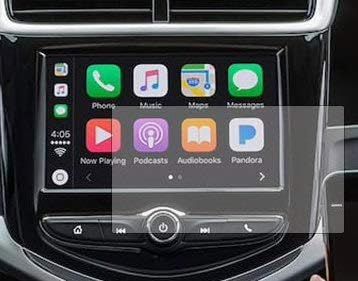
Step 2. Sign in with your Pandora account. Your stations, your history, and everything you’ve liked before will load in automatically.
Step 3. Pick a station. You’ll see controls for:
- THUMBS UP
- THUMBS DOWN
- SKIP (depend on subscription)
You can use steering-wheel buttons or voice systems to pause, resume, skip, and change the volume.
Pros and Cons
Work directly from the car system. Only available on selected infotainment systems.
Way 2. Use USB Drive
Most modern car radios released after 2010 support USB audio. That has become the standard across almost every brand. So another practical way to play Pandora in your car without a phone is to download Pandora music onto a USB drive and treat it like any regular MP3 collection through the car stereo.
Pandora itself doesn’t allow exporting songs, but Mediaio Audio Converter is designed exactly for this situation. It lets you choose any Pandora station, playlist, or even podcast and convert it into real MP3 or M4A files. You can save those directly onto the USB drive by setting the storage location in Mediaio. The output files retain their original quality along with identifying details—song name, artist, album art, and other metadata, so finding and playing them through the car interface is simple.
You don’t even need an active subscription to download Pandora tracks, and you can play them without relying on internet access, mobile signal, or streaming stability. The music stays available everywhere while driving, on highways, in mountains and in areas where the network disappears completely.
Requirements
- A USB stick formatted in FAT32 or exFAT.
- Pandora music as MP3, M4A, FLAC, or WAV.
- Mediaio Audio Converter on your Windows or Mac.
- A temporary internet connection for Mediaio to download the songs.
How to Listen to Pandora in Car Through USB
Connect your USB flash drive to the computer.
Start Mediaio Audio Converter on your Windows or Mac and choose Pandora from the main screen.
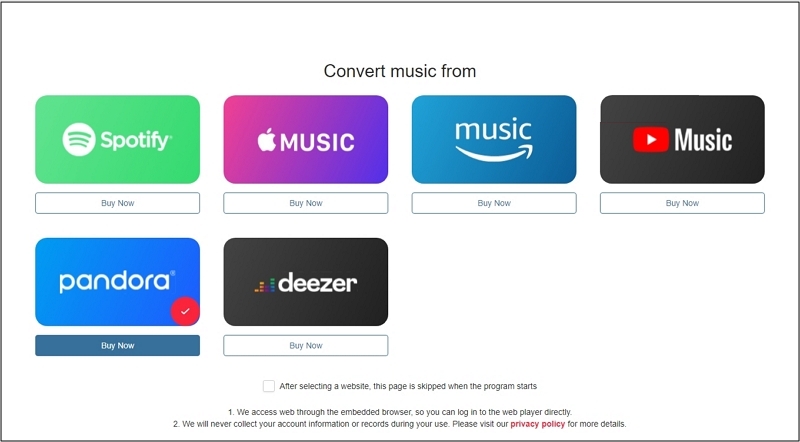
Use the built-in Pandora player to sign in to your account.
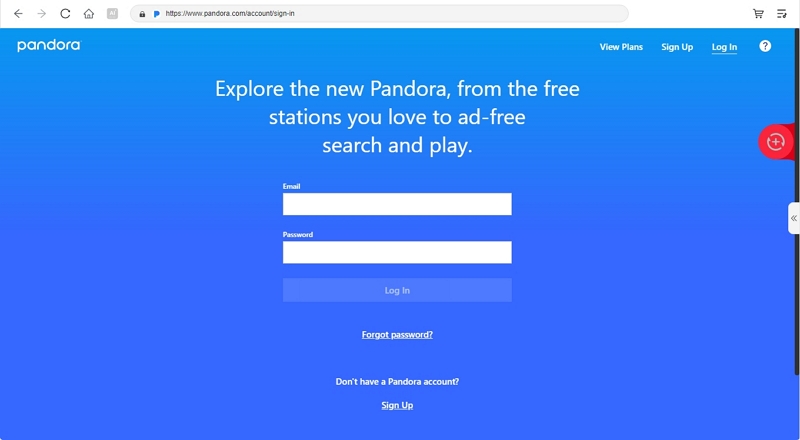
Pick the station or playlist you want and drag it into the conversion area for offline listening in your car.
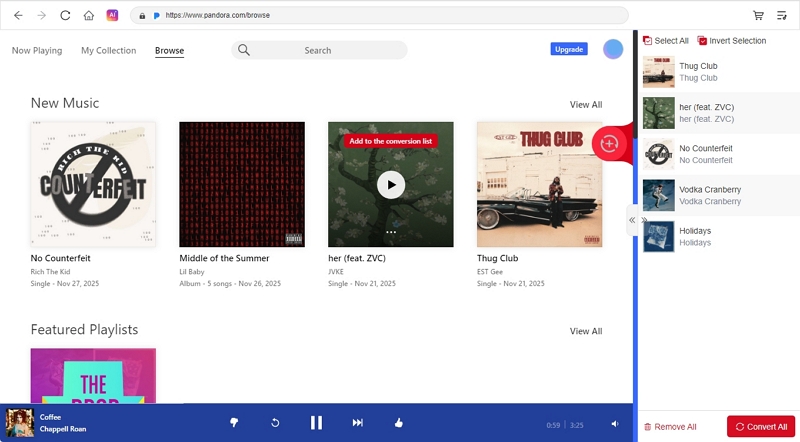
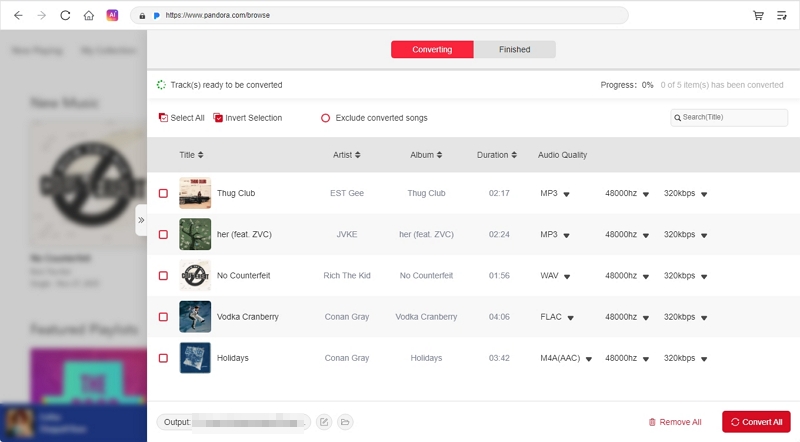
Open the conversion window by clicking the left arrow. Click the Browse icon to open the Output section and point it to the USB drive folder. Meanwhile, select a desired output quality and format for the exported songs. Next, Press Convert All. Mediaio will save the tracks to the USB drive.
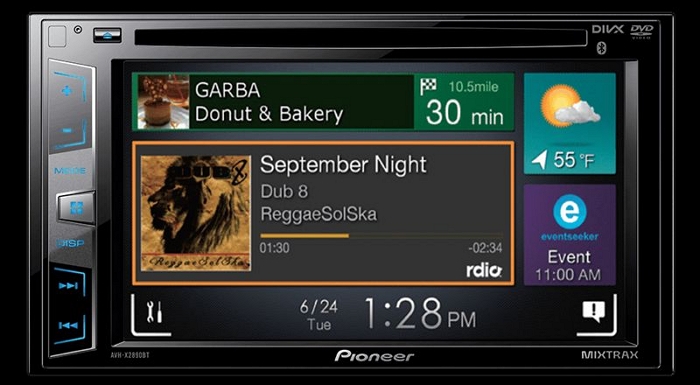
Safely eject the USB drive and plug it into your car. Just pick a folder or track and begin the playback.
Pros and Cons
No Wi-Fi, Bluetooth, or mobile signal required Only pre-saved content plays
MP3/M4A = lossy
FLAC/WAV = larger file size
No pairing, login, or commands needed Limited controls (no skip logic or thumbs up/down)
Need a USB drive + computer
Universal playback support Some systems reject high-res files
MP3/M4A remain safest for full compatibility
How to Connect Pandora to Car and Play with Phone
With your phone in the mix, the possibilities get much wider. Depending on your car model, you can stream through Bluetooth, use Android Auto or CarPlay, or even plug in with USB for a more stable connection. Here are all the options in detail.
Way 1. Through Bluetooth
Bluetooth keeps things simple. You can just pair your phone with the car, start Pandora on your phone, and the audio will move to the car speakers automatically.
Best for:
- Cars without built-in Pandora support.
- When you don’t want or don’t have CarPlay or Android Auto.
- Lightweight setup without cables.
How to Use It:
Step 1. Go to your car’s infotainment screen. Open the Bluetooth or connections menu.
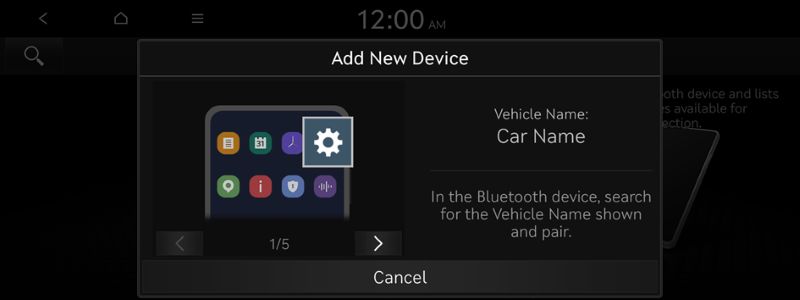
Step 2. Put the car into pairing mode, usually under Add Device or Pair New Device.
Step 3. Enable Bluetooth on your phone. Select your car when it shows up and approve the pairing request.
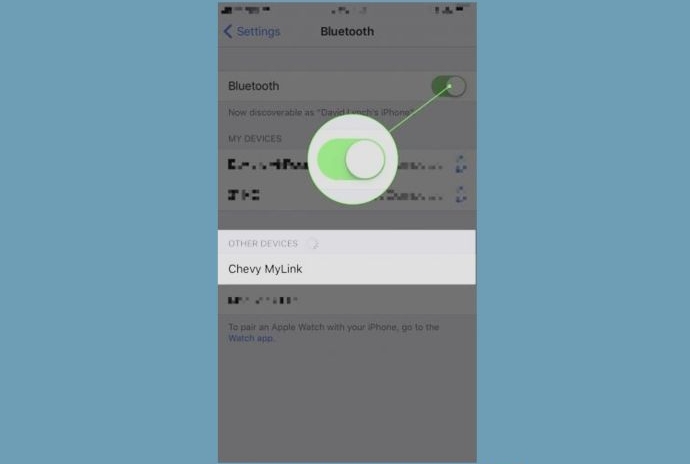
Step 4. Once linked, start Pandora on your phone and press Play. The audio should be handed off to the car immediately.
If it doesn’t switch, change the audio output to the car’s Bluetooth profile.
Way 2. Via Android Auto
Android Auto feels more organized than Bluetooth, because everything comes to the dashboard.
Best for:
- Your car’s infotainment system support Android Auto (wired or wireless).
- Drivers who prefer large on-screen controls instead of handling the phone.
- Users who rely on Hey Google to browse hands-free.
Steps to Use:
Step 1. Build the connection between the phone and the car.
You can connect your phone to Android Auto in two possible ways, depending on what your car supports:
- Wired setup: plug in the USB cable.
- Wireless setup: switch on both Bluetooth and Wi-Fi on your phone.
Once either connection is active, your phone interface should appear on the car screen.
Step 2. On the car screen, open Android Auto’s app view and select Pandora.
Step 3. Play and control your music comfortably. You can use steering wheel buttons, on-screen controls, or voice prompts like“Hey Google, play sleep jazz on Pandora.”
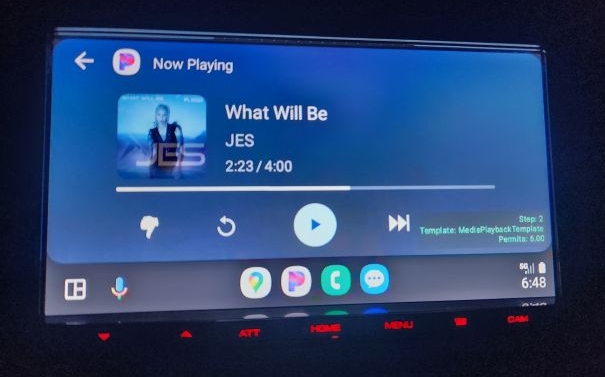
Pandora Car App Not Showing on Android Auto
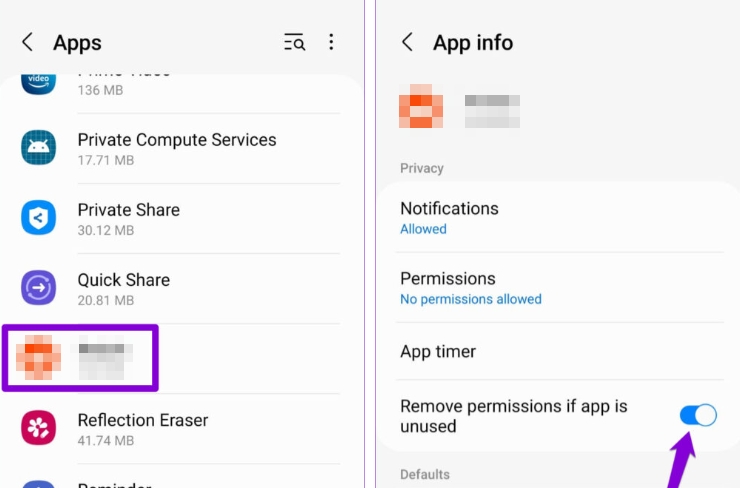
Some users have reported on the Pandora forum that the Pandora app does not appear on their car screen via Android Auto. If you followed the steps above but still encounter the same issue, try the solutions below:
- Check the Pandora official forum. See if other users are experiencing the same problem. If so, you may need to wait for an official fix from Pandora.
- Reboot your Android phone. After restarting, the Pandora app should appear on your car stereo again.
- Update the Pandora app. Updating can resolve issues caused by bugs in the current version. If you cannot update, go to Settings and make sure the “Remove permissions if app is unused” option is turned off.
- Reinstall the Pandora app. Note that this will remove downloaded Pandora music from your device.
Way 3. With CarPlay
CarPlay behaves like Android Auto but is just dressed in Apple’s language and built directly into iOS.
Best for:
- You use iPhone and prefer Apple’s ecosystem.
- Drivers who like to use Siri.
- Cars that support wired or wireless CarPlay.
Here’s How to Use:
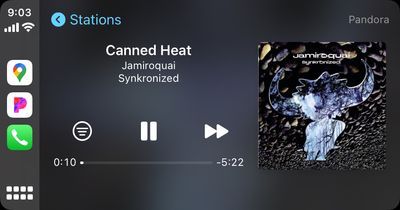
Step 1. Connect the iPhone to the car. A cable works fine if the car only supports wired mode. If your car supports wireless CarPlay, turn on Bluetooth and Wi-Fi on your iPhone.
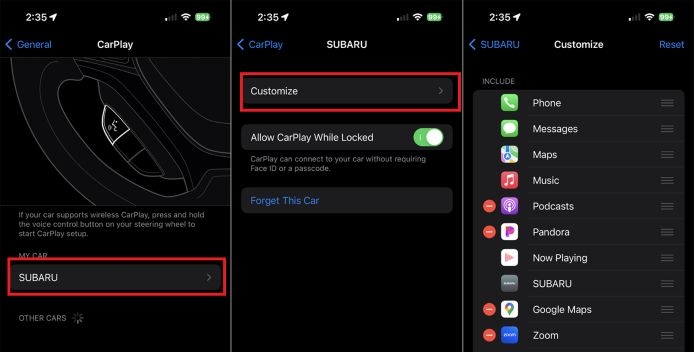
Step 2. Allow Pandora to appear inside CarPlay:
- Head into Settings on your iPhone and choose General.
- Tap CarPlay. Then, pick your car from the list.
- Choose Customize and move Pandora into the visible section if it isn’t already. Once saved, the dashboard will refresh and show it among the available apps.
Step 3. Launch Pandora from the car’s screen and start listening.
Your stations load instantly on your car screen. Pick any one of them and begin playback. Siri can also take charge here. Just say something like: “Hey Siri, play my Thumbprint Radio on Pandora.”
Way 4. Use USB Cable
Some car manufacturers using their own infotainment systems offer deeper Pandora integration.
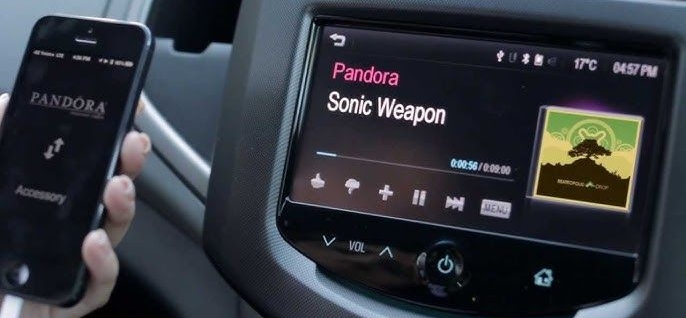
In those models, once you connect your phone, with Pandora already running, a dedicated Pandora option typically appears on the car screen. Selecting it hands playback control from your phone to the car’s built-in interface.
Supported systems included:
- Chevrolet MyLink
- Buick IntelliLink
- GMC IntelliLink
- Cadillac CUE
Best for
- Your car supports “Connect Pandora to MyLink” or a similar built-in Pandora dashboard mode.
- You prefer a more stable link than Bluetooth.
- You want on-screen controls that feel native to the dashboard.
- You don’t want separate logins or repeated setup every time you drive.
How to Use It
The exact menu wording varies depending on the car’s software version. Still, here’s the process:
Step 1. Link your phone to the car using a data-capable USB cable.
Step 2. Make sure Pandora is running on the phone. Many MyLink and IntelliLink systems won’t show Pandora unless the app is already active on the mobile device.
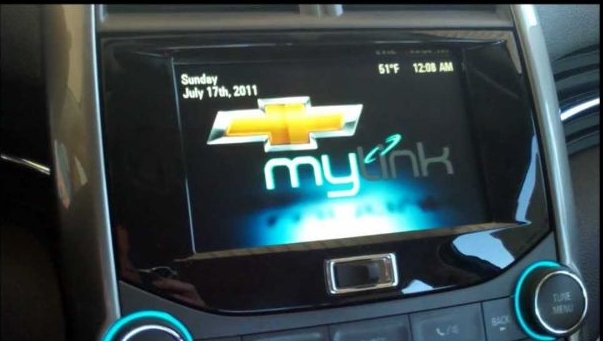
Step 3. Once detected, the Pandora icon usually appears on the car home screen. Select it to load your stations.
Step 4. Pick a station and start listening.
Pandora Auto-Playback in Car: How to Turn on/Off
Starting music automatically is a personal thing. Some like the soundtrack to start the moment the ignition turns on and others prefer silence until they choose something. Pandora and other connection settings lets you adjust that auto-playback behavior, so playback happens only when you want it to.
Here’s how to adjust it inside Pandora:
Step 1. Open the Pandora app. Head to your Profile tab.
Step 2. Enter Settings (gear icon).
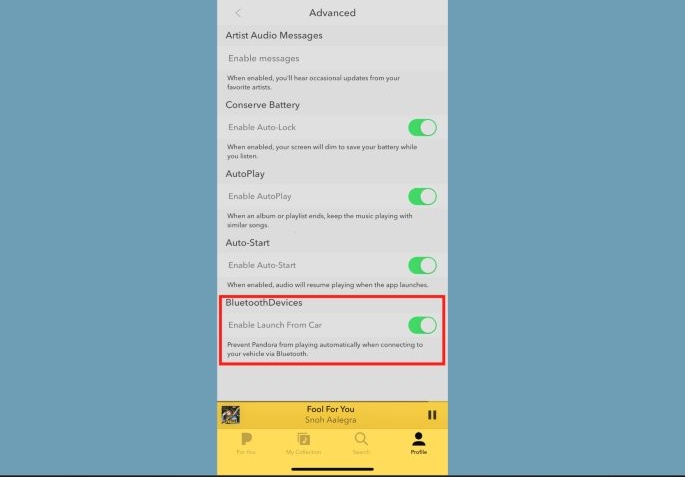
Step 3. Scroll down and open Advanced.
Step 4. Use the Enable Launch from Car toggle.
- Turn it on if you want Pandora to start automatically.
- Turn it off if you prefer silence.
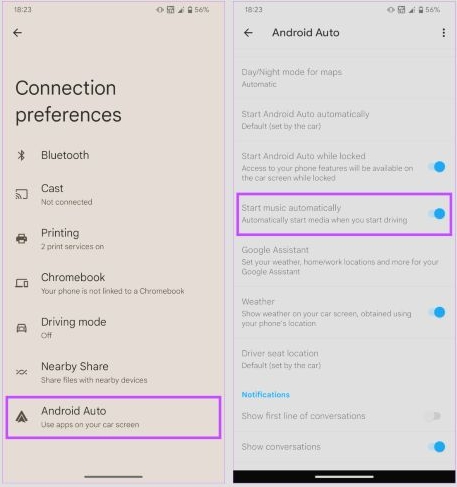
For Android users, there’s one more place worth checking. Android Auto has its own auto-start rule:
Step 1. Open Android Auto settings on your phone.
Step 2. Look for the Start music automatically option.
Step 3. Switch it on or off.
Summary
Now you can listen to Pandora in your car without much effort. We’ve walked through every practical method, whether you prefer wired setups or wireless convenience.
And if you want true flexibility — playing Pandora anywhere, anytime, without ads or an active subscription, Mediaio Audio Converter is the option that makes that possible. It lets you convert Pandora music into real local files and save them directly onto a USB drive, so your stations can travel with you no matter where or what you drive.