

Some new users don’t know how to set up sleep timer on Pandora while long-time users report that Pandora sleep timer fails to stop the music after the set time. In this guide on Pandora sleep timer, we’ll look at both sides of it. First, we’ll show you how to use Pandora’s sleep timer on Android and iOS. Then we’ll go a step further and explain useful fixes to get Pandora sleep timer working again if it stops functioning.
As a bonus, we’ll also show you how to set a sleep timer for Pandora on desktop by using Mediaio Audio Converter and a media player with sleep timer support.

Here, you can not only learn everything you need to know about Pandora Mod APK, but also get the latest version for free music downloads.
More DetailsHow to Use Pandora Sleep Timer on iPhone/Android
Pandora’s sleep timer functions throughout the mobile app. It doesn’t matter whether you’re listening to music or a podcast, everything stops the moment the timer reaches the end.
The setup is the same on both Android and iOS. The only catch is that once the timer starts, you can’t pause it. So, choose a duration that actually matches how long you want the audio to play. Pandora will stop it at the initially set time, though you can resume playback afterward.
Getting Pandora sleep timer ready only takes a few taps:
Step 1. Play something on Pandora. Start a station, playlist, or anything you like.
Step 2. Choose your Profile icon at the bottom bar.
Step 3. Tap the gear icon at the top.
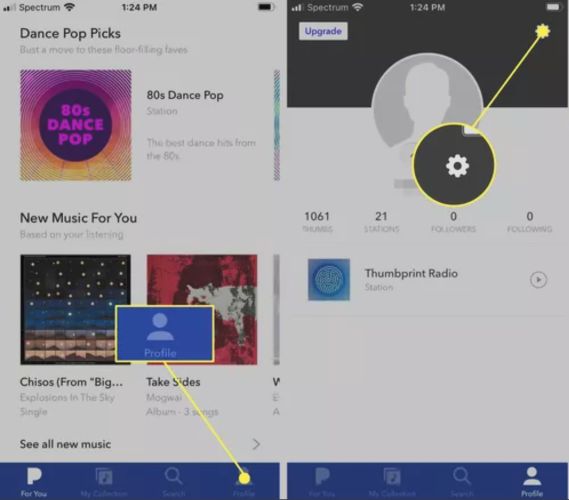
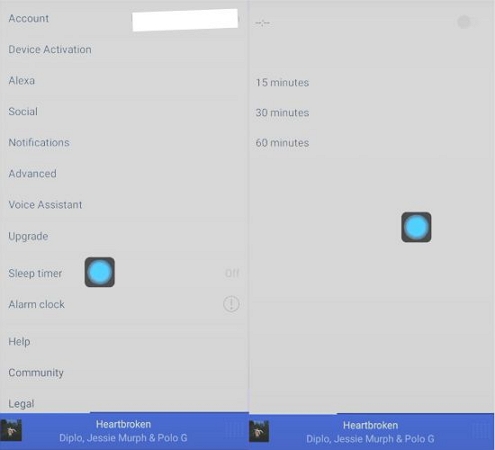
Step 4. Select Sleep timer on the Settings page.
Step 5. Pick a duration:
- 15 minutes
- 30 minutes
- 60 minutes
Once selected, the timer starts immediately.
How to Fix Pandora Sleep Timer Not Working on Phone
Whether the Pandora sleep timer refuses to appear, works on one device but not the other, or starts normally but never stops the music, this section will allow you to fix the issues. You’ll also find better alternatives to inbuilt Pandora sleep timer to boost your experience.
Fix 1. Allow Pandora to Run in the Background
A common cause behind the Pandora sleep timer failing is that the app can’t run properly in the background. When Pandora isn’t allowed to run in the background, it music playback works normally but its secondary functions, like timers, alarms, offline syncing, or background scripts, get restricted.
Here is how to enable background activity for Pandora on iPhone and Android.
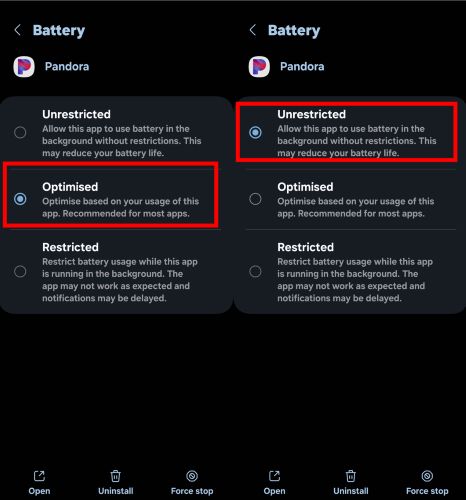
On Android
1. Open Settings, choose Apps and select Pandora.
2. Tap Battery on Pandora’s app info page.
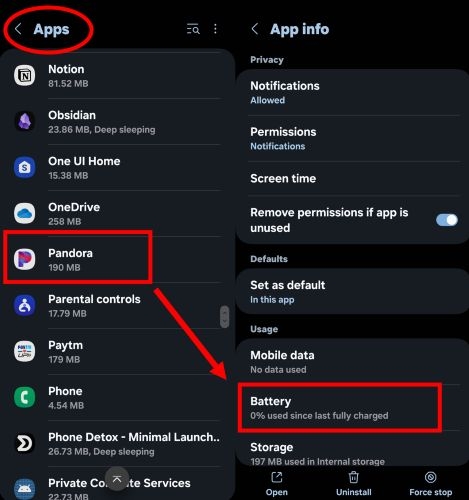
3. Change the setting to Unrestricted. This allows Pandora’s sleep timer to function properly.
On iPhone
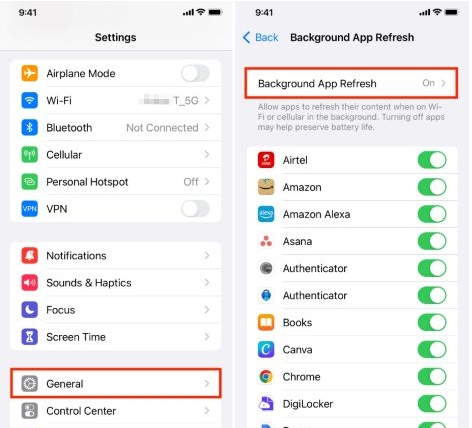
1. Go to Settings > General.
2 . Select Background App Refresh.
3 . Make sure Pandora is turned ON.
Fix 2. Update Pandora
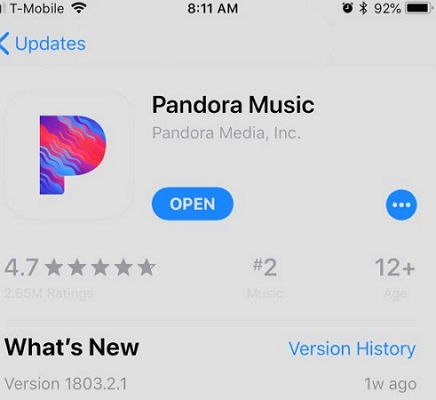
Functions like sleep timer interact with OS-level audio APIs and rely heavily on compatibility. So when the phone OS updates and you’re still running an older Pandora build, the sleep timer can stop functioning properly. The fix is to update the Pandora app. Follow these steps on your device.
- Open Google Play Store or App Store on your phone.
- Search Pandora Music.
- Tap Update.
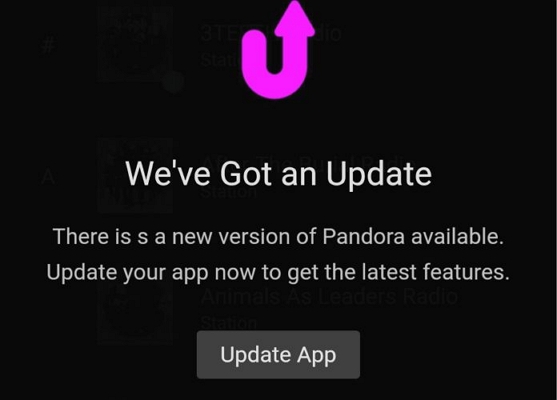
If you’re using an Android device, Pandora will notify you when an update is available. Just tap Update App to install the latest version.
Fix 3. Reinstall Pandora
Another common cause is the app itself. For example, Pandora’s installation files or cache become corrupted or the current version has hidden glitches or conflicts that an ordinary update cannot resolve. When that happens, a full uninstall and then reinstalling Pandora clean will restore features like the sleep timer back to normal.
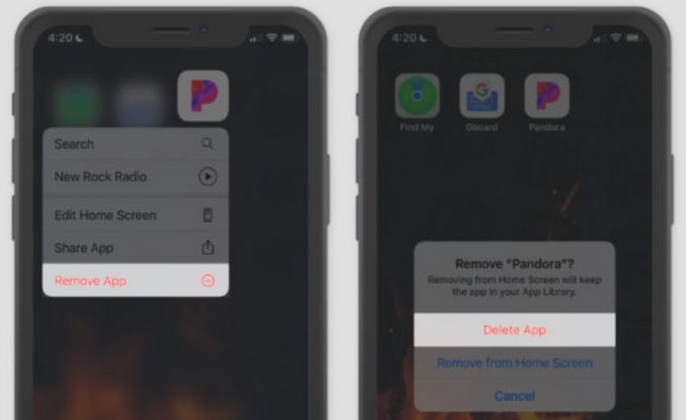
On iPhone
- Touch and hold the Pandora icon.
- Tap Remove App > Delete App.
- Restart your device.
- Reinstall Pandora from the App Store.
On Android
- Long-press the Pandora icon and tap Uninstall from the show option.
- Reboot your device. Finally, install Pandora again from the Play Store.

Fix 4. Put Pandora on a Sleep Timer via iPhone Clock
When Pandora’s own sleep timer is unavailable, the alternative is to use the Clock app on iOS. It runs at the system level, so it doesn’t matter if the audio is playing from Pandora or any other app, the Clock app will stop the music after the timer runs out.
It also ignores quirks like battery optimization and other settings, so you don’t have to do anything extra. It’s simple to set up too and here are the steps.
Step 1. Open the Clock app and switch to the Timer tab.
Step 2. Open the When Timer Ends menu, scroll down and choose Stop Playing.
Step 3. Confirm with Set.
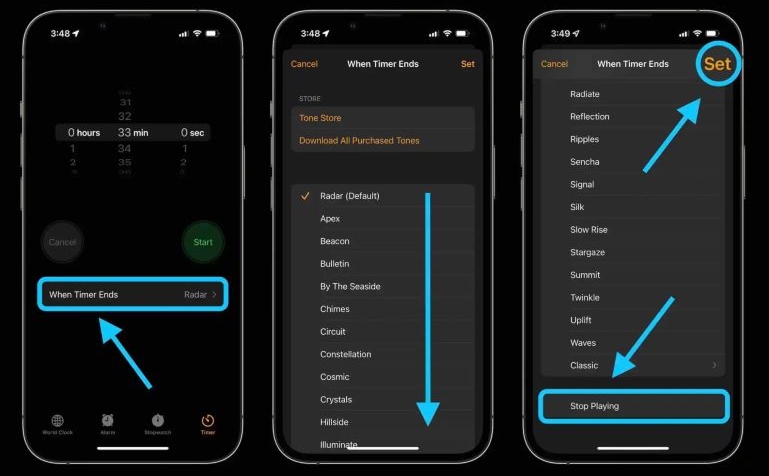
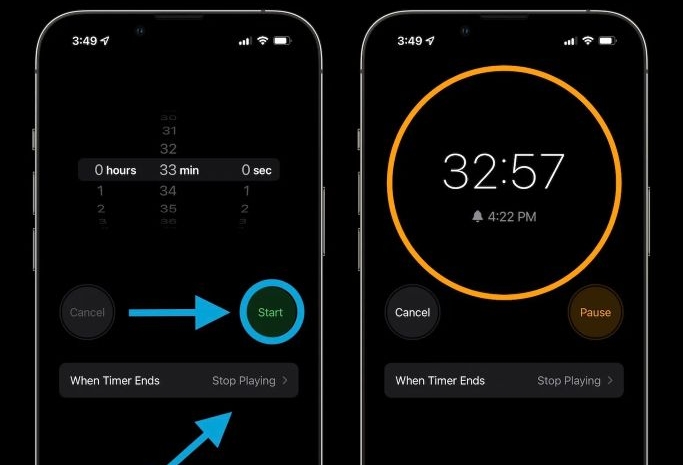
Step 4. Pick how long you want Pandora to play using the dial. At last, hit Start. Pandora and other music will stop on your iPhone when the timer runs out.
Fix 5. Set Pandora to Turn off Using Android Sleep Timer App
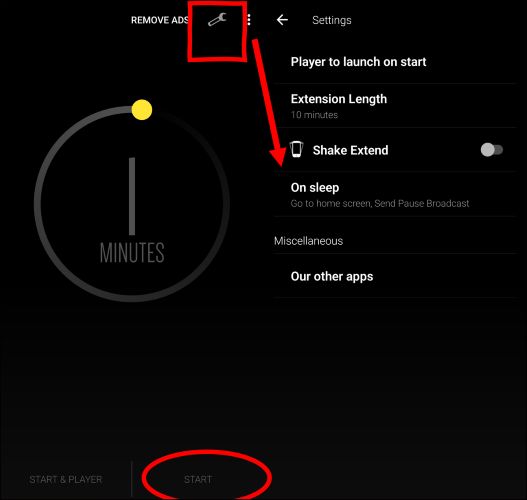
On Android, you can rely on a third-party sleep-timer app instead if you fail to fix the Pandora’s sleep timer. The most popular one is called Sleep Timer. It works with Pandora and pretty much any music app on your phone.
It can also fade songs near the end, cut playback over Bluetooth, disconnect Wi-Fi, or simply stop the music, whatever you choose. All those options sit inside the free version. The premium upgrade exists only to remove ads.
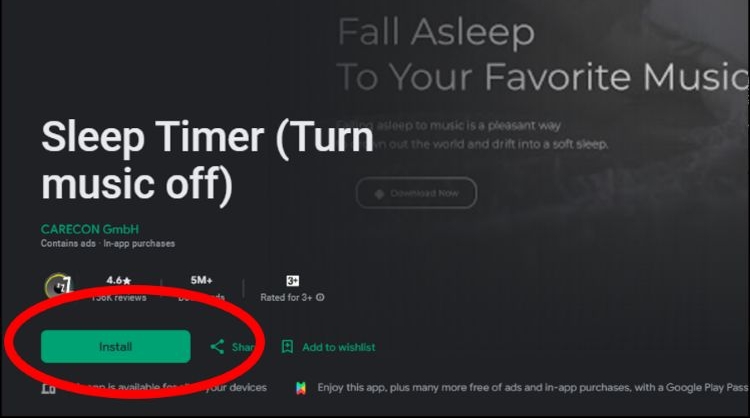
Step 1. Install Sleep Timer (Turn music off) from the Play Store.
Step 2. Pick how long you want the music to run using the on-screen dial.
Step 3. Hit Start and leave the app will do the rest.
Once the timer runs out, the app will stop music playback and perform any extra actions you turned on.
How to Set Sleep Timer for Pandora on Computer
An embedded sleep timer for Pandora desktop is still one of the most requested features. Windows and macOS do have ways to stop Pandora desktop playback at a desired time, such as running command lines, but they’re not user friendly. A simpler workaround to stop your Pandora music playback on desktop is to listen to Pandora songs on another media player. To do this, you need to convert your Pandora tracks to local files and play them in a media player that already has a proper sleep timer. Next, we will show you the whole process step by step.
Step 1: Download Pandora Music to Local Computer
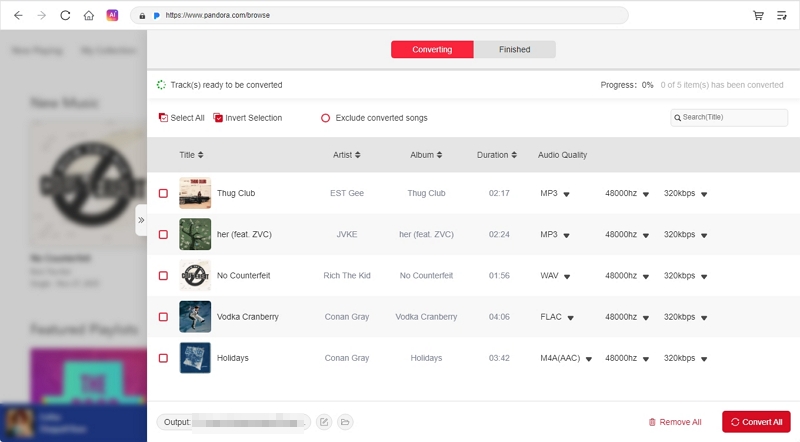
Downloading Pandora music to your computer locally becomes simple with Mediaio Audio Converter. Mediaio pulls your stations, playlists, collected songs from Pandora and turns them into local audio files. Format choice is flexible too—you can choose from MP3, M4A, FLAC, WAV, or any other. Downloaded files behave like regular audio. They can be open in media players like WMP, VLC, foobar2000 and MusicBee without restrictions or errors.
You don’t need a Pandora Premium subscription to download songs with Mediaio, meaning that the music downloads aren’t affected by your subscription status. The music downloaded by Mediaio is permanently available until you delete it.
Steps to Download Pandora Music Using Mediaio
Open Mediaio Audio Converter and select Pandora on the main screen.
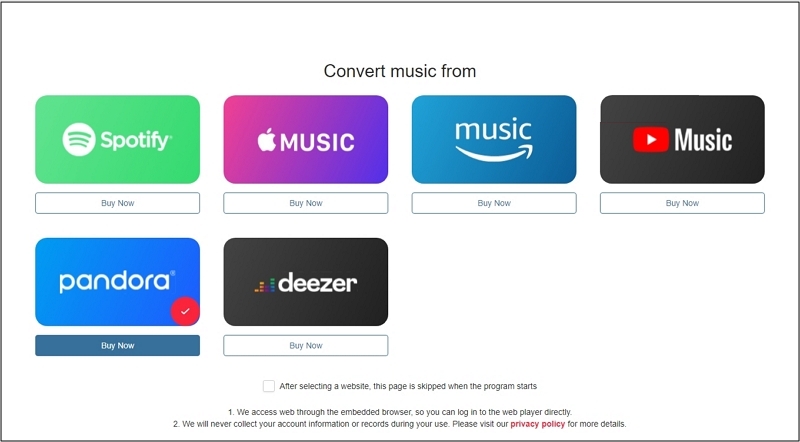
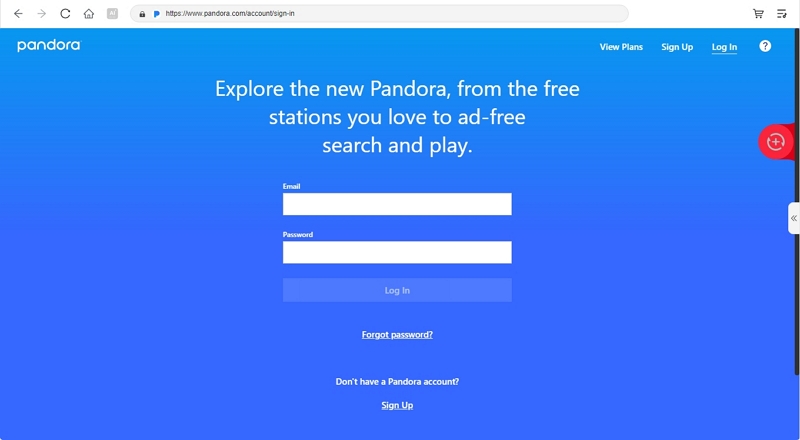
Sign in using your Free, Plus, or Premium account.
Add the music you want by dragging it to the + icon or clicking the add to conversion button. Stations, playlists, albums, or songs all work the same way.
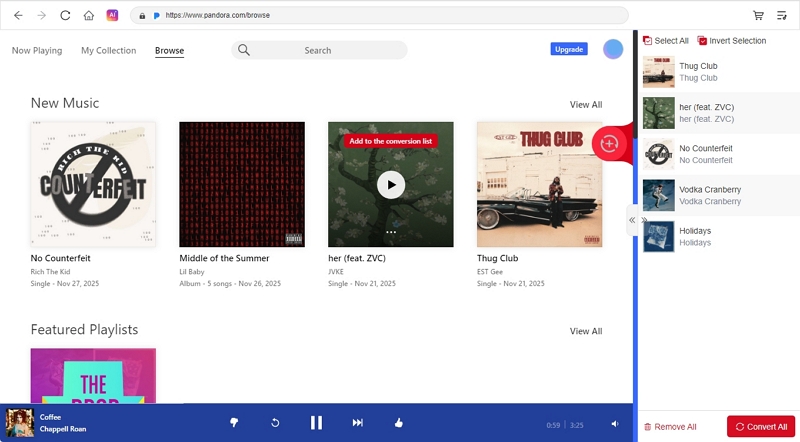
Access the full conversion window. Choose an output format and quality for the downloaded tracks. You can also set an output destination. Hit Convert All and let Mediaio convert and save the selected songs into real offline files.
Step 2: Add Local Pandora Songs to MusicBee
Once your Pandora songs are downloaded and saved locally, the next part is simple: import them into a music player that supports a sleep timer. There are many options out there, such as VLC, Foobar2000 and MusicBee. If you want something that feels clean and straightforward, MusicBee is the easiest pick.
Steps to set sleep timer for Pandora music on desktop via MusicBee:
Step 1 . Install and open MusicBee on your computer.
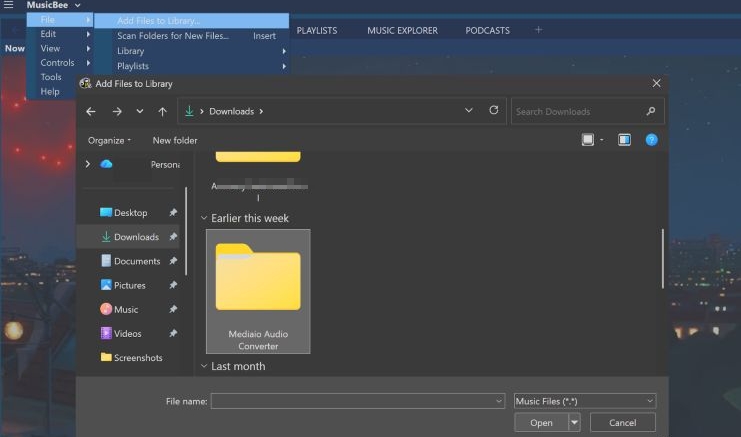
Step 2. From the MusicBee drop-down menu, select File.
Step 3. Choose Add Files to Library.
Step 4. Select the local Pandora songs and click Open.
Step 3. Set a Sleep Timer for Pandora Songs
Setting a sleep timer in MusicBee doesn’t take much effort. Here’s how.
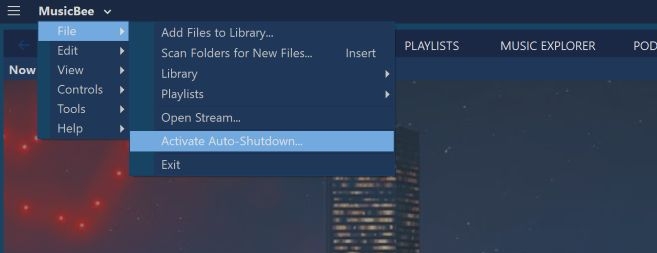
Step 1. Click the MusicBee drop - down in the top-left corner. Then, select File > Activate Auto-Shutdown.
Step 2. A small window will appear.
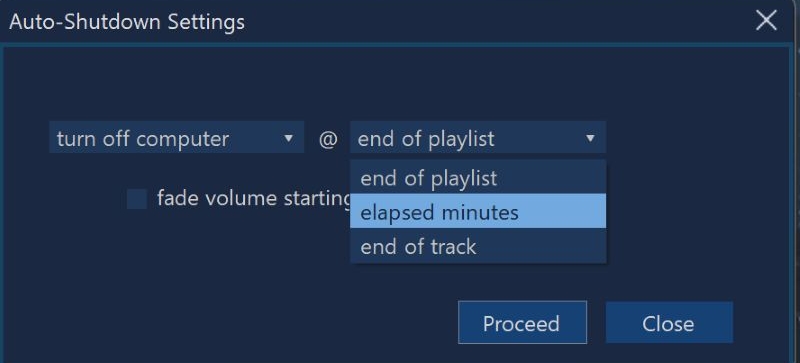
- Decide what should happen when the timer ends — Stop Playback, Sleep, or Turn Off Computer. Choose Stop Playback here.
- Choose when MusicBee stops the music. You can set a specific number of minutes or pick from the built-in options: Elapsed Minutes, End of Track, or End of Playlist.
Step 3. Click Proceed. MusicBee will stop at the moment you chose without you having to touch anything again.
What Is the Best Pandora Station for Relaxing Sleep Music?
There isn’t one perfect answer here, as it depends on your tastes and preferences. Pandora has dedicated sleep-focused stations built for different moods and patterns.
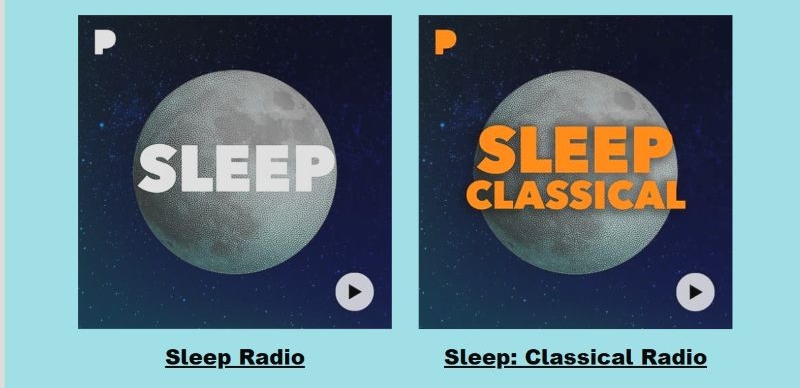
The popular Sleep and Sleep Classical Radio are great starters if you just want something calm and steady in the background.
White Noise or Relaxing Radio works better when you want something steady, neutral, and noise-masking, especially when you’re in a noisy apartment or trying to sleep during the day.
Sleep Jazz and Sleep Guitar feel slightly more awake. These are good when you’re not fully tired yet or you want something soothing while scrolling, winding down, or taking a slow afternoon nap.

Piano and Spa stations are more floaty and perfect for deep relaxation, meditation, stretching, or just clearing your mind before sleep.

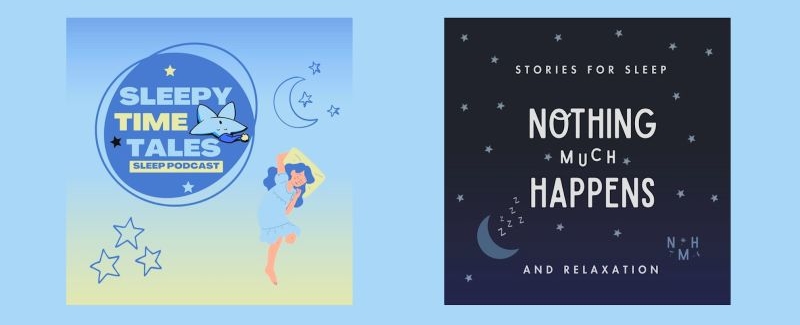
And it isn’t just music. Pandora has sleep-based podcasts too. Sleepy Time Tales and Nothing Much Happens are two of the most loved ones because of how they’re narrated — quiet tone shifts, soft pacing, no sudden volume jumps, and stories designed to make your brain stop looping thoughts. The intention is to gently lull your attention away from the day until you drift without realizing.
Pandora gives you enough variety to experiment. It’s less about choosing the “best” one and more about finding the sound your mind loosens to. Once you discover that, pair it with the sleep timer and you will get a calm wind-down routine.
Final Words
At this point, using sleep timer on Pandora is clear. The built-in timer on the Pandora mobile app handles simple needs. When it stops responding, you can switch to other tools like iPhone Clock and gain more control.
On Windows and Mac, Mediaio Audio Converter keeps things just as straightforward. It turns your favorite sleep music and podcasts into offline files. After that, any standard media player can handle the shut-off timing.