

It can be annoying when you are enjoying your stations or playlists on Pandora but it starts buffering or stops playing completely. It feels even worse if you are a Pandora Premium user. Don't worry. It's easy to fix the Pandora not working issue on any device, whether it's an iPhone, Windows PC, car stereo, Samsung Smart TV, Google Nest, or others. This guide will cover the fixes for all these devices and help you get Pandora working normally again. If you want to avoid Pandora playback issues in the future, you can download Pandora music locally for a smoother listening experience and we will share you how to get it done with Mediaio Audio Converter.
Before Fixing Pandora Not Working
Sometimes, a faulty Pandora app or web player cannot be fixed on your side or can be solved with a quick check. So make sure to perform the following checks first to resolve the issue with minimal effort and avoid unnecessary troubleshooting.
1. Check If Pandora Is Not Working Today via Pandora Outage Map
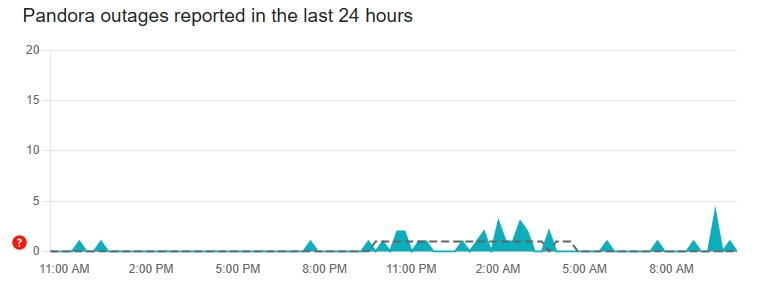
If Pandora’s servers are down, your music playback will be affected. Check the Pandora outage map online to see whether there are any error reports today and what other users are experiencing. You can find the outage map on Downdetector.
2. Check Network Connection
A stable network is essential for streaming Pandora music. Make sure your device is connected to a reliable internet connection. You can test your internet on another app that streams music or video, like YouTube or Spotify. If all those apps load slowly, your WiFi is the likely culprit. Switching to mobile data or restarting the router might help. If you have enabled VPN on your device, turn off it and Pandora may work as normal.

Case 2. Click the forward button in a station. The next song doesn’t play, although its title and artist are shown.
Case 3. The music is progressing, but there’s no sound in the Pandora browser.
Case 4. The Pandora app keeps buffering and then skips songs.
Case 5. Pandora stops playing songs in the middle and cannot be restarted.
... Computer: Windows PC/Mac
Phone: iPhone/Android
Smart TV:Samsung TV, Roku TV, Sony TV, etc
Google Nest/Car/Apple Watch
Fixed: Pandora Not Working on Computer
Playback issues are most common on the Pandora web player, so we put its fixes first.
Fix 1. Clear Pandora Cache and Cookies
If you click the Play button on the Pandora web player and nothing happens, this method can help.
Success Rate: 80%
Here is how to clear Pandora temporary files in Chrome:
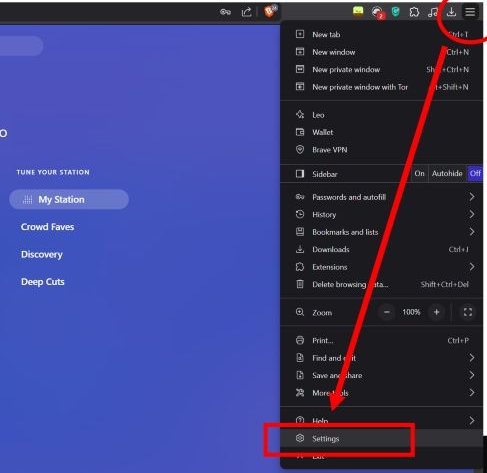
Step 1. Click the three-dot icon in the browser's top-right corner. Select Settings.
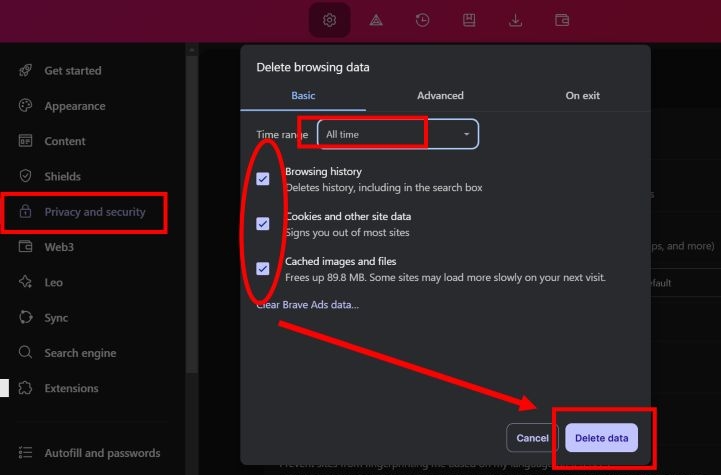
Step 2. On the left side, pick Privacy and Security. You'll see a pop-up for clearing your browsing data. Under Basic, do this:
- Set the time range to All time.
- Check all three boxes.
Step 3. Finally, hit Clear data or Delete data to finish the cleanup.
That's it. You’ll need to log back into Pandora afterward, but this quick cleanup will clear up playback hiccups for good.
Fix 2. Reset Pandora Password
You can't skip the stations on the Pandora browser.
Success Rate: 60%
Follow these steps to securely reset your Pandora password and log out of all devices:
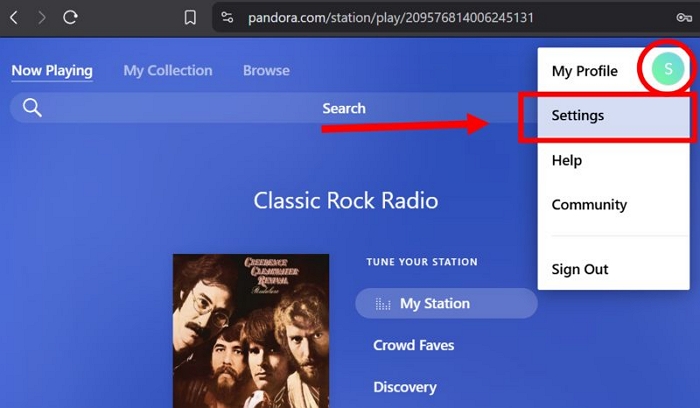
Step 1. Visit Pandora.com. Click your profile icon at the top-right corner. Then, select Settings.
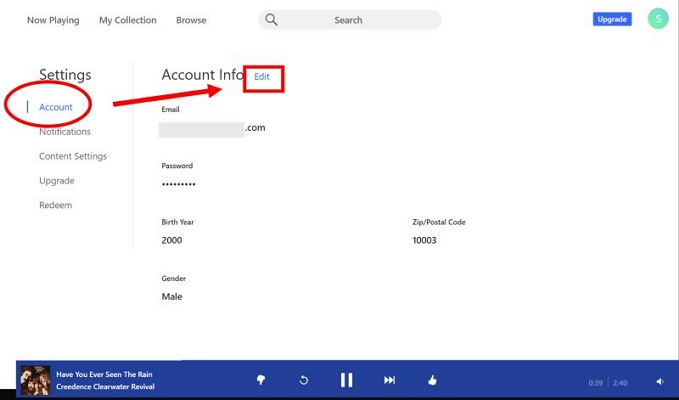
Step 2. Click Account. Next to Account Info, select Edit.
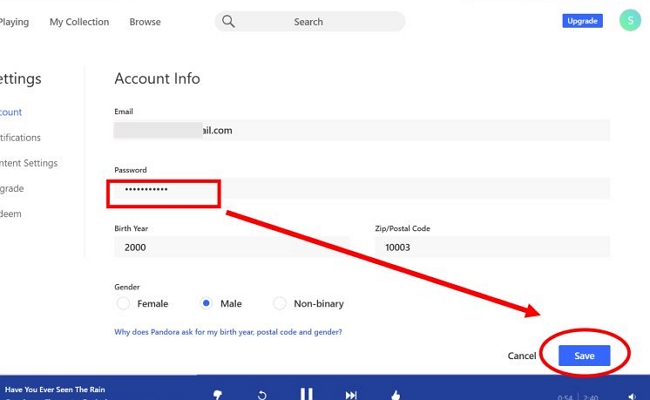
Step 3. Erase your old password, enter your new one, and hit Save (at the bottom).
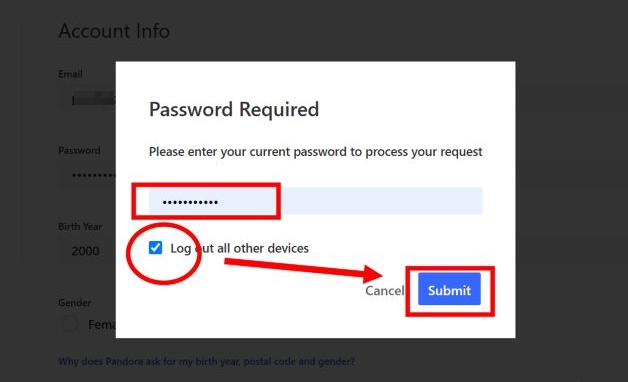
Step 4. Pandora will pop up a window asking for your current password again. Enter it and tick the box labeled Log out of all other devices. Then click Submit.
You'll see a Changes Saved message at the top.
Now you'll need to log back into Pandora everywhere again, which ensures you have full control over your music streaming.
Fix 3. Switch to Another Browser
You have tried the fixes above, but the issue persists. Or it’s your first time logging in to Pandora in the browser.
Success Rate: 95%, if the issue isn't caused by Pandora downtime.
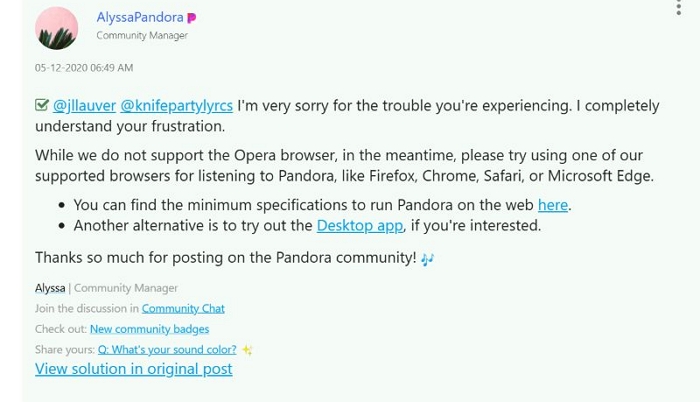
The simplest fix in such cases is to jump onto another browser. For instance, if Chrome isn't cooperating, give Edge a quick try or vice versa.
How to Fix Pandora Not Working on iPhone/Android
Pandora not working is usually caused by improper settings on your phone, which can be easily fixed.
Fix 1. Clear Pandora Cache
It’s been a long time since you cleared the Pandora cache or you haven’t done it before.
Success Rate: 70%
Although Pandora doesn’t include any built-in option to remove this clutter, there are still ways to get rid of them. Here’s how to manually remove Pandora's temporary data:
For Android
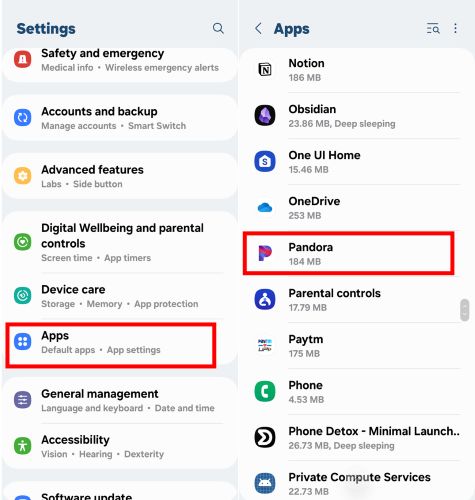
Step 1. Open your phone settings. Navigate into Apps or Application Manager. From the list, tap on Pandora.
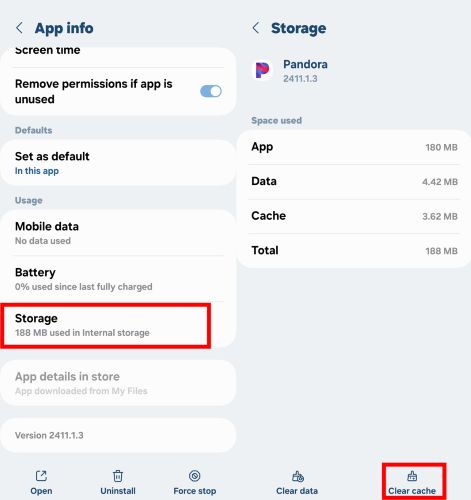
Step 2. Inside the app info, select Storage. There, you'll see Clear Cache at the bottom right. Tap it.
The moment you do, you'll notice Pandora's bulky cache shrinks drastically, from GBs down to mere MBs. Then, restart Pandora app and your music will play with no pauses.
For iPhone
Clearing cache on iOS isn't as direct, as Apple doesn’t allow it easily. Still, there's a quick workaround called "offloading":
Step 1. Tap the gear icon (Settings) from your home screen. Navigate to General > iPhone Storage.
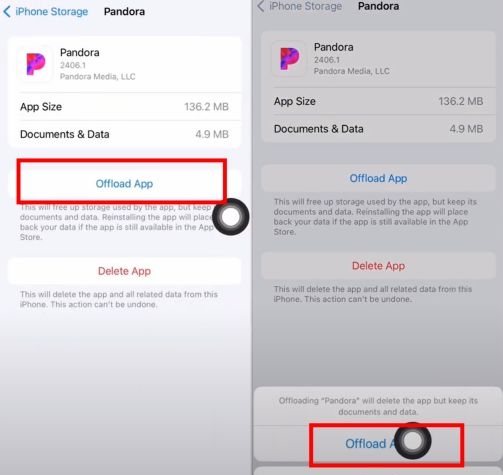
Step 2. Find Pandora and tap it. Then, choose Offload App. Confirm when the card appears from the bottom.
That’s it! The app will take some time to load when you hit the icon on the home screen (it has to reinstall), but then again, it will be refreshed.
Fix 2. Turn off Battery Saver
Pandora stops playing when battery saver mode is enabled.
Success Rate: 50%
Battery saver mode turns off 5G, refreshes rates, and throttles your device’s performance severely, which can disrupt Pandora music playback. So, make sure to use Battery Saver mode only when you’re low on power, not constantly. You can check and turn off such settings with the steps below:
For iPhone
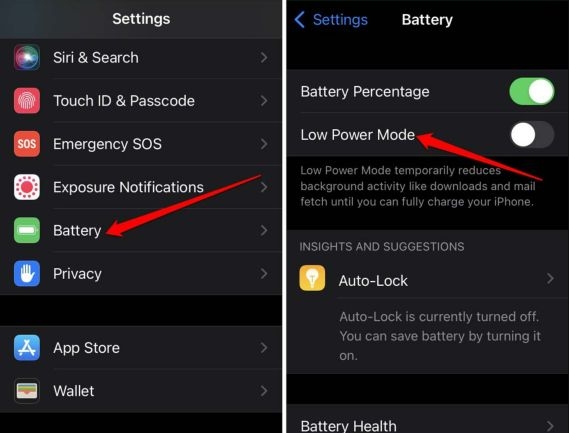
Check your battery icon color. If it’s yellow, Low Power Mode is active. Follow these steps to turn it off:
Step 1. Head straight to iOS Settings, then Battery.
Step 2. Toggle off Low Power Mode.
Your phone will return to normal performance instantly, fixing the Pandora interruptions.
For Android
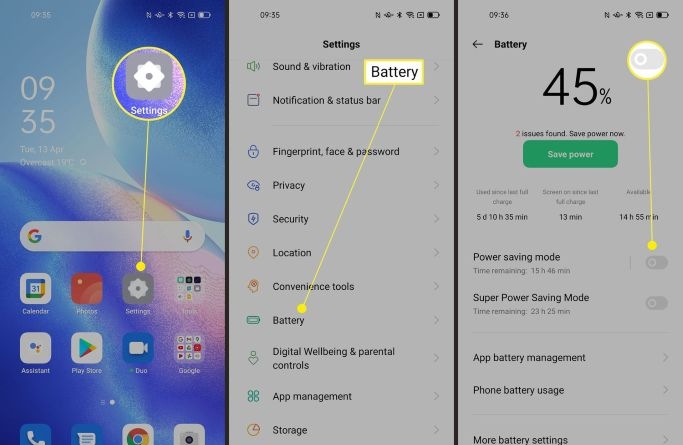
Step 1. Open Settings and find options similar to Batteryor Power Options (changes depending on device’s manufacturer).
Step 2. Look for Battery Saver or Power saving mode, and ensure toggles assigned to such options are off. Usually, your battery icon's color changes visibly when enabled, so keep an eye out for that.
Fix 3. Lower Audio Settings
Your phone’s network is slow due to a VPN or other reasons and music playback pause and resume automatically.
Success Rate: 40%
Lowering the audio quality can reduce network load, ensuring smoother playback. Whether you’re on Android or iOS, follow these simple steps within the Pandora app:
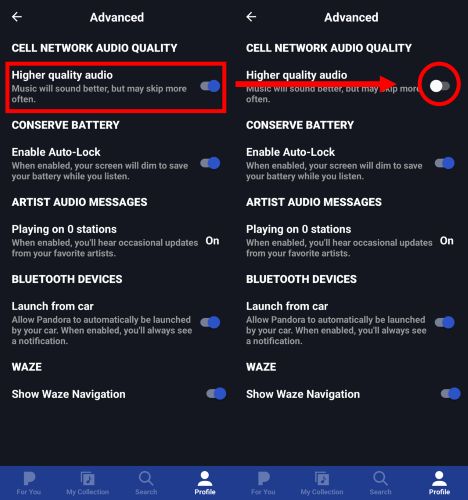
Step 1. Tap the profile tab (bottom-right corner). Then, access the settings by tapping the gear icon (top-right). Inside settings, select Advanced.

Step 2. Under Advanced, you'll find a toggle labeled Higher quality audio in the top section itself. Turn this option off.
This small adjustment will noticeably resolve playback hiccups or stuttering issues.
Fix 4. Allow App to Run in the Background
Pandora stops playing when you switch to another app or close it.
Success Rate: 50%
Check the following settings to ensure that the app has permission to run in the background. Here’s how you can:
On Android
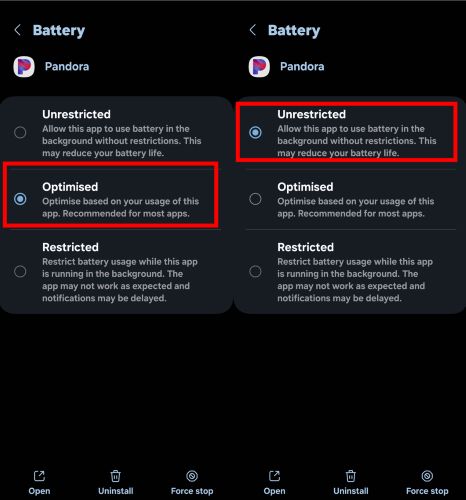
Step 1. Go to the phone’s app settings and select Pandora from the list of apps to access its details page. This time, choose the Battery section.

Step 2. You’ll usually find battery options labeled as Optimized or Restricted. Adjust this setting to Unrestricted (or Not Restricted depending on your device).
That’s it! There will be no sudden stops in playback when you switch to other apps, after playing a track in Pandora.
On iPhone
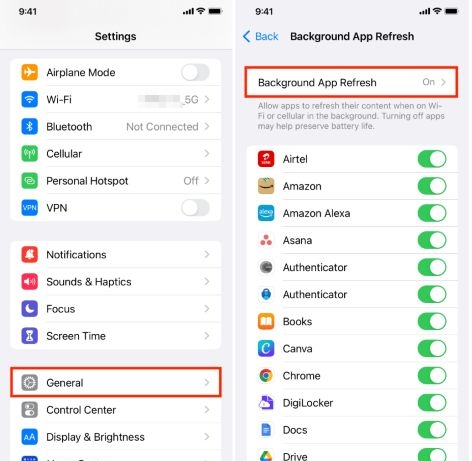
Without Background App Refresh, Pandora can abruptly stop working altogether. To verify this isn't causing your problems:
Step 1. Choose General in the phone Settings. Then tap on Background App Refresh.
Step 2. Confirm the main Background App Refresh toggle is enabled.
Also, scroll down through the list until you find Pandora. And make sure that Pandora's own green toggle is green and active.
Fixed: Pandora Stops Working on Smart TV
This section focuses on Samsung TV and shows you how to fix the Pandora not working issue on smart TV. These methods also apply to other TV brands, with only differences in the steps.
Fix 1. Update Pandora on TV
You receive an “Unexpected error has occurred” message when opening the Pandora TV app.
Success Rate: 90%
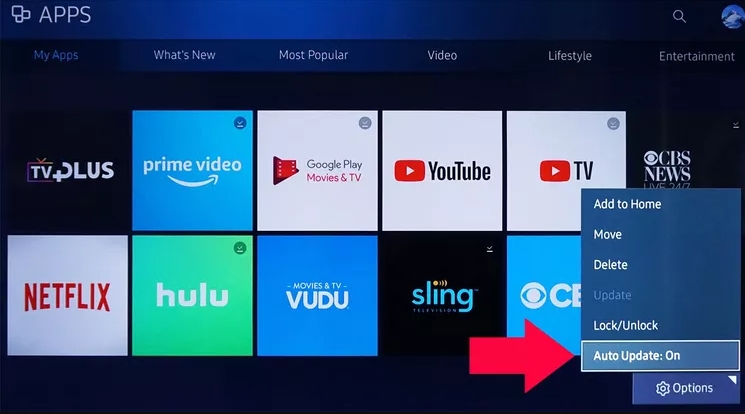
Steps to Get the Latest Version of Pandora on Samsung TV:
Step 1: On your remote, press the Smart Hub/Home button. Next, choose Apps.
Step 2: Select the settings icon at the top right and choose Options. Turn on Auto Update. Your Samsung TV will start updating the Pandora app if there is an available update.
Fix 2. Disable IVP6 Setting
After connecting your TV to a high-speed network, Pandora and other apps suddenly have no sound.
Success Rate: 60%
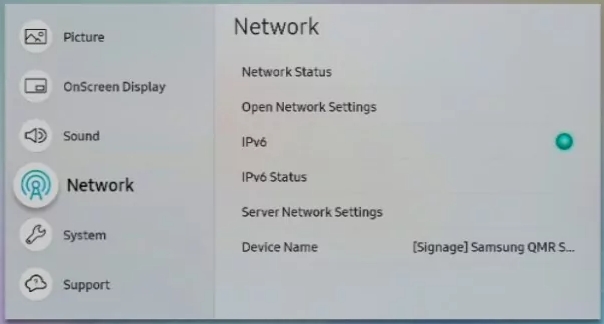
How to Turn off IVP6 on Samsung TV
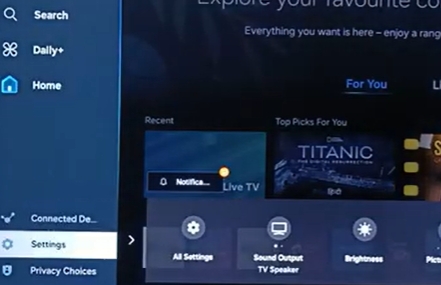
Step 1: Use your remote to access Settings.
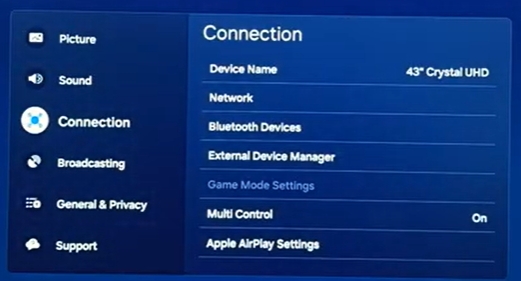
Step 2: Choose Connection > Network.
Step 3: Select Expert Settings.
Step 4: Toggle off IPv6.
Fix 3. Configure DNS
Pandora won’t play on the TV after connecting to a new network.
Success Rate: 50%
This way works because the correct DNS allows the TV to establish a proper connection with Pandora and here is how it works.
Step 1: Enter the Settings menu of your Samsung TV with the remote.
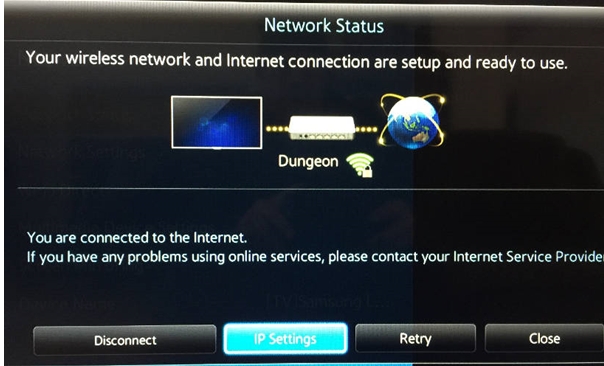
Step 2: Choose Network in the sidebar and choose Network Status from the right pane.

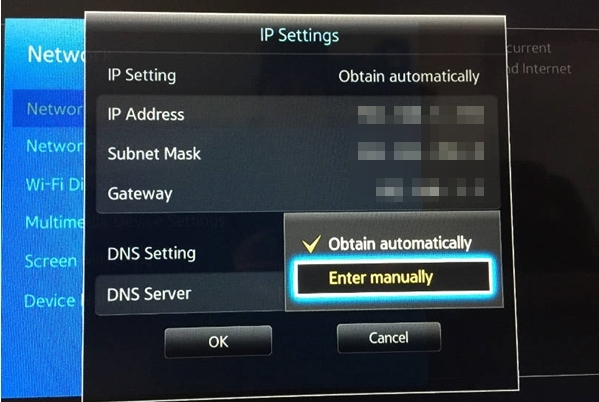
Step 3: Switch to IP Settings.
Step 4: Locate DNS Setting and select Enter manually. Finally, input 8.8.8.8 in the DNS field and save it. Your Pandora should work without issues now.
Fixed: Pandora Won't Work on Google Nest
Can't use voice commands for Pandora on Google Home or Google Nest? You’re not alone. Some users have reported the same issue. According to comments on Reddit, the problem is likely caused by the Pandora app itself, as it could recover after several weeks.

To control Pandora successfully on Google speakers, try using the voice command: 'Hey Google, play Pandora station [station name].
How to Fix Pandora Failing to Work on Car
Whether Pandora is embedded directly within your car’s infotainment system or accessed via Apple CarPlay or Android Auto, issues frequently crop up. Regardless of how you connect, these three quick fixes usually bring up the Pandora app on the screen as well as make it fully functional.
Fix 1: Ensure Launch from Car Option is Enabled
Pandora includes a handy built-in setting specifically for in-car use. Confirm it’s active:
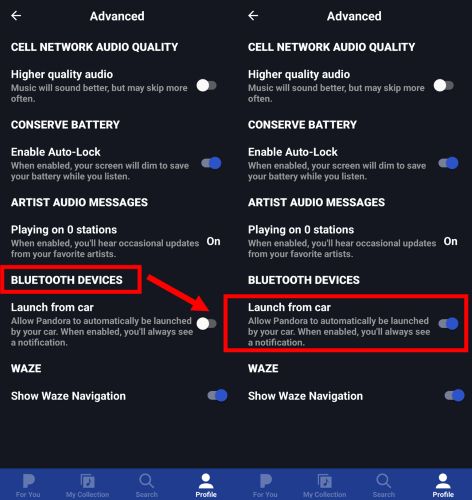
Step 1. Go to the Settings page in Pandora. Move into the Advanced tab.
Step 2. Under the Bluetooth Devices section, make sure the Launch from Car toggle is switched on.
Fix 2. Restart Phone
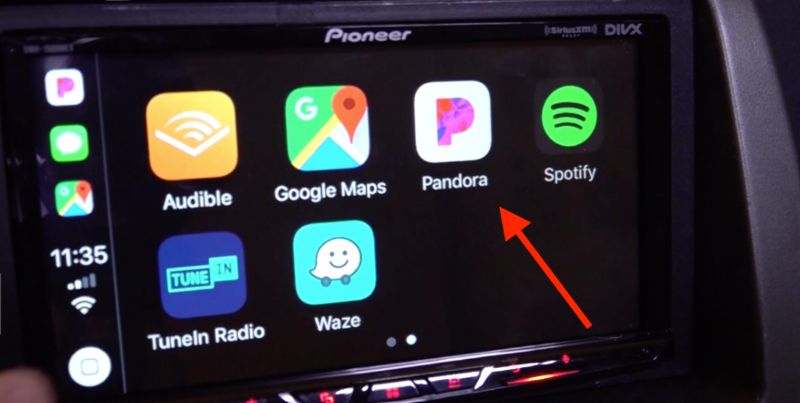
When connected via Apple CarPlay or Android Auto, there could be syncing or connectivity problems and it could be the reason for the Pandora app icon to vanish entirely.
Step 1. Remove the plug from your car’s USB port. Then try the good-old straightforward device reboot, which will stop the device connection.
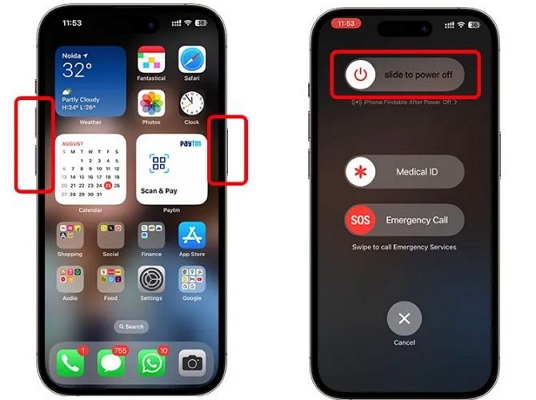
Step 2. When the device restarts, connect the phone to the car again. And the Pandora icon will appear in your car’s interface.
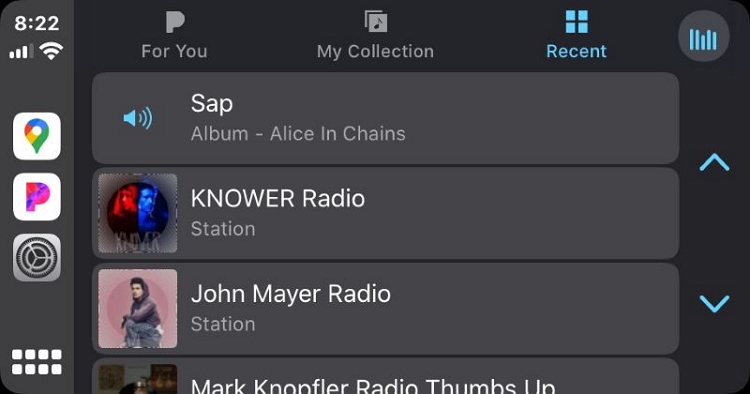
Fix 3. Reinstall Pandora on Phone
If the app still isn’t visible, you can force your car to recognize the Pandora app by restarting the communication. You can do this by simply reinstalling the Pandora app:
Step 1. Unplug the phone from your car.
Step 2. Delete Pandora from your phone and head straight to App Store or Play Store to reinstall.
Step 3. Make sure after reinstalling, the Android Auto or CarPlay has included Pandora in the Allowed Apps list.
Step 4. Reconnect your phone to the car. The Pandora app should appear.
Solved: Pandora Not Working on Apple Watch
Users on Apple Support communities and Pandora forums have started reporting a common headache: Pandora constantly is crashing or refusing to open on the Apple Watch. Syncing glitches, playback interruptions and unexpected shutdowns have also surfaced widely.
Fix: Reinstall Pandora
Reinstalling Pandora on your Apple Watch doesn’t mean you use the regular “delete and install again” approach. Follow these tailored steps instead:
Step 1. On your iPhone, head directly to App Store (don’t rely on the standard update tab). Search Pandoraand manually tap the Update button beside the app. Just make sure you’ve installed the recent version of the Pandora app on your iOS.
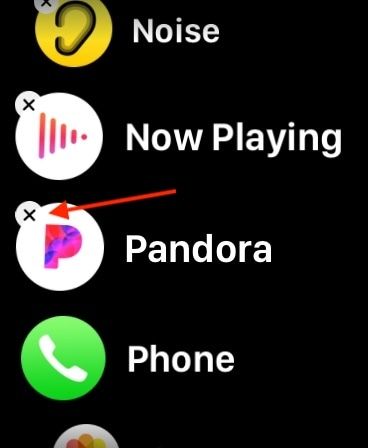
Step 2. Turn to your Apple Watch. Hold the Pandora app icon until you see the tiny X appear, tap it and confirm to delete the app entirely from your watch.
Step 3. Completely shut down both your Apple Watch and your iPhone.
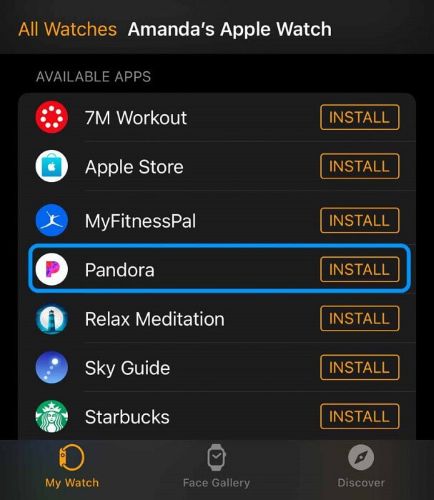
Step 4. Once restarted, open the Watch app on your iPhone. Scroll to the Available Apps list and tap Install next to the Pandora app.
How to Save Pandora Music Locally for Smooth Playback
Saving your favorite Pandora music locally ensures a smoother listening experience. Even if the Pandora app or web player stops working, you can still access your songs because they are saved as MP3 or other open formats and can be played through any compatible media player. This also means you won’t need to deal with Pandora not working issues.
To save Pandora songs as local MP3, FLAC, or other formats, you’ll need help from Mediaio Audio Converter, because Pandora Premium only lets you download music for offline use within the app. With Mediaio, you can download your stations, playlists, or songs locally with full ID3 tags retained. The tracks downloaded with Mediaio can be preserved until you choose to delete them.
Final Words
And with that, we’ve covered everything. No matter where you’re facing problems with Pandora, you now have the fixes. Whether it was buffering or not loading , these solutions should make your music play smoothly again.