

There are hundreds of guides that promise to teach you how to transfer your Spotify playlists to YouTube Music. However, most guides only tell you the names of the tools without steps to use them.
This post is unique. It introduces you to 6 free methods for both mobile and desktop and shows how to move even your largest playlists from Spotify to YouTube Music in one click. Some tools, like Mediaio Audio Converter, let you move your songs without losing audio quality. And what makes this article different is the clarity: every step is written out in detail, so you can easily complete the transfer using the method that fits your needs.
Top Picks
Transfer Spotify Playlists to YouTube Music for Free on Desktop
Here are some free desktop tools that support large transfers from Spotify to YouTube Music. Here’s what you need to know.
$25.95/month for unlimited songs Free for 200 songs
US$1.99 for 7 days of unlimited songs Free
Way 1. Upload Spotify Playlists to YouTube Music
Starting with the traditional method — downloading your songs in Spotify playlists locally as MP3 files and then uploading them to YouTube Music.
Yes, Spotify doesn’t normally allow you to export songs in MP3 or any other local format. However, Mediaio Audio Converter bridges that gap perfectly. Here’s how the entire process looks.
Step 1. Save Playlist Songs Locally
Mediaio Audio Converter lets you save Spotify songs from playlists, albums or library as local audio files. It supports downloading the songs in every format accepted by YouTube Music: MP3, FLAC, and M4A. You can then upload the converted tracks directly to YouTube Music, play them without Spotify, listen to them offline on another device like iPhone or move them to other storage like USB and SD card.
The best part is that you’ll get the exact same songs in high-quality formats(320kbps), with the audio preserved completely. All the metadata, such as artist names, track titles, and even album art, stays visible. Even the album or playlist order remains intact, so nothing feels out of place when you upload them later.
With Mediaio, you can migrate your Spotify playlists without matching songs manually or relying on conversions through third-party servers. It’s a useful tool if you are transferring a modest playlist from Spotify to other services.
Download Spotify Music as MP3, M4A, or FLAC Using Mediaio Audio Converter
Install Mediaio Audio Converter on your computer. The interface will greet you with a clean grid of music platforms. From that grid, choose Spotify.

The built-in Spotify will appear. Sign in using your account credentials(free or premium).
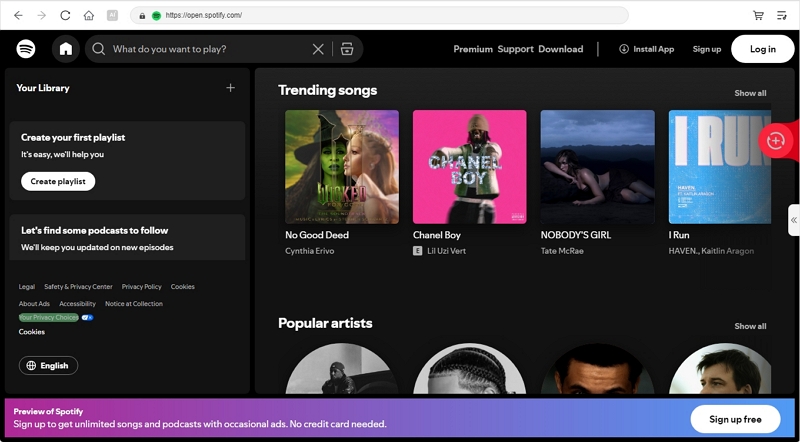
Pick the playlist you want to download by clicking the small Add to the conversion list button beside it. This will select gathers every track in that list.

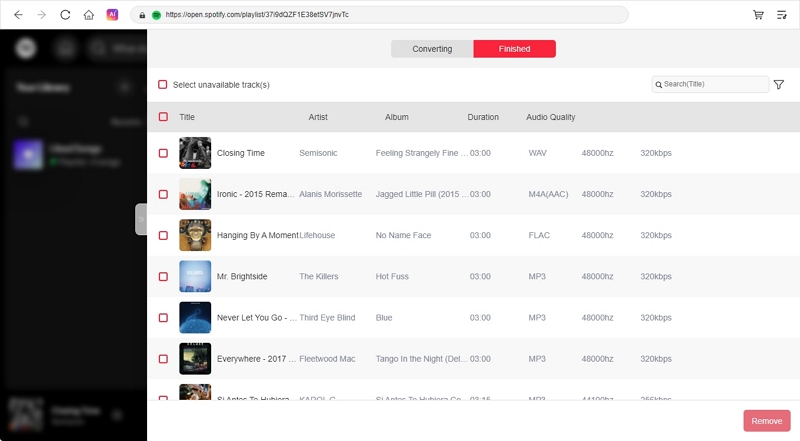
Click the left arrow to open the full conversion list. Choose the YouTube Music’s supported audio format (MP3, M4A, or FLAC) and set the output format if needed. Finally, press Convert All.

Your Spotify playlists will be saved on your computer in the selected local format. You can now upload them to YouTube Music.
Step 2. Import Local Spotify MP3s to YouTube Music
Once you’ve downloaded all the songs using Mediaio, open music.youtube.com on your computer and follow these steps:
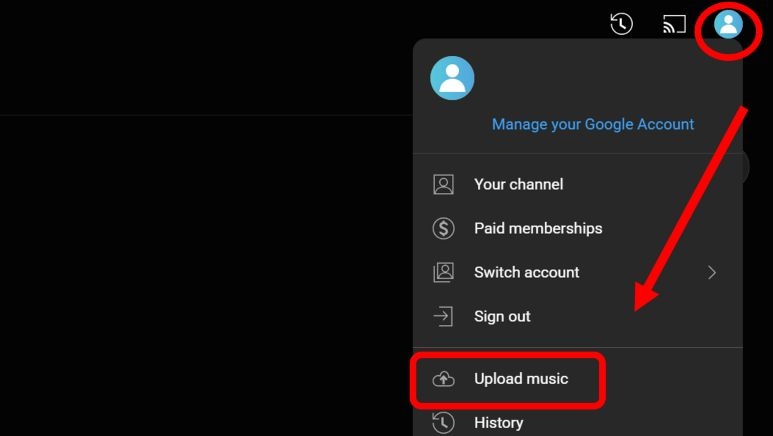
1. Click your profile icon in the top-right corner. Choose Upload music from the drop-down.
2. Locate the Downloads folder and select Mediaio folder to view your downloads. Choose the playlists you want to add and press Open.
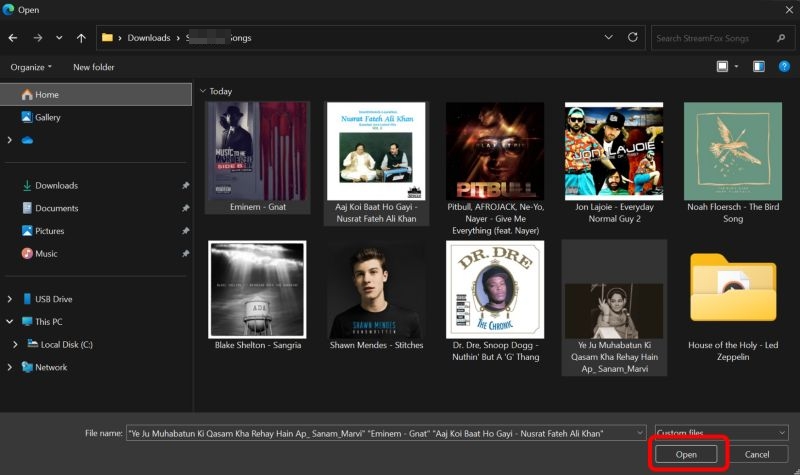
3. Your Spotify tracks will start moving into YouTube Music one by one.
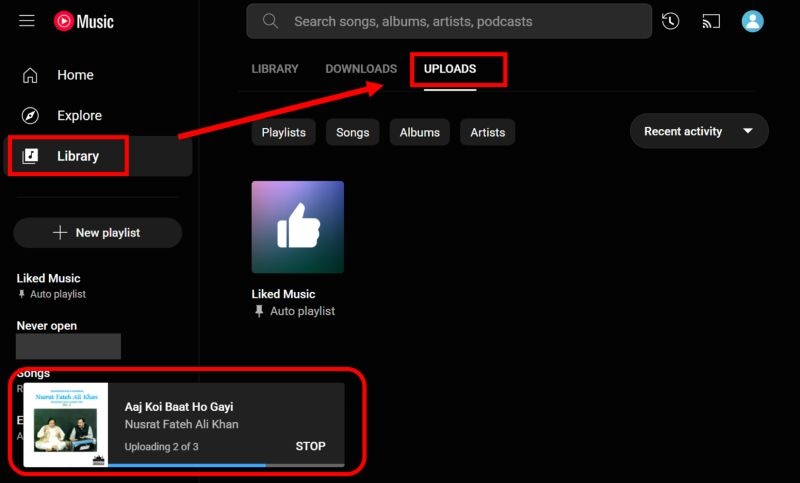
4. After the upload completes, open your Library tab. You’ll find your songs listed there with all the original artwork, Spotify-like sound quality, and proper metadata preserved.

Way 2. Use Reddit-Recommended Online Tools (WeMor)
WeMor was one of the most recommended tools on Reddit of 2024. It runs entirely online and needs no software setup. There are two tiers: free and premium.
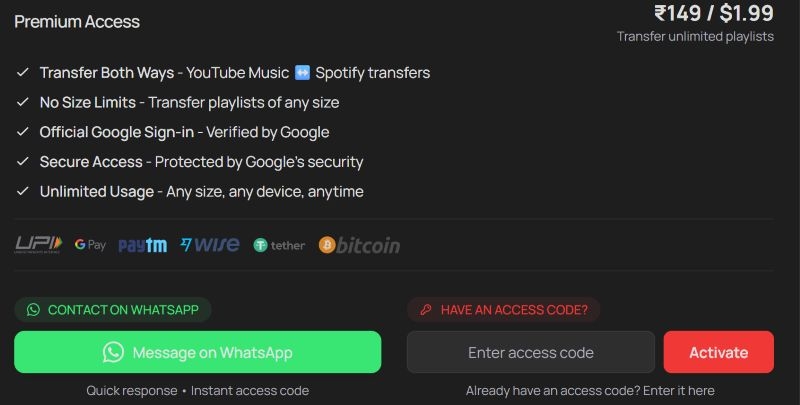
The free plan allows you to move playlists of about 200 to 2000 songs. The premium one costs US$1.99 and lets you transfer playlists of any size for up to 7 days with an access code. After that, you’ll need to buy a new access code again for US$1.99.
All sounds good, but there’s one tricky part. You’ll need to collect your YouTube Music headers manually, which can feel technical to some users. Still, if you’re looking for a lightweight and quick transfer method, WeMor is worth trying.
How to Use WeMor for Spotify Playlist Transfer
Step 1. Copy the Spotify playlist link.
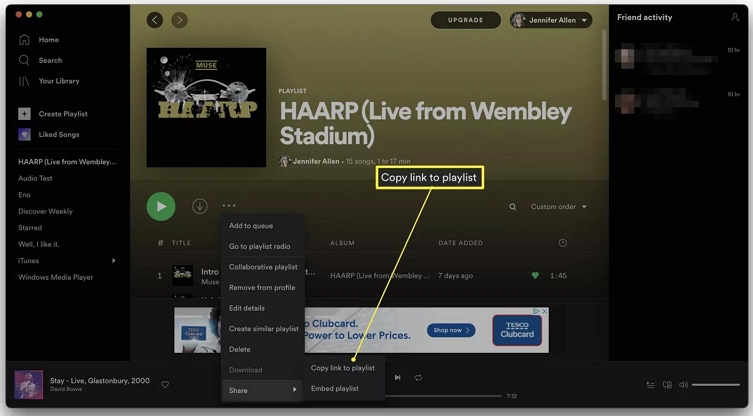
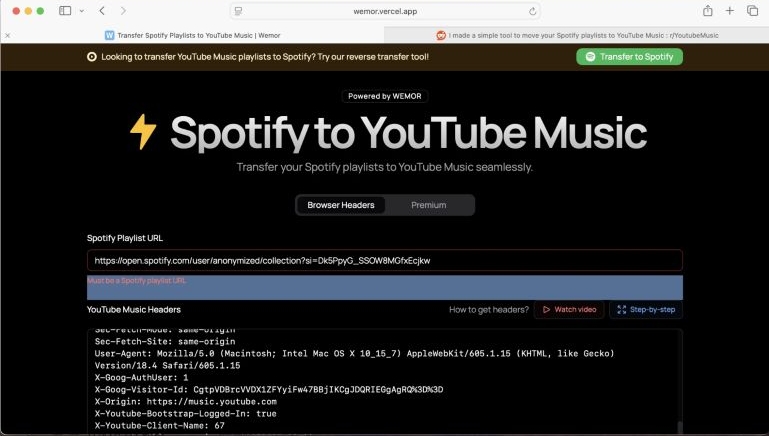
Step 2. Go to wemor.vercel.app and paste the Spotify playlist link in the Spotify Playlist URL box.
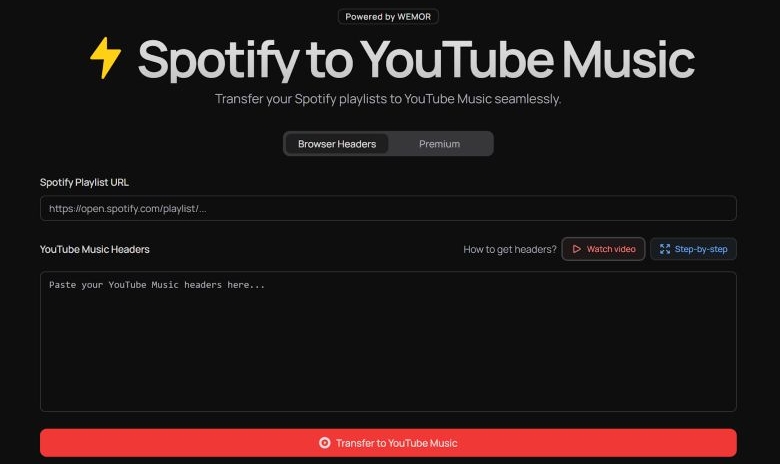
Step 3. To add headers in the YouTube Music Headers field:
- Open YouTube Music and sign in.
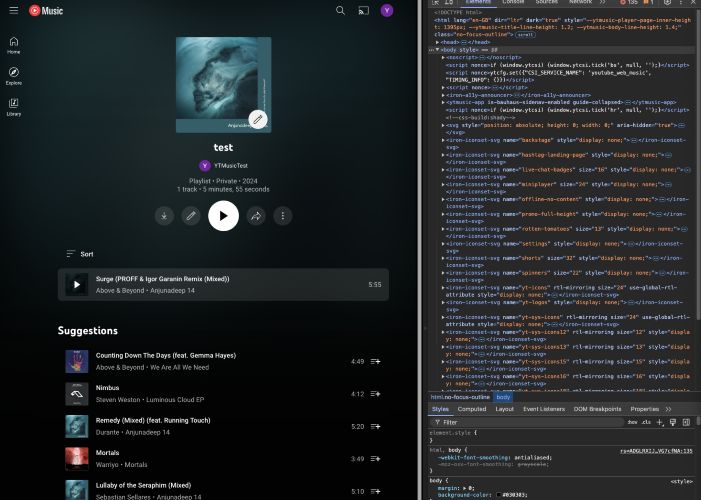
- Press F12 (or right-click > Inspect) to open Developer Tools.
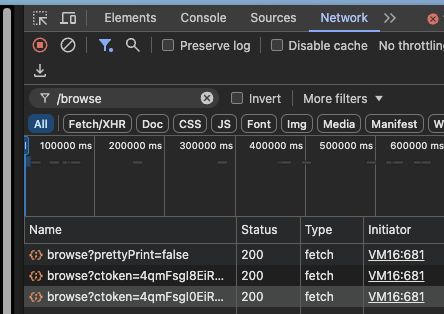
- Select the Network tab.
- Click any area in YouTube Music, such as Home, Library, or Explore, to generate new network requests.
- In the filter bar, type browse.
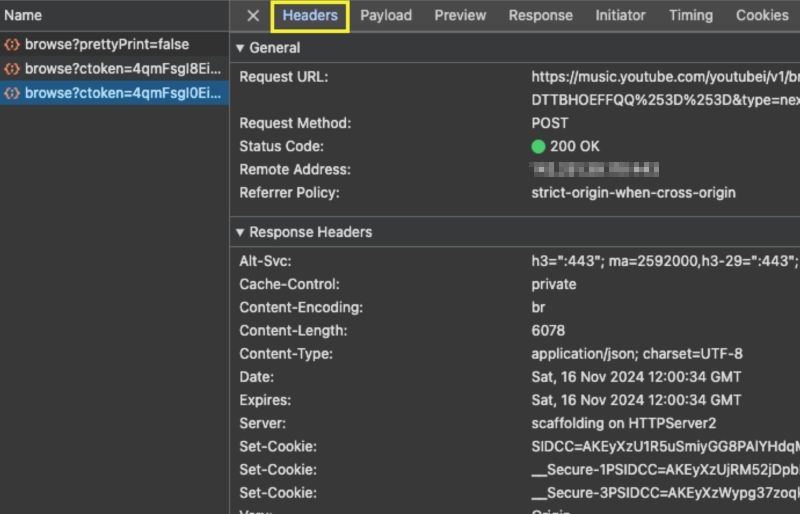
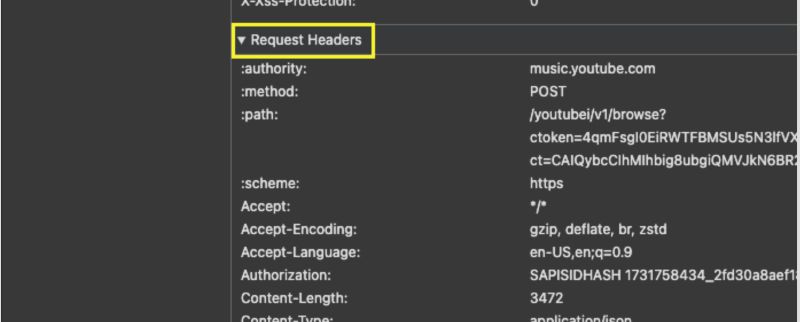
- Select that request, expand Request Headers and look for a request to music.youtube.com/browse.
- Select that request, open Request Headers and copy everything, ensuring these three appear: Authorization, Cookie and X-Goog-AuthUser.
Step 4. Paste these headers into the WeMor page.
Step 5. Click Transfer to YouTube Music and wait for the transfer to finish.
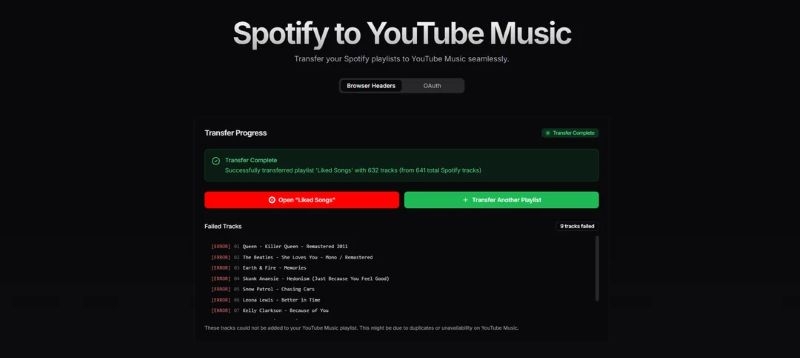
Possible Issues
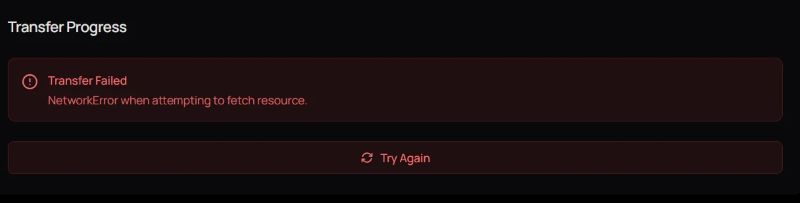
- It is common for the tool to show a “Transfer Failed” error repeatedly.
- Some playlists skip songs or mark them as duplicates, even when they’re not.
- Playlists with over 1000 songs can trigger transfer errors.
- You can see HTTP header errors, such as missing cookies, for example, Secure-3PAPISID is not found.
- It doesn’t work reliably when using a VPN.
- Copying YouTube Music headers is a bit challenging and must be done even with a premium account.

Way 3. Apply Spotify to YouTube Music GitHub Utility
GitHub tools are not the easiest to use. However, they give you unmatched control once you understand how to use them.
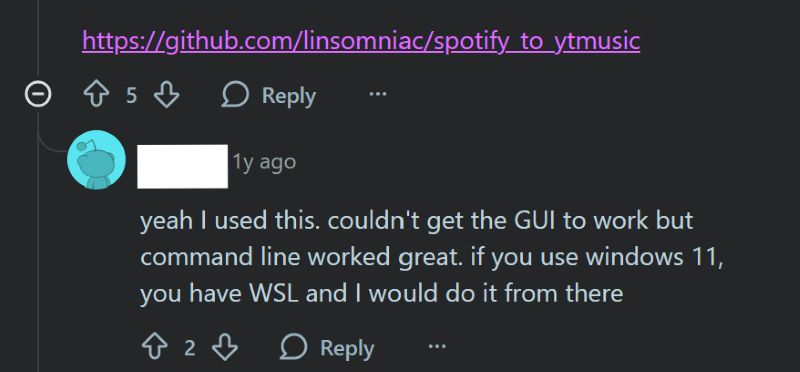
Take linsomniac’s spotify_to_ytmusic utility as an example. It can transfer your entire Spotify library in a single click, though the convenience comes with a lot of complicated steps and technical know-how.
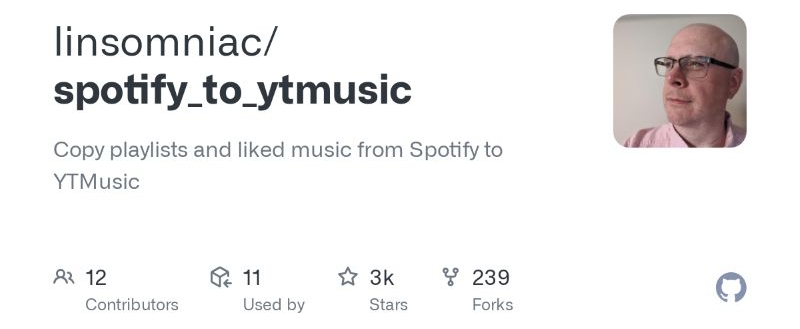
How to Use spotify_to_ytmusic by linsomniac
Step 1. Download and install Git and Python on your computer. During the Python setup, make sure you tick the box “Add Python to PATH”. This ensures you can run Python commands from your terminal easily.
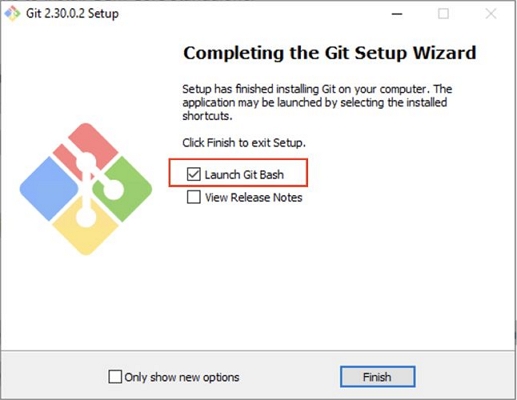
Step 2. Open your Command Prompt or Terminal. Select the folder where you want to download the linsomniac’s spotify_to_ytmusic utility, such as cd Desktop.
Step 3. Type the command to download the utility: git clone https://github.com/sigma67/spotify_to_ytmusic.git
Wait for it to finish. Then, move inside the folder by typing: cd spotify_to_ytmusic
Step 4. You’ll need to copy your YouTube Music headers (as discussed in the WeMor method).
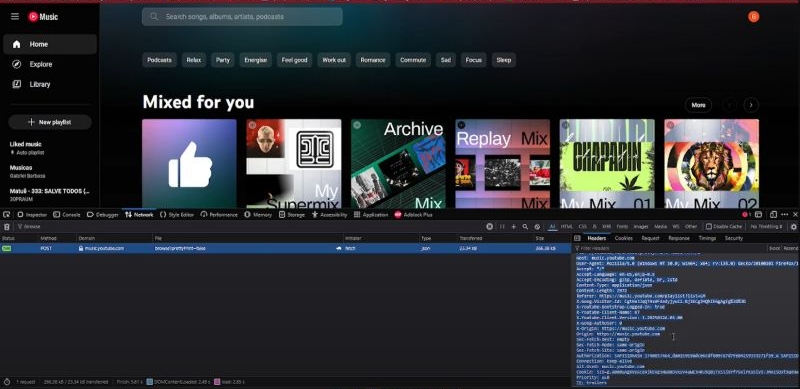
- After copying everything, return to the script folder.
- Open the file named headers_raw.txt.
- Paste all the raw headers there.
- Save and close the file.
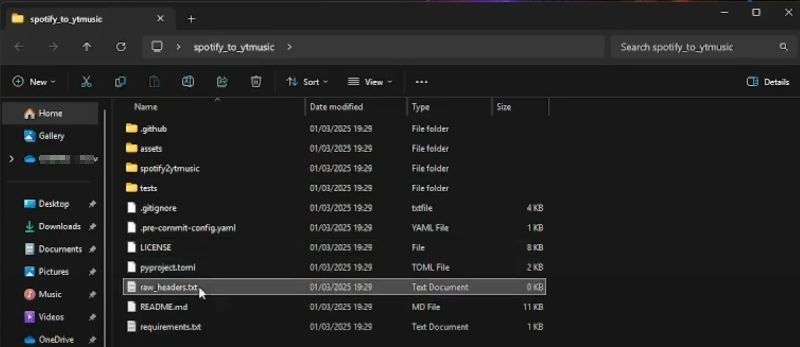
Step 5. In the Command Prompt or Terminal window, type: pip install -r requirements.txt
On some systems: pip3 install -r requirements.txt
Step 6. Now type this command to start the tool: python start.py
The script will automatically detect your headers file and log you in. You’ll see a message that says: File detected. Auto-login successful.
After this, a Spotify login window will appear. Log in to your account.
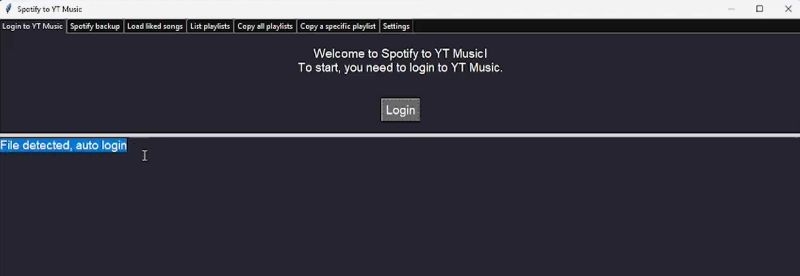
Step 7. The script will load your Spotify playlists, you’ll see two options:
- Transfer a specific playlist by its ID.
- Transfer all playlists together.
For one playlist: python start.py --copy-playlist PLAYLIST_ID
For all playlists: python start.py --copy-all
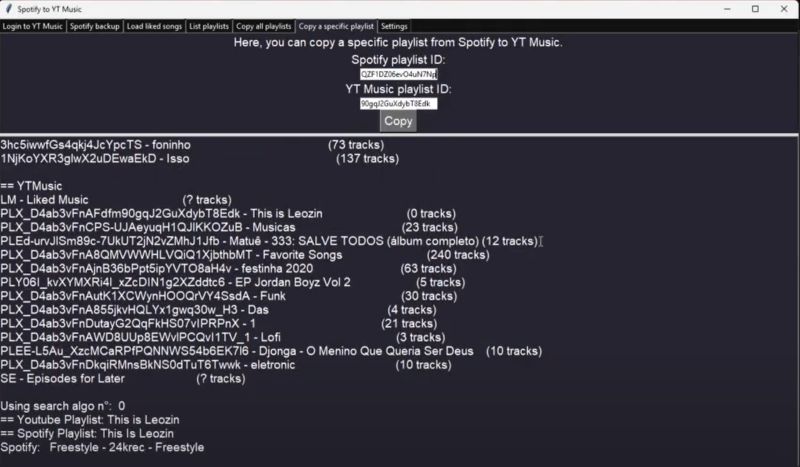
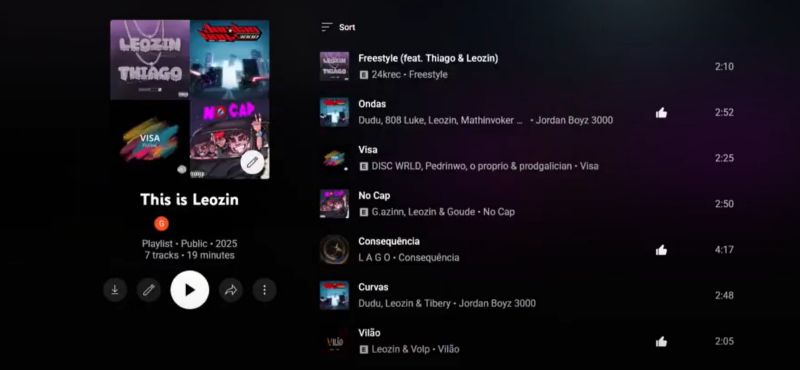
Step 8. Open YouTube Music and go to your Library. You’ll notice new playlists appearing gradually as the transfer completes.
User Feedbacks
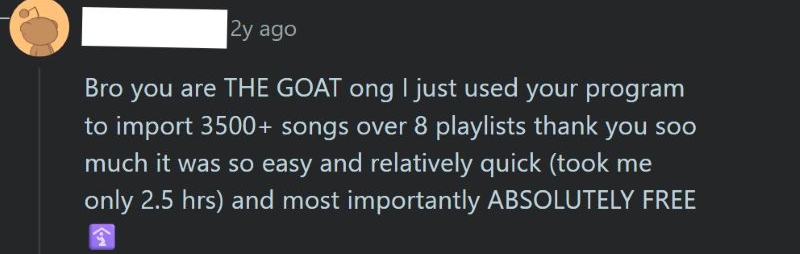
- Users appreciate the tool because it can handle long playlists easily. One user mentioned transferring 3,500+ songs in just about 2.5 hours — all for free.
- It’s considered reliable for moving larger collections, especially when other tools limit free transfers.
- The setup process is challenging, as you need to interact with the Command Prompt and install multiple tools.
- Reports of short errors, missing tracks, and duplicate results are common. Some songs fail to appear or the same song gets added twice.
Transfer Spotify Playlists to YouTube Music for Free on iPhone/Android
Desktop tools make it easy to move large playlists in one go. However, mobile apps are no less. They work similarly, though their free-tier comes with limits. If you have a YouTube Premium account or are fine paying a small monthly fee, you can transfer entire Spotify collections directly from your phone.
Here’s a quick table showing the methods we’ll discuss and what they offer:
Way 1. Use My Music
Tune My Music is a web-based tool. You can use it directly from your mobile browser. If you’re a YouTube Music Premium user, you can transfer unlimited songs with Tune My Music for free, this tool is already integrated within the YouTube Music app.
Free YouTube Music users will have to use the web version to move up to 500 songs in one go. The good part? There’s no cap on how many times you repeat the transfer.
And if you choose Tune My Music’s paid plan, you can move unlimited songs and even create up to 20 live syncs between services, meaning if you like a song on Spotify, it’ll show up automatically on YouTube Music.
Here’s how it works:
Step 1. Open your YouTube Music account.
- Go to Settings.
- Select Privacy and Data.
- Tap Transfer playlist from other apps.
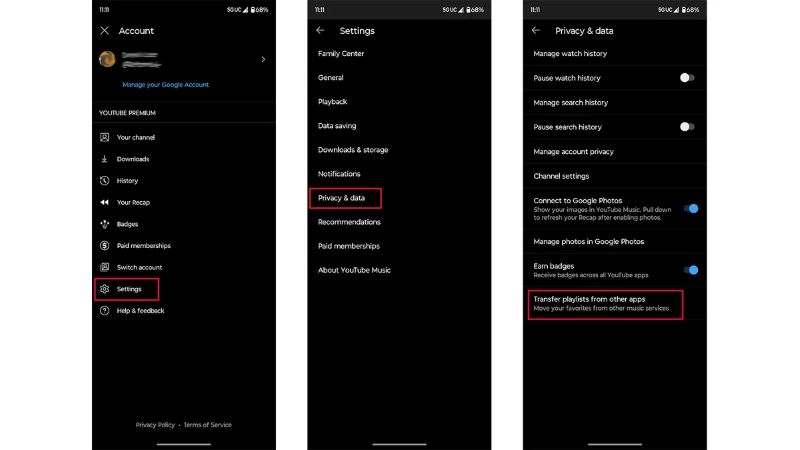
Step 2. Choose Spotify from the list and select Let’s Start. Link your Spotify account and allow the connection.
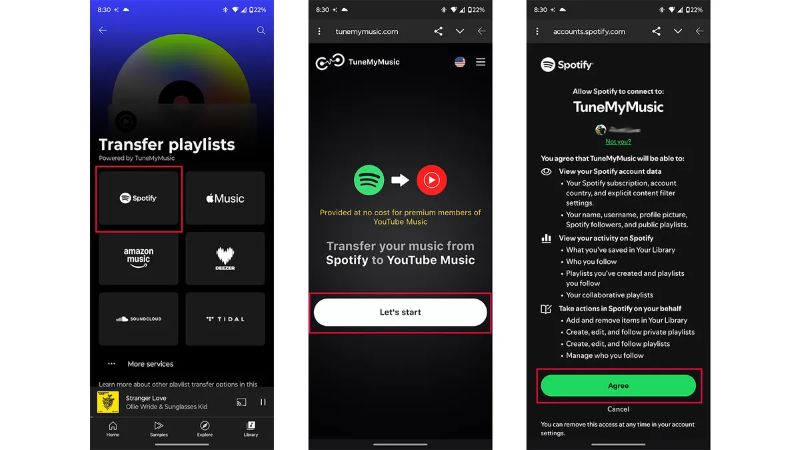
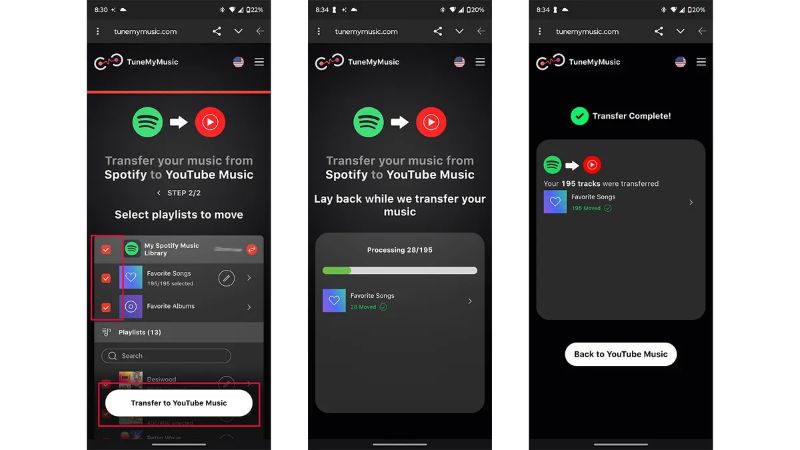
Step 3. Pick the playlist you want to transfer (Liked Songs are supported too).
Wait for the progress bar to finish. Your songs will appear once the transfer completes.
Way 2. Use Soundiiz
Soundiiz is available as an app for Android users. On an iPhone, you’ll need to access its web version instead.
For free users, it allows transferring 200 songs per session. It’s the only tool that lets you create a live sync even on the free plan.
With its premium versions, you will have several extra features you won’t find in most other transfer tools:
- Shuffle your playlist.
- Sort tracks by title, artist, or album.
- Delete duplicate songs automatically.
- Create smart links for playlists.
That said, here’s how to use it on Android.
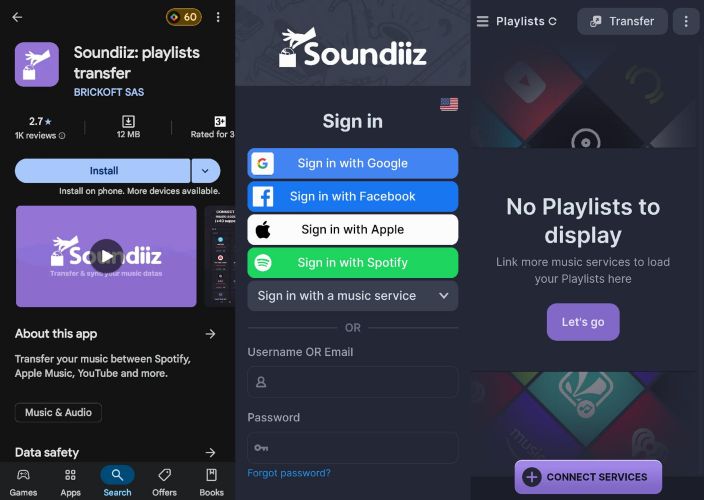
Step 1. Install Soundiiz from the Play Store and sign in. On the main screen, tap Connect Services.
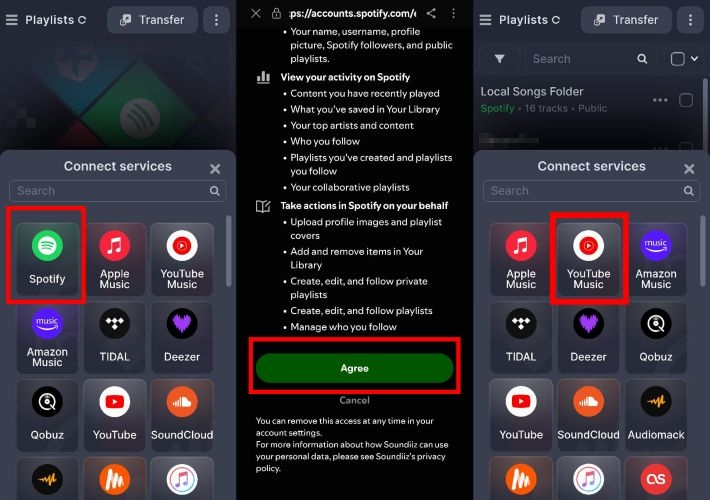
Step 2. Select Spotify from the grid and connect your account. Then, link YouTube Music from the same screen.
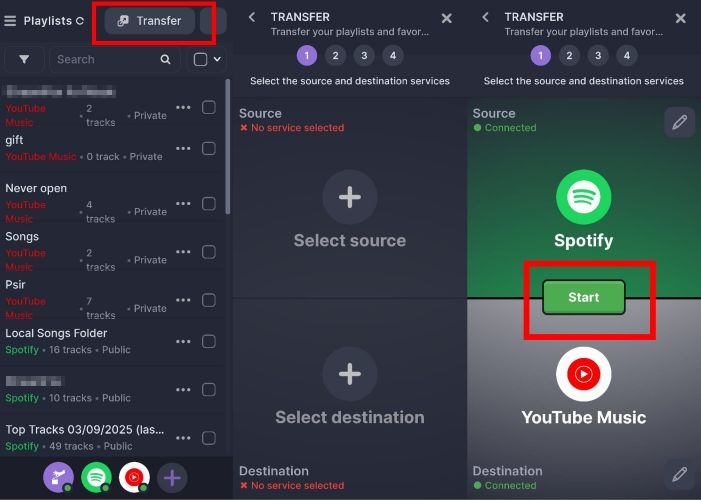
Step 3. Tap the Transfer button at the top-right:
- Choose source: Spotify
- Destination: YouTube Music.
Then, tap Start.
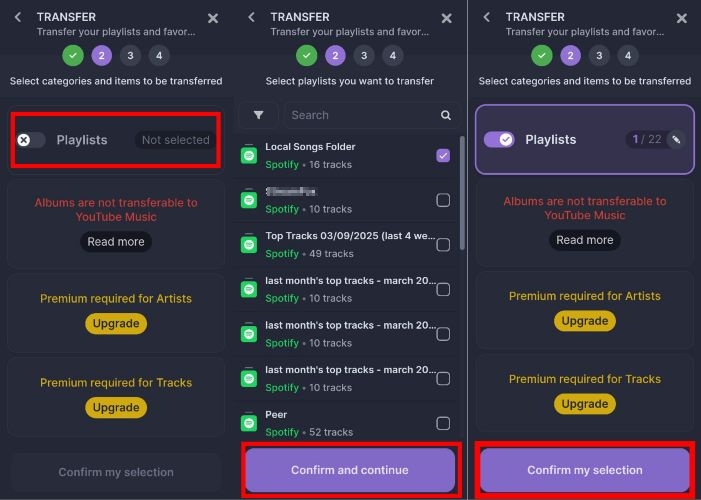
Step 4. On the next screen, tap Playlists. Select the one you want and tap Confirm and Continue. Then tap Confirm My Selection.
Step 5. Enter a playlist title, add a destination name if needed, and tap Save Configuration (for future transfers).
Step 6. Soundiiz will display the full tracklist. Uncheck any songs you don’t want. Finally, tap Confirm > Begin Transfer.
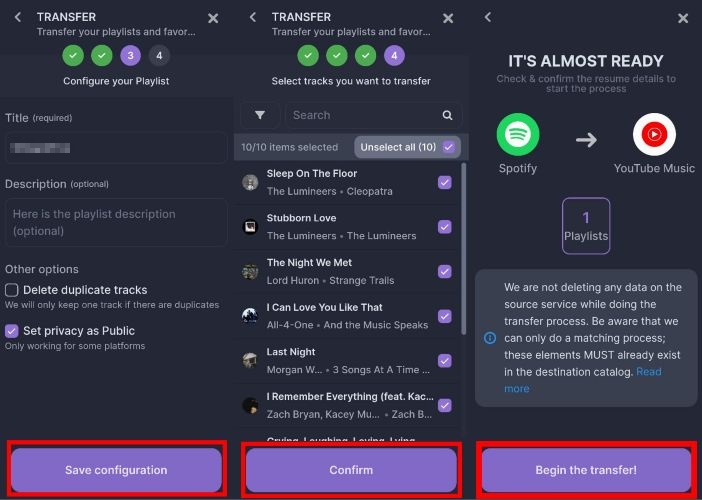
Once the success message appears, open your YouTube Music app. Your newly transferred playlists will be found under Library > Playlists.
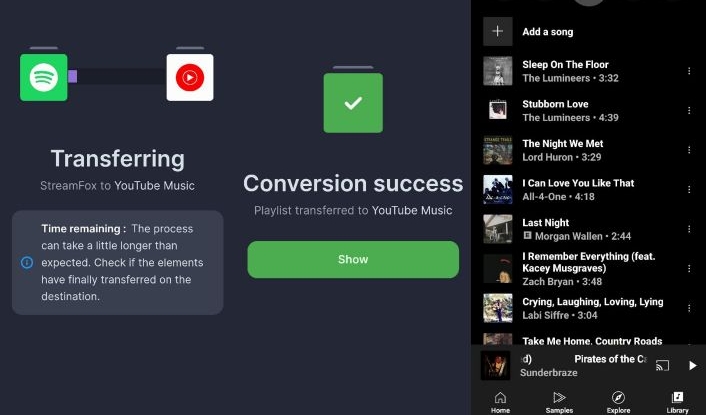
Way 3. Use FreeYourMusic
FreeYourMusic is available on both Play Store and App Store. Free plan allows you to transfer up to 600 songs while the premium version offers unlimited transfers.
It’s built for speed, allowing you to move your entire Spotify music library in just a few minutes.
Here’s how to use it:
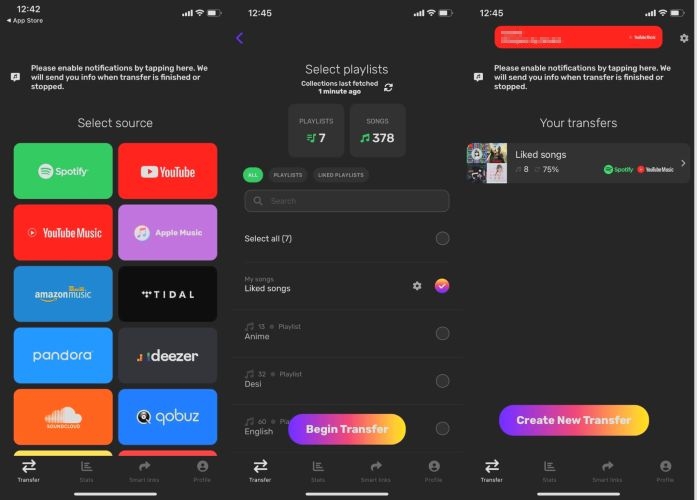
Step 1. Launch the FreeYourMusic app.
Step 2. Select Spotify as the source and connect your account.
Step 3. Select YouTube Music as the destination and log in.
Step 4. Choose a playlist you want to transfer.
Step 5. Tap Begin Transfer. Your selected songs will start moving instantly.
FAQs
YouTube Music offers a 1-month free trial to all new users. You can also unlock 3 months of free premium when buying newer Google Pixel models.

Outside these official trials, you can download YouTube Music playlists and albums as local songs using Mediaio Audio Converter and listen via VLC Media Player or Poweramp.
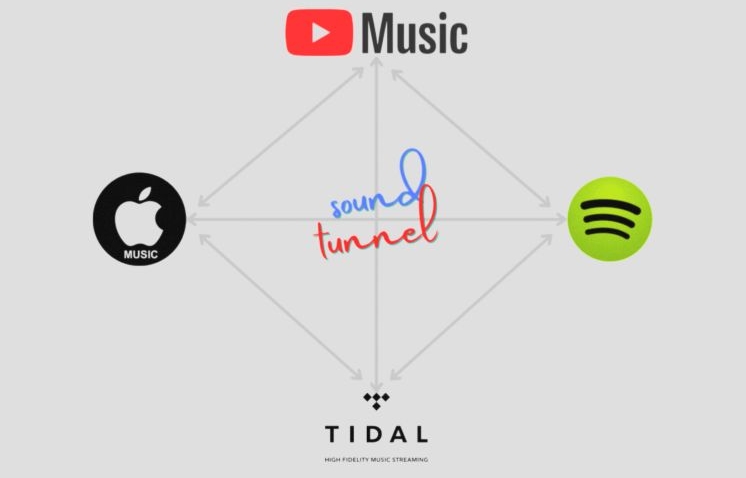
All the mobile apps we discussed—TuneMyMusic, Soundiiz, and FreeYourMusic, support transferring Apple Music to YouTube Music too. Another way is to use Mediaio Audio Converter to download your Apple Music tracks and then upload them manually to YouTube Music. There are also GitHub utilities, like Lytes Sound Tunnel, but they require some technical setup.
You can also follow this official guide to use the inbuilt feature of Apple Music to complete the playlist migration.
Conclusion
There are countless apps and services that let you transfer your Spotify playlists to YouTube Music. However, the ones we’ve discussed here are the most reliable. If you prefer doing it on mobile, TuneMyMusic’s built-in integration makes it even more seamless, though it does require a YouTube Music Premium account. On desktop, Mediaio Audio Converter is the best choice if your Spotify playlist is not large.