

Most Discord users already know the truth: the big music bots that once played YouTube and YouTube Music smoothly—FredBoat, LunaBot, Musico, Flavibot, and many others, no longer work with those links. Some of these bots say support is “on the way”and others promise it is “being repaired”.
So what do you do—wait for a fix that may never arrive? You don’t have to. Below, you’ll find 10 Discord music bots that still support YouTube and YouTube Music links and can stream songs without constant errors or sudden shutdowns. Meanwhile, as no bot stays stable forever, we’ll also show you a dependable fallback: using Mediaio Audio Converter to save your YouTube Music tracks as clean local audio files and playing them through Discord bots like Eara, which can stream any uploaded audio directly in your voice channels.
You May Also Like
What Is Discord Music Bot
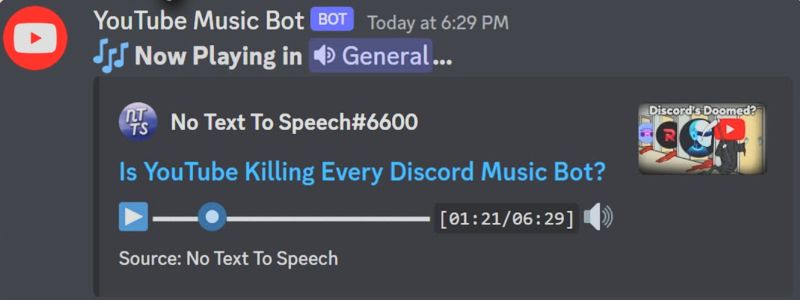
A Discord music bot is an automated member that joins your voice channel and plays audio for everyone. Think of it as a shared speaker inside the server. So, nobody has to play songs separately on their own device. The whole group hears the same track at the same time. You usually control music playback with short chat commands, such as /play, /pause, /skip, or bot-specific ones like m!play. For friend groups, study rooms, or gaming sessions, this turns a silent voice channel into a proper listening room.
Most music bots let you:
- play songs from links or simple search commands
- queue tracks one after another
- load full playlists
- skip, pause, or loop what is playing
Possible Issues When Using Discord Music Bots
The common problems with these music bots are similar to other bots on Discord:
- Unstable playback: bots can go offline without warning or stop responding during busy hours.
- Limits on free plans: cooldown timers, restricted queue length, or caps on playlist size are normal on free tiers.
- Lower audio quality: sound can drop in quality in larger voice channels unless you pay for a premium tier.
- Region problems: some bots do not work in every country, so friends in other regions may not hear anything.
- API changes: when YouTube or Discord changes something, a bot can break overnight until the developer fixes it.
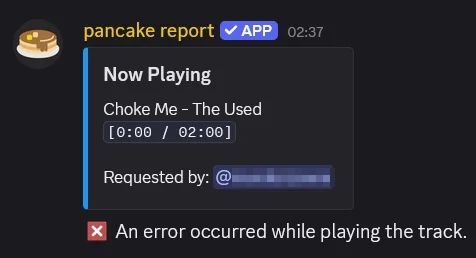
So even a “perfect” bot on paper can feel rough in daily use.
Why You Need Discord Music Bots to Play YouTube Music
Discord itself does not support YouTube Music in any serious way.
You can link YouTube to your profile, but that only shows a rich presence status like “Watching YouTube” on your profile.
Some servers use basic watch-together style features to sync video playback, but these still miss core music functions:
- no real music queue
- no autoplay from a playlist
- playback stops if you leave the window
- no clean audio-only mode
- no 24/7 background music
This is exactly what music bots fix. A good YouTube or YouTube Music bot can:
- play YouTube Music songs directly in a voice channel
- queue multiple tracks and playlists
- keep audio running in the background while everyone chats or games
- run audio-only mode to save bandwidth
- stay in the channel with 24/7 mode if the bot supports it
Top 10 Discord Music Bots That Can Still Play YouTube Music in 2026
Now comes the part that matters most: the 10 Discord music bots that still work with YouTube and YouTube Music.
Each one has its own strengths, so you can choose based on how your server behaves, whether everyone loves dropping song requests, whether you need free 24/7 playback, or whether your group prefers extra audio effects and finer controls.
1. Jockie Music
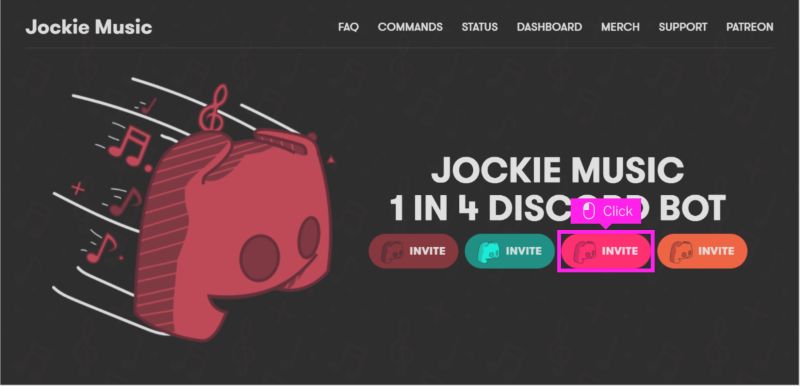
Jockie Music is a multi-instance Discord music bot. This means you can run several Jockies at the same time and play different music in different voice channels inside one server. The gaming room can enjoy its own playlist while the study room listens to something completely different — all without clashing or sharing the same queue. The commands stay the same for every instance, so nothing feels confusing.
If you run a busy Discord community where everyone wants their own YouTube Music picks, this bot removes the usual fight over the “jukebox.” Each channel gets its own stream, and everything runs smoothly.
Premium (via Patreon or server boost) unlocks 24/7 mode, more simultaneous bot instances, and a few advanced playback options.
2. Geek Music
Geek Music is known for its flexibility. Besides YouTube and its ability to accept YouTube Music URLs, it can also pull songs from several other platforms and even play your own local audio files. This gives it a wider range than most Discord bots.
It also includes extras like audio effects (Nightcore, 8D, etc.) and the option to create playlists inside the bot itself. So if you enjoy experimenting with sound or mixing sources, Geek Music feels more open than a standard music bot.
The downside is stability. The audio quality is poor and occasional lags is common.
Examples:
/play music: Shape of You,
/play music: <YouTube Music link>.
3. AANYA
AANYA is the third Discord music bot worth checking out, especially if you care about sound quality. It handles YouTube (yes, it accepts YouTube Music URLs) smoothly, and it supports several other platforms without slowing down.
AANYA is also known for its smart queue tools. You can skip, remove, shuffle, repeat, or jump through tracks with less delay than many older bots. There is also a 24×7 mode, an Autoplay mode, and a Radio-style mode, all of which help you keep the server’s music flowing without interruption.
Premium features: Autoplay (/autoplay), 24/7 (/247), Shuffle (/fav shuffle)
4. MilkyMusic
Another high-quality Discord music bot here. However, there’s one thing to know upfront: YouTube support (including YouTube Music URLs) sits behind Milky’s paid tiers.
However, MilkyMusic doesn’t bundle dozens of advanced tools, yet it delivers what most servers actually need — high-quality playback, autoplay, and a few unique audio effects that lift the sound a little. Everything else depends on the tier you choose.
Premium Tiers (Patreon): for YouTube + YouTube Music support
Milky Tier 1 – US$2.99/month: 1 Discord server
Milky Tier 2 – US$5.49/month: 3 Discord servers
Milky Tier 3 – US$7.99/month: 7 Discord servers
Milky Gold Tier – US$9.99/month: 10 Discord servers, higher uptime
Milky Elite – US$50/month: 15 Discord servers, priority support
5. ZenTune
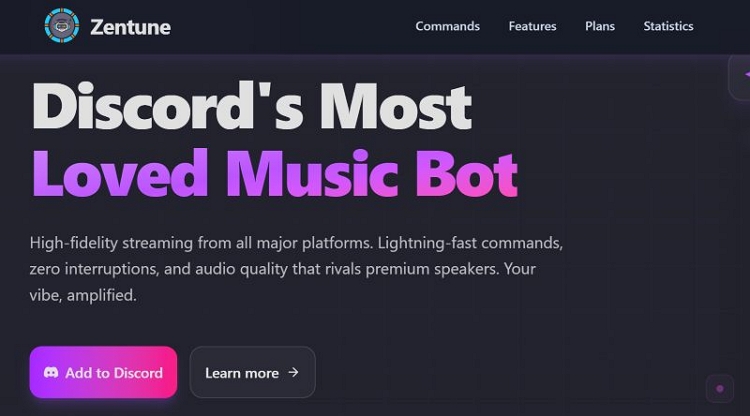
ZenTune is another strong Discord music bot with proper support for YouTube Music URLs (via YouTube). It works with a long list of music platforms and is known for its 99.99 uptime and premium sound quality. You also get flexible playlist and queue tools that many smaller bots don’t offer.
However, the free version has a few limits. You can only load five playlists on a server, and playback stops after 50 tracks because of cooldown restrictions (you must wait before playing the next song).
The premium tiers lift these limits entirely. They unlock richer effects like Bass Boost, Karaoke, and Nightcore, and also introduce high uptime, larger queues, and smoother command handling.
Premium Basic: US$3.36/mo — removes cooldowns, unlocks richer effects, enables high uptime, expands queue to 100 tracks.
ZenTune Premium X3 (US$8/mo): All premium features on 3 Discord servers.
ZenTune Premium X6 (US$12/mo): All premium features on 6 Discord servers.
6. AirMusic
AirMusic comes in as another high-quality Discord music bot built for people who want a more serious audio setup. The free version carries a few limits, such as cooldown periods and restricted queue handling, but you still get sharp audio and the full set of advanced playback tools.
The Premium versions unlock its full potential. You get DJ rules for better moderation and high-level playback controls. The command list is huge, around 69 commands, which says a lot about how wide its feature set runs. It’s popular too: over 1.7 million users and active in more than 12,000 servers.
Personal Premium — US$1.99/mo: removes cooldowns • 24/7 playback • 30 personal playlists (600 songs each) • Developer chat access.
Server Premium — US$2.99/mo: premium music for the entire server • unlimited YouTube + Spotify streaming • 30 server playlists.
Premium Plus (US$4.99/mo): all premium features on 3 servers.
Premium Max (US$ 6.99/mo): all premium features on 5 servers.
7. Hade
Hade is a multi-source Discord music bot that goes far beyond the usual play-pause setup. It supports a long list of platforms, including reliable handling of YouTube Music URLs.
Its customization options run deep. You can tune the sound, adjust filters, and manage queues with more freedom than what you’ll find in many lightweight bots. It stays flexible enough for casual use, yet powerful when you want detailed control.
https://top.gg/bot/1021732722479202304
Gold Tier — US$2.13/month: 1 server • Audio filters unlocked.
Premium Tier — US$2.55/month: 2 servers.
Diamond Tier — US$3.40/month: 3 servers.
Additional tiers available for larger setups.
8. Cloudy
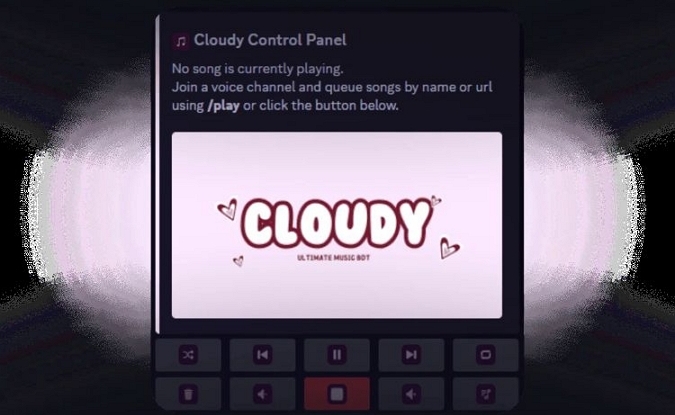
As a dedicated 24/7 Discord music bot, Cloudy is built for smooth playback from YouTube and, yes, YouTube Music URLs as well. It stands out because of its intuitive control panel, which makes managing whatever is playing in your channel almost effortless.
Keep in mind that the free version limits how many YouTube Music links you can play. The premium plans, however, are reasonably priced and even the basic tier unlocks unlimited playback.
General — US$1.99/month: 1 premium server.
Pro — US$2.99/month: 2 premium servers.
Ultimate — US$4.99/month: 5 premium servers.
9. Boogie
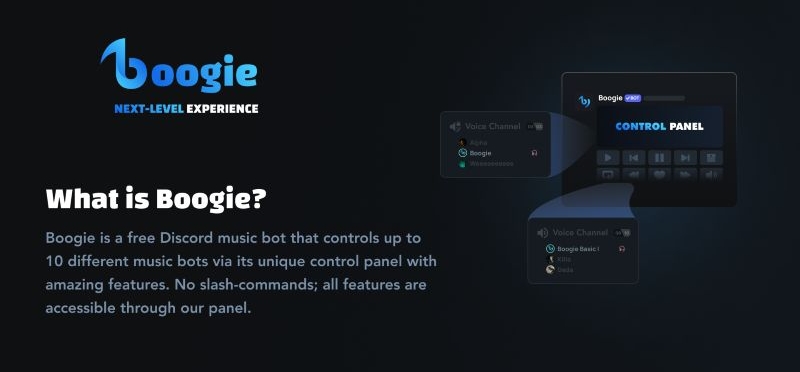
Boogie is a fairly new Discord music bot that now comes with proper YouTube Music support. It brings a set of advanced controls that make it easy to shape how your server listens together.
The good part is simple: you can use most of its features completely free, including playing YouTube Music and managing up to 50 playlists without paying anything.
The only place where the free tier falls short is sound quality. If you want that sharper, fuller output, you will have to look at its premium versions.
Premium Silver — US$2.99/month: 6 music players per server
Premium Gold — US$5.99/month: 10 music players • Playlist limits increase again from 150 to 500.
10. Eara
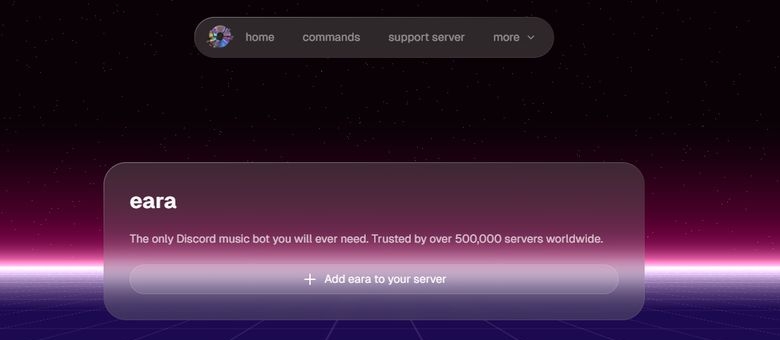
Eara is probably the most recognisable universal Discord music bot, especially among servers that rely on YouTube Music links. More than 544,000 servers use it worldwide, and that scale alone shows how dependable it has become. It’s a completely free bot, but there is one catch: YouTube Music support works through a 12-hour vote.
Beyond YouTube, what makes Eara stand out is its ability to play arbitrary files. You can upload MP3, FLAC, WAV and the bot will play them directly in your voice channel. It’s one of the simplest ways to bring your own library into Discord without extra setup.
How to Play YouTube Music with Discord Music Bots
You can pick any Discord music bot you like. The process remains almost the same. To keep things simple, we’ll use Jockie Music as the example here.
Step 1. Invite Jockie Music to Your Discord Server
Jockie Music has four separate bot instances. Any one of them works, so pick whichever is available.
1. Open the official Jockie Music website and click the Invite button.
2. Discord will open in your browser. If you’re not logged in, sign in first.
3. You’ll now see an authorization screen (the one in your images).
- Click the Server dropdown.
- Choose the server where you want Jockie Music added.
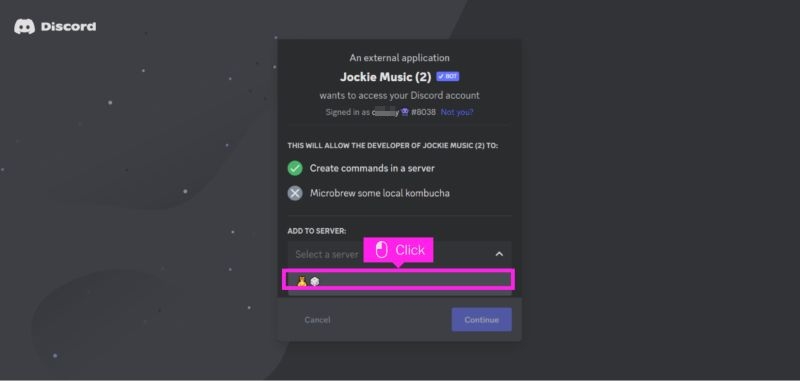
4. Press Continue.
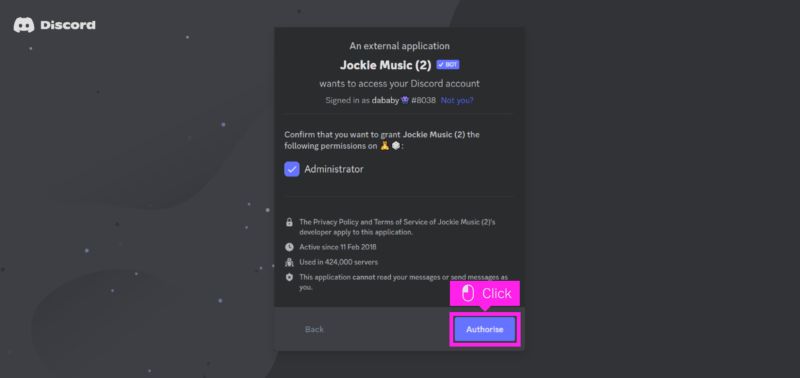
5. On the next page, click Authorize.
6. If a CAPTCHA appears, complete it.
Once done, you’ll get the confirmation message that Jockie Music has been added to your server. No need to repeat this again, as the bot stays in the server permanently until removed.
Step 2. Join a Voice Channel
Now that the bot is inside your server, it can play music whenever you're ready.
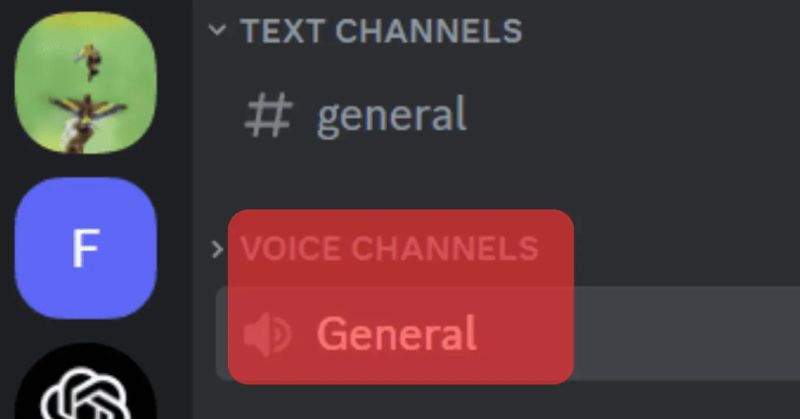
- Open Discord and switch to the server where you installed Jockie Music.
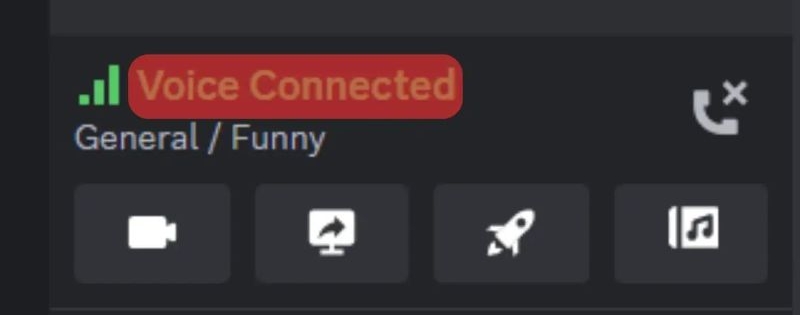
- Join any voice channel, for example, “General.”
- When it shows Voice Connected, your microphone and audio channel are ready. This is required because the bot plays music inside the voice channel but not in text chat.
Step 3. Play YouTube Music with Jockie Commands
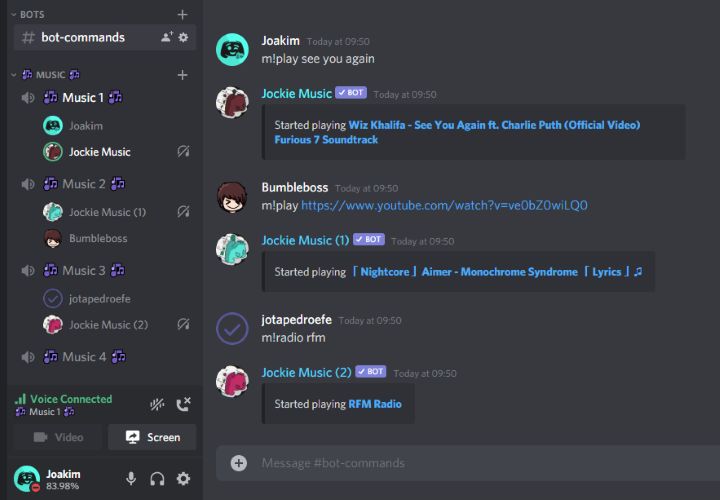
Jockie Music supports both text search and direct YouTube Music links.
Option 1: Type a song name
You can search using the simple m!play command, such as m!play see you again. Jockie will automatically search for the correct track and start playback in your voice channel.
Option 2: Paste a YouTube Music link
Since we're talking about YouTube Music in this guide, users can play tracks directly from YT Music links as well, such as m!play https://music.youtube.com/watch?v=xxxx. The bot will immediately fetch the audio and start playing it.
You can repeat the process to queue more songs or use other common controls like:
- m!skip
- m!pause
- m!resume
- m!stop
Everything plays smoothly inside the voice channel and everyone connected hears the same song at the same time.
How to Play YouTube Music on Discord as Local Files (Without Streaming Bots)
Most of the bots above can play YouTube Music, but their free versions usually struggle in bigger voice channels. Meanwhile, the audio quality drops and the songs buffer. A simple way around this is to skip streaming altogether.
Instead, you export your YouTube Music tracks as local audio files using Mediaio Audio Converter. Then, you can use a Discord bot like Eara to play these audio files directly from your computer or phone without depending on YouTube’s API. Here is how to do that smoothly.
Step 1: Download YouTube Music as Local Files
YouTube does not let you save music as real audio files — not even with Premium and that is where Mediaio Audio Converter becomes useful. Mediaio lets you download YouTube Music tracks as proper MP3, M4A, or even FLAC files that any Discord playback bot, including EARA, can handle easily.
Mediaio can pull entire playlists, albums, or single songs, like copyright-free classical music in one go. The downloaded YouTube Music tracks will come with high-quality audio(320kbps) and all metadata intact, such as artist names, album names, artwork, and even the original playlist order. With the clear ID3 tags, recognising what you want to upload to Discord becomes simple.
Steps to Download YouTube Music as Local Files
Launch Mediaio Audio Converter on your Windows or Mac computer and choose YouTube Music from the main screen.
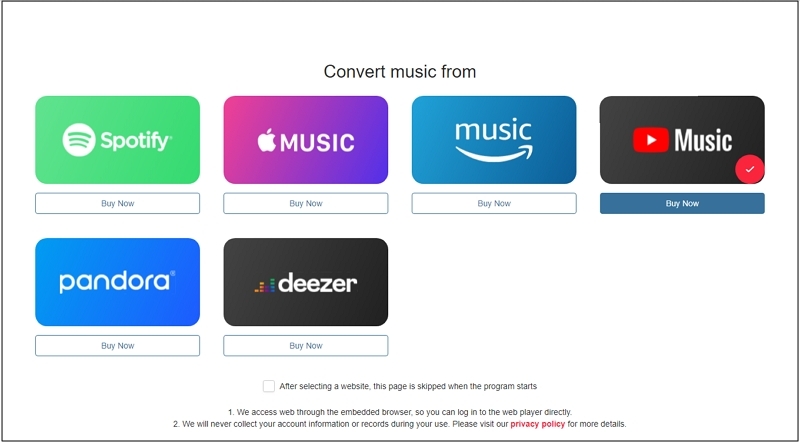
Sign in with your Google account. The free Google account works and no YouTube Music Premium is required.
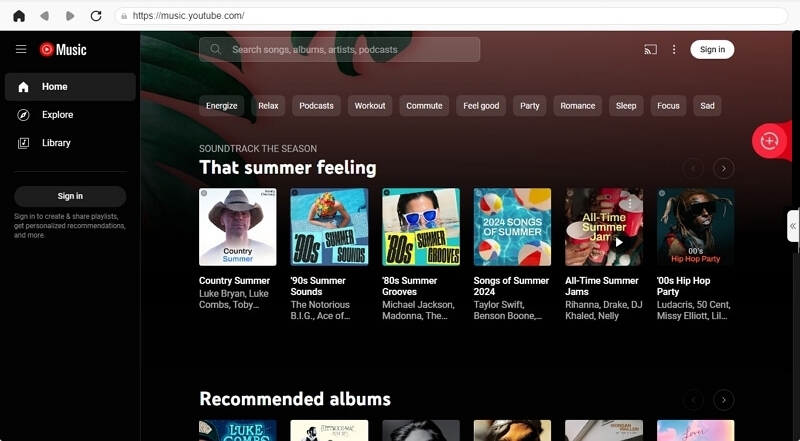
Pick the songs, playlists, or albums you want for your Discord sessions and drag them to the add icon. You can also click the Add to the conversion list button to gather the tracks you want to download offline.
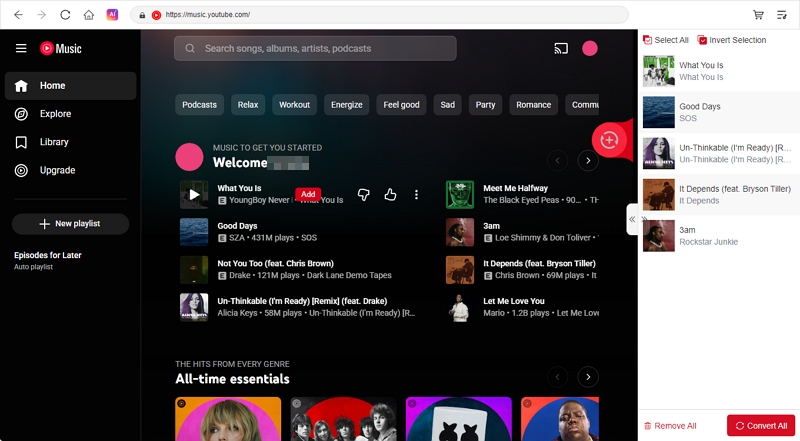
On the conversion page, choose your output format based on your Discord upload limit:
Free Discord account (10 MB per file): select MP3 or M4A
Nitro Basic (50 MB): pick higher-quality MP3/M4A
Full Discord Nitro (500 MB): you can export in FLAC or WAV for lossless audio
This keeps your uploads under Discord’s file-size cap while still preserving good quality.
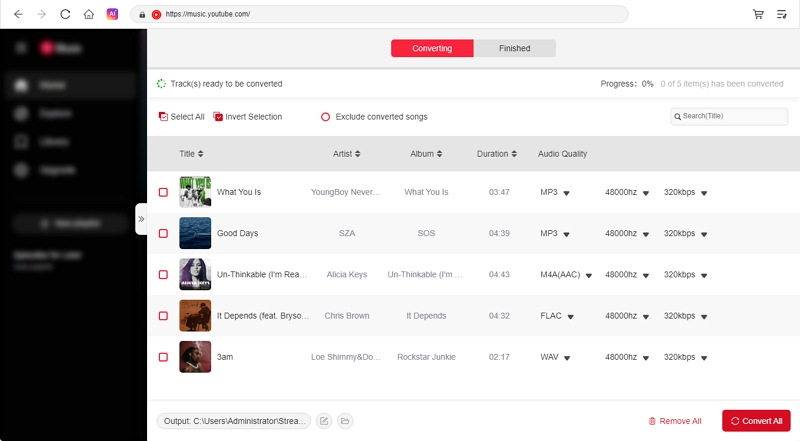
Finally, click Convert All. Your songs will be saved to your computer, ready to upload or stream through Eara on Discord.
Step 2. Upload Your Local YouTube Music Files to a Discord Channel
After adding Eara to your server, you’ll see the confirmation screen and the bot will appear in your member list. That means it’s ready.
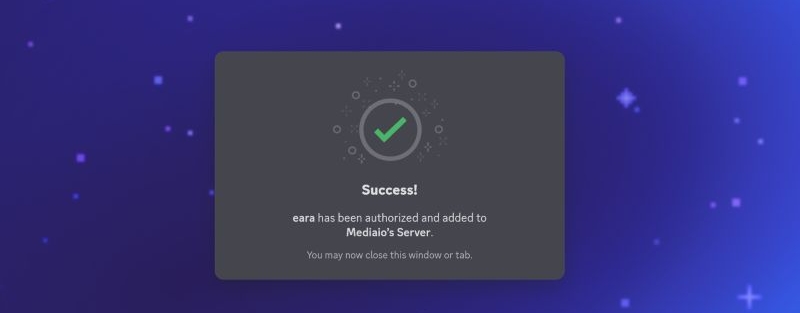
Now upload the songs you downloaded with Mediaio. Saving the tracks directly in a Discord channel is more reliable than using Eara’s temporary links, which often disappear after a play or two.
Discord allows unlimited uploads over time, so you can keep your whole collection in one place. And whenever you want to listen, Eara can pull the stored file instantly in the voice channel with no need to upload again.
- You can simply drag and drop the audio file into any text channel where you want to store it. Or use the + button.
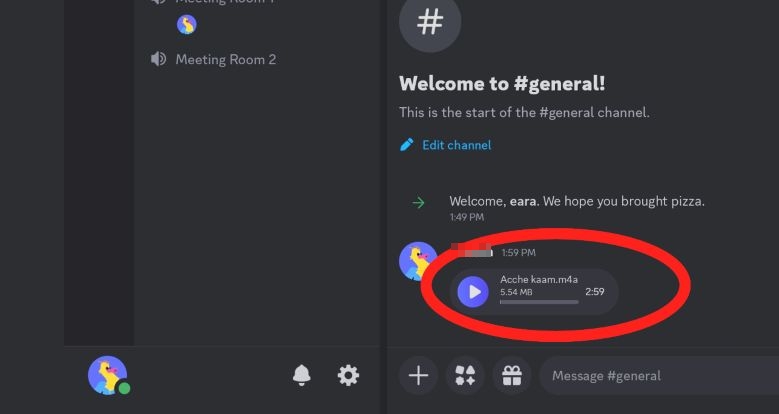
- Discord will upload the file and show it as a playable message.
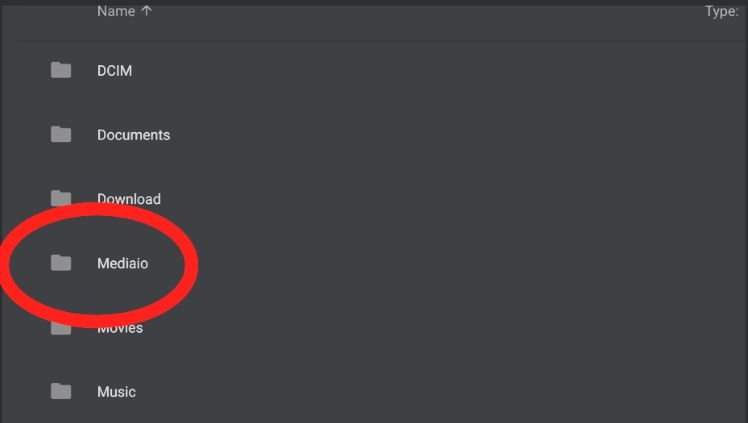
- Navigate to your Mediaio folder and pick the song.
- Once the file finishes uploading, it will appear in the channel as a regular audio message. That’s all you need for saving your local tracks inside the server.
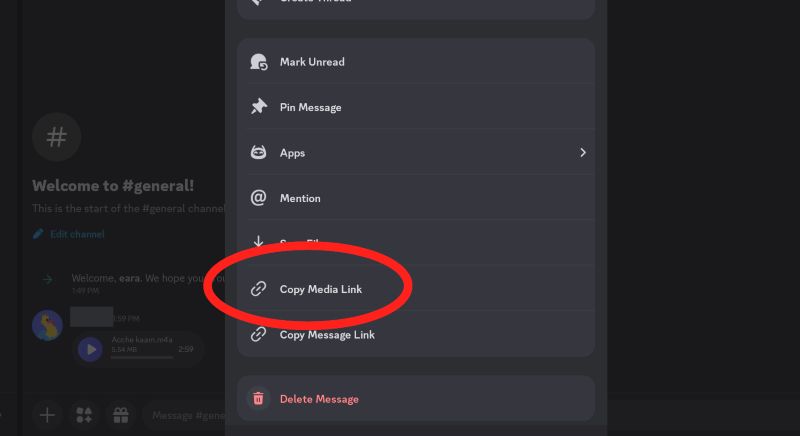
- Open the message options menu and choose Copy Media Link. This gives you a direct link to the uploaded audio, which Eara can play instantly in any voice channel.
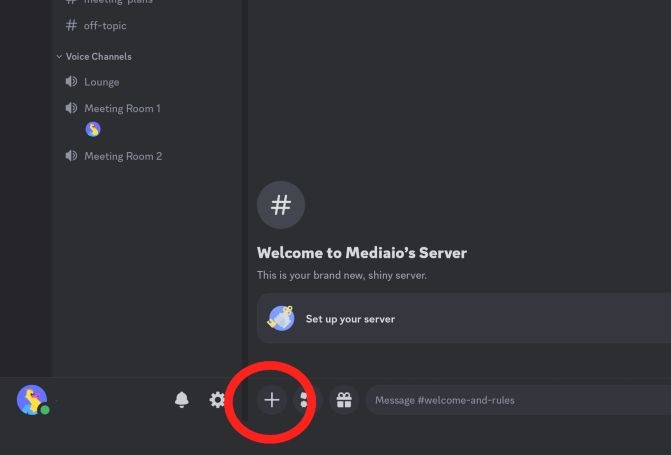
Step 3. Play Your Uploaded Song in a Voice Channel Using Eara
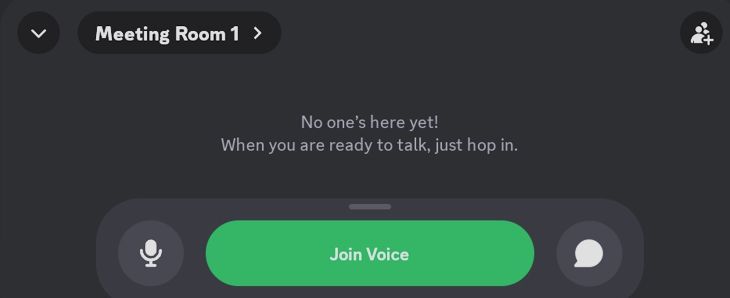
Join any voice channel. You will see the “Voice Connected” indicator, that means Eara can start playback.
Now use Eara’s play command: /play. Alternatively, paste the media link of the file you uploaded or select the file directly if Discord suggests it.
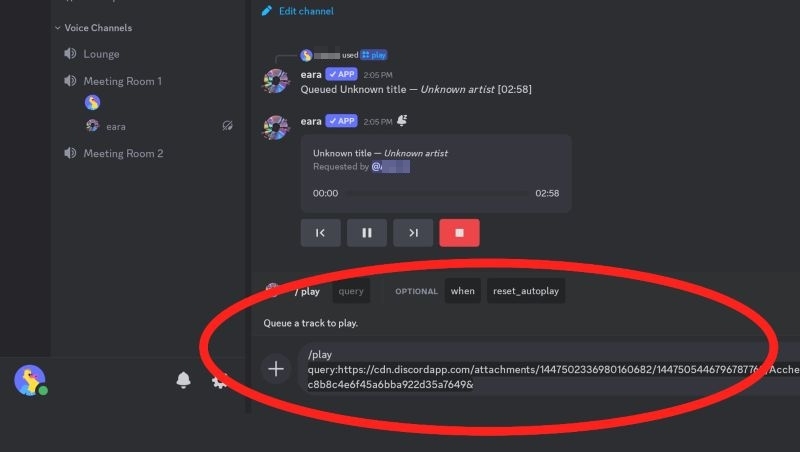
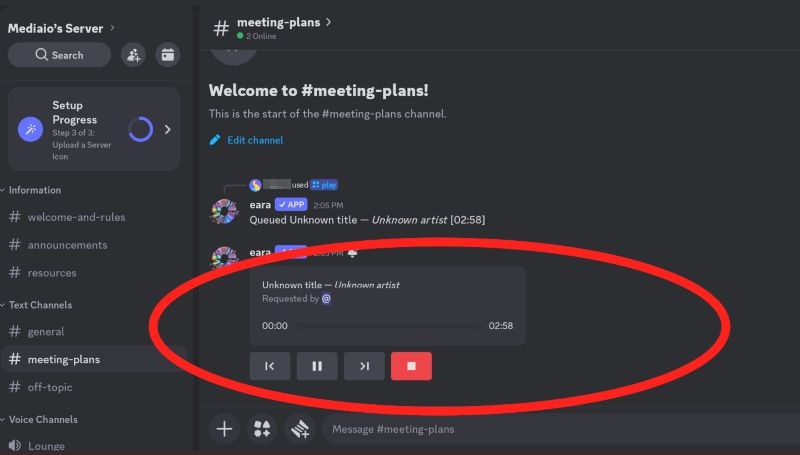
Eara will read the link, load your uploaded audio, and start playing it in the voice channel, without buffering, API errors, or dependency on YouTube.
You can queue more files, pause, skip, or stop playback the same way you would with any bot, but now everything runs from your own local audio, which means steady quality every time.
Conclusion
So those are all the Discord music bots that still work with YouTube Music today. They are great for quick listening sessions in small voice channels, but most of them struggle in bigger groups when you stay on the free version. Audio quality often drops and songs buffer unless you upgrade to Premium.
A few bots, like Eara, let you bypass this by allowing you to upload your own audio. This is where Mediaio Audio Converter becomes useful. It lets you save YouTube Music tracks as clean local audio files with full quality and proper metadata. You can then upload those files directly into your Discord channel and play them for everyone with no buffering and no API issues. Together, Mediaio and Eara give you a setup that actually works: steady playback, high quality, and complete control.