
Inserting YouTube Music to your PowerPoint adds a little pizzazz. Whether you’re preparing a presentation for your class, your team, or even your family, you can never go wrong with the right song.
Choosing the song is up to you. We’ll show you how to handle the second part — how to embed YouTube Music in PowerPoint itself. This guide covers four simple methods to help you add YouTube Music to your slides on both Windows or Mac, and even on mobile.
And don’t worry, this isn’t one of those half-explained guides. You’ll also learn how to skip YouTube ads, trim audio, add fade-in or fade-out effects, and make the song play seamlessly across all slides for a better music embedding experience.
Don't Miss Them
How to Embed YouTube Music in PowerPoint on Windows/Mac
Let’s start with how to embed YouTube Music in PowerPoint on Windows and Mac. You can do this in three ways — by using the video URL, by inserting the embed code, or, the best option, by downloading the music as a local audio file. We’ll begin with the most reliable one.
Way 1. Import YouTube Music as Local File
PowerPoint works best with local audio files. You can download YouTube Music in local formats supported by PowerPoint. This comes with several benefits:
Let’s see how this method works.
Tip: Audio File Formats and Size Supported by PowerPoint
Microsoft recommends using .m4a files encoded with AAC, as they work best for adding background music in PowerPoint. When downloading YouTube Music, try saving the songs in this format.
However, PowerPoint supports a broad range of formats across devices:
As for audio file size, there’s no strict limit. Staying between 50 MB and 150 MB works smoothly on any setup.
Step 1. Convert YouTube Music Songs as Local Audio
Mediaio Audio Converter lets you download YouTube Music and save it in any of the supported formats. The downloaded files become local songs that are completely independent of YouTube Music, so you can add them to your presentation or play them offline using any player like VLC.
Mediaio allows you to convert one track or hundreds at once while preserving their original sound quality(256kbps) and ID3 tags. You can even keep the files for future use, such as for music migration when switching services. Moreover, it’s completely free to download YouTube Music songs as MP3s or other formats within 14 days.
Steps to Download YouTube Music Songs as Local Audio
Install Mediaio Audio Converter on your Windows or Mac. Choose YouTube Music on the main screen.
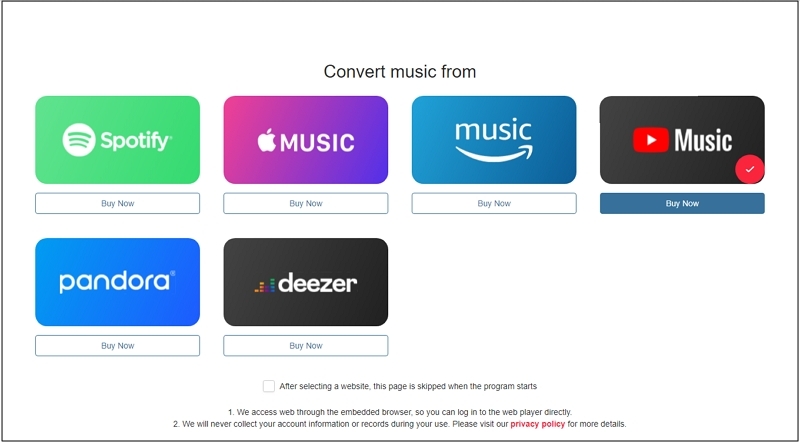
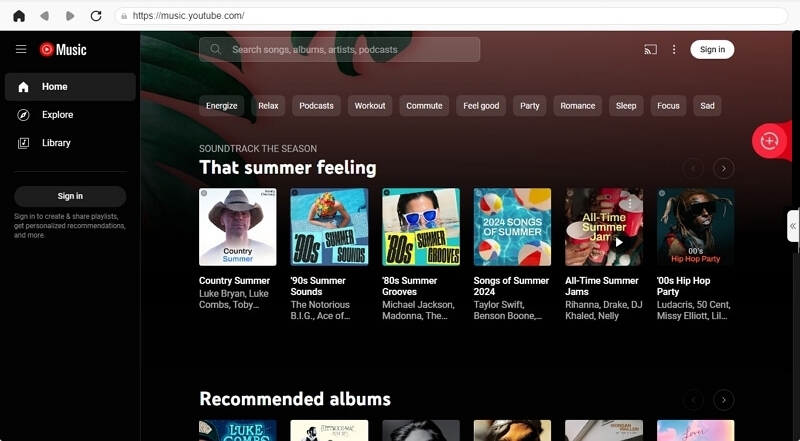
Log in using your Google account to fetch your liked tracks.
Browse your library and choose the playlist or song. Drag and drop the chosen tracks to the Add icon and then every song inside will appear in the list below.
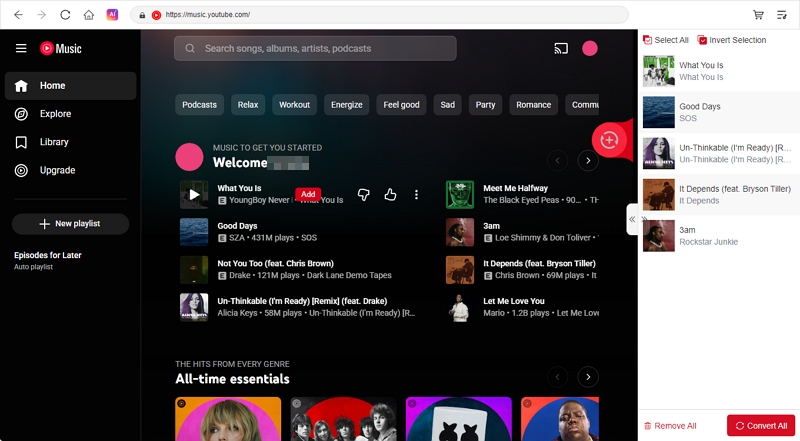
In the Conversion section, pick .M4A (encoded with AAC) under Format. It’s the format PowerPoint handles best. You can also choose .MP3, .WAV, or .FLAC. Adjust the output quality too. 128kbps is recommended for a smaller size while 320kbps is suggested for richer sound. Then, hit Convert All .
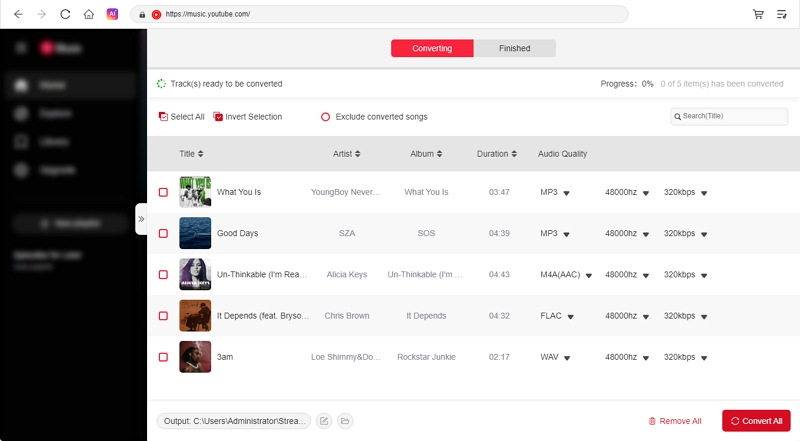
Within minutes, the YouTube Music tracks will be saved on your computer — complete with titles, album covers, and artist info. They’re now ready to be added to PowerPoint.
Why Not Recommend to Download YouTube Music Locally via Online Tools or Recording?
Online converters commonly downgrade the audio quality. The songs lose their sharpness and depth, especially when played through speakers during live presentations. System recordings aren’t much better too. They capture the computer’s playback stream but not the real audio output, so it isn’t as rich as the original track.
Ease of use is another drawback. With online converters, you copy links, paste them, and download one by one. Recording tools take even longer because you have to record every song separately.
Another big problem with online converters is safety. Many redirect you to malicious or spam-filled websites through pop-ups, which can put your system at risk.
In all, Mediaio Audio Converter is recommended because it preserves the original sound quality and makes the process simple and safe. So, inserting audio into your presentation doesn’t feel like a challenge.

Step 2. Insert Local YouTube Music Audio to PPT
After downloading the songs, follow these steps:
- Open your presentation. Go to the slide where you want the music. You can also stay on the first slide if you want the song to play across all slides.
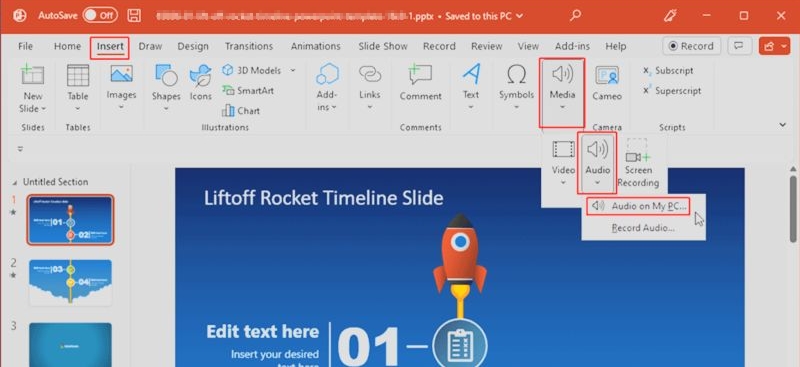
- From the top ribbon, click Insert. Choose Audio or Media > Audio. Then, click Audio on My PC.
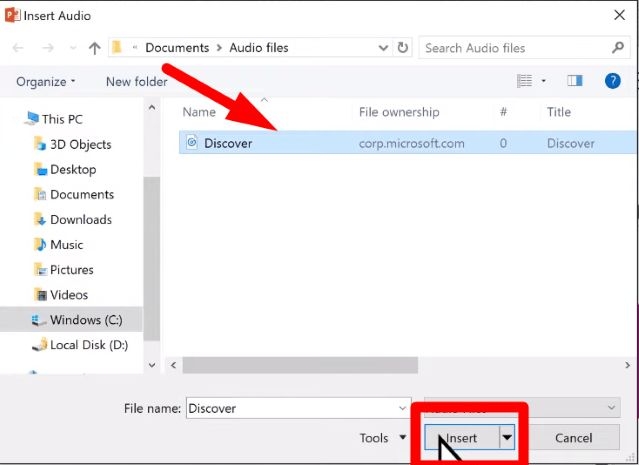
- Then navigate to the Mediaio folder where your downloaded songs are saved.
- Select the song and click Insert. The audio track will now appear on your slide. You can move the icon anywhere you like.
Tip: How to Add Music to PowerPoint Presentation for All Slides
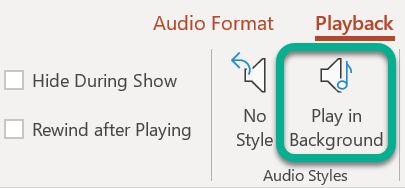
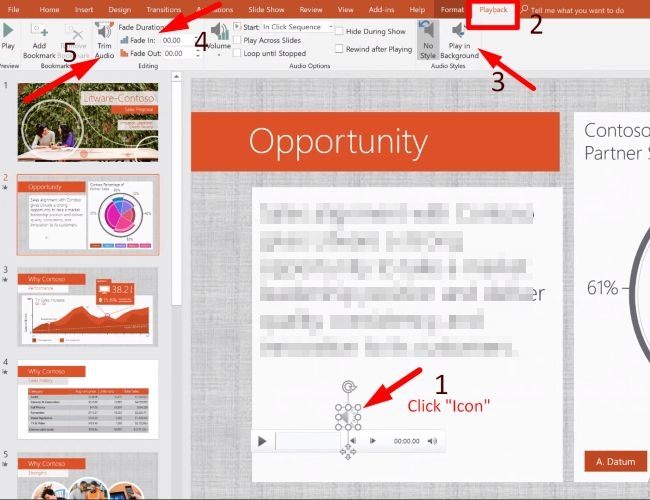
To make your music play across all slides, use the Play in Background option.
- Just click on the audio icon.
- Go to the Playback tab.
- Select Play in Background.
This will start playing the embedded YouTube Music automatically when you start the slideshow. It also keeps audio playing in the background as you move from one slide to another.
Other effects that can be added to your PPT.
- Fade In/Fade Out: add smooth entry or exit effects.
- Trim Audio: shorten the song if you only want a specific part.
Way 2. Add YouTube Music via Video Link
YouTube Music itself doesn’t offer an embed option. However, its parent platform - YouTube sharing the same library lets you pick any song video and copy its URL. That means when you embed that YouTube video in a slide, the full music video but not just the audio will be added. The good part that is you can use YouTube's clip feature to embed a part of the song. You can also resize the video layout and adjust its position.
1. You can’t treat the YouTube video like a simple background MP3 track and make it play continuously across all slides.
2. Embedded videos still show ads if the YouTube source has them, even for YouTube Music Premium users.
3. To avoid interruptions, prefer non-copyrighted or ad-free tracks.
4. You can’t change playback speed or volume beforehand. You’ll have to fix those details each time you land on the slide.
5. An active internet connection is required.
Also, keep in mind that PowerPoint’s compatibility depends on your version:
Steps to Embed YouTube Music via Video Link
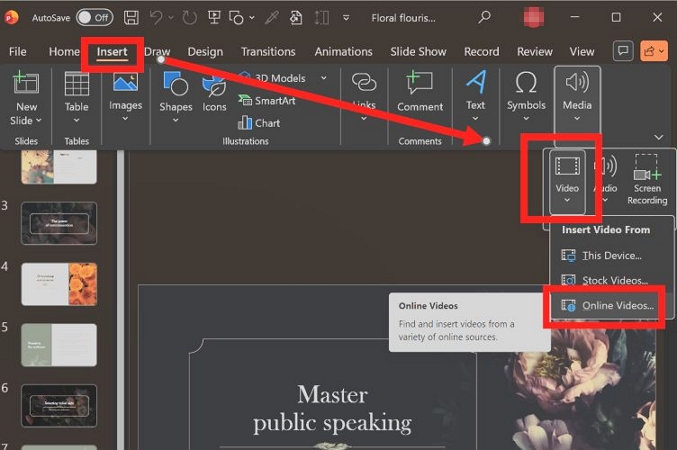
Step 1. Open your presentation. Move to the slide where you want the song to appear. Expand the Insert tab and choose Video. Then, select the Online Video option.
Step 2. In a separate browser tab, open the song video on YouTube (not YouTube Music). Click Share > Copy Link. You’ll see a shortened URL that looks like youtu.be/...
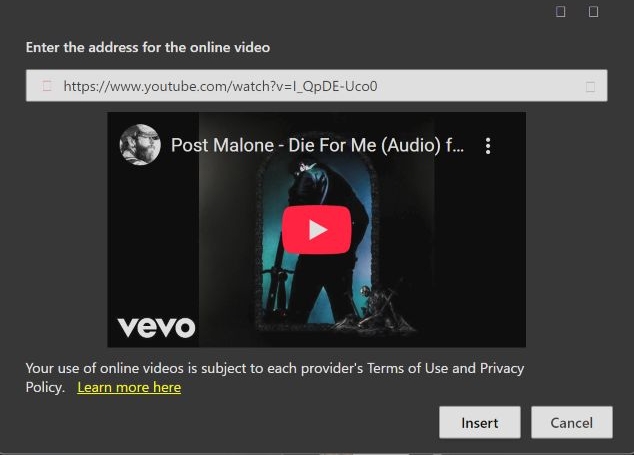
Step 3. Return to PowerPoint and paste that copied link inside the “Enter the address for the online video” field. A small preview thumbnail of the video will load instantly below the box. Press Insert to add it to your slide.
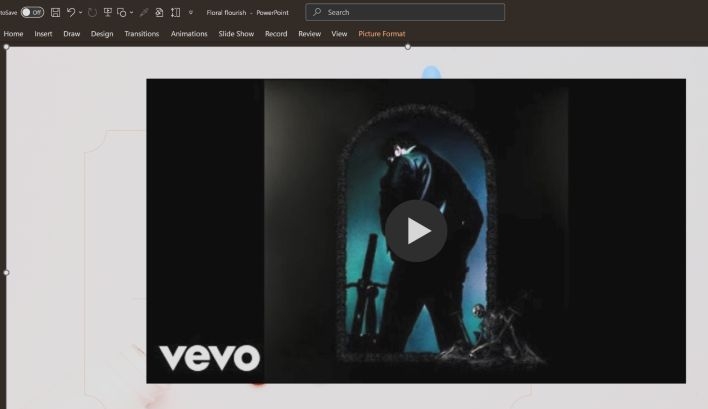
Step 4. The video now appears on your presentation slide. You can drag its corners to resize it. However, PowerPoint doesn’t let you crop or hide the thumbnail, meaning that the full frame stays visible.
Step 5. During your presentation, you can click the Play button manually. Or, you can use the “select the video” and “set the object to play automatically”options when you land on the slide.
Way 3. Embed YouTube Music Using Embed Code
Older PowerPoint versions like earlier Office 2016 builds and the Office 2013 include support for embed codes. Using one gives you a little more control, like making the video song start at a specific timestamp. You can ask ChatGPT or Grok to edit the code for you.
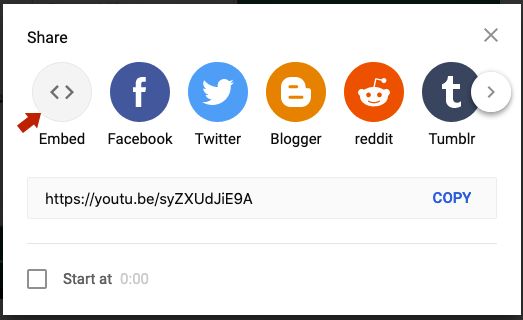
Step 1. Open the YouTube music video. Click Share, then pick Embed from the options that appear.
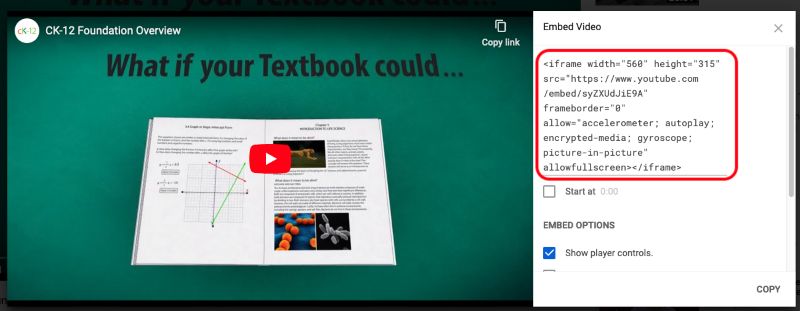
Step 2. Highlight and copy the entire code inside the box.
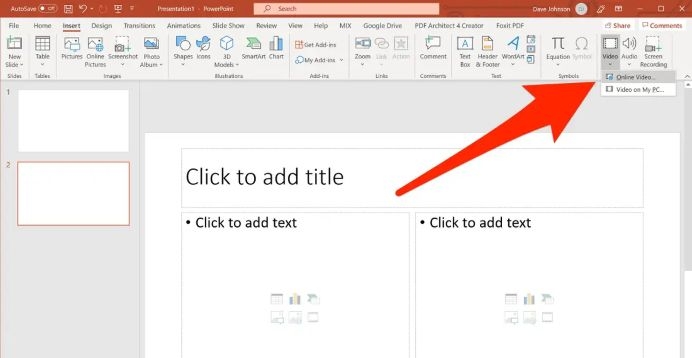
Step 3. Switch back to your PowerPoint window and head to the Insert tab. Under Video, choose Online Video.
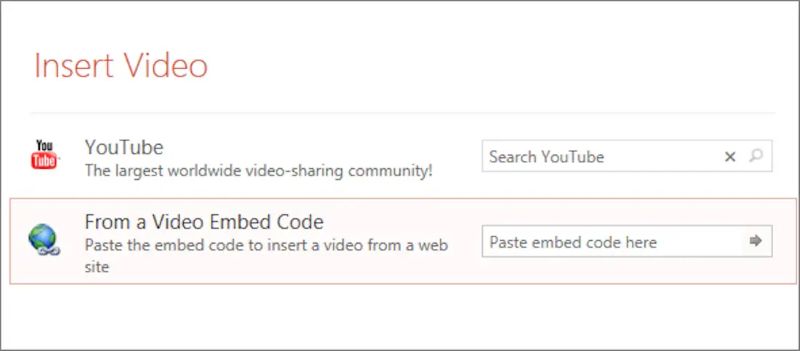
Step 4. When the new dialog opens, select From a Video Embed Code, paste what you copied, and confirm.
Step 5. Hit Insert.
That’s it! The video will drop right into your slide.
How to Embed YouTube Music in PowerPoint on Mobile
PowerPoint’s mobile app lets you add local audio files. It does not embed YouTube or YouTube Music links. So the path is simple: download the song on your computer, move the file to your phone, then add it to the slide.
Preps: Download YouTube Music Locally for PPT
Before adding YouTube Music to PowerPoint on mobile, you’ll first need to download the songs locally.
The most reliable option remains Mediaio Audio Converter. It preserves original sound quality, keeps album details intact and lets you download multiple tracks without limits. It’s safer and far more stable than temporary Telegram bots or browser tools that often compress or mislabel files. After downloading the YouTube songs on your computer, you can move them to your Android or iPhone via USB files or AirDrop.
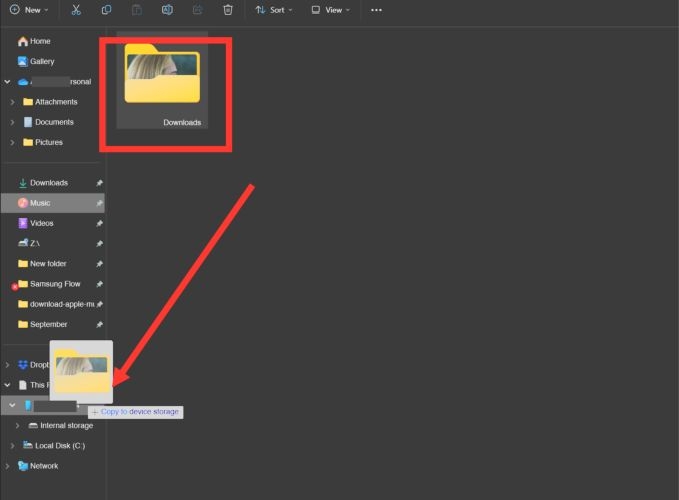
Steps to Insert Local YouTube Music in PPT on Mobile
Step 1. Open the PowerPoint app on your phone, open your presentation, and land on the slide where the music should start.
Step 2. Open the bottom toolbar menu and choose Insert.
Step 3. Tap Audio.
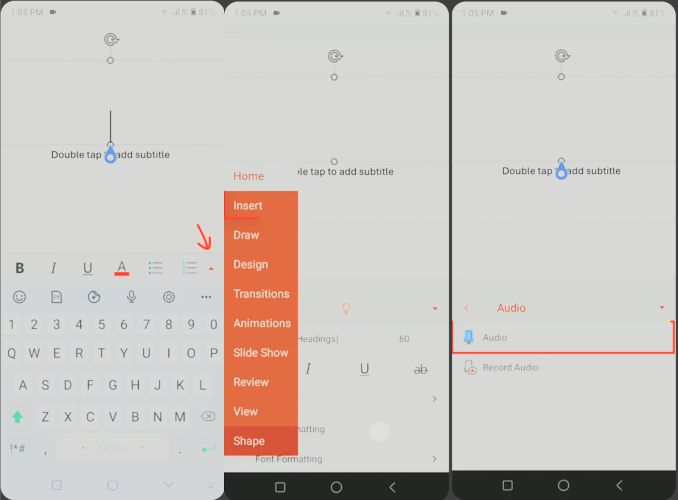
Step 4. Pick the file source: choose Audio on my device on Android and choose From Files on iPhone.
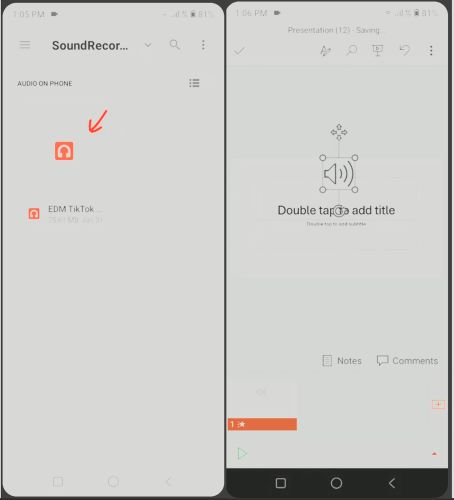
Step 5. Browse to the folder where you placed the track, select it, then tap Done or Add.
Step 6. A speaker icon appears on the slide. Position or resize it as you like. Play the slide to test the audio.
Quick Answer: Is It Possible to Add Background Music in PowerPoint for All Slides in Mobile?
No, PowerPoint’s mobile version only lets you add audio to individual slides.
However, you can prepare the presentation with background music on the desktop version. So, the audio will still play when viewed or shared on mobile. This way, your audience can listen to the same background track even from their phones.
Final Words
So that’s every working method to embed YouTube Music in PowerPoint. When you use a URL or embed code, customization is limited and ads can interrupt your presentation. The mobile versions don’t even allow direct embedding.
Mediaio Audio Converter, however, fills that gap. It lets you download YouTube Music tracks in MP3 or M4A format. So, you can embed them as local audio into your slides. This gives you far more flexibility: avoid ads, add fade effects, trim songs, or make them play across all slides. And since Mediaio can download hundreds of songs at once, you can even create your own offline music library for future presentations.