

Does your Spotify offline downloads fill up your Android internal storage? It is a common issue for many users, as Spotify downloads can take up a lot of storage when songs accumulate. For example, downloading 50 songs of 4 minutes each at 320 kbps will occupy approximately 480 MB of storage.
To free up your phone storage, you may wonder“can you download Spotify songs to SD card on Android?” Next, this guide explains the answer step by step.
Can You Download Spotify Songs to SD Card on Android?
Yes. Spotify lets you choose the download location on Android and then the future downloads will be placed on the SD card. It’s also available to change the Spotify app location to transfer your current downloads to SD card. However, the files will still stay encrypted (DRM-protected). So, only Spotify can read them.
You can also download Spotify songs as open files onto the SD card using Mediaio Audio Converter. This works on any Android phone and you don’t even require Spotify Premium.
How to Download Spotify Songs to SD Card Directly on Android
Here are two ways to shift your Spotify downloading location to SD card. The first method works for everyone. The second one will work, depending on whether your Android version allows it or not. Let’s start with the method that applies to all users.
Way 1. Change Spotify Storage Location to SD Card
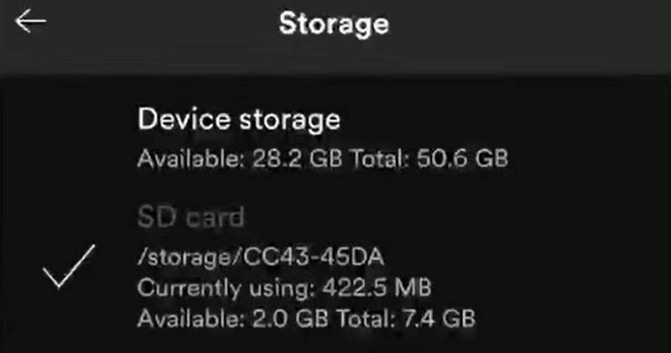
Spotify has a built-in option that moves its entire data blob to the SD card. Once you enable it, all current downloads shift there and future downloads go there too. Even the cache and temporary files get stored on the SD card instead of your phone’s internal space.
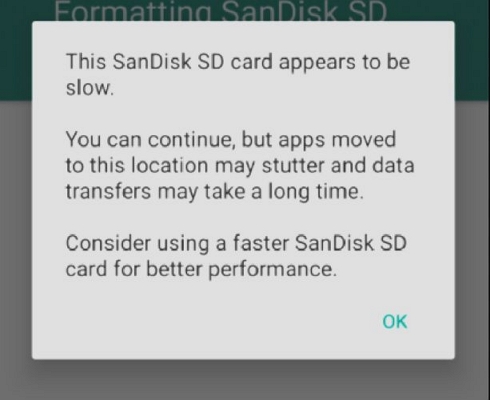
Use a good SD card for Spotify downloads storage. Go for Class 10 or A1 or A2 cards ideally, like SanDisk Ultra, Samsung EVO/Pro or Lexar. Cheap no-name cards often fail with Spotify’s read/write demands and downloads will take forever to show even if the location gets moved.
Steps to Change Spotify Storage Location to SD card
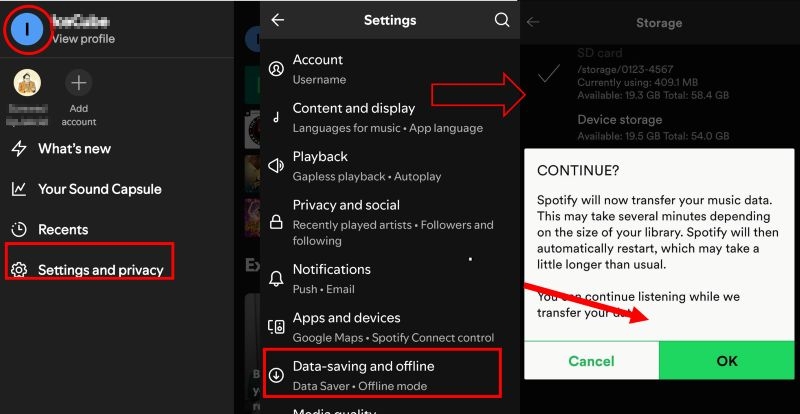
Step 1. Open Spotify and tap your profile icon on the Home page.
Step 2. Choose Settings and privacy.
Step 3. Scroll down to Data Saving and Offline.
Step 4. Go to the Storage section. You’ll see two options: Device storage and SD card.
Step 5. Select SD card. A confirmation card will pop up, tap OK. Spotify will shift all current and future downloads to the SD card.
Way 2. Move Spotify App to SD Card
Brands like HTC or Moto introduced Adoptable Storage starting with Android 6.0 (Marshmallow). It allows you to either move individual apps like Spotify to the SD card. This action changes the storage location for the respective app. Some brands even allow you to make the SD card act like internal memory, so new apps will be installed there automatically.
Major brands, like Samsung, LG, Sony, blocked these features completely.
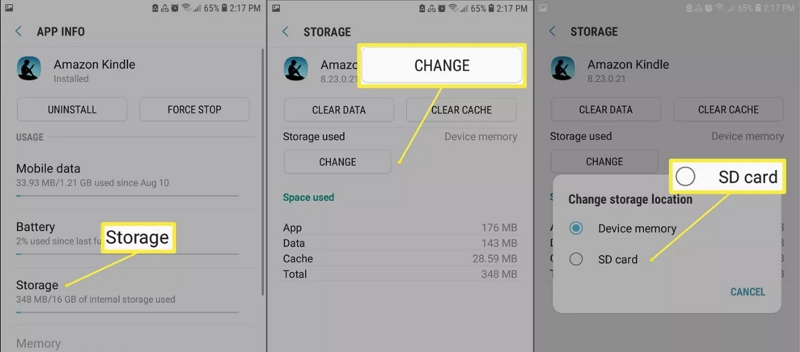
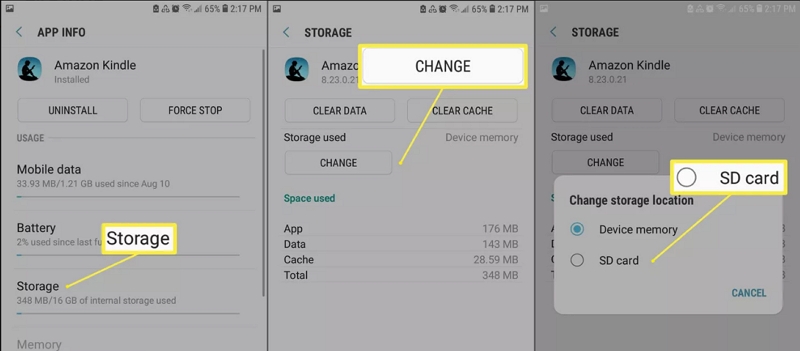
Option 1: Move Spotify App to SD Card
- Open Settings on your Android phone.
- Go into Apps or Applications.
- Scroll down and select Spotify from the list.
- Head into the Storage section.
- Look for a Change button next to the storage path.
- If the option exists, choose SD card.
- A small prompt may appear.
- Tap Move or OK.
- Wait for the transfer to finish.
Option 2: Make SD Card a Part of Internal Storage
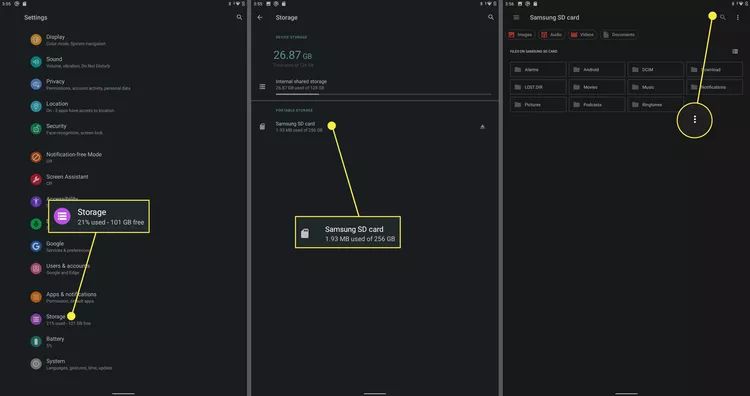
Some Android phones allowed you to format the SD card as internal storage. This option existed on several devices all the way up to Android 10.
To do this:
- Insert an SD card into your device.
- Go to Settings > Storage.
- Tap your SD card under the Portable Storage section.
- Tap the three-dot menu in the upper-right corner.
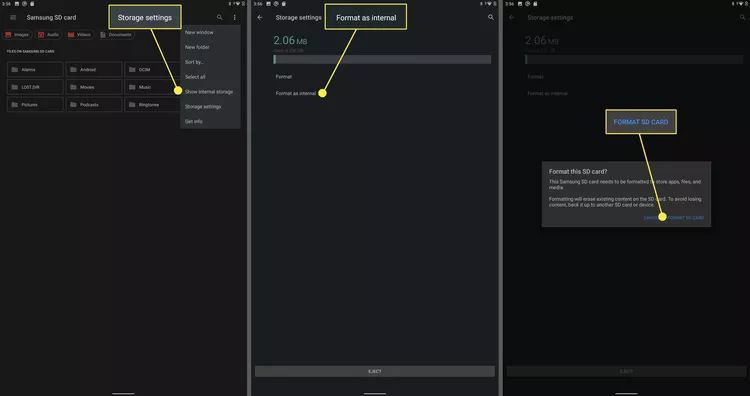
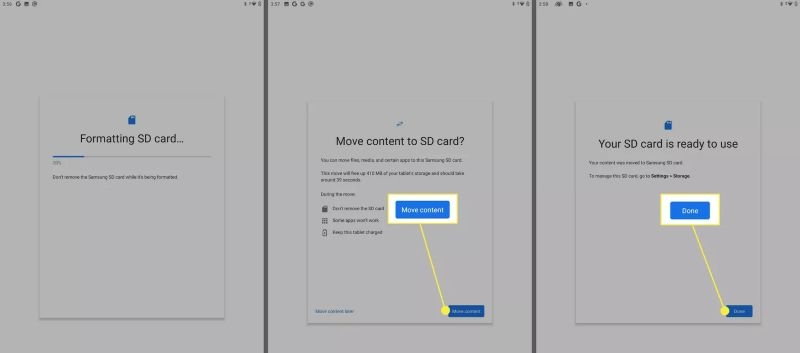
- Choose Storage settings > Format as internal > Format SD card.
- Tap Move content, followed by Done. Your SD card will now function as internal storage.
Will Previous Spotify Downloads be Saved to SD Card?
Well, the answer depends. Here’s a simple table explaining the answer for each way above.
How to Save Spotify Songs to Android SD Card with the Computer
Now, coming to the part where you can actually save Spotify songs to your SD card as open, playable files. These files will not be encrypted. You can play them in VLC, in your car or in any basic music player.
For this, you will be using Mediaio Audio Converter. It is simple to use and you do not even need Spotify Premium. Here’s how the process works.
Step 1. Connect Android to Computer
Use a good cable and connect your Android phone to your computer. You don’t have to use the phone during the conversion.
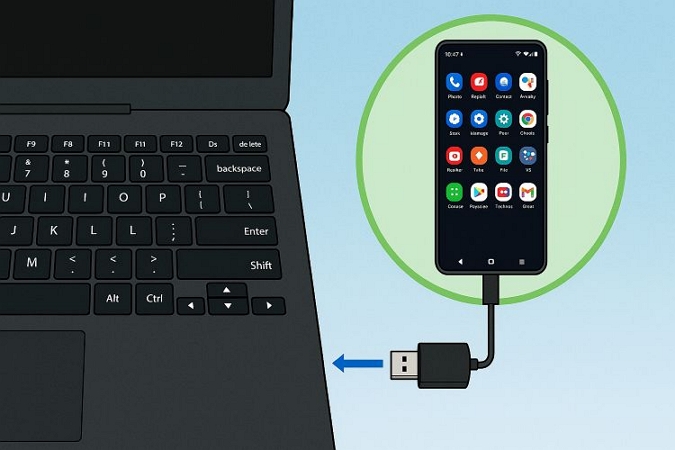
You can also remove the SD card from your Android device and place it into an SD card reader. Then transfer the files there. Alternatively, you can even download them on your computer first and then copy them to the SD card.
Step 2. Export Spotify Music to Android as Local Files
Here comes the magic of Mediaio Audio Converter. Mediaio allows you to download Spotify songs as local files (MP3, FLAC, or other open formats) without DRM. These downloaded songs will behave like normal audio files, so you can transfer them to any device you want for personal usage. Besides, you can play them with any music app on your Android phone, with no need for the Spotify app at all.
Mediaio is built for easily downloading music locally. It comes with a built-in Spotify Web Player. So, you can log in with your own free Spotify account and download any playlist or song you want. There is no limit on how many tracks you can save.
Steps to Download Spotify Songs to SD card as MP3
Download, install and run Mediaio Audio Converter on your Windows or Mac computer. From the main screen, choose Spotify.

In the embedded Spotify web player, click Log in at the upper right corner. Log into with your free Spotify account or premium one if you have.
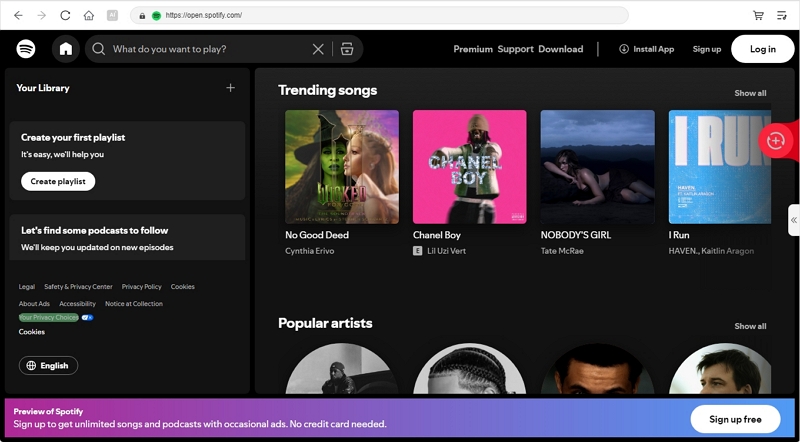
Drag the desired playlist, album or song into the plus icon. This tells Mediaio what to download.

Change the Download location once the songs are in the Converting tab. For this:
1. Click the Browse option at the bottom-right.
2. Choose your SD card or your connected Android phone. Or you can even choose any folder on your computer, such as Downloads and later copy them to SD card.
3. This marks the save location.
Hit Convert All. Mediaio will save every track to your chosen location with full metadata. Playlists and Albums will become folders. The songs are real MP3s (or any format you choose), ready for your car, your MP3 player, or any device.

Final Words
That’s how you can download Spotify songs to SD card on Android. We covered everything that is possible through Spotify’s own settings, using Android’s app-moving options and Mediaio Audio Converter. Mediaio is recommended, because it saves Spotify songs directly to your SD card as open files.