

Storing music in MP3 or FLAC on your Android or iPhone has many benefits. You can listen to your favorite songs offline, save mobile data, and avoid ads. But for that, you’ll first have to download music to your phone. This guide explains how to do that. We'll show you four practical ways to put MP3 or FLAC music on your Android or iPhone. You'll learn how to download music to your phone from your phone directly, which is suitable for downloading a few songs quickly. Then, we’ll show reliable desktop methods for downloading large music libraries and transferring them to your phone via USB cable.
You May Also Like
How to Download Music to Your Phone from Your Phone for Free
There are two reliable ways to download music directly on your iPhone or Android phone. And both methods work regardless of which platform you are using. Both methods also operate in a very similar way. You will have to paste a song or playlist link — usually from YouTube or Spotify. Then they will deliver the track in formats like MP3 or M4A. And yes, the entire process happens on your phone itself.
What makes them different is the overall experience. One method is more app-like and the other is suited for one-time conversions. We will look at them individually. Here is a quick overview table. It will help you figure out which one best fits your needs.
Some sites let you select up to 320 kbps, but the actual source quality is lower than YouTube audio - repackaged as 320 kbps MP3. Can reach genuine 320 kbps MP3 depending on where the bot sources the track.
- YouTube-based pulls are lower quality.
- The ones sourced from Deezer and SoundCloud sound better.
Some sites also allow MP4 video downloads. Primarily MP3 audio delivery.
Filenames often include extra YouTube text, such as “Official Music Video.” Better metadata handling overall.
Song title, artist name, and album details usually stay intact properly.
You have to repeat the same process manually for every song. You can find options that support playlists. We have included one that lets you export up to 400 songs at once.
Way 1. Download Music Online
Online converters offer the simplest way to download music directly to your phone. You can use them through your mobile browser, like Safari, Chrome, etc.
Some good online converters are CNVMP3 or EZRip. They can process YouTube links and even preserve the basic metadata properly without adding watermarks. So at least the downloaded music tracks will look clean when opened through any offline music player library. Plus, you don’t have to create an account or even submit your email to use them. Besides, these platforms are mostly donation-supported, so you won’t even face ads.
That said, online converters are impractical for building large music libraries because they lack proper batch downloading. They are much more suitable when you only need one or two songs quickly, like for ringtone creation or a video editing project.
Steps to Download Music on Phone with CnvMP3
Step 1. Head over to YouTube. Search for the song you want to download on your phone. Play the video, tap the three dots next to the result. Use Share icon, then from the share sheet, choose Copy link.
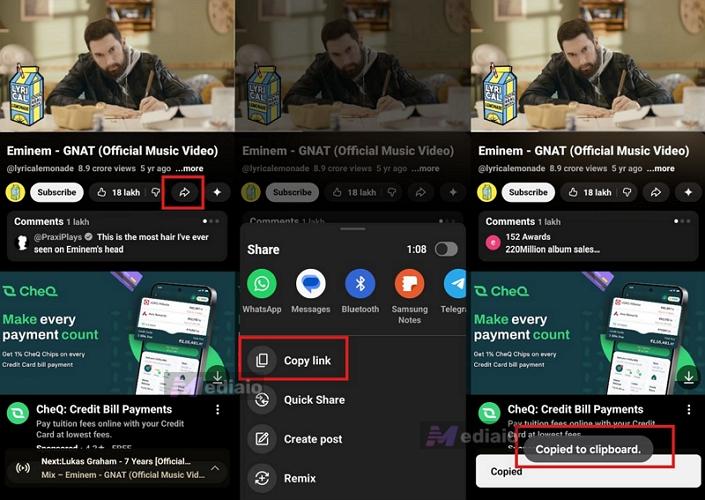
Step 2. Jump into any browser on your phone and search for CNVMP3.Make sure you land on the correct site since fake copies are very common. Once the page loads, drop the copied YouTube link into the URL field.
Step 3. CNVMP3 lets you manually control the output quality by using the bitrate selector. Switch between 96 kbps, 128 kbps, 256 kbps, or 320 kbps and you can leave the format as MP3 for audio.
Step 4. Hit the bright orange Convert button. CnvMP3 will process the link and prepare the downloadable file.
Note: Sometimes (depending on the browser), the processed file will open in a new browser tab and start playing. There, you’ll have to tap the three dots icon and press Download again.
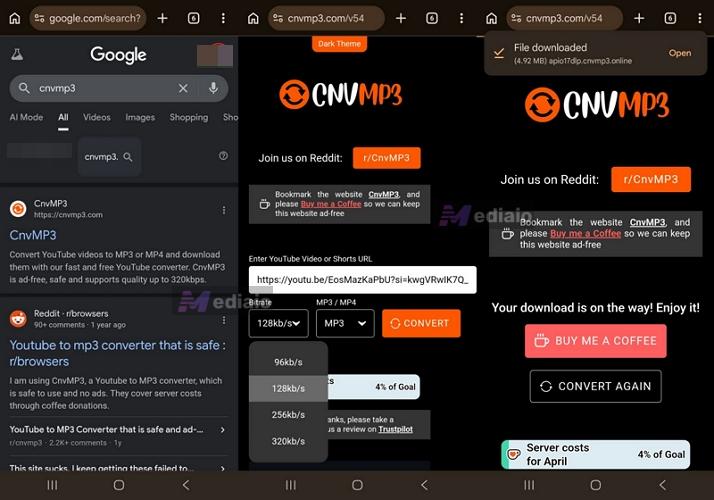
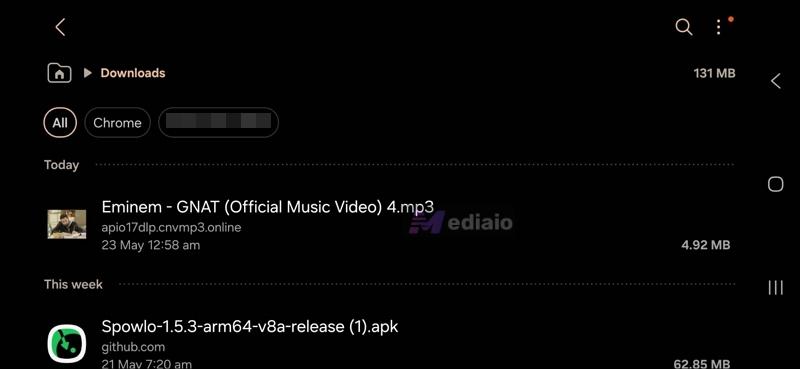
Step 5. The final MP3 file will be saved directly to your phone storage.
- On Android, you will find it inside the Downloads folder.
- On iPhone, the file will appear inside the Files under On My iPhone or iCloud Drive.
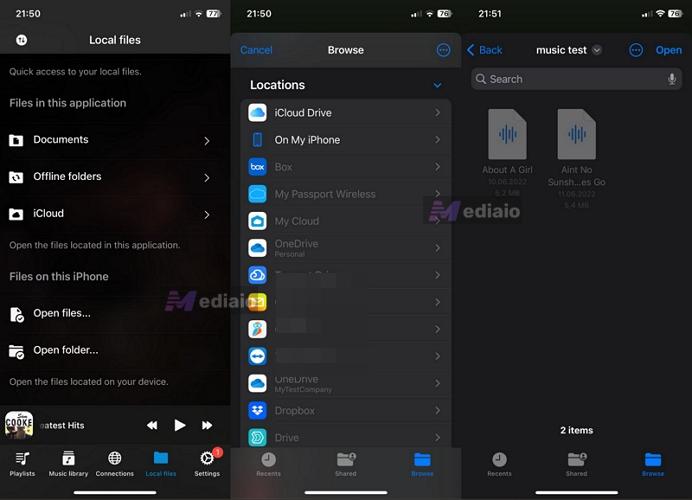
Step 6. From there, you can play the songs through any offline music player. Android players like Poweramp or VLC detect them instantly.
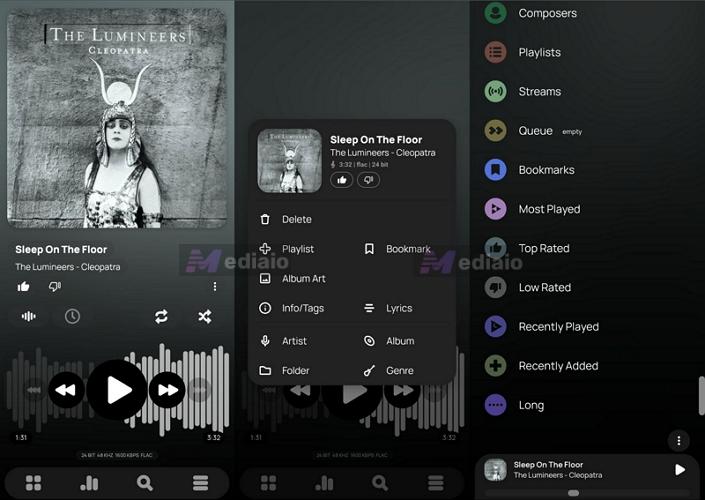
Things are more restrictive on iPhone. The native Music app does not properly work with manually downloaded MP3 files unless you sync them through Finder or iTunes. So apps like Evermusic are much more practical for that.
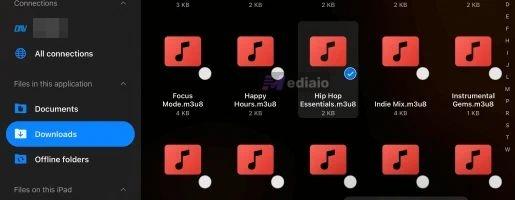
The metadata quality from CNVMP3 is decent. Song titles and album names usually carry over properly. Still, since everything comes from YouTube metadata, you will see filenames with extra text, such as “Official Music Video.”
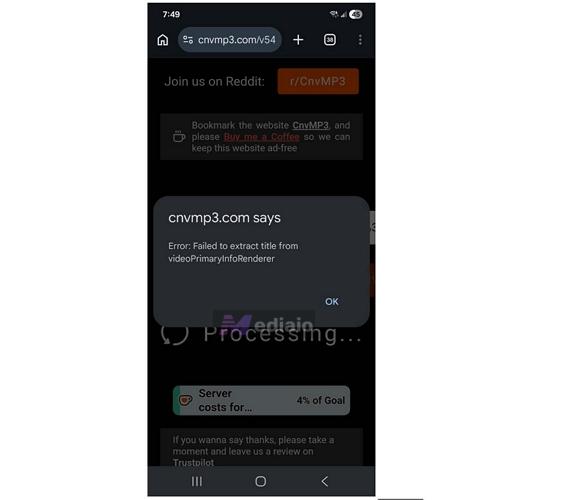
One thing to keep in mind: Online converters break very often. Some days, conversions will fail entirely. Other times, you will run into extraction errors or endless loading screens.
Way 2. Download Music with App
There are no reliable music converter apps you can download directly from the App Store or Play Store. Still, you can use Telegram bots on both iPhone and Android. Telegram bots work more or less like online converters. You have to send them a song link from the music service they support and they will respond with a downloadable music file. Everything happens inside the chat box itself. The problem is finding a reliable bot, as Telegram bots often disappear and suddenly stop processing links.
After testing many unstable bots, the one that worked consistently for us was Music Hunter. On Telegram, you will find it as @MusicsHunter, although its display name will appear as Music Downloader. The good thing about @MusicsHunter is that it is not limited to single-song downloads. Even on the free version, it can process playlists containing up to 40 songs. The premium version expands that limit 10x further. Regardless of the version, audio quality can reach 320 kbps MP3 (depending on the source). Still, @MusicsHunters, or any other Telegram Bot, is not a perfect solution. Even when downloading playlists, the songs will still arrive as separate Telegram files, one after another. So building a large, organized music library is still somewhat clumsy. The metadata quality is decent enough for casual offline listening. Song names, artist names, and album art usually carry over properly.
Steps to Download Music on iPhone/Android Using Music Hunter Bot
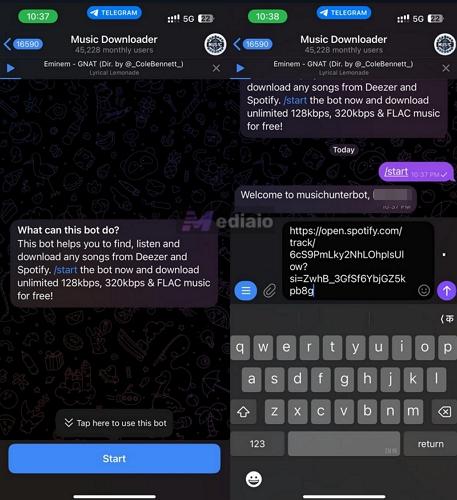
Step 1. Head over to Telegram and search for @MusicsHunter.
Step 2. Press the Start button to initialize the bot.
Step 3. Now copy the link to the song or playlist. MusicsHunter, in particular, supports links from Spotify, Deezer, TIDAL, SoundCloud, and Qobuz.
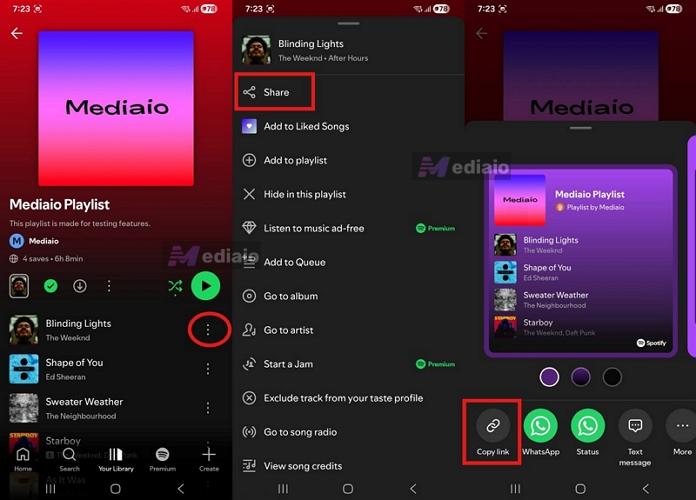
Step 4. Paste the copied link directly into the chatbox. And send it as a normal message.
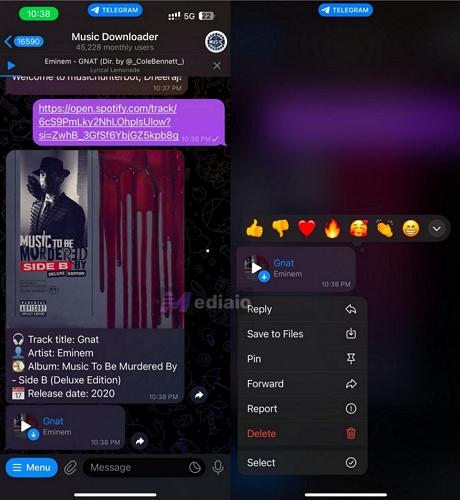
Step 5. The bot will now process the request. Single-song downloads usually arrive quite quickly. Playlists will take longer because the bot will send every track separately, one after another, inside the chat window.
Step 6. Once an audio file appears, tap the Download icon. Choose Save to Downloads or Save to Files. From there, you can play them via offline music players.
How to Download Music to Your Phone from Your Computer
Downloading songs on your desktop and then transferring them to your phone gives you more control than doing everything on your mobile device. For one, file and folder management is simpler on a desktop. So it is worth looking at the downloading options available on a desktop. After that, getting the songs onto your phone is just a simple transfer. And in return, you can choose exactly how you want your music — proper MP3 quality, full metadata, batch downloads, or even true lossless audio. And these are only some of the advantages. Here is a quick pros-and-cons overview to weigh reliable desktop methods for downloading songs.
You have to use reliable tools like MedVioo to get the most out of it.
These desktop methods are honestly the more practical option overall.
Way 1. Use Music Converter
MedVioo Audio Converter is the most reliable desktop tool for downloading music. And it is the method to choose when you are looking for high-quality audio files, batch export, and an organized library.
MedVioo comes with built-in support for 9 major services, such as Spotify, YouTube Music and Apple Music. This lets you sign in to your own account and access your favorites quickly. From there, you can export your entire collection in one go. And no matter the platform, MedVioo will preserve original quality and deliver up to 320 kbps MP3. You can also export in true lossless (FLAC or WAV) from platforms that support it, like Apple Music, Spotify, and Amazon Music.
MedVioo's main advantage is metadata preservation. Every song keeps its original info, including high-res cover art. Playlists and albums are automatically sorted in folders, keeping your trip and gym playlists separate. So your offline library on Android or iPhone stays tidy.
Steps to Use MedVioo to Download and Transfer Music from Desktop to Mobile
Step 1. Fire up MedVioo on your Windows PC or Mac. Choose the music platform: Spotify, YouTube Music, Apple Music, Amazon Music, Deezer, or Pandora.

Step 2. Use your own account details to sign in to the selected platform. For example, if you’ve chosen YouTube Music, continue with your Google account. You can type in Spotify login details when you select it. Both free and Premium account logins will work the same.
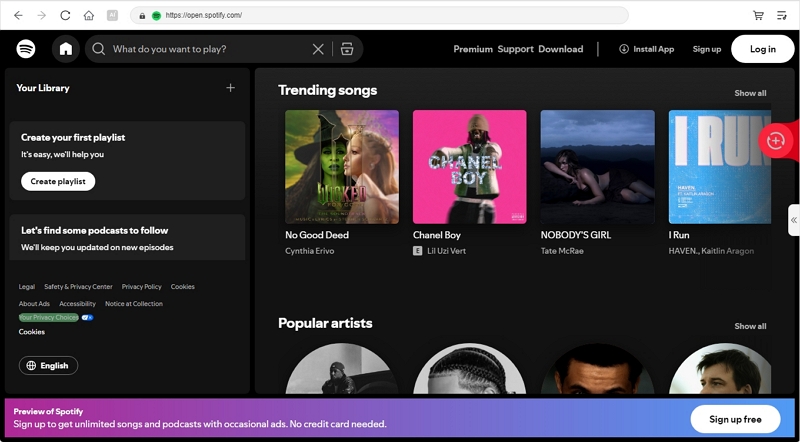
Step 3. Browse your library. Highlight playlists, albums, podcasts, audiobooks, or any other content you want. Drag the selection toward the floating + button on the right.

Step 4. Hit the Convert All button. MedVioo will save all the selected songs on your computer in MP3.
If you want to adjust the output settings, simply expand the conversion pane in the right, then choose the output format, audio quality and storage destination. Finally, click Convert.
That’s it. The songs will already be organized with proper metadata. You can then transfer them to your Android or iPhone normally.

Once the songs are downloaded on your computer, bringing them over to your phone is actually the easy part. You can follow these steps to conveniently transfer MedVioo downloads.
For Android:
The process is straightforward.
- Connect your phone using a USB cable.
- Allow File Transfer mode if prompted.
- Then simply drag your downloaded music folders into the device storage from another File Explorer window.
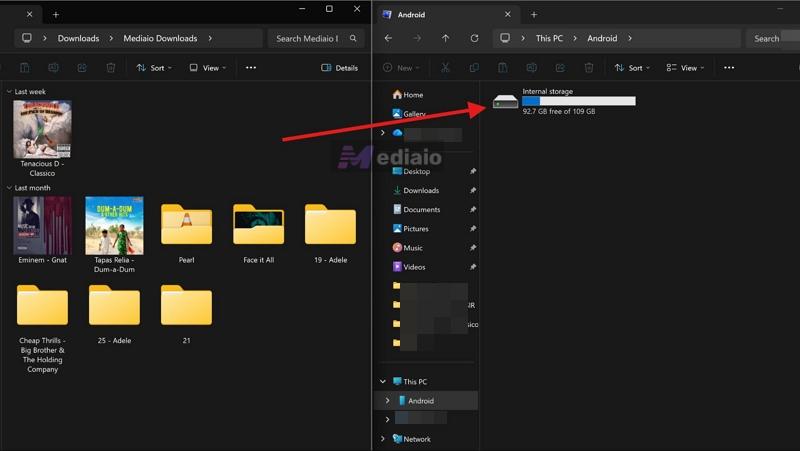
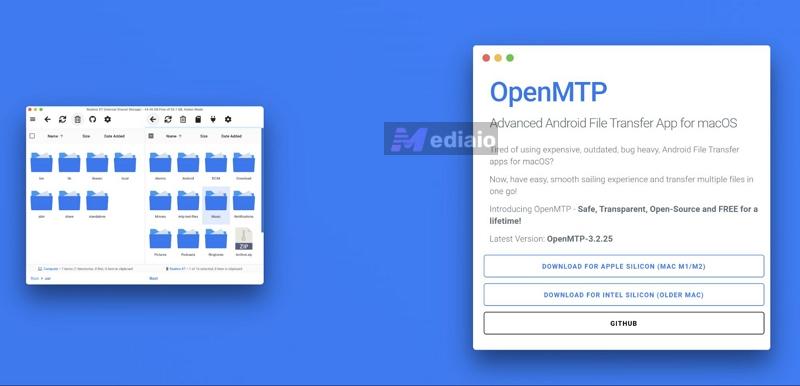
Note: If you are transferring from macOS to Android, you need to first install free apps such as OpenMTP. Then follow the above steps.
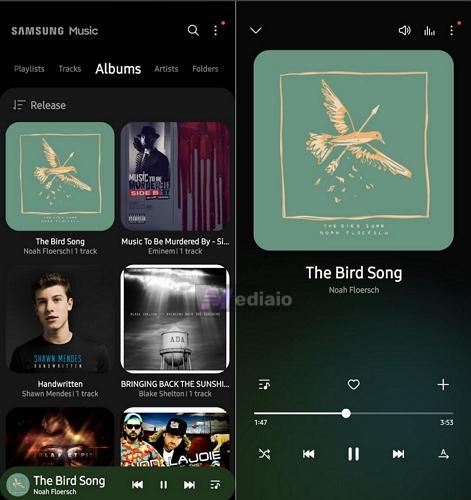
Once copied, the songs will be on the Internal Storage. You can simply scan the storage using any offline player, like Poweramp or VLC, to play them.
On iPhone:
You have a few options depending on how you want to listen to the files. But first, use a USB cable to connect the iPhone to the computer. Then:
- On macOS, open Finder.
- On Windows, use the Apple Devices app.
If you want the songs in the standard Music app:
- Select the iPhone from the sidebar.
- Switch to the Music tab.
- Choose the folders or tracks you want to sync.
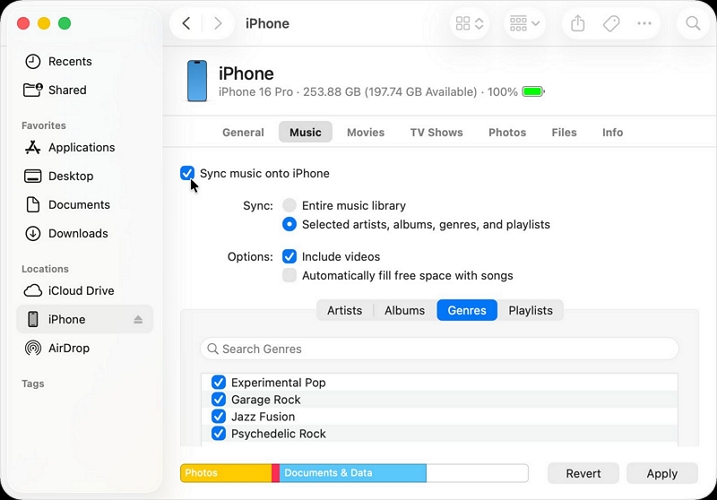
But honestly, local media players work much better for downloaded music. Apps like VLC can directly store and scan your downloaded MP3 or FLAC files. For that workflow, keep VLC installed on your iPhone first. Then:
Step 1. Move to the Files tab from the top menu bar inside Finder or Apple Devices. You will now see apps that support direct file transfer, including VLC.
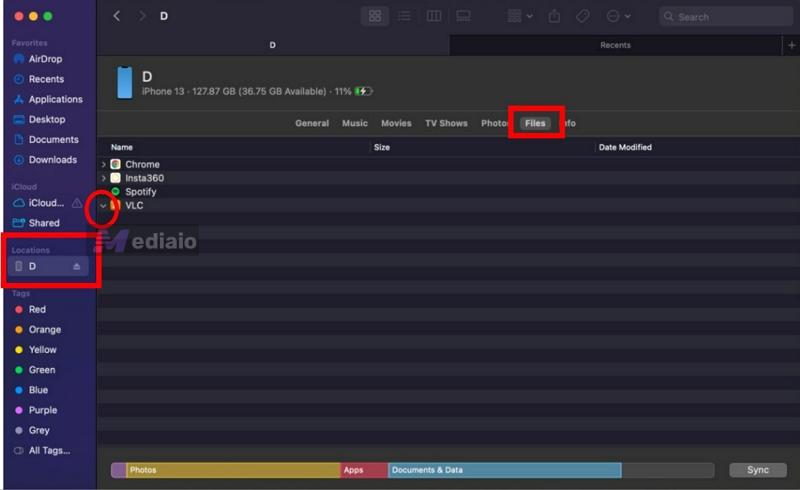
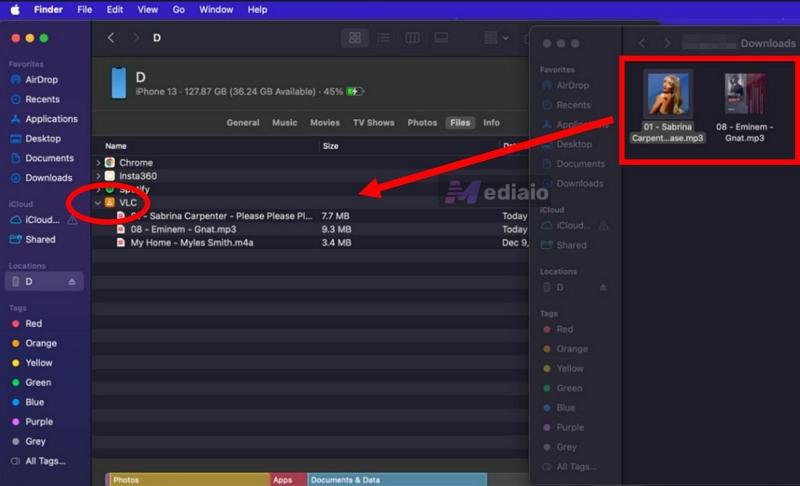
Step 2. Drag your downloaded music folders directly into the VLC section. The files will begin copying immediately.
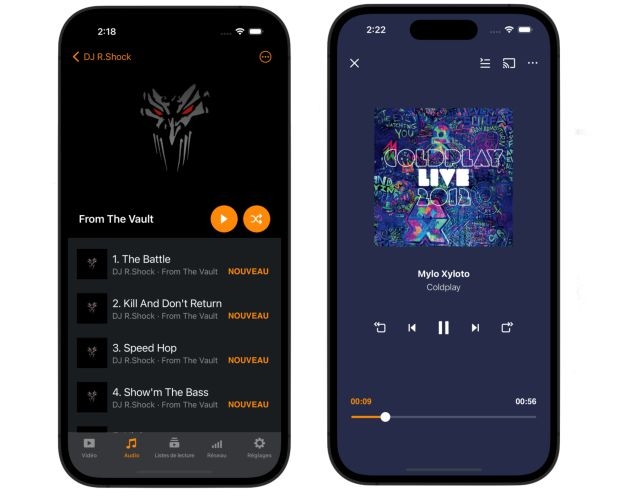
Step 3. Open VLC on your iPhone afterward. The transferred songs will already appear there with their artwork, names, and folders intact.
Download Quality
Tip: You can also choose between a monthly and annual subscription based on your needs.
Way 2. Purchase and Download Music
Another way to get offline music onto your phone is to simply purchase the songs directly.
You have multiple options for this:
- Amazon Music — usually delivers up to 320 kbps MP3.
- iTunes — mainly offers 256 kbps AAC.
- Bandcamp and Qobuz — support true lossless formats like FLAC and WAV.
Once purchased, you can export the songs and transfer them to your phone normally. That said, this method, unlike MedVioo, is not convenient. For example, you cannot simply purchase a playlist you have sitting on Spotify or Apple Music. To rebuild a playlist, you have to manually search for every song, then purchase and download it. Once that’s done, you’ll have to organize them into a folder or .cue file. So everything is manual here, much like the online converter methods from the phone section. Of course, you can do this on your phone itself. But searching for songs, buying them individually, and saving them is more chaotic.
And unlike MedVioo, there is no single subscription model here. You will have to pay separately for every song or album you want to keep offline. That is the biggest drawback of this method. So, compared to MedVioo, buying songs is much slower and more expensive.
Steps to Purchase Songs from Amazon Desktop and Transfer Them to Phone
Step 1. Open the Amazon Music store. Use the search bar to find the song or album you want.
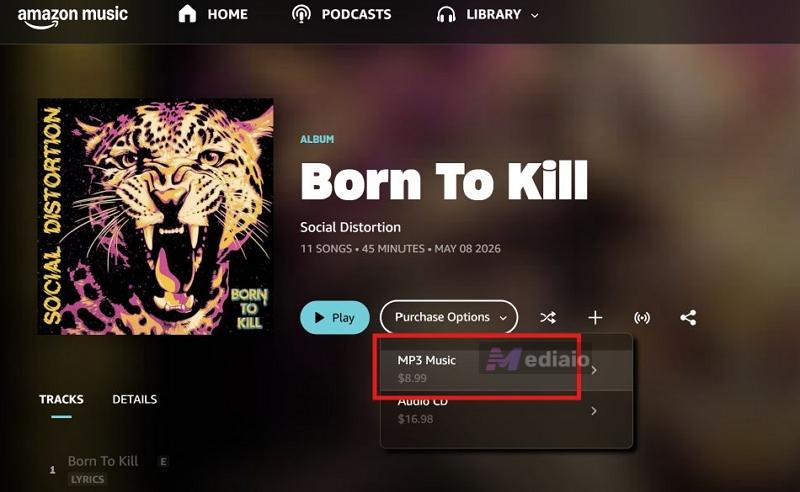
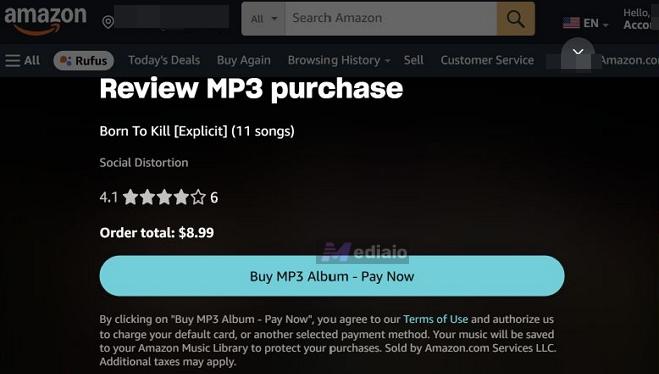
Step 2. Click the Purchase Option and choose MP3 Music from the drop-down. You will also see the pricing there itself.
Step 3. Review the purchase and click Buy MP3 Song - Pay Now to complete the payment.
Step 4. Then download the songs on the computer. You can then manually organize the songs into playlists. Once that’s done, you can simply transfer them to your phone.
Download Quality
iTunes: 256 kbps AAC
Bandcamp/Qobuz: FLAC and WAV
Conclusion
So that’s how you can download music to your phone — from your phone directly or through your computer. Once the songs are stored in MP3, you will no longer be tied to streaming. You can listen without an internet connection, avoid ads, save mobile data, and even use your phone more like an offline music player.
That said, as you saw by comparing the methods throughout this guide, MedVioo Audio Converter is the more practical option. It lets you download songs in batches from 9 major music platforms on your Windows PC or Mac. After that, you can transfer them to your Android phone or iPhone easily.