

There’s nothing more frustrating than hitting play on Spotify and suddenly staring at the black “Log in to Spotify” screen. You sign in, get back to your music, and an hour later, it happens all over again. That’s when the obvious question comes up —“why does Spotify keep logging me out?”
Well, the answer is usually simple. It comes down to small glitches or incorrect settings, whether the issue shows up on browser or mobile app. Fix those, and the problem will go away. That’s what you’ll find in this guide: the step-by-step fixes to resolve the issue in minutes. We’ll also show a smarter way to listen to Spotify music offline by converting Spotify tracks into MP3 or other local formats using Mediaio Audio Converter.
Before Fixing Spotify Keep Me Logging Out
A sudden logout is not always a device or settings problem. Sometimes the cause sits outside your control. So before you jump into troubleshooting, especially if this has happened for the first time, go through these quick checks first.
1. Check if Spotify is down
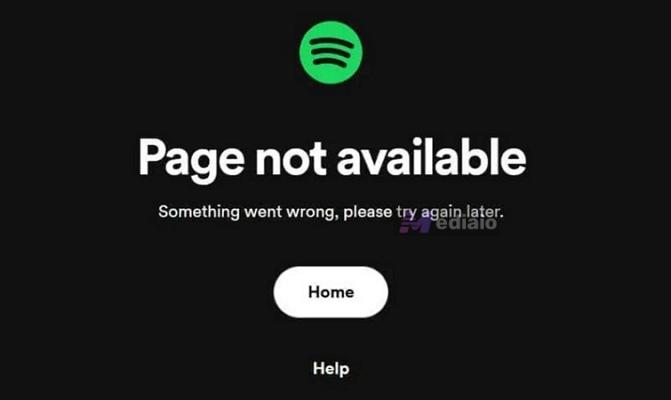
At times, Spotify’s authentication servers run into outages. When that happens, people get signed out across devices without warning.
For example, a mid-February 2026 incident left many Android users seeing “Something went wrong” and forced logouts.
Take a minute to check a service monitor, like DownDetector or the official Spotify Status account on X. If there’s an outage, the only real fix is patience while Spotify restores service.
2. You have hit the 14-day abroad limit
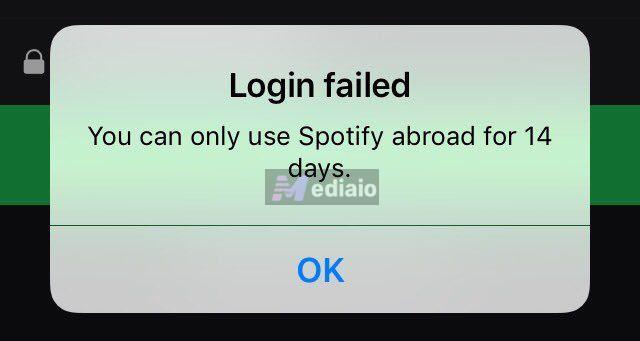
As a Free user, you can stream Spotify abroad for only 14 days. After this, Spotify will sign you out.
However, sometimes this error appears even when you haven’t left your house. For instance, you could be using a VPN or custom DNS. Since Spotify reads your IP address, it assumes you moved and blocks access.
The simple fix here is to switch off any VPN, connect through your normal local network, then sign in again.
Why Does Spotify Keep Logging Me Out on Browser [Fixed]
On the browser, this usually follows two very recognizable patterns:
- You play a track in one tab. Then, switch to the other tab to work or browse Instagram. After a while, the sound will stop. When you switch back, you are taken directly to the black Log in to Spotify screen.
- Another similar situation: every time you reopen your browser (Chrome, Edge or Brave), Spotify will forget “who you are."
Reasons Why Spotify Keeps Exiting
In simple terms, Spotify gives your browser a small digital ID card (cookies). When the browser deletes that ID due to various reasons, Spotify will assume you are a new visitor and ask you to sign in again.
So, here are all the reasons why your browser deletes those cookies:
Login Data Is Not in Cookies
Sometimes those cookie files get removed. Often, this comes down to browser settings. For instance:
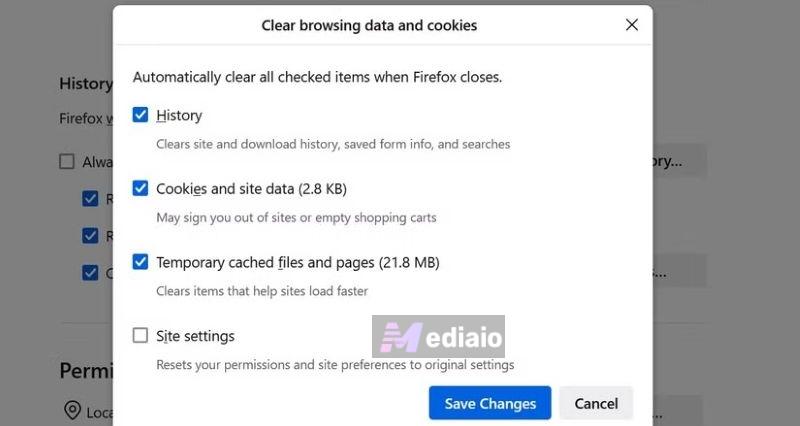
- Some privacy-focused browsers (by default) delete all cookies whenever you close all the windows.
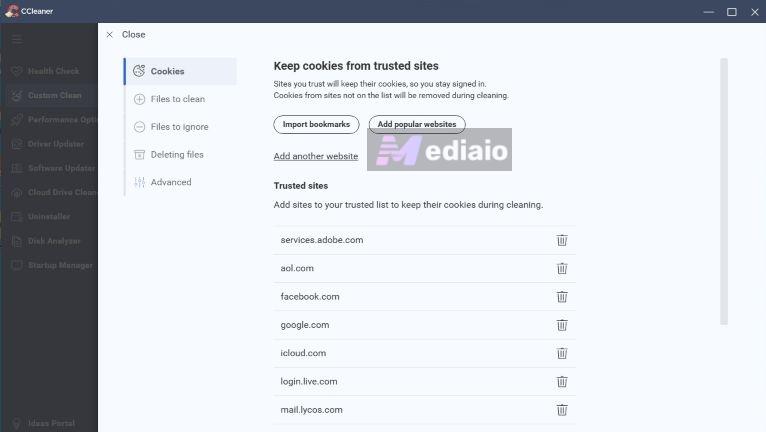
- You could be using PC cleaning tools that wipe browsing data daily. Eg: CCleaner and BleachBit.
Improper Login Method
This is one of the most overlooked causes today.
Spotify offers multiple ways to sign in. When you sign in with your Email, you get two options:
- Login with a password — where you manually enter your password.
- Login without password — where Spotify sends a magic link or six-digit verification code.
Many people rely on the verification code because it feels quicker. But sessions created through verification links are temporary by design. They are meant to expire sooner for security reasons.
A password login, on the other hand, generates a longer-lasting “remember me” token.
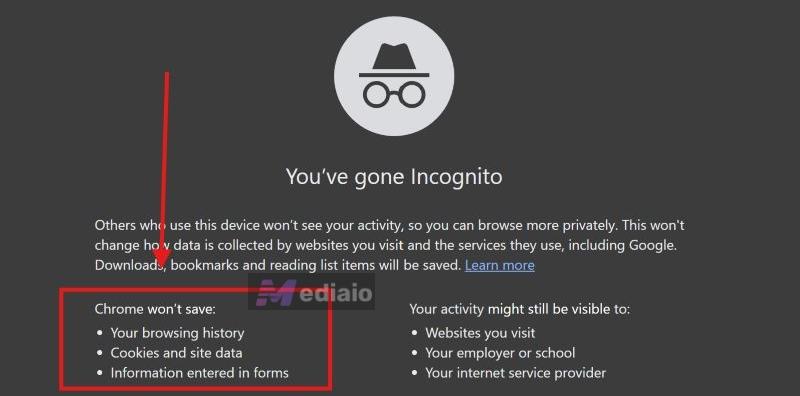
You’re Using Incognito Mode
Sessions are temporary in incognito or private windows. So, even when you’ve just logged in, the moment you exit the private tab, cookies will disappear automatically. This is because incognito modes do not save cookies or history.
Fixes for Spotify That Keeps Exiting on Browser
As you’ve seen, this usually comes down to your browser dropping the login cookies. A few small adjustments are enough to stop the web player from forgetting you. Here’s how to check things and make sure Spotify remembers your session.
Fix 1. Log In Using Your Spotify Password
Across Spotify Community threads, many users notice that signing in with the six-digit verification code only creates a short-lived session. In simple terms, you will get logged out frequently. Using your actual password creates a more stable login.
Here are the steps:
- Go to the Spotify web player login page.
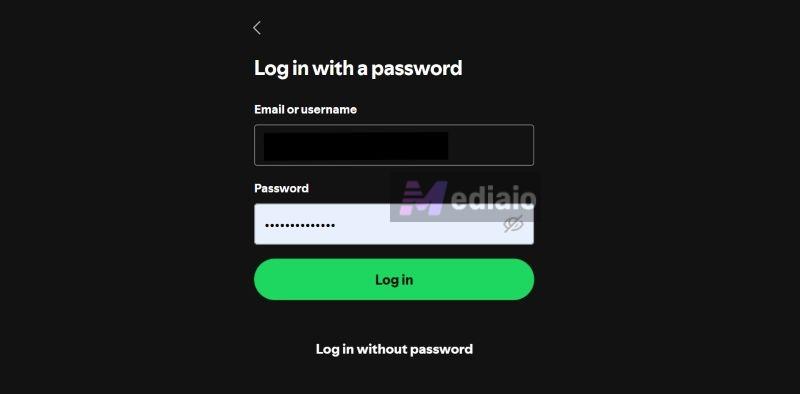
- Enter your email. When asked to check your email for a code, look for the Log in with password option at the bottom instead.
- Enter your password and continue.
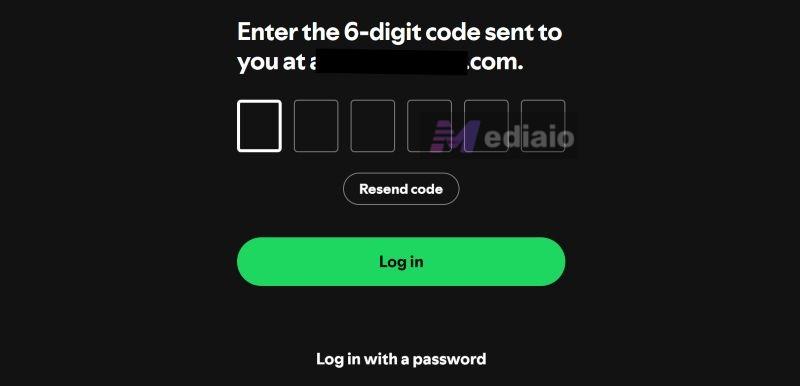
Once signed in this way, the session will stick for a long time.
Fix 2. Add Google as a Login Method
Linking your Google account creates another sign-in path. It avoids session issues. Here’s how to set it up:
- Click your profile icon in the Spotify web player.
- Choose Account.
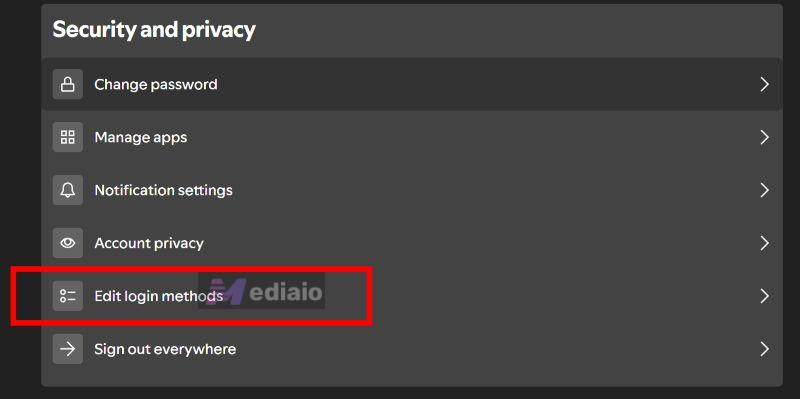
- On the account page, find Security and Privacy, then open Edit login methods.
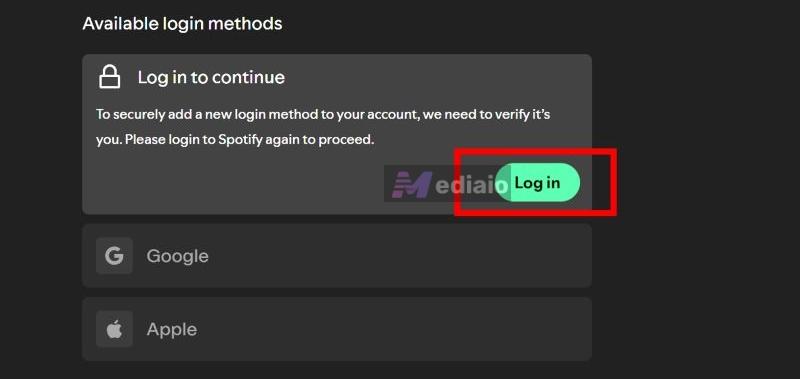
- Spotify will ask you to log in again to verify. Simply complete that step.
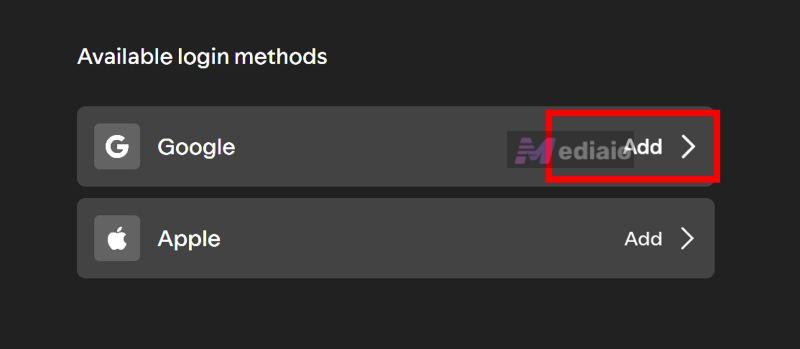
- Under Available login methods, click Add next to Google.
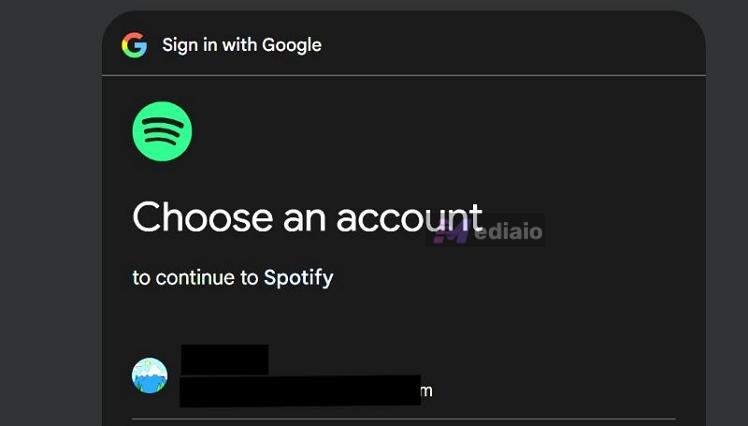
- The usual Google sign-in window will appear. Choose the account you want to link.
- After confirmation, the method will be added. You can now use Google to sign in anytime.

Fix 3. Keep Spotify Login Cookies
You’ll need to review your browser settings and adjust its behaviour, so it doesn’t delete cookies every time you close the window.
Here’s how to keep Spotify cookies (e.g. Chrome or Edge):
- Open browser Settings (three horizontal lines > Settings).
- Go to Privacy and security from the side panel.
- Open Cookies and other site data (or similar wording).
- Scroll to Sites that can always use cookies or Allowed to use third-party cookies, then click Add.
- Enter https://open.spotify.com and confirm.
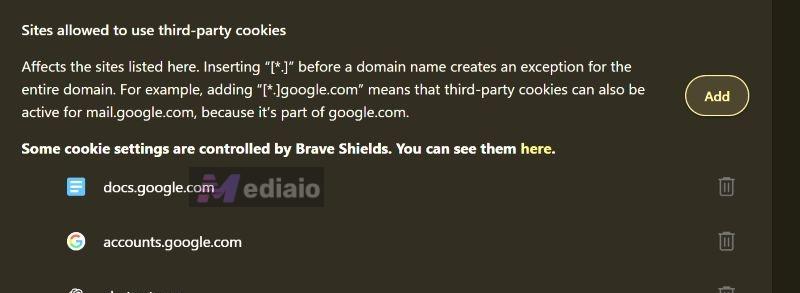
Once added, Spotify stays recognized and you’re far less likely to be logged out.

Note:
Make sure any toggle like “Clear cookies and site data when you close all windows” is turned off or at least does not apply to Spotify.
Also check your PC cleaners or antivirus settings related to cookies. For example, in CCleaner:
- You can open Custom Clean, choose Cookies and add Spotify as a Trusted site.
Apply similar logic in other tools — the goal is simply to prevent automatic deletion.
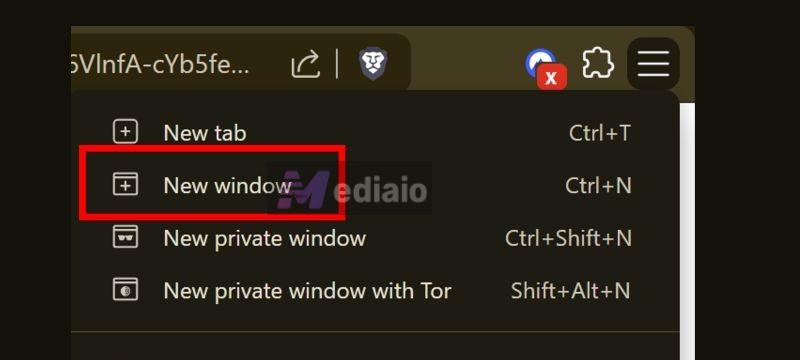
Fix 4. Access Spotify in Normal Browser Mode
Yes, there are times when you’ve to use Spotify in Incognito, like when you’re on a work or shared computer. But when you’re on your own computer, the fix is to use the regular browser window. That way, the browser can retain cookies and keep you signed in.
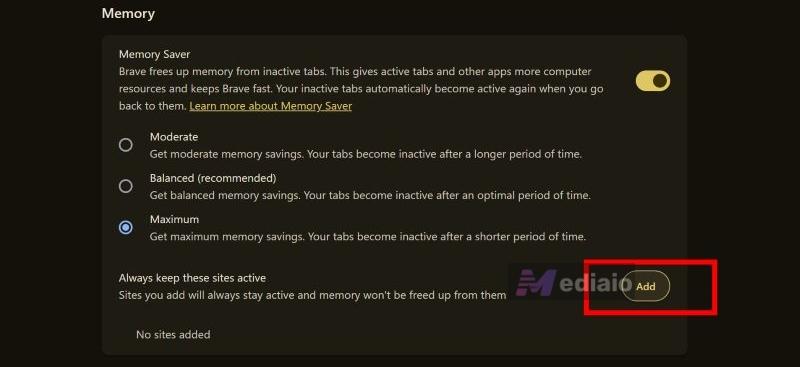
Fix 5. Free Up Memory for Spotify Web Player
Low available RAM can cause the web player to crash or reload. When that happens, you will see a “Something went wrong” page. You may also be pushed to the login page. A few small habits help here:
- Avoid keeping dozens of tabs open.
- Close heavy background tabs you don’t need.
- Use your browser’s Memory Saver or Efficiency Mode and whitelist open.spotify.com, so it never sleeps.
Keeping enough memory free reduces unexpected resets.
Tip for Stable Access to Spotify Music
If you’re tired of the constant logouts, a simple workaround is to keep your Spotify music as local files, such as MP3, M4A and FLAC. So, you can play the music without relying on Spotify at all.
Mediaio Audio Converter is built specifically for this purpose. It lets you pull your Spotify library into local formats using the built-in Spotify web player, where you can sign in normally, look through your playlists, and convert what you need.
Mediaio also preserves the structure of your music, including original ID3 tags and playlist order. This way, your offline collection will look organized and just like it appears inside Spotify. The only difference is that you can play the songs with any music player, like VLC and WMP.
Why Does Spotify Keep Logging Me Out on Phone
Unexpectedly going on the sign-up screen on Android and iPhone is more than just the hassle of signing back in repeatedly. It also removes your offline songs entirely. So let's explore how to fix this behavior on mobile devices.
Why Won't Spotify Keep Me Logged In?
Here are the most common reasons behind this behaviour:
1. The Cache Has Become Corrupted
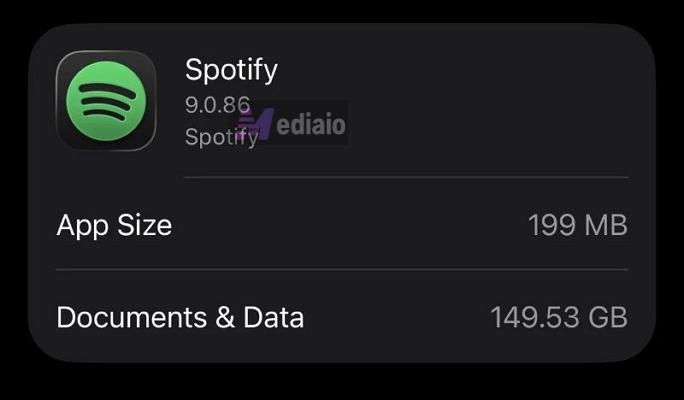
Spotify aggressively saves fragments of every song you stream, called the cache. Over time, this stored data can bloat to 10 GB or more.
And if your phone storage is low or some of this cache data becomes damaged, Spotify will struggle to read the sign-in data. And it will trigger a forced logout.
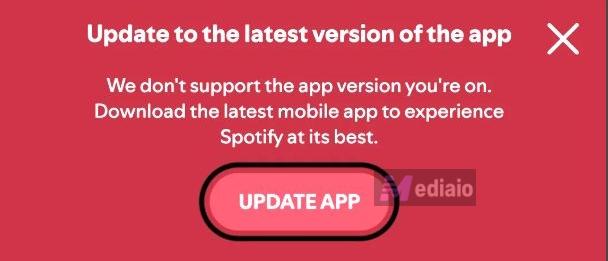
2. Outdated App Version (or Beta Glitches)
Outdated Spotify versions fail to handshake properly with Spotify's servers. This communication breakdown can cause your login token to be rejected.
Additionally, if you are part of the Spotify Beta testing program, keep in mind that experimental code can break basic functionality.
In fact, outdated Spotify was a major culprit for the “forced logout” behavior in early 2026 for Android users. For instance, many users were disconnected from the server when trying to open large playlists.
3. SD Card Failures (Android)
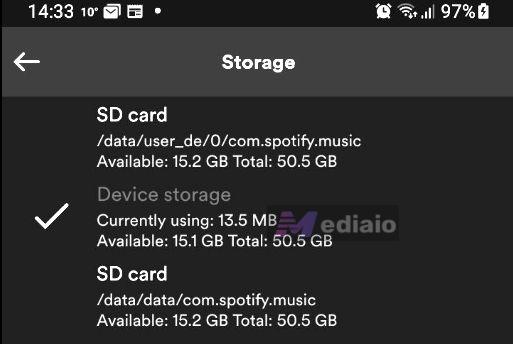
If you save your music to an external microSD card, you have found your culprit. SD cards can occasionally unmount from the system. Plus, they have slower read and write speeds compared to internal storage.
So there are times when Spotify cannot verify your offline data or session token and logs you out to protect your account.
4. Aggressive Battery Savers and Cleaner Apps
Many custom Android skins (like Xiaomi's MIUI or Samsung's OneUI) and third-party phone cleaner apps (like CCleaner or Clean Master) are designed to aggressively kill background processes to save battery.
While this usually just force-closes the app, aggressive junk cleaners can sometimes cause a direct conflict between your phone's operating system and Spotify, resulting in a forced logout.
How to Fix Spotify Won’t Keep Me Logged In
At this point, the goal is simple. Clear temporary clutter, keep storage in check, and make sure the app runs in a stable environment. Once these basics are handled, Spotify will stop signing you out. Here are the fixes.
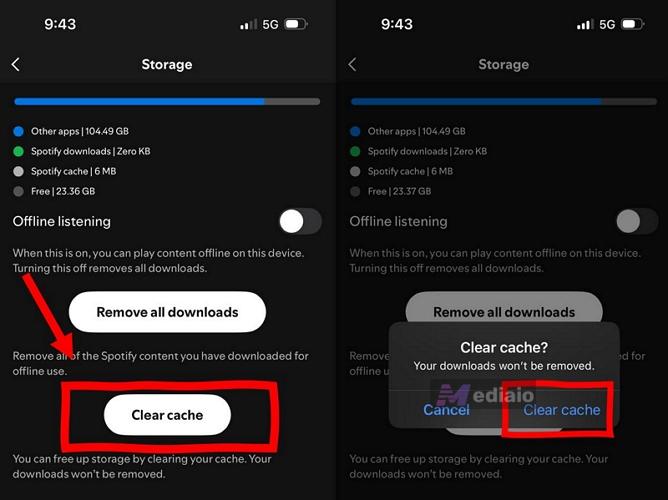
Fix 1. Clear Spotify Cache
Temporary files (cache files) build up quietly over time. Clearing them will help Spotify read your session correctly again.
Here’s how to do it on both Android and iPhone:
1. Bring up Spotify on your phone. Tap your profile icon at the top left.
2. Head into Settings and privacy.
3. Inside the settings menu, find Storage (iPhone) or Data Saver and Offline (Android).
4. Press Clear cache and confirm so any stored temporary data is removed and Spotify can verify your session properly.
Fix 2. Update Spotify
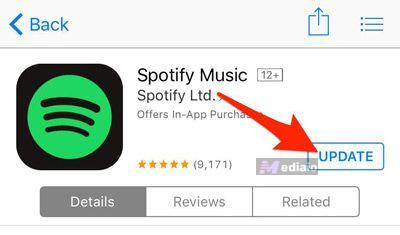
Running the latest version keeps the app aligned with Spotify’s servers and prevents token or session issues.
1. Visit your device’s app store — App Store or Google Play.
2. Look up Spotify.
3. When an Update option appears, install it right away.
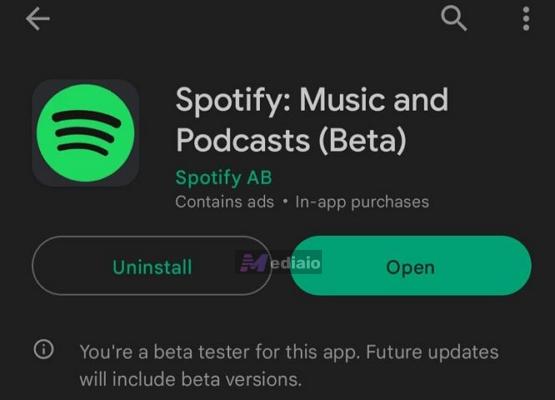
Note: If you’re enrolled in the beta program, consider leaving it. After that, you can reinstall the regular public release to avoid instability.
Fix 3. Clean Reinstall Spotify
A standard reinstall keeps hidden backup settings in place. A clean reset removes those leftovers and resolves stubborn login problems.
On Android
1. Enter device settings, then find Spotify under Apps.
2. Inside Storage, choose Clear Data (along with Clear Cache) — this removes saved sessions and signs you out.
3. Remove Spotify from the device.
4. Access your file manager, browse to internal storage or SD Card > Android > data. Inside it, remove com.spotify.music folder.
5. Restart the phone.
6. Install Spotify again from Google Play.
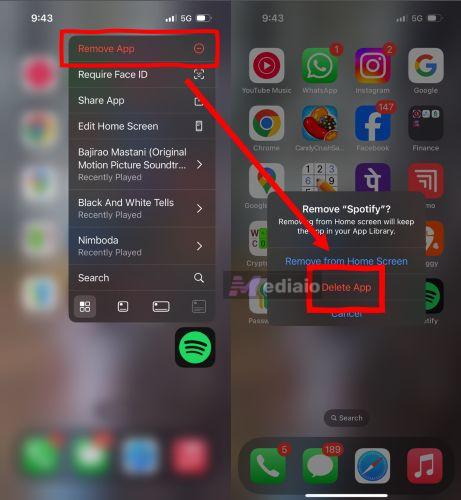
On iPhone
1. Confirm cache has already been cleared inside Spotify.
2. In device settings, enter General, then iPhone Storage.
3. Select Spotify from the list and choose Offload App to reset its container.
4. Delete the App.
5. Restart the iPhone. Then, install Spotify again from the App Store.
Final Words
You now know how to deal with the Spotify logging you out issue. Whether it was happening on your phone or on your computer, you have the right solutions to avoid the unexpected sign-outs.
If you want a more dependable way to enjoy your music, you can always convert your Spotify tracks into local files using Mediaio Audio Converter. This way, you can play Spotify playlists with any music player.