

You spend hours curating the perfect playlist. Every track is chosen to match a specific mood. However, when you press play and Spotify starts slipping in tracks you never added. And you are left asking, why does Spotify add songs to my playlist? In most cases, this is not a glitch but rather the built-in features that interfere with your curated playlists. In all, it happens because Spotify want to keep your music going and you just have to manage this feature.
Next, we’ll go through the reasons and tell you how to stop Spotify from adding extra songs to your playlist or queue, whether you’re a free user or have a subscription. We will also show you how to switch to offline Spotify listening using Mediaio Audio Converter.
Quick Check: The Playlist with Auto-added Songs Are Not Collaborative
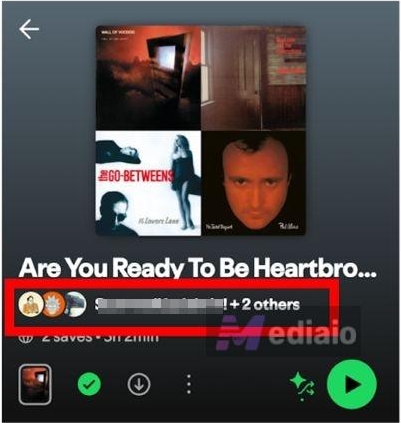
If your playlist is collaborative, other members will have permission to add or remove tracks. You will also notice songs marked with another user’s name next to them. That is a clear sign someone else edited the playlist but not Spotify automatically adds tracks to your playlists.
For why collaboration was enabled and how to stop others from editing, we’ve explained in the Part 3 of this guide. For now, just confirm whether the playlist is collaborative before trying any other fixes.
Why Does Spotify Add Songs to My Playlist and How to Stop It
If you have confirmed that your playlist is not “collaborative,” then it is time to look at the built-in features that quietly extend playback, refresh mixes, or inject recommendations into your queue. Below are the most common causes behind this behavior, along with the exact fixes that stop it immediately.
Reason One: Enabled Smart Shuffle
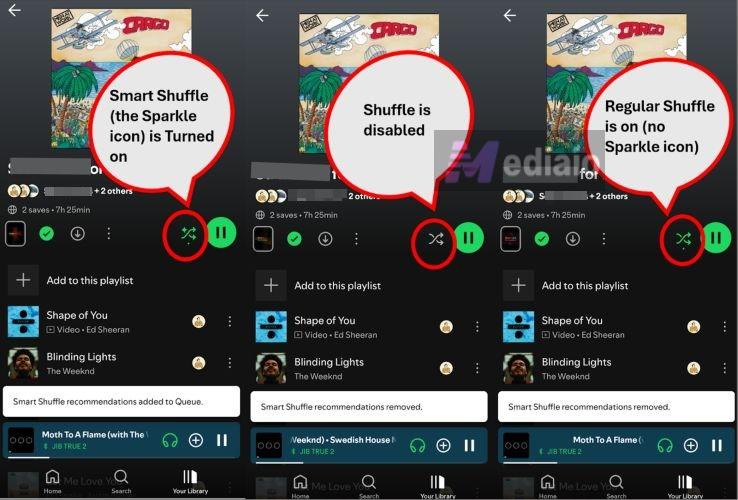
If you see random songs appearing in your playlist with a small sparkle icon next to them, Smart Shuffle is likely turned on. Smart Shuffle injects Spotify’s algorithmic recommendations into your listening queue. These additions are only temporary, but you could feel intrusive to them.
Smart Shuffle is forced only for free users while Premium listeners can switch between normal shuffle and Smart Shuffle. The confusion happens because both use the same shuffle button.
Fix 1: Turn Off Smart Shuffle
To stop Spotify from inserting recommended tracks:
Step 1. Open the Now Playing screen.
Step 2. Look at the shuffle icon near the playback controls — the two intersecting arrows. Check its status:
- Green with a small sparkle means Smart Shuffle is active (it will add songs).
- Solid green without the sparkle means regular shuffle is active (only your songs, just randomized).
- Gray means shuffle is off (your playlist plays in order).
Step 3. Press the shuffle icon until the sparkle disappears and the icon turns gray.
If you still want random playback without recommendations, press it once more so it turns green without the sparkle.
Fix 2: Download and Go Offline
If you are tired of Smart Shuffle and all those server-side additions, you can simply download your songs and listen to them offline. This blocks any server-side injections, because the app literally cannot reach the server to add them. If you’re listening to your Spotify music through another player, you absolutely don’t have to worry about Spotify adding songs to your playlists.
With Spotify Premium (Official Way)
If you have a Premium subscription, this is the easiest route. You can use the built-in offline mode. Here’s how to make use of it.
- Open the playlist you want to keep clean.
- Turn on the Download icon near the playlist controls.
- Wait until all songs show the green downloaded mark.
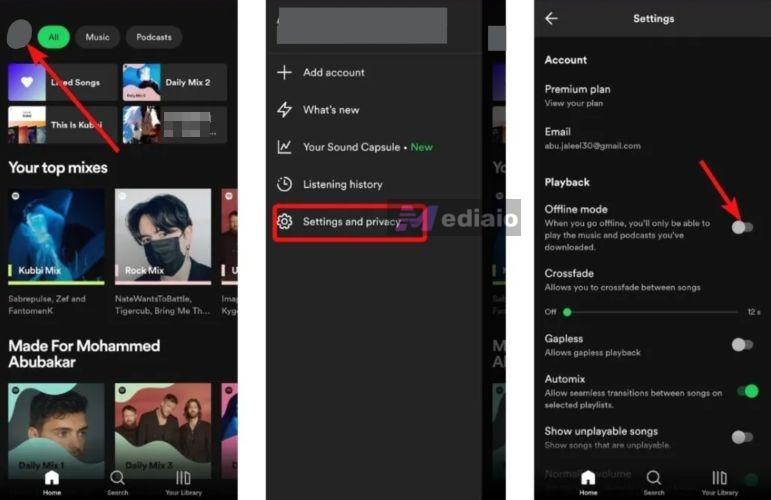
- Head to Settings and Privacy.
- Enter Playback and enable Offline mode.
You will see an “Offline” banner at the bottom. From now on, Spotify will behave like a local music player. It will play only what you downloaded.
Without Spotify Premium
Free users cannot download songs for offline listening inside Spotify. But you can convert your Spotify playlists into open formats like MP3, M4A, WAV, or FLAC using Mediaio Audio Converter. Once converted, the songs behave like normal audio files.
What makes Mediaio stand out is how it keeps things structured. The original playlist order stays intact. ID3 details, such as song name, artist name, and album info are preserved too. So even outside Spotify, your collection still feels organized and familiar—just without ads or any surprise additions.
Reason Two: Enabled AutoPlay
AutoPlay is to blame when your playlist finishes, yet the music keeps going. Spotify includes this feature as a built-in setting. It is meant to create a “non-stop” listening experience. That is: when your short playlist ends, Spotify will fill the queue with similar tracks to keep the music going.
Just like Smart Shuffle, these additions only affect the current session. Still, if you do not want Spotify to extend your queue, you can turn it off.
Fix: Disable AutoPlay
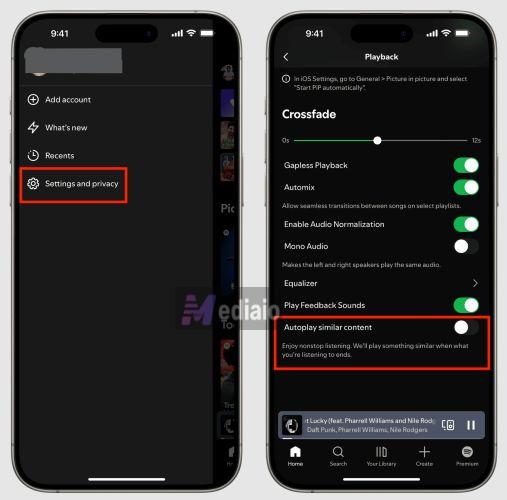
You’ll have to turn this off via the Settings menu, and it will affect all your playback across all your playlists. Here are the steps.
On Mobile (Android & iOS)
- Head to your profile picture in the top-left corner.
- Enter Settings and privacy.
- Move into Playback.
- Find Autoplay similar content and switch it off.
After this, playback will stop exactly where your playlist ends.
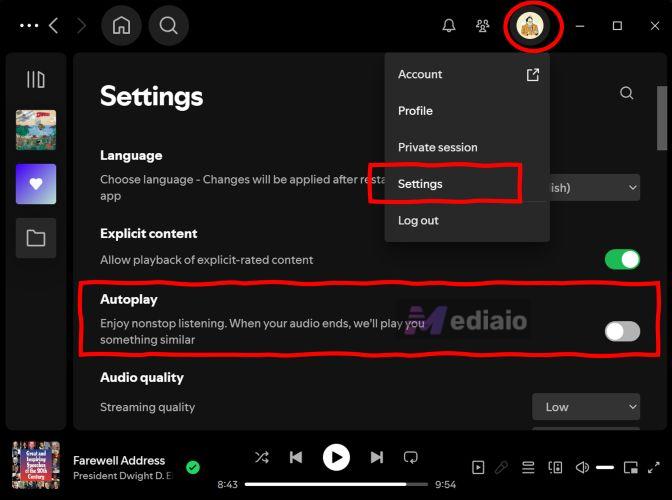
On Desktop
- Go to your profile picture in the top-right corner.
- Step into Settings.
- Locate the Autoplay option under listening preferences. Then, turn it off.
Now, when your final track finishes, Spotify will stay silent.
Reason Three: Curated Playlist Playback
Make sure you are listening to your own playlist. Sometimes the “extra songs” are not random at all. They come from dynamic playlists like Daily Mix, Discover Weekly, or Song Radio. These are curated by Spotify and are designed to refresh automatically based on your activity.
Discover Weekly updates every week. Daily Mix shifts almost every day. Song Radio rebuilds itself around whatever track you started with. Many people save these to their library, thinking they are fixed playlists, but Spotify keeps reshuffling them.
The same rule applies when you’re playing a playlist created by other users. If you simply save someone else’s playlist in the Your Library tab without copying it to your own playlist or download it, any changes they make will reflect in your version too.
Fix: Listen to Your Own Playlist
If you want full control, play only the playlists you created yourself.
Start playback from the Your Library tab. Plus, choose a playlist that belongs to you. Even if you’ve added a Discover Weekly or Daily Mix to your library, but want to freeze it as it is — make a copy.
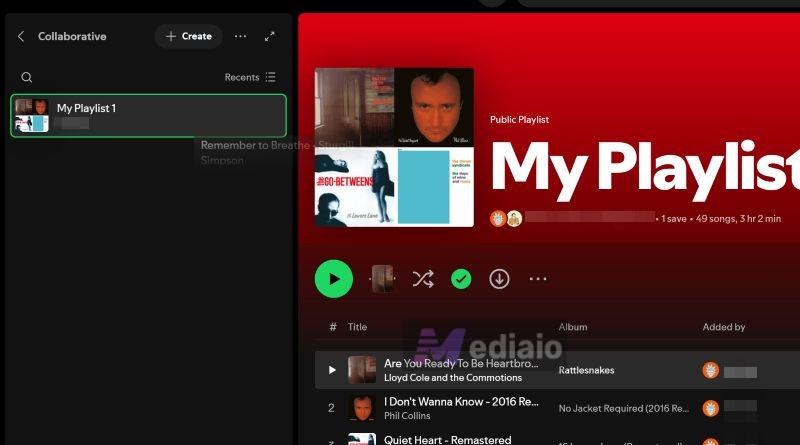
On Desktop:
- Open the playlist and select all tracks.
- Drag them into a new playlist you create.
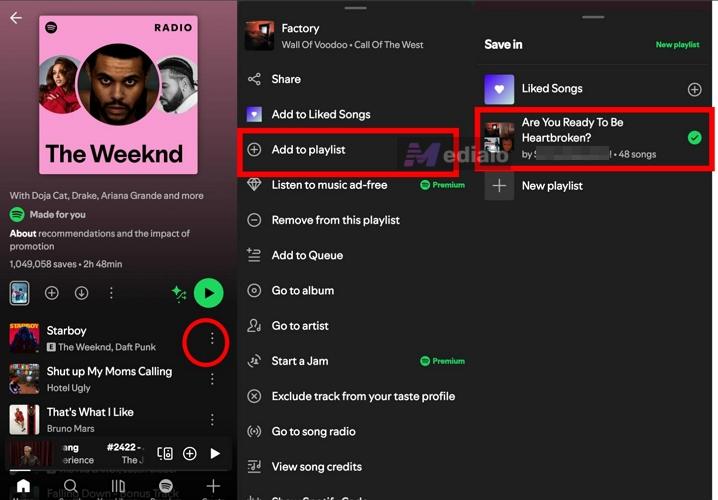
On Mobile:
- Access the playlist. Next, tap the three-dot menu.
- Use Add to other playlist option to move the songs into a new one.
Once copied, those tracks are fixed. They will not change unless you change them.
Reason Four: Queue Cache
Songs from a different album or playlist could still be in your Up Next queue. When you tap a new song, it will play first. After that, Spotify will return to whatever was already lined up.
This makes it look like Spotify is adding songs on its own. In reality, it is just finishing what was previously scheduled.
Fix: Clear the Queue
You need to empty that temporary list, so Spotify plays only what you choose now.
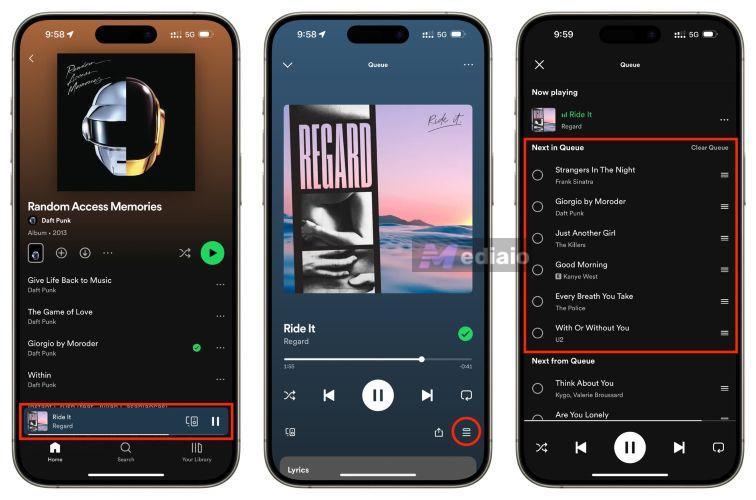
On Mobile:
- Open the current track from the bottom bar to enter the full player.
- Touch the queue icon (three horizontal lines with a small triangle).
- In the Next in queue section, press Clear queue. If you prefer, remove tracks one by one by selecting the circle beside them and choosing Remove.
On Desktop:
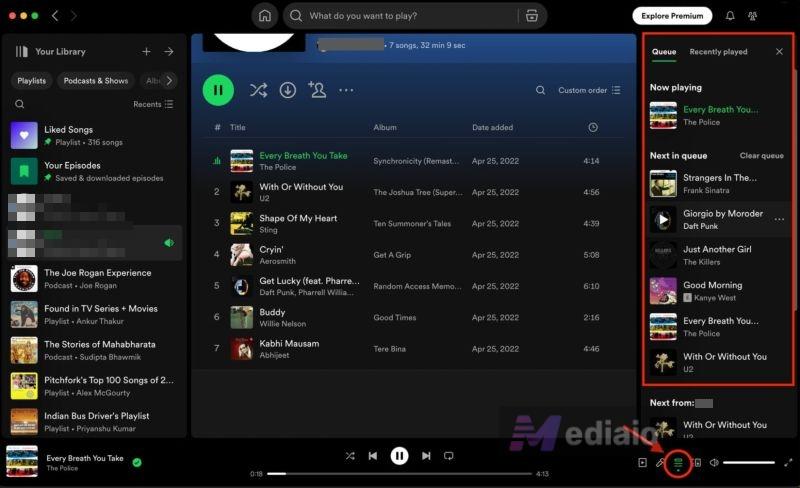
- Select the queue icon at the bottom right corner.
- In the Next in queue header, choose Clear queue.
Once emptied, playback will follow only the playlist or song you just selected.
Random Users Added Songs to My Spotify Playlist [How to Stop]
If you notice unfamiliar tracks in your playlist with a small profile name beside them, for example, Added by Alex — that means someone else has editing access. This usually happens for two reasons.
1. Collaborative Status
You may have marked the playlist as “Collaborative”. When enabled, anyone with the link can add or remove songs.
2. Third-party Access
Some external apps — playlist cleaners, stats tools, or unofficial Spotify utilities, request editing permissions. Once approved, they can insert tracks automatically, including promoted content. In that case, you will need to revoke their access from your Spotify account settings.
Now let’s fix the most common cause first.
Fix 1: Turn Off Collaborative Playlist
A collaborative playlist gives editing rights to others. Sometimes people tap Invite collaborators thinking it only shares the playlist. In reality, it grants modification access.
Here’s how to turn off this feature.
On Mobile
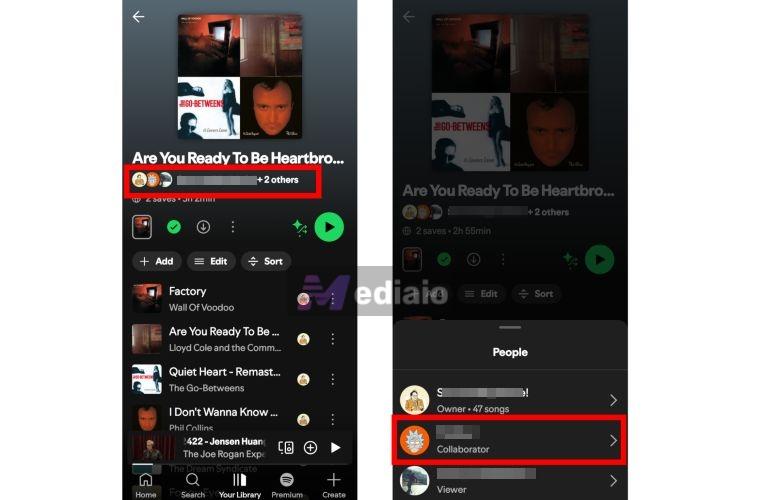
- Open the playlist in yourLibrary.
- Just below the playlist name, tap the collaborator profile icons.
- A list of members will appear.
- Select a name, then choose Remove as collaborator.
- Repeat for anyone you want to remove.
Once removed, they lose editing rights immediately.
On Desktop
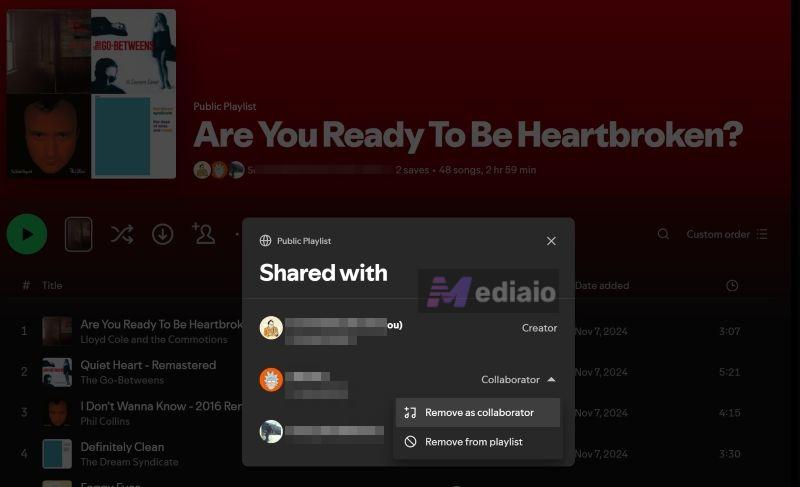
- Go to your Spotify playlist and click the collaborator names shown under the playlist title.
- From the member list, either choose Remove as collaborator or change their role to listener.
After this, only you control what gets added.
Fix 2: Remove Third-Party App Access
If your playlist is no longer collaborative but songs still appear, the issue could be coming from a connected third-party app.
Many people sign in to playlist cleaners, stats trackers, or “Spotify tools” and forget about them later. Although some services like TuneMyMusic, Receiptify, SpotifyPie, or similar well-known tools are generally safe when used properly, many unofficial playlist boosters or stats sites are not transparent about what they modify. Once connected, those apps can modify playlists in the background. To remove them, you must use Spotify’s web version. Then, follow these steps:
- Hit your profile icon at the top right. Then, choose Account.
- Scroll to the Security and Privacy section and click Manage apps.
- Review the connected applications.
- Select Remove access next to any tool you no longer trust.
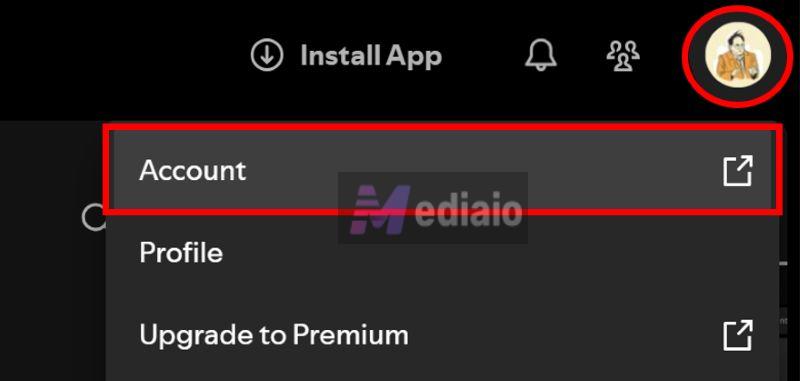
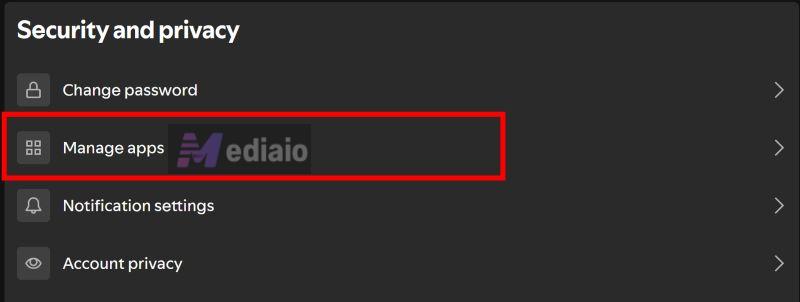
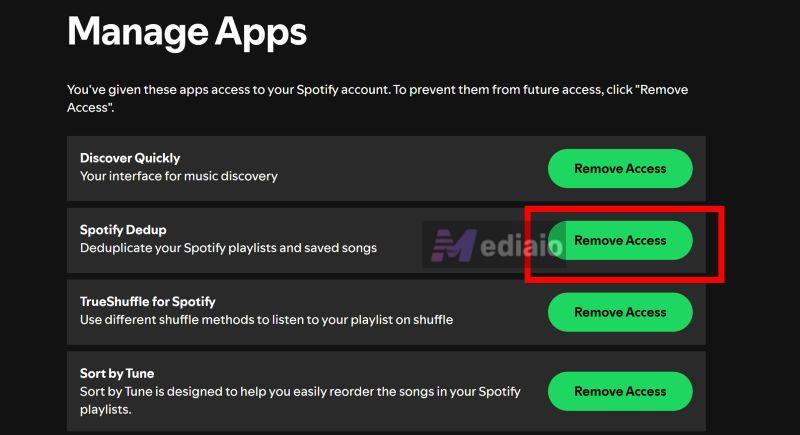
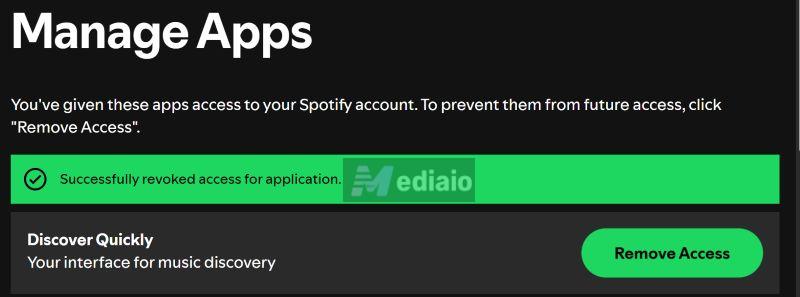
After removal, you will see a confirmation message. That app can no longer edit your playlists. If you do not have use from the active connections, remove them. Spotify will work perfectly fine without third-party access.
Fix 3: Contact Spotify Support Team
If songs still keep appearing, even when a playlist is private, then it is time to involve Spotify directly. It could be a sync glitch or an account-level problem. Here is what to do:
- Go to support.spotify.com and select Contact us.
- Choose the relevant category related to playlists or account issues.
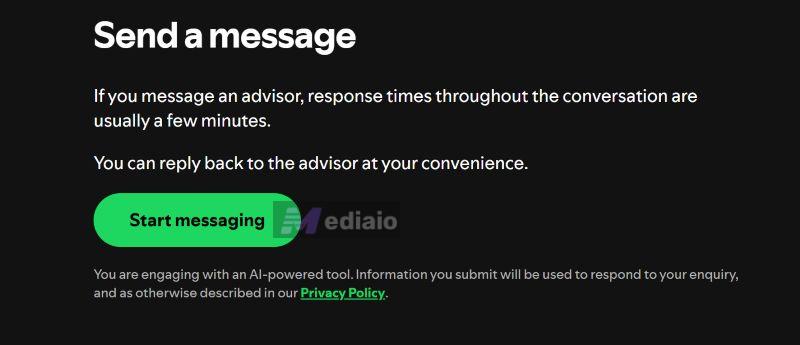
- Open the Message us option. Explain clearly that songs are being added to a private playlist without collaborators or third-party access.
Spotify’s support team can review your account activity from their side. Once reported, they usually respond through chat or email.
To Sum Up
Songs appearing in your Spotify playlist are rarely a glitch. The most common culprit is the Smart Shuffle, but we have also shown you how to handle other overlooked issues. Of course, the best way to avoid all such problems is to simply switch to the Offline Mode. If you have Premium, you can listen inside the Spotify app. Or the best way to save Spotify playlists offline is to use Mediaio Audio Converter. It does not require a Spotify Premium account and is simple to use.