

Spotify makes it easy to create playlists, but adding songs isn’t always as obvious. There are actually several ways to add songs to a playlist on Spotify, on both mobile and desktop. In this guide, we’ll walk you through how to add single songs or multiple tracks in one go. We’ll also cover a few practical tricks, like getting certain songs to sit right at the top of a playlist and show you how to mix your own local music files with a Spotify playlist.
How to Add Songs to a Playlist on Spotify [Laptop/Desktop]
This section shows how to add a single song and multiple songs to a playlist using Spotify on desktop.
To Add a Single Song
Spotify offers a few subtle paths to get this done. Some are best when you’re scanning through playlists or search results. Others make sense when you’re already listening and want to save what’s playing to your library.
Option 1: Use the Three-dot Menu
This is the most universal approach. It works anywhere a song appears, such as search results, albums, Daily Mixes and public playlists. It doesn’t interfere with whatever is currently playing.
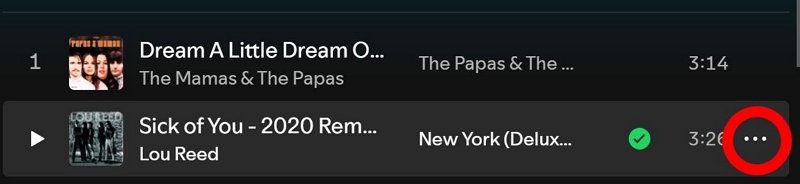
Step 1. Hover your cursor over the song row. At the far right, a small three-dot icon appears. Click that icon to open the context menu.
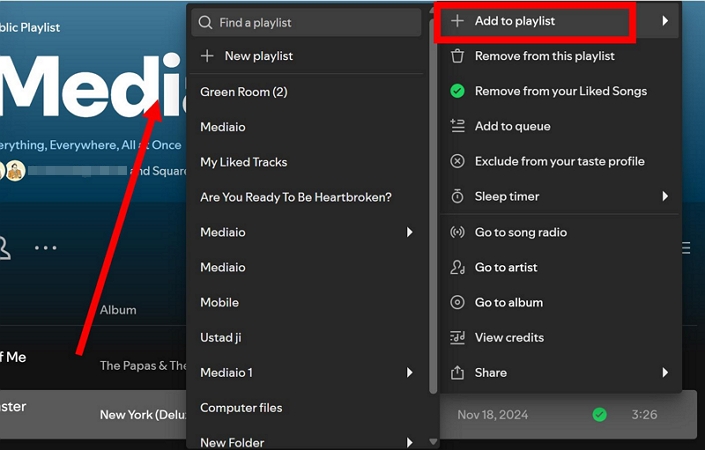
Step 2. Choose Add to playlist from the options. Spotify instantly shows you a list of your playlists plus a + New playlist button.
Step 3. Pick the destination and the song will be added instantly. If you choose + New playlist, give it a name and continue as usual.
Option 2: Use the Plus Icon
When you’re already listening and want to save what’s playing to your playlist, the Now Playing bar is faster than hunting for the song again.
Step 1. Look at the Now Playing bar at the bottom and click the + icon near the track title.
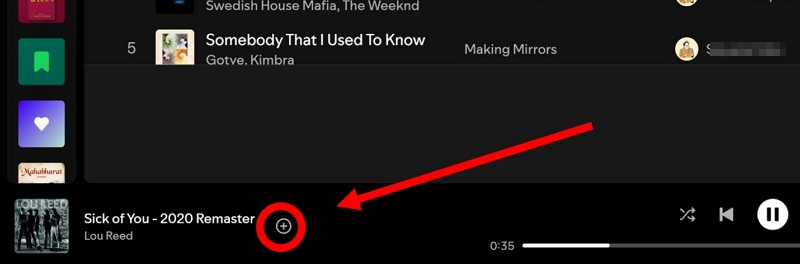
Step 2. Spotify saves it to Liked Songs and the + usually flips into a green checkmark.
Step 3(Optional). If you want to add the songs to another playlist, click that green checkmark again or hit the Change prompt that appears in the small “Added to Liked Songs” message.
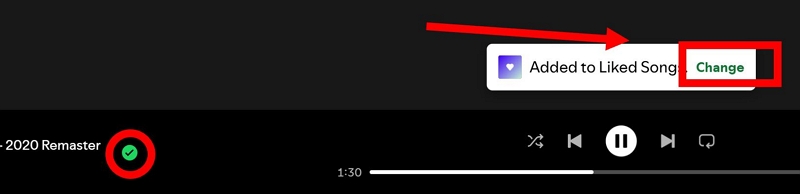
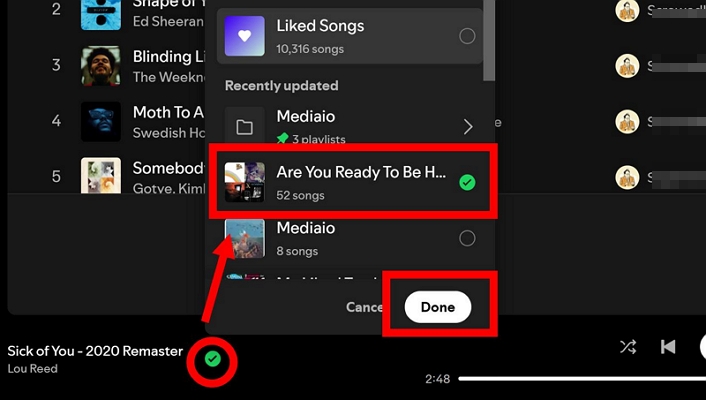
Step 4(Optional). The Add to playlist panel opens with your playlists and + New playlist.
Step 5(Optional). Remove the check beside Liked Songs when you don’t want it there, then select the playlist you actually want.
Step 6(Optional). Click Done to finish.
Option 3: Drag and Drop
This is the “desktop-only” feature. Spotify desktop view always keeps Your Library visible on the left, either expanded or collapsed. Plus, it supports Drag-and-drop. So, you can drop tracks straight into a playlist without opening extra menus. Here’s how:
Step 1. Click and hold the song you want.
Step 2. Drag it toward the Library area in the left sidebar.
Step 3. Hover over the playlist you want to add it to, then release.
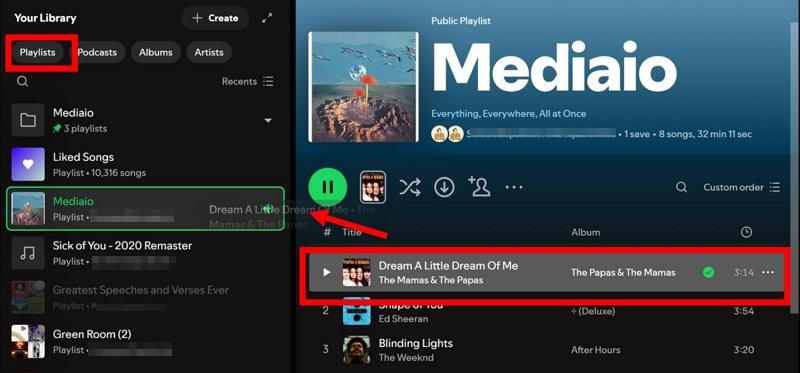
Tip: You will notice some playlists are dimmed. That’s intentional: dimmed playlists are items created by someone else but they’re just added in your library, so Spotify won’t let you add tracks there. If too many playlists are dimmed and you just want the ones you control, use the Playlists and By you filter at the top of your Library. That shows only playlists you can edit — perfect for drag-and-drop.
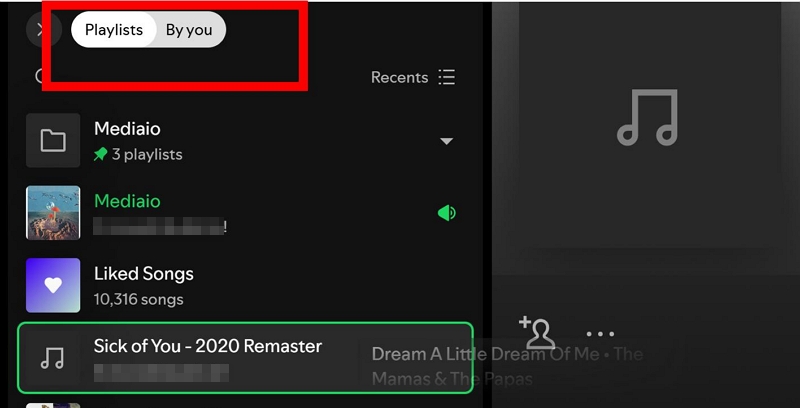
Once the track lands where you want it, a brief banner appears at the bottom saying Added to .

To Add Multiple Songs
On desktop, Spotify lets you select several songs together and add them to a playlist in one action. This method works even when the songs are scattered across a playlist. Here’s how it works.
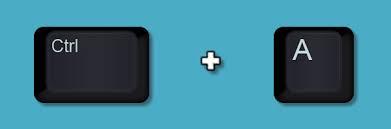
Step 1. Hold Ctrl or Command on your keyboard.
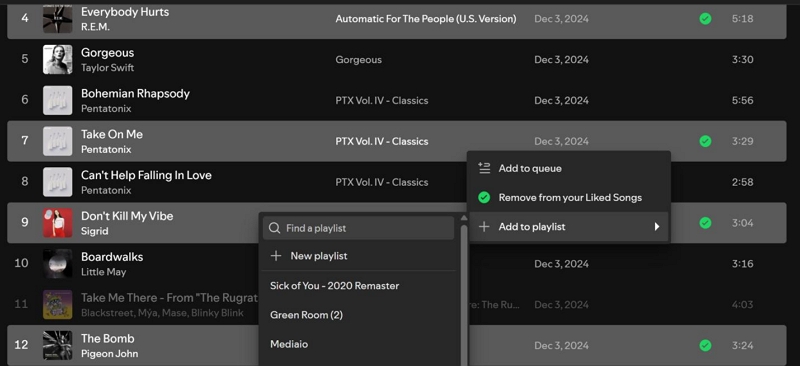
Step 2. While holding the key, click each song you want to add. The selected tracks will stay highlighted as a group.
Step 3. Once selected, follow one of these options:
- Right-click anywhere on the highlighted songs. Choose Add to playlist. Then pick an existing playlist or + New playlist option.
- Drag the selected songs toward the Your Library section on the left. Then drop them onto a playlist you own.
Spotify adds all selected songs at once.
How to Add Songs to a Playlist on Spotify iPhone/Android
On Spotify mobile, playlist additions are mostly done one song at a time. You can quickly send one track into a playlist from almost anywhere.
What you can’t do on mobile is select a bunch of scattered songs and add only those in one go. One exception exists: you can add an album or playlist into another playlist. However, the entire album or playlist goes together. You cannot pick and choose individual songs at that moment.
Option 1: Add Songs from the Now Playing Screen
Use this when a song is already playing and you want to add it without opening the album or artist page.
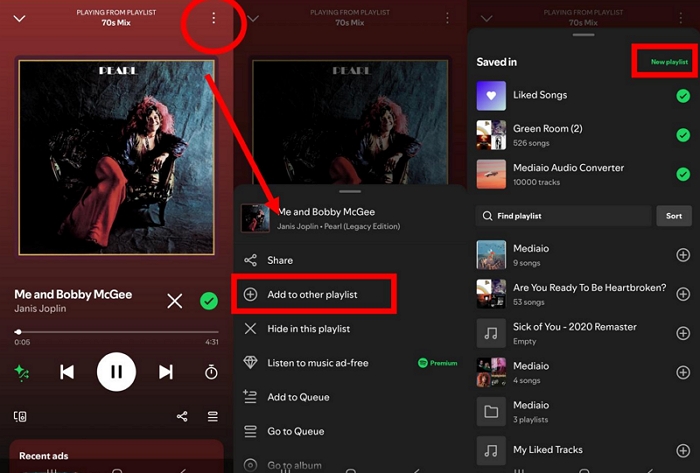
- Bring up the Now Playing screen (the full player view).
- Hit the three-dot menu and choose Add to playlist. If you have added the song to an existing playlist before, you will see Add to other playlist instead.
- Pick an existing playlist or create a new playlist to save it.
You’ll see a quick on-screen banner confirming it’s added.
Option 2: Add Songs from the Three-dot Menu Beside It
This is the “works everywhere” method — search results, playlists, album tracklists, Daily Mixes, etc.
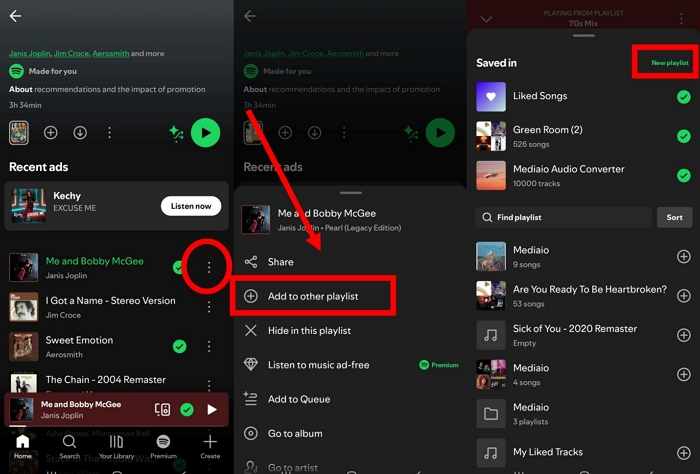
- Find the track in the list you’re browsing.
- Tap the three dots next to that song.
- Select Add to playlist and choose the destination playlist.
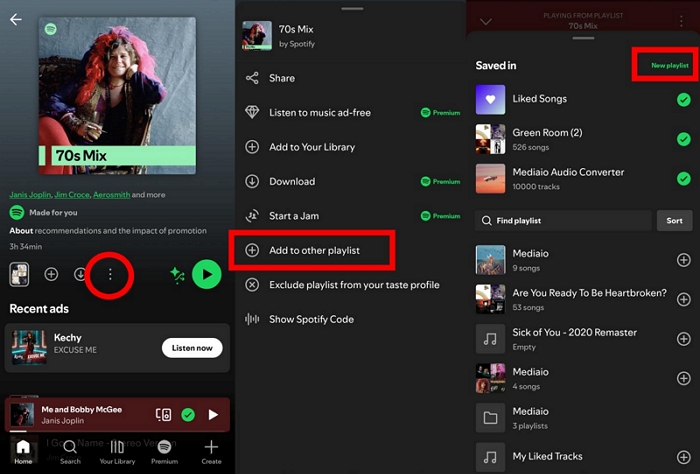
Option 3: Add All Songs from an Album or Playlist
This is for when you want the whole album or the full playlist copied into another one.
- Go to the album or playlist page.
- Use the three-dot menu located near the title to access the available playlist actions.
- Look for Add to other playlist (wording can vary slightly).
- Pick the destination playlist or create one with + New playlist.
Can You Add Non-Spotify Songs to a Spotify Playlist?
Yes only for songs you personally own.
Spotify doesn’t accept tracks pulled directly from online platforms. Instead, it supports local audio files already saved on your computer, as long as they follow Spotify’s supported formats.
What Spotify Accepts:
Any non-Spotify song you add must:
- Be non-DRM protected.
- Be in a supported audio format like MP3, M4A, WAV etc.
- Contain proper metadata (song title, artist, album).
For example, MP3s purchased from Amazon usually work without issues because they already include clean ID3 tags.
If you’re converting music yourself, avoid random online converters. They often strip metadata, add watermarks, or export broken files that Spotify simply ignores. A dedicated tool like Mediaio Audio Converter is safer here, since it preserves tags and saves tracks in Spotify-friendly formats after converting from platforms like Apple Music, YouTube Music, or Amazon Music. Note that the converted songs can only be used for personal purposes.
How Adding Non-Spotify Songs Actually Works
You can start this on mobile or desktop, then listen to those tracks later on any device signed in to Spotify. The example below shows how local songs are added to Spotify from a computer and played elsewhere.
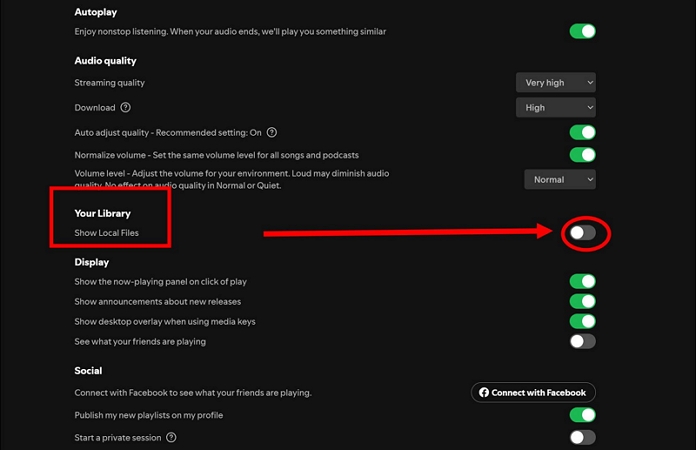
Step 1: Enable Local Files on Spotify Desktop
- Access Spotify settings on your computer.
- Turn on Local Files toggle.
- Use Add a source to select the folder where your music files are stored. Spotify will scan that folder automatically.
Step 2: Add Local Songs to a Playlist
Once scanning finishes:
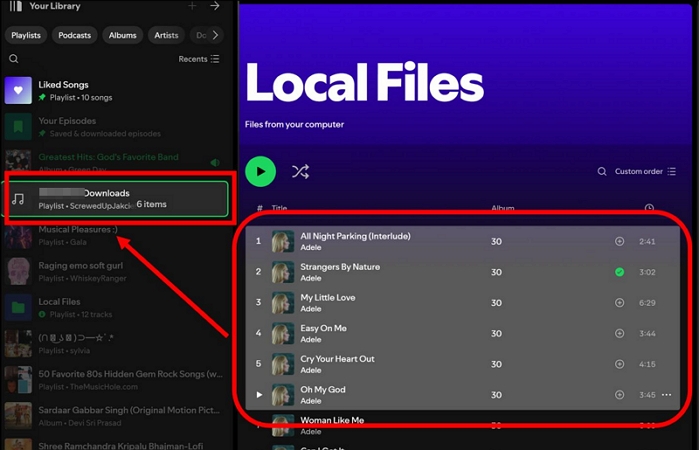
- Open Your Library and go to Local Files.
- Find your imported songs. Drag them into any playlist, just like adding regular Spotify tracks to a playlist.
Now, the local files behave like standard Spotify tracks inside the playlist.
Step 3: Make the Playlist Playable on Mobile
Local files are not automatically available on your phone. Additional setup is required before they can be played on mobile devices.
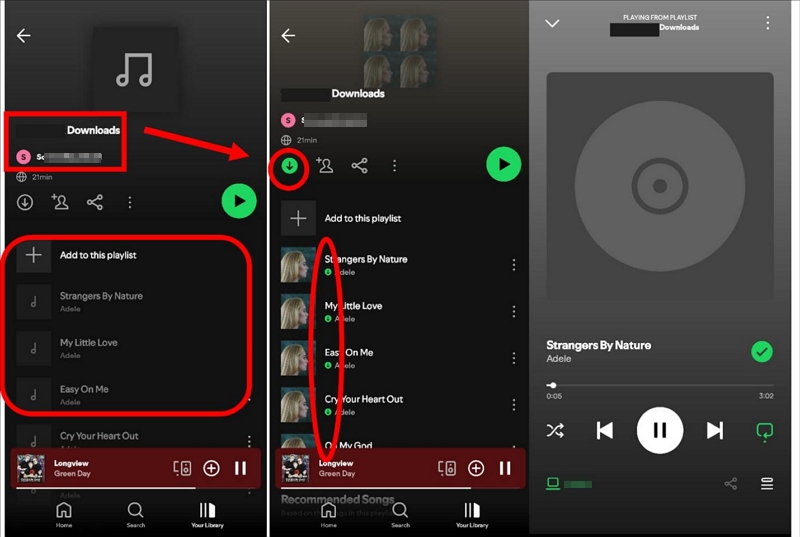
You need to sync the playlist to the mobile app over Wi-Fi. After that, the playlist will appear in the Spotify mobile app, but they’ll be dimmed and unplayable until they’re downloaded.
To Download the Synced Local Songs on Your Spotify Mobile:
- Access the same playlist on your phone.
- Tap the Download toggle at the top.
- Spotify then saves the local files.
Once downloaded, everything plays together normally.
Tip: How to Add Songs to the Top of a Spotify Playlist
Spotify doesn’t include a built-in “Add to top” option or position tracks at #1 or #2. However, both the desktop and mobile apps let you reorder tracks, making it possible to move certain songs at the top. The methods below show how.
Desktop Trick: Move Songs to the Top
One Reddit user has shared this useful trick to bring any song in the playlist at the top, which is quite helpful to know.
Step 1. Access the playlist you want to rearrange.
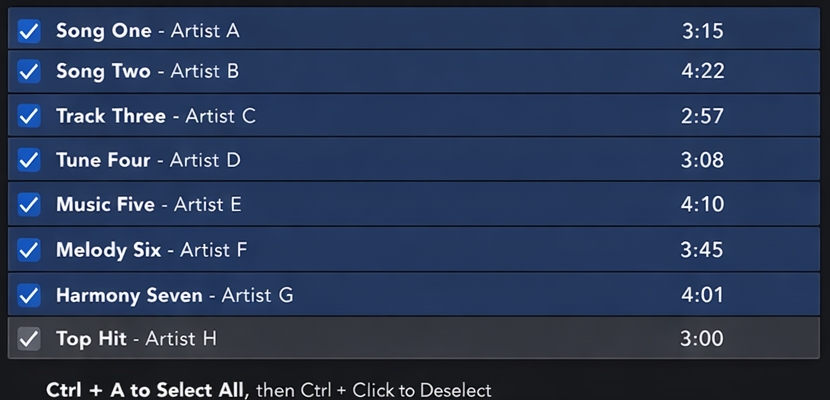
Step 2. Use Ctrl + A (Windows) or Cmd + A (Mac) to highlight all tracks.
Step 3. Exclude the song you want at the top. For this, hold Ctrl or Cmd and click the tracks you want at the top. Those tracks drop out of the selection and stay separate.
Step 4. Drag the large highlighted block downward and drop it below the deselected songs.
Spotify immediately rearranges the playlist.
- If you deselect the last song, it moves to the first position.
- If you deselect multiple songs near the bottom, those tracks rise to the top in their original order.
Alternative: Use Sort Filters to Bring New Songs to the Top
This works on desktop, web, and mobile.
Step 1. Open the target playlist.
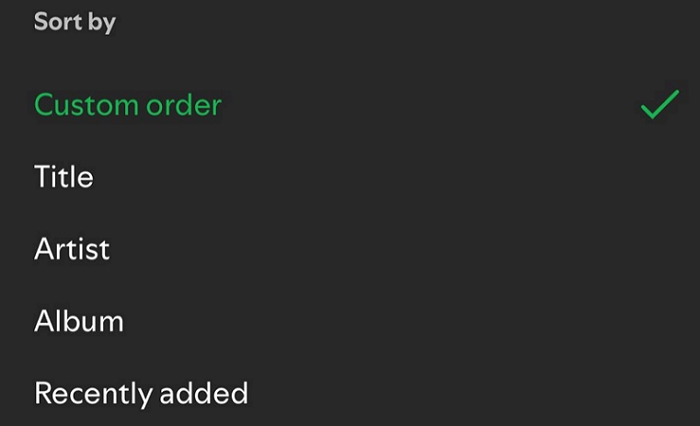
Step 2. Tap or click the Sort option near the playlist title.
Step 3. Choose Recently added. Now, the recently added tracks will appear at the top.
FAQ: Why Is Spotify Adding Songs to Playlist Automatically?
This behavior is common. It is just how certain Spotify features work. Here’s what you have to know.
Spotify-generated Playlists:
Playlists like Daily Mix and other Made for You playlists update themselves regularly. Even after adding them to your library, Spotify has control over them, just like public playlists created by someone else inside your library.
Smart Shuffle or Enhanced Playlist Features:
On free accounts, Spotify inserts recommended tracks into playlists. These suggestions appear automatically and are part of how Smart Shuffle works.
Collaborative Playlists:
In collaborative playlists, anyone with editing access can add songs. If tracks show up unexpectedly, another collaborator likely added them. If needed, collaborators can be changed to listeners to prevent further edits.
Temporary Sync or App Glitches:
Updating the app or restarting it usually fixes this.
Short Playlist:
If your playlist is too short, typically with fewer than 15 songs, Spotify may automatically add songs to it. To avoid this, simply add more of your favorite songs to the playlist.
Conclusion
So that covers everything you need to know about how to add songs to a playlist on Spotify. Both mobile and desktop let you add songs without much trouble. The main difference is control. On desktop, you get more flexibility, for example, drag and drop works and you can select multiple songs at once. On mobile, actions are mostly limited to single songs, but it still works well for quick edits while listening.
That’s it. And if you want to Spotify playlists as local songs or keep your favorite tracks as offline MP3 files in one place, you can use Mediaio Audio Converter to save them for personal use.