

“YouTube Music keeps stopping” is common and it shows up in different ways. Some users say that the songs fail to start even when there’s a strong internet. Others report that the music stops after a minute or the audio cuts off as soon as the screen is locked. Actually, there is no single answer to the question: why does YouTube Music keep pausing.
This guide breaks down the YouTube Music pausing issue depending on the cases. So, you can identify the exact symptom you are seeing and fix the problem effectively. And if pausing continues, we will also share you a trick to listen to YouTube Music smoothly.
Why Does YouTube Music Keep Pausing: Case Overview
Across Android and iOS, YouTube Music pausing usually falls into one of three buckets:
- Account or feature limits (free-tier behavior),
- OS-level background restrictions,
- A temporary app-side issue (data corruption).
Here’s what is happening and the fixes that will resolve the issues instantly.
Case 1: YouTube Music Keeps Pausing When I Leave the App
You play a song, switch to Instagram or hit the power button and then the music stops playing? Sometimes this happens because of a genuine glitch, but very often, this behavior depends on your subscription status and how your phone handles background playback. Here’s what’s usually broken and which fixes actually work.
Unlike Spotify, YouTube Music doesn’t support background play for free users on the mobile apps. Upgrade — the official fix is Premium (see Fix 8).
Desktop workaround: Use Chrome or Safari on computers to play YouTube Music.
Keep open: You’ve to keep the phone screen on and stay inside the app.
Samsung, Xiaomi, OnePlus and even iPhone usually apply aggressive battery rules by default. Turn off battery optimization (see Fix 2).
Allow YouTube Music to run in the background (see Fix 3).
Your phone can block YouTube Music from using the internet the second it leaves the foreground. Enable background data access (see Fix 3).
Case 2: YouTube Music Keeps Stopping at One Minute
This YouTube Music playback issue shows up on Android devices specifically. A track plays perfectly for exactly 60 seconds or sometimes 1:09 and then the music stops.
When the timing is this precise, the problem comes from an app-level bug or issue. Here’s why this specific behavior occurs and what fixes it.
Playback fails at a fixed timestamp because cached data or offline indexes are damaged, especially when listening offline. Clear app cache (see Fix 6).
Delete and re-download offline tracks or playlists (see Fix 5).
The queue or autoplay engine misbehaves and drops playback exactly after a timed interval. Clear cache (see Fix 6).
Update the app (see Fix 4).
Reinstall the YouTube Music app (see Fix 7).
Older builds, patched clients, or modified versions use broken playback scripts that fail after a minute. Revert to the official YouTube Music app.
Remove all patches or mods (like Vanced).
On Galaxy S24/S25 models, enabling Remove animations interferes with background media playback like YouTube Music. Turn off the Remove Animations toggle:
step 1. Open your Settings app.
step 2. Go to Accessibility.
step 3. Tap on Visibility Enhancements.
step 4. Find Remove Animations and toggle it OFF.
Samsung and Xiaomi devices freeze apps placed in Deep Sleep after short inactivity windows. step 1. Go to Settings:
step 2. Tap Battery.
step 3. Choose Background usage limits.
step 4. Remove YouTube Music from Deep Sleep or Sleeping apps.
Case 3: YouTube Premium Music Randomly Stops Playing
You’ve paid for the service, so background playback should work without friction. Yet the music buffers even while the app is open, and sometimes it stops completely the moment you leave the app.
When this happens on Premium, the cause points to network handling, device-level power control, or a subscription state that hasn’t synced properly. Here’s how that breaks down in practice.
Some devices continue to throttle background activity even for Premium users due to aggressive battery rules. Whitelist YouTube Music from battery optimization, so the system doesn’t suspend playback when the app is backgrounded.
Playback can fail when the app switches to play a downloaded version of a track and hits a damaged file. Delete and re-download the affected playlists or songs (see Fix 5).
This often happens right after subscribing or restoring a purchase. Playback behaves like free-tier intermittently. Sign out and sign back in, or switch accounts once to refresh entitlement.
Clear app cache to force a subscription refresh (see Fix 5).
When this option is enabled, even a brief Wi-Fi drop causes playback to stall instead of switching to mobile data. Disable “Stream via Wi-Fi only” under Data Saving.
Switch to a stable network (see Fix 1).
How to Fix YouTube Music Keep Pausing
Below are the detailed steps for YouTube Music pausing. They apply to both Android and iOS and are meant to be followed based on the issue you identified above.
Fix 1. Switch to Another Network
YouTube Music needs a stable internet to stream, either through mobile data or Wi-Fi. Switching between the two helps confirm whether the issue is tied to the network rather than the app. That part goes without saying.
Aside from this, a few network-related settings quietly interrupt playback. Quickly test these basics:
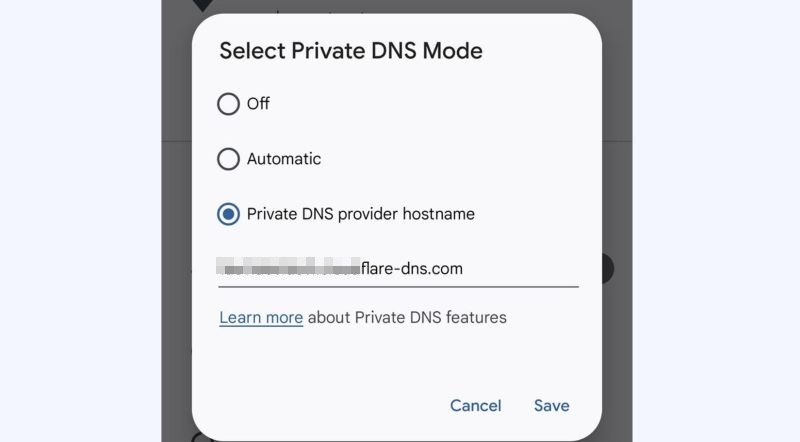
- Test your VPN, private DNS, or network-filtering apps. Switch them off once and see how YouTube Music behaves.
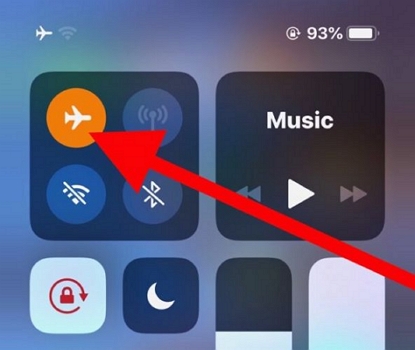
- Toggle Airplane Mode on and off. This refreshes the network connection completely.
Turn off “Stream via Wi-Fi only”
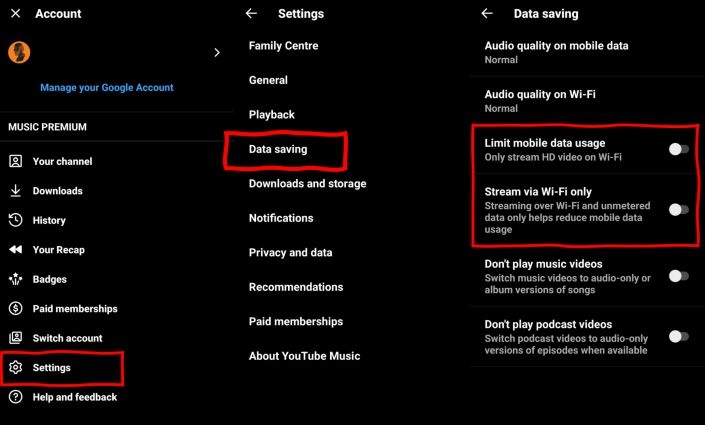
With this option enabled, YouTube Music will stop playback the moment Wi-Fi disconnects. Here’s how to disable it:
Step 1. Open the YouTube Music app. Tap your profile icon (top-right corner).
Step 2. Go to Settings and choose Data saving.
Step 3. Toggle Stream via Wi-Fi only off, if it’s enabled.
Also toggle Limit mobile data usage off. This prevents silent pauses when the app switches networks.
Fix 2. Remove Battery Restrictions on YouTube Music
Aggressive battery rules can cut the YouTube Music playback the moment you switch to another app or lock the screen. Just give these settings a quick check.
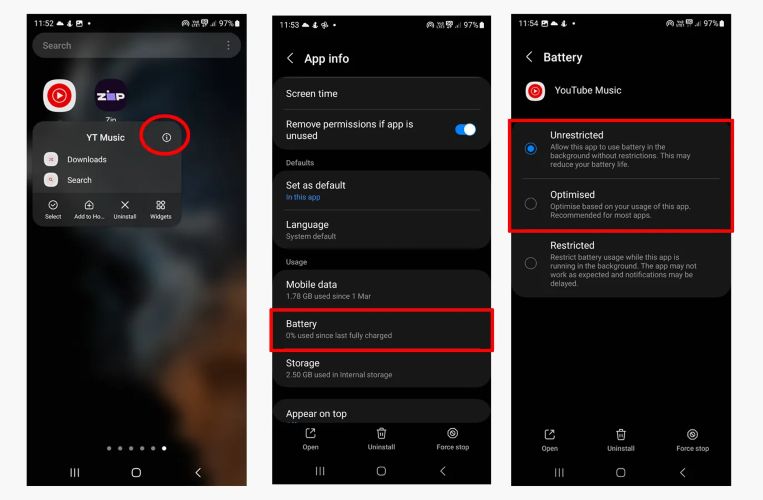
On Android: Set YouTube Music to Unrestricted
Android newer battery rules are strict by default. It can prevent YouTube Music from running freely. Verify and adjust this:
Step 1. Press and hold the YouTube Music app icon on the home screen. Tap the ⓘ App info button.
Step 2. Look for Battery or App battery usage under Usage.
Step 3. You’ll see three options: Unrestricted, Optimized, and Restricted.
Step 4. Select Unrestricted.
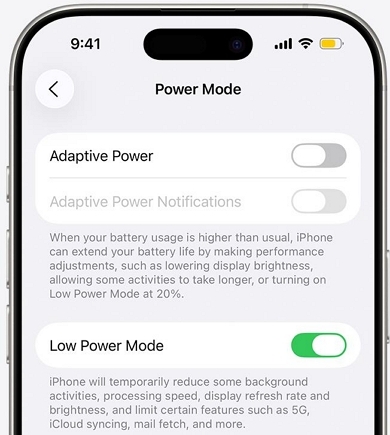
On iPhone: Turn off Low Power Mode (iOS 26/iOS 18)
Low Power Mode limits what apps can do in the background. Streaming apps like YouTube Music are often affected when the feature is on. First, glance at your battery icon. If it’s yellow, then Low Power Mode is on. Here’s how to turn it off:
Step 1. Open Settings. Scroll until Battery appears.
Step 2. Turn Low Power Mode off.
Fix 3. Remove Data & Background Restrictions
Data-related system controls can block YouTube Music background playback or mobile data access. Make sure these settings aren’t blocking the app:
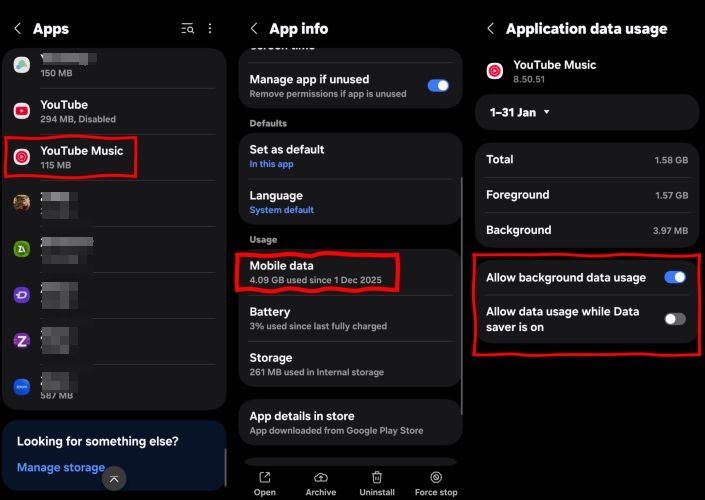
On Android:
Step 1. Go to device Settings. Find Network & Internet or Connections.
Step 2. Make sure Data Saver is turned off.
Step 3. Head back to Settings, then open Apps. Select YouTube Music from the list.
Step 4. Enter Mobile data & Wi-Fi or Data usage. Turn on Allow background data usage.
Here, you can also toggle on the Allow data usage while the Data Saver is on toggle option, if you prefer to keep Data Saver enabled at the system level.
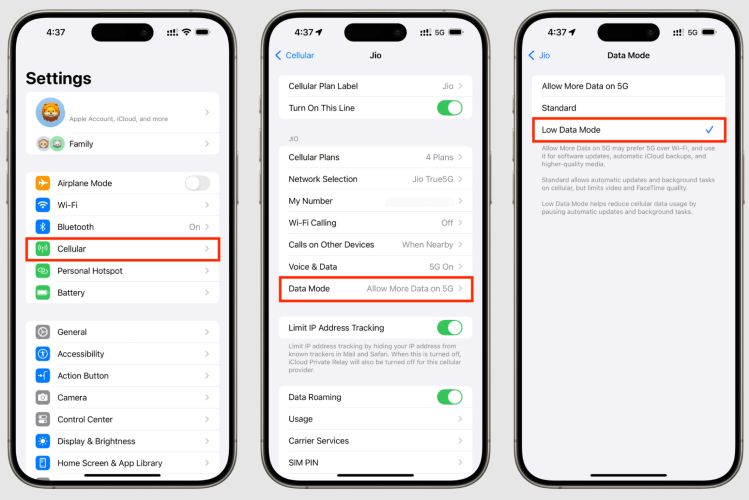
On iPhone: Turn off Low Data Mode (iOS 26/iOS 18)
Step 1. Go to Settings and tap Cellular.
Step 2. Select your active SIM. Tap Data Mode.
Step 3. Choose Standard or Allow More Data on 5G.
Step 4. Open Settings > Wi-Fi.
Step 5. Tap the i icon next to your connected network.
Step 6. Turn off the toggle assigned to Low Data Mode.
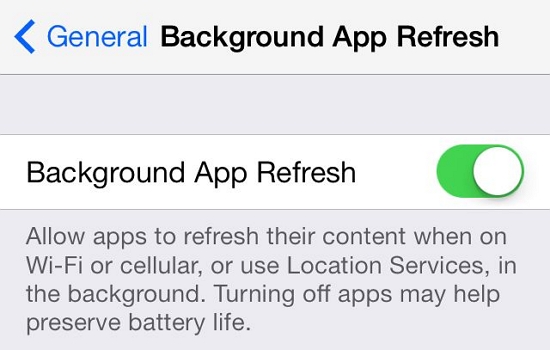
On iPhone: Check Background App Refresh
Many users disable this option globally to save battery, but that can break streaming apps like YouTube Music quietly.
Step 1. Head to Settings. Tap General.
Step 2. Choose Background App Refresh.
Step 3. At the top, make sure it’s set to Wi-Fi & Mobile Data.
Step 4. Scroll down to YouTube Music. Confirm the toggle is green (On).
Fix 4. Update YouTube Music
Continuing to use an older YouTube Music app version can break playback. You will notice long buffering and songs stopping midway.
Here’s how to check and update the app properly.
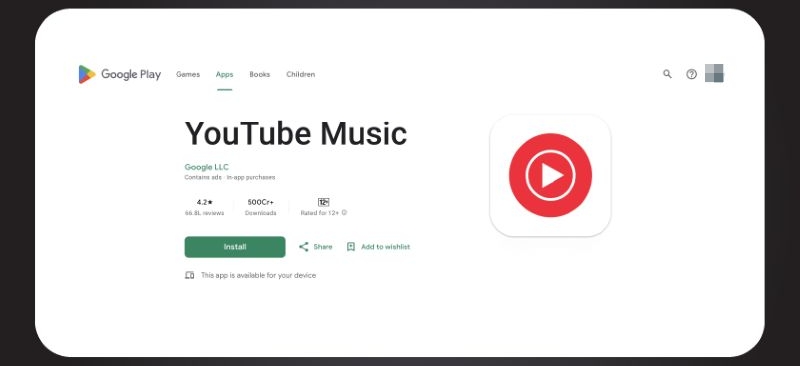
On Android
Step 1. Launch the Google Play Store. Search for YouTube Music.
Step 2. Tap Update if it’s available.
If you only see Open, the app is already up to date.
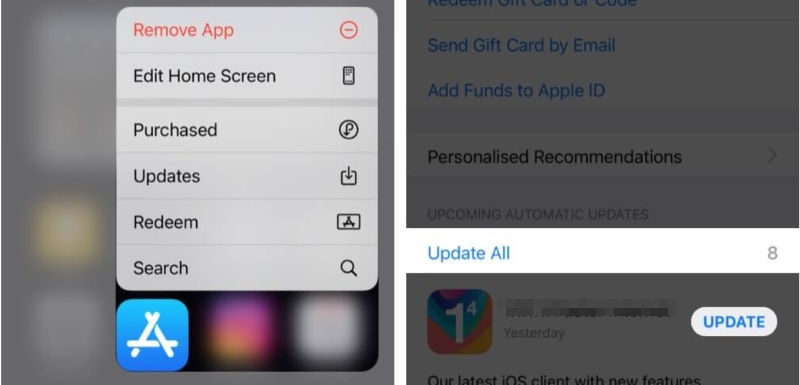
On iPhone
Step 1. Long-press the App Store icon. Select Update in the quick menu.
Step 2. Pull down to refresh the list.
Step 3. Tap Update next to YouTube Music.
Fix 5. Redownload Songs on YouTube Music
When downloaded tracks or Smart Downloads keep buffering or pausing, the issue usually isn’t your connection. It’s the downloaded files themselves.
The fix is simple: remove the broken files and download them again. You can do this in two ways.
Option 1: Remove only the problematic playlist
When you notice that only one or two playlists are showing signs like:
- a gray exclamation mark,
- a loading circle that never completes,
- or songs that refuse to play offline.
It is better to delete them instead of erasing everything.
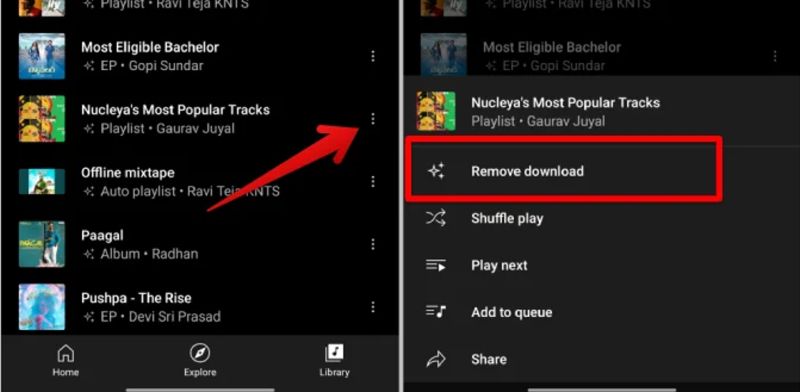
Step 1. Go to the Library, open Downloads and find the playlist causing trouble.
Step 2. Tap the three-dot menu. Choose Remove downloads.
Step 3. Tap the download arrow again to fetch a clean copy.
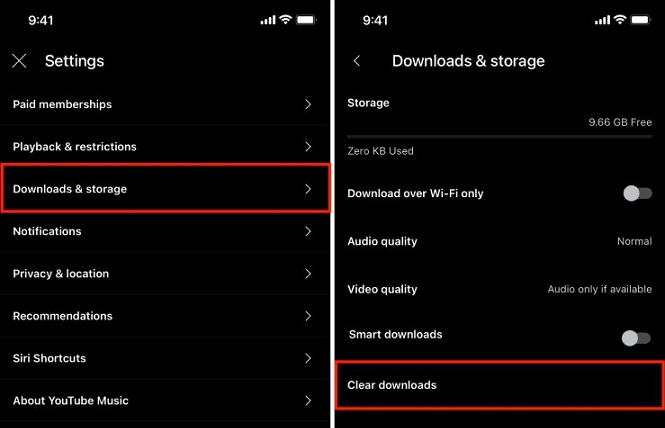
Option 2: Remove all downloads at once
This works best if multiple playlists are acting weird.
Step 1. Tap your profile picture. Next, head into Settings.
Step 2. Select Downloads & storage.
Step 3. Tap Clear downloads. This will delete every offline song.
Fix 6. Clear YouTube Music Cache
Leaving temporary files around for too long can cause app glitches. Over time, these files can become corrupt and show odd symptoms. For instance, symptoms like tracks halting immediately after starting, offline songs refusing to play, or the app behaving inconsistently for no clear reason — all are linked to broken temp files. In cases like this, clearing temporary files removes the broken data and lets YouTube Music rebuild things cleanly.
On Android
Android gives you direct control over temporary app files.
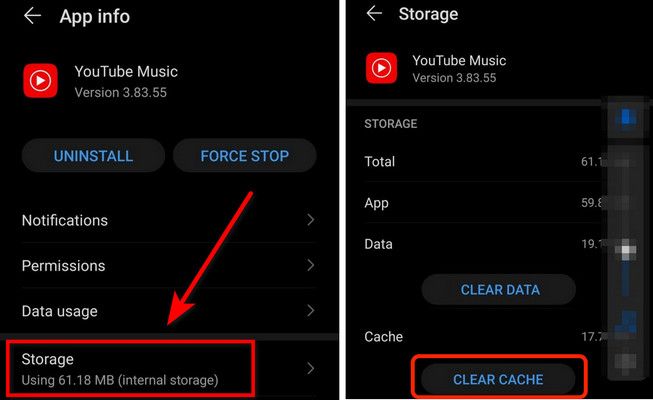
Step 1. Long-press the YouTube Music app icon. Tap the ⓘ App info button.
Step 2. Look for Storage or Storage & cache. Tap into it.
Step 3. At the bottom, select Clear cache. This removes temporary files without deleting your account or downloads.
You can also use Clear Data if you don’t mind resetting everything and signing in again.
On iPhone
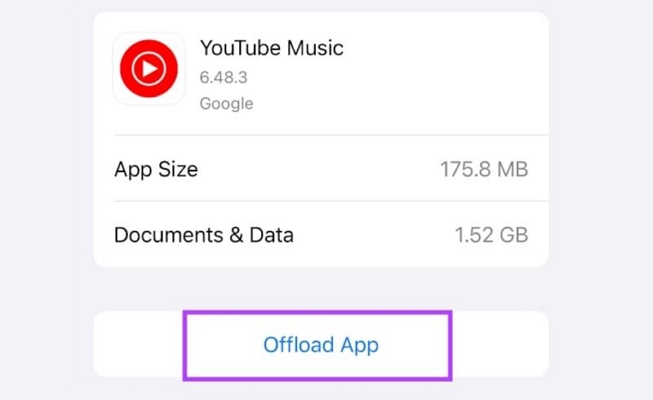
iOS gives you the option to Offload App, but it makes more sense to reinstall the app. We’ll cover that cleanly in the next fix.
Fix 7. Reinstall YouTube Music App
When clearing temporary files didn’t resolve the playback issue, the app’s core files themselves could be damaged. This often happens after a buggy app update or a major Android or iOS update.
At that point, a clean app reinstall can work. Follow these steps on Android or iOS:
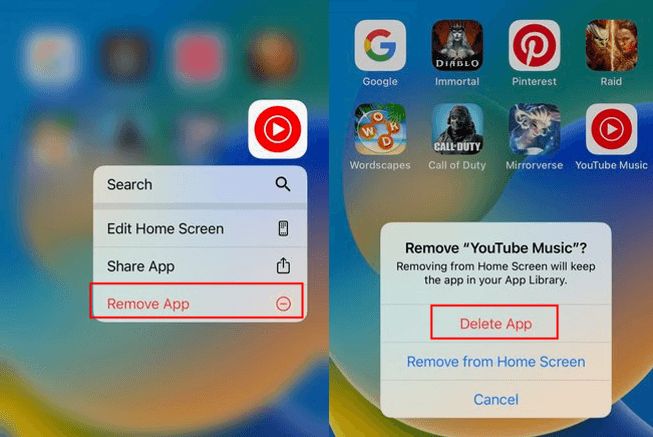
Step 1. Long-press the YouTube Music app icon.
Step 2. Choose Uninstall or Delete App.
Step 3. Download a fresh copy via Play Store or App Store. Sign back in.
Note: If you were using any modded or patched versions earlier (like Vanced), make sure those apps are completely removed.
Fix 8. Upgrade to Premium
On the free plan, background playback is restricted. Music will stop the moment you leave the app or even lock the screen. If you don’t want that, purchase a subscription.
To Subscribe to YouTube Music Premium:
- Tap the Upgrade option inside YouTube Music and choose a plan.
- Complete the payment using your preferred method.
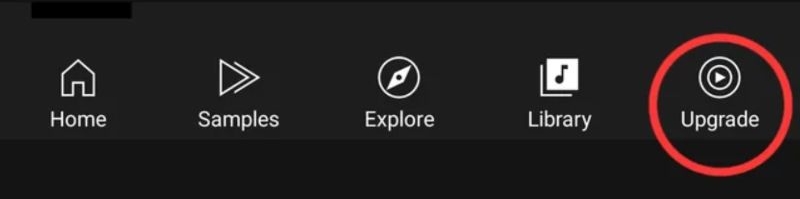
If you have recently purchased Premium and still see pauses, it means your status has not synced properly. To refresh things:
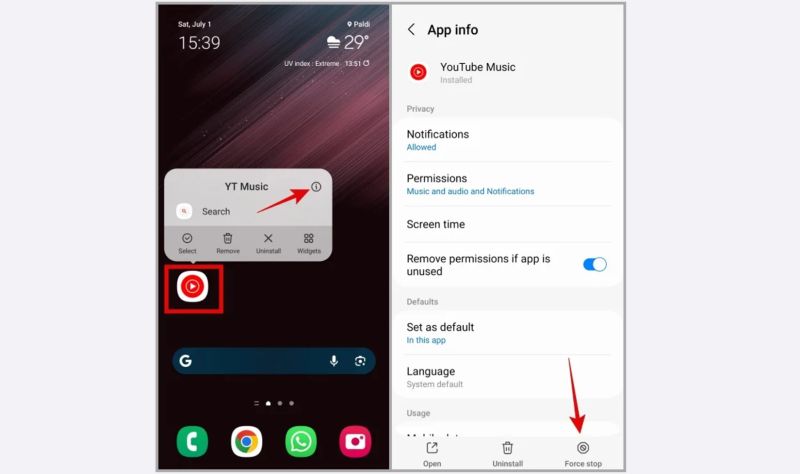
- Force-close the app.
- Sign out and sign back into your Google account.
- Or reinstall the app, which can also refresh the Premium status.
Tip to Enjoy YouTue Music Songs Without Pausing
If awkward pauses or buffering issues continue to ruin your experience, you can save YouTube Music tracks as regular audio files like MP3 or M4A. That way, you can listen to those tracks outside the YouTube Music app for your own listening.
Mediaio Audio Converter makes this simple. It comes with a built-in YouTube Music player, so you can sign in with your Google account as usual and save tracks in MP3 or M4A with a single click. You can then play the downloads using any free music player — VLC, Foobar2000, or even transfer them from your computer to your iPhone or other devices.
Conclusion
Now you understand why YouTube Music keeps pausing. Network changes, battery settings, background limits, or app glitches—any of them could be the culprit. This guide shows you what to check and what to change.
If you don’t want to deal with pauses at all, there is another option. You can listen to YouTube Music offline with the help of Mediaio Audio Converter.