

As we all know, YouTube Music doesn’t natively show listening status on Discord. However, you may notice that some users’ YouTube Music status does appear on Discord. Well, this is because they use specific tools to make it work. If you’re interested, read on to learn how to show what you are listening to on YouTube Music on Discord when playing in a browser, on Android, or via a local media player.
You May Also Like
How to Show What You're Listening to on YouTube Music on Discord
As mentioned, YouTube Music does not have an official API “handshake” with Discord. So you just need to bridge that gap. What you need is a middleware—something that can read what’s playing on YouTube Music (usually through the browser) and then tell Discord about it. This way, Discord can show your listening status properly. Here are three practical tools to make that happen.
Way 1. Use PreMiD
PreMiD is a rich presence middleware. What PreMiD actually does is simple. It reads activity from supported sites on your browser, like YouTube Music, YouTube, Netflix, and over 1,300 other platforms and sends that information to Discord as a rich presence update.
For YouTube Music specifically, PreMiD can detect:
- the song title
- the artist name
- the album or cover art
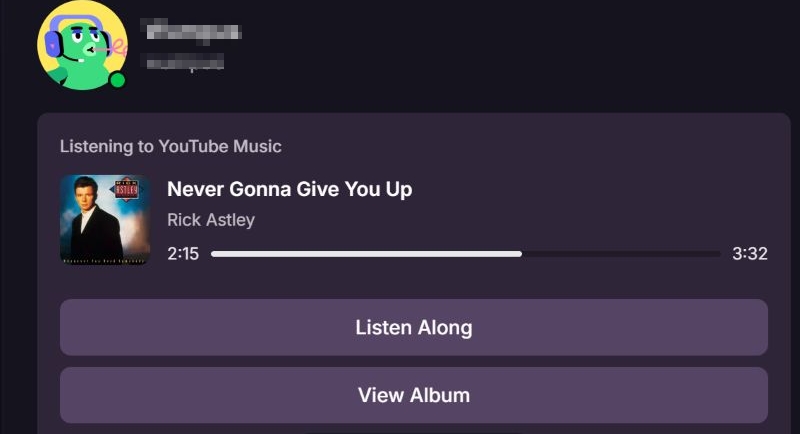
That information is then shown on your Discord status as “Listening to YouTube Music”.
Also, PreMiD connects using Discord’s OAuth 2.0 API. So the YouTube Music status is tied to your account. This means as long as YouTube Music is playing in your browser, it will show your status to others, even if you’re using Discord on another device (desktop, mobile, or web).
To Show YouTube Music Listening Activity with PreMiD:
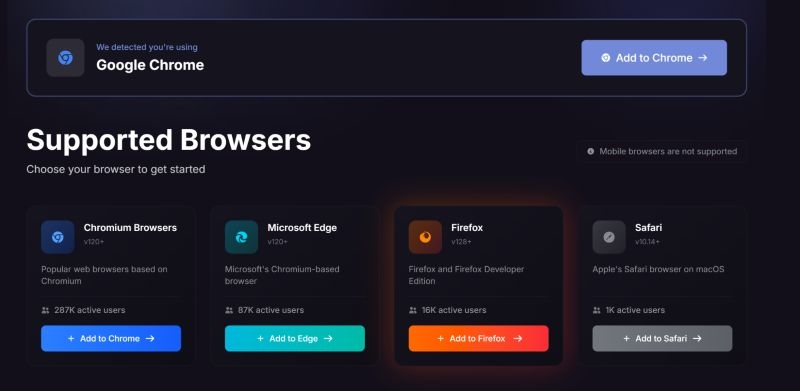
Step 1. Head to the PreMiD website and click Get Started. From there, you add the extension for your browser. After installation, pin the icon.
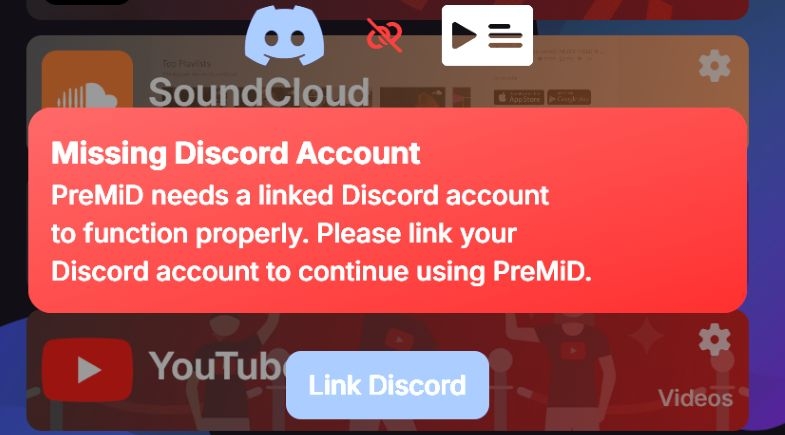
Step 2. Click the extension icon to show its options. Click the Link Discord button.
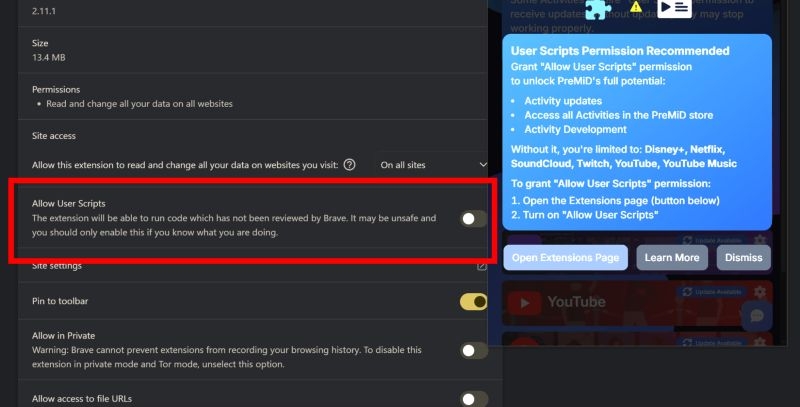
On some browsers (Chrome and Brave) will ask you for extra permissions, like allowing user scripts or enabling developer access. If prompted, allow them, which is required for PreMiD to read site metadata properly.
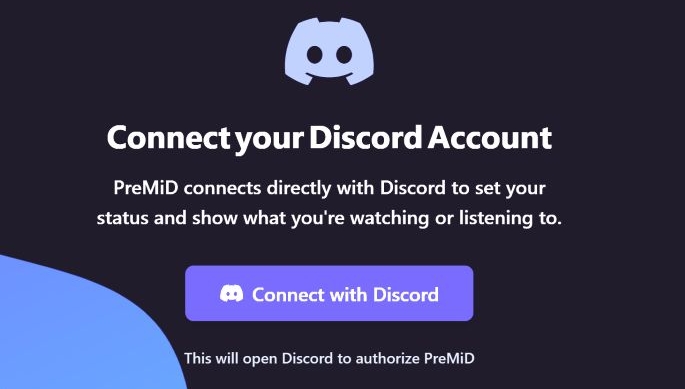
Step 3. You'll see a Connect with Discord button. Click it.
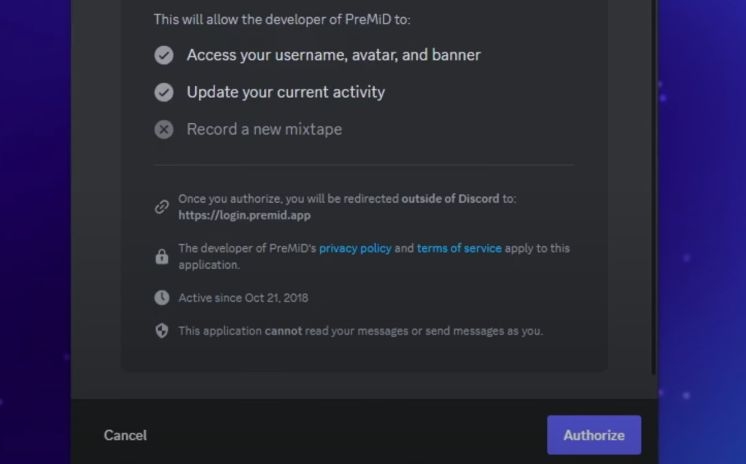
Step 4. Then, authorize access.
Once connected, there’s nothing else you need to manage. When you play music on YouTube Music in that browser, Discord updates your playback status automatically.
That’s it for PreMiD.
Possible Issue:
Some users report that the status can get “stuck” if the YouTube Music tab is closed while a track is still playing. To avoid this, pause the music first and then close the tab or browser. Doing that prevents outdated activity from lingering on your Discord profile.
Way 2. Use Kizzy (Android Rich Presence App)
If you mostly listen to YouTube Music on your phone, PreMiD won’t help, because it’s browser-only. For Android users, Kizzy is the best alternative. This method uses an open-source, community-supported Discord Rich Presence manager for Android. It’s designed to broadcast what’s playing on your phone directly to Discord. Unlike browser tools, Kizzy can detect:
- music playing in YouTube Music
- tracks from other music apps
- videos, games, and even local media players
It then shows all of that as a rich presence on your Discord profile, complete with timestamps and details.
As Discord does not officially support rich presence from mobile apps, this tool works by logging into your Discord account directly instead of using OAuth 2 like PreMiD. That’s the trade-off. Technically, this puts Kizzy in a gray area of Discord’s terms. In practice, bans for simple rich presence usage like this are rare. Still, it’s something you should know before using it.
What makes this app powerful is how flexible it is. It can:
- show what you’re listening to on YouTube Music
- detect media from almost any Android app
- display timestamps, buttons, and descriptions
- work with local players like VLC
It also supports extras, if you’re into that:
- Custom RPC to set your own status text
- fake or joke statuses (games, study sessions, etc.)
- custom images and artwork
- console presets that mimic PlayStation, Xbox, or Switch activity
In all, Kizzy is an all-purpose rich presence tool.
What You Need to Know Before Installing
Install it Kizzy from:
- the official website: https://kizzy.dead8309.xyz/
- Or GitHub release page
Avoid random APK sites.
Requirements:
- Android 8.1 or higher
- at least 3 GB RAM
- newer Android versions may have minor bugs
How to Display YouTube Music Status with Kizzy
Step 1. Install the app on your Android from the official source.
Step 2. Open it and sign in with your Discord account.
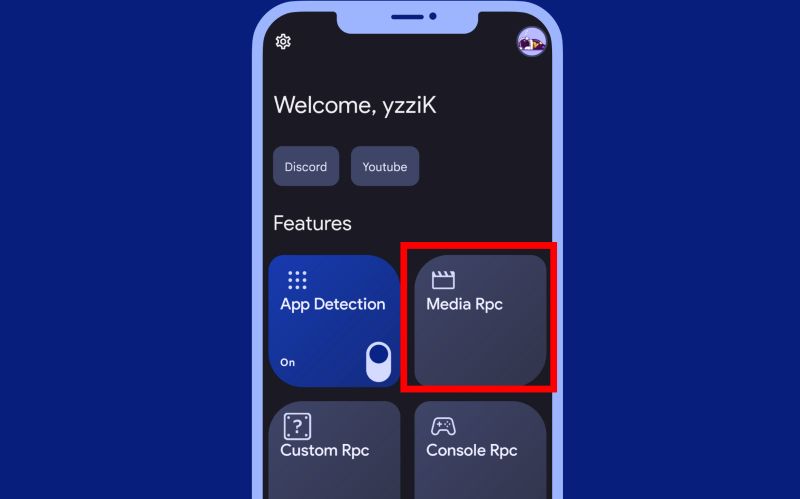
Step 3. Once inside, you’ll see several options like:
- App Detection
- Media RPC
- Custom RPC
- Console RPC
Step 4. Tap Media RPC and turn it on. Grant any permissions it asks for.
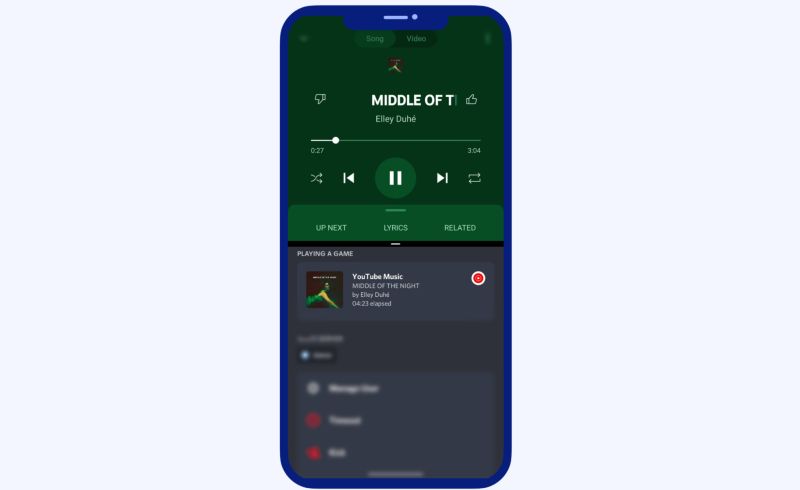
Step 5. Now open the YouTube Music app and play a song. Check your Discord profile—your status will update to show what you’re listening on YouTube Music.
You can tweak other features later if you want, but you don’t need to touch anything else for basic music status.
Way 3. Use Third-Party YouTube Music Desktop App
Some third-party YouTube Music desktop apps come with a native Discord Rich Presence toggle. That means Discord knows what you’re playing directly from the app without middleware.
Third-party here simply means not developed by Google. These are modified YouTube Music clients that keep the original interface but add useful extras. Using them may involve potential security, privacy, legal, or stability issues, so caution is advised.
If you still want a try, a solid option is YTMD (YouTube Music Desktop App). It looks and feels just like the regular YouTube Music app, so there’s no learning curve. What you get instead are a few powerful additions:
- Discord Rich Presence support
- Last.fm scrobbling
- Optional Rainmeter integration
- A richer Discord status than browser tools
Yes, unlike browser-based tools like PreMiD or mobile tools like Kizzy, YTMD shows a “Play on YouTube Music” button directly in your Discord status. Other users can click it and jump straight to the song. It also behaves more like Spotify on Discord.
How to Use YTMD for Discord Status
Step 1. Go to ytmdesktop.app.
- Download the version for Windows, macOS, or Linux.
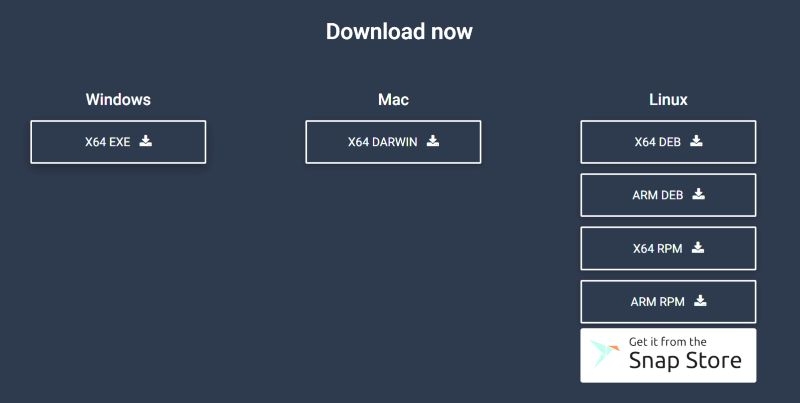
Step 2. Run the installer.
- Log in with your Google account.
- Your YouTube Music library loads instantly.
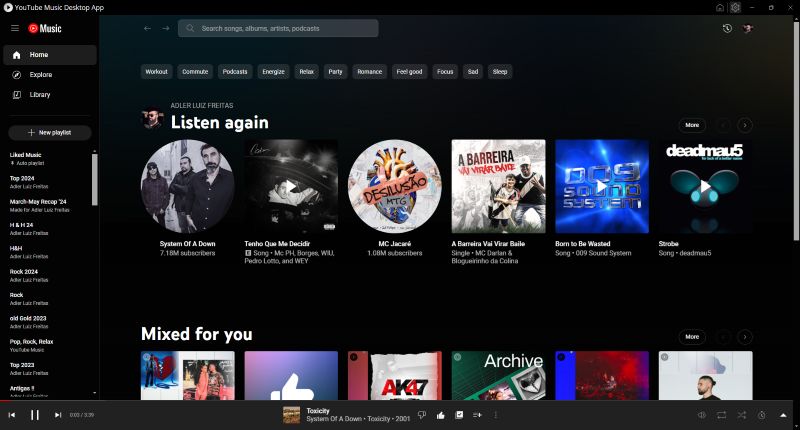
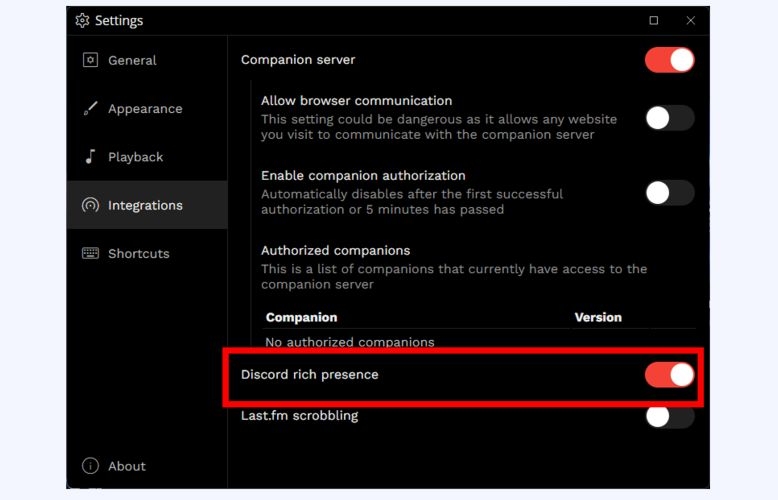
Step 3. Click the gear icon in the top bar.
- Navigate to the Integrations tab.
- Toggle Discord Rich Presence to On.
Step 4. Start any song.
- Your Discord status updates immediately with track details and artwork.
How to Show What You're Listening to Spotify on Discord
Unlike YouTube Music, Spotify does not need a workaround. Spotify is available as first-party integration inside Discord. And this means the connection is account-based.
As long as your Spotify account is playing music anywhere, it will show as the Discord status.
This is why Spotify is still the best music service for Discord presence. In fact, it gets features no other music app has:
- Live song title and artist
- Album artwork in status
- Real-time progress bar
- “Play on Spotify” button for friends
- Listen Along (friends can sync to your song instantly)
How to Connect Spotify to Discord
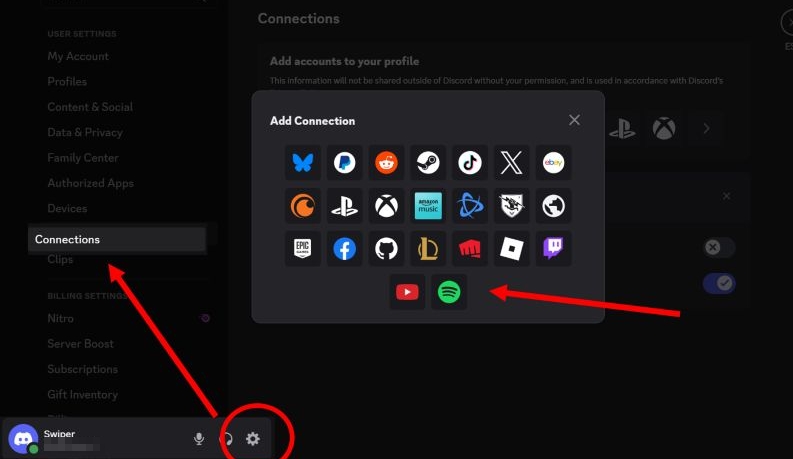
Step 1. Launch Discord and head to the gear icon beside your username.
Step 2. From User Settings, move to the Connections section in the sidebar.
Step 3. Select Add Connection and pick Spotify from the available options.
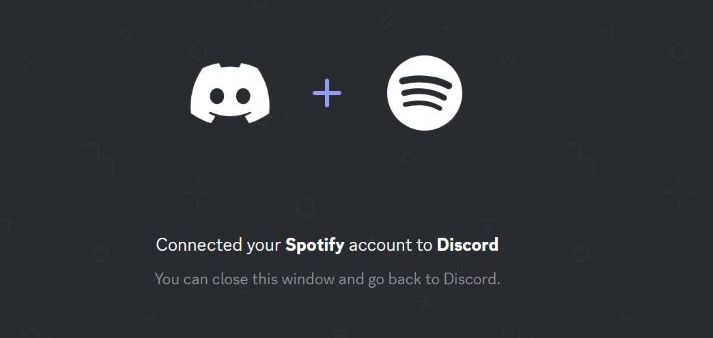
Step 4. A browser window appears. Sign in to Spotify and confirm by selecting Approve. You’ll then see a message confirming that your Spotify account is successfully linked.
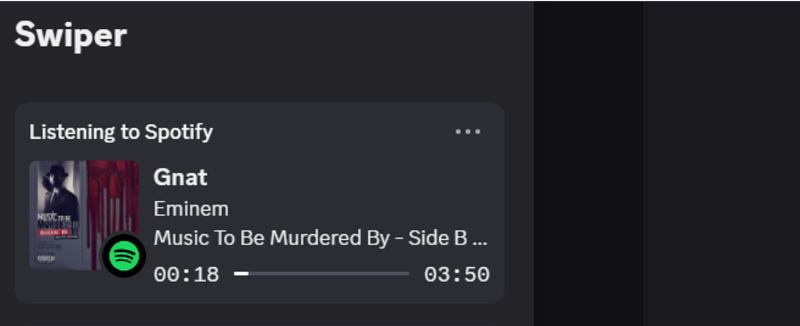
Your Discord status instantly updates to: Listening to Spotify with the song name, artist, and progress bar.
How to Show Offline Music in Your Discord Status
If you listen to local music files—MP3, FLAC or WAV, Discord can still show what you’re playing. You just need a Rich Presence tool that reads your media player and sends that info to Discord. One of the most powerful options for this is Music Presence. Music Presence is a lightweight, open-source Discord Rich Presence utility. It works with most desktop music players, including MusicBee, foobar2000, Windows Media Player, Winamp and VLC. This is not cloud-based. It only shows what’s playing on your computer.
What Music Presence Can Show
If your files have proper metadata, Music Presence can display:
- Song title
- Artist name
- Album name
- Cover art (from ID3/FLAC tags)
- Playback status (playing/paused)
You also get extra controls:
- Exclude specific songs
- Blacklist entire playlists
- Hide podcasts if you want
- Keep a “sticky” paused status
- Show podcasts differently from music
How to Set up Music Presence
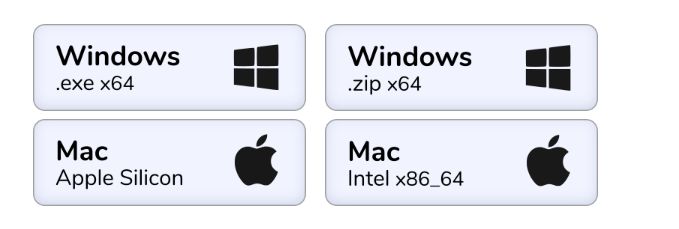
Step 1. Visit the official GitHub page for Discord Music Presence and download the latest release for your computer.
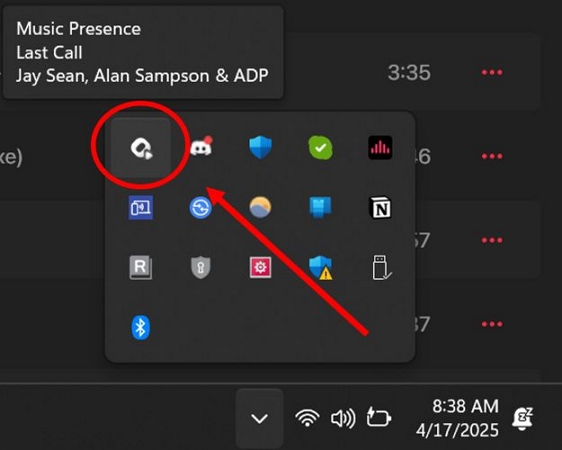
Step 2. Run the app. It starts quietly in the system tray.
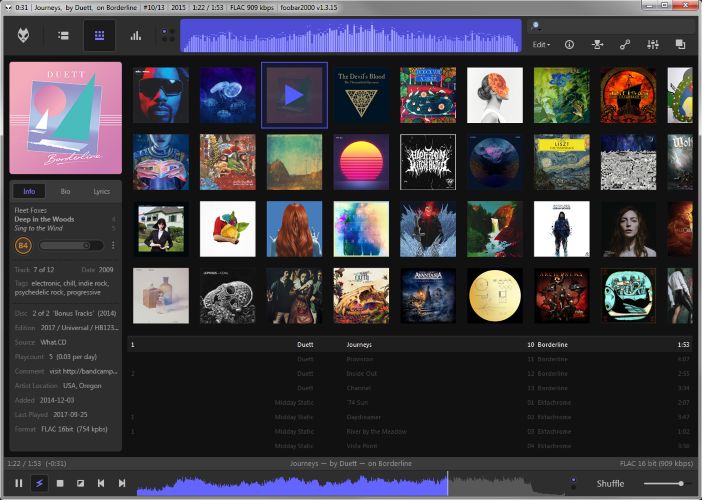
Step 3. Open your music player (MusicBee, WMP, VLC, etc.). For players like foobar2000, you may need a small plugin to expose the metadata. Music Presence will guide you through this if needed.
Step 4. Click the Music Presence tray icon to open settings. Here you can:
- Enable playback buttons
- Choose what metadata appears
- Exclude tracks or playlists
Step 5. Play your local music.
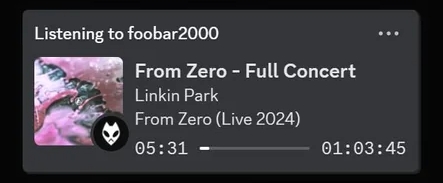
Your Discord status updates instantly.
To Get More Offline Songs
Want to display your playback on Discord using a local media player and Music Presence, but don’t have many local songs? You can purchase songs on Amazon or, for a more cost-effective option, convert your streaming music into local files with Mediaio Audio Converter to expand your library. Remember to use the local music for personal listening only.
Mediaio Audio Converter lets you save songs(e.g. classical music) as MP3 or FLAC from platforms like Spotify and YouTube Music. The music saving works through built-in web players, so you log in with your premium or free account, access your playlists or albums and save them directly.
Mediaio keeps full ID3 metadata intact. Song title, artist name, album details, and cover art are all preserved exactly as they appear on the streaming apps. This matters if you use Discord Rich Presence tools like Music Presence. With clean metadata, your Discord status shows proper track info instead of broken or generic text. The result looks polished.
Wrap Up
Now you know how to show what you’re listening to on YouTube Music on Discord, no matter how you listen.
If you play music in your browser, tools like PreMiD bridge the gap and show your YouTube Music activity instantly. If you’re on Android, apps like Kizzy make it possible to display your listening status straight from your phone. And if you prefer a desktop setup, third-party YouTube Music desktop apps give you a native Discord Rich Presence toggle without extra work.
If you want even more control, there’s another route. You can save your YouTube Music tracks as local MP3 files using Mediaio Audio Converter, play them in apps like Foobar2000 or Windows Media Player, and let Discord show your music with richer details and extra options like sticky status.