

You won’t find a YouTube Music skill inside the Alexa app, as Amazon simply doesn’t offer one. However, that doesn’t shut the door on playing YouTube Music through your Echo devices.
Every Echo model, from the smallest Echo Dot to the latest Echo Show 21, still has workable paths for YouTube Music playback. We’ll walk through all the effective methods.
And if the ads and interruptions on a free YouTube Music account bother you, we’ll also show you how to use Mediaio Audio Converter to save your tracks as local audio files, so your Echo plays them smoothly, without breaks.
How to Play YouTube Music on Alexa Echo via Bluetooth
You can play YouTube Music on any Alexa Echo by using Bluetooth, which is the universal method. What changes the experience is how you use Bluetooth, because there are two very different ways to do it.
- One option is to stream straight from the YouTube Music app on your phone. It connects instantly, but if you don’t have YouTube Music Premium, ads will break the flow.
- The second option is to first turn your YouTube Music tracks into local audio files and then stream those over Bluetooth. Those files play without ads or interruptions.
In both cases, your Echo acts like a regular Bluetooth speaker. And there isn’t even a variation in how you control playback.
Supported Echo Devices & Control Options
 Yes
Yes
Phone controls playback. Echo controls only volume. No Play/Pause/Skip through voice or touch.
Yes
Yes
Phone controls playback. Echo controls only volume. No Play/Pause/Skip through voice or touch.
 Yes
Yes
Control playback on phone and tune music volume on Echo with commands.
Yes
Yes
Control playback on phone and tune music volume on Echo with commands.
 Yes
Yes
The phone handles playback and the Echo is limited to volume control.
Yes
Yes
The phone handles playback and the Echo is limited to volume control.
 Yes
Yes
Phone controls playback. Echo adjusts volume only.
Yes
Yes
Phone controls playback. Echo adjusts volume only.
 Yes
Yes
Phone controls playback. No touchscreen controls or song info. Echo adjusts volume only.
Yes
Yes
Phone controls playback. No touchscreen controls or song info. Echo adjusts volume only.
 BT-in not supported for groups
Not reliably
No multi-room playback over Bluetooth.
BT-in not supported for groups
Not reliably
No multi-room playback over Bluetooth.
Now let's walk through both Bluetooth methods and help you see which one fits your daily habits best.
Option 1: Play via YouTube Music App on Phone with Bluetooth
The first Bluetooth method is the simplest, enabling you to streaming straight from the YouTube Music app on your phone. It works on any Echo, whether you’re using an Android or an iPhone and the setup takes only a few seconds. The experience, however, depends entirely on your phone, because ads, calls, notifications, and range limits will all interrupt the playback.
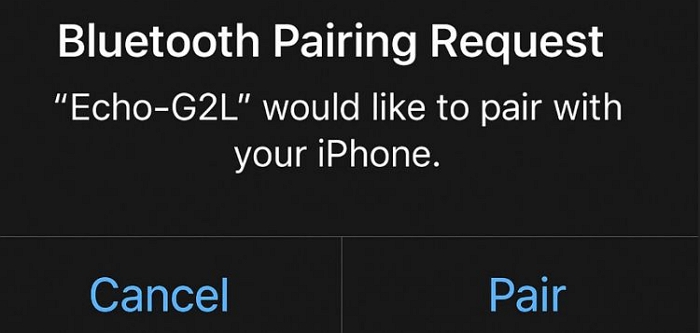
Step 1. Pair your phone with an Echo device via Bluetooth.
To put your Echo in pairing mode, just say “Alexa, pair Bluetooth.” Your Echo name will appear in your phone’s Bluetooth list. Tap it once to pair.
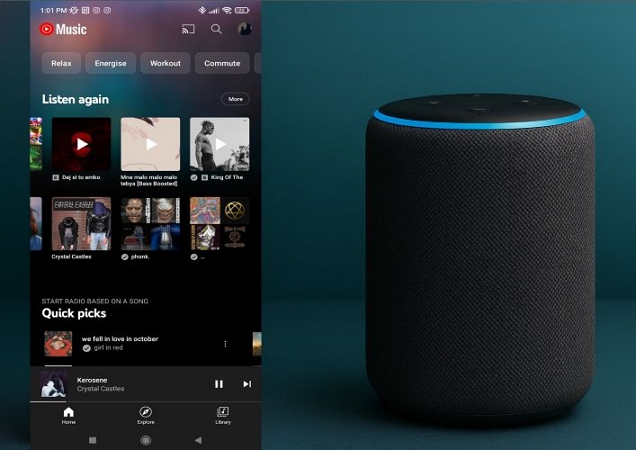
Step 2. Open the YouTube Music app and play anything you want. The sound leaves your phone and comes out of the Echo instantly.
Step 3. Your phone remains the main controller. Still, Echo models allow you to control a few things:
- All Echo models: basic voice controls like “Alexa, volume up.”
You cannot voice-control playback actions (play/pause/skip).
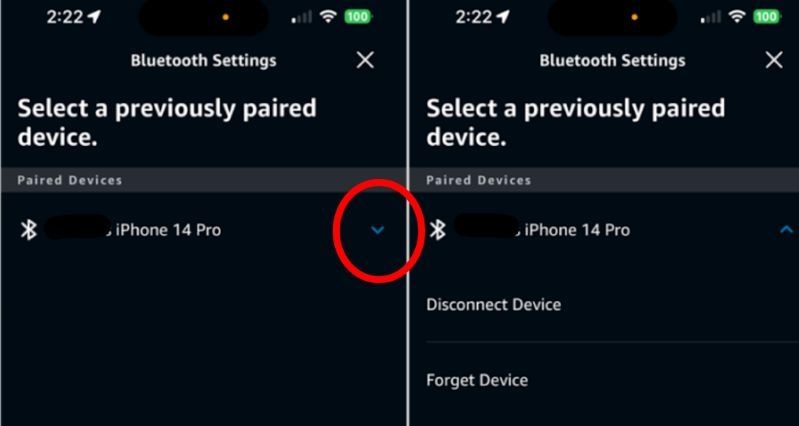
To disconnect your phone from Echo, you can switch off Bluetooth on your phone or use the Alexa app to forget the connection.
Option 2: Play YouTube Music MP3 on Computer via Bluetooth
You can also turn your YouTube Music tracks into open audio files and play them on your Echo over Bluetooth from your phone or computer. You’ll just have to use Mediaio Audio Converter for this to work.
Mediaio Audio Converter is designed to save your YouTube Music songs as clean, high-quality local files that an Echo can handle easily. MP3, M4A, and even lossless FLAC or WAV all work, and you don’t even need a YouTube Music Premium subscription for any of this. Moreover, you can enjoy high audio quality (320kbps), which YouTube Music Premium currently doesn’t support.
It also comes with a built-in YouTube Music player, so you can sign in with your Google account and download anything for offline listening within one place. You can then stream these songs to any Echo model over Bluetooth without ads or interruptions.
Steps to Save YouTube Music for Bluetooth Playback
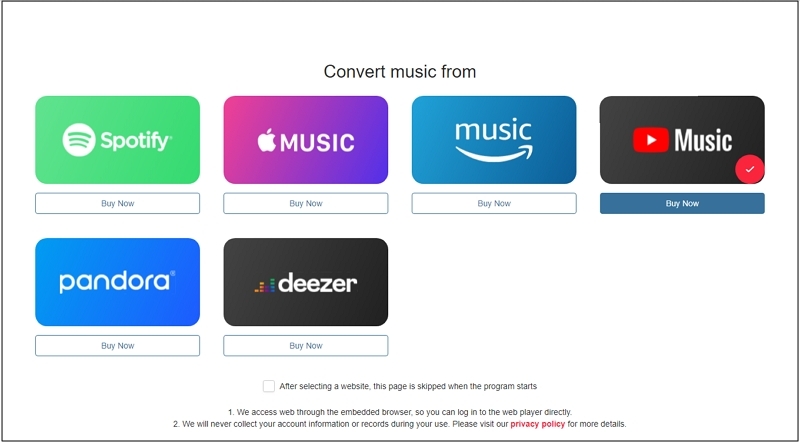
Install Mediaio Audio Converter on your Windows or Mac. Open it and once the main screen appears, choose YouTube Music from the available services.
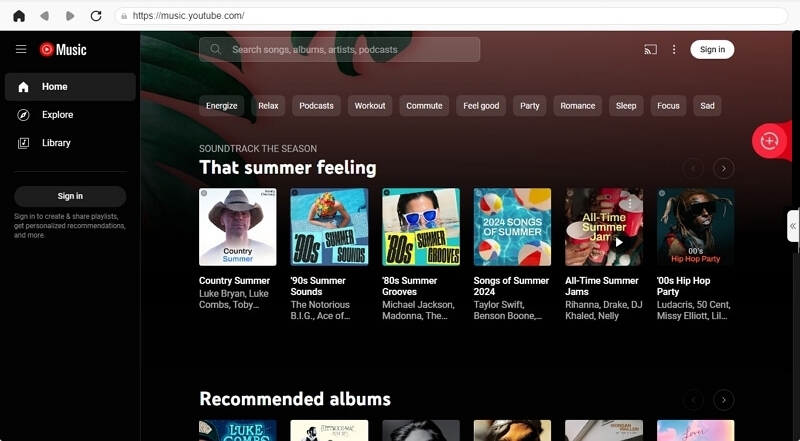
A built-in YouTube Music window will pop up. Sign in with your Google account to access your library.
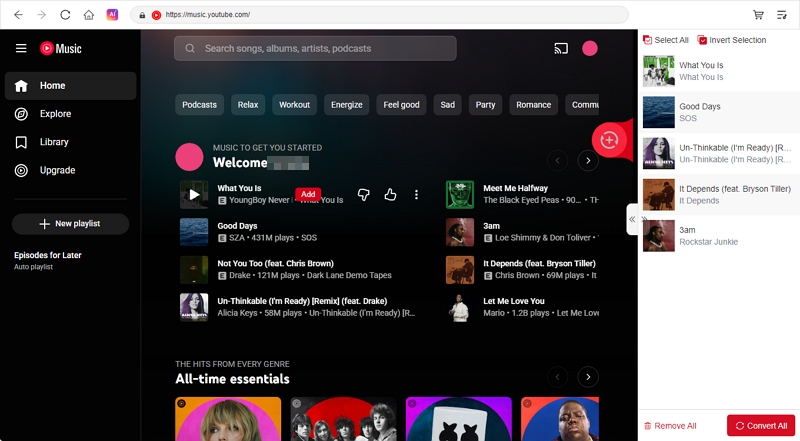
Browse your playlists, albums, or individual tracks. Drag what you want into the conversion panel, or use the Add button if that’s more comfortable.
Select Convert All. Mediaio will save everything into your chosen format and desired quality.
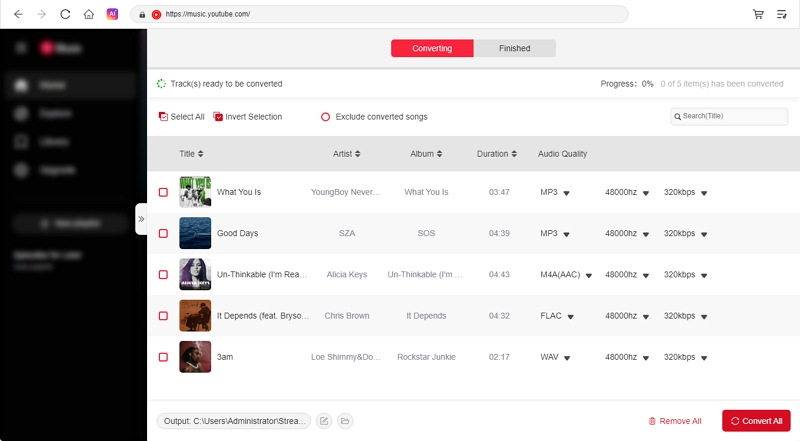
Steps to Stream Saved YouTube Music to Echo from Computer
You can find the Mediaio-downloaded YouTube Music tracks in the Downloads folder and stream them to any Echo device directly via the Computer itself. Or, you can move the songs to your phone and stream via Bluetooth to Echo from there. Here’s how to process looks on Windows or macOS:
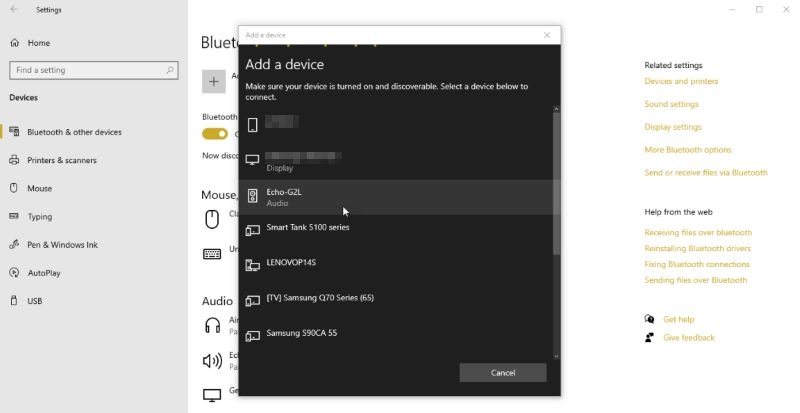
On Windows
- Press Win+I to open Settings.
- Head to Bluetooth & devices.
- Click Add device and choose Bluetooth.
- Select your Echo to pair it.
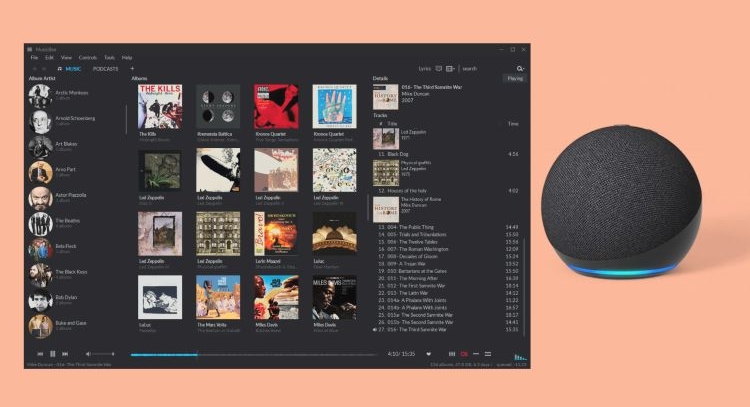
- After the connection settles, open whatever music player you use, such as the built-in Groove app and VLC. Then, play the downloaded YouTube Music tracks and your Echo will take over the audio instantly.
On macOS
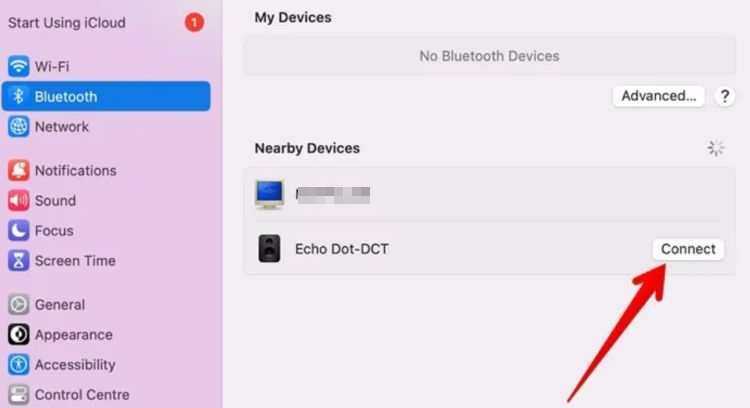
- Open System Settings.
- Select Bluetooth in the sidebar.
- Find your Echo in the nearby devices list and pair it.
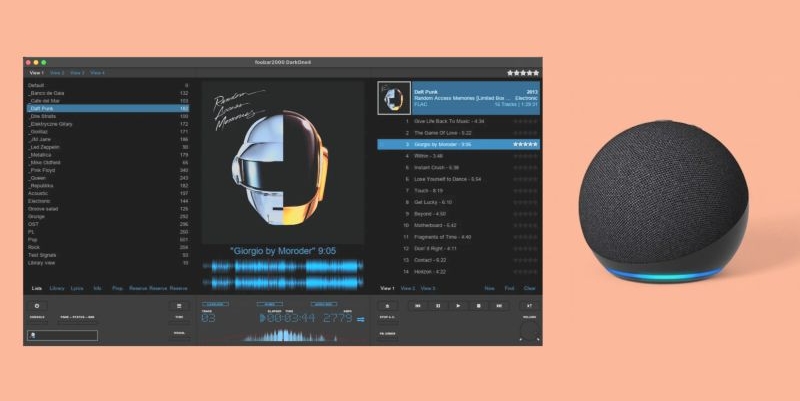
- Once the Echo connects, open your music player and start playing those saved tracks. macOS will route the sound to your Echo automatically.
How to Play YouTube Music on Alexa Echo with Silk Browser
Playing YouTube Music through a browser may not feel like the most elegant method, yet on the Echo Show line, it becomes the only practical way to make the device work independently. The stream runs over Wi-Fi, not Bluetooth, so the Echo behaves like its own player.
The audio quality depends on your YouTube Music account. Free accounts stay nearly 128kbps. Premium accounts climb toward 256kbps, similar to how YouTube Music behaves on most mobile and desktop browsers.
That said, performance varies across Echo Show generations. Older displays can load the YouTube Music site, but they often struggle without recent firmware updates. Models like the Echo Show 10, 15, and the newer 21-inch Fire TV-style display handle YouTube Music far more reliably.
Browser Support & Playback Behavior on Echo Show Devices
 Outdated Silk Browser
May load and many users report failures or unstable playback
Touch controls only if the page manages to load
Silk Browser (pre-installed)
Yes, but the site can be slow or freeze during loading
Touch controls work if the page loads properly
Outdated Silk Browser
May load and many users report failures or unstable playback
Touch controls only if the page manages to load
Silk Browser (pre-installed)
Yes, but the site can be slow or freeze during loading
Touch controls work if the page loads properly
 Silk Browser
Yes, with occasional stutters, depending on firmware
Touch controls for play, pause, seek and browsing
Silk Browser
Yes, with occasional stutters, depending on firmware
Touch controls for play, pause, seek and browsing
 Silk Browser; optional Firefox
Load smoothly and play reliably
Full touchscreen controls; smooth page response
Silk Browser; optional Firefox
Load smoothly and play reliably
Full touchscreen controls; smooth page response
 Silk Browser; optional Firefox
Yes, load quickly and stay stable
Touchscreen controls feel close to using a tablet browser
Silk Browser; optional Firefox
Yes, load quickly and stay stable
Touchscreen controls feel close to using a tablet browser
Steps to Use Silk Browser for YouTube Music on Echo Show
Step 1. Say: “Alexa, open Silk Browser”. The browser window will appear on your Echo Show.
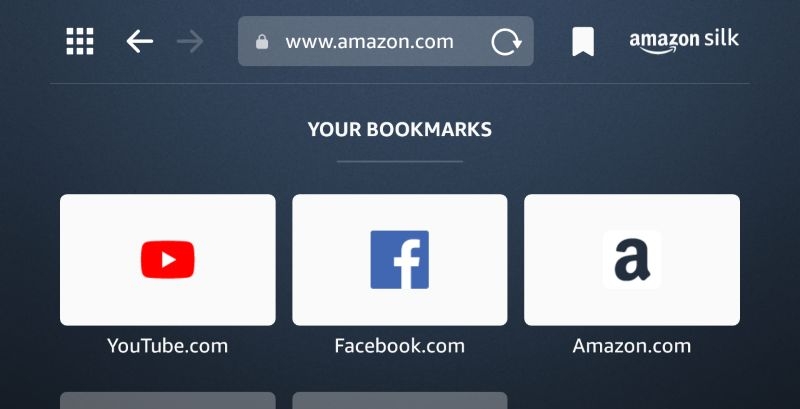
Step 2. Tap the address bar and enter: music.youtube.com. Wait for the page to finish loading.
Step 3. Tap Sign In, enter your Google credentials, and the site will open your usual library, including liked songs, playlists, albums, etc.
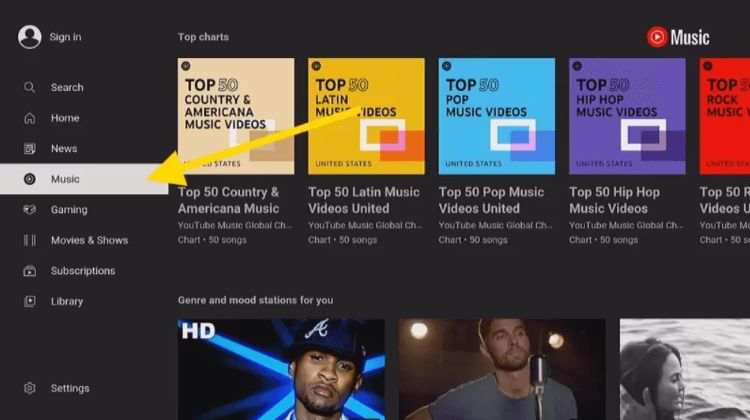
Step 4. Tap a song and playback will begin immediately. Use the on-screen buttons for pause, skip, or scrubbing. Alexa voice commands won’t control playback here, except for adjusting volume. The browser player stays in charge of the rest.
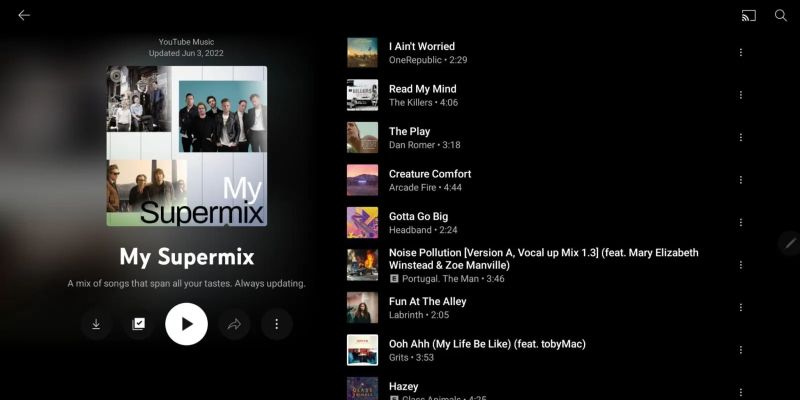
You must keep the browser open while listening. Leaving Silk or returning to the Echo home screen stops the playback.
How to Play YouTube Music on Alexa Echo Using YouTube App
YouTube Music and YouTube pull from the same account. Because of that, anything you’ve saved on YouTube Music also appears inside the main YouTube app. This actually helps on some Echo Show devices.
YouTube App Support on Echo Show 15 & Echo Show 21
 Yes
Yes
Remote navigation, touch for browsing, Alexa adjusts volume
Yes
Yes
Remote navigation, touch for browsing, Alexa adjusts volume
 Yes
Yes
Remote navigation, touch for browsing, Alexa adjusts volume
Yes
Yes
Remote navigation, touch for browsing, Alexa adjusts volume
Playback quality matches regular YouTube streaming. Without Premium, most music videos play at around 128kbps AAC. With YouTube Premium, it reaches 256kbps AAC or Opus, depending on the video.
Steps to Use YouTube App for YouTube Music on Echo Show 15 & 21
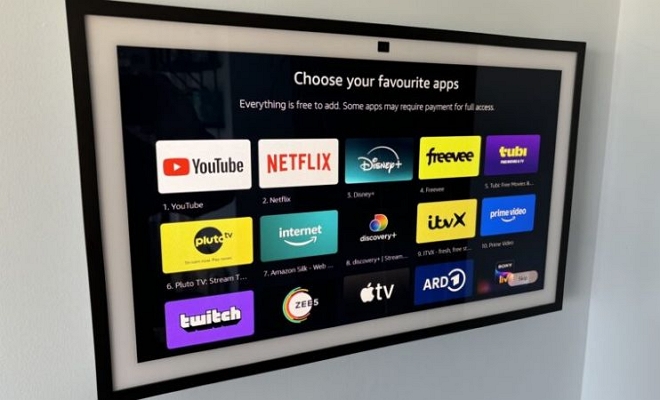
Step 1. First say: “Alexa, open Fire TV”. Your Echo shifts into the Fire-TV-like layout. Then, press the Home button on the remote and choose the YouTube tile.
Step 2. You’ll see a pairing screen for the first time. Scan the QR code and confirm to link your account instantly.
Step 3. Open your Library and scroll to the playlists that originate from YouTube Music—Relax Mix, Discover Mix, Likes, Albums, and everything else synced to your Google account. Choose whatever fits the moment.
Step 4. You can use the Fire TV remote for playback controls: play, pause, skip, seek, and menu navigation. Touch input on the display works too.
Note that Alexa’s voice commands continue to handle volume, but it won’t control playback inside the YouTube app.
FAQs
There’s still no official explanation from Amazon. However, the general understanding is fairly simple: YouTube Music belongs to Google, and Google has its own Nest speakers competing directly with Alexa in the smart-home space.
So Amazon does the only thing it can do—limit what Google’s music service can do on its ecosystem. It’s not elegant, but this sort of platform shielding happens all the time across tech companies.
As of the beginning of 2026, YouTube Music still isn’t listed among Alexa’s officially supported music services. Analysts and long-time smart-home watchers keep repeating the same thing: this is a corporate strategy battle, not a technical limitation.
And because it is a strategy problem, not a missing feature, there is no realistic timeline.
Not in any stable or official way.
Alexa Speaker Groups only work with apps that Amazon recognizes as native audio sources, like Amazon Music, Spotify, Apple Music, or TuneIn.
YouTube Music — playing via browser doesn’t count as a native source. Plus, when you stream it via Bluetooth, Alexa treats it as one single Bluetooth input, not something that can be broadcast to multiple Echo devices.
Summary
You’ve now seen every practical way to play YouTube Music on Alexa, whether through Bluetooth, Silk, or the YouTube app on newer Echo devices. All of them work, but the free YouTube Music plan still brings ads and small breaks into the audio flow.
That is why we also walked through Mediaio. It lets you turn your YouTube Music library into simple local files that stream smoothly to any Echo, keep your phone free, and avoid every ad or interruption. Once saved, you can play them anywhere, not just on Alexa.