

You may have noticed that Spotify stops playing when you open YouTube, but continues running when you use Safari on your phone. Why does this happen? Moreover, is it possible to keep Spotify running in the background while using YouTube or games like Roblox? Read on to find the answers.
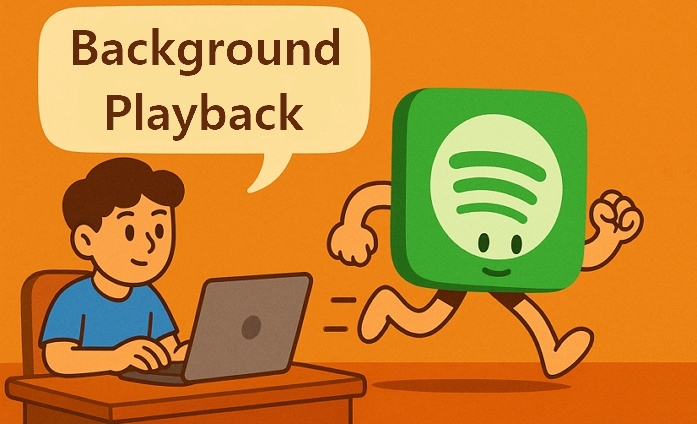
How Spotify Plays Music in the Background
Spotify should continue playing in the background on both iPhone and Android while using most apps. If you're browsing WhatsApp, scrolling Instagram, or playing a casual game, your Spotify music should keep running without interruption.
However, when you open another media app or a game that takes full control of the system’s audio, Spotify will pause automatically. This happens because the system prioritizes the new app’s audio.
Overall, Spotify usually continues playing without interruption when you use non-media apps.
How to Keep Spotify Playing in the Background[Non-Media Apps]
To ensure smooth Spotify playback in the background while using other apps like Safari or Notes, you need to adjust certain settings in your phone's built-in Settings app.
For iPhone
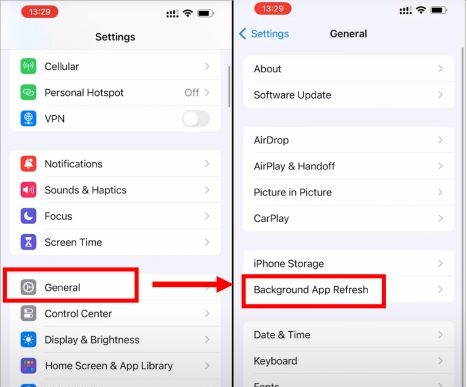
- Open Settings on iPhone and go to General.
- Tap Background App Refresh.
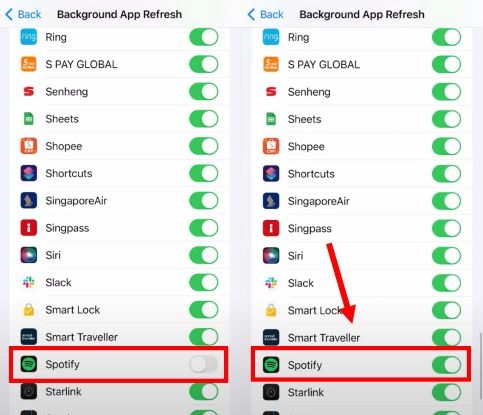
- Locate Spotify in the list.
- Ensure the toggle for Spotify is switched on.
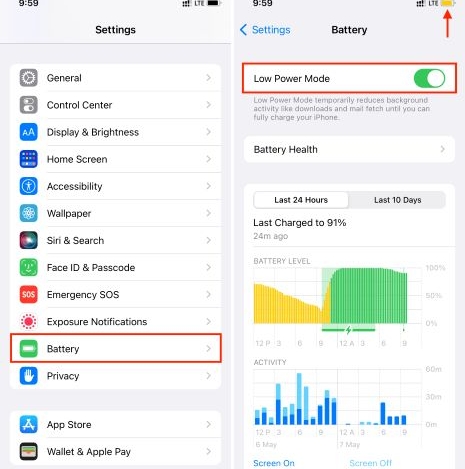
- Head back to the main screen of Settings, navigate to Battery and confirm that Low Power Mode is turned off.
For Android
1. Set Battery Saver as No Restrictions
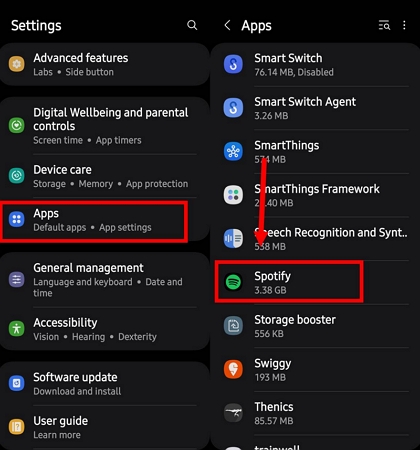
- Open the Settings app. Scroll down and tap on Apps or Applications.
- In the App list, tap Spotify.
- In Spotify’s App info page, scroll down to the Battery section and select it.
- Make sure that the Unrestricted (or No Restriction) option is selected and saved.

2. Remove Spotify from Sleeping Apps
- Open Settings and choose Device care. Next, tap Battery.
- Tap Background usage limits > Sleeping apps.
- Press Spotify until you see Remove at the bottom of the screen. Finally, hit Remove to delete Spotify from the app list.


Step 2: Listen to Spotify While Playing Games
If your game has voice chat, disable it before launching Spotify.
- Play a song on Spotify and switch to the game you want to use.
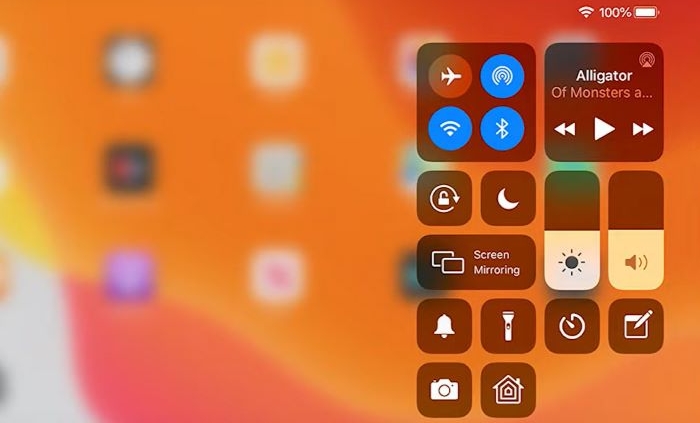
- Some games can still override Spotify audio while launching. In such cases, swipe down to open the Control Center and manually tap Play to resume your music.
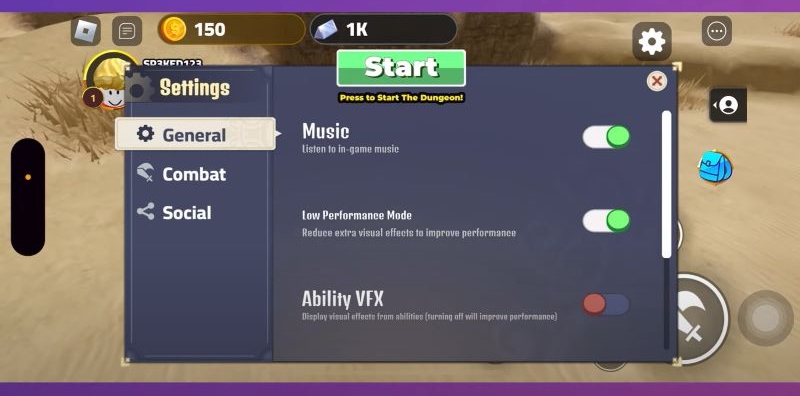
How to Keep Spotify Playing in the Background While Using YouTube/Roblox
You can play Spotify while watching YouTube or playing Roblox if you’re on Samsung Galaxy phone. In this section, you’ll find two free ways to do it.
Way 1. Use Separate App Sound
Samsung Galaxy phones come with a built-in Separate App Sound feature that can allow you to run Spotify continuously while using other apps. Here’s how to activate it on your Samsung Galaxy phones:
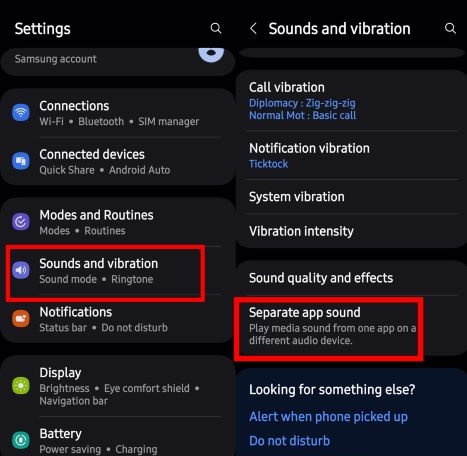
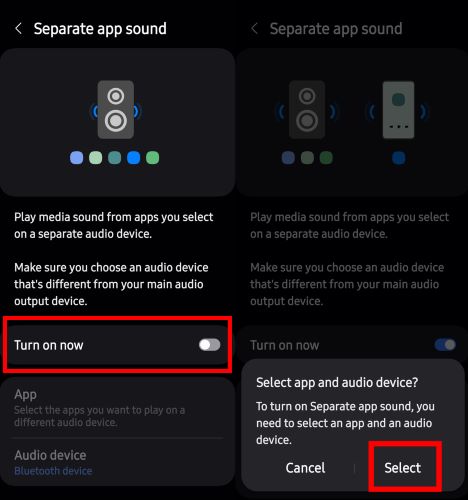
Step 1. Go to Settings and open Sounds and Vibration. Scroll all the way down and tap Separate App Sound.
Step 2. Tap Turn on Now. A prompt will appear, asking you to select an app and an audio device, tap Select.
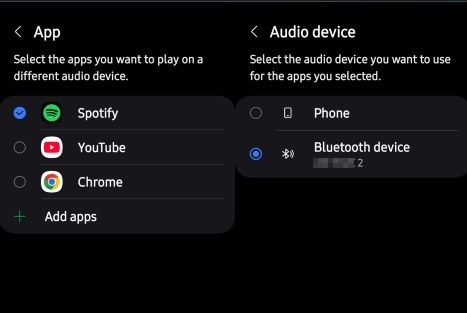
Step 3. Under App List, choose Spotify.
Step 4. Under Audio Device, you’ll have to choose where Spotify’s sound should play. You’ll need to select a paired external device: a Bluetooth speaker, a wireless earbud, or any connected external speaker.
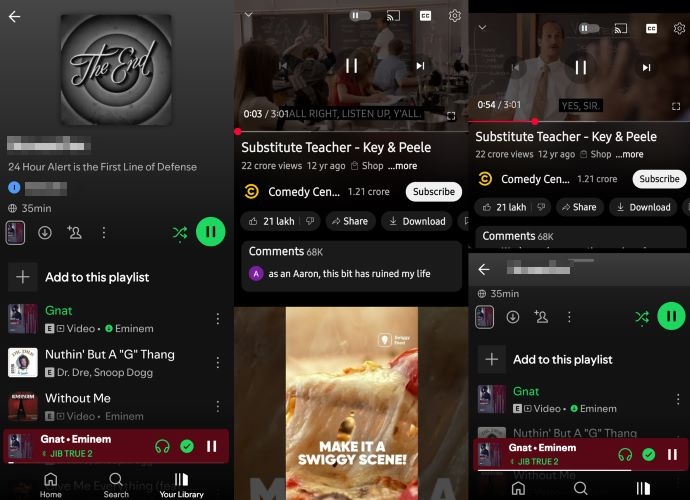
Step 5. Now, start playing Spotify and open any other media app. The music will flow through the external device while your phone’s speakers handle in-app sounds separately.
Way 2. Use Third-party App
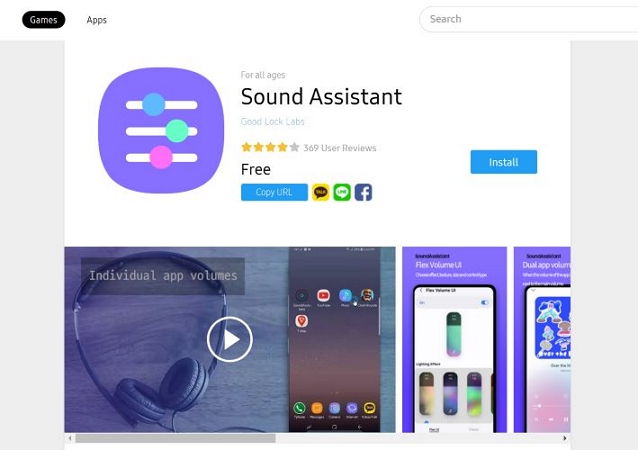
A dedicated app for using the separate sound feature with some extra perks is Sound Assistant on the Galaxy Store. With this, you can play Spotify at full volume while lowering or muting another app, like Games, YouTube, or TikTok, at the same time. Plus, it doesn’t need external speaker connection to work. Here’s how to install and use it:
Step 1. Install Sound Assistant from the Galaxy Store. Once installed, open the app and grant the necessary permissions.
Step 2. On the main settings page, tap Individual App Volumes.
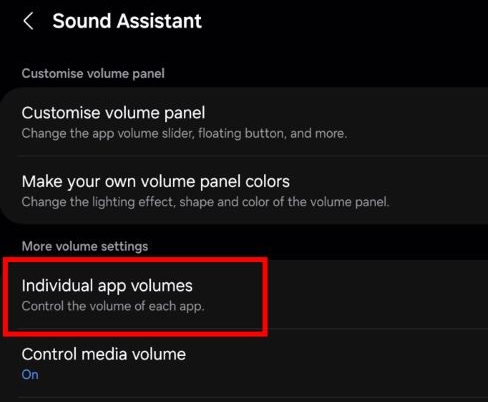
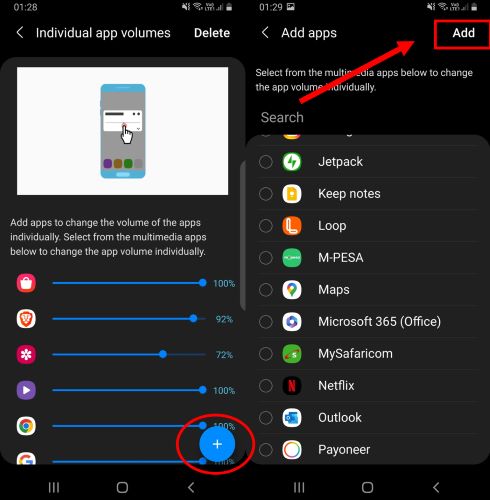
Step 3. Tap the plus (+) icon at the bottom-right and select Spotify along with any other app you want to control separately, like YouTube, TikTok, or a game. Then, tap Add from the top-right to confirm.
Step 4. Enable Multi Sound in the Sound Assistant app. This is the feature that negates the need for external speakers.
Step 5. Once enabled, Spotify will play alongside other media apps. You can control each app’s sound individually through the volume buttons. To do this, go to Sound Assistant > Customize Volume Panel and turn it on.

Step 6. Now, whenever you press the physical Volume Up/Down buttons, the usual sound panel will appear, but it will display separate volume sliders for each active app.

Way 3. Use Another Media Player
The above methods don’t work for playing Spotify in the background? A direct way to solve this is by using another media player for your Spotify music. To do this, you need to download your Spotify songs as local files first and MedVioo Audio Converter is here to help. MedVioo Audio Converter can export your songs, playlists and albums from Spotify as MP3, WAV, etc. The exported music will be in 320kbps and with full ID3 tags retained. You can then add them to any media player that works the way you want and listen to music while using other apps. Besides, the offline audio files enable you to listen to Spotify on devices like your Apple Watch, phone or MP3 player without network connection.
Step 1: Use MedVioo to Download Spotify Songs
Get MedVioo on your Mac or Windows computer. Once installed, open the app and select Spotify from the main screen.

Log In to your Spotify account within MedVioo. Whether it’s a free or premium account, MedVioo works with both.
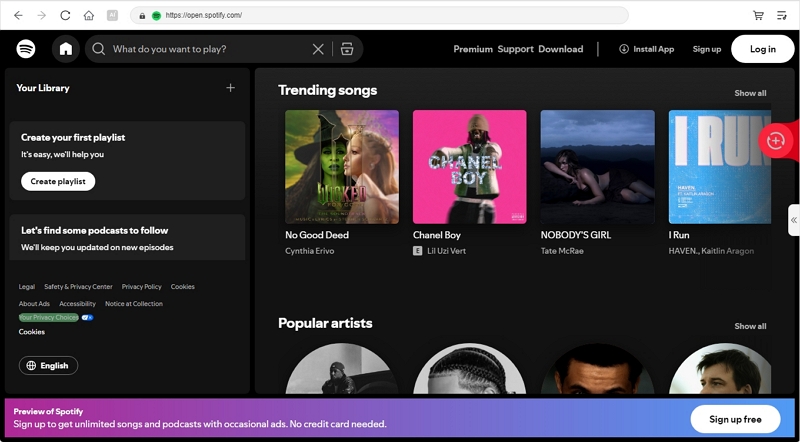
Simply drag and drop any song, album, or playlist onto the plus icon at the top right. Add everything you want: whether for offline listening, background play, or keeping your favorites forever.

Once all your tracks are queued up in the conversion window, click Convert All to start the download. The songs will be processed instantly and saved to your device. Before conversion, it's available to adjust the output settings, including format, audio quality and storage folder.

Step 2: Play Downloaded Spotify Songs in Background with Another Music Player
The MedVioo downloads come in open formats, so you can easily transfer them to any device for background play. Let’s see how to play them in background on the iOS devices first, then move on to Android.
For iPhone Users
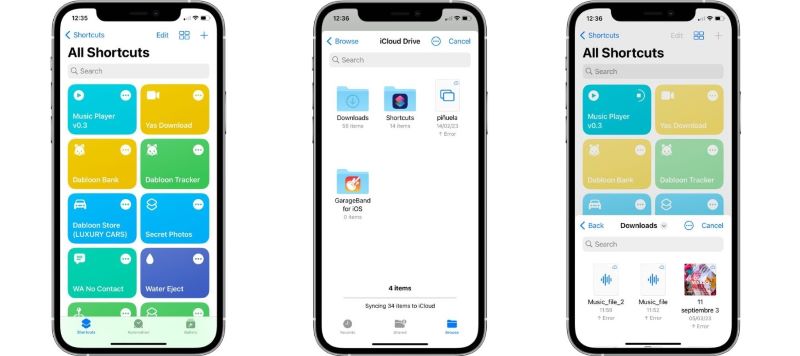
You’ll need to copy the songs to the Files app, not Apple Music, so they remain accessible to any media player, including Music Player v0.3 on your iPhone. On iOS, Music Player v0.3. is a dedicated iOS shortcut for seamless background playback that can override nearly any app, whether it’s YouTube, TikTok, games, or even Apple Music and Spotify itself. To do this:
- Plug your iPhone to your computer.
- Open Finder. Click on your iPhone’s name in the sidebar.
- From there, select the Files tab at the top and drag the MedVioo downloads from your computer into your iPhone’s Files app section.
- Add Music Player v0.3 to your iPhone Shortcuts app and tap it.
- Choose the MedVioo folder that you copied to the Files app. The music will start playing automatically immediately while you continue playing games, browsing, or using any other app.

For Android Users
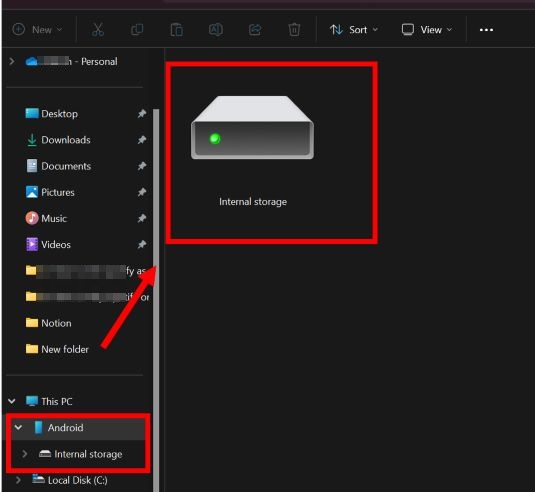
You can copy the MedVioo-downloaded Spotify songs to any location on your Android device’s internal storage and play them via native media players - Samsung Music. To do this:
- Connect your Android device to the computer.
- Open File Explorer.
- Copy the MedVioo downloads.
- Navigate to Android’s internal storage and paste them in a dedicated folder.
- Now, you can play your Spotify downloads in the background using Samsung Music and play almost all games while listening to music uninterruptedly.

How to Keep Spotify Playing in the Background on Windows/Mac
On your computer, Spotify should continue playing even when you switch between apps, minimize the window, or work on other tasks. Still, there are some small tweaks you can make if Spotify isn’t running in the background.
On Spotify Windows/Mac
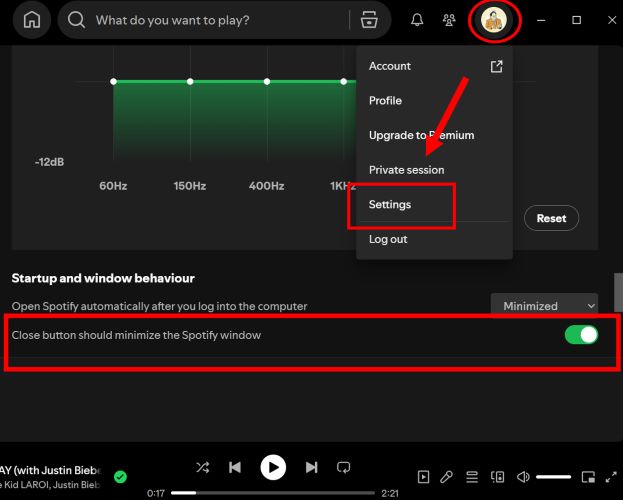
One setting that affects background playback on the computer is the close button behavior. By default, clicking the close (X) button on Spotify doesn’t quit the app: it keeps it running in the background on Windows and Mac. If this behavior isn’t working as expected:
- Click on your profile icon at the top-right.
- Choose Settings.
- Scroll down to Startup and window behavior section. Here, make sure that the Close button should minimize the Spotify window toggle is turned on.
Spotify Keeps Running in the Background [How to Fix]
While this guide is about keeping Spotify music running in the background, sometimes it is also a problem. For instance, Spotify can keep playing the music even after you close the app, force-stop it, or restart your device. In such problems, the ultimate fix is to perform a clean reinstall, which will ensure all Spotify-related files are erased before reinstalling:
On iPhone
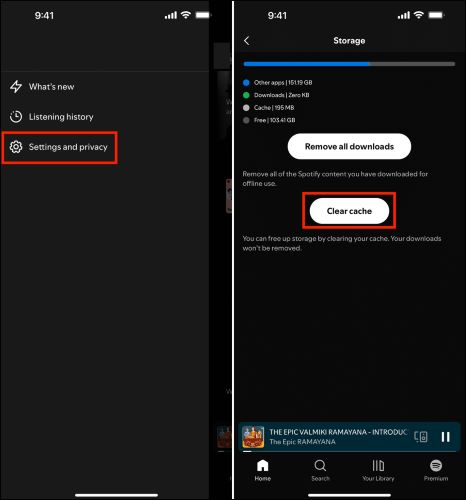
Step 1. Clear Spotify's cache by going to the Spotify Settings page: navigate to Storage and select the Clear Cache button.
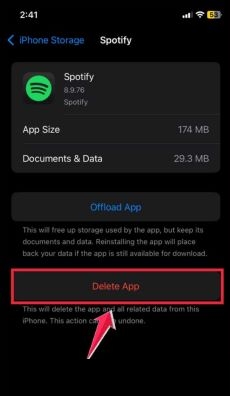
Step 2. Completely uninstall Spotify by opening iPhone’s Settings app, selecting General, tapping iPhone Storage, accessing Spotifyand choosing Delete App.
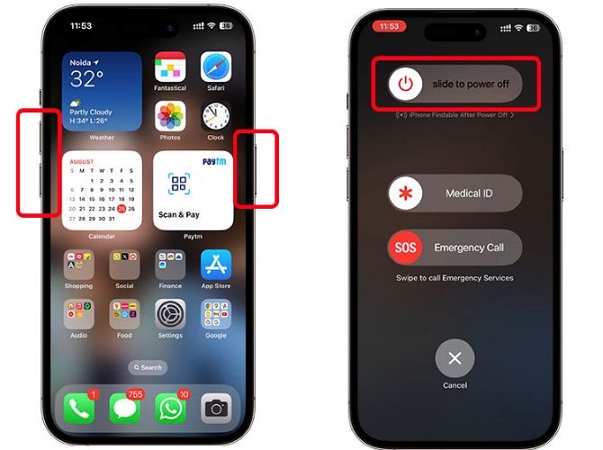
Step 3. Once deleted, power off your iPhone for 2 minutes. This will wipe out any lingering processes. Restart again.
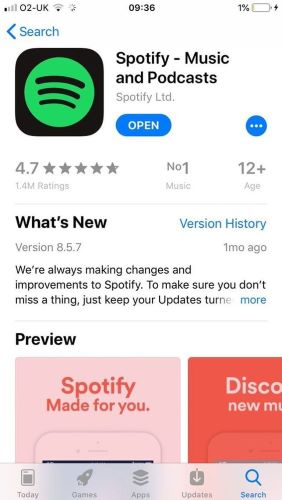
Step 4. Reinstall Spotify from App Store. Finally, log in Spotify and your background playback issue will be resolved.
On Android
To perform a clean reinstall of the Spotify app on Android, simply open the Settings app:
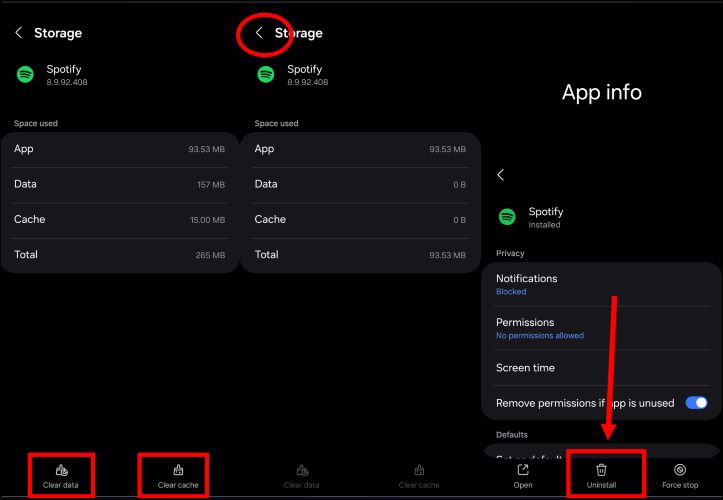
Step 1. Scroll down to Apps or Application Manager. From the app list, find Spotify and tap on it.
Step 2. Head to Storage and tap Clear Cache and Clear Data at the bottom. Go back to the App Info page and tap Uninstall.
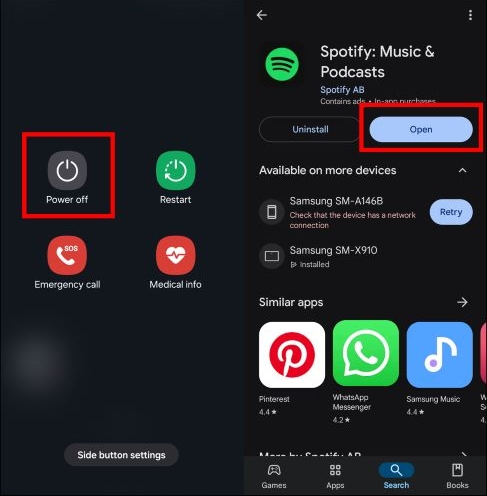
Step 3. Turn off your phone. Keep it powered off for 2–3 minutes. Then, restart your Android device. Go to Play Store and install Spotify again.
On Windows
Windows provides more flexibility than macOS when it comes to individual app volume controls. So, when you’re gaming or using other apps, you can manually adjust the Spotify’s app output and volume levels. For this:
- Play music on the Spotify app.
- Open the desired game.
- Right-click the Sound icon in the system tray.
- Select Open Volume Mixer.
- In the Apps section, locate Spotify and the game or media app.
- Ensure that Spotify’s output audio is optimized to your desired speakers. Plus, you can control the volume of both Spotify and the individual app you’re trying to run alongside it.

You May Also Need
Final Words
It doesn't matter what's happening on your screen: gaming, scrolling, or even watching a movie, now you can make sure that Spotify is playing in the background. On iPhone or Android, there are external players that can override system settings. Of course, you’ll just have to bring Spotify music outside its app. And for that, the best solution is MedVioo Audio Converter.
MedVioo lets you download high-quality Spotify songs in open formats like MP3 without the need of a Spotify Premium account. This makes your music remain truly yours, playing when, where, and how you want.