

Spotify has finally listened to years of user requests and introduced built-in profile switching — much like Netflix or YouTube. You can now add and switch between different Spotify accounts on the same device without logging out or entering your password every time. But there’s no reliable guide explaining how this works, even Spotify hasn’t covered it. So many users don’t know where to find this feature or how to use it. And there are plenty of doubts around it too — how many accounts you can add, whether you can switch between Premium and Free, and what happens to your downloads when you switch.
This guide has all the answers. We’ll show you how to add accounts on Spotify and how switching actually works across mobile and desktop.
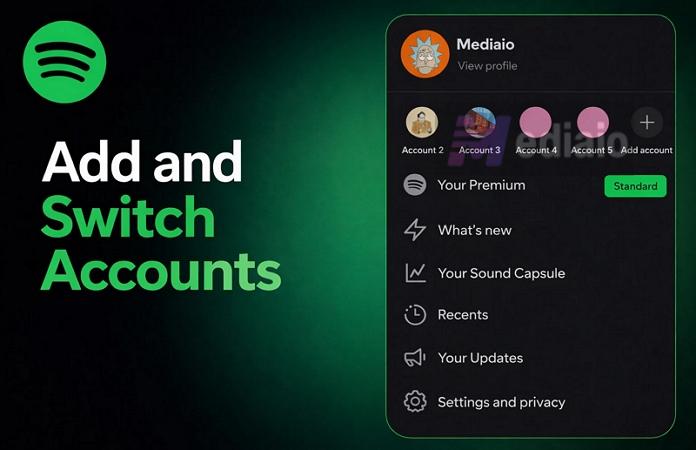
Can I Have Two Spotify Accounts on One Phone
Yes.
Spotify confirmed the built-in account switcher around April 2024. It first rolled out for Android phones and tablets. iOS got the feature added shortly after.
And importantly, nothing gets mixed. Both accounts will stay completely separate — your libraries, saved playlists, and even daily recommendations will remain untouched. So you can move between accounts freely, without worrying about messing up your listening history.
How to Add and Switch Accounts on Spotify on Phone Without Logging Out
Now let’s come to the actual part — how you can add an account and switch between them. The steps are pretty much the same for both iOS and Android users (on mobile).
The good thing is that it doesn’t matter if one account is Premium and the other is Free. You can use both on the same device without any problems. Even your data will stay separate. So your library, playlists, and personal recommendations will remain unaffected. So your overall experience will depend on the account you’re using.
Add Another Account
So here’s how you can add another account.
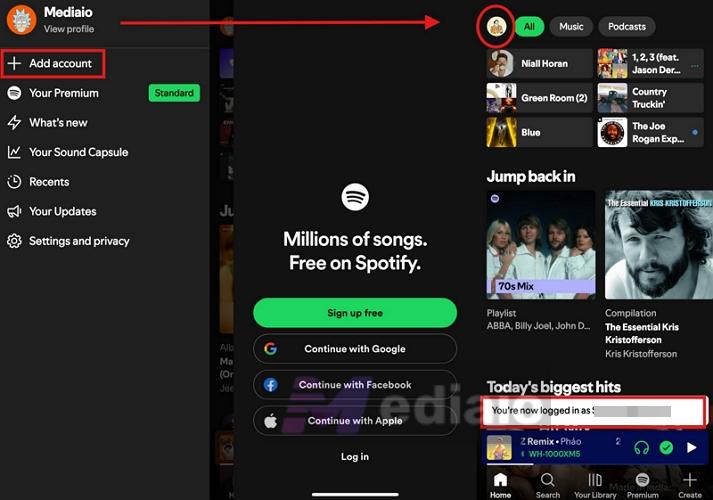
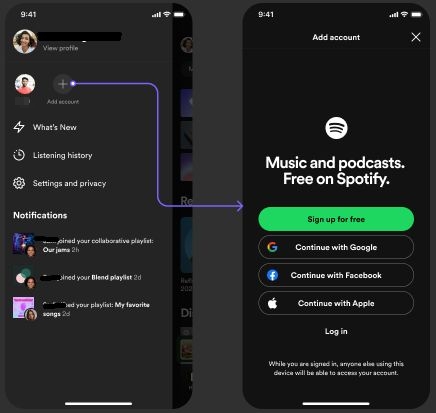
Step 1. Open Spotify. Head straight to your profile picture at the top left.
Step 2. Right there, you’ll notice the Add account option. Tap it once, and Spotify will move you to the Add account screen.
Step 3. You’ll find both Sign up and Log in there.
- Choose Sign up. This will let you create a new account if you don’t have one.
- Choose Log in to continue if you’ve an existing one.
You’ll find all the usual sign-up and login methods: email and password, phone number, Google, Apple, Facebook, etc.
Step 4. Once you’re done, Spotify will log you into the second account instantly.
Your previous account doesn’t go anywhere. It will stay saved, and you can switch anytime.
Our Trial Feedback
During testing, Spotify gave us the ads vs ad-free listening. You can download songs on your Premium account and then switch to your Free account to stream the music as usual. And once you switch back again to the Premium account, the downloads will be sitting there as they were.
Spotify even kept the Offline Backup (in the Premium profile) — the automatic playlist that Spotify downloads for you while allowing us to seamlessly switch between accounts.

We added six accounts on the same device and Spotify still showed the Add account option, which means you can likely add even more.
Switch Between Accounts
You will need an active internet connection to switch. It sounds obvious, but it’s an important detail to add. If your connection drops suddenly while you’re on the Free account, you won’t be able to switch accounts and access the downloads your Premium account has. That’s pretty much the only limitation we noticed. But as long as you’re online, Spotify has really made it seamless to switch between profiles.
Follow these steps:
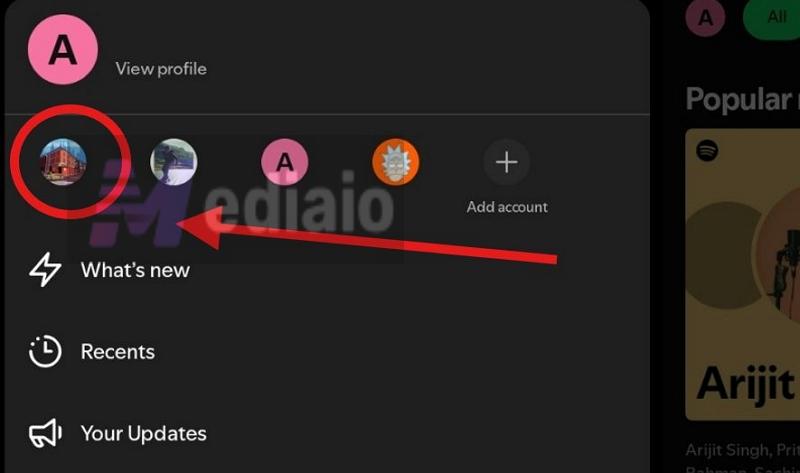
Step 1. Tap your profile picture again.
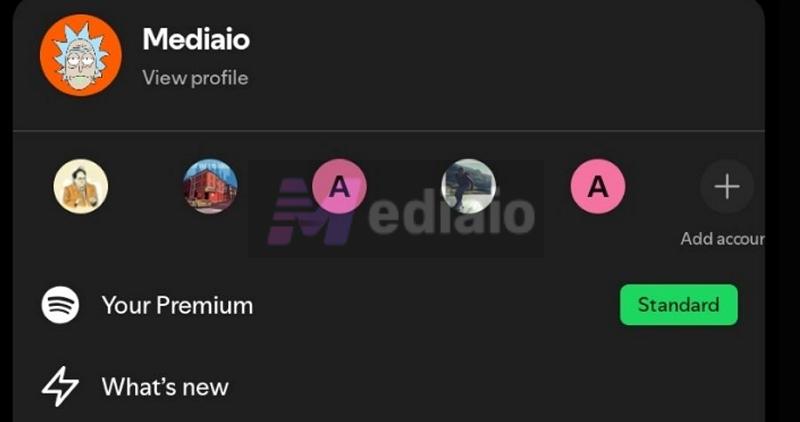
Step 2. This time, instead of just the Add account option, you’ll see your other account listed there, along with its username and display picture.
Step 3. Tap on that account picture and Spotify will switch to that account instantly.
You’ll see a small banner “You’re now logged in as [display name]” at the bottom, confirming the change. Your profile picture will update immediately, showing the account you’re logged into. Your experience (settings and recommendations) will continue depending on your account type (Free or Premium).
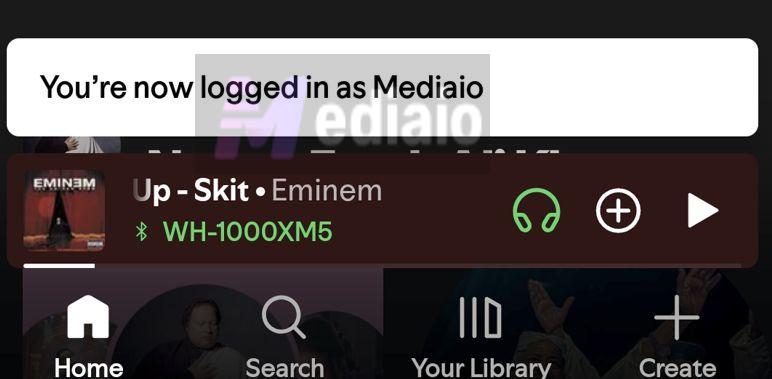
You can move between accounts anytime and even link more accounts by clicking on the + (Add Accounts) button. Each will still behave like a completely separate setup.
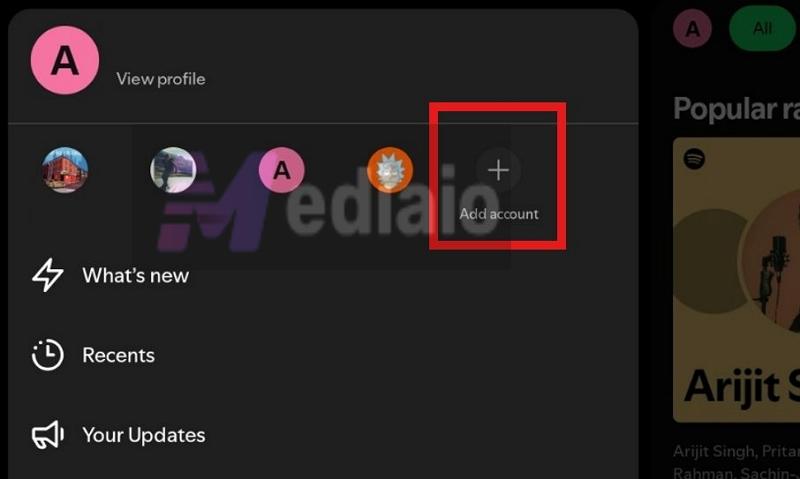
Remove an Account (Logging Out)
If you want to log out of an account, it follows the usual flow.
Step 1. Open your profile from the top left.
Step 2. Go into Settings and privacy.
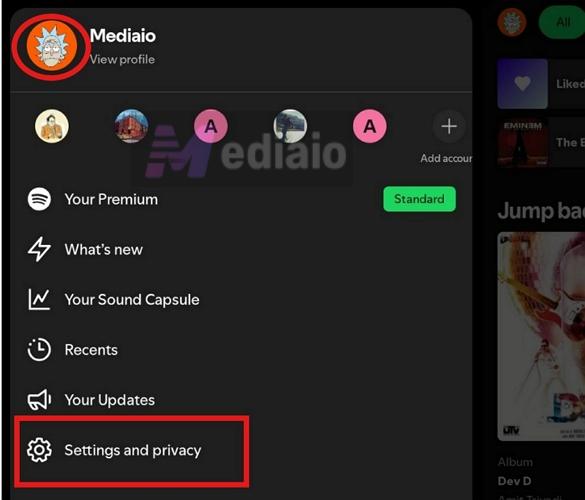
Step 3. Scroll all the way down and tap Log out.
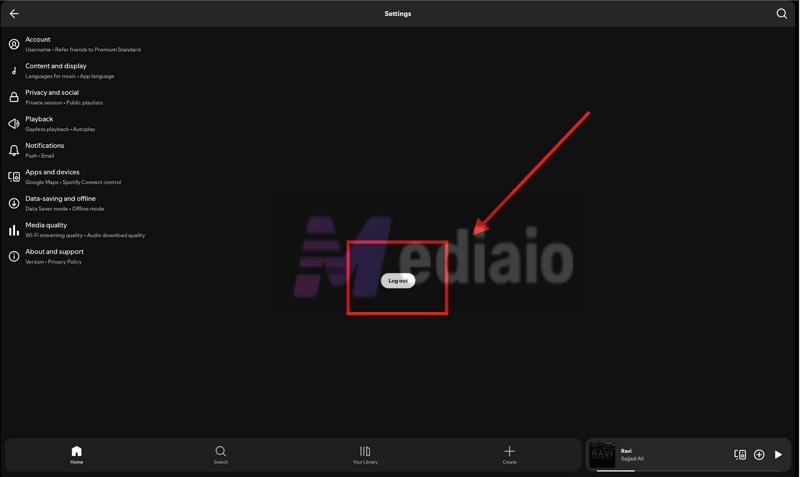
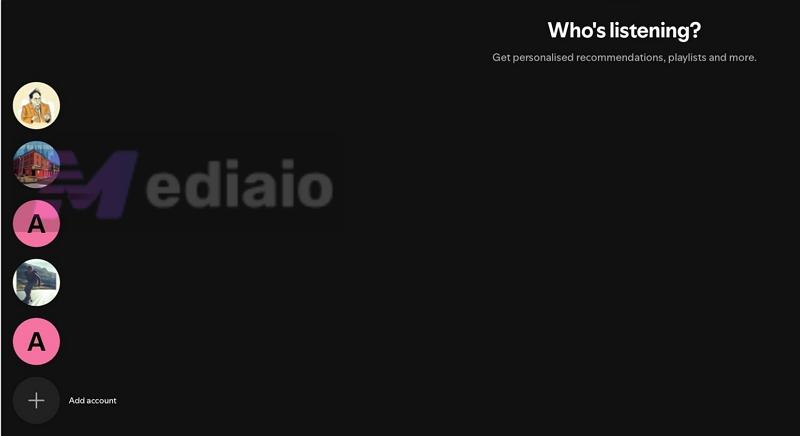
Spotify will take you to the “Who’s listening” screen. It will show you all signed-in profiles on the phone. From there, just tap any account to continue using the app.
How to Switch Accounts on Spotify on PC
Spotify hasn’t added the built-in profile switching option inside the desktop app. And this limitation applies to both Mac and Windows users. The feature was mainly pushed for mobile users, especially for people sharing devices with family or kids. So on desktop, Spotify hasn’t really prioritized it yet.
Still, that doesn’t mean you’re stuck. Here are a few practical workarounds to use multiple profiles on the computer.
Option 1: Use Desktop App + Web Player Together
This is the simplest option. It works well if you’re using the device yourself and just want quick access to two accounts, maybe for different listening setups, like one for casual use and another for workouts or speakers.
Here’s how the setup looks:
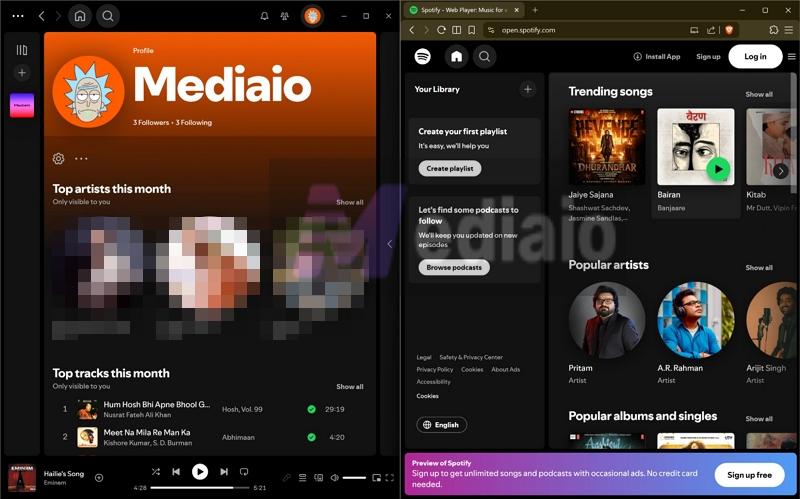
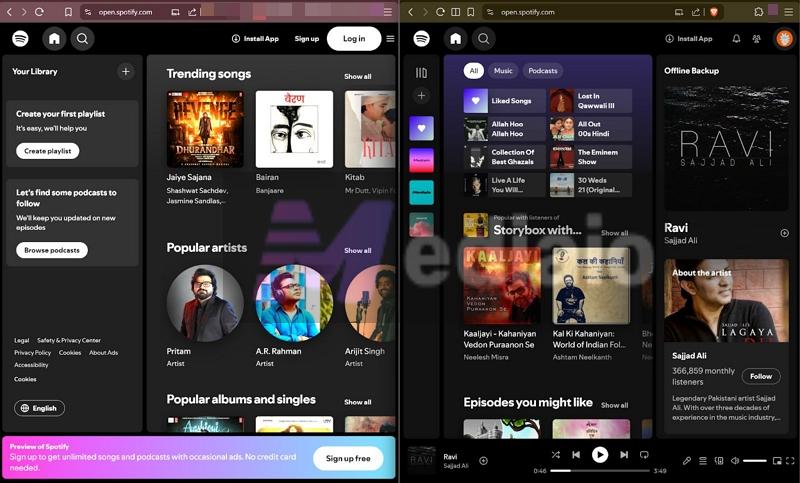
- You can keep Account A logged onto the Spotify desktop app. If you don’t have the app, install it from the Spotify download page. Windows users can even get it on the Microsoft Store.
- At the same time, open your browser and log in to the Spotify web player with Account B.
This will keep both Spotify accounts active. You can move between the desktop app and web player for each profile.
Just keep this in mind: downloads will only work on the desktop app (with Premium). The web player is limited to streaming, lower audio quality, and fewer features. So you can decide which account goes where, depending on what you need.
Option 2: Use Different Browser Profiles
All popular browsers — Chrome, Firefox, Edge, Brave, etc., let you create multiple profiles. Each profile acts like a completely separate environment. They maintain their own cookies, their own sessions, and don’t share any login data. So you can log in with different Spotify accounts on each profile.
Switching between them is just one click, almost like the Spotify mobile app, but here you’re switching browser profiles instead.
This also gives you a bit more flexibility. You can use one profile for work (with Spotify Account A) and another for something like gym or casual listening (with Account B). And you just move between them by switching profiles.
How to Switch Spotify Accounts on Desktop via Browser Profiles (Example: Chrome)
Step 1. Create a Profile:
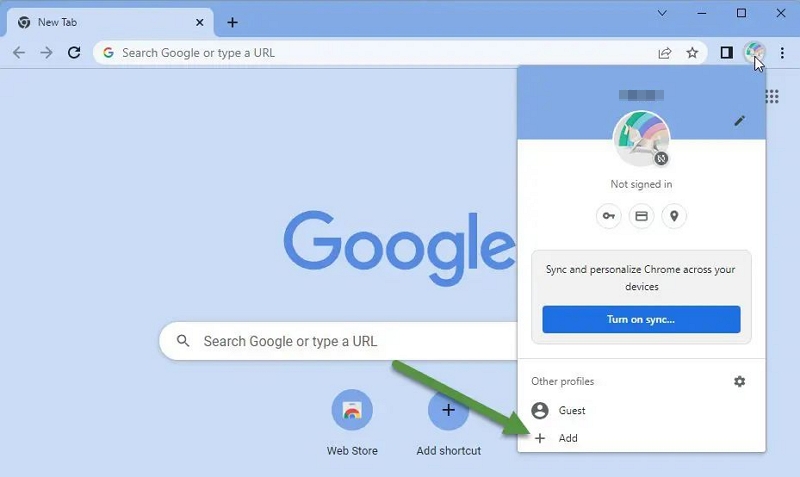
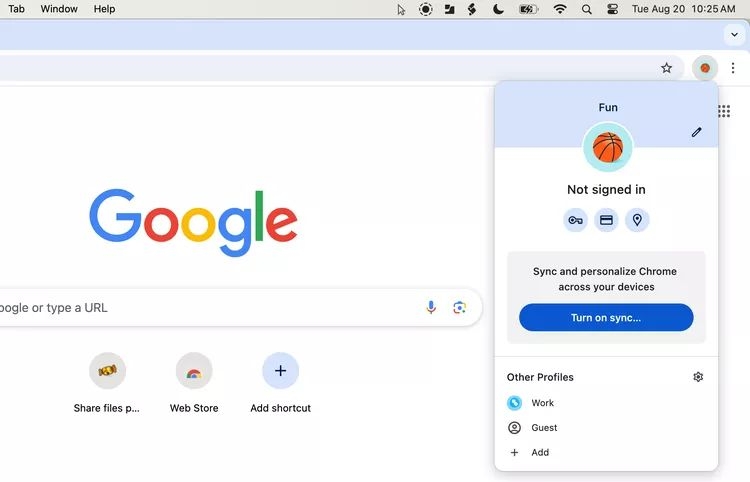
1. Look at the top right of your browser — right next to the address bar, you’ll see your profile icon. Click on that.
2. Click on the +Add option at the bottom of that card. Chrome will ask you to sign in with a Google account (optional).
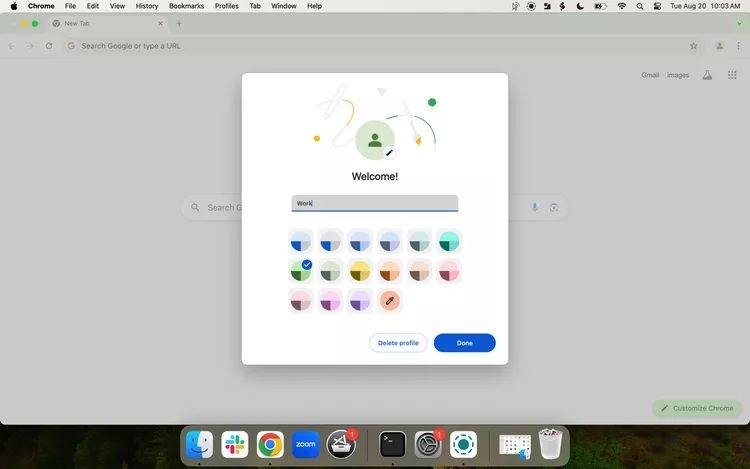
3. Give the profile a name, something like “Work” or “Account B” and finish setup.
4. Chrome will open a new window for that profile. Now just go to Spotify there and log in with your second account (Account B).
Step 2. Switch Between Profiles:
1. Tap the same profile icon near the address bar again. You’ll see a list of all your profiles.
2. Pick the one you want and Chrome will switch instantly to that profile window.
3. From there, you’re already in the environment where your Spotify Account B is logged in.
Option 3: Listen to Songs from Different Spotify Accounts via Local Folders
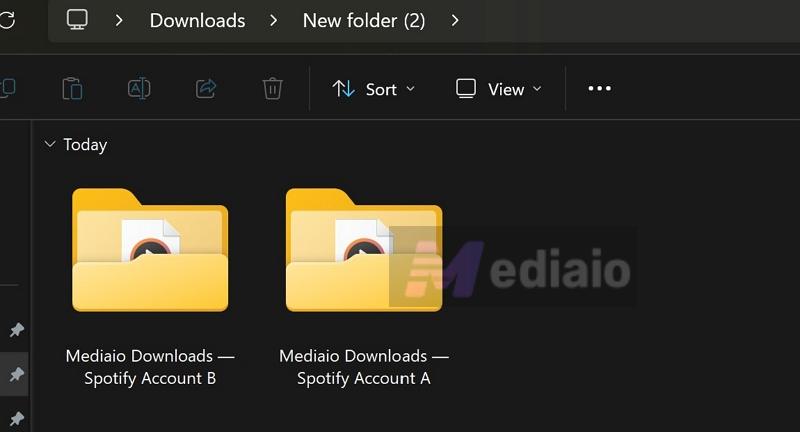
To use this way, you’ll have to use Mediaio Audio Converter for that. Mediaio lets you export Spotify music in MP3, M4A, WAV, FLAC, etc. So, you can store songs from different Spotify accounts in separate folders and play any folder depending on which account you want to use.
What makes Mediaio easier to use is that it comes with a built-in Spotify player. So you just sign in with your different accounts and your library will show up right there. You can start with Account A, pick what you need — playlists, albums, even audiobooks and export them on your computer. Then sign in to Account B and do the same. It lets you assign a different output folder each time, so it’s easy to keep everything neatly separated.
These exported tracks will behave like regular offline music files. You can open the folder and play it using any media player of your choice without internet or ads.
Option 4: Create Separate OS User Accounts
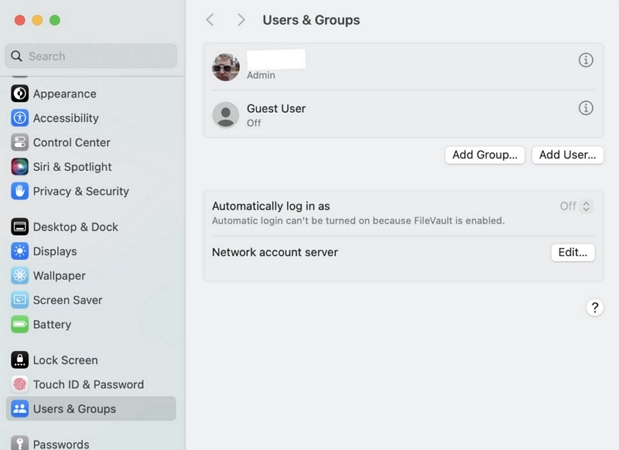
Another option is to create separate OS-level profiles. Both Windows and macOS allow you to do this. They let you set up complete separate user profiles on the same computer. Each profile’s experience will stay isolated: independent Spotify apps, login sessions, downloads and overall environment.
So each member in your group can have their own setup: install Spotify independently and log in with their own account. All you have to do is create separate user profiles on your system.
Bonus: How to Switch Between Accounts on Spotify Family Plan
Many people have this confusion. But Spotify Premium Family actually offers six different independent accounts but not a single account with six profiles. The Family plan is simply a billing umbrella. Each of the six members in your family will have their independent Spotify accounts with their own email address, password, and personalized recommendations.
If you want to use multiple accounts on the same device, for example, if you’re sharing your phone with your kids, you can use the same Add account method explained earlier. On a computer, you can rely on workarounds like browser profiles or tools like Mediaio Audio Converter, depending on how you prefer to manage it.
To Sum Up
So that’s how to add all your accounts on Android and iOS and switch between them easily without logging in again and again.
On the desktop, there’s no direct switching yet. Using Mediaio Audio Converter is often the simpler route. You can save songs from different accounts into separate folders and just play what you need, when you need it. This becomes useful in real situations, like backing up playlists from your old account, etc.