

There are several ways to listen to Spotify music together on Discord with friends. Discord has an official feature for this and we’ll start there. Note that the inbuilt option comes with strict rules. So we’ll also show you better ways to play Spotify on Discord. This gives you real control over how your group listens. With these alternatives, you can keep the music going inside a voice channel on both mobile and computer and all members in the channel don’t need to have Premium.
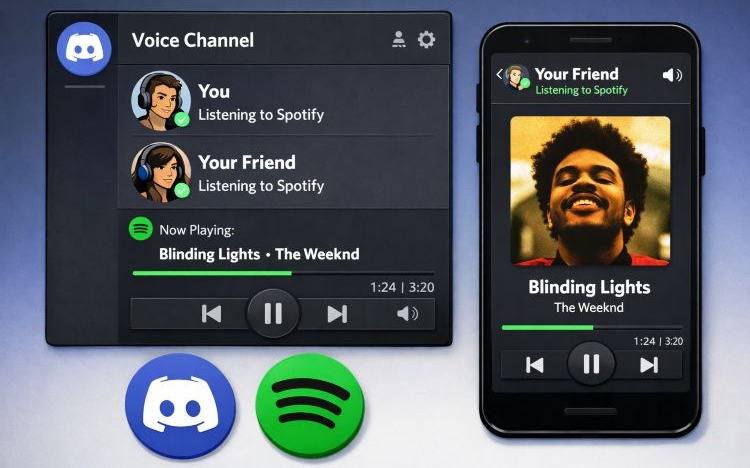
How to Play Spotify Together on Discord via “Listen Along” Feature
Discord’s built-in Spotify integration is mainly suitable for personal listening. You can link your Spotify account (free or Premium) to display what you’re playing as a live status on Discord.

Your profile will also display a Listening to Spotify activity with the current track, artists, and album. This activity is also visible alongside your name in the member list and chat sidebar, so friends can see what you’re playing.
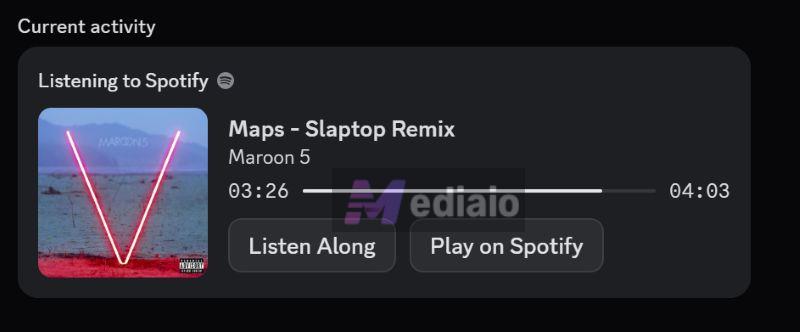
At the same time, Discord offers a Listen Along feature. This lets you join a friend’s session and hear the same song at the same moment. The music will still play on each person’s own device, but the playback will be synced.
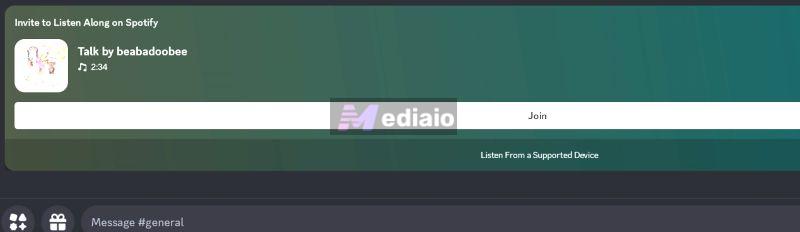
However, the Listen Along feature comes with a few strict rules. This section will explain everything, from what you need to how to set it up.
Preps: What You Need Before Starting
- Listening together won’t start until everyone links their Spotify account to Discord. That connection comes first.
- The person playing music (the “host”) doesn’t strictly need Premium, but the Listen Along feature requires Premium for listeners.
- You can only send the invitation from the Discord web.
- Everyone must have Spotify installed or accessible (app or web player).
- This works best in text channels, not while voice calling.
Steps to Play Spotify on Discord with Friends
Let’s break this down step by step. First, we’ll show you how to set up the Spotify–Discord connection that everyone needs. After that, we’ll move on to how you can start or join a Listen Along session.
Step 1. Connect Spotify to Discord
Anyone who wants to listen along to the Spotify playback needs to complete these steps first. You can share this guide on your server so everyone can follow it easily.
The steps are the same whether you’re on the Discord app on Windows or Mac. Android and iPhone users can follow along too.
1. Open Discord. Then tap the settings icon next to your username.
2. Inside settings, move into Connections.
3. Under Add accounts to your profile, choose the Spotify icon.
4. A browser window will open. Sign in if needed. Then confirm the connection.
5. Once done, your Spotify account will appear under Connections.
That’s it.
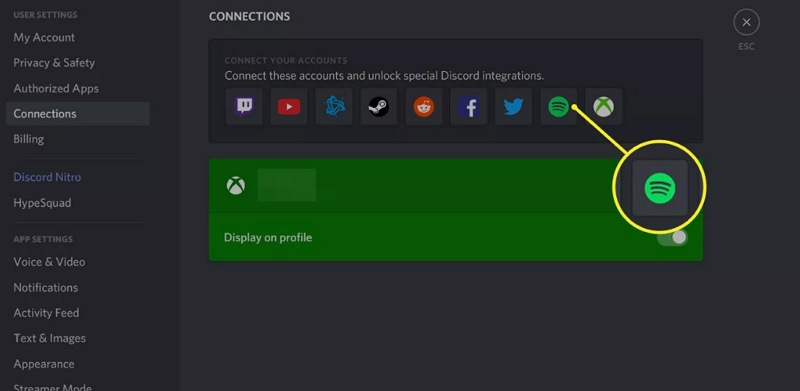
Failed to Connect Spotify to Discord?
Many users fail to link Discord with Spotify. Most of the time, the cause is something minor. Go through these settings to fix it quickly:
Fix 1. Reconnect the account
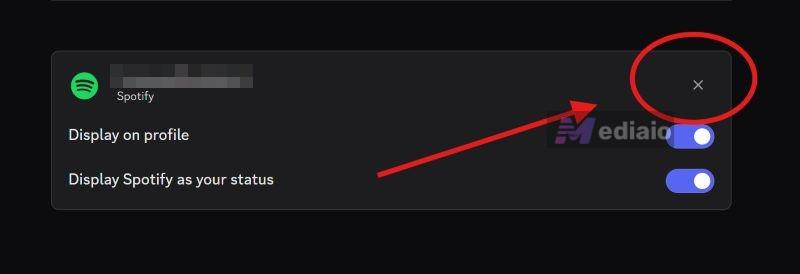
Go back to Connections. Click the X next to Spotify. Then link Spotify again.
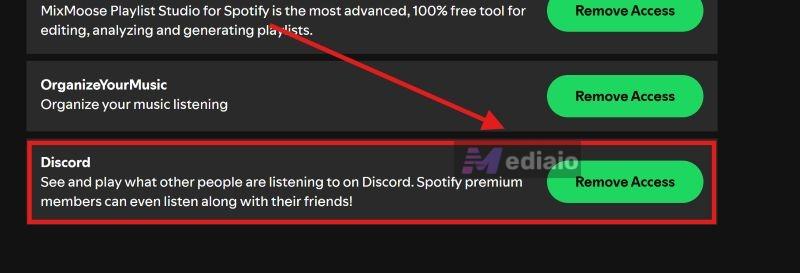
If that doesn’t work, go to Accounts > Manage Apps section inside Spotify. You can disconnect Discord from there. Then, start a new connection via the above steps (inside Discord).
Fix 2. Check status toggles
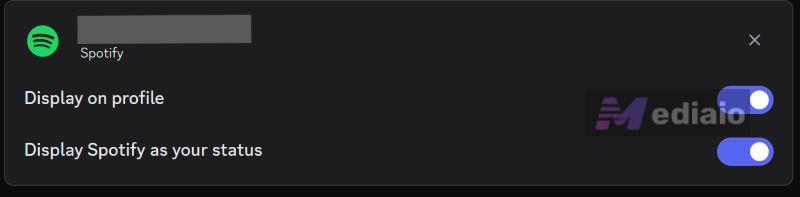
Go back to the Connections menu inside Discord. Ensure Display on profile and Display Spotify as your status are turned on.
Fix 3. Clear app cache
You can clear the Discord app cache like this.
Android:
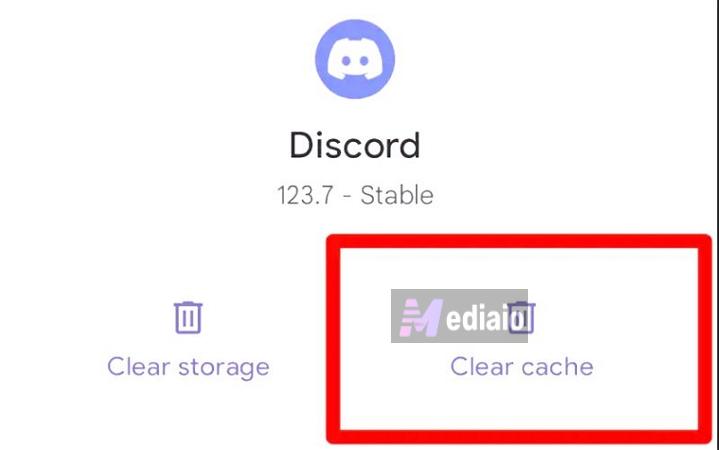
- Open Settings > Apps > Discord > Storage.
- Tap Clear Cache.
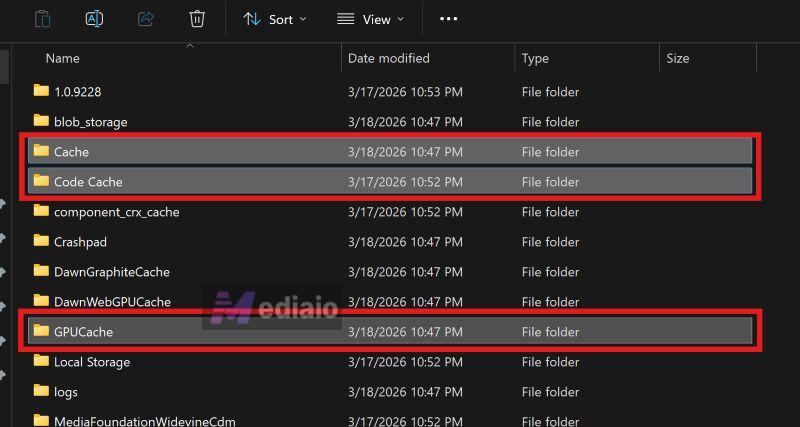
Windows:
- Press Win+R.
- Type %appdata%. Press Enter.
- Locate the Discord folder. Delete the Cache, Code Cache, and GPUCache folders.
Mac:
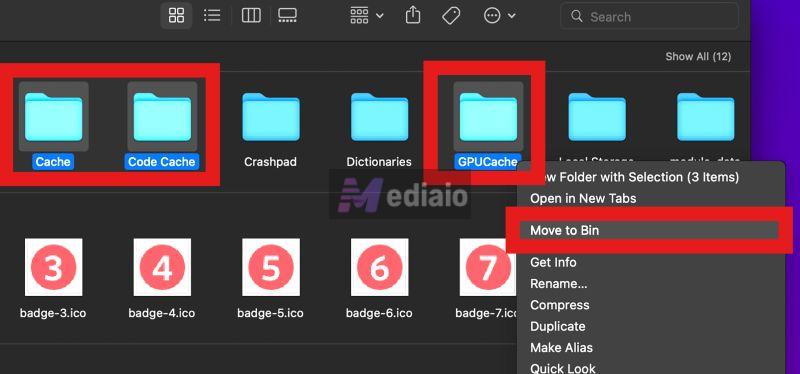
- Open Finder. Press Command + Shift + G.
- Paste ~/Library/Application Support/Discord. Hit Enter.
- Delete the Cache, Code Cache, and GPUCache folders.
Step 2. Listen to Spotify Together in Discord Using Listen Along
When everyone has finished linking their account, anyone can host a session. Here’s what to do:
1. Play a song on Spotify.
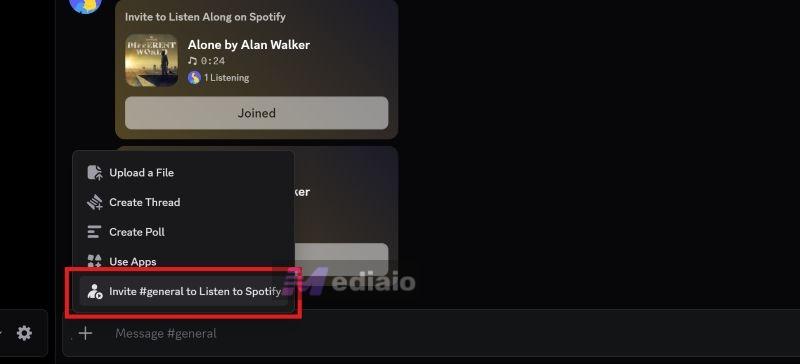
2. In a Discord text channel, tap the + icon near the message box.
3. Choose Invite #channel to Listen to Spotify option.
Note: You cannot send invites from the Discord mobile app.
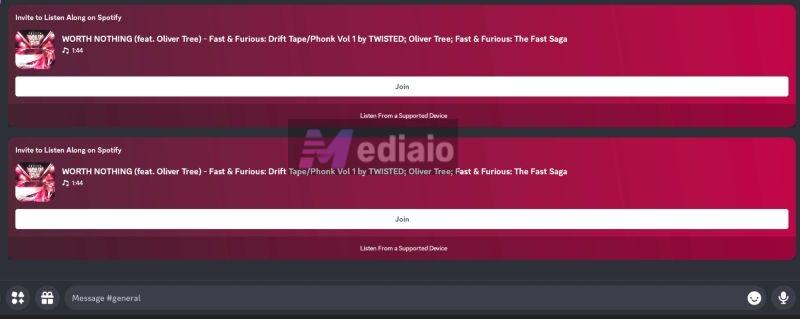
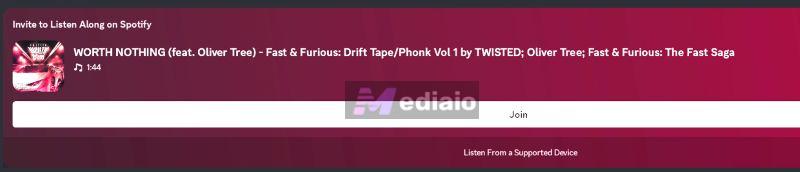
4. Others will see a card with a Join button, even if they’re on the mobile app.
5. Tap Join. And Spotify will open on their device and sync instantly.
There’s another way to do the same, useful when you want to play along with a single friend. For this:
- Open your friend’s profile on Discord web or desktop app.
- Under Activity, you’ll see the Listening to Spotify card. Tap Listen Along. It will open Spotify on your device and sync playback with them.
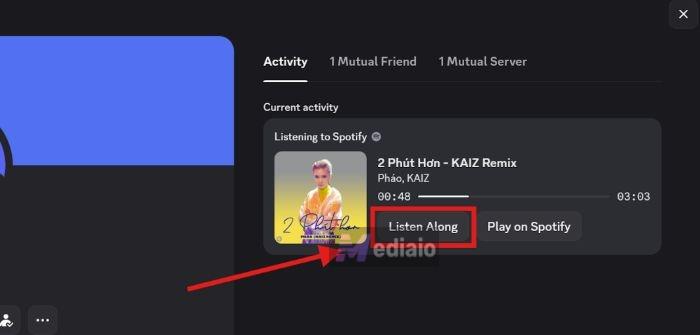
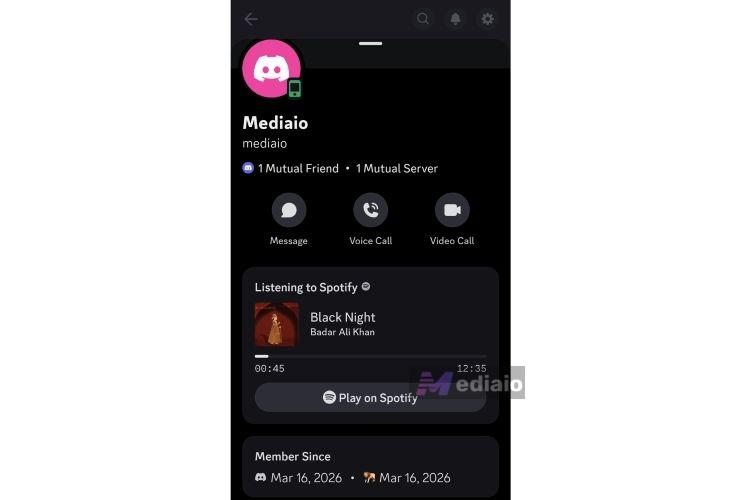
Note: You won’t find the Listen Along option on Discord mobile app when viewing someone’s activity. You’ll only see the Play on Spotify option.
Listen Along: Know It Better
This does not play music inside Discord. Each person’s own Spotify app plays the song. Discord just keeps everyone synced. That’s why the audio quality stays high. Also, here are some things you should know:
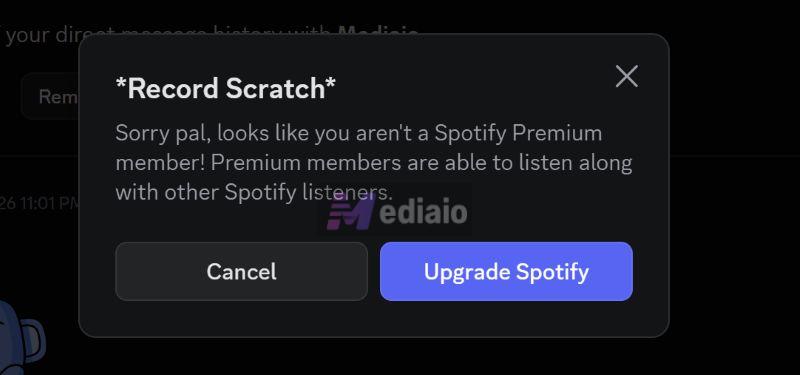
1. To actually listen to the Invite, you must have Spotify Premium. Without Premium, tapping Listen Along will show an upgrade message instead of playing the song.
2. If the host is on a free plan and gets ads, others will experience silence during that time.
- Only the person who started the session can control the queue.
- When they pause, everyone pauses.
- When they skip, everyone skips.
- Trying to skip on your own will break the sync. You will have to rejoin.
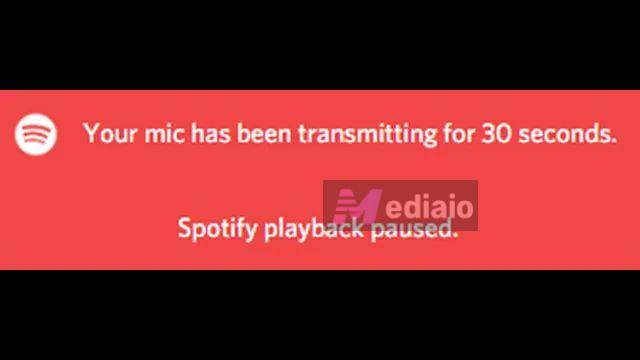
3. Listen Along is designed for when you’re text chatting. If you start or accept a Voice call, playback will pause after around 30 seconds. Some users recommend enabling the Push-to-Talk feature inside Discord, but even after that, you can still see the same pop-up as follows.
How to Play Spotify Together on Discord with Discord Bot
The Listen Along feature works well, but only when everything lines up: everyone in the group has Premium, no one joins a voice call, and you are okay with limited control.
But if you are trying to listen inside a voice channel where people can talk, laugh, or game over the music without it pausing, and without requiring everyone to have Premium, then Discord bots make far more sense. They solve a completely different problem. Instead of syncing individual Spotify apps, a bot brings the music directly into your Discord server. Everyone hears the same audio in the same place, without depending on Spotify’s rules.
There are two types of Discord bots you can use here. The first type can read Spotify playlist links. You just paste the link, and the bot plays the tracks, but the audio comes from sources like YouTube. The second type is a high-quality setup. It lets you play the actual Spotify audio, but you’ll first need to convert the tracks into local formats like MP3 using Mediaio Audio Converter. Let’s look at both methods in detail.
Method 1. Play Actual Spotify Audio Using mp3-BOT (High-Quality Setup)
Some of you will want to play the exact Spotify track in a Discord voice channel. To do this, you can save the Spotify songs as MP3 or M4A files (local formats) and then play them through mp3-BOT.
The advantage is clear. The Discord bot will play the actual Spotify song but not a different version that only sounds similar. The audio quality will stay the same as Spotify. Moreover, there is no need for Premium and you avoid ads. Here is how it works.
Step 1. Convert Spotify Songs to MP3 or M4A
Mediaio Audio Converter allows you to do this. It is an advanced tool that can save any Spotify playlist as local MP3 or M4A files, or even higher formats like FLAC and WAV. Mediaio also makes the conversion process effortless. You can install it on your Windows or Mac computer. Then, sign in through the built-in Spotify web player and save any playlists with a click. Once the Spotify tracks are saved as local formats, you can play as local playback inside a Discord voice channel, like a private study session or a personal gaming group.
Step 2. Upload Local Spotify Music to mp3-BOT and Play Them in Your Voice Channel
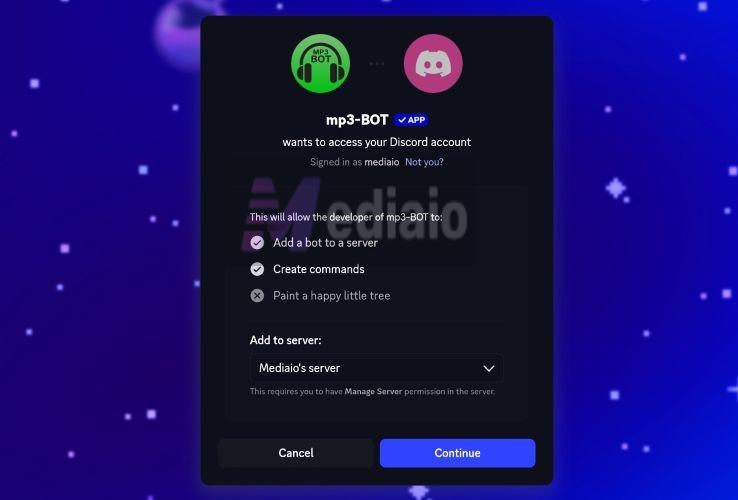
- Visit mp3-bot.net. Use the Add to Server option. This will open the Discord linking window.
- From the server list, choose your server and continue with the setup. Keep the default permissions enabled.
- Return to your Discord server. Enter any voice channel where you want playback.
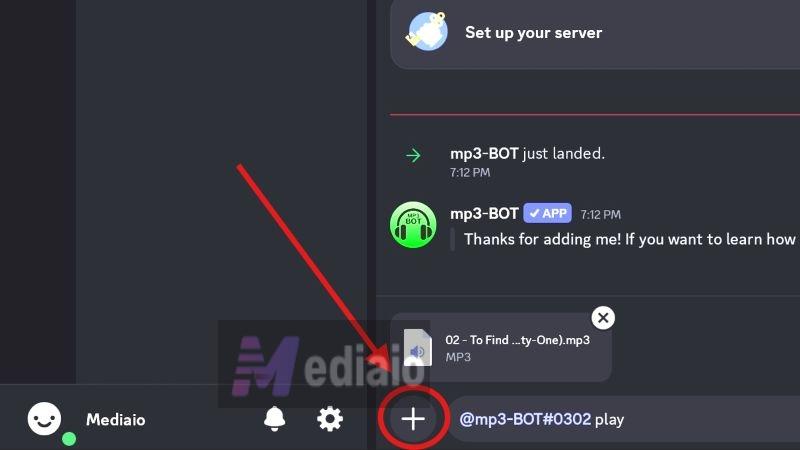
- Open the chat linked to that voice channel. Use the + button beside the message box.
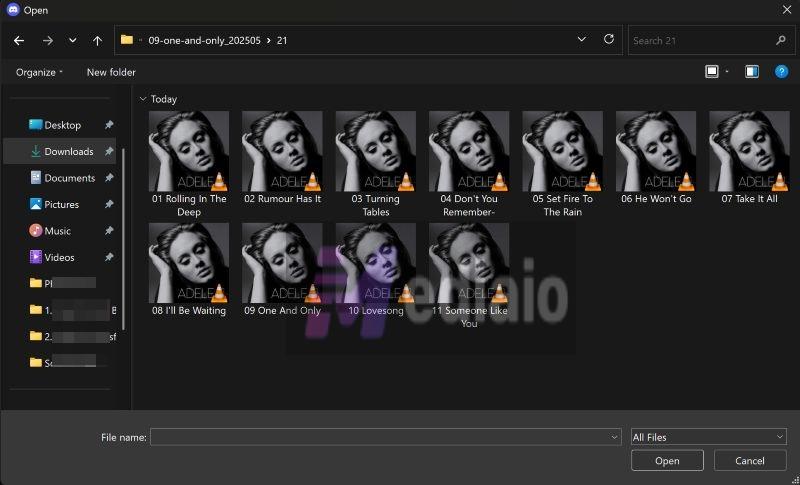
- Attach the MP3 file you converted with Mediaio.
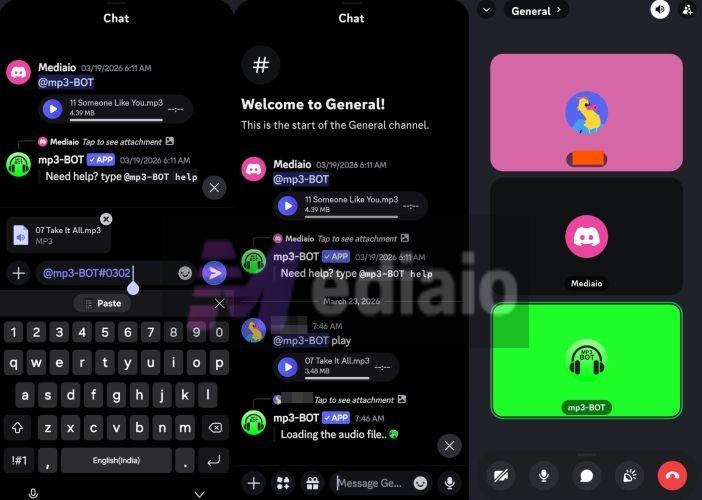
- In the same message, type @mp3-BOT play next to the file. Send it.
- The bot will queue the track, join your voice channel, and start playing it immediately in high quality (for personal use).
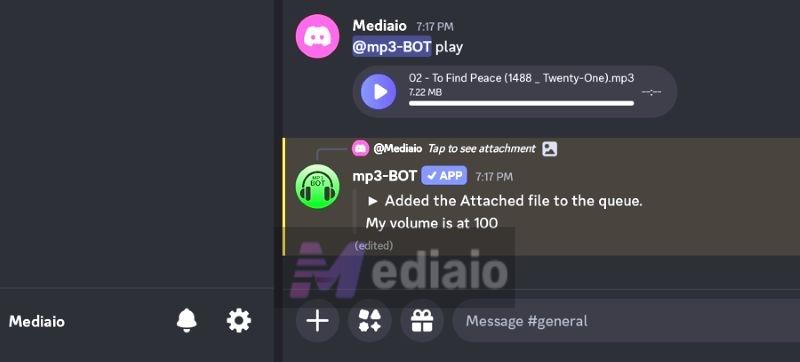
Note: You can also transfer the Mediaio-converted songs to your phone and ask mp3-Bot to play them from the Discord mobile app. The steps stay the same.
Method 2. Use a Bot That Reads Spotify Playlist Links (YouTube Playback)
The second option is to use a Discord bot that can read Spotify playlists directly. The process is simple: you can copy any Spotify playlist link, paste it into Discord, and ask the bot to play it. The problem, however, is that they play music from other sources like YouTube by matching metadata. This is due to Spotify’s strict terms.
If you’re comfortable with this setup, you can go with options like Jockie Music. It is well-optimized for handling Spotify playlists and can even process large ones—up to 10,000 songs. However, since it works on metadata matching, it isn’t always accurate. Another limitation comes with the free version of Jockie Music, where the audio quality is lower. If you go for the premium upgrade (via Patreon), it improves sound quality and adds a few additional controls.
That said, let’s see the exact steps to set up Jockie Music and play Spotify links with it. The process stays the same whether you’re on mobile or the web. You can add and connect the bot, control it, and start playback from either platform.
Step 1. Add Jockie Music to Discord
1. Open your browser and go to the official Jockie Music site.
2. Click Invite. You’ll see multiple bot variants (usually color-coded like green, red, blue, orange). These are meant to run music in different voice channels, so you can pick any one.
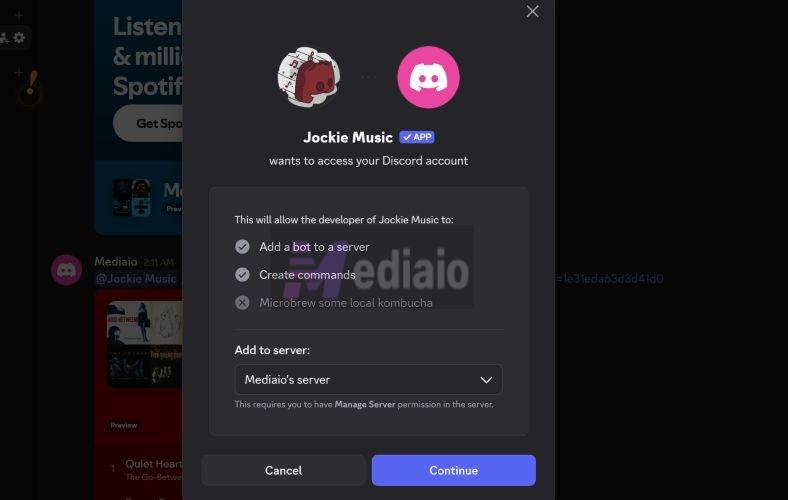
3. Pick one and choose your server from the list.

4. Continue with the default permissions. These allow the bot to join voice channels and play audio.
5. Complete the CAPTCHA and finish authorization. Once done, the bot will appear in your server.
Step 2. Play Spotify Playlists on Discord with Jockie Music
1. Join a voice channel first. The bot plays audio there but not in text chat.
2. Move to a text channel where the bot is active.
3. Type the command: m!play [paste your Spotify playlist link].

4. Send the message and ignore the Spotify preview card Discord shows.
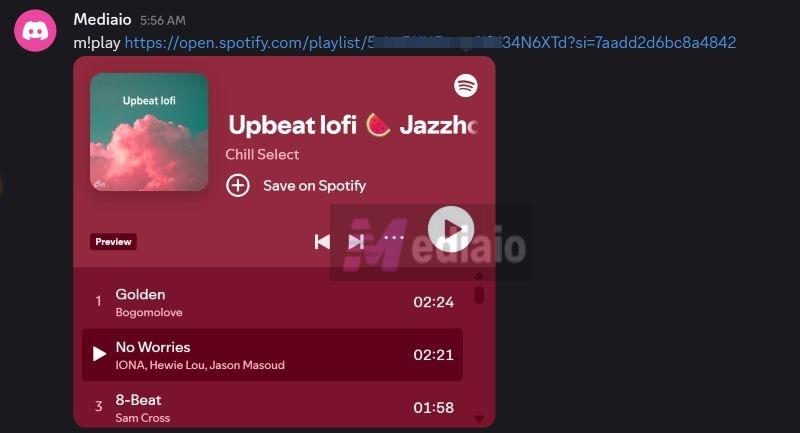
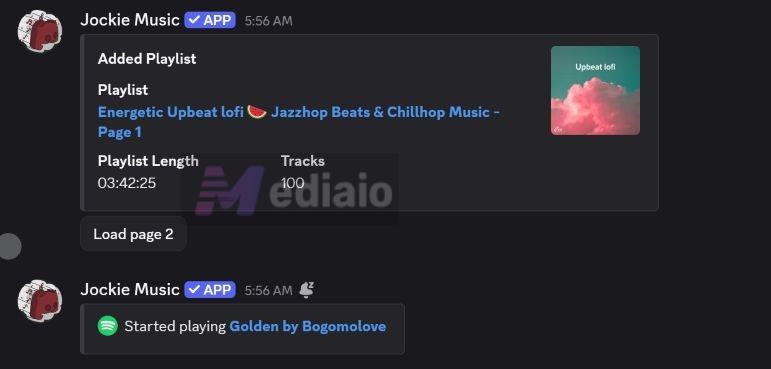
5. The bot will respond and start playing the tracks.
That’s it. Everyone in that channel will hear the same audio together.
To Sum Up
So now you know how to play Spotify on Discord. You can choose the method that fits how your group likes to hang out.
For chatting—when everyone has Premium and prefers text conversations, the native Listen Along is good enough.
For voice channels—when your group likes to talk, laugh, and game while music plays, Discord bots make more sense. Jockie Music works if you are fine with streams coming from YouTube.
If you want actual Spotify audio without ads, go with an MP3-based bot. To make that setup work, you can use Mediaio Audio Converter to convert your Spotify songs into local formats and play them without interruptions.