

Google Drive is a great file storage app, but it’s not a good music player. There is no proper queue, no continuous playback, and no real way to handle your music as albums or playlists. To get a true music app experience in Google Drive, you need the right setup. And that is exactly what this guide covers. We will show you how to play Google Drive music files on Android using methods that actually work. So, you can listen to full albums, build playlists, shuffle your entire library, and even use features like equalizers. And along the way, we will also cover tips to grow your Google Drive music collection easily.
How to Play Single Google Drive Music File on Android
Google Drive comes with its own built-in preview player. By design, it can play single audio tracks the moment you tap on them.
However, there are two things to keep in mind here. It only supports a limited set of audio formats, and this behavior stays consistent only when you are using the official Google Drive app but not through your Android file manager or any linked “Files” app view.
Coming to the preview itself, it keeps things minimal. But it still gives you enough control for quick listening. You will also see the album art fill the screen if available, and the playback will continue even in the background or when you lock your screen.
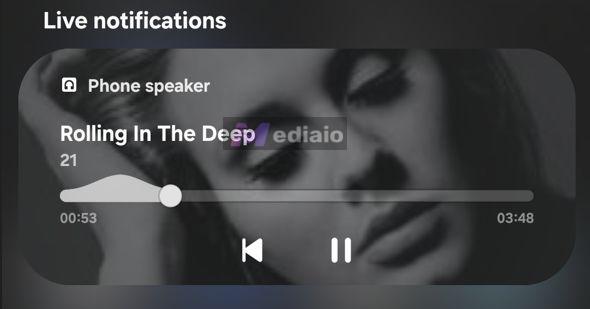
That smooth experience, however, depends on format support. If the file is not supported, Drive will refuse to play it. It will show a “File not supported” message along with an “Open with” option. Clicking that will allow you to hand over the playback to a supported app on your Android phone.

Steps to Play Google Drive Music File on Android with Inbuilt Preview Player
Step 1. Open the Google Drive app. Navigate to the music folder.
Step 2. Tap on the audio file. It will open instantly in the preview player if it’s in a supported format.
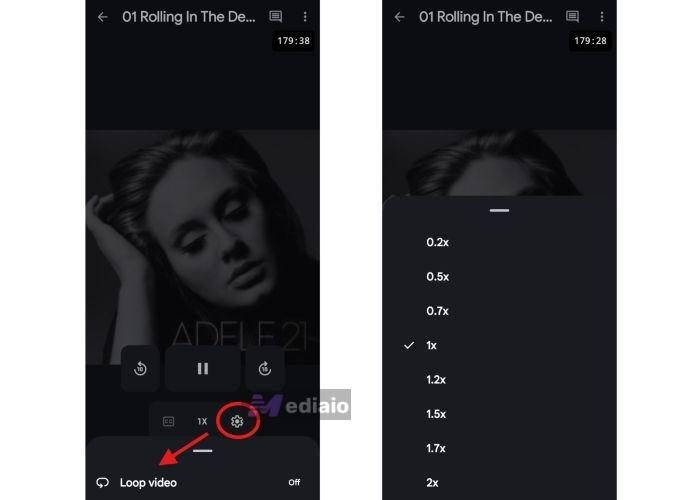
Step 3. Use the on-screen controls to manage playback. The preview player also gives you a few useful controls:
- Settings toggle > Loop to repeat the same track.
- Skip forward/backward (10 seconds).
- Playback speed (0.25x to 2x).
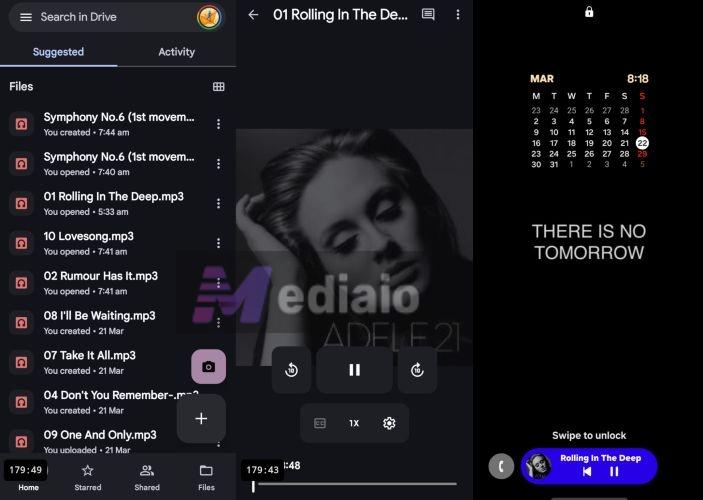
- Background playback continues even when you lock your phone.
You can lock your screen and the music will keep playing.
There is another way this plays out.
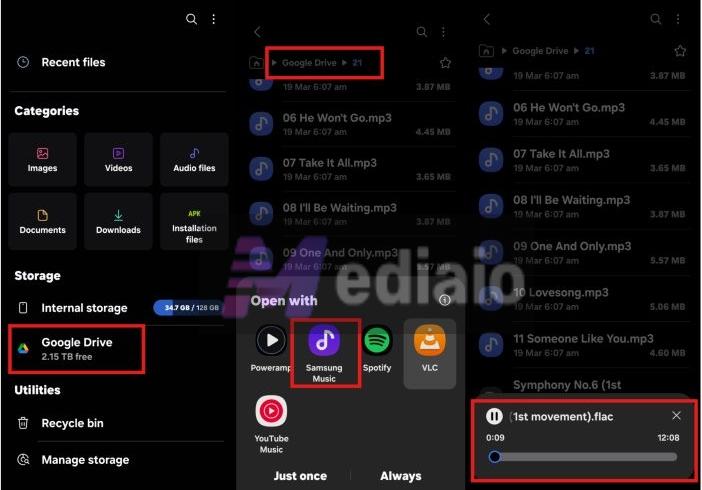
When you access Google Drive files through your phone’s Files app, or use the “Open with” option inside Drive, the playback will be handed over to your phone’s native music player or any app you choose. At that point, Drive will act more like storage. And your device will create a temporary local copy and play it through its own system.
Here’s how playback is handled across different Android devices when you go this route:
 Samsung Music/media handler
Creates a temporary cached file before playback
Full controls (EQ, SoundAlive, scrubber)
Metadata often missing in this mode
Stops unless loop enabled
✓
Samsung Music/media handler
Creates a temporary cached file before playback
Full controls (EQ, SoundAlive, scrubber)
Metadata often missing in this mode
Stops unless loop enabled
✓
 Files by Google (Media Viewer)
Streams via temporary file handling
Basic play/pause + seek bar
Shows basic metadata
Stops after playback
✓
Files by Google (Media Viewer)
Streams via temporary file handling
Basic play/pause + seek bar
Shows basic metadata
Stops after playback
✓
 Mi Music
Loads a cached version first
Standard controls (play, pause and seek)
Metadata not properly loaded unless downloaded
Can loop, no queue
✓
Mi Music
Loads a cached version first
Standard controls (play, pause and seek)
Metadata not properly loaded unless downloaded
Can loop, no queue
✓
 Native Music app (OxygenOS/ColorOS)
Uses temporary local copy
Standard controls + notification widget
Limited metadata
Stops unless loop enabled
✓
Native Music app (OxygenOS/ColorOS)
Uses temporary local copy
Standard controls + notification widget
Limited metadata
Stops unless loop enabled
✓
Steps to Play Google Drive Music File on Android with System-integrated Player
Step 1. Head to your audio file inside Google Drive and then bring up the options menu (three dots).
Step 2. Look for “Open with” — this appears when Drive cannot fully handle playback or when you choose to switch.
Step 3. Pick your preferred player: Samsung Music, VLC, etc.
Step 4. The file is passed to that app, and your phone will create a temporary local copy and start the playback.
This way, the audio will follow your phone’s sound settings, so any equalizer tweaks, sound effects, or enhancements will take effect.
Tip: How to Save Streaming Music Locally
Growing an offline music library is simple when you use Mediaio Audio Converter.
This all-in-one audio suite lets you save songs from Spotify, Apple Music, YouTube Music, Deezer, Pandora, and more. It directly connects with these services. So whether you want to pull music from Spotify or YouTube Music, you can sign in with your account inside Mediaio’s interface itself. And your entire library will become accessible there. Then, you can pick any song, album or playlist and save it in local formats like MP3, M4A, WAV, FLAC, or ALAC. You can play them in any music player you prefer, upload them to Google Drive, or move them across devices without restrictions, all for personal use.
Another advantage of Mediaio is that there’s no cap on how many songs you can convert. And the audio quality holds up well. Whether you are saving standard MP3 files or going for lossless formats, the output quality will stay true to the original source, up to 320kbps.
How to Continuously Play Google Drive Music Files on Android
That’s the harsh reality of Google Drive. It will simply refuse to queue up your music. And it does not matter if your songs are neatly arranged in folders or albums.
For continuous playback, you can go with these two options. Download your files and use a local music player. Or rely on a cloud music player that connects directly to your Drive. Here is a quick breakdown of both. You can choose one without overthinking:
 Exact original quality.
No compression. MP3, FLAC, WAV, M4A, OGG and ALAC Mostly free.
Some apps like Poweramp require a small one-time payment. Reliable offline playback.
No buffering.
Full EQ and advanced controls.
No API restrictions. Uses phone storage.
Requires manual downloads.
No cloud sync.
 High-quality streaming.
 Can handle lossless audio depending on the app. Common formats are usually supported, like MP3, FLAC, AAC and WAV. Free basic plan.
Premium for full access. No storage usage.
Queue and playlist support.
Clean library view.
Works like a streaming app. Needs stable internet.
Buffering can happen.
Third-party apps can break with API changes.
Way 1. Play with Local Media Player
Going with a local media player comes with its own advantages. For one, you can play your music completely off the grid. So you do not have to worry about buffering when your internet is weak.
But downloading the music comes with a trade-off—it takes up your phone’s storage. Still, this is not a big issue when your files are in MP3 or M4A. Most songs in these formats stay around 3 to 8 MB, so saving multiple albums is manageable. However, things change when the files stored in Drive are in FLAC or WAV. Here, a single track can go up to 30–40 MB. So downloading multiple albums in this format will require noticeable space.
That said, if storage is not a concern, this method becomes very convenient because you get to choose how you want to play your music. You can go with any player. VLC media player is the gold standard here: it is free, open-source, and runs without ads. And if you want something more refined for high-resolution audio, you can go with Poweramp, though it does require a one-time payment.
How to Play Google Drive Music Files as a Playlist on Android
Step 1. Keep Google Drive and VLC ready on your phone.
Step 2. Head to your music folder in Drive and hold on a track to start selection.
Step 3. Pick multiple songs or use Select All if needed. Then hit the three-dot menu > Download.
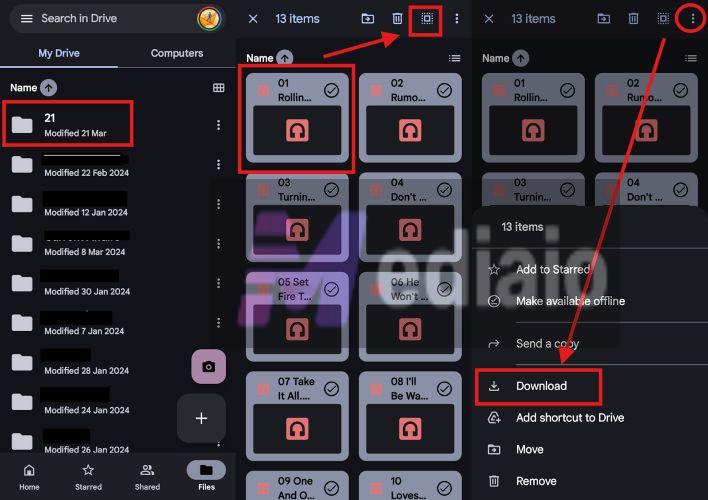
Step 4. Let the files finish downloading—you will see them saved locally.
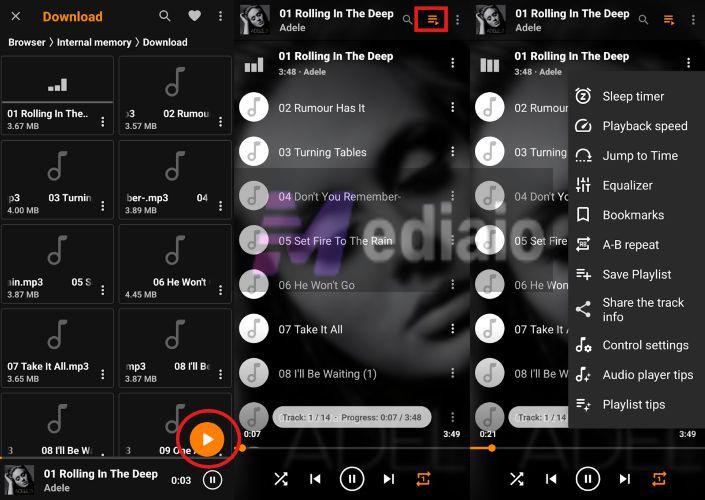
Step 5. Open VLC, allow storage access once, and your songs will appear automatically.
Step 6. Tap any track and it will continue playing the rest as a queue. You can use advanced controls like EQ, sleep timer, or any tweaks you prefer.
Way 2. Use Cloud Music Player
Cloud music players are a lifesaver when your Google Drive music library is massive—think 100 GB, 200 GB, even 500+ GB. They give you easy access to the music without filling up your phone’s storage.
What these tools do is straightforward. They connect securely to your Google Drive through APIs, scan your folders, and rebuild your library inside a proper music interface. So instead of dealing with files, you will see the music organized as albums, tracks, and playlists. Yes, it will feel like a real music app. Songs will play continuously, queues actually work, and you can listen to playlists easily. There is a catch, though. You are streaming everything from the cloud, so a stable internet connection is necessary. Still, the music will play without ads or interruptions.
It is also important to note that not every app that claims “Google Drive support” actually works reliably. Google updates its security rules often, and many apps, like CloudPlayer by doubleTwist, lose access over time.
So, it is important to choose a player that still works with Google Drive in 2026 and is actively maintained. Here are four of the best music players for Google Drive:
MP3, FLAC, WAV, AAC, ALAC, AIFF, WMA and more
High. Lossless supported (depends on file)
7-day free. US$4.99/month or US$49.90/year
Auto tag fixing. Library sync. Playlist import.
Podcast support.
Wide format support. Token refresh errors. Re-authentication needed sometimes.
 MP3, WAV, FLAC, APE, WMA and more
High. Supports lossless quality
US$4.99 one-time
Plays audio + video. Subtitle support. Playlist files (M3U, PLS). Casting support.
Occasional scanning issues. Not music-focused UI.
MP3, WAV, FLAC, APE, WMA and more
High. Supports lossless quality
US$4.99 one-time
Plays audio + video. Subtitle support. Playlist files (M3U, PLS). Casting support.
Occasional scanning issues. Not music-focused UI.
 MP3, WAV, AAC, FLAC (premium)
Standard free. Lossless premium
Free basic. Premium unlocks features
EQ. Shuffle modes. Sleep timer. Offline download. Smooth buffering.
Sync issues. ALAC not supported. Occasional catalog errors.
MP3, WAV, AAC, FLAC (premium)
Standard free. Lossless premium
Free basic. Premium unlocks features
EQ. Shuffle modes. Sleep timer. Offline download. Smooth buffering.
Sync issues. ALAC not supported. Occasional catalog errors.
 MP3, FLAC, WAV, more
High. Lossless supported
Free basic. US$8 Pro
Skip silence. Cache control. Lyrics. Bookmarks. Repeat/shuffle.
Login issues. Files may not load. Buffering on large files.
MP3, FLAC, WAV, more
High. Lossless supported
Free basic. US$8 Pro
Skip silence. Cache control. Lyrics. Bookmarks. Repeat/shuffle.
Login issues. Files may not load. Buffering on large files.
Steps to Play Google Drive Music Files Without Interruption
Most Cloud players follow a similar flow. You connect your cloud library, allow access, and the app can read your files and let you play your music stored in Google Drive. Here is how it works with Astiga:
Step 1. Head to astiga.com on your browser and create a free account.
Step 2. From the main screen, choose Add storage to begin linking your library.
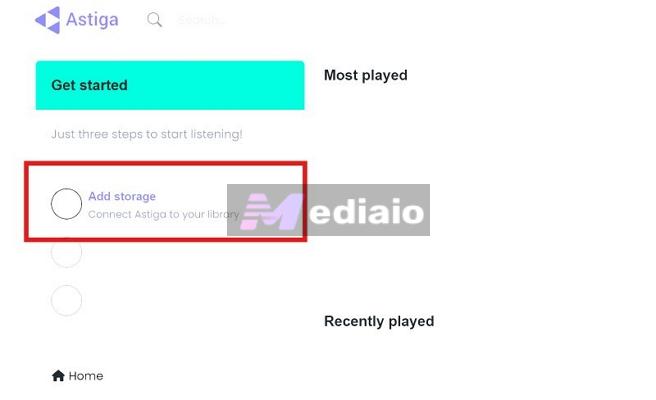
Step 3. Pick Google Drive from the storage options shown on the next page.
Step 4. Continue with Authorise connection with Google Drive and complete the sign-in prompt with your Google account.
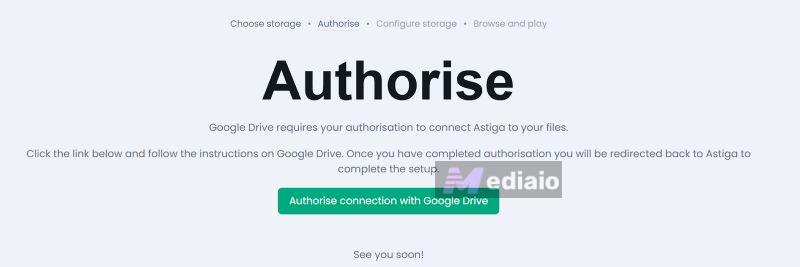
Step 5. Allow all requested permissions, so Astiga can read your files properly.
Step 6. Once redirected back, assign a name to your Drive connection (useful when managing multiple accounts).
Step 7. Choose the folder you want to scan, or leave it as full Drive access, then press Connect.
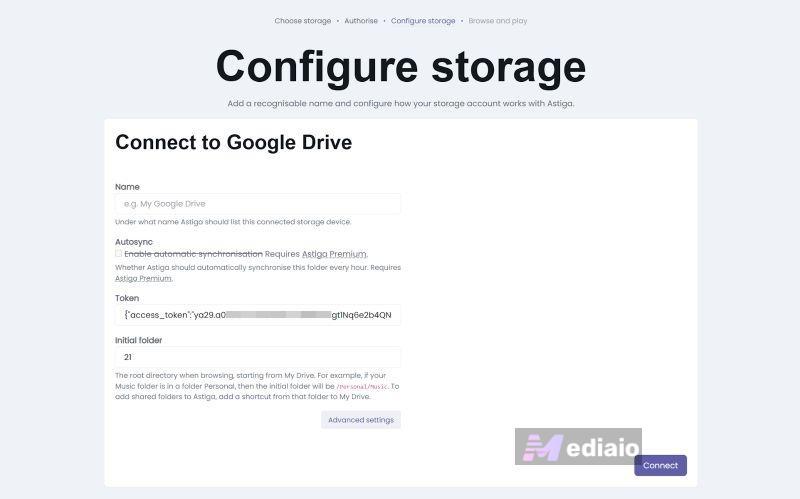
Step 8. After the scan completes, confirm with Save Google Drive connection.
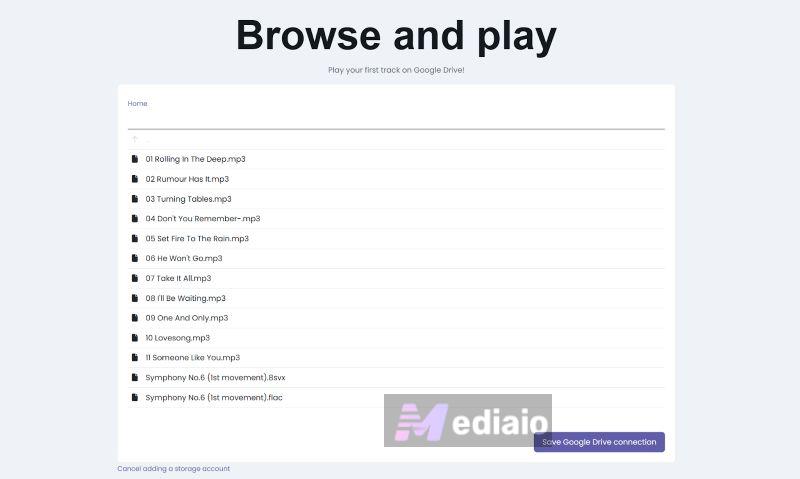
Step 9. Now switch to the mobile app. Sign in with the same account. Your library will appear automatically.
Step 10. Pick any track and playback will begin instantly.
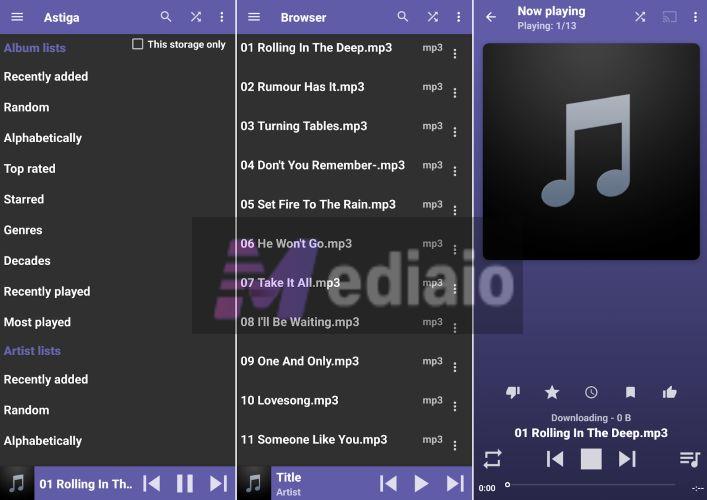
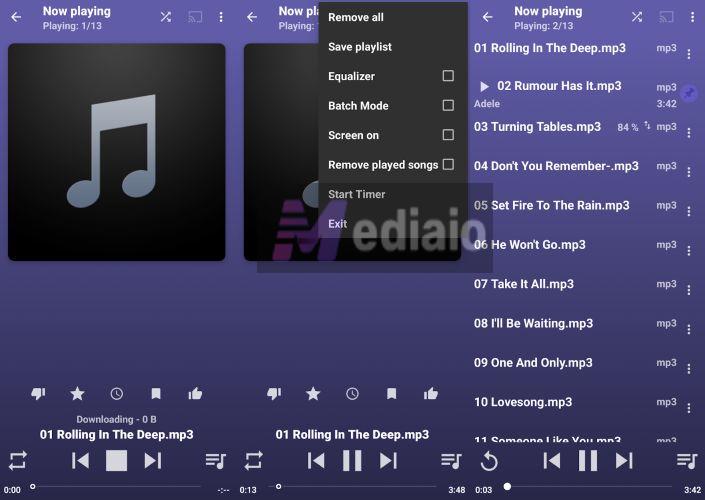
You can use queue, shuffle, repeat, and jump between songs without interruption.
Conclusion
That’s how simple it really is to play music from Google Drive on your Android, whether you want to play individual songs or let them run in a proper queue.
So you can keep using Google Drive as your music space. And when you want to grow that collection, Mediaio Audio Converter comes in handy. It connects with platforms like Spotify and Apple Music and lets you save permanent copies in the local format you prefer.