

If you couldn’t find the YouTube Music app on the Roku Channel Store, here’s the truth: there is no official YouTube Music app for Roku. But there are still several ways to play YouTube Music on any Roku TV model. In this article, we will walk you through all those methods. So you can pick one and play your favorite YouTube Music on any Roku TV, old or new, easily.
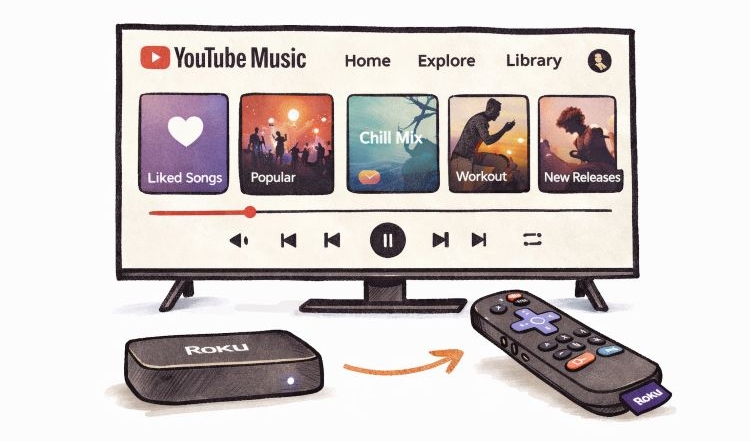
How to Play YouTube Music Directly on Roku
You will not find a YouTube Music app in the Roku Channel Store. Google never released it as a standalone channel. Instead, the music service is tucked inside the regular YouTube app itself.
Get YouTube Music on Roku via YouTube App
You can install the YouTube channel directly on the TV or via the Roku mobile app or web store. Here is how to add it from the TV’s Channel Store.
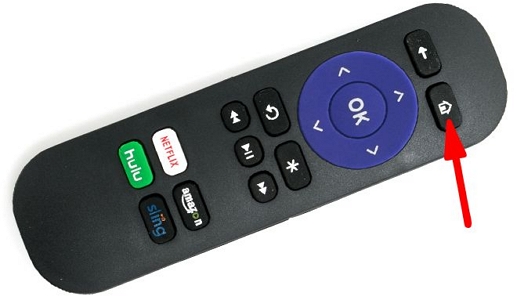
Step 1. Start on the Roku home screen. From the sidebar menu, open Search Channels.
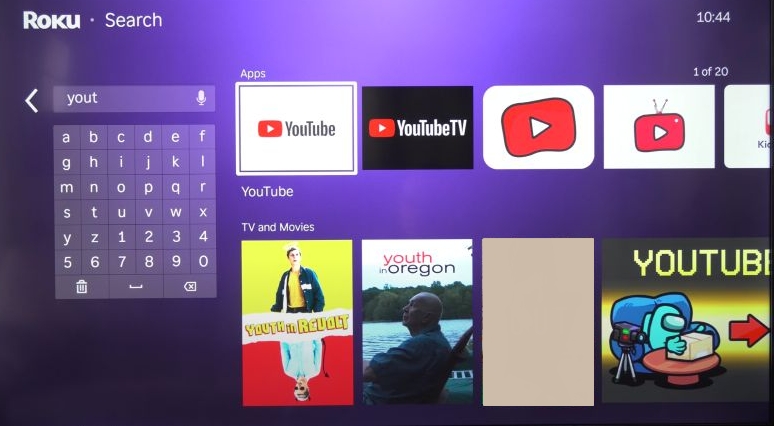
Step 2. Type YouTube. The official YouTube channel should appear at the top of the results.
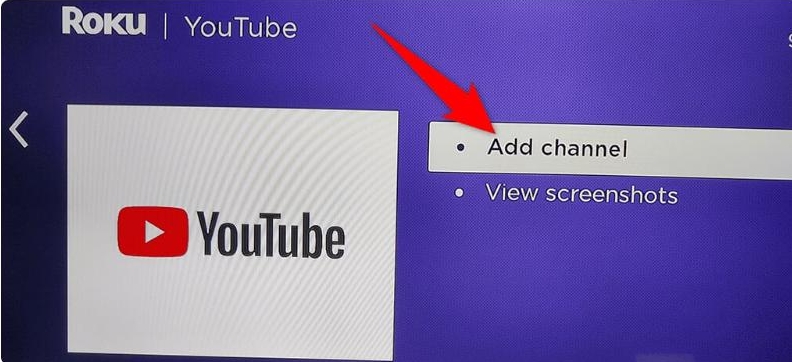
Step 3. Highlight the YouTube app and confirm the selection. Roku will show an Add Channel option.
Step 4. Choose Add Channel and let Roku download the app.
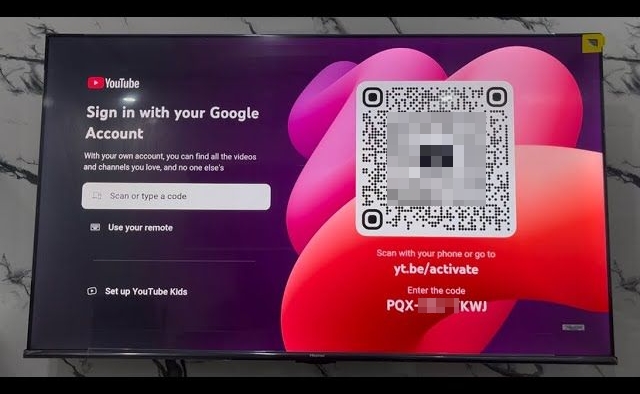
Step 5. Launch the app. You will see the sign-in screen. Simply scan the QR code.
Step 6. You’ll find the Music section in the left sidebar. You can access your playlists and favorite tracks from there.
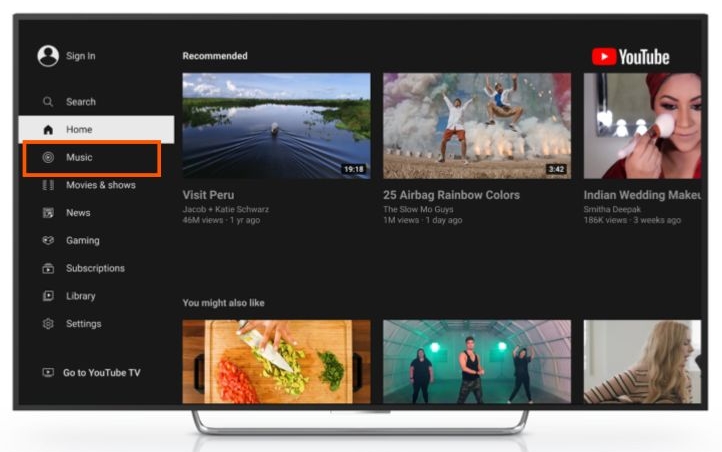
From that point onward, this section will behave just like YouTube’s normal music interface. You can browse songs, start playback, and control everything using the remote.
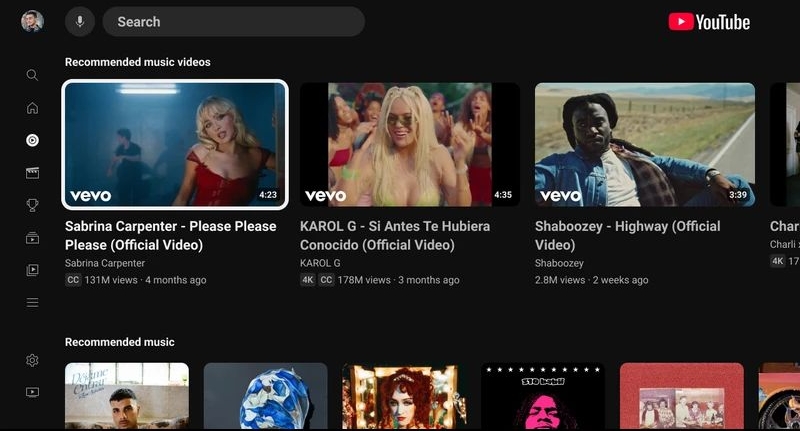
Quick Breakdown — YouTube App Method
You can use Play/Pause to manage playback. Directional buttons to navigate the platform. Voice search also works via the remote’s microphone.
The only drawback is navigation. Scrolling through large music libraries with the Roku D-pad can feel slow.
How to Play YouTube Music on Roku Through USB Drive
Streaming is the easiest way to play music on Roku, but it breaks the moment your internet disappears. Plus, ads interrupt the songs. During a party, that can get annoying very quickly. So if you want a completely reliable offline listening setup, the USB route becomes the ultimate workaround. Certainly, YouTube Music does not allow you to move songs directly to a USB drive. That is exactly where the Mediaio Audio Converter comes in.
Short Guide to Play YouTube Music Through USB Drive on Roku
Step 1. Save YouTube Music to USB on Desktop
Mediaio Audio Converter includes its own built-in YouTube Music player and lets you sign in to your own account. Your music library and playlists will appear as usual. The differences from the official YouTube web player are that it adds a conversion button and supports saving music locally. You can simply drag any song or playlist from YouTube Music player and convert it into Roku compatible songs: MP3, M4A, FLAC, AAC, WAV, etc.
Mediaio also preserves the original metadata, meaning that song titles, artist names, and album details remain intact. This makes the songs look stunning on your TV. Plus, you can export songs at up to 320kbps, so the music will sound clean through your TV speakers or home sound system.
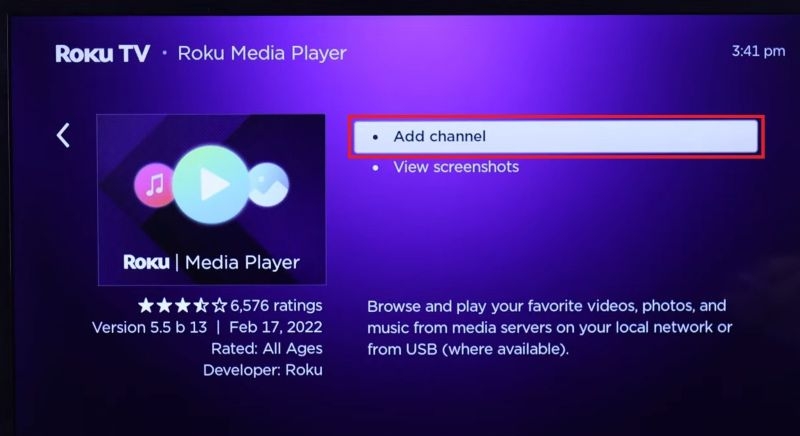
Step 2. Add Roku Media Player via the channel store
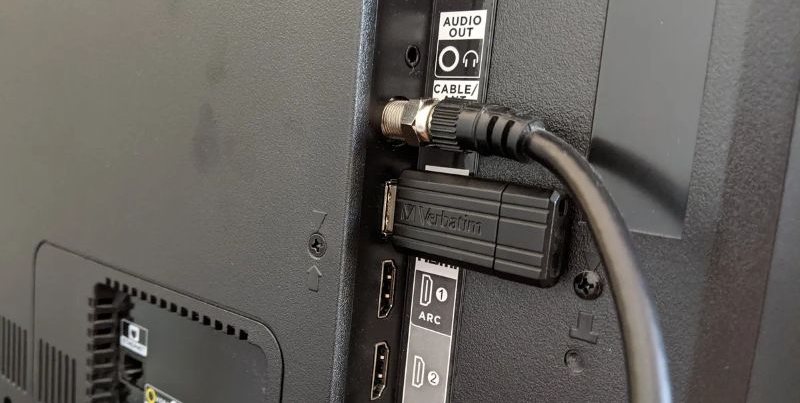
Step 3. Insert the USB drive into the Roku device
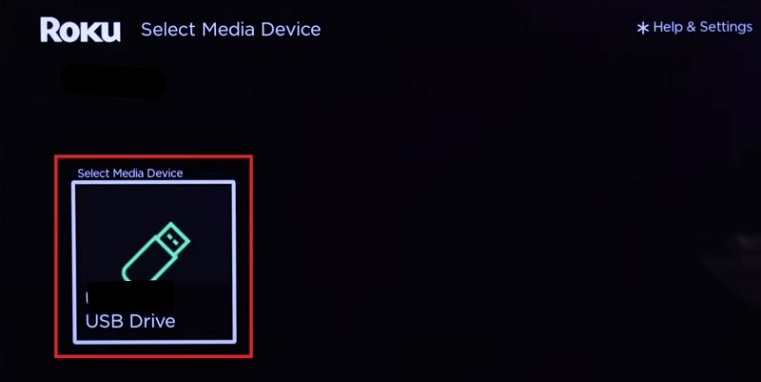
Step 4. Open Roku Media Player and select the connected USB drive.
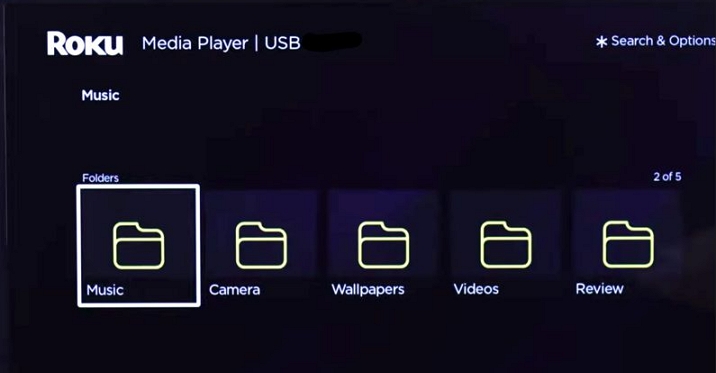
Step 5. Navigate to the Music folder. Choose a track and press Play
Quick Breakdown — USB Method
How to Play YouTube Music on Roku from Your Phone/Computer
Now let’s look at the other options. These methods allow you to start the YouTube Music playback on your phone or a computer and then send the audio to the TV.
Each method has its own compatibility requirements. We’ll cover them as we go. But one rule stays the same for each way below: both devices must be connected to the same Wi-Fi network.
Option 1. Use YouTube Music's Cast Feature
Casting is usually the smartest way to connect YouTube Music to a Roku TV.
YouTube Music already includes a Cast button, and all modern Roku TVs support standard casting. So the moment you start a song on your phone and tap that Cast icon, the Roku device begins fetching that music directly from the internet. Meanwhile, your phone or computer stops being the player and turns into a simple controller. You can start the playback from anywhere: the YouTube Music mobile app or web player. Here’s how both work.
On Windows/Mac
Working on a laptop and want the music to shift to the living room TV? Casting through the browser is the quickest route. Here’s how.
Step 1. Head straight to the YouTube Music web player.
Step 2. Start any track or playlist. Let it begin playing.
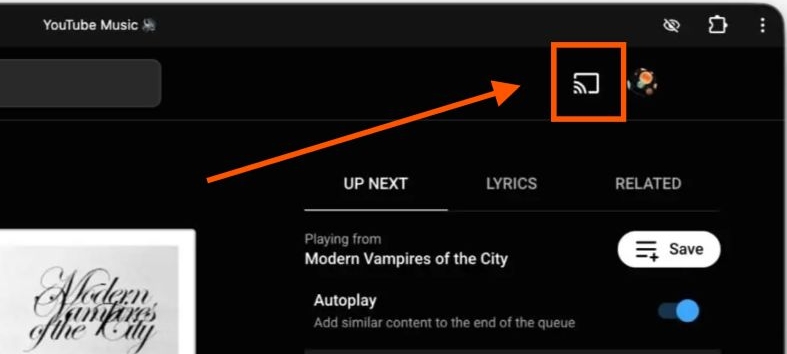
Step 3. Look near your profile picture. Click on the Cast icon.
Step 4. Select the Roku TV from the device list that appears.
Within a moment, the music will jump to the TV. The laptop now simply controls playback while the sound comes from the TV speakers.
On iPhone/Android
Casting from a phone has a few advantages. You can start the music from your phone and send it to the TV. After that, you can lock the screen, answer a call, or switch to another app while the music will continue to play on the TV. This is true, whether or not you have YouTube Music Premium.
Step 1. Start a track in the YouTube Music app on your phone.
Step 2. Tap the Cast icon near the top. A list of available devices appears.
Step 3. Pick your Roku TV from the list. The TV takes over playback almost instantly.
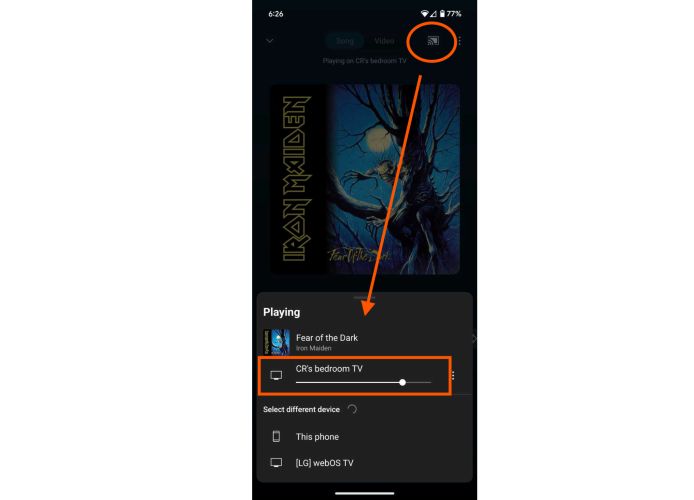
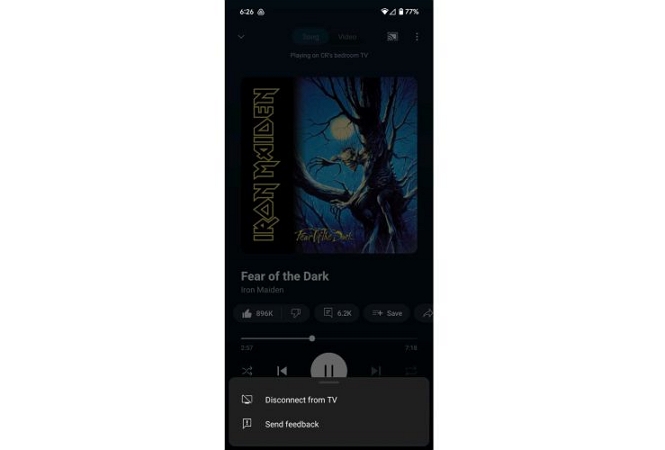
Step 4. When you want to stop casting, tap the device name again or open the menu next to it and choose Disconnect from TV.
Quick Breakdown — Native Cast Method
Use the phone’s touchscreen to search and queue tracks.
Grab the Roku remote for quick pause or skip.
Phone navigation is fast, and casting uses less battery than Bluetooth or screen mirroring.
Option 2. Via AirPlay
AirPlay works best when you are using Apple devices. Unlike casting, it sends the audio straight from your iPhone or Mac to the Roku TV speakers. So here the sound comes from your device and the TV plays it.
There is one requirement, though. AirPlay is compatible only with Roku OS 9.4 or newer. That means, most modern Roku models, especially the 4K ones, support AirPlay.
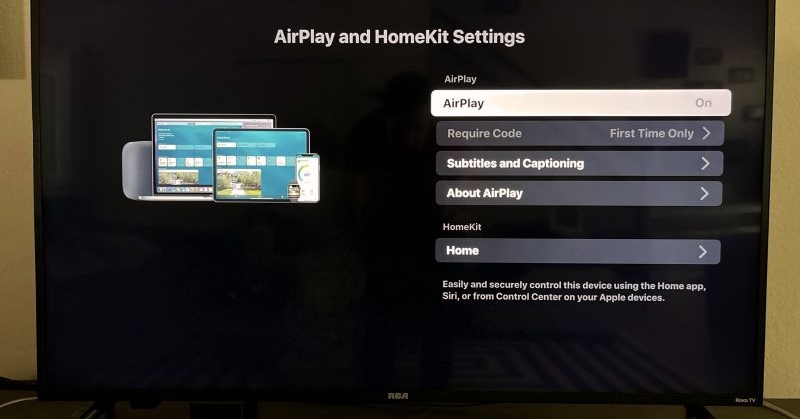
Note: Before sending music, there is a small one-time setup on the TV.
Step 1. On the Roku TV, open Settings.
Step 2. In the side menu, choose Apple AirPlay and HomeKit.
Step 3. Turn AirPlay on.
That is it. This setup stays saved on the TV.
Now, you can start playing YouTube Music on Roku via AirPlay
On iPhone
AirPlay on iPhone only works on iOS 12.3 or later. That means, your device should have AirPlay 2 support. Once that requirement is met, follow these steps.
Step 1. Start playing a song in the YouTube Music app.
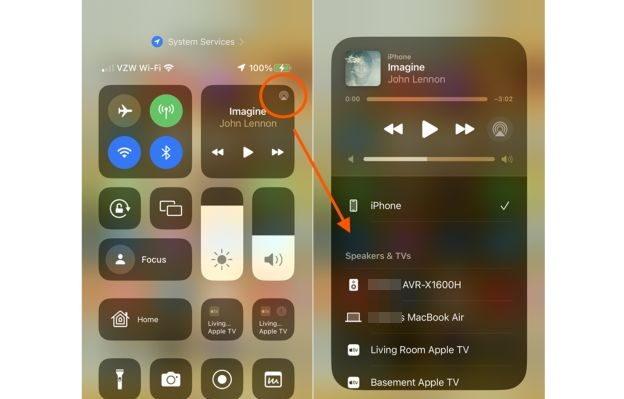
Step 2. Access Control Center.
Step 3. Look at the Now Playing widget. You will notice the AirPlay icon (a small triangle with circular waves).
Step 4. Tap it. Your Roku TV name appears in the list.
Step 5. Select it. The audio instantly moves from the phone speakers to the TV speakers.
From that point onward, the phone simply controls the playback.
On Mac
Again, AirPlay 2 support (macOS Mojave 10.14.5 or higher) is required. Here are the steps.
Step 1. Play any track on the YouTube Music website.
Step 2. Open the Control Center.
Step 3. In the Sound section, find the AirPlay icon.
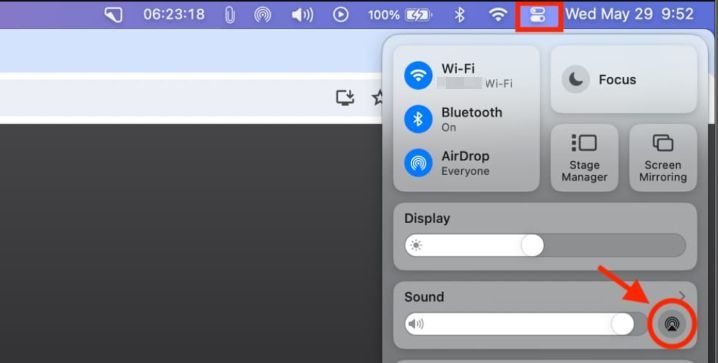
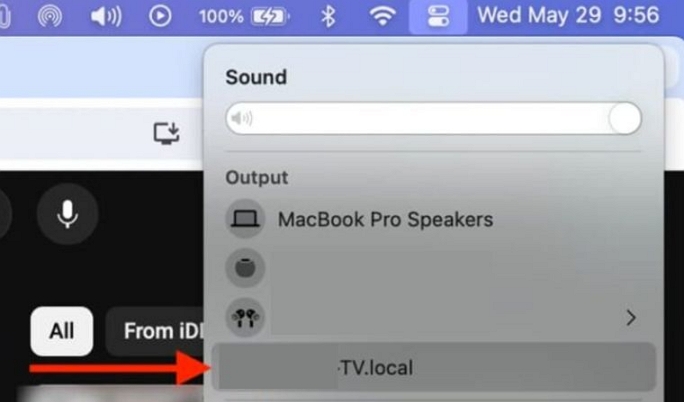
Step 4. Choose your Roku TV from the device list.
Step 5. If this is the first time, the TV sometimes shows a four-digit code. Enter that code on your Mac. Once confirmed, the music will shift directly to the TV speakers.
Quick Breakdown — AirPlay Method
Option 3. Through Screen Mirroring
Screen mirroring works differently from casting or AirPlay. It duplicates your entire device screen on the TV. The music will still play through the TV speakers, but everything else travels too: notifications, gestures, and every swipe. Keep that in mind before using it.
The good news is compatibility. Nearly every Roku device released in the past few years supports “Miracast” natively.
Tip: Make a quick adjustment on the TV before mirroring.
- Open Settings > System > Screen Mirroring.
- Change the mode to Always Allow or Prompt. Once this option is active, the Roku TV will become discoverable for screen mirroring.
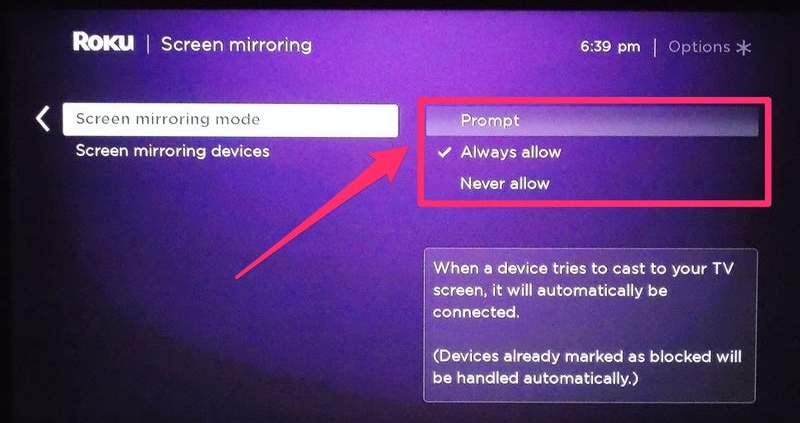
To listen to YouTube Music on Roku through screen mirroring:
On iPhone
For Apple devices, screen mirroring runs through the same AirPlay 2 system, but you choose a different control. Here’s what to do.
Step 1. Begin playing a track in the YouTube Music app.
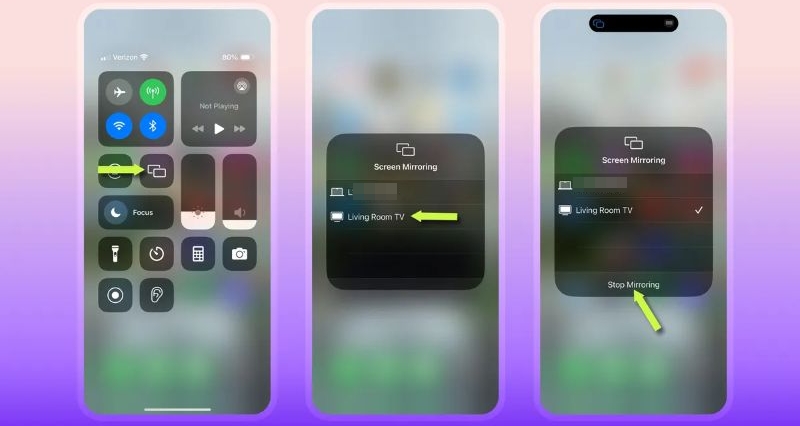
Step 2. Bring down Control Center.
Step 3. Tap Screen Mirroring — the icon showing two overlapping rectangles.
Step 4. Your Roku TV appears in the list. Select it.
Within seconds, the entire iPhone display will appear on the TV and the audio follows through the TV speakers. Playback still stays under your phone’s control.
On Android
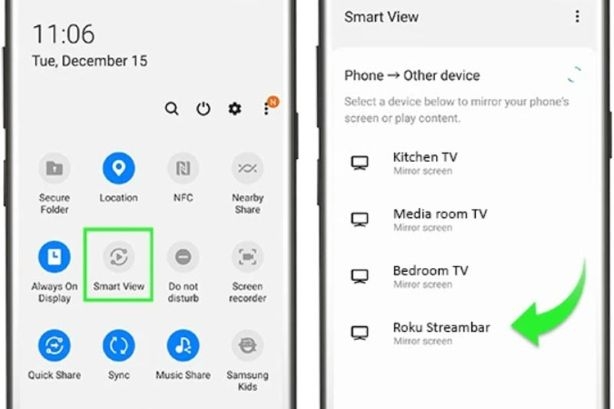
On Android, the screen mirroring feature name changes depending on the brand. Samsung calls it Smart View. Google Pixel labels it Cast. Other manufacturers use terms like Wireless Display or Screen Cast.
Step 1. Pull down the quick settings panel.
Step 2. Look for the screen sharing icon: Smart View, Cast, or something similar.
Step 3. Tap it and wait for nearby displays to appear.
Step 4. Choose your Roku TV from the list.
Once connected, the TV will mirror your phone completely. Open YouTube Music on your phone and start playback. The interface will show up on the TV exactly as it appears on the mobile.
On Mac
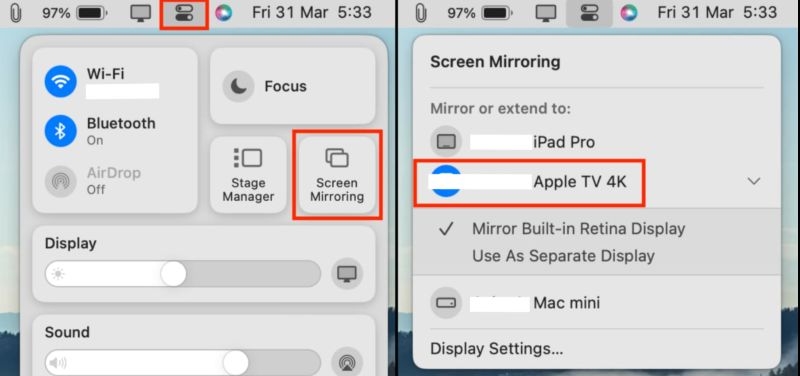
Mac handles mirroring through AirPlay as well.
Step 1. Access Control Center.
Step 2. Locate Screen Mirroring in the display controls.
Step 3. Pick your Roku TV from the device list.
Within a moment, the Mac desktop will appear on the TV. Anything you play, music included, comes through the TV speakers.
On Windows PC
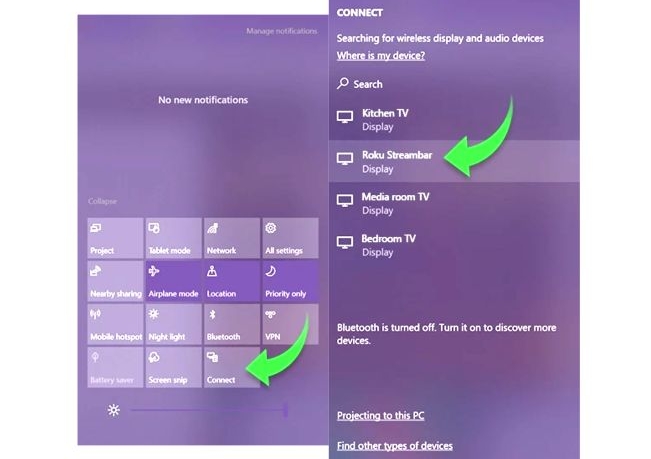
Windows 10 and Windows 11 have native Miracast support. Here’s how to access it.
Step 1. Press Windows + K on the keyboard.
Step 2. A panel opens showing available wireless displays.
Step 3. Select your Roku device.
The PC will immediately duplicate its screen on the TV. Start YouTube Music in the browser and the audio will play through the TV speakers.
Quick Breakdown — Screen Mirroring Method
Not ideal for very long listening sessions.
Final Words
So there you have it. Getting YouTube Music on a Roku TV is actually quite versatile. You can go with the native YouTube app or rely on casting, AirPlay, or screen mirroring. All of those methods work, but they require the internet and ads will appear during playback.
That is why Mediaio Audio Converter is a better option. It lets you convert any YouTube Music song into MP3 onto a USB drive. So you can play them through the Roku TV offline.