

Listening to music while using other apps is normal on every streaming platform. However, on YouTube Music’s free version, the moment you leave the app, playback will stop. The obvious solution is to upgrade to Premium. Yes, that’s one quick option, but there are other ways around it.
In this guide, we’ll show you how to play YouTube Music in the background on Android and iPhone using several different methods and most of them work without paying any monthly subscription fee. You can simply choose the option that feels most convenient for you.
How to Play YouTube Music in the Background on iPhone
Well, you have three different ways to play YouTube Music in the background on your phone. Before we look at them in detail, here’s an overview to help you quickly choose the right one for you.
US$16.99/month (Family) You want a seamless app experience and you don’t mind paying a monthly fee.
It works without paying, though the experience isn’t as smooth as the app.
Requires a few extra steps to start playback.
Convert songs to MP3 first, then play them in the background without internet, ads, or interruptions.
Way 1. Use YouTube Music Premium to Play Music
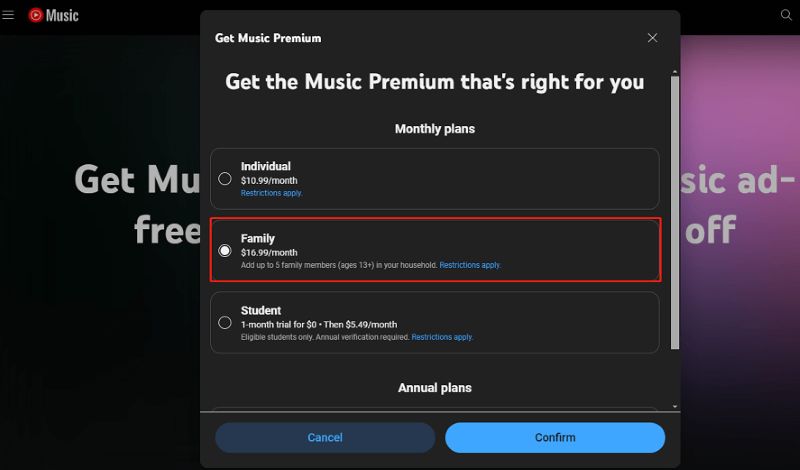
Activating YouTube Music Premium is the “official” way to unlock background playback inside the app. If you have never subscribed before, Google usually offers a one-month free trial for new users. Here’s how to activate it.
Step 1. Open the YouTube Music app. Tap the Upgrade button.
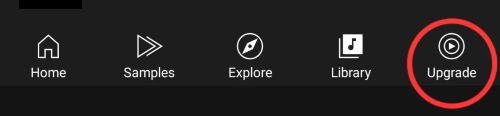
Step 2. Tap the Get Music Premium banner.

Step 3. Choose a plan and finish the purchase.
That’s it! Upgrading to Premium also unlocks other benefits:
- Removes all audio and video ads.
- Allows offline downloads for songs and playlists.
- Enables audio-only mode for music videos.
- Supports screen-off listening, so music continues even when the phone is locked.
Way 2. Listen to YouTube Music via Browser
YouTube Music in a web browser is built to continue playing in the background. You can just start playback, leave the tab, read another page, or even run a game. The same idea also works on the iPhone’s browser. That is: you can play music via the YouTube Music website via Safari. Then, switch to another app and the music will continue playing in the background. However, ads will still appear because you’re still running the free version.
Here’s how to play YouTube Music on your iPhone browser:
Step 1. Head into Safari and visit music.youtube.com. Start playing the track or playlist you want.
Step 2. Once the music begins, look at the bottom address bar. Press the page settings icon (the square with two horizontal lines).
Step 3. Choose the More (…) option. Then, select Request Desktop Website. The page will reload in desktop mode.
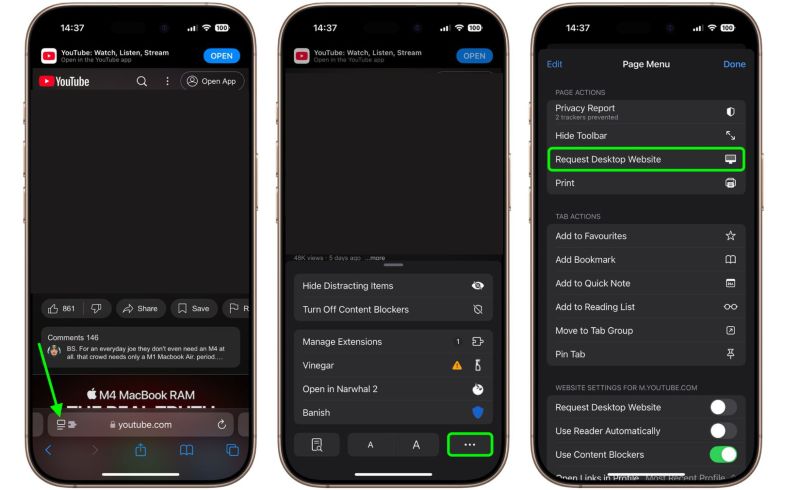
Step 4. When the desktop version appears, hit Play again so the track resumes.
Step 5. Return to the Home screen (swipe up from the bottom). The audio will stop instantly. But don’t worry.
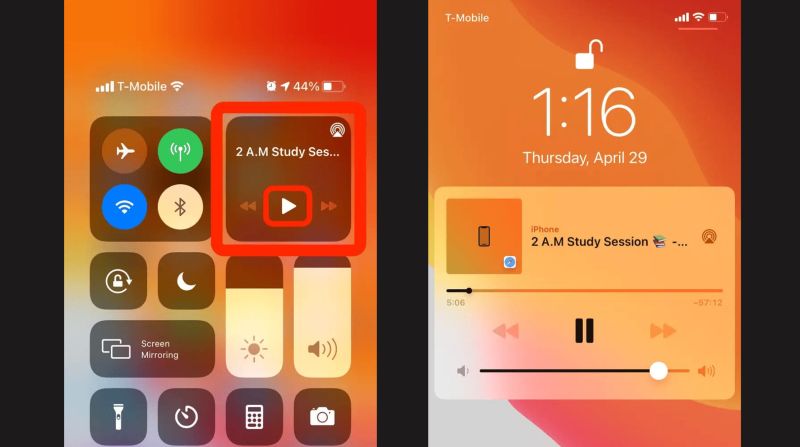
Step 6. Now bring down the Control Center. The YouTube Music track will appear in the media widget. Tap Play and the music will resume.
Way 3. Play YouTube Music with Another Media Player
The most effective workaround for background play is simply converting YouTube Music tracks to MP3, M4A or other local files. This allows you to play them through the VLC Media Player which by default supports background playback. Of course, you have to first convert the music into local files. For this, you can use Mediaio Audio Converter.
Mediaio Audio Converter is an all-in-one music conversion tool. It comes embedded with the YouTube Music web player. So you can access your account and convert any songs, playlists, or albums into high-quality MP3, M4A, FLAC or WAV files with all the metadata preserved. The tracks can be played in the background through VLC or other media player with background playback supported. And it brings added convenience, such as offline listening and ad-free playback.
Steps to Transfer Converted Tracks to VLC on iPhone:
Mediaio converts the tracks on your computer (Windows or Mac). After conversion, you have to move the YouTube Music tracks to your iPhone before you can play them in the background through VLC. Here’s how to do that by taking Mac as an example.
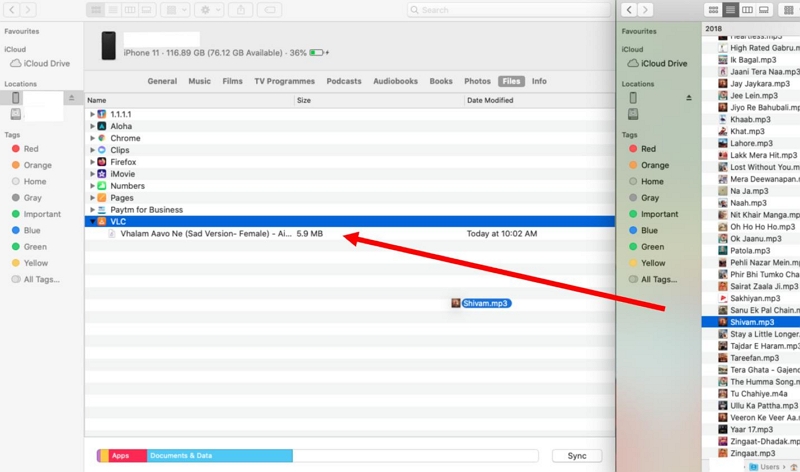
Step 1. Connect the iPhone to the Mac with a cable.
Step 2. Finder will automatically detect the device. Click your iPhone under the Locations section so the device panel opens.
Step 3. Look across the top tabs and move into Files.
Step 4. Locate VLC in that list. Expand the small arrow next to it so the VLC storage area becomes visible.
Step 5. Open another Finder window and move to the Mediaio folder containing the converted YouTube Music tracks. Now simply drag the converted MP3 or M4A tracks into the VLC area. Finder will copy them to the phone.
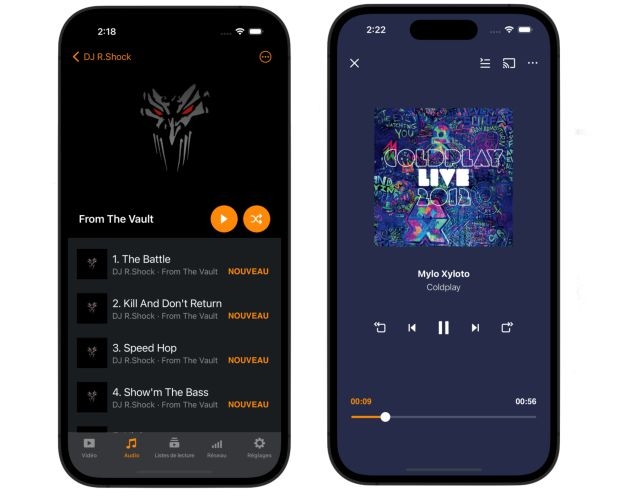
Now, open VLC on the iPhone. The songs will appear with their titles, album art, and other metadata intact. You can play them without internet or ads and even when the screen is locked or you’re using other apps.
How to Play YouTube Music in the Background on Android
Android devices are open ecosystems. So you get far more flexibility when managing media from apps like YouTube Music. Depending on the specific smartphone, you will even find built-in advantages — useful when you do not want to pay for a subscription. Here is a quick overview of the methods available on Android.
US$16.99/mo (Family) All Android brands
Ads will still appear Free Works on all Android systems
Now officially removed, though some users restore it by removing certain updates Free Older Redmi, POCO, and Xiaomi devices
For Any Android Brand
These methods are universal across Android — the ones that work the same way on almost every Android device, regardless of the brand or system version.
Option 1. Use Premium
Just like on the iPhone, the most seamless route for background playback is simply paying the monthly fee. Upgrade to YouTube Music Premium, and background play will work right away. You’ll also get other perks that come with the subscription: ad-free listening and true-screen-off playback.
The standard plan costs US$10.99 per month. And if there are a few more listeners at home, the Family plan (costs US$16.99) will make more sense.
Option 2. Use Chrome
There is a small workaround you can use from the mobile Chrome browser. The idea is simple: play YouTube Music from the website and let Chrome keep running in the background. Just like on a computer browser, the audio will continue playing while you switch to other apps once a small setting is enabled. Here’s how it works.
Step 1. In Chrome, head to music.youtube.com. Open any playlist or track and let the music start playing.
Step 2. Tap the three-dot icon in the top-right corner of the browser. These controls belong to Chrome itself, not the YouTube Music site. From the menu, check the Desktop site option.
Step 3. Start the track again as the reload pauses it. After that, leave Chrome and return to the home screen.
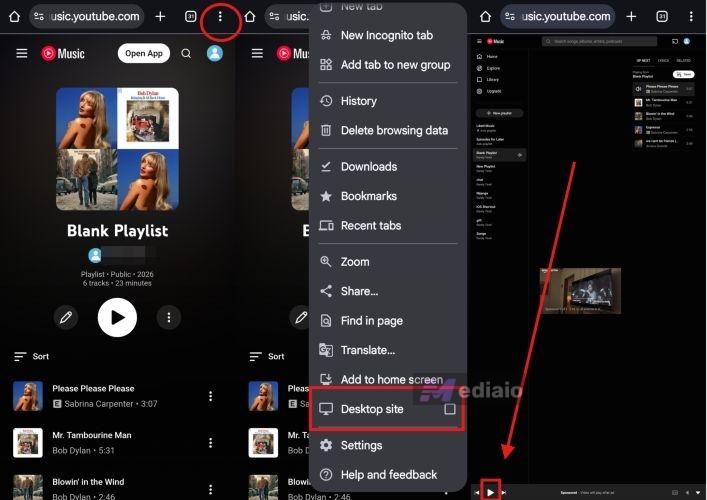
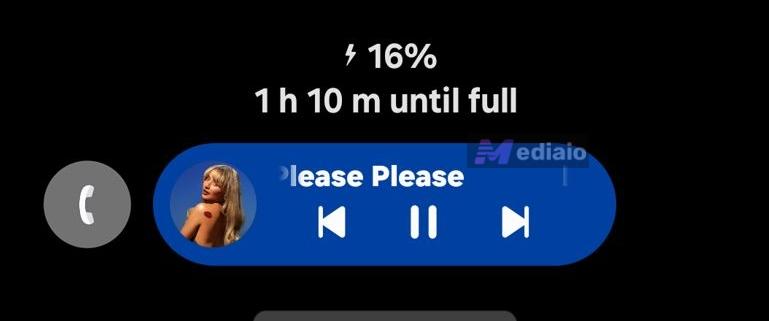
Step 4. Pull down the notification panel. You will see the YouTube Music track inside the media player card, usually paused. Press Play to resume.
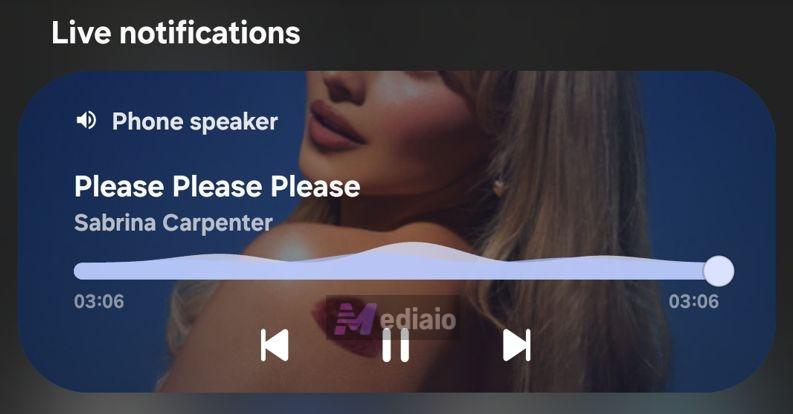
Ads will still appear, but the audio will continue to play in the background and even when the screen is off.
Option 3. Use Local Player
Here, local player simply means any media player of your choice, such as VLC Media Player, your phone’s native music player, Foobar2000, or any similar app.
Of course, YouTube itself does not allow you to stream its music this way. For that, you first need to convert the tracks into local audio files. We introduced Mediaio Audio Converter (earlier in this guide) for that specific purpose.
Simply install the Mediaio program on your Mac or Windows computer. It lets you convert any YouTube Music tracks into MP3 or M4A files easily and transfer them to your phone. After the songs are saved on your mobile device, you can play them through any media player you prefer, as almost all of them support background playback by default.
For Samsung Only
The Samsung Internet browser includes a built-in Background play feature that can keep a video running even after you leave the browser — very similar to the pop-up player you see in YouTube Premium.
Because of this, it works best when a video version of the song is playing. That can be from the YouTube Music website (if the track has a video attached) or even from a normal YouTube video.
Pure audio tracks, however, do not trigger this feature, so choose a normal music video when possible. Or, simply play the music from the YouTube site.
Steps to Play YouTube Music in the Background with Samsung Internet Browser
Step 1. Launch Samsung Internet, open the menu and move into Settings.
Step 2. Enter Useful features and switch Background play to On.
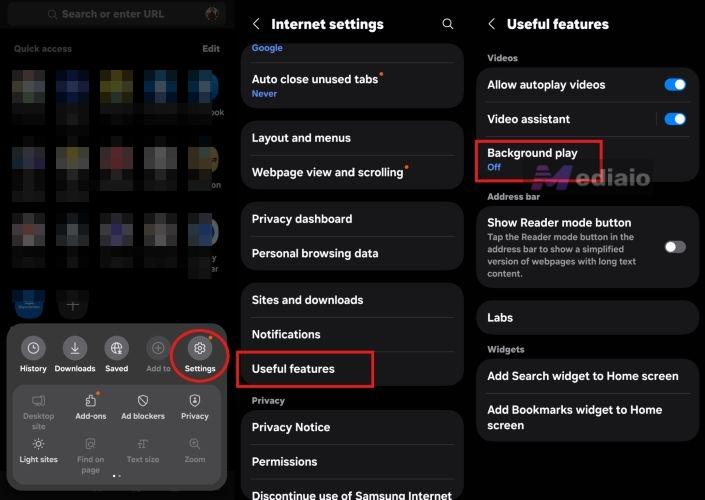
Step 3. Return to the browser. Visit music.youtube.com. Sign in if required.
Step 4. Pick a music video and start playback. Tap once on the video so the Samsung browser controls appear.
Step 5. Among those controls, press the Full-screen icon. The video will expand and fill the entire display.
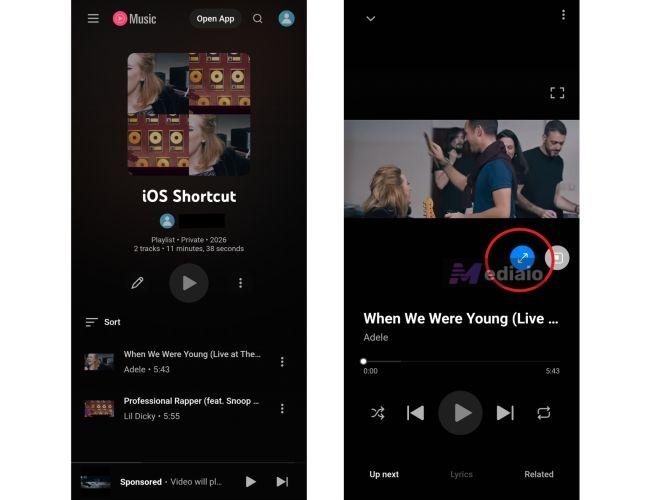
Step 6. With the video in full screen, return to the home screen.

The music video will continue to play in the floating pop-up player. You use other apps on the phone now.
For Redmi Only
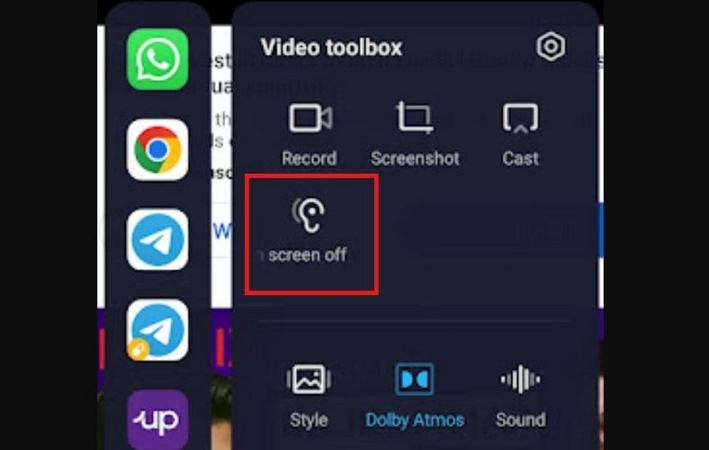
Earlier, many software versions running on Redmi, POCO, and Xiaomi phones had a feature called Video Toolbox. It allowed users to play video audio with the screen off—similar to the background player you saw on Samsung devices.
Over time, however, Xiaomi removed it with an OTA update. One explanation often mentioned is pressure from Google over compliance. Because of that, devices running MIUI 12, 13, 14, and HyperOS no longer support the “Play video with screen off” feature.
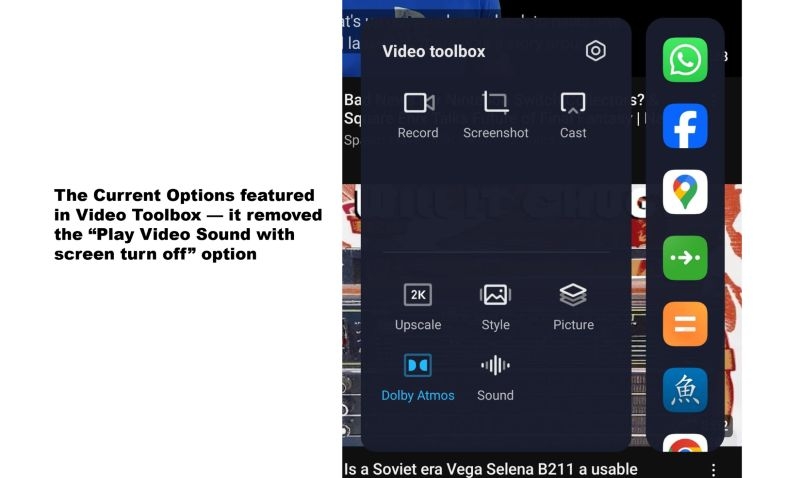
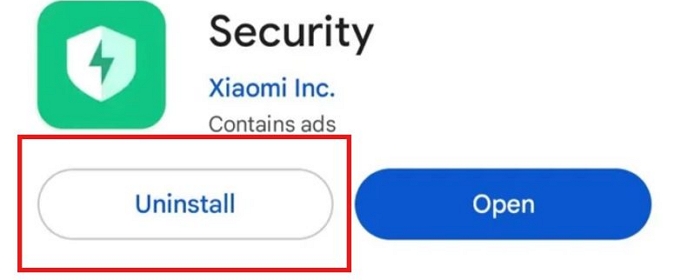
Note: Some users try a workaround by uninstalling recent system or security updates on newer MIUI builds. After restarting the device, the Video Toolbox supports the background play/play video sound with screen off option again. However, this behavior is inconsistent on most newer MIUI or HyperOS versions.
Still, here’s how the feature used to work:
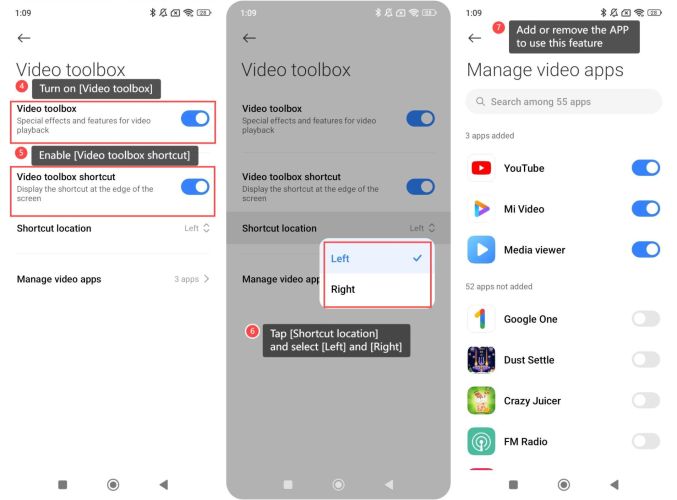
Step 1. From the phone Settings, users would enable Video Toolbox and add YouTube to the list of supported video apps.
Step 2. Once the feature was active, opening YouTube and playing a video track would trigger the toolbox. Yes, YouTube Music was not listed on the Manage Video Apps screen.
Step 3. Swiping that translucent bar inward opened a floating toolbox panel with several quick controls.
Step 4. Among those controls was an ear-shaped icon labeled “Play video sound with screen off.”
That option allowed users to instantly lock the display, while the audio played in the background.
Final Words
You’ve now seen several ways to play YouTube Music in the background on both Android and iPhone. The only real difference between them is the experience — some are simply more convenient than others.
- All of these methods are easy to follow, but a few bring added convenience. YouTube Music Premium is a clean route on both iPhone or Android if you are willing to pay.
- If you prefer not to pay, the other options still work. They just require a few extra steps each time you start playing music.
Mediaio Audio Converter is the most convenient and reliable free option to play YouTube Music in the background on any device (phone, computer, old car) — completely free of ads, internet requirements, and other interruptions.