

YouTube Music boasts a massive music library. But out of the box, its sound quality is not the best. Its songs stream in compressed formats like AAC or Ogg. That is why many people look for a YouTube Music equalizer. So, is there a built-in one? If yes, where do you find it? And if not, how can you adjust the audio to get better sound?
This guide answers those questions. You will learn how to use a YouTube Music equalizer on every platform, whether you are listening on Android, iPhone, Mac, Windows, or simply streaming from the web.
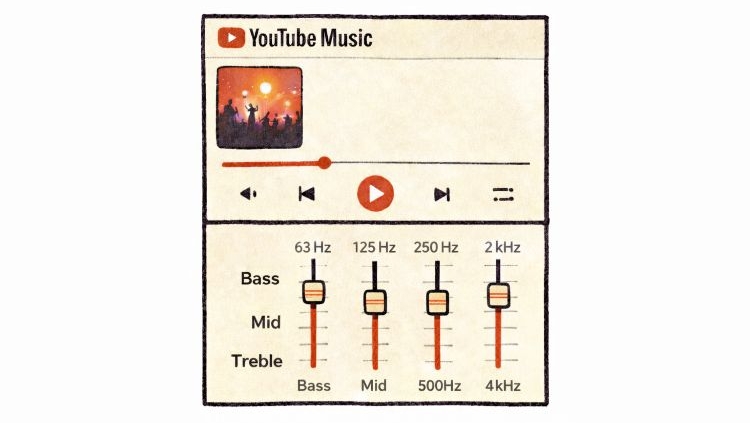
Is There an Inbuilt Equalizer on YouTube Music?
No.
This answer confuses many people, because on Android devices, users often discover the Equalizer option within YouTube itself. However, the truth is that YouTube Music does not actually include a built-in audio engine. In reality, tapping the “Equalizer” option simply opens the equalizer built into your phone’s settings. The “Equalizer” option works more like a shortcut. So, the YouTube Music app itself, even on Android, doesn’t launch any special Google-built tool for equalizer. Because of this, any adjustments you make through the Equalizer menu inside YouTube will affect the entire device audio.
Moreover, even the Equalizer controls you’ll see inside YouTube Music app depend on your phone brand:
- Samsung devices have Dolby Atmos along with a full graphic equalizer.
- Pixel phones provide a simple multi-band equalizer.
- Some phones just come with preset profiles: Rock, Jazz, Pop, Bass Booster, or Classical.
In all, here is the short answer.
- Android: There is an Equalizer setting within YouTube Music, which redirects you to system audio settings.
- iPhone: No equalizer inside the YouTube Music app.
- Desktop or Web: No built-in equalizer either.
How to Adjust YouTube Music Equalizer on Android
So, as mentioned, the equalizer inside YT Music opens your device’s sound settings. Still, if you want to access it directly from the YouTube Music app, follow these steps.
Step 1. Launch YouTube Music.
Step 2. Tap your profile icon in the top-right.
Step 3. Enter Settings.
Step 4. Select Playback and tap Equalizer.
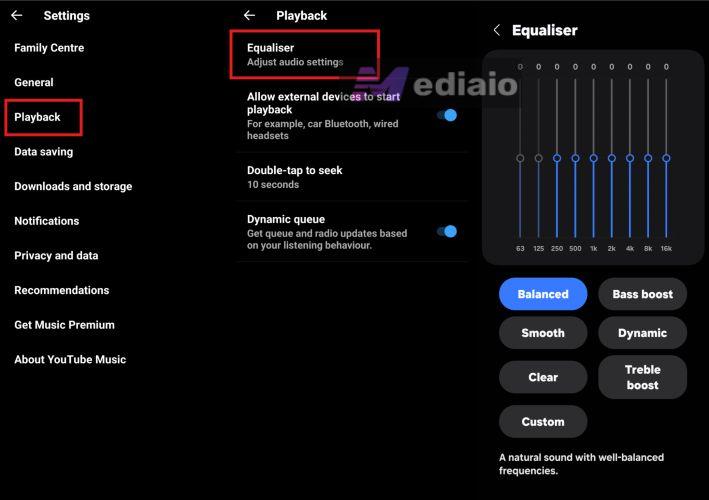
The moment you tap it, you’ll be redirected to your Android system audio panel. Another route leads to the same place:
- Open your phone’s Settings.
- Search for Sound or Audio.
- Then, enter Sound Effects or Equalizer.
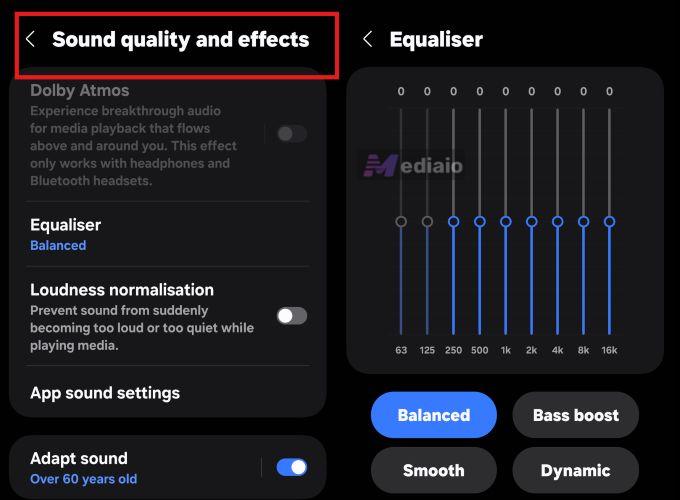
Tip: What Are the Best YouTube Music Equalizer Settings
An equalizer (EQ) allows you to adjust the different frequency ranges of sounds. By boosting or lowering certain ranges, you can reshape how audio sounds on your phone’s speaker — stronger bass, clearer vocals, or sharper treble.
On most Android devices, you’ll usually see two kinds of equalizers.
- The first is a graphic equalizer. This shows multiple vertical sliders so you can shape the sound manually.
- Many phones also include built-in presets.
Samsung devices, for example, also offer presets such as Balanced, Bass Boost, or Dynamic, similar to the profiles found in iPhone. These presets are often enough for the kind of music you play on YouTube Music.
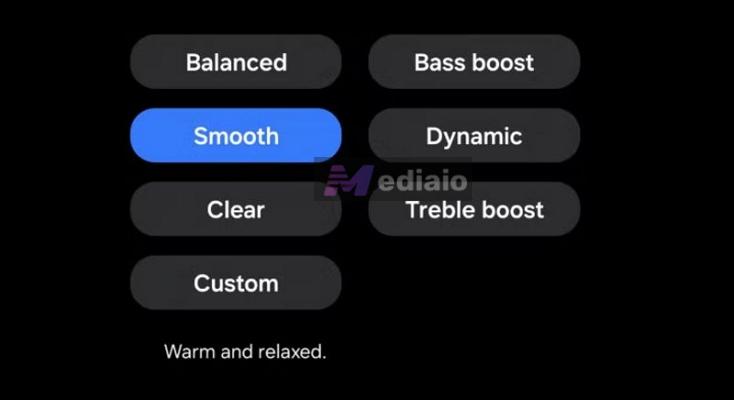
When you go for manual adjustments, keep in mind that there is no universal EQ curve. The right setting will depend on three factors:
- Your music genre.
- Your headphones or speakers.
- Your listening environment (for example, a noisy train or a quiet room).
Understanding the Equalizer Graph on Your Phone
Take the example of a typical Samsung equalizer.
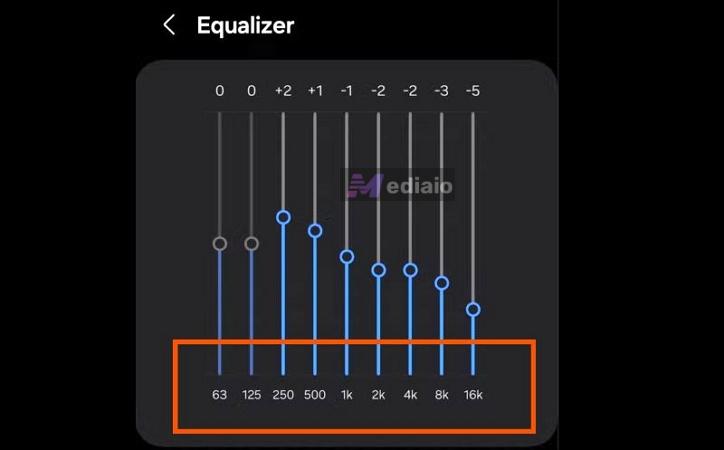
The screen usually shows several vertical sliders. At the bottom of each slider, you will notice numbers: 63 Hz, 125 Hz, or 1 kHz. These numbers represent audio frequencies. And each slider controls a different layer of sound.
You will also notice numbers above the sliders marked in dB (decibels). These show how much a frequency is boosted or reduced.
- 0 dB — no change
- Positive value — louder frequency
- Negative value — reduced frequency
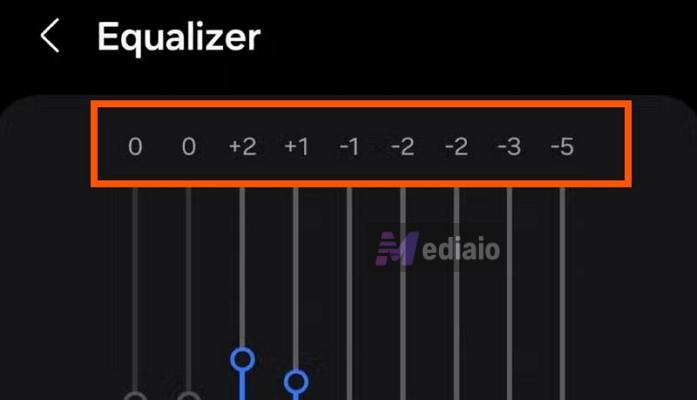
Here’s an example on how to adjust the curve:
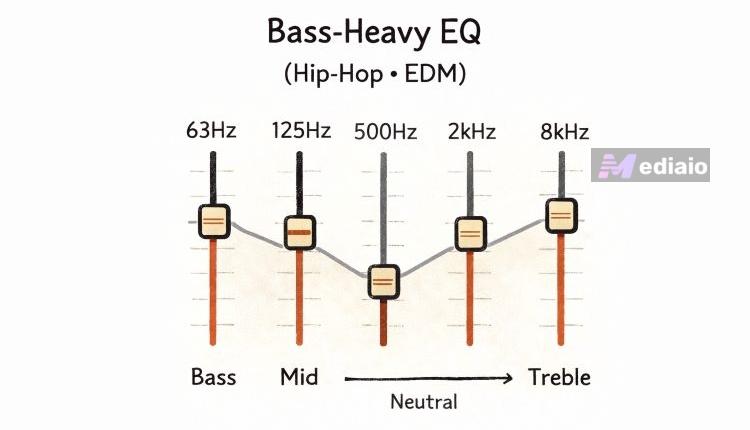
For bass-heavy music (hip-hop, EDM):
Increase 63 Hz or 125 Hz slightly. Keep mids neutral. Add a small treble lift for clarity.
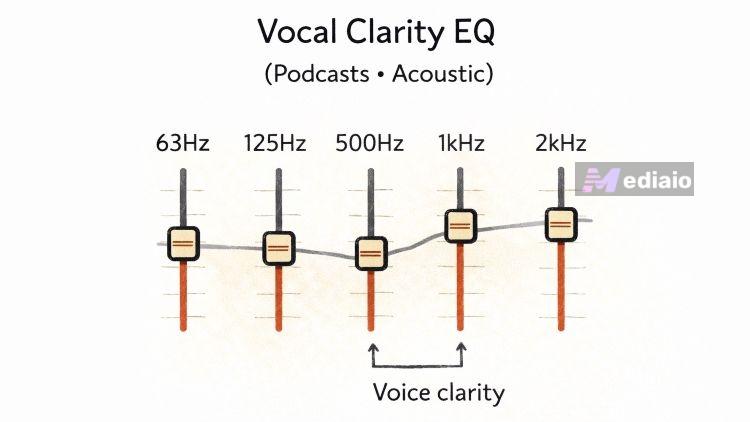
For vocal clarity (podcasts or acoustic songs)
Raise 1–2 kHz slightly. Voices will become clearer and easier to understand.
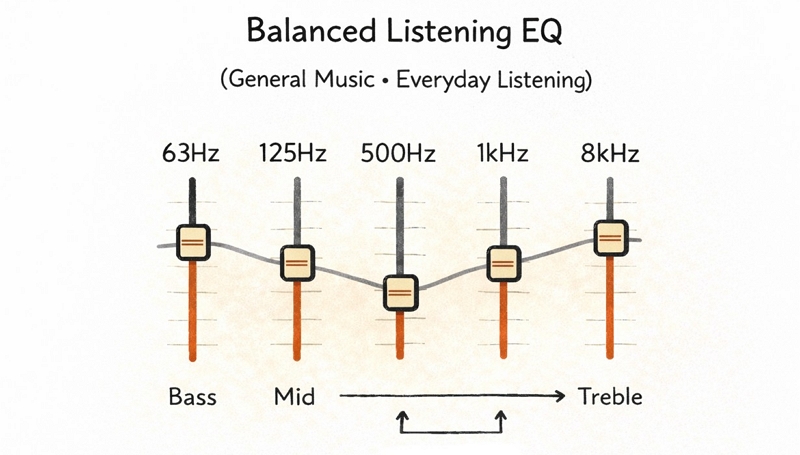
For balanced listening
Use a gentle V-shaped curve. Add a small bass boost and a small treble boost and leave mid frequencies close to zero.
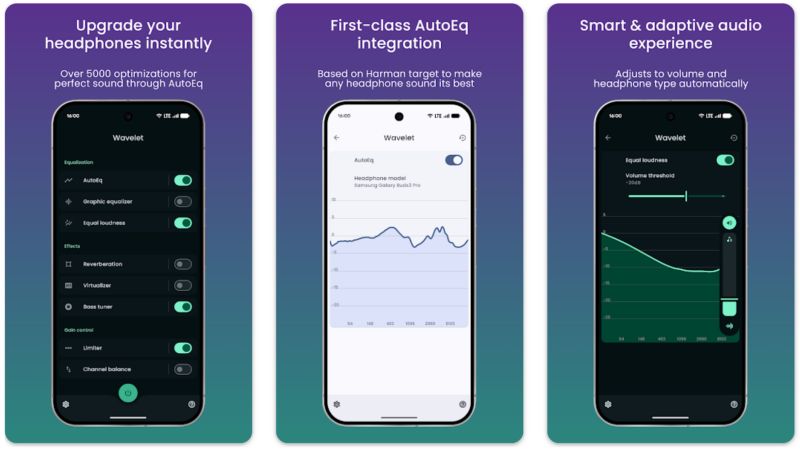
Manual EQ can still feel complicated. So another option is to use a third-party tool like Wavelet. It can automatically apply the best settings for the headphones you use.
Or, you can search online for “best EQ settings for your headphone model” together with the genre you listen to on YouTube Music. Many audio communities share ready-made equalizer curves that you can try immediately.
How to Change YouTube Music Equalizer on PC/Mac
The best way to use an equalizer for YouTube Music on Mac and Windows is to convert YouTube Music to local audio files. Then, you can play them in apps that include a powerful customizable equalizer, such as VLC Media Player.
Here is how to do it.
Step 1. Save YouTube Music Songs Locally
To do this, you will need Mediaio Audio Converter. It is a dedicated converter to save YouTube Music tracks into local formats: MP3, M4A, FLAC, WAV, etc. So, you can open them easily in VLC Media Player and adjust the EQ however you want.
The download process itself is simple. Mediaio comes with a built-in YouTube Music player. That means there is no need to copy and paste individual URLs between browser tabs. You can easily log into your YouTube Music account inside the interface, browse your library, then drag the playlist you want to convert. And Mediaio will process everything in the format you choose.
Step 2. Adjust Equalizer for YouTube Music in VLC
Now comes the equalizer part. VLC includes a 10-band graphic equalizer, giving far more control than the simple EQ panels you usually see on phones. Here is how to access it and set your profile.
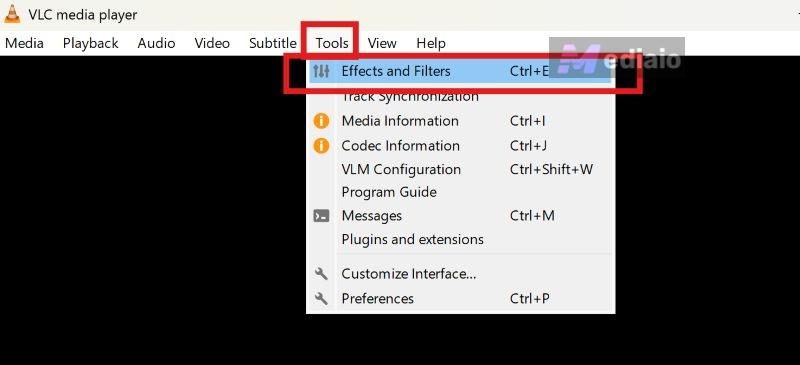
1. Open the audio effects panel. Go to Tools > Effects and Filters. Or press Ctrl + E or Cmd + E.
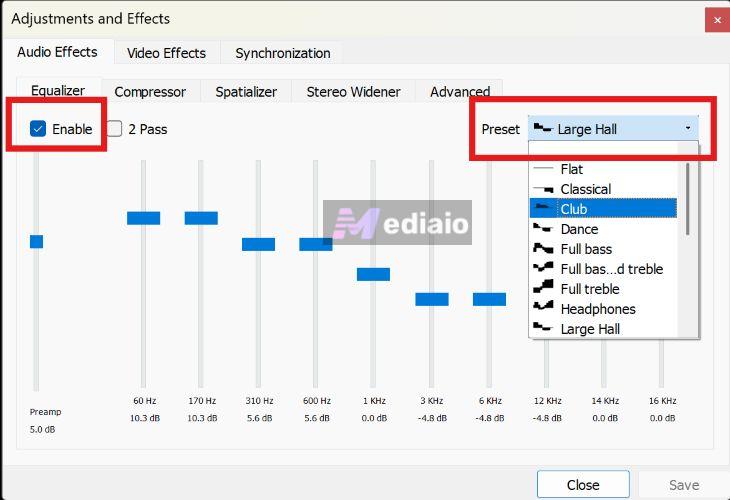
2. In the Equalizer tab:
- Check the Enable option. This activates the equalizer.
- Use the Preset drop-down menu. Try profiles like Classical, Club, or Dance.
- Or adjust the frequency sliders manually. Move them as you prefer to shape the sound.
3. Click Save, so VLC remembers your configuration.
Now open the YouTube Music tracks you saved with Mediaio and start playback. The difference will become noticeable immediately — richer sound and better balance, depending on the equalizer profile you selected.
How to Adjust YouTube Music Equalizer on iPhone
On iPhone, Apple includes a dedicated EQ inside the main Settings app, but the built-in EQ will only apply to audio played through the Apple Music app.
So the workaround is to use Mediaio Audio Converter again. Since it converts YouTube Music into local formats (MP3 or M4A) with proper metadata, you can play them through the Apple Music app. And because they are local files, you do not need an Apple Music subscription. Here is how the process works.
Step 1. Transfer Local YouTube Music to iPhone
There are several ways to transfer the files. The easiest method is the wired connection, which works even for free users. It is also the fastest and completely free.
All you need is the charging cable. Connect one end to the computer and the other to the iPhone. Then follow these steps:
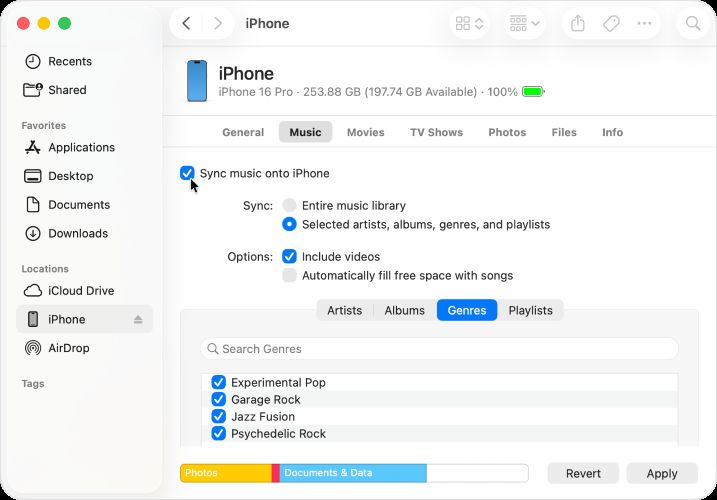
On Mac (using Finder):
- Open a Finder window and switch to the Music tab.
- Enable Sync Music.
- Select the songs or folders you want to transfer.
- Click Apply.
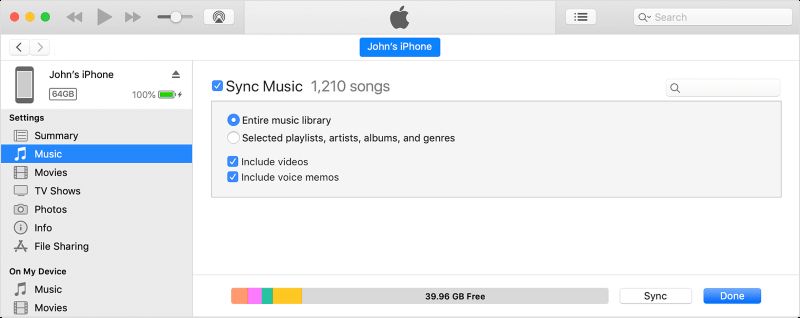
On Windows (using Apple Devices or iTunes):
- Select the iPhone icon from the top-left.
- Open the Music section and check Sync Music.
- Choose the folders containing the converted YouTube Music files.
- Click Apply to start the transfer.
Step 2. Change Equalizer for YouTube Music in Settings
Now apply the equalizer:
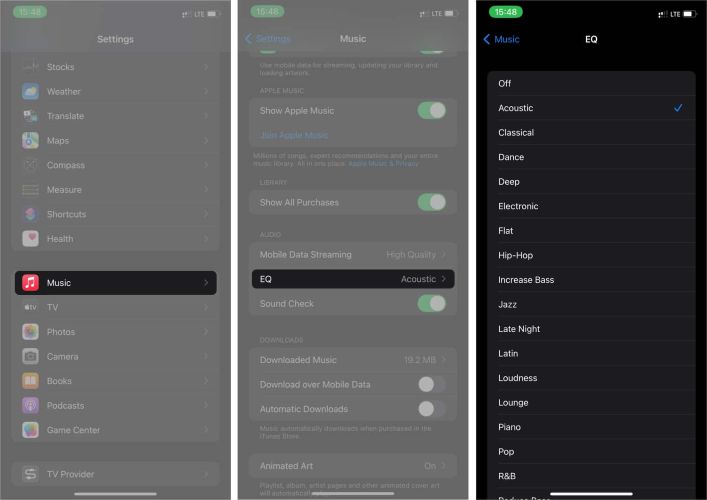
- Open the Settings app.
- Scroll down and tap Apps > Music (or Music directly).
- Tap EQ from the Audio section.
You will see more than 20 preset profiles here. You can choose the preset that fits the type of music. For example:
- Bass Booster or Dance — works well for bass-heavy tracks (EDM, trap, or hip-hop).
- Acoustic or Vocal Booster — good for acoustic covers or live sessions (something YouTube Music is full of).
- Late Night — useful for lo-fi beats, study music, or softer background tracks.
To see how the changed EQ settings affect the audio:
- Open the Apple Music app.
- Go to Library and play the transferred songs.
The EQ profile will automatically apply to the YouTube Music tracks.
How to Change YouTube Music Equalizer on Web
On the web, you will have to use a Chrome extension if you want an equalizer while listening to YouTube Music.
A quick search will land you on many Chrome extensions. In fact, you will find hundreds of them. But the thing about most of these extensions is simple. They intercept the audio before it leaves the browser tab, and then apply their own digital filters. Sometimes that works fine. But many times it can slightly muddle the original sound fidelity.
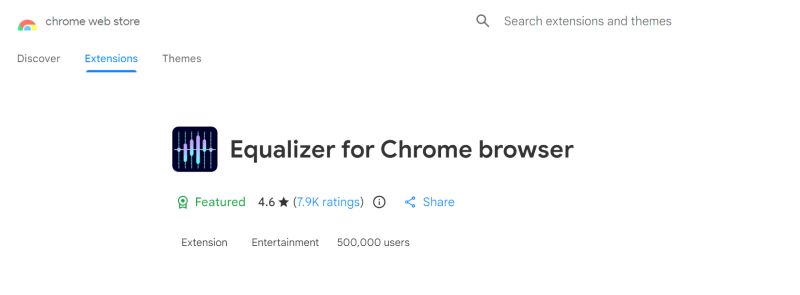
Still, if you are on a restricted work computer, a browser extension becomes the easiest option. One simple tool is Equalizer for Chrome Browser. It is lightweight and works directly with YouTube and YouTube Music. It provides preset profiles as well as manual sound sliders if you want finer control.
Steps to Adjust YouTube Music Equalizer on Chrome
Step 1. Search “Equalizer for Chrome Browser” in the Chrome Web Store and click Add to Chrome. The extension will be installed.
Step 2. Play the YouTube Music track you want in the browser.
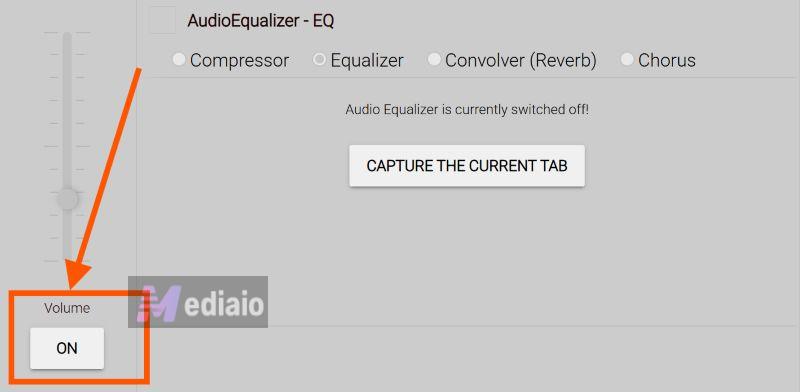
Step 3. Click on the extensionicon. Click On to access the equalizer panel.
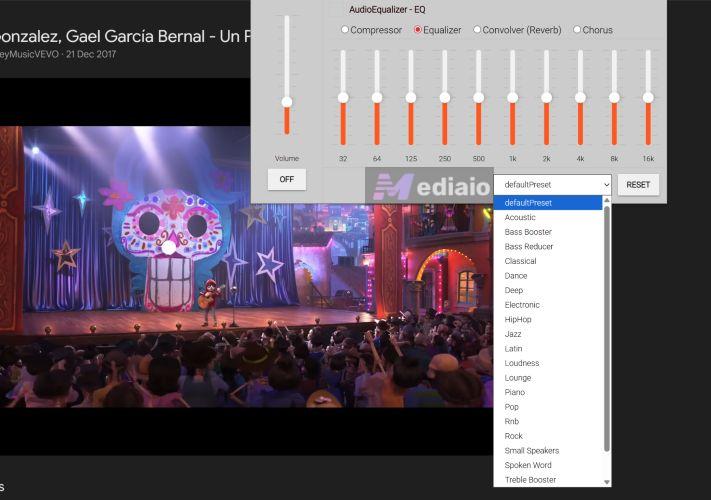
Step 4. Choose a preset from the default preset list. Or, move the frequency sliders manually. The YouTube Music audio will change in real time, depending on the profile you select.
Other Tips to Make Audio Quality Better on YouTube Music
Here are a few simple settings inside YouTube Music you can adjust, so the output is closer to the original source quality.
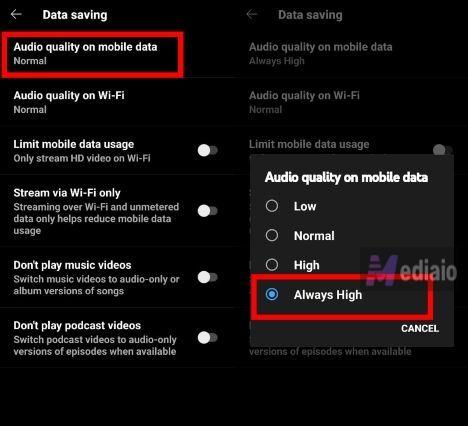
1. Keep streaming quality set to High
By default, YouTube Music usually runs at Normal quality (128kbps). That saves data, but the sound will lose detail. You can change it easily:
- Tap the profile icon.
- Open Settings.
- Choose Downloads & storage or Data saving.
- Under Audio quality, select High (or Always High if you have Premium).
This allows the app to stream songs at a higher bitrate.
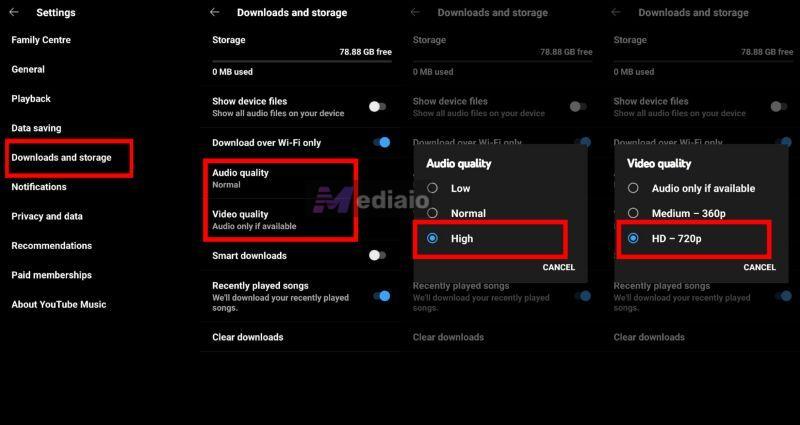
2. Match the offline download quality
If you download songs for offline listening, set the download quality to the same level. Inside Downloads & storage, locate Download quality and select High.
Otherwise, the downloaded songs will still play in lower quality even if streaming is set higher.
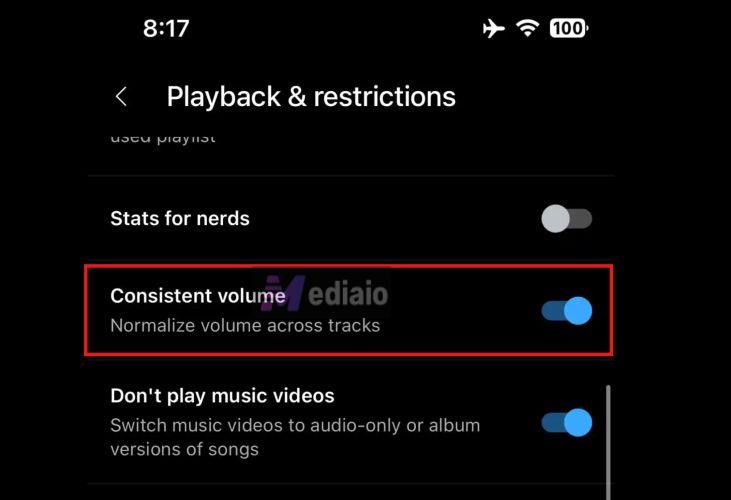
3. Disable volume normalization
Another setting that affects sound is Consistent volume. Here’s how to toggle it off:
- Go to Playback & restrictions.
- Turn off Consistent volume toggle.
This feature keeps all tracks at roughly the same loudness. The problem is that it compresses the dynamic range of music. Turning it off will restore the natural loud and soft parts that the artist and producers intended.
4. Upgrade your listening hardware
No amount of EQ tweaking will help unless you have a good listening hardware. So, invest in better headphones or speakers.

To Sum Up
So here’s the simple answer. YouTube Music does not have an equalizer of its own. Android users can still affect YouTube Music audio from the device settings. On other platforms, however, you will need another method.
Mediaio Audio Converter is the practical option. You can convert YouTube Music tracks into MP3 or other local formats first. From there, you can play them via any app like VLC that comes with a robust EQ.