

New to YouTube Music and want to create your first playlist? You’ve come to the right place! This guide will show you several ways to create a YouTube Music playlist, including how to build one with friends. It also covers how to add songs while a track is playing or when you sit down to collect music that matches a certain energy or BPM. Beyond creation, you will see how to edit your playlists, from moving songs around to adjusting privacy. At the end, you will learn how to download your playlists for offline listening.
How to Create a Playlist on YouTube Music [iPhone/Android]
Here, we’ll focus on the YouTube Music mobile app and show you two ways to create a playlist: creating a playlist as you listen or creating one directly from your library. Here is how both approaches work.
Method 1: Create a Playlist from Now Playing Screen
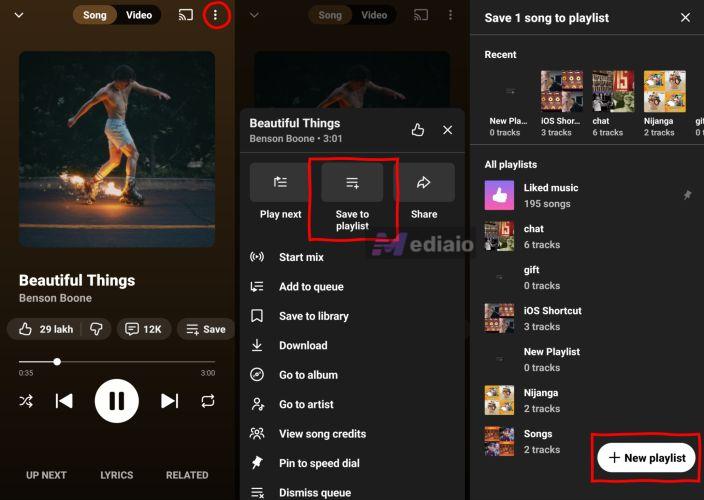
Use this method to add the currently playing track to a new YouTube Music playlist:
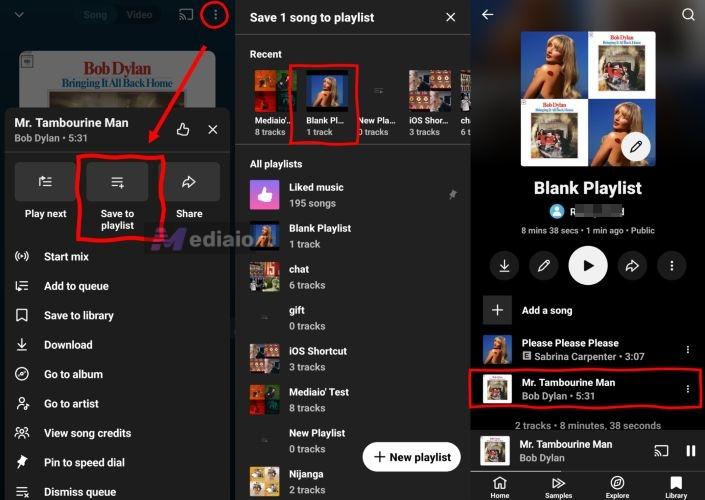
Step 1. Tap the three-dot menu on the Now Playing screen.
Step 2. In the panel that opens, choose Save to playlist.
Step 3. Choose New playlist.
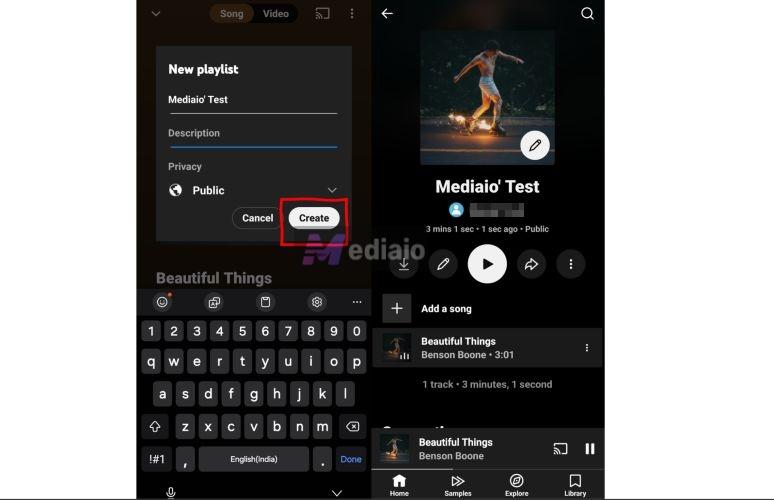
Step 4. Type a name for the playlist. Add a description if it helps. Pick whether it should be private or public. Then finish with Create.
You will immediately be taken to the new playlist, with that song already inside it.
Method 2: Start a Playlist from Your Library
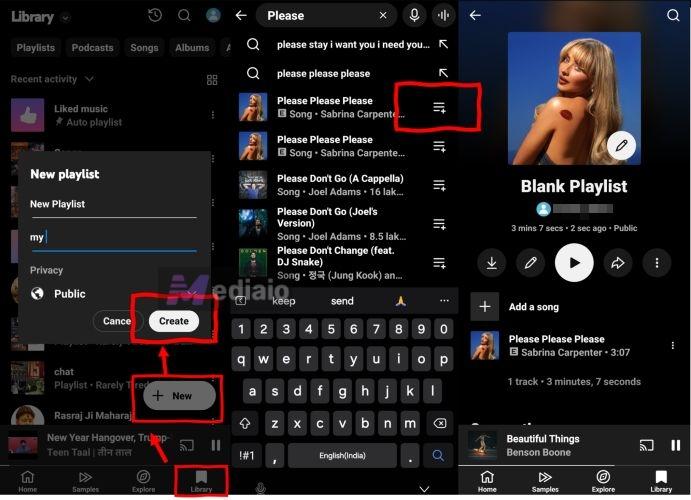
The other option is to create a blank playlist first. Then add tracks to it later. Here are the steps:
Step 1. Switch to the Library in the YouTube Music app.
Step 2. Tap the New option. From the choices that appear, select Playlist.
Step 3. Give it a name, add a short description and set the privacy level. Then complete it with Create.
The playlist now sits in your Library. You can add tracks either via searching the songs or by adding as you go.
How to Create a Playlist on YouTube Music [PC/Mac]
You get two options on the YouTube Music desktop or web player too. One is to use the menu options (three-dot menu). The other is to use the New playlist button in the sidebar. Here is how each one works.
From a song, album, or playlist
Every track and every collection has its own control menu. That menu is the shortcut.
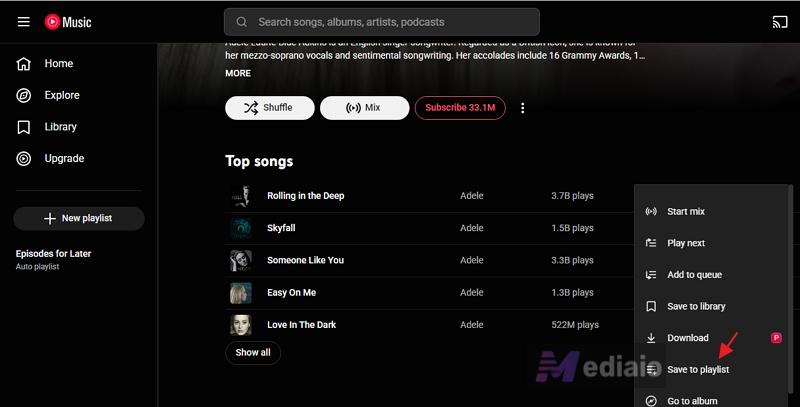
Step 1. Hover over the song, album, or playlist. The three-dot icon appears.
Step 2. Choose Save to playlist. That panel lets you drop the music into an existing or new playlist.
That’s all!
From the sidebar
This is the cleaner way when you want to create a playlist before choosing any music.
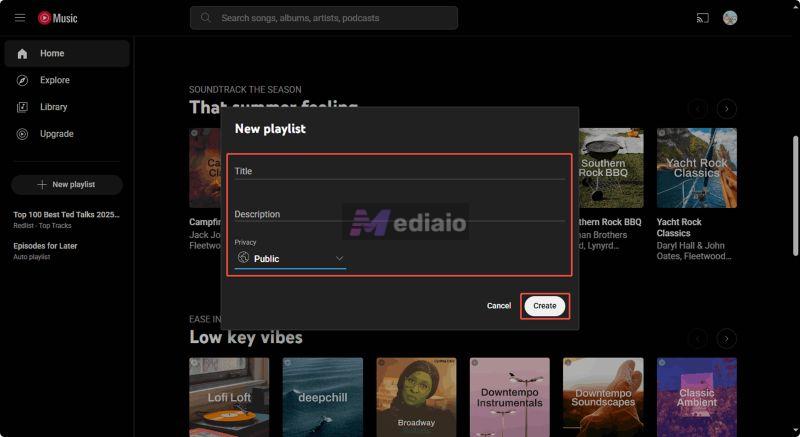
Step 1. Open the left menu using the three-line icon. Then, hit New playlist.
Step 2. A small creation window appears. After you name it and confirm, the playlist will show up immediately in the sidebar and in your Library.
How to Edit a Playlist on YouTube Music
YouTube Music also gives you many editing options to make your playlist the way you want it to look and feel. For instance, you can change the name of a playlist.
The default 2×2 cover made from the first few songs can also be replaced. The order of tracks is changeable too, and you can add or remove songs at any time. That is what this section covers.
Add or Remove Songs
YouTube Music playlists can hold up to 10,000 tracks. The Liked Songs list now reaches the same limit. So, you can collect entire moods, genres, or years without worrying about hitting a ceiling. At the same time, you can remove the songs which don’t match your taste.
On Mobile
The mobile interface works best when you are adding songs while listening. It is not built for removing a lot of tracks at once. For clearing out just a few songs, though, it is often faster than the desktop site. So let’s look at how it works.
To add tracks to playlists:
There are many ways to add a song. The simplest one:
- Use the three-dot menu beside a track.
- Choose Add to playlist.
- Pick the playlist you want.
The other one is to use the Add a song button:
- Open the playlist page.
- Tap Add a Song.
- Search the track name.
- Click the + button to add it to the playlist.
Expert Tip:
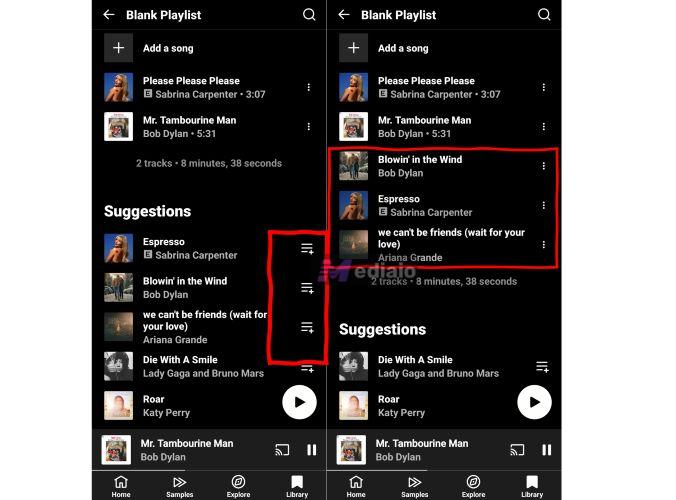
When you open a playlist, YouTube Music shows matching songs below it. These usually come as five to ten suggestions based on the BPM and genre of what you already added. Scroll down and use the plus icon beside any of them to add the track instantly.
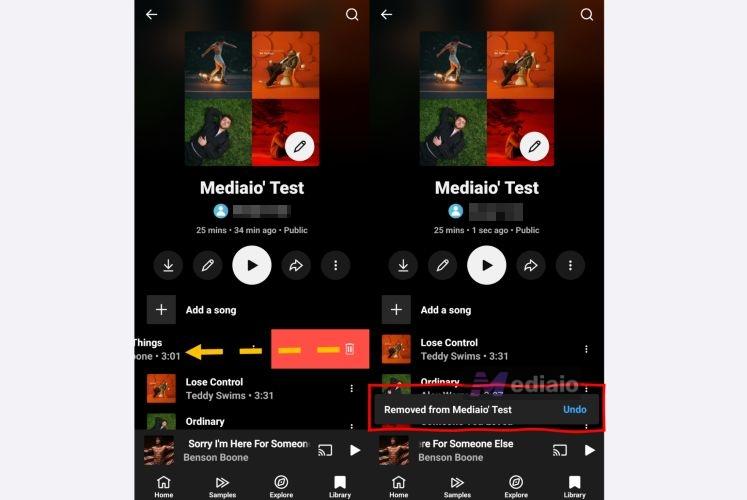
To remove tracks from playlists:
- Open the playlist.
- Slide the unwanted song to the left. That gesture is the fastest way to delete a track from the playlist.
The same action is also available from the three-dot menu: Remove from playlist works anywhere you see a song row.
On Desktop
Follow these steps when on the desktop version of YouTube Music:
To add a song to your playlist:
The main route runs through the three-dot menu.
- Open the menu next to a song, an album, or even a playlist.
- Choose Save to playlist.
- Pick the playlist you want.
There is no dedicated “Add a song” button on desktop. Compared to the mobile app, the interface is more limited, so the three-dot menu is the primary way to send music into a playlist.
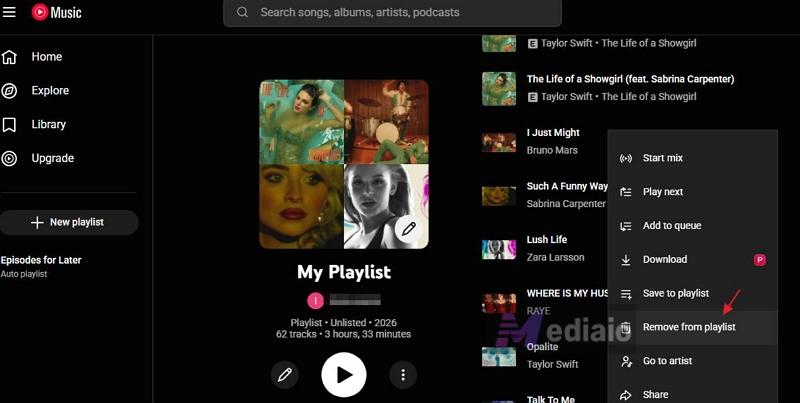
To remove a song from your playlist:
You can remove tracks in two ways.
To delete single track, click the three-dot menu next to it and choose Remove from playlist.
To delete more than one track:
- Click once on the empty space beside a song row, not on the song name itself. This reveals a checkbox next to each track.
- Mark the songs you want gone, then press Delete in the bottom bar. The selected tracks disappear from the playlist right away.
Change Playlist Cover
By default, YouTube Music builds your playlist cover from the first four songs in the list. If there are fewer tracks, it will show just one album image instead. This auto-generated collage doesn’t always represent the mood of your music. Thankfully, you can replace it with a custom image (except for the Liked Songs list).
Always use a square image. For the best quality, the image should be at least 300 × 300 pixels. Non-square photos will get cropped awkwardly.
On Mobile
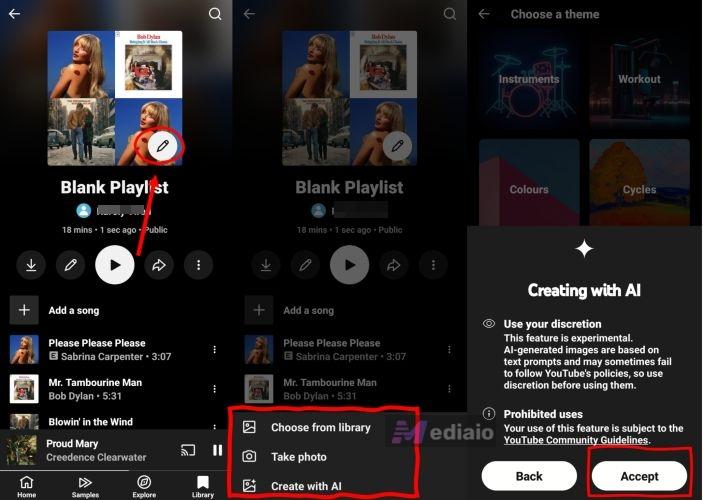
YouTube Music mobile app now gives you three ways to do that: upload a photo, take one, or generate one with AI.
Step 1: Open the playlist.
Step 2: Click the pencil icon on the cover. Pick how you want to change it from the bottom menu.
- Choose from library – upload an image from your phone or computer.
- Take photo – use your camera.
- Create with AI – generate a cover inside YouTube Music.
Using the AI Cover Generator (2026 feature)
If you choose Create with AI, YouTube Music shows themed styles such as:
- Workout
- Instruments
- Colours
- Cycles
- And more
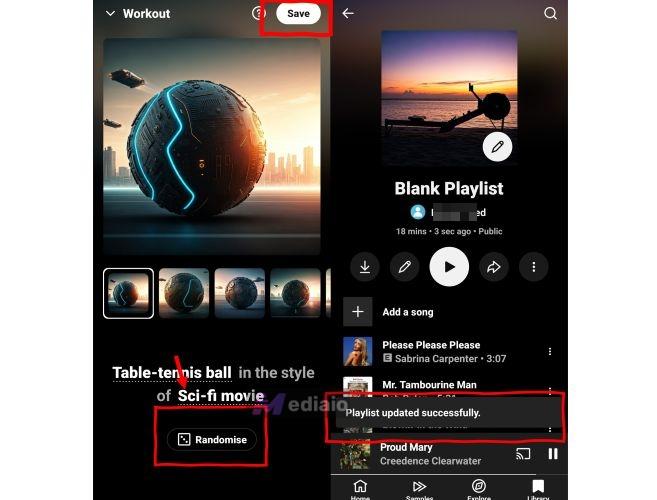
You can also use style categories like Nature, Animals, Travel, or artistic looks like Medieval, Gothic, and Pop Art. After a style loads, a set of AI-generated images will appear. The Randomise button creates new variations if you do not like what you see.
Step 3: Once you insert an image you like, press Save. A message will appear saying Playlist updated successfully and the new image becomes your playlist cover.
On Desktop
On your computer, YouTube Music does not offer the AI cover generator yet. You can only use your own image from your local storage.
- Go to the playlist page in YouTube Music.
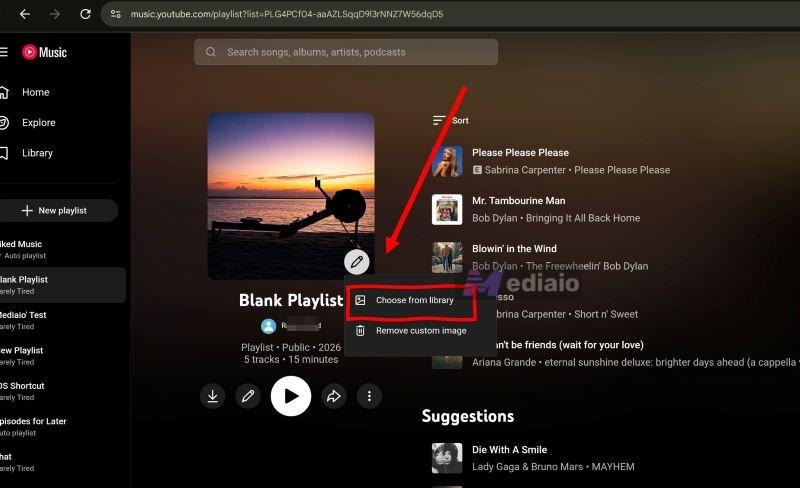
- The pencil appears directly on the playlist cover image. Click it.
- Click Choose from gallery (or similar upload option). A file picker will open to show all JPEG and PNG images on your computer.
- Choose one and confirm. The playlist cover updates immediately.
Modify Playlist Info
A title like “My Mix 4” does not tell anyone what a playlist is about. If you want people to follow it, change the name. Plus, it’s recommended to add a short description.
On Mobile
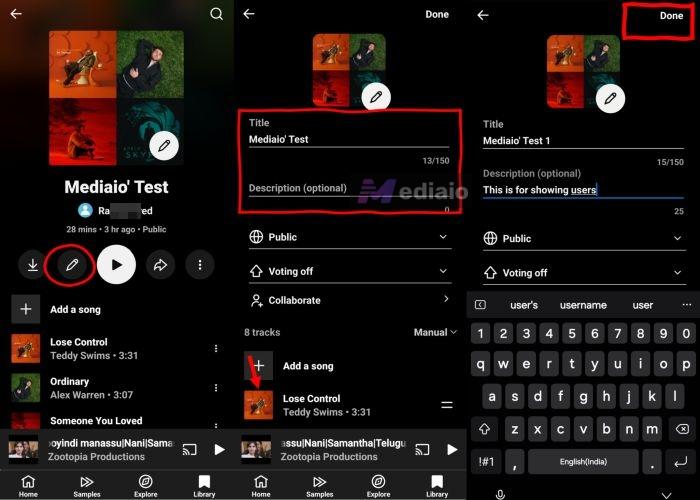
There are two pencil icons in the playlist screen. For editing the name and description, use the one below the playlist details (not the one on the cover image). Here are the steps:
- Tap the pencil icon under the playlist title.
- Edit the text fields.
- Touch the Title field to rename the playlist.
- Touch the Description field if you want to add or change it.
Note: The description can be left empty, but YouTube’s search system reads this text. Adding words like focus or workout helps other people discover it.
- Hit Done in the top-right corner to complete the edit.
On Desktop
The playlist details live in the left panel next to the cover and play button.
- Click the pencil icon near the playlist details.
- The edit box opens directly on the page. Type your new title and update the description.
- Press Save to apply the changes.
Make Your Playlist Public, Unlisted, or Private
YouTube Music offers three privacy levels for playlists. You can let everyone find it, keep it link-only, or lock it so only you can view it. Here’s how to adjust that.
On Mobile
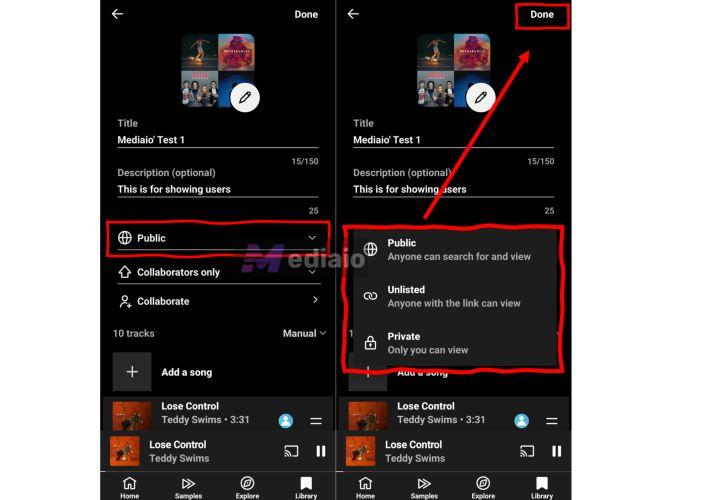
This option sits inside the Edit menu which can be accessed by clicking the pencil icon you used to change the name and description.
Step 1: Open the Edit menu.
Step 2: Find the Privacy drop-down.
A small selector shows the current status. Tap it to reveal three choices and choose among them:
- Public – Visible to everyone on YouTube and YouTube Music. It will show on your channel.
- Unlisted – Anyone with the link you share can open it. It will not be shown in search or your channel.
- Private – Only you can see it. Even if you send the link to someone else, it will not open.
Step 3: Tap the Done button.
On Desktop
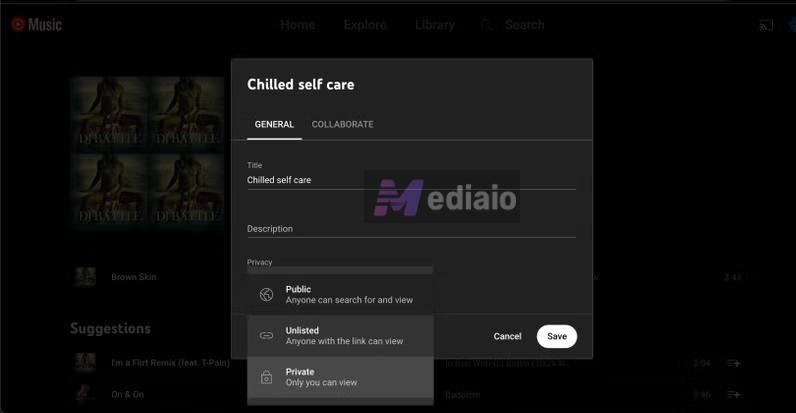
- Click the Edit playlist icon.
- Open the visibility drop-down.
- Choose Public, Unlisted, or Private and choose Save.
The new visibility setting applies instantly on both desktop and mobile.
Make a Collaborative Playlist
This turns a solo playlist into a group project. It allows your friends to add tracks, remove the ones they hate, and reorder the queue (like based on votes). It is the perfect feature for road trips or party prep.
Note: Collaboration only works with Unlisted or Public playlists.
On Mobile
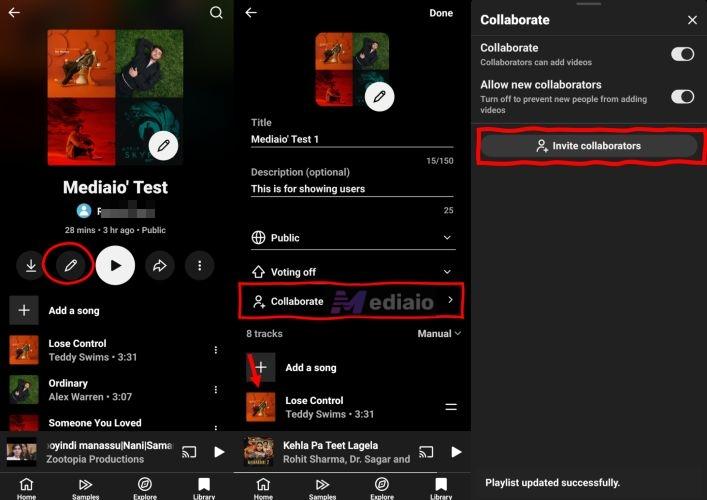
1. Open the playlist and tap the Pencil icon.
2. Tap the Collaborate button.
3. Toggle on "Collaborators can add songs and videos".
4. Tap Share Link. You can text this directly to friends or drop it in a group chat.
The Risk: Remember, collaborators have full power. They can delete your songs too.
To Revoke Access: If the playlist gets ruined, come back to this menu and toggle off "Collaborators can add songs". The link will instantly stop working for everyone.
On Desktop
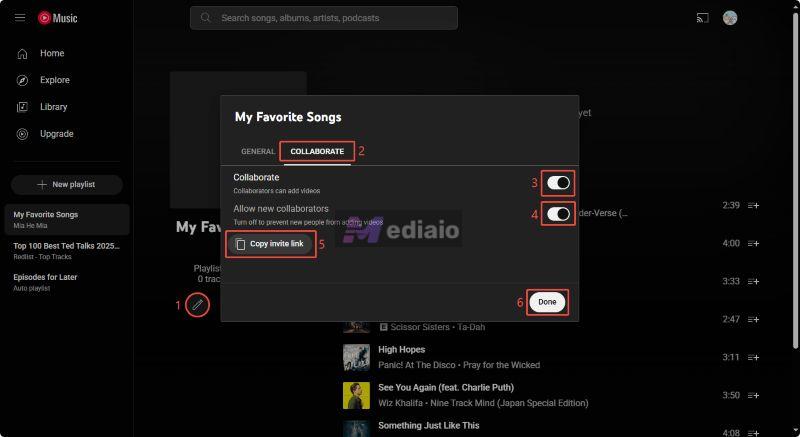
The desktop interface keeps the collaboration settings inside a dedicated tab within the edit window. Here’s how to access it:
1. Click Edit playlist.
2. Click the Collaborate tab at the top of the pop-up window.
3. Toggle the switch to enable collaboration.
4. Click Copy link to save the URL to your clipboard.
You will see a list of avatars of everyone who joins the playlists. It will also appear next to each song.
Reorder Songs in Playlists
Re-ordering the tracks takes a bit of time, but it gives control over the flow of the music. For instance, using the default Sort options or even the Shuffle button will change the order, but they often drop a slow ballad right after a high-energy rock track. That is why manual reordering becomes useful whenever you add new songs. Here’s how to do it.
On Mobile
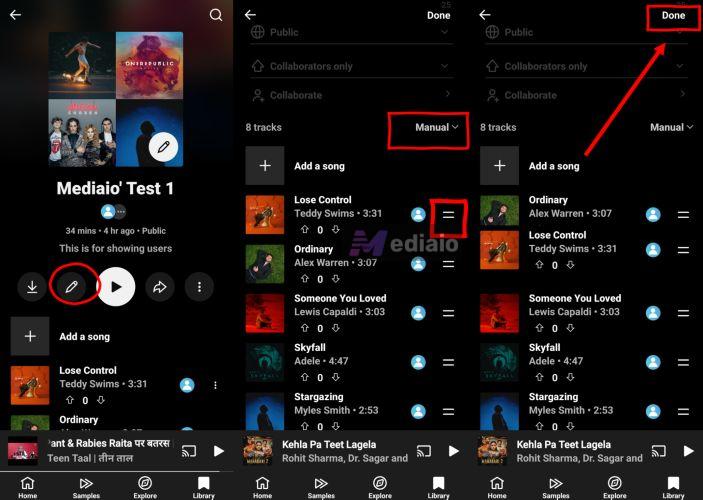
Re-ordering tracks on the YouTube Music mobile app can be annoying on long playlists (100+ songs), as dragging is not that smooth. Still, there is an option:
1. Tap the Pencil Icon.
2. You will see two gray lines (handlebars) next to every song.
3. Press and hold the handle, then drag the song up or down.
On Desktop
This is where the mouse shines:
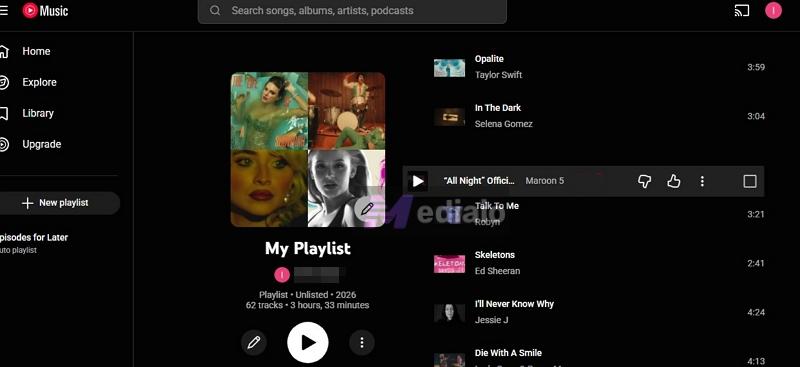
1. Open the playlist (no need to enter "Edit" mode).
2. Hover over the left side of any track until your cursor turns into a Hand.
3. Click and drag the song.
The list will scroll smoothly, making it easy to move a song from #50 to #1 in seconds.
Delete Playlists
Follow these steps when you want to remove a playlist from your library:
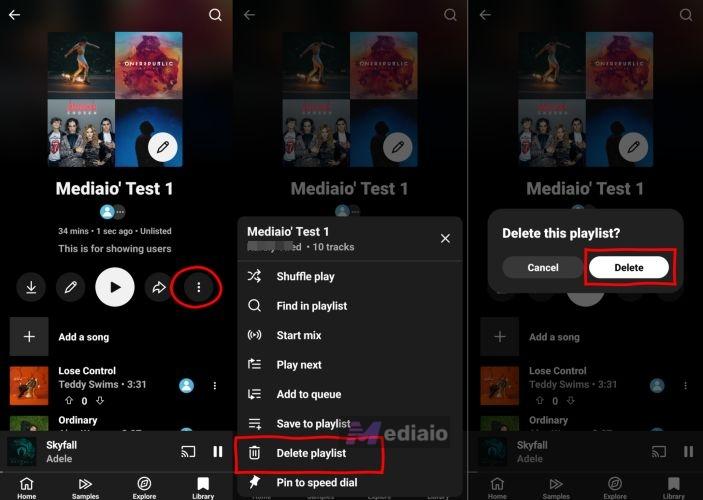
On Mobile
1. On the playlist page, tap the three-dot menu next to the download arrow.
2. Select Delete playlist.
3. Confirm the prompt.
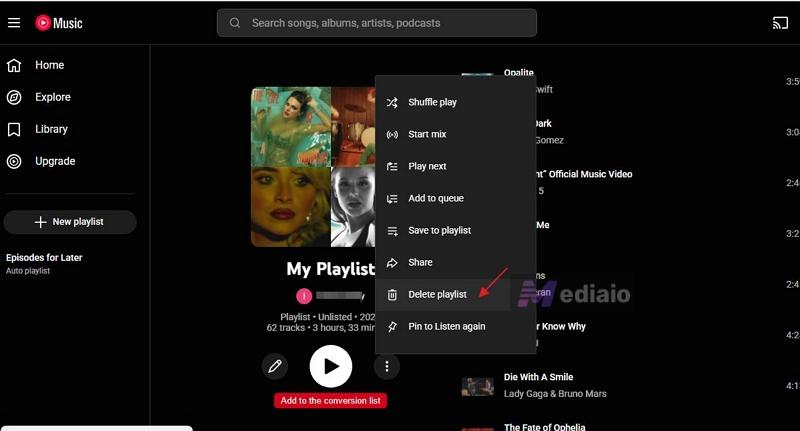
On Desktop
1. Open the playlist from the sidebar.
2. Click the three-dot menu under the playlist header info.
3. Click Delete playlist. It will vanish instantly.
How to Download the YouTube Music Playlists You Created
You cannot always rely on your internet connection to stream a playlist. When you are on a plane, in the subway, or trying to save mobile data, downloading your mixes becomes necessary.
Download YouTube Music Playlists with Premium
Option 1. Use YouTube Music App
Google does not limit how many songs you can download for offline listening, but it does require an active Premium subscription. You will also need to go online at least once every 30 days, so Google can verify your subscription and keep the downloads active. When that check fails or if your subscription expires, the download will stop working. Plus, these downloads are encrypted, meaning they will only open inside the YTMusic app.
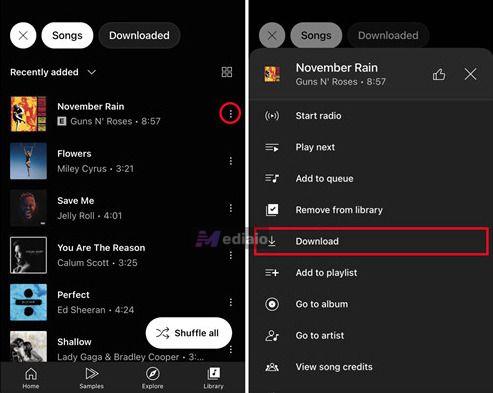
Step 1. In the playlist you want to download, tap the download icon in the playlist header.
Step 2. The icon starts spinning (meaning downloading) and turns solid white once all tracks are saved.
After that, head to the Library and apply the Downloaded filter to see everything you saved for offline listening.
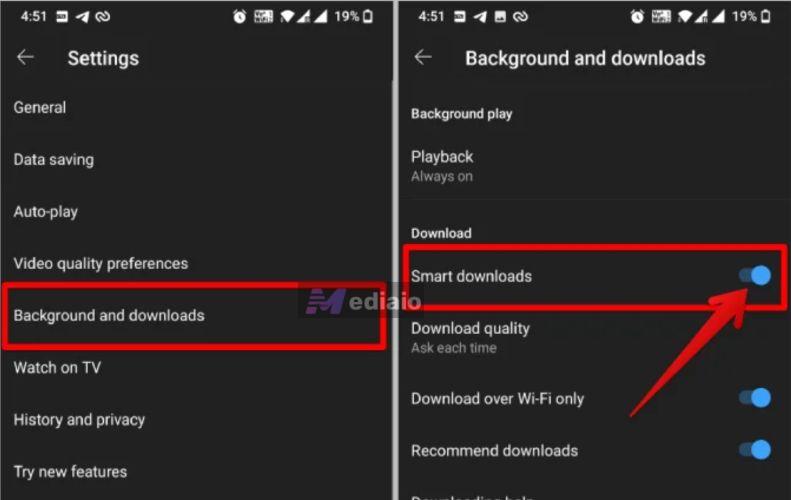
Note: There is also a Smart Downloads feature in YouTube Music. Once enabled in Settings, it keeps your top tracks saved automatically, up to 500 songs.
Option 2. Use Audio Converter
If you want to play your YouTube Music playlists on an old MP3 player or transfer them to a USB drive for the car, the official app will not help. YouTube Music does not let you export the downloads or play them in other media players. That is where the Mediaio Audio Converter comes in.
Mediaio is a dedicated YouTube Music downloader with a built-in YouTube Music web player. You sign in with your YouTube Music Premium or free Google account, then bring in any songs or full playlists you want for downloading. This works far better than using online tools that force you to paste one link at a time.
Conclusion
That’s how simple it is to create a playlist on YouTube Music. This guide also shows you how to manage the playlist exactly as you want.
When it comes to downloading your playlists, you have two paths. You can either use the Premium route if you just want to play the music on the mobile app. The Mediaio option works better when you want to export the music for personal use, keep an offline copy as a long-term backup, or play the files on your computer or other devices.