

Wondering how to download music from Spotify to a computer? The answer depends on what you need from the download. Spotify's built-in option works for offline listening, while MP3 conversion offers different ways to save Spotify music on your computer. In this guide, we will explore these methods, explain how they work, and help you find the most suitable way to download Spotify music based on your needs.

Please use the downloaded MP3 audio for personal use only.
Download Music from Spotify to Computer: In-App Downloads vs. MP3 Files
How to Download Music from Spotify to Computer with App
Spotify Premium lets you download songs, albums, and playlists directly within the desktop app for offline playback. Its downloads are stored on your computer as cache files and only can be played via the Spotify app.
You May Also Need
How to Download Spotify Music with the Desktop App
- Launch the Spotify desktop app and sign in to your premium account.
- Open the album or playlist containing the songs you want to save for offline listening.
- Click the Download icon next to the album or playlist banner. Spotify will begin downloading the available songs.
- Go to Your Library > Downloaded to find your downloaded music for offline listening.


Where Are Spotify Downloads Stored?
You can uncover their location by heading to Settings in the Spotify desktop app. Then, look for the Local Storage section, and you’ll find the precise file path where these cached files are kept.

When you access the folder where saves the Spotify downloads, you will see a chaotic collection of files with randomized names.

How to Download Music from Spotify to Computer as MP3
We’ll cover two practical approaches to download Spotify music to your computer’s storage: desktop software and quick online tools. Let’s dive into them one by one.
Way 1. Use Desktop Music Downloader
On Mac or Windows, MedVioo Audio Converter is all you need to save high-quality Spotify tracks as local files. The local Spotify songs saved by MedVioo could be in MP3, M4A, WAV, FLAC or others. Every local track is the same as it on the native Spotify from the sound quality to metadata. Song titles, album names, artist details, every ID3 tag stays intact, down to the last pixel of the album cover, while audio quality reaches 320kbps or lossless quality.
MedVioo gives you the freedom to download as much music as you want. There are no limits. You don’t even need a Spotify Premium account to make it happen. Plus, the integrated Spotify browser allows you to login with your own Spotify account, so you can pick and save your tracks directly within MedVioo.
How to Download Spotify Songs as MP3 on Computer Using MedVioo
Step 1. Download and install MedVioo on your Windows or Mac device. Launch the app and select Spotify from the main dashboard.

Step 2. Log in with your Spotify account, free or premium, to make your library accessible within the app.
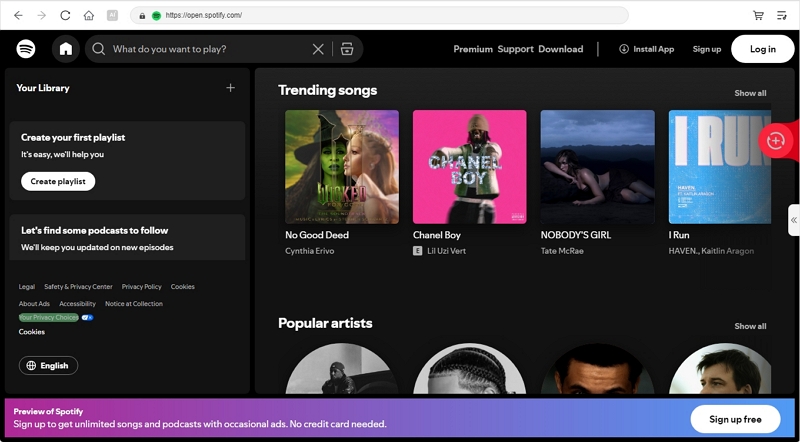
Step 3. Drag and drop your chosen playlists, albums, or songs onto the plus icon at the middle right. Whether it’s your personal collection or Spotify-curated playlists, you can add everything with ease.

Step 4. The songs will be lined up on the Converting tab. You can click Convert All to directly export them as MP3.
To customize the output settings, expand the Converting section. At the bottom left, you’ll find the Output option: click on Browse to select your preferred folder for saving the downloaded files. You can also adjust the format for all tracks by using the Convert all files to option, or modify the format for individual tracks as needed. When ready, click on Convert All to start exporting your Spotify songs to your computer.

Way 2. Use Online Music Downloader
SpotMate is one of the popular online Spotify music downloaders.It downloads Spotify music in clear and stable sound quality. However, it can’t retain the full song tags and can’t process the song downloads efficiently. Yet, every track must be downloaded one at a time and there’s no batch processing to faster the downloading process. Besides, the site itself is ad-heavy, just like other online converters.
Key Features
- Deliver audio quality, ranging from 128kbps to 320kbps.
- Source tracks from YouTube and YouTube Music, making it ideal for one-time use.
- Free to use, with no hidden cost or subscriptions.
- Feature a dedicated Android app on the Play Store.
How to Download Music from Spotify to Computer with SpotMate
Step 1. Open the Spotify playlist or song and copy its link to your clipboard.

Step 2. Head over to the spotmate site in your browser. Drop the playlist or song link into the input bar at the center of the page. When you’re ready, click the Start button to kick things off.

Step 3. On the next screen, the playlist banner or song cover will appear up top, with tracks waiting below, each paired with its own Convert button. Hit the button to proceed.

Step 4. After clicking Convert, the button will changed to Download. Save each song individually by clicking its corresponding button.

Step 5. A prompt will ask where to store the music. Choose a folder on your computer and confirm.

Keep in mind: Only the song names will be saved. Cover art and metadata won’t be included.

How to Save Spotify Music to Computer Without Downloading It
Recording tools offer another way to export Spotify music as local files and save it to your computer storage. As the audio plays, you can record each track individually in the same quality you hear. Remember, you cannot remove interruptions in a song like ads. Plus, the process will require manual effort. However, for those who are unwilling to rely on downloading, recording is a dependable option.
Let’s explore two audio recording tools for save Spotify music locally.
Way 1. Use Eassiy Screen Recorder Ultimate
Eassiy Screen Recorder Ultimate is a desktop tool best known for its powerful screen recording capabilities, but its audio recording features are equally impressive. It can capture conversations, system audio, and microphone sound, making it a practical option for recording Spotify music. After recording, you can trim unwanted sections and enhance the audio quality.
How to Record Spotify Music with Eassiy
Step 1: Open Eassiy Screen Recorder Ultimate on your PC and choose the Audio Recorder mode. Enable System Sound to capture the audio from the live stream.

Step 2: Click Settings above the Microphone icon, then select Preferences > Output. From there, choose an audio format, such as MP3 and set the audio quality to High for better sound quality. Click OK to apply and save your settings.

Step 3: Play the Spotify song you want to record. Then click the REC button to begin. During the recording, you can use the toolbar to adjust the volume, pause, or stop the process.

Step 4: Once the recording is complete, edit the audio if needed. Then, locate the recording in the right pane and click the folder icon to reach where it’s saved.

Way 2. Use Audacity
Audacity extends far beyond simple audio recording. Still, at its heart, it’s a benchmark for capturing system audio.
Recording on Windows is straightforward. It taps into the WASAPI (Windows Audio Session API) to route audio directly from your speakers into the software. macOS setup requires a bit more work. You’ll need virtual drivers like Soundflower or Loopback to get the system audio into Audacity. On Linux, it’s the same story, you’ll need additional tools to make it happen.
Coming to the recording features: a lot of features come with the installation and there’s plugins to increase the functionality. You can schedule recordings, adjust audio effects, or monitor inputs in real time. However, make note that the final quality will depend on your device’s sound card or chipset. So, don’t expect miracles if you’re using an older system.
How to Use Audacity to Export Spotify Music on Windows
Step 1. Before you can record, set up Audacity. Go to Edit > Preferences. In the Preferences window, find the Host drop-down under the Interface section. Select Windows WASAPI and click OK to save.

Step 2. Hit the red circle at the top to begin recording and start playing the song on Spotify. When the song finishes, stop the Spotify music recording by clicking the rectangular stop button.

Step 3. Click File, choose Export, and set your preferences. Save the recording to your computer by choosing an output format.

Conclusion
All the above methods allow you to download or export music from Spotify to your PC or Mac easily. Each method has its own merits. Online converters provide a quick fix, but they lack consistency in audio quality and metadata.
MedVioo Audio Converter, however, stands apart. It delivers the best of both worlds: unmatched speed, lossless quality, and meticulous attention to detail even in aspects like metadata. MedVioo doesn't even require you to have a Spotify Premium account to save songs offline.